
Google Maps API Succinctly®

CHAPTER 6
Geocoding
Geocoding is the process of turning an address into geographic coordinates that you can use to pinpoint the location of that address on a map. Reverse geocoding is the process in reverse: that is, starting with a map coordinate and trying to work out which physical address is at, or close to, that location.
Note that “address” in this context can be either a full address or just partial information, such as a ZIP code, building name, or so on. The quality of the match depends on the quality of the underlying data, and Google has some of the best data available!
In this chapter, we are going to build two applications. The first will enable users to search for addresses and, if matched, place a marker at that location. The second requires them to click on the map, and it will report the nearest address to where they clicked.
In order to use geocoding, you must enable the Geocoding API using the same process as you used to enable the Google Maps JavaScript API. See Chapter 2 for details.
Using the Geocoder
Before we start building our first application, let’s first talk about the class that makes it all happen: the google.maps.Geocoder class. Like many of the classes in the Google Maps API, the Geocoder is easy to use for simple use cases, but can become more complex by configuring options if your needs are more sophisticated.
To start geocoding, you first need an instance of the geocoder class:
geocoder = new google.maps.Geocoder();
Then you call the object’s geocode() method, passing it a GeocodeRequest object that defines the nature of your request as the first parameter. The very simplest request you can make just sets the address property of the GeocodeRequest object with the address you are looking for.
In the second parameter, you provide a callback function. This is the function that will execute when the results of the geocoding operation are available.
geocoder.geocode( { address: "Big Ben, London" },
function (results, status) {
// process results
}
);
This callback function receives two parameters from the geocoding operation: an array of GeocoderResult objects which, as you have probably guessed, contains the results, and a GeocoderStatus constant, which tells you whether the operation was successful or encountered some type of error.
The GeocoderRequest class
Before we talk about how we unpack the results of the geocoding option, let’s look at some of the other properties you can set on the GeocoderRequest object to configure your search. You can see these summarized in Table 2.
Table 2: GeocoderRequest object properties
Property | Data Type | Description |
|---|---|---|
address* | string | The address to geocode. |
bounds* | LatLngBounds | An area to search within. |
componentRestrictions | GeocoderComponentRestrictions | An object with properties that you can use to restrict the area for the search (route, locality, administrativeArea, postalCode, country). |
location | LatLng | A point on the map. This is how the Geocoder does reverse geocoding. |
placeId* | string | An entry in the Google Places database. This is another reverse geocoding method. |
region | string | Bias the search using the supplied country code. |
Note: Only one of the address, bounds, and placeId properties can be set in a single instance of the GeocoderRequest object.
In this book, we’ll only be using the address and location properties.
The GeocoderResult object
The results are returned to your callback function in an array of GeocoderResult objects. The first element in the array is the best match, with the API having decreasing confidence in any subsequent entries.
Each GeocoderResult object has the properties listed in Table 3.
Table 3: GeocoderResult object properties
Property | Data Type | Description |
|---|---|---|
address_components | Array of | Contains long_name, short_name, and type for each component of the address (route, locality, etc.). |
formatted_address | string | Contains the formatted address data. |
geometry | GeocoderGeometry | The geometry of the result for plotting on the map. |
partial_match | boolean | True if this result was not an exact match. |
place_id | string | The place ID for this location if it is in the Google Places database. |
postcode_localities | Array of string | Breaks down postal codes with multiple localities. |
types | Array of string | The types of each address component (route, locality, etc.) returned in the results. |
Again, we’ll only be using some of these properties in this chapter’s examples, but be aware of the wealth of information being returned by the geocoding operation, some of which might be extremely useful in a future application.
The GeocoderStatus constants
Your callback also receives a value that tells you whether your geocoding operation was successful or, if not, what went wrong. The following are the more common status values you are likely to see:
- OK: The operation was successful.
- ERROR: There was a problem connecting to the service.
- INVALID_REQUEST: The GeocoderRequest object was invalid.
- OVER_QUERY_LIMIT: You have exceeded the number of requests allowed in the period.
- REQUEST_DENIED: The webpage is not allowed to use the geocoder.
- UNKNOWN_ERROR: A geocoding request could not be processed due to a server error. The request may succeed if you try again.
- ZERO_RESULTS: No result was found for this GeocoderRequest object.
Geocoding an address
In this first example, we create a simple address field for the user to enter an address to search for, execute the geocoding operation, and place a marker at the best address candidate returned.
Before you start, you must enable the Geocoding API, which is not enabled by default. You do this in the Google Developer Console. Select the project, search for the Geocoding API, enable it, and then proceed with the following steps.
Begin by copying Ch2_FirstMap.html to create a new file called Ch6_Gecoding.html. Then, add the markup in Code Listing 35 to create an address text box and a button to submit its contents.
Code Listing 35: Creating the Geocoding UI
<body> <input id="txtAddress" type="text" size="60" placeholder="Enter your Address" /> <button id="btnSearch">Search</button> <div id="map"></div> <script> var map; function initMap() { var mapOptions = { map = new google.maps.Map(document.getElementById('map'), } </script> <!-- Reference the API --> <script src="https://maps.googleapis.com/maps/api/js?key=[YOUR API KEY]&callback=initMap" async defer></script> </body> |
Tip: Move the map variable outside of initMap() so that it can be easily accessed by other functions you will create for this example.
Create and instantiate the google.maps.Geocoder object, as shown in Code Listing 36.
Code Listing 36: Instantiating the Geocoder
<script> var map; function initMap() { var mapOptions = { center: new google.maps.LatLng(51.503, -0.135), zoom: 12 };
map = new google.maps.Map(document.getElementById('map'), mapOptions); var geocoder = new google.maps.Geocoder(); } </script> |
Add an event listener for the btnSearch button. Because this is not a Google Maps API control, you will need to use either the standard JavaScript addEventListener() approach or the Google Maps API addDomListener(). In this example, instead of defining my event handler function inline, I have created a new function called findAddress(). This makes the code easier to read, as shown in Code Listing 37.
Code Listing 37: Responding to the user clicking Search button
|
var map; function initMap() { var mapOptions = { center: new google.maps.LatLng(51.503, -0.135), zoom: 12 }; map = new google.maps.Map(document.getElementById('map'), mapOptions); geocoder = new google.maps.Geocoder(); google.maps.event.addDomListener(btnSearch, "click", findAddress); } function findAddress() {
} </script> |
Within the findAddress() function:
- Create a GeocodeRequest object called geocodeRequest. This has a single property called address, which contains the text within the txtSearch text box.
- Execute the Geocoder.geocode() method, passing in the geocodeRequest as the first parameter, and a callback function that accepts two parameters, results and success, as the second parameter.
- Within the callback function, check that the status is OK. If so, call a function called showMarker(), passing it the first element of the results array. We will create the showMarker() function next.
You can see the effect of these changes on the code in Code Listing 38.
Code Listing 38: Executing the geocode operation
<script> var map; function initMap() { var mapOptions = { center: new google.maps.LatLng(51.503, -0.135), zoom: 12 }; map = new google.maps.Map(document.getElementById('map'), mapOptions); geocoder = new google.maps.Geocoder(); google.maps.event.addDomListener(btnSearch, "click", findAddress); } function findAddress() { var geocodeRequest = { address: document.getElementById("txtAddress").value } geocoder.geocode(geocodeRequest, function (results, status) { if (status == google.maps.GeocoderStatus.OK) { showMarker(results[0]); } else { alert('Could not gecode: ' + status); } }); } function showMarker(result) {
} </script> |
Implement the showMarker() function using the skills you learned in Chapter 4. Use the geometry property of the GeocodeResult object that showMarker receives to plot the marker on the map and create an info window for the marker to display the formatted_address property, as shown in Code Listing 39.
Code Listing 39: Displaying the results of the geocoding operation
function showMarker(result) { var marker = new google.maps.Marker({ map: map, position: result.geometry.location }); map.setCenter(result.geometry.location); map.setZoom(16); var strContent = '<b>Address: </b> ' + result.formatted_address; var infowindow = new google.maps.InfoWindow({ content: strContent }); google.maps.event.addListener(marker, 'click', function () { infowindow.open(map, marker); }); } |
Open the page in a browser, type Big Ben into the search box, and then click Search. The geocoding operation executes and successfully identifies and zooms into the geographic coordinates of this famous London monument. If you click the marker, its full address displays, as shown in Figure 43.

Figure 43: Geocoding Big Ben.
Try the application with the following London addresses, or set the extent to an area you know well and test it with some local addresses:
- 10, Downing Street, London
- Madame Tussaud’s, London
- London, WC1
- 47 Fleet St, London EC4Y 1BJ
For extra credit, populate the info window with all the other matches from the geocoding operation. This is demonstrated in Code Listing 40.
Code Listing 40: Changing the solution to display all matches
function findAddress() { var geocodeRequest = { address: document.getElementById("txtAddress").value } geocoder.geocode(geocodeRequest, function (results, status) { if (status == google.maps.GeocoderStatus.OK) { showMarker(results) } else { alert('Could not gecode: ' + status); } }); } function showMarker(results) { var bestMatch = results[0]; var marker = new google.maps.Marker({ map: map, position: bestMatch.geometry.location }); map.setCenter(bestMatch.geometry.location); map.setZoom(16); var strContent = '<b>Address: </b> ' + for (var i = 1; i < results.length; i++) { strContent += "<li>" + results[i].formatted_address + "</li>"; }; strContent += "</ul>"; var infowindow = new google.maps.InfoWindow({ content: strContent }); google.maps.event.addListener(marker, 'click', function () { infowindow.open(map, marker); }); } |
If you enter a search term with ambiguous results, you should see any other matches displayed in the info window, as shown in Figure 44.
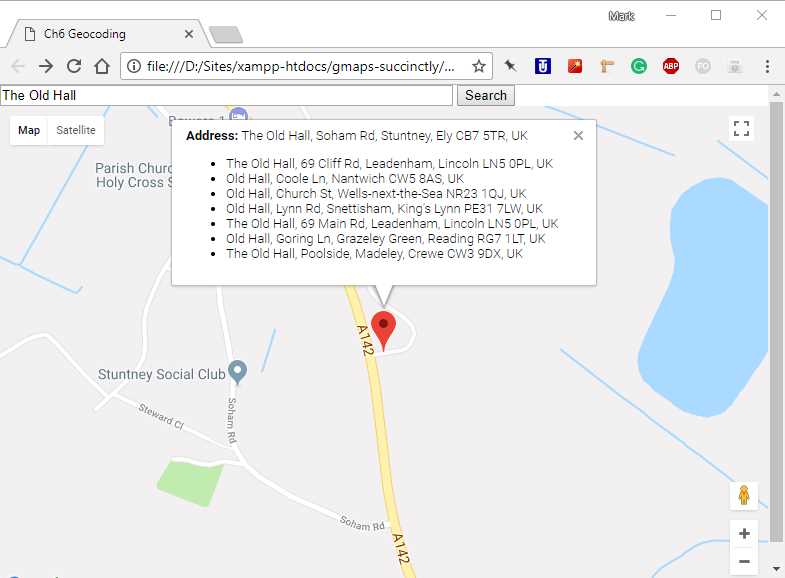
Figure 44: Listing the matches that missed the cut.
Reverse geocoding
In the previous example, we started with an address and ended up with a latitude and longitude. With reverse geocoding, you start with a latitude and longitude and (hopefully) end up with an address.
To demonstrate this, we will create an application that places a marker on the map wherever a user clicks. We’ll reverse geocode that location to see what the nearest address is and display it in the marker’s info window.
Copy Ch6_Geocoding.html to use as a starting point and save it as Ch6_ReverseGeocoding.html. Change the code so that it appears as shown in Code Listing 41.
Code Listing 41: Reverse geocoding
<!DOCTYPE html> <html> <head> <title>Ch6 Reverse Geocoding</title> <meta name="viewport" content="initial-scale=1.0"> <meta charset="utf-8"> <style> #map { height: 100%; } html, body { height: 100%; margin: 0; padding: 0; } </style> </head> <body> <div id="map"></div> <script> var geocoder; var map; function initMap() { var mapOptions = { center: new google.maps.LatLng(51.503, -0.135), zoom: 12 }; map = new google.maps.Map(document.getElementById('map'), mapOptions); geocoder = new google.maps.Geocoder(); google.maps.event.addListener(map, "click", findAddress); } function findAddress(event) { var geocodeRequest = { location: event.latLng } geocoder.geocode(geocodeRequest, function (results, status) { if (status == google.maps.GeocoderStatus.OK) { showMarker(results) } else { alert('Could not geocode: ' + status); } }); } function showMarker(results) { var bestMatch = results[0]; var marker = new google.maps.Marker({ map: map, position: bestMatch.geometry.location }); var strContent = '<b>Address: </b> ' + var infowindow = new google.maps.InfoWindow({ content: strContent }); google.maps.event.addListener(marker, 'click', function () { infowindow.open(map, marker); }); } </script> <!-- Reference the API --> <script src="https://maps.googleapis.com/maps/api/js?key=YOUR API KEY&callback=initMap" async defer></script> </body> </html> |
The main thing to notice about this solution is that, instead of using the address property of the GeocodeRequest object, it uses location, setting it to the point at which the user clicked on the map (as supplied in the MouseEvent object sent to the map’s click event handler).
When you open the page in a browser and click a point on the map, a marker appears in that location and the closest address is displayed in the marker’s info window when the marker is clicked. (See Figure 45.)
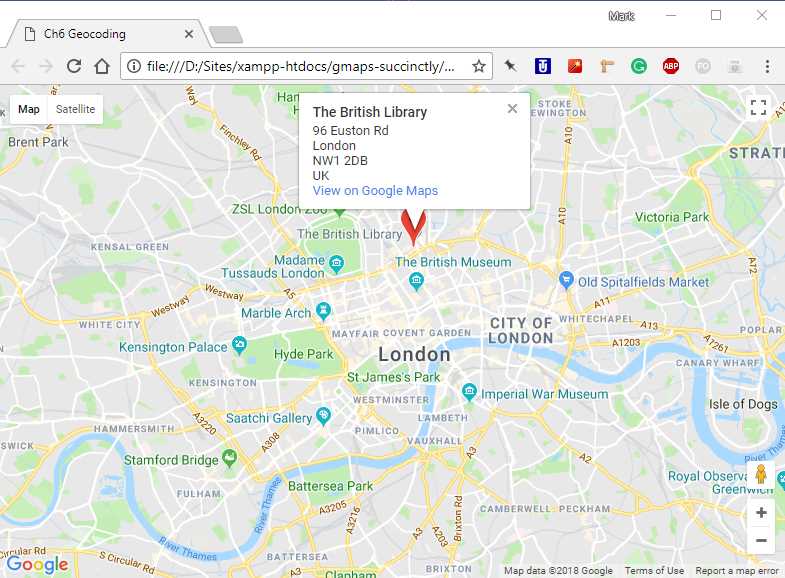
Figure 45: Reverse geocoding in action.


- 1800+ high-performance UI components.
- Includes popular controls such as Grid, Chart, Scheduler, and more.
- 24x5 unlimited support by developers.