
GitHub Succinctly®

CHAPTER 6
Other Searches
Although we have focused on repository searches so far, you can also search GitHub for other information. When GitHub searches, it also searches the code, the library, and users at the same time. When I search for Excel in the language of C#, I find over 1,100 repositories and over 150,000 lines of code that contain the word “Excel.” In addition, there are over 14,000 issues (bug reports, enhancement requests, etc.) and nine users with “Excel” in their user names.

Figure 24: Search options
No matter what you’re searching for, GitHub shows you the counts and results for the other categories as well. Some of the sort options will vary depending on which category you’re looking at. However, the search options described previously can still be applied.
Code search
The code search allows you to search all of the code in the repository looking for strings. You can apply similar rules, only searching for particular dates, languages, etc. The search will look at all matching code in the default branch of the repositories.
Note: GitHub does not let you use wildcards or regular expression when searching code. You will likely get more hits than expected if you search for multiple words.
The code search screen returns every file found in the default branch of a repository that contains the keyword you search for. The matching text will be highlighted when the file name is shown in the search result.

Figure 25: Code search
Tip: One caveat to be aware of for your own repositories: If your code uses an API key of any kind, and you code it directly into your JavaScript, a person searching GitHub could easily come across your key and start using it.
In addition to the options covered in Advanced Searching, there are also a few more code search options.
Search fields (used with IN: operator)
You can search in the file contents (file), the path name (path), or both together (separated by a comma). You can also use the keyword extension: to limit your search to a particular file extension. For example, the old language Clipper used to have a feature called TBROWSE.
tbrowse in:path,file extension:prg
This search would find all .PRG (Clipper file extension) files that use the TBROWSE function.
Language search
You can restrict the search to only code written in a particular programming language using the language: keyword. For example, to find all JavaScript files using Google Maps, you could use:
GoogleMap.js language:JavaScript
This search would find all JavaScript code module that include GoogleMap.js, suggesting the code is using Google Maps API calls.
File name search
You can search for a file name using the filename: keyword or by file extension using the extension: keyword. For example, the following will find all Clipper source files (PRG) using the Class(y) library:
extension:prg classy
Note: Class(y) was a third-party library that introduced object-oriented classes to Clipper developers.
Sorting the results
The results of the code search can be sorted by best match (the default) or by the date when code was last indexed (GitHub indexes all code in the repository much like Google indexes websites).
Issues
Issues are suggestions, bug reports, documentation updates, etc. that people write about a particular repository. GitHub has very powerful code tracking and comparing capabilities, since a big part of GitHub is collaborating on updates to the projects. There are a number of keywords that allow you to search the issues, perhaps finding some in interesting repositories you might have the experience to help with.
The issue entry is very simple, making it easy to provide an issue and description (and you can attach files). The New Issue screen looks like the following:
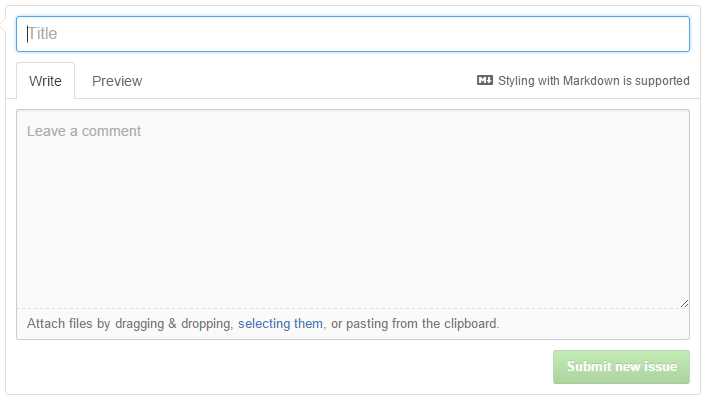
Figure 26: New Issue screen
Before you submit a new issue, you should check to see if similar issues have already been suggested.
Searching the issue content
You can use the in: keyword with title, body, or comments (or any combination of the three). If you don’t specify, then only title and body are searched. For example, imagine you are working with a C# spreadsheet library and are getting corrupted spreadsheets. The following syntax will find all issues with corrupted spreadsheets in C# repositories.
corrupt spreadsheet in:title,body language:c#
Type of issue
Issues can be issues or pull requests (requests to merge proposed code back into repository). You can limit your search using the type: keyword:
- type:pr – Only search pull requests
- type:issue – Only search issues
If you don’t specify a type, both issues and pull requests will be searched.
Users
There are a number of users associated with issues: the original author, the person assigned to fix the issue, commenters, etc. You can use various keywords to search for people involved in various ways with the issue:
- Author – The person creating the issue
- Assignee – The user responsible for fixing the issue
- Mentions – A particular user who might be mentioned in the issue body or comments
- Commenter – Someone who has commented on an issue
You can combine any combination of the above list when searching. For example, the following search brings up an old issue created by English Extra and commented by Doug Crockford:
author:englishextra commenter:douglascrockford
Note that issue and corresponding comments can sometimes get a bit testy (read the issue from this search, for example).
If you want to find a user associated with an issue, but aren’t sure which role they’ve had, you can use the involves: keyword, which is basically just an OR of all four types of users.
Open/Closed
The state: keyword can be used to find open versus closed issues. For example, to find open issues related to CSS by Derek Nutile (font-awesome fame):
state:open involves:dereknutile language:css
Dates
You can search when issues were created or updated using the created: keyword or the updated: keyword. Both use a date in the format yyyy-mm-dd. For example:
font-awesome created:2015-12-01..2015-12-31 language:css
This search finds all font-awesome issues that were updated during December of 2015. Font Awesome is an icon library, and often people request specific icons be developed. For example, this user recently suggested an MS-DOS and terminal icon being added to Font Awesome:

Figure 27: Font Awesome request
Comments
You can use the comments: keyword to search by the number of comments as issue has attached to it. You can use the standard numeric comparison operators when searching for the comment count.
Sorting issues
You can sort the list of found issues in a number of ways. The default, best match, tries to find the issue that matches most of your search criteria. You can also sort by:
- Most or least commented
- Newest or oldest
- Recently updated or least recently updated
Users
Searching for users or organizations within GitHub adds a few more keywords to help finding repositories. You can combine these keywords to find just the user or company you are searching for.
type:
The type: keyword can be either org or user, to find either an organization or a user account. If not specified, GitHub will search both. For example, you might like Erik Mueller’s work on the IBM Watson program, so you can search for Erik using the following syntax:
erik mueller type:user
And to find Syncfusion, you could use the following search:
syncfusion type:org
The user window will show:
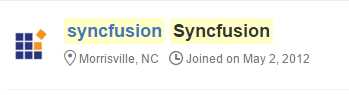
Figure 28: SyncFusion organization
in: keyword
You can use the in: keyword to look at the following fields from the user or organization account:
- email – Search text appears in email address
- login – Search text in user’s login name
- fullname – Looks in user’s real name
When searching in the full name field, spaces are considered (while in other searches, words separated by spaces are treated as separate words). So the following search will find myself in GitHub users:
joe booth in:fullname
This makes sense for naming searching, since there are 300+ users with the word “Booth” in their full name, but only two of us with “Joe Booth.”
Tip: Another caveat to be aware of: When searching email, the domain portion (@gmail.com) is not considered for the search, so finding all GitHub users with Gmail accounts will not work
Numeric searches
With users, you can use numeric operators (<, =, >, etc.) on the following keywords:
- repos – The number of repositories the user has
- followers – The number of people following this user
Location
You can also search for the user’s location using the location: keyword. For example:
location:montana language:css
This search will find all the GitHub users in the state of Montana with CSS code in their repositories.
location:scotland repos:>75 language:javascript
This search will find all users from Scotland with more than 75 repositories using JavaScript.
Date searches
When searching users, you can use the keyword created: to find when users joined GitHub. The dates use the ISO 8601 format (yyyy-mm-dd) and can be > or < and use range searches. For example, to find all United States users who joined in the first quarter of 2008, we could use the following syntax:
created:2008-01-01..2008-03-31 location:USA
If you want to see the first GitHub users (GitHub was started in October 2007), you can run the following search:
created:2007-10-20
Summary
GitHub determines what type of search you are using by the keywords it finds in your search text. It will apply the keyword to all applicable groups (repositories, issues, code, users). For example, the created: keyword applies to both repositories and users, so GitHub will return both repositories created on the date and users who joined on that date.
Keyword table
The following table shows the various keywords and which searches they apply to:
Table 1: GitHub search keywords
Keyword | Repos | Code | Issues | Users |
|---|---|---|---|---|
assignee | X | |||
author | X | |||
commenter | X | |||
comments | X | |||
created | X | X | X | |
extension | X | |||
filename | X | |||
followers | X | |||
forks | X | |||
in:body | X | |||
in:comment | X | |||
in:description | X | |||
in:email | X | |||
in:file | X | |||
in:fullname | X | |||
in:login | X | |||
in:name | X | |||
in:path | X | |||
in:readme | X | |||
in:title | X | |||
label | ||||
language | X | X | X | X |
location | X | |||
mentions | X | |||
pushed | X | |||
repos | X | |||
size | X | X | X | |
stars | X | |||
state | open, closed | |||
type | pr, issue | org, user | ||
updated | X |


- 1800+ high-performance UI components.
- Includes popular controls such as Grid, Chart, Scheduler, and more.
- 24x5 unlimited support by developers.