
Getting the Most from LINQPad Succinctly®

CHAPTER 3
LINQPad Scripting
LINQPad is shipped with a utility program called lprun.exe (LINQPad run). This program offers a full command-line experience, and also allows the user to write scripts. These scripts can be executed from the command line or invoked from another query.
Lprun command-line options
The lprun.exe tool can be executed with the following syntax.
Code Listing 2: Lprun.exe Execution Syntax
lprun [<options>] <scriptfile> [<script-args>] Where: <options> are a series of option values that control lprun behavior. <scriptfile> is the name for a query script or a query (.linq) file. <script-args> is a white-space separated list with the arguments passed to the script or query. |
The options that control lprun.exe behavior will be explained in the following sections. The script file can be a plain text file with any extension (even .txt), or a previously saved query file with the .linq extension. The difference between them is an XML header that LINQPad places at the beginning of every .linq file created with the program, which is absent in a plain-text script file.
A script file can receive parameters as a series of arguments. These parameters can be declared after the name of the script file, in a white-space separated list.
The following figure shows the execution of the helloworld.linq query using the lprun.exe tool.
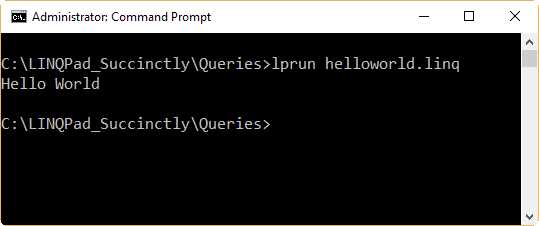
Figure 20: Running the helloworld.linq Query
Code Listing 3: helloworld.linq
<Query Kind="Statements" /> Console.WriteLine("Hello World"); |
Output formatting
By default, the lprun.exe tool outputs the result for a query in plain text format. Lists and non-basic objects are formatted as JSON. The output format can be controlled by the -format option, which has the following syntax.
Code Listing 4: The -format Option Syntax
-format={text|html|htmlfrag|csv|csvi} |
The values for the -format option are:
- text: Generates output in plain text. This is the default behavior.
- html: Returns a complete HTML output. This output can be written to a file.
- htmlfrag: Returns an HTML fragment that can be inserted into an existing HTML document.
- csv: Renders the output to a CSV (Excel-friendly) format. This is useful when simple lists are returned.
- csvi: Same as csv, but forcing to a culture-insensitive formatting.
The following sample executes the helloworld.linq query with an HTML format output.
Code Listing 5: Execution of helloworld.linq Example
lprun -format=html helloworld.linq |
The output generated is an HTML text, like the following sample:
Code Listing 6: Helloworld.linq Output Generated
!DOCTYPE HTML> <html> <head> <meta http-equiv="Content-Type" content="text/html;charset=utf-8" /> <meta http-equiv="X-UA-Compatible" content="IE=edge" /> <meta name="Generator" content="LINQ to XML, baby!" /> <style type='text/css'> body { margin: 0.3em 0.3em 0.4em 0.4em; font-family: Verdana; font-size: 80%; background: white; } p, pre { margin:0; padding:0; font-family: Verdana; } table { border-collapse: collapse; border: 2px solid #17b; margin: 0.3em 0.2em; } table.limit { border-collapse: collapse; border-bottom: 2px solid #c31; } td, th { vertical-align: top; border: 1px solid #aaa; padding: 0.1em 0.2em; margin: 0; } th { text-align: left; background-color: #ddd; border: 1px solid #777; font-family: tahoma; font-size:90%; font-weight: bold; } th.member { padding: 0.1em 0.2em 0.1em 0.2em; } td.typeheader { font-family: tahoma; font-size: 100%; font-weight: bold; background-color: #17b; color: white; padding: 0 0.2em 0.15em 0.1em; } td.n { text-align: right } a:link.typeheader, a:visited.typeheader, a:link.extenser, a:visited.extenser { font-family: tahoma; font-size: 90%; font-weight: bold; text-decoration: none; background-color: #17b; color: white; float:left; } a:link.extenser, a:visited.extenser { float:right; padding-left:2pt; margin-left:4pt } span.typeglyph, span.typeglyphx { padding: 0 0.2em 0 0; margin: 0; } span.extenser, span.extenserx { margin-top:1.2pt; } span.typeglyph, span.extenser { font-family: webdings; } span.typeglyphx, span.extenserx { font-family: arial; font-weight: bold; margin: 2px; } table.group { border: none; margin: 0; } td.group { border: none; padding: 0 0.1em; } div.spacer { margin: 0.6em 0; } table.headingpresenter { border: none; border-left: 3px dotted #1a5; margin: 1em 0em 1.2em 0.15em; } th.headingpresenter { font-family: Arial; border: none; padding: 0 0 0.2em 0.5em; background-color: white; color: green; font-size: 110%; } td.headingpresenter { border: none; padding: 0 0 0 0.6em; } td.summary { background-color: #def; color: #024; font-family: Tahoma; padding: 0 0.1em 0.1em 0.1em; } td.columntotal { font-family: Tahoma; background-color: #eee; font-weight: bold; color: #17b; font-size:90%; text-align:right; } span.graphbar { background: #17b; color: #17b; margin-left: -2px; margin-right: -2px; } a:link.graphcolumn, a:visited.graphcolumn { color: #17b; text-decoration: none; font-weight: bold; font-family: Arial; font-size: 110%; letter-spacing: -0.2em; margin-left: 0.3em; margin-right: 0.1em; } a:link.collection, a:visited.collection { color: green } a:link.reference, a:visited.reference { color:blue } i { color: green; } em { color: red; } span.highlight { background: #ff8; } code { font-family: Consolas } code.xml b { color:blue; font-weight:normal } code.xml i { color:maroon; font-weight:normal; font-style:normal } code.xml em { color:red; font-weight:normal; font-style:normal } </style> </head> <body>Hello World<br /></body> </html> |
Output redirection
The standard > operator can be used to redirect the output generated by lprun.exe. The following code writes the result of the helloworld.linq query to a file called helloworld.html.
Code Listing 7: Redirecting helloworld.linq Output
lprun -format=html helloworld.linq > helloworld.html |
Another way to write the output to a file is by making the script itself to do the job. The following code writes the output for the query to an HTML file, which will take the same name of the query file, except for the .html extension.
Code Listing 8: Writing Query Output to a File from the Query Itself
string filename = Util.CurrentQueryPath.Replace(".linq",".html"); string greeting = "Hello World"; File.WriteAllText(filename,Util.ToHtmlString(greeting)); |
If you save the query as helloworldhtml.linq, when this code is executed using the lprun.exe tool, a file called helloworldhtml.html will be found in the default queries folder.
The following figure shows how to execute the previous query using the lprun.exe tool.
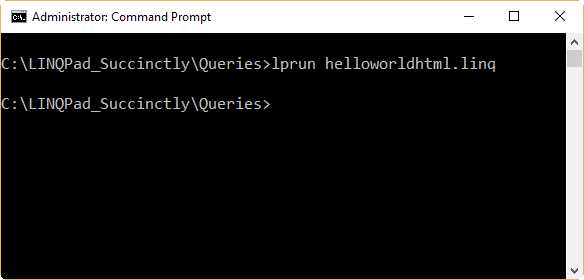
Figure 21: Helloworldhtml.linq Creating the HTML File Itself
Note: Error messages and warnings are written to the stderr, so they’re not redirected.
Error handling
Error handling for the lprun.exe tool can be managed by using the %errorlevel% variable since all errors and warnings are written to the stderr (Console.Error). The following sample can be saved into a batch file in order to know if the query was executed with no errors.
Code Listing 9: Lprun.exe Error Handling
lprun helloworldhtml.linq if %errorlevel% neq 0 echo Error executing the query! |
Compilation options
There are three options for controlling the way lprun.exe compiles queries:
- -optimize: Enables compile optimizations. This produces a slightly faster execution but less accurate error reporting.
- -warn: Outputs the compiler warnings to the stderr (Console.Error).
- -compileonly: Tells lprun.exe that the query will be compiled only, without running anything.
The following sample tells lprun.exe that the helloworldhtml.linq query should be only compiled, not executed.
Code Listing 10: Compiling a Query
lprun -compileonly helloworldhtml.linq |
Plain-text scripts
Lprun.exe can execute plain text files as scripts. These files are known as plain-text scripts, and as explained in the “Lprun command-line options” section of this chapter, their difference compared to a regular .linq file is the absence of the XML header found at the beginning of .linq files.
In the case of plain-text scripts, lprun.exe forces the user to tell which language will be used to compile the code. This is done with the -lang option of lprun.exe, and the possible values this option can take are the following:
- Expression: A C# expression with no semicolon at the end of the line.
- Statements: Several C# statements ending with a semicolon.
- Program: A C# program that begins with a Main method declaration.
- VBExpression: A Visual Basic .NET expression.
- VBStatements: Server Visual Basic .NET statements.
- VBProgram: A Visual Basic .NET program with a Main sub declaration.
- FSharpExpression: An F# expression.
- FSharpProgram: An F# program.
- SQL: A SQL language query.
- ESQL: An Entity SQL language query.
The first three values can be abbreviated to their first letter: e can be used for Expression, s can be used for Statements, and p can be used for Program.
The following code displays the value of 44. This code should be saved as expressionscript.txt in the LINQPad queries default folder.
Code Listing 11: Code for Displaying a Numeric Constant
32+12 |
To display the result in the command window, lprun.exe should be executed in the following way.
Code Listing 12: Executing expressionscript.txt with Lprun.exe
lprun -lang=e expressionscript.txt |
The following figure shows the output displayed.
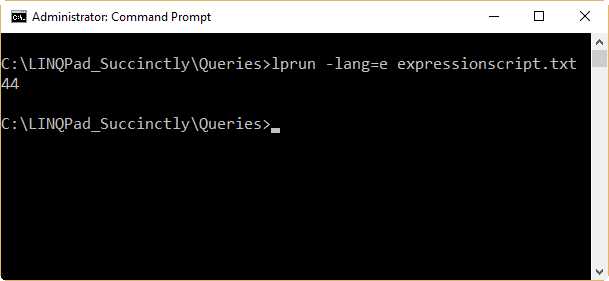
Figure 22: Executing an Expression Plain-Text Script
Managing connections
For plain-text scripts that require connections, the -cxnname option of lprun.exe should be used to specify the connection’s name.
The following sample takes the first 20 rows from the Places table, which belongs to the connection called uspostalcodesEntities. The code should be saved as placestake20.txt in the LINQPad queries default folder.
Code Listing 13: A Script that Uses a Connection
Places.Take(20) |
The placestake20.txt script should be executed in the following way.
Code Listing 14: Executing a Script with the -cxname Option
lprun -lang=e -cxname= uspostalcodesEntities placestake20.txt |
The output displayed by this script is shown in the following listing.
Code Listing 15: Output Generated by placestake20.txt
[ { "Place_id": 1, "Place_name": "Portsmouth", "Postal_code": "00210", "Latitude": 43.0059, "Longitude": -71.0130, "County_id": 1787 }, { "Place_id": 2, "Place_name": "Portsmouth", "Postal_code": "00211", "Latitude": 43.0059, "Longitude": -71.0130, "County_id": 1787 }, { "Place_id": 3, "Place_name": "Portsmouth", "Postal_code": "00212", "Latitude": 43.0059, "Longitude": -71.0130, "County_id": 1787 }, { "Place_id": 4, "Place_name": "Portsmouth", "Postal_code": "00213", "Latitude": 43.0059, "Longitude": -71.0130, "County_id": 1787 }, { "Place_id": 5, "Place_name": "Portsmouth", "Postal_code": "00214", "Latitude": 43.0059, "Longitude": -71.0130, "County_id": 1787 }, { "Place_id": 6, "Place_name": "Portsmouth", "Postal_code": "00215", "Latitude": 43.0059, "Longitude": -71.0130, "County_id": 1787 }, { "Place_id": 7, "Place_name": "Pleasantville", "Postal_code": "00401", "Latitude": 41.1381, "Longitude": -73.7840, "County_id": 1852 }, { "Place_id": 8, "Place_name": "Holtsville", "Postal_code": "00501", "Latitude": 40.9223, "Longitude": -72.6370, "County_id": 1904 }, { "Place_id": 9, "Place_name": "Holtsville", "Postal_code": "00544", "Latitude": 40.9223, "Longitude": -72.6370, "County_id": 1904 }, { "Place_id": 10, "Place_name": "Agawam", "Postal_code": "01001", "Latitude": 42.0702, "Longitude": -72.6220, "County_id": 1213 }, { "Place_id": 11, "Place_name": "Amherst", "Postal_code": "01002", "Latitude": 42.3671, "Longitude": -72.4640, "County_id": 1214 }, { "Place_id": 12, "Place_name": "Amherst", "Postal_code": "01003", "Latitude": 42.3919, "Longitude": -72.5240, "County_id": 1214 }, { "Place_id": 13, "Place_name": "Amherst", "Postal_code": "01004", "Latitude": 42.3845, "Longitude": -72.5130, "County_id": 1214 }, { "Place_id": 14, "Place_name": "Barre", "Postal_code": "01005", "Latitude": 42.4097, "Longitude": -72.1080, "County_id": 1220 }, { "Place_id": 15, "Place_name": "Belchertown", "Postal_code": "01007", "Latitude": 42.2751, "Longitude": -72.4100, "County_id": 1214 }, { "Place_id": 16, "Place_name": "Blandford", "Postal_code": "01008", "Latitude": 42.1829, "Longitude": -72.9360, "County_id": 1213 }, { "Place_id": 17, "Place_name": "Bondsville", "Postal_code": "01009", "Latitude": 42.2061, "Longitude": -72.3400, "County_id": 1213 }, { "Place_id": 18, "Place_name": "Brimfield", "Postal_code": "01010", "Latitude": 42.1165, "Longitude": -72.1880, "County_id": 1213 }, { "Place_id": 19, "Place_name": "Chester", "Postal_code": "01011", "Latitude": 42.2794, "Longitude": -72.9880, "County_id": 1213 }, { "Place_id": 20, "Place_name": "Chesterfield", "Postal_code": "01012", "Latitude": 42.3923, "Longitude": -72.8250, "County_id": 1214 } ] |
Managing assemblies and namespaces
LINQPad plain-text scripts support a directive named ref. This directive is used for referencing additional assemblies. Also, unlike .linq queries, plain-text scripts support using directives to import additional namespaces.
The following sample creates a custom button class derived from the System.Windows.Forms.Button class.
Code Listing 16: Referencing Assemblies in a Script
ref System.Windows.Forms.dll; ref System.Drawing.dll; using System.Windows.Forms; using System.Drawing; void Main() { var custombutton = new CustomButton(); custombutton.Dump(); } public class CustomButton : Button { public CustomButton() { FlatStyle = FlatStyle.Flat; BackColor = Color.FromArgb(244,152,31); ForeColor = Color.Black; Font = new Font("Segoe UI",12); Text = "Custom Button Class Flat Version"; } } |
As noted in the previous code, all assemblies’ references and namespaces importing must be at the top of the script. The user can specify each assembly either by its file name (including the absolute path) or its fully qualified name, in case the assembly is in the GAC.
Note: ref directives must precede using directives.
The previous script must be executed as a Program script, as shown in the following example.
Code Listing 17: Executing a Script as a Program Script
lprun -lang=p -format=html custombutton.txt > custombutton.html |
This code executes the script, formatting the result in HTML. The result is saved into the custombutton.html file.
Passing arguments to scripts
To pass arguments to scripts from the command line, a space-separated list should be typed after the file name of the script. To pick those arguments, a Program query can be written, declaring a string array parameter at the Main method.
The following example dumps all arguments passed to the query.
Code Listing 18: A Script that Receives Arguments from the Command Line
void Main(string[] args) { args.Dump(); } |
Assuming that the previous code was saved in a file named passingarguments.txt, the following command will display ["Hello", "World"].
Code Listing 19: Executing a Script with Arguments
lprun -lang=p passingarguments.txt Hello World |
The CMD Boolean symbol
Sometimes it is necessary to know if a query is being executed from the command line or from the GUI. In order to do this, LINQPad provides a Boolean symbol called CMD. This symbol should be used in conjunction with the #if directive, as shown in the following sample.
Code Listing 20: Using the CMD Symbol
void Main() { var custombutton = new CustomButton(); #if CMD string filename = Util.CurrentQueryPath.Replace(".linq",".html"); File.WriteAllText(filename,Util.ToHtmlString(custombutton)); #else custombutton.Dump(); #endif } public class CustomButton : Button { public CustomButton() { FlatStyle = FlatStyle.Flat; BackColor = Color.FromArgb(244,152,31); ForeColor = Color.Black; Font = new Font("Segoe UI",12); Text = "Custom Button Class Flat Version"; } } |
As noted in the previous code, the CMD directive helps LINQPad choose whether to save the contents of the CustomButton object into an HTML file, or to display the button in the Results panel.
The code should be saved as a .linq query file (for book purposes, cmdsymbolsample.linq), referencing the System.Drawing.dll and System.Windows.Forms.dll assemblies, and also importing the System.Drawing and System.Windows.Forms namespaces.
Now, if the query is executed as a script using lprun.exe, a file named cmdsymbolsample.html will be created in the default queries folder. Otherwise, if the query is executed from the LINQPad user interface, the CustomButton object will be displayed in the Results panel.
Calling a script from another script
Scripts can be combined in order to execute one script from another. To do this, use the Util.Run method. The following sample takes the name of any query as an argument from the command line, and then runs that query getting the result in HTML format. The result is displayed in the command window.
Code Listing 21: Executing a Script from Another Script
void Main (string[] args) { if (args.Length != 1) { "Usage:\r\nlprun -lang=p querytohtml.txt <queryname>".Dump(); } else { if (!File.Exists(args[0])) { var message = "The file " + args[0] + " doesn't exist."; message.Dump(); } else { string htmlResult = Util.Run(args[0],QueryResultFormat.Html).AsString(); htmlResult.Dump(); } } } |
This code expects a one-element length array with the name of the query file to run. If no arguments or more than one argument are passed to the query, a help message is displayed. Also, the query validates if the file exists in the filesystem. If not, an error message is displayed. Once all validation tasks are passed, the Util.Run method executes the query, formatting the result as an HTML string, using the AsString method. The result of the query is stored in the htmlResult variable, which is dumped to the command window.
Assuming that the previous script was saved in a file named querytohtml.txt, the following sample runs the imagerendering.linq query from within this script.
Code Listing 22: Executing the Scripts
lprun -lang=p querytohtml.txt imagerendering.linq |
Chapter summary
LINQPad is shipped with a utility program called lprun.exe, which offers a full command-line experience and also allows the user to write scripts to be executed from the command line or from within another query.
A script can be written using plain-text files or LINQPad .linq query files. A script saved in plain-text format doesn’t have the XML header found in .linq files.
The lprun.exe tool has a series of options that can control its behavior. These options control the output formatting, the way a script is compiled, the database connection that a script should use, and the language used by the script.
Arguments can be passed to a script from the command line. To do this, you should write the values for these arguments using a space-separated list after the name of the script. The arguments are trapped by the query using a string array parameter in the Main method of a C# Program query.
You can determine if a script is being executed either from the command line or from the user interface by using the CMD Boolean symbol. This symbol takes the value of true when a script is executed by lprun.exe. Otherwise, a value of false is stored in that symbol.
Finally, the Util.Run method allows you to execute a script from another one. The output format for the result can be established by the QueryResultFormat enumeration, and converted to a string using the AsString method.


- 1800+ high-performance UI components.
- Includes popular controls such as Grid, Chart, Scheduler, and more.
- 24x5 unlimited support by developers.