
FakeItEasy Succinctly®

CHAPTER 1
Installing FakeItEasy
Introduction
FakeItEasy does not require the installation of any software of your machine; you just need to add the proper assemblies as references to your project and you’re good to go.
You can get these assemblies in two ways:
- NuGet package, installed using Manage NuGet Packages from Solution
- NuGet package, using Package Manager Console (preferred)
In this book, we’ll be using FakeItEasy version 1.25.2, NUnit version 2.6.4, ReSharper version 8.2 (for running NUnit tests in Visual Studio), .NET 4.5, and Visual Studio 2013.
Although ReSharper is not required for running NUnit unit tests in Visual Studio, it is the most robust tool for doing the job. You can get a 30-day free trial of ReSharper here: http://www.jetbrains.com/resharper/download/.
Using Manage NuGet Packages from Solution for installing FakeItEasy and NUnit
For those that prefer working with a GUI, this is the easiest way to get the FakeItEasy and NUnit packages in your Visual Studio project. Start with a New Project in Visual Studio and pick “Class Library” for the project type.
Note: Installing packages using Manage NuGet Packages from Solution does not allow you to pick the version of either FakeItEasy or NUnit that is being installed. Manage NuGet Packages from Solution will always take the newest version of the package being installed. If the version numbers vary greatly between what Manage NuGet Packages from Solution will install and the version numbers pointed out in this book, please skip to the Using Package Manager Console for installing FakeItEasy and NUnit section later.
Once the new solution is ready, right-click on the solution in Solution Explorer and choose Manage NuGet Packages for Solution.
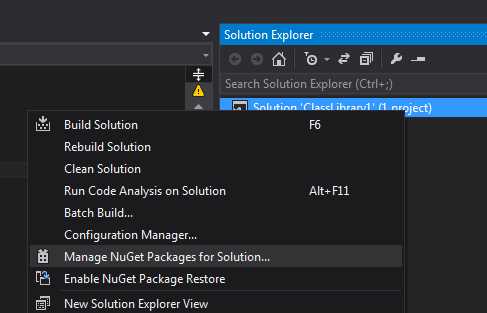
Figure 1: Manage NuGet Packages for Solution
You will see the Manage NuGet Packages window appear.
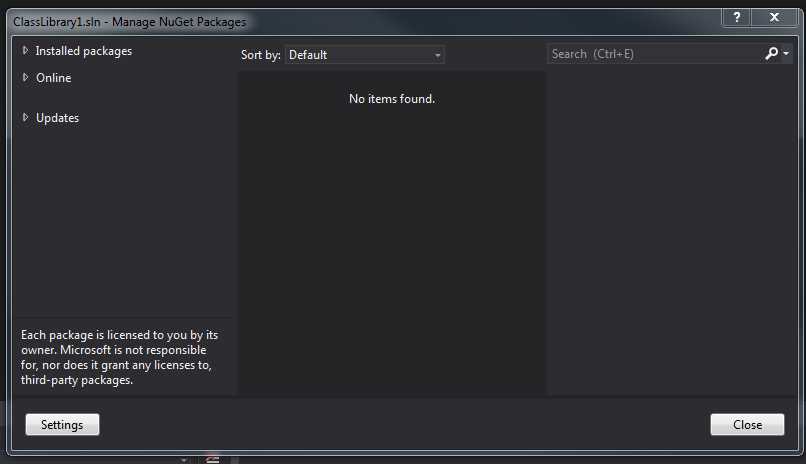
Figure 2: Manage NuGetPackages window
If it’s not already open, click the Online menu item on the left and then type FakeItEasy into the Search Online text box at the top-right corner of the window. You should see FakeItEasy appear first in the list; click Install to install the package.
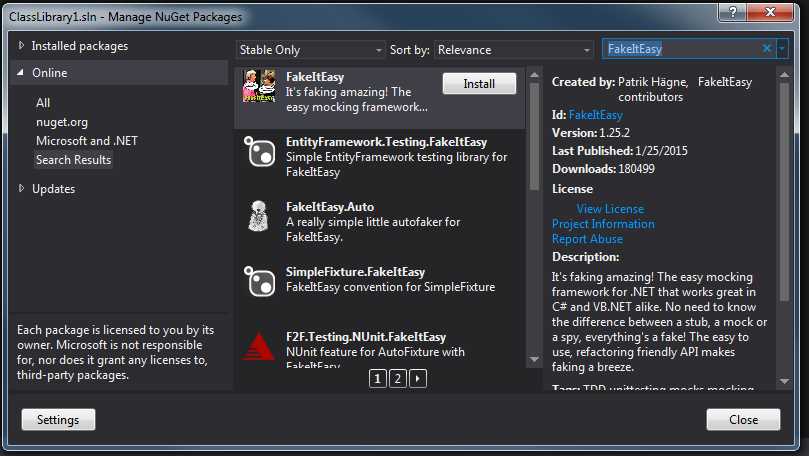
Figure 3: Search for FakeItEasy Online
You’ll see the Selected Projects window appear that shows the projects in your solution in which you are installing FakeItEasy. Click OK.
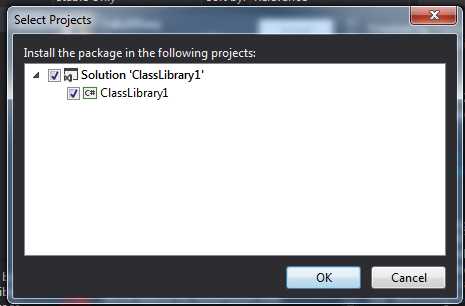
Figure 4: Selected Projects window
You should see the installation was successful by the addition of the FakeItEasy assembly in the References folder of your project.
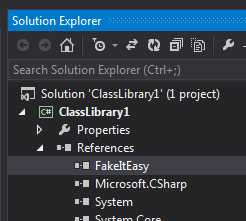
Figure 5: FakeItEasy assembly under References
You’ll also see the addition of a packages.config file in the project.
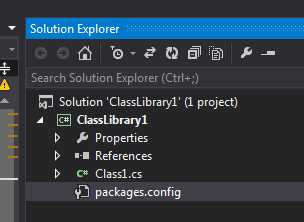
Figure 6: Packages.config file
The contents of the added packages.config file should look like this:

Figure 7: FakeItEasy added to packages.config
Repeat the process starting at Figure 3, and instead of searching for and installing FakeItEasy, search for and install NUnit.
Using Package Manager Console for installing FakeItEasy and NUnit
If it’s not already open, open the Package Manager window by going to the View menu in Visual Studio. Select Other Windows and choose Package Manager Console.
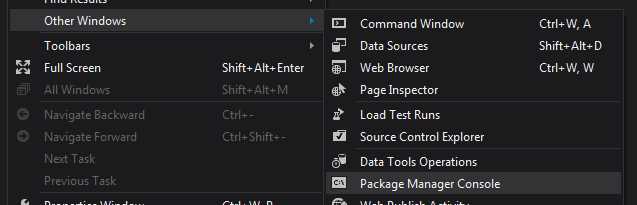
Figure 8: Opening the Package Manager Console
You should now see the Package Manager Console window. Make sure the ClassLibrary1 project is selected as the Default project in the Default project drop-down menu at the top of the Package Manager Console window.

Figure 9: The Package Manager Console window
To install FakeItEasy, type the following into the Package Manager Console window:

Figure 10: Installing FakeItEasy via the Package Manager Console
To install NUnit, type the following into the Package Manager Console window:

Figure 11: Installing NUnit via the Package Manager Console
You can verify installation by checking that both FakeItEasy and NUnit are in the project’s References folder and that both references have been added to the packages.config file that was created in the project. This is outlined in Figures 5, 6, and 7 of the previous section.
FakeItEasy Source Code
For those of you who are curious about how exactly FakeItEasy works, and what’s really going on behind the scenes, you can browse the source code or do a Git clone from GitHub here: https://github.com/FakeItEasy/FakeItEasy.
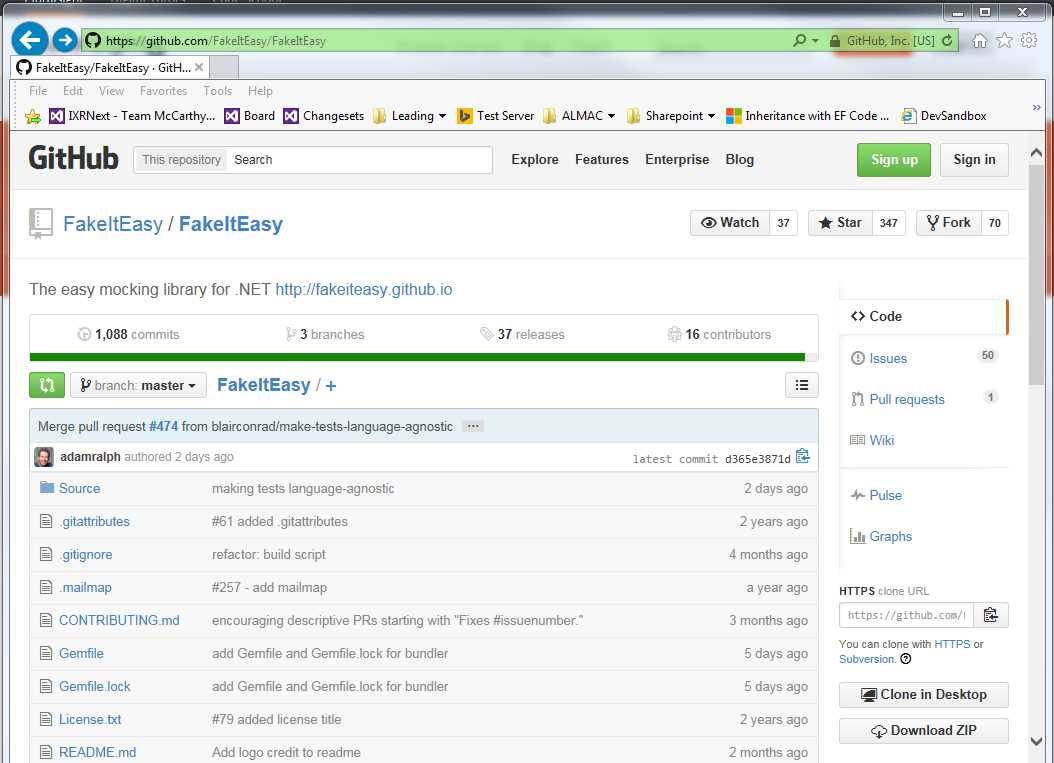
Figure 12: FakeItEasy on GitHub


- 1800+ high-performance UI components.
- Includes popular controls such as Grid, Chart, Scheduler, and more.
- 24x5 unlimited support by developers.