
External Collaboration with Azure AD B2B Succinctly®

CHAPTER 1
What is Azure AD B2B?
In this book, we are going to cover Azure Active Directory business-to-business (B2B) and how you can use it to collaborate with external users in Azure and Office 365.
In this first chapter, we are going to introduce Azure AD B2B and cover how it can be used to manage external accounts in Azure and Office 365. We are also going to cover how Azure AD B2B relates to Azure AD and Azure AD business-to-consumer (B2C), which are other products that can be used for managing identity and access in Azure. Lastly, we are going to cover the license structure and what features are important to consider when using Azure AD B2B in your organization.
Introducing Azure AD B2B
With Azure Active Directory business-to-business, organizations can work safely and securely with other organizations in Azure. You can securely share your company’s applications and services with partners and guest users using Azure AD B2B. These users can come from different organizations, but they can also be individuals that need access to your applications and services, through the Azure AD tenant.
With Azure AD B2B, every partner uses its own identity management solution, through Azure AD. This means there is no external administrative overhead for your organization. Partner and guest users can get access using a variety of accounts, like an Azure AD or Office 365 account (work and school) with an Azure AD tenant bound to it. They can also use personal accounts, such as personal Microsoft accounts, or non-Microsoft accounts. These existing accounts can be added to Azure AD, and guest users can then use their own credentials when they log in to your applications, services, and resources.
In the next section, we will cover the different identity products in Azure and what Azure AD business-to-business has to offer.
Other identity management products in Azure
Azure offers different products that are integrated into Azure Active Directory. There is the “normal” Azure AD, Azure AD business-to-business (B2B), and Azure AD business-to-consumer (B2C). These different services can sometimes lead to confusion. In this section we are going to cover the differences and the key values of each service.
Azure Active Directory
Azure Active Directory is the core of all identity management services and features in Azure. It offers traditional username and password identity management. Users can be created in Azure AD manually using the Azure portal, but this can also be done programmatically and automatically using the Azure SDK, PowerShell, and the Graph API. It also offers roles and permission management, which is called role-based access control (RBAC). This is used to give access and permissions to various resources in Azure, such as management and resource groups, databases, applications, and so on. On top of that, Azure AD offers more enterprise-grade solutions, such as multifactor authentication (MFA) and application monitoring, solution monitoring, and alerting. Azure AD can easily be integrated with your on-premises Active Directory to create a hybrid infrastructure.
Tip: For more information about Azure AD and all the features it has to offer, you can refer to the Microsoft documentation.
Azure Active Directory Business-to-Consumer (B2C)
Azure AD B2C is a cloud identity-management solution for custom applications, such as mobile and web applications. Azure AD B2C is a global service that scales to all available Azure regions, automatically handles threats, and offers monitoring capabilities.
It offers out-of-the-box authentication providers that can be leveraged from within your apps and custom APIs. These identity providers are configured in your Azure AD B2C tenant in Azure, and can then easily be used in your custom applications. This enables developers to easily implement scalable identity management in a secure way for their applications.
Azure AD B2C offers the following authentication providers:
- Social accounts: Facebook, Google, LinkedIn, and more.
- Enterprise accounts: Accounts that use open standards protocols, such as OpenID Connect or SAML.
- Local accounts: Accounts that use email address/username and password.
Your application needs to be registered inside the Azure B2C tenant. After registration, built-in policies can be configured for the app where you can enable different authentication methods, set claims, enable MFA, or create a password reset policy that the app can use. You then add the required configuration settings for the application that is registered in the Azure B2C tenant to your code, and all the previously mentioned settings can be used without any further configuration.
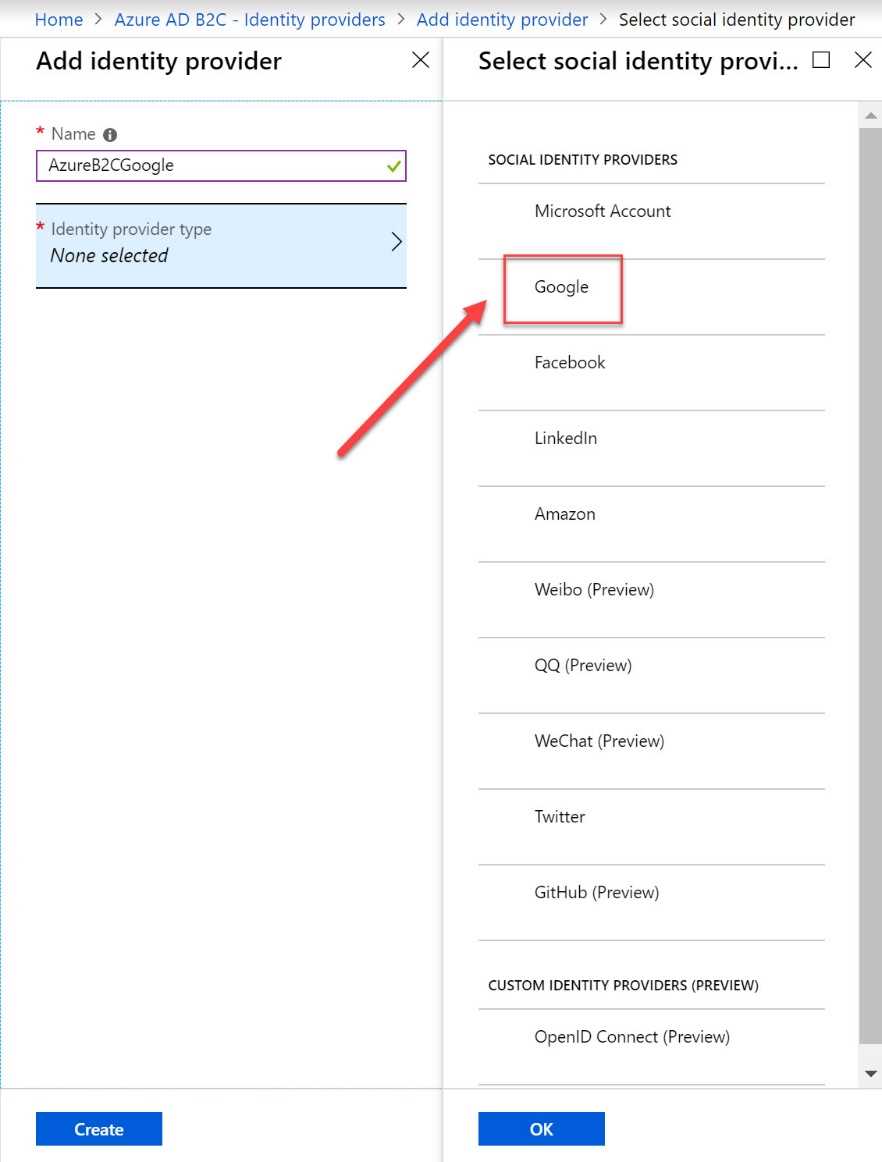
Figure 1: Overview of identity providers in Azure AD B2C
Tip: You can refer to this site for more information about Azure AD B2C.
In the next section, we are going to introduce the different features that Azure AD B2B has to offer for your organization.
User account management
Guest users can use their own identity management solutions to log in and authenticate to your Azure and Office 365 tenant. This means that an Azure AD tenant for the partner organization or guest users is not required. Users can also use their personal accounts to log in to your Azure AD tenant. This makes it easier for administrators because they don’t have to manage these accounts or passwords, accounts don’t need to be synced, and account lifecycles don’t need to be managed.
Azure AD B2B has support for the following types of accounts:
- Work or school accounts (such as Azure Active Directory and Office 365).
- Personal Microsoft accounts (such as Outlook and Hotmail).
- Other types of accounts, called unmanaged accounts (such as Gmail and iCloud).
Guest users with Microsoft accounts, like work, school, or personal accounts, can log in to the Azure AD tenant using an email address and password. These credentials are already known by Microsoft.
Guest users who are using unmanaged accounts have to undergo a slightly different process to log in to the Azure AD tenant. After the user is added to the Azure AD tenant, the invite is sent to the guest user. The first time the user logs in to the Azure AD tenant, they need to specify a password, which is stored in Azure AD. So, in the case of unmanaged accounts, the user can only log in using their own email address, but they still need to specify a password.
Note: Starting March 31, 2021, Microsoft will no longer support the creation of unmanaged Azure AD accounts and tenants for B2B collaboration scenarios. This means that external users who are using unmanaged accounts, such as non-Microsoft accounts, need to use email one-time passcode authentication (now in preview). It is highly encouraged to opt into email one-time passcode authentication. This will be covered in more depth in Chapter 2, User Account Management.
Once the guest users are added to the Azure AD tenant, they can be added to security groups and applications. This will also be covered in the next chapter.
In the following image, you see an overview of internal and external accounts in Azure AD. You can see the different types of accounts under the User type column.
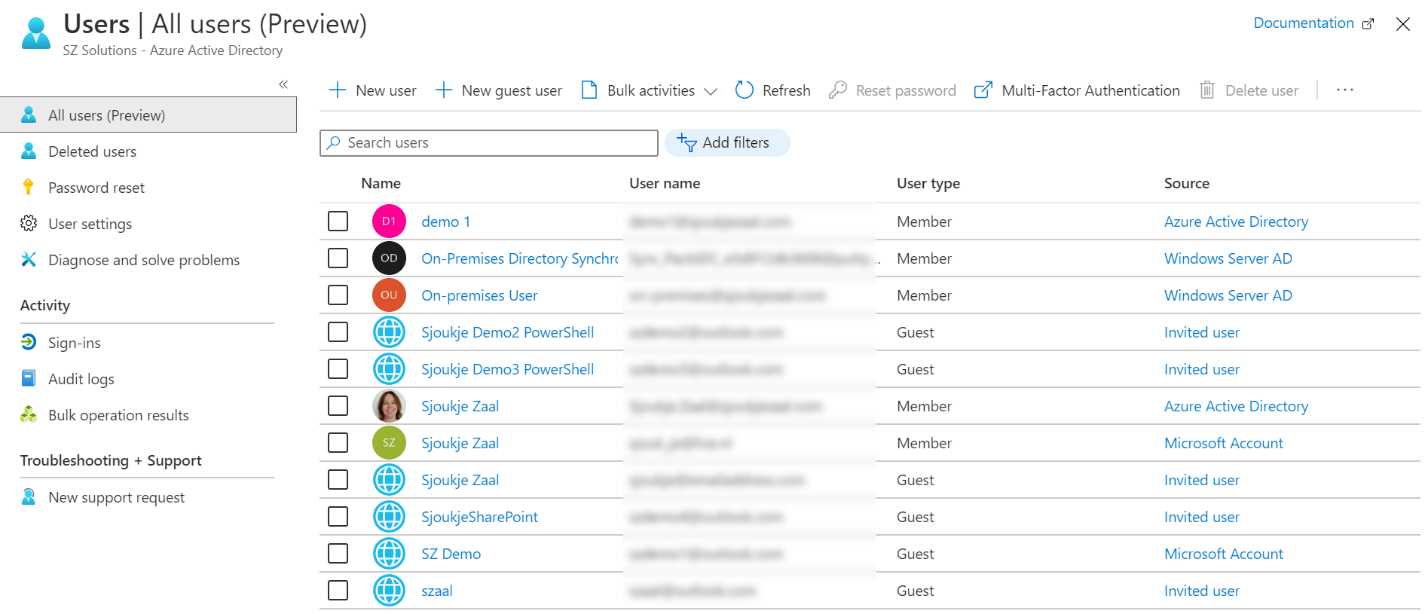
Figure 2: Overview of internal and external users in Azure AD
In the next section, we are going to introduce the onboarding experience.
Onboarding experience for B2B guest users
The onboarding experience for B2B guest users starts with adding the guest account to Azure AD. The invitation is sent to the inbox of the email address that is used to register the account. The guest user needs to accept the invitation to get access to your organization’s Azure AD tenant.
In the following image, you see an example of an invitation that is sent to the inbox of the guest user account.
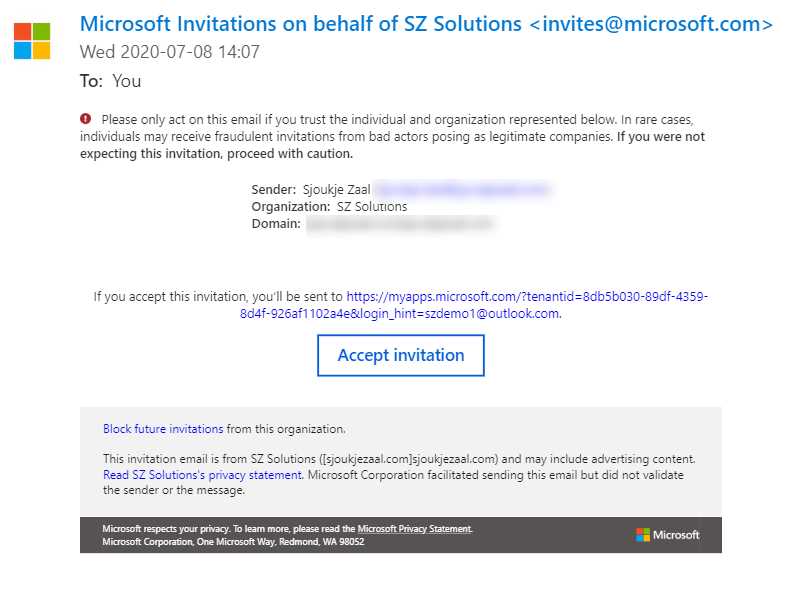
Figure 3: Example of an invitation for a guest user
It’s possible to add the guest user to the Azure AD tenant without sending an invitation. This can be done by sending a direct link to an app, or by sending an invitation to the user’s own access panel. We are going to cover this in more detail in Chapter 3.
Conditional access policies for secure sharing
Depending on the Azure AD licenses that you already have for your internal users, it is possible to enable conditional access policies for your external users as well. Conditional access policies offer organizations the ability to protect corporate assets in different circumstances. You can apply the right access controls only when needed, and do not have to bother users with unneeded security measures. Examples of conditional access policies are multifactor authentication, blocking sign-ins from users from specific regions or devices, and using legacy authentication protocols.
Azure AD B2B offers exactly the same conditional access policies for external users as for internal users. This means that if your organization has Azure AD premium licenses that include conditional access for your internal users, the same policies can be implemented for external users as well.
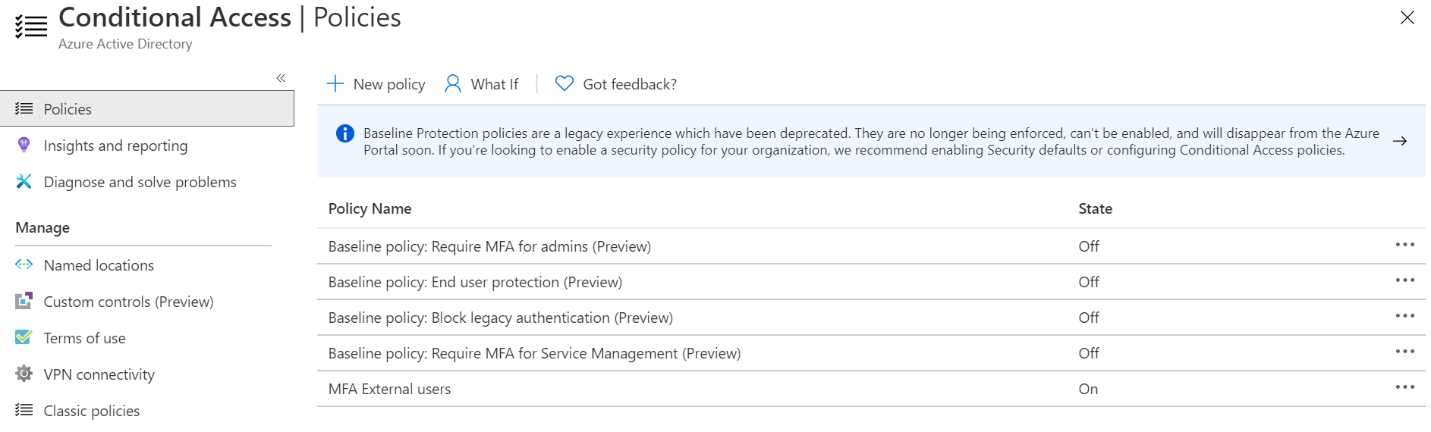
Figure 4: Overview of conditional access policies in Azure AD
Tip: Conditional access policies are not further covered in this book, but for more information you can refer to this website.
In the next section, we are going to look at the integration with identity providers.
Integration with identity providers
You can set up federation with external identity providers in Azure AD. Using these providers, guest users can sign into your organization’s applications and services using existing social accounts or enterprise accounts. There is support for Google and Facebook, and you can also set up direct federation with any organization whose identity provider supports the SAML 2.0 or WS-Fed protocols. This makes it possible to collaborate easily with partners or connected organizations. By adding a federation to that company’s identity provider, partners can log in using their own corporate identity.
In the next image, you see an overview of the identity providers that can be added from the Azure portal.
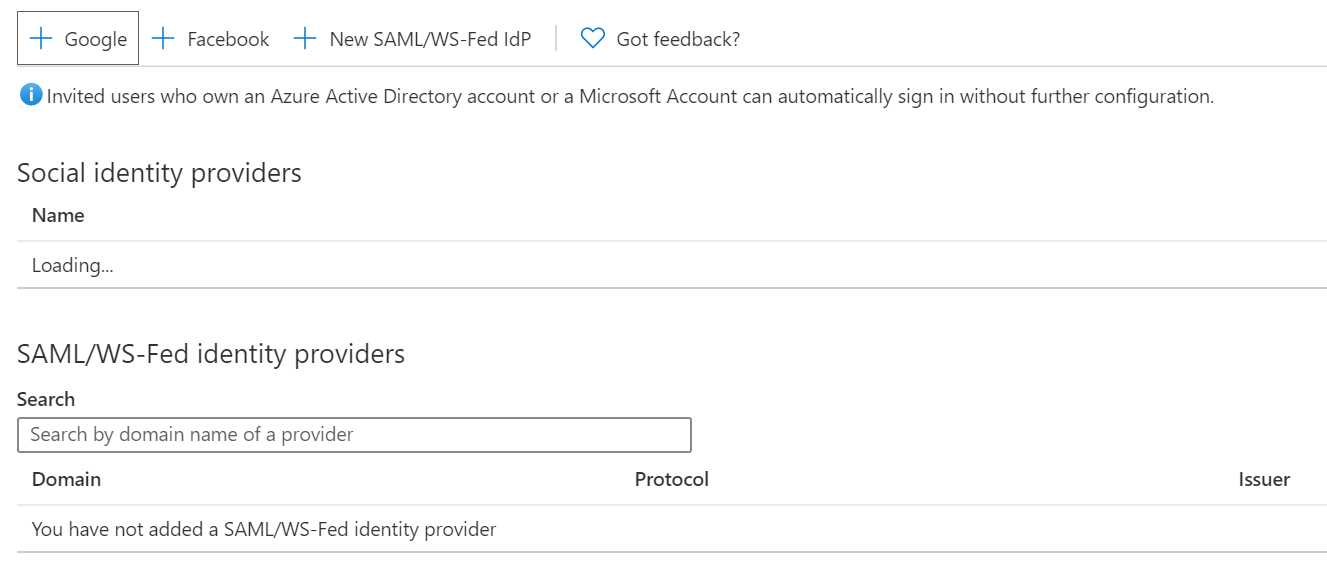
Figure 5: Adding identity providers in the Azure portal
Now that we have a high-level understanding of the different features that Azure AD B2B has to offer for your guest users, we can now look into the relationship of Azure AD B2B to other Azure AD products.
Different Azure AD licensing offerings
Azure AD B2B guest users use the same Azure AD features that internal Azure AD users do. Azure AD offers four different pricing plans; each pricing plans adds extra features on top of the previous plan:
- Free: This offers the most basic features, such as support for up to 500,000 objects, single sign-on (SSO), Azure B2B for external users, support for Azure AD Connect synchronization, self-service password change, groups, and standard security reports.
- Office 365 Apps: This offers unlimited objects, a service-level agreement (SLA) of 99.9%, self-service password reset, company branding features, and support for the application proxy.
- Premium P1: This offers advanced reporting, MFA, conditional access, mobile device management (MDM) auto-enrollment, cloud app discovery, and Azure AD Connect Health.
- Premium P2: This offers identity protection and privileged identity management (PIM).
Tip: For a detailed overview of the different pricing plans and all the features that are offered for each, you can refer to this pricing page.
Guest users can use exactly the same features as internal users. This means that if you have Premium P2 licenses for your users, you can also use the privileged identity management (PIM) features and identity protection for your external users. However, there is one caveat: there is a licensing ratio for Azure AD B2B users. For each internal license that you have, you can add up to five guest users. So, for example, if you have 10 internal Azure AD licenses, you can add a maximum of 50 guest users to your tenant. If you want to add more guest users to your tenant, you need to buy additional Azure AD licenses. Of course, this is not the case if you are using the Free Azure AD plan.
This concludes the first chapter. We have introduced Azure AD B2B and covered the different tools and features that come with Azure AD B2B. We have also covered the different licensing offerings of Azure AD and how they relate to Azure AD B2B. In the next chapter, we are going to add guest users to our Azure AD tenant.


- 1800+ high-performance UI components.
- Includes popular controls such as Grid, Chart, Scheduler, and more.
- 24x5 unlimited support by developers.