
Electron Succinctly®

CHAPTER 5
Packaging the App
App distribution
We are ready to bundle our application and put it out into the world. According to the official Electron documentation, there are a few ways to distribute an Electron application, such as:
- Packaging the app into a file,
- Rebranding with Electron binaries
- Rebranding by building electron from source
- Using packaging tools
In our case, we’ll be exploring how to use one of the existing packaging tools, called Electron Packager.
Electron Packager
We are now ready to package our application so we can deploy it—we will be covering how to package the application for Windows. To do that, we are going to use a Node.js module called Electron Packager. We can install this module from our project folder by executing the following command.
Listing 4-a: Command to Install Electron Packager
npm install electron-packager --save-dev |
This will save this module as a development dependency within our package.json file.
Let’s open up the package.json file and add the following packaging script for Windows, which we can add under the scripts section, as follows.
Listing 4-b: Packaging Script for Windows – package.json
"scripts": { "start": "electron .", "package-win": "electron-packager . --overwrite --asar=true --platform=win32 --arch=ia32 --icon=fonts/icons/win/icon.ico --prune=true --out=release-builds --version-string.CompanyName=CE --version-string.FileDescription=CE --version-string.ProductName=\"DocExpire\"" } |
In bold, we can see a reference to the icon file that we will use during packaging—which we need to place within our project folder\fonts\icons\win folder. Also, notice the name of the application, which I have called DocExpire.
We have the fonts folder within our project folder, but we don’t have the icons\win subfolder, so we must manually create it. I’ve chosen the following icon for the application—feel free to use any other that you like. Make sure you use the .ico version of the icon.
Figure 4-a: Our Application Icon
Let’s now place the downloaded .ico file in our project folder\fonts\icons\win folder. Once downloaded, rename it to icon.ico.
With this in place, let’s now go back to the command line and execute the windows packaging script we have just added.
But before we do that, let’s double-check how our package.json file looks. In the following figure, it’s highlighted in bold in the packaging script section.
Listing 4-c: package.json
{ "name": "docexpire", "version": "1.0.0", "description": "document expiration desktop app", "main": "main.js", "dependencies": { "material-design-lite": "^1.3.0" }, "devDependencies": { "electron": "^4.0.0", "electron-packager": "^13.0.1" }, "scripts": { "start": "electron .", "package-win": "electron-packager . --overwrite --asar=true --platform=win32 --arch=ia32 --icon=fonts/icons/win/icon.ico --prune=true --out=release-builds --version-string.CompanyName=CE --version-string.FileDescription=CE --version-string.ProductName=\"DocExpire\"" }, "author": "Ed Freitas", "license": "MIT" } |
So, let’s give it a try and run the script within the project folder using the command line. We can execute it as follows.
Listing 4-d: Windows Packing Script
npm run package-win |
Notice that package-win is the name we have given to the packaging script. This is the result from my machine.
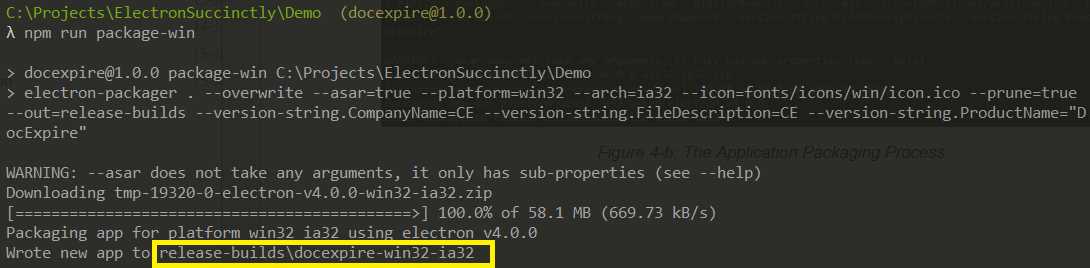
Figure 4-b: The Application Packaging Process
The packaged application is built to the release-builds folder under our project folder. We can verify this ourselves by checking our project folder.
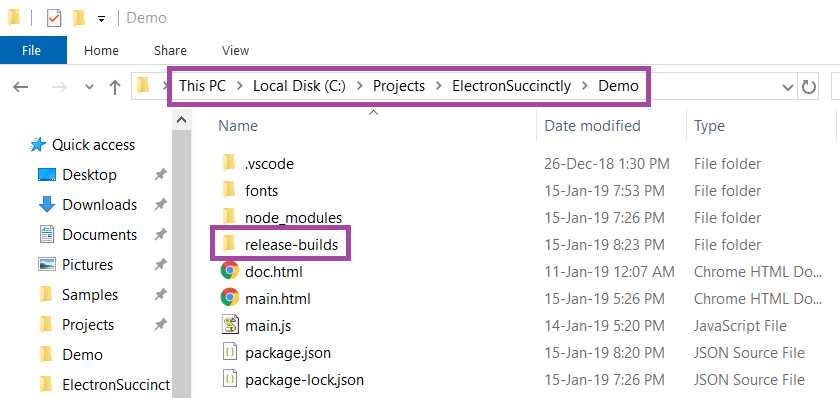
Figure 4-c: Application release-builds Folder
Let’s explore what we have within the release-builds folder to see what the Electron Packager was able to do for us.
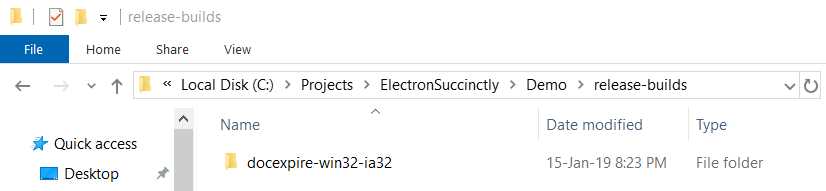
Figure 4-d: The docexpire-win32-ia32 Folder
We can see that it has created a folder that should contain all our application files. Let’s go inside the folder to see if that’s the case.
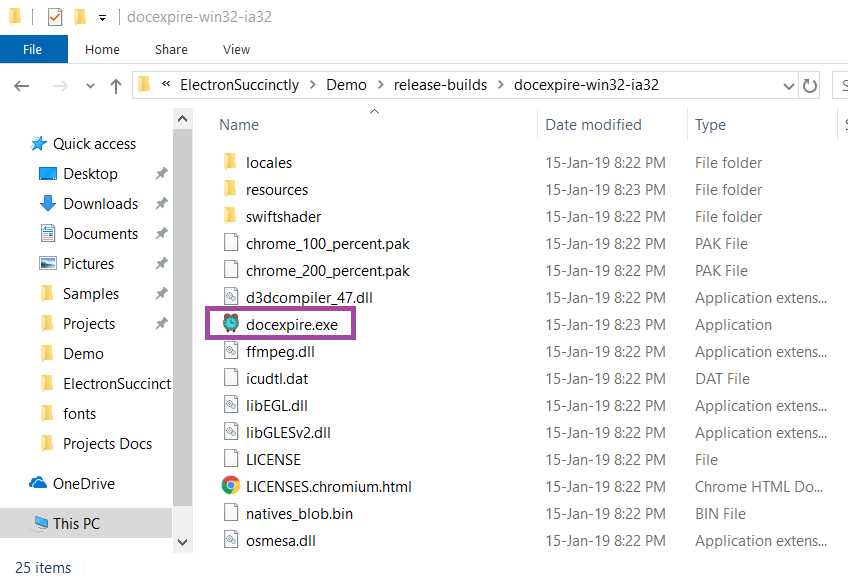
Figure 4-e: Our Application Binaries
We can see that within this folder, Electron Packager has created all the binary runtimes our application will require, including the actual docexpire.exe file, which is the actual program we have created.
All we need to do to deploy the application once it has been built by Electron Packager is to copy the contents of this folder to any other machines with a compatible operating system version, and we are good to go.
If you are not using Windows, I highly recommend checking out this tutorial for more details on how to create a packaging script for macOS and Linux.
Wrap-up and final thoughts
Although we’ve covered quite a bit of ground throughout this book, we’ve barely scratched the surface of all the possibilities Electron can offer to web developers for creating desktop applications, with the technologies they know and love.
When I originally started working on this book, I was thinking of doing a follow-up on what was covered in one of my previous books, Ionic Succinctly. However, as I started exploring the concept of creating a desktop application using the Ionic Framework, I realized that while a book based on using the Ionic Framework could appeal to lovers of Ionic, it might not appeal to developers with backgrounds in other frameworks, such as Angular, Vue, React, and anything in between.
Based on this reasoning, I decided to start from scratch and write Electron Succinctly using a totally different approach, which was to be framework-agnostic, by focusing on Electron inter-process communication (IPC) and understanding the fundamental aspects of the platform.
Unlike with my previous books, where the focus was more on the code, I thought that given the broad choices web developers are faced with in terms of frameworks and libraries, they could be free to choose which framework to use when developing with Electron. Therefore, the focus shifted to using vanilla JavaScript and clearly explaining the interaction between IPC, Electron windows, markup, and JavaScript logic. I sought to mimic the experience you would expect when developing for the desktop, while using basic web technologies.
Having said this, the main takeaway for me about Electron is that it’s an open canvas with endless possibilities, and is only limited by your imagination and the effort you are willing to put into it. It’s like writing for the web, but contained within a desktop environment.
If you are an enthusiastic (insert the name of your favorite JavaScript framework or library here) developer, take the concepts from this book and just envision what type of desktop wonders you’ll be able to write, simply by using the web stack you already know, and with the bits and pieces from Electron you hopefully learned from this manuscript. I invite you to continue this journey.
I hope you have enjoyed reading this book and exploring the concepts outlined here, as much as I have enjoyed writing it.
Until we meet again, keep learning, making wonders, and being the best you can possibly be. Thank you for reading.


- Shared infrastructure for efficient resource management
- Self-service analytics for easy data exploration
- Enhanced security with row-level security and SSO
- Customizable dashboards to meet your specific needs