
ECMAScript 6 Succinctly®

CHAPTER 1
Introduction
Introducing ES6
ECMAScript 6 (ES6), also known as ECMAScript 2015, brings new functionality and features to the table that developers have been wanting for a long time. The wait is over, and you can now develop all of these features. The really good news is that you can also target browsers that don’t even support ES6 yet using a transpiler. A compiler translates one language to another, such as C# to MSIL, while a transpiler converts one version of a language to another, such as ES6 to ES5.
Getting started
In order to follow along with the code samples in this book, you will need to have the following on your development machine:
- Sublime Text – we will be setting up a custom build command so that you can simply transpile and execute your scripts using the default build command. You can get Sublime Text from the following link: http://www.sublimetext.com.
- NodeJS – please ensure that you have Node.js installed on your machine. You can get Node.js from the following link: https://nodejs.org.
- Babel – we will be using Babel as our transpiler. Babel allows us to write our code using ES6 syntax and transpiles it down to ES5 syntax. If you go to their website, you can see your code get transpiled live. You can get BabelJS from the following link: https://babeljs.io. On the Babel website, you can also click on the “Try it out” link and test most of the code presented here.
It is possible to run most of the code examples in the browser using your favorite transpiler, but for the sake of consistency we will be using previously stated dependencies. It is our goal to also provide you with a quick and easy tool to help you get the most out of understanding the new features in ES6.
Note: Unless otherwise indicated, we are going to use Sublime Text along with Babel and Node.js.
The following are the steps to get your machine ready for using the code examples in this book:
- Have the latest version of Sublime Text installed on your machine. You can use any editor you like to follow along, as we are simply going to be providing a sample command that will allow you to test the scripts easily.
- Ensure that you have the latest version Node.js installed on your machine. At the time of writing, we are using v4.2.4.
- Download and unzip the following Git repository into a folder of your choice: https://github.com/mattduffield/es6-succinctly.git.
- Open a command shell, navigate to the directory containing the file package.json from the Git repository and enter the command npm install.
- In Sublime, go to Tools|Build System|New Build System….
- You will be presented with a new tab. Save the tab and give it the name “babel-node.sublime-build.”
- If you are using a Mac or Linux, you should be able to use the following code:
Code Listing: 1
{ "cmd": ["babel-node", "$file"], "path": "/usr/bin:/bin:/usr/sbin:/sbin:/usr/local/bin" } |
- If you are using Windows, you should be able to use the following:
Code Listing: 2
{ "shell_cmd": "babel-node $file", "path": "$PATH" } |
- For either environment, you can use the command which node and which babel to get the paths. I am using Git Bash to perform these commands on Windows.
- Next, you need to let Sublime Text know which build system to use. In Sublime Text, ensure that babel-node is checked from the menu Tools|Build System. This will execute the new build script we created and allow you to transpile and execute the examples.
- You should be ready to use Sublime to play with scripts. Take note that Sublime will try and build based on whatever tab is active. This may or may not be what you want if you are dealing with configuration files.
- You can test this out if you create a file called “test.js.” In this file add the following code:
Code Listing: 3
let greeting = "hello world"; console.log(greeting); |
Note: You may need to place a 'use strict' statement as the first line in file test.js in order to get the script to run.
- Save the file and build. You should see something like the following in Sublime:
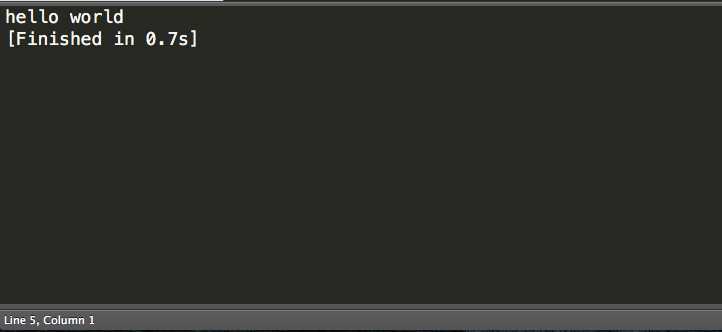
Figure 1: Sublime Text output
If you find that it is not recognizing the babel-node command, I would suggest installing the following globally so that path environment is updated correctly:
Code Listing: 4
npm install –g babel npm install –g babel-cli |
If you don't wish to use Sublime Text as your editor and build system, you can simply use any text editor (such as Notepad), save your source code with a .js extension, navigate to the directory containing your script, and then execute from a command line by typing:
> babel-node myscript.js
Another great tool for testing ES6 capabilities is ScratchJS. It is an extension for Chrome and even allows you to select which transpiler to use. Again, you can use your own tool of choice, but when we get to Modules we want to load modules from the file system, and this makes it hard when using a browser testing tool.
Transpilers
The following is a short list of popular transpilers:
- Babel – This is by far the most popular transpiler for ES6. It comes with a 2015 preset that you can use that supports a majority of the 2015 specification. You can find more about Babel.js here: https://babeljs.io. One thing to note is that Babel 6 was recently released, yet the REPL online has not yet been updated.
- Traceur – This is another popular transpiler for ES6. It is not as complete in compliance to specification with ES6 as Babel, but it is still a good option. You can find more about Traceur here: https://github.com/google/traceur-compiler.
- TypeScript – This is probably the most popular transpiler for the Microsoft stack developer. TypeScript isn’t strictly ES6, as it adds typing and interfaces into the mix. As far as ES6 compliance, it is behind both Babel and Traceur. However, it is a great tool, and if you like to get strongly typed compile time exceptions, this is the tool for you. You can find more about TypeScript here: http://www.typescriptlang.org/.
Browser support
Desktop browser support is coming along pretty well. You will be surprised to know that Microsoft Edge is right on the tail of Firefox as leading the way in standards compliance. Chrome is close behind but still has some ways to go.
As of writing this book, it is recommended to use a ‘transpiler’ such as Babel.
Code listings
All code listings in this book have been generated using Sublime Text 3. Most of the code examples and screenshots were created using Scratch JS in Chrome. Scratch JS is an extension for Chrome; it allows you to pick which transpiler you wish to use. For the remainder of this book, except where noted, we will be using Babel as the transpiler. Scratch JS also allows you to toggle the output of your ES6 code down to ES5 code by clicking Toggle Output. This can be beneficial if you are curious as to what the syntax of the code would look like in classic ES5 code. Because ES6 is still under development, you may run into some minor problems getting some of the examples to work, especially if you call babel-node from a command line. If this happens, you can go to the Babel website, and paste ES6 code into their interactive transpiler page. This will generate ES5 code. You can take this output, save it as a .js file, and run it using node. This approach usually solves most issues. Finally, you can also execute your ES6 code from the Scratch JS tab by clicking Run.


- 1800+ high-performance UI components.
- Includes popular controls such as Grid, Chart, Scheduler, and more.
- 24x5 unlimited support by developers.