
Delphi Succinctly®

CHAPTER 1
A First Glance at Delphi
Delphi was released in 1995 by Borland, the software company behind the well-known Turbo Pascal compilers.
The idea of Borland was to create an environment for rapid application development (RAD) based on components use, or better re-use, taking the well-known Turbo Pascal compiler a step forward.
At that time, Delphi was a direct competitor of Microsoft Visual Basic—at one point someone called it “VB-Killer.” Thanks to the full support for object-oriented programming (OOP), multi-threading and COM (Component Object Model) support, and many other exclusive features, Delphi could achieve more complex and well-structured projects than Visual Basic 6. VB developers had to await the advent of the .NET Framework technology in order to have a comparable tool with a high-level language and modern enterprise-class business qualities.
Today, Delphi is owned and maintained by Embarcadero Technologies, a company focused on high-class enterprise data management and development tools. Delphi is sold as a standalone product or inside RAD Studio, a broader suite where Delphi is bundled with C++Builder (a different flavor of the same technologies and libraries available for Delphi but based on C++ language and compilers).
In this book we will refer to Delphi 10 Seattle, which is the latest available version at the time of writing, but everything we’ll see should be fine for any older or newer versions.
The purpose of this book is to provide an overview of what you can do with Delphi and how, facing the working principles of its environment and the high potential of Object Pascal language to build native solutions for a wide number of heterogeneous devices and platforms.
A Look Inside the Box
Delphi is available either as a separate product or as part of RAD Studio, a more complete developer suite that includes a C++ language environment sharing the same libraries of Delphi.
Delphi includes:
- An Integrated Development Environment (IDE).
- A set of compilers for different target platforms.
- Core runtime and design-time libraries (RTL, VCL, FMX).
- Several third-party components and packages.
- Offline product documentation and API references.
- A lot of examples and demos with source code.
In the following chapters, we will be examining each of these parts in detail to see how you can build any kind of application with them.
Libraries and Frameworks
The development process in Delphi leverages three libraries for runtime and design-time purposes.
These libraries include full source code, so you can have a peek and get to know how some features are implemented, or sometimes put a workaround in place if there is a bug.
The Run Time Library (RTL) is a portable piece of software filled up with routines, types and classes for general purposes like string and date/time manipulation, memory and I/O management, lists and other containers and RTTI (known as Reflection in .NET and Java) just to name a few.
The Visual Component Library (VCL) leverages the RTL to provide a set of both visual controls and non-visual components aimed at creating applications and services for the Windows platform. VCL exists in the product since its inception in 1995 and after more than 20 years of improvements, it has grown up and became a solid and mature framework. It is actively maintained to embrace the most prominent features available on each version of Windows released by Microsoft.
FireMonkey is similar to the VCL, meaning that it provides components and visual controls, but it is different from the former in many aspects. First of all, it is a graphic library: the elements that make up the user interface are designed from scratch leveraging the GPU and using vectors. It is also fully cross-platform: every application created with it can be compiled to run on different operating systems, including Windows, Mac OSX, Android and iOS.
Delphi offers many other libraries to address common tasks like network and Internet communication, data access, and cloud support. To name a few, FireDAC is a library that lets you connect to a wide variety of data sources and databases in different formats, including NoSQL databases (like MongoDB). Indy is a set of classes and components that enable the creation of clients and servers for the most popular network protocols; HTTP Client Library provides tools and components to call and exchange data with RESTful APIs, Cloud API is an extensible framework to connect and consume cloud services with up-to-date components for Microsoft Azure and Amazon EC2 Services.
One Language, Many Projects
Delphi can create a wide range of projects. Here is a table that summarizes them all, but new kinds are added after each release based on the new platforms the product embraces.
Table 1: Delphi Main Project Types
Project type | Description |
Console Application | A basic cross-platform application, with no GUI, runnable from the Command Prompt or a Terminal window. |
VCL Forms Application | A classical Windows native desktop application based on Visual Component Library (VCL). |
Multi-Device Application | A rich cross-platform client application targeting multiple devices and different form factors based on the FireMonkey library (FMX). |
Dynamic-link Library (DLL) | A cross-platform native shared library, useful for exporting functions to other applications and programming languages, like old-school plain Windows DLL files. |
Control Panel Application | Adds a new icon to the Windows Control Panel that launches a fully-customizable application when clicked. |
Android Service | Perform background tasks on the Android platform. |
Installing Delphi
Before starting our tour around all the marvelous Delphi features, you have to download and install it on your PC.
Delphi can produce applications for many platforms, however it actually is a Windows native executable, so you must have a PC equipped with Windows (Vista or later) in order to run it, or a Windows virtual machine if you use a Mac.
You can download a free trial version of Delphi from Embarcadero’s website.
Once you have downloaded the setup package, launch it to begin the installation process that involves the steps described below.
- Before anything else, you must put a check for the License Agreement and acceptance of Privacy Policy, then you can optionally join the Embarcadero Customer Experience Program, an initiative that provides data to help improve the product.
- The Setup Personalities step lets you choose the programming languages (called “Personalities”) to install. You can elect to install both Delphi and C++Builder or only one of them; if you are going to start a trial period, you can evaluate both products, otherwise you should stick with the languages included in the license bought from Embarcadero.
- The Setup Languages step allows you to install different languages of the product (the default is English).
- The Select Features step lets you choose what features you would like to install with the product (i.e. libraries, help, samples, add-ons). You can select a feature and read a short description below the tree.
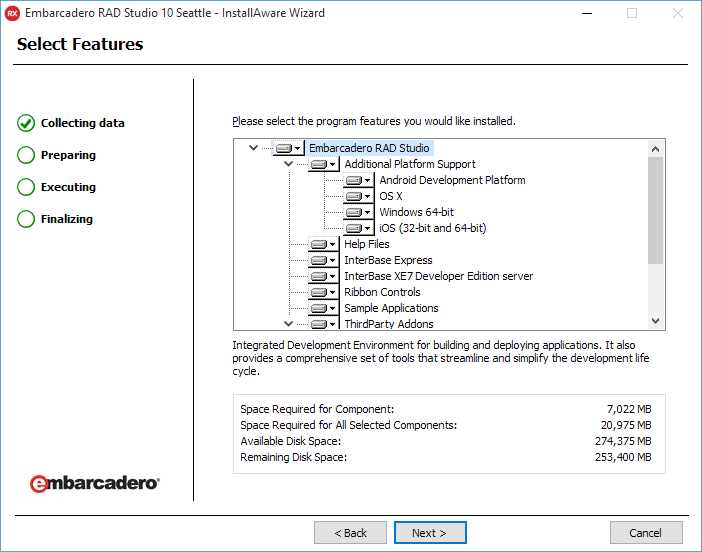
Figure 1: Feature Selection
- The Android SDK step lets you install the Android NDK/SDK with the product; if you already have them installed and want to develop for the Android platform, uncheck these and configure them later, following the detailed instructions in the official documentation.
- The Start Menu step is where you can edit the name of the Start Menu group and decide if you want to create it just for you or for all users of your machine.
- The Destination Folder step allows you to change the destination path of program files, demos, and common resources.
- The Update File Associations permits you to select which file extensions should be associated to Delphi; you can select all file types or deselect the ones that are also used by other programming tools and environments (like Visual Studio) as you wish.
- The Download File Location step requires you to enter a path where the installer can save the media packages that must be downloaded according to selected features; you can also order “media kits” (DVDs) or download a full ISO distribution if you have an active Update Subscription with Embarcadero.
- The final step is the installation itself. Wait for it to finish and then you are ready to start using Delphi.
Launching Delphi
Once the installation procedure is complete, you can launch Delphi by clicking the corresponding link in the Windows Start Menu.
If you see a registration window appearing, you can choose to create a new Embarcadero Developer Network (EDN) account or logging in if you already have one. You should also have received further instructions by e-mail when you have downloaded the installer.
A splash screen will appear to show information about the loading process of both core components and add-ons where available.
When everything has been loaded, the full-screen Delphi IDE main window will open.
At the center of the main window you can find the Welcome page, a useful resource to deepen your knowledge with tutorials, examples and how-to procedures you can look at once finished reading this book, surrounded by many dockable panels, and each of them has its own scope.
Summary
In this chapter we introduced the libraries available in Delphi: Visual Component Library (VCL) for Windows development, and FireMonkey (FMX) for multi-device, cross-platform applications. We will dig into these libraries in the rest of the book to see how you can use them successfully.
We also had a look at the installation process. We have just covered some broad information, but remember, you can always check the Installation Notes from the product’s official documentation for more details.


- 1800+ high-performance UI components.
- Includes popular controls such as Grid, Chart, Scheduler, and more.
- 24x5 unlimited support by developers.