
Data Capture and Extraction with C# Succinctly®

CHAPTER 2
Extracting Data from Screenshots
Introduction
Like emails, screenshots that contain text are also filled with valuable information. For instance, some screenshots contain important material that can be extracted to automate processes such as typing and data entry. As companies and individuals increasingly automate their internal processes, extracting information from screenshots, which avoids manual data entry and typing, becomes ever more important in the business world.
The process of reading screenshots and extracting valuable information is often called Capture or Extraction. Extracting the words, numbers, or text contained within a screenshot is called Optical Character Recognition (OCR).
After reading this chapter, you should be able to install EmguCV for use within a C# program in order to perform OCR by extracting data as text from screenshots in either Portable Network Graphics (PNG) or Tagged Image Format (TIFF) formats.
Understanding formats
When a screenshot needs to be converted into a digital image, it can be saved using several different formats. The most commonly used formats for saving screenshots are TIFF, PNG, or Joint Photographic Experts Group (JPEG). The TIFF format is best suited for performing OCR, and most OCR Engines prefer working with TIFF as the predefined format for extracting text.
According to Wikipedia, the JPEG algorithm works best with pictures and drawings that use soft variations of tone and color, and this format is widely popular on the Internet. JPEG is also one of the most common formats used by digital cameras for saving pictures. However, JPEG may not be well suited for line drawings and other textual or iconic graphics (i.e. text), primarily due to sharp contrasts between adjacent pixels.
The TIFF format offers a great advantage over the others by providing special lossless compression algorithms like CCITT Group IV, which can compress bitonal images (e.g., faxes or black-and-white text) better than the JPEG or PNG compression algorithms.
When performing OCR, the preferred format is TIFF with CCITT Group IV Compression. PNG is the second most common choice.
If you want to know more about the differences between images formats, you can find valuable information in the Wikipedia reference for “Comparison of graphics file formats.”
OpenCV basics
Open Source Computer Vision (OpenCV) is a C++ cross-platform library that was designed for use in implementing computer vision solutions (face detection, recognition of patterns in images, etc.). You can learn more about it on the Open CV Wikipedia entry and from the OpenCV website.
Because OpenCV is a native (nonmanaged) C++ library, there is a .NET cross-platform wrapper called EmguCV that we will use to interact with Tesseract and to perform data extraction and OCR on TIFF with CCITT Group IV compression screenshots.
EmguCV allows OpenCV functions to be called from native .NET code written in C#, VB, VC++, or even IronPython. EmguCV is also compatible with Mono from Xamarin and can run on Windows, Mac OS X, Linux, iOS, and Android.
You can install EmguCV as a NuGet package using Visual Studio. Because there are several implementations available on NuGet, we’ll use EmguCV.221.x64. If you are developing on a 32-bit OS, you can install EmguCV.221.x86.
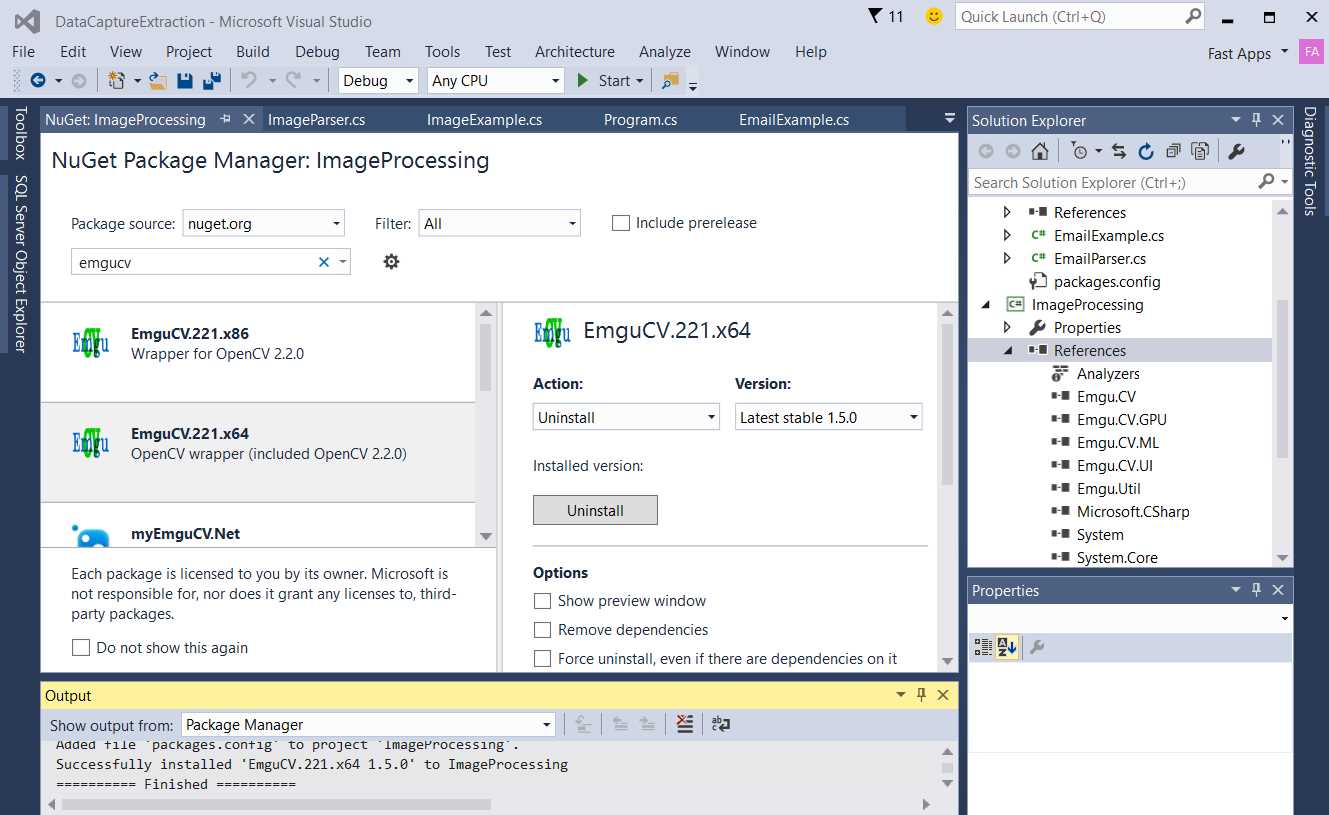
Figure 4: Installing EmguCV as a NuGet Package with Visual Studio 2015
With EmguCV installed, several dependencies are automatically added to the Visual Studio project. For us, the most important ones will be Emgu.CV, Emgu.CV.OCR, and Emgu.Util.
Be sure to notice that as you install the EmguCV NuGet package, you won’t get the Emgu.CV.OCR namespace, which is essential for working with Tesseract. That means we need access to the Tesseract engine. In order to access the necessary file Emgu.CV.OCR.dll, we must download and install the full EmguCV setup, which can be found here:
Therefore in order to get the file Emgu.CV.OCR.dll it is necessary to download and install the full EmguCV setup, which can be found here:
If we did not need to perform OCR, we could simply use what has been installed with NuGet, and the following universal setup of Emgu.CV would be unnecessary.
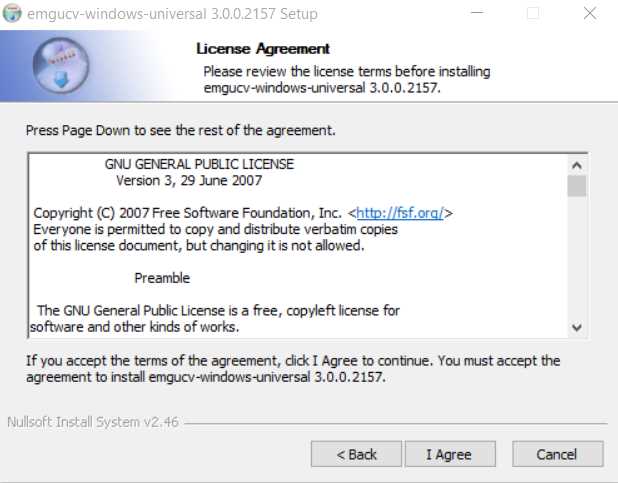
Figure 5: Universal Windows Setup of EmguCV
Once installed, the full EmguCV library can be found in Windows under “C:\Emgu\emgucv-windows-universal 3.0.0.2157”. Please bear in mind that the version number might change in the future, so the folder path might slightly vary (i.e. numbers at the end of the path).
Be sure to add these DLL tags as references: Emgu.CV.dll, Emgu.CV.OCR.dll, and Emgu.Util.dll.
Figure 6 depicts how the Visual Studio project references should look with the addition of these DLLs.
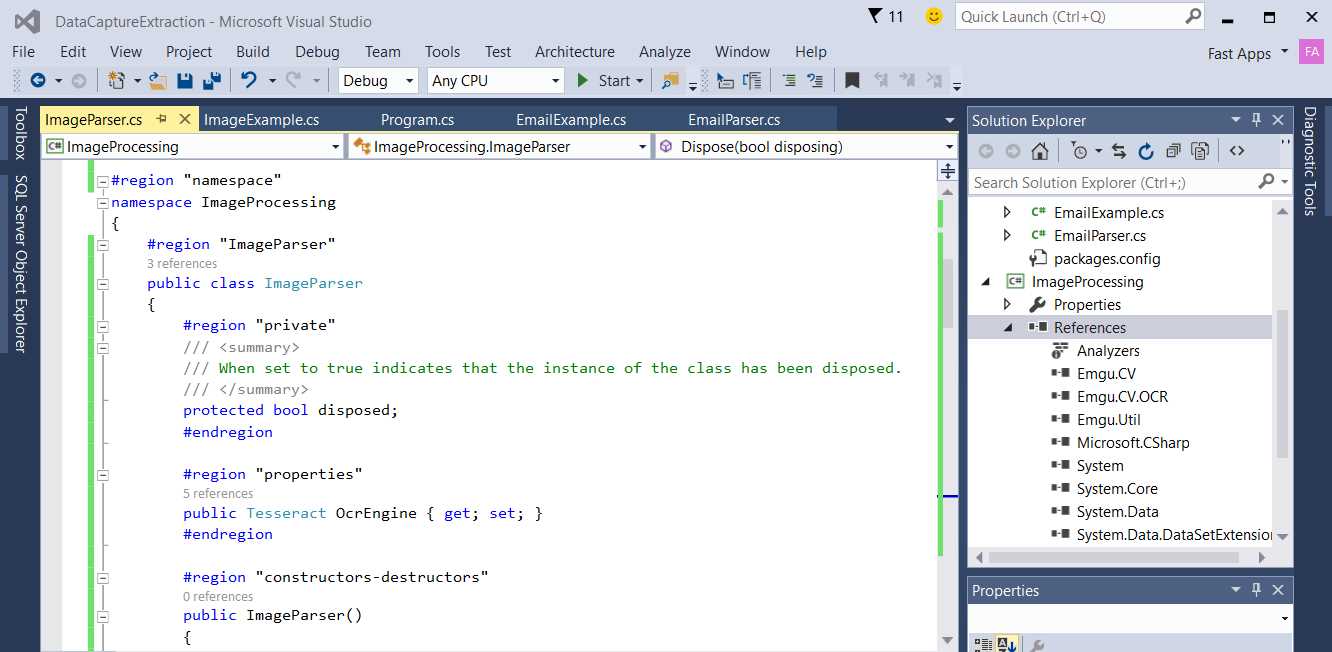
Figure 6: Visual Studio Project with EmguCV DLLs
Parsing screenshots
Now that we have EmguCV wired up, let’s see how we can OCR a screenshot to extract text and words from it.
EmguCV is a wrapper around OpenCV. In order for it to run properly, the OpenCV runtimes need to be copied onto the Output folder of the Visual Studio project (either the Debug or Release folder). These OpenCV runtimes need to be copied: cvextern.dll, msvcp120.dll, msvcr120.dll, and opencv_ffmpeg300.dll.
If these files are not present in the Output folder, an exception will be produced at run time. With this in place, let’s have a look how this can be done in code.
Code Listing 9: Performing OCR on a Screenshot with EmguCV
using Emgu.CV; using Emgu.Util; using Emgu.CV.Structure; using Emgu.CV.OCR; namespace ImageProcessing { public class ImageParser: IDisposable { public Tesseract OcrEngine { get; set; } public string[] Words { get; set; } public void Dispose() { } public ImageParser(string dataPath, string lang) { OcrEngine = new Tesseract(dataPath, lang, OcrEngineMode.TesseractCubeCombined); }
public string OcrImage(string img) { string res = String.Empty; List<string> wrds = new List<string>(); if (File.Exists(img)) { using (Image<Bgr, byte> i = new Image<Bgr, byte>(img)) { if (OcrEngine != null) { OcrEngine.Recognize(i); res = OcrEngine.GetText().TrimEnd(); wrds.AddRange(res.Split(new string[] { " ", "\r", "\n" },
StringSplitOptions. RemoveEmptyEntries).ToList()); this.Words = wrds?.ToArray(); } } } return res; } } } |
The first step in Code Listing 9 depicts creating an instance of a Tesseract object within the constructor of the ImageParser class.
Two very important parameters get passed on to the Tesseract constructor. First, the parameter dataPath indicates the path of the Tessdata folder, which contains the Tesseract data definitions (located under “C:\Emgu\emgucv-windows-universal 3.0.0.2157\bin\tessdata”). And second, the parameter lang indicates the language that the OCR engine will attempt to recognize.
Once the Tesseract instance has been created, performing OCR on the screenshot is our next step. We do this inside the OcrImage method. An Emgu.CV.Image<TColor, Depth> instance must be created in order to load the actual screenshot file that OCR will perform on. Next Emgu.CV.Image instance is passed as a parameter to the Recognize method of the Tesseract instance. Once the Recognize has finished, the GetText method can be invoked, which returns a string of all words and characters found on the screenshot.
We can clean things up by converting the string result from GetText into a string array of words assigned to the Words property of the ImageParser class.
As you can see, performing OCR on a screenshot and extracting text from it can be a relatively simple operation. Setting up EmguCV and making sure the runtime files are in place, with the correct references used, is actually more time consuming than OCR.
Demo program
Standard development practice requires that we have a wrapper class call the ImageParser before requesting that the Main Program invoke the wrapper class. This same principal was applied in Chapter 1 with MailKit.
Let’s look at how this can be done.
Code Listing 10: Using a Wrapper Class to Invoke ImageParser to OCR a Screenshot.
// ImageExample: A wrapper class around ImageParser. using System; using System.Collections.Generic; using System.Linq; using System.Text; using System.Threading.Tasks; namespace ImageProcessing { public class ImageExample { public static string[] GetImageWords() { List<string> w = new List<string>(); using (ImageParser ip = new ImageParser( @"C:\Emgu\emgucv-windows-universal 3.0.0.2157 \bin\tessdata", "eng")) { if (ip.OcrImage( @"C:\temp\screen_shot.tif") != string.Empty) w.AddRange(ip?.Words.ToList<string>()); } return w.ToArray(); } } } // Main Program that invokes ImageExample. using System; using System.Collections.Generic; using System.Linq; using System.Text; using System.Threading.Tasks; using ImageProcessing; namespace DataCaptureExtraction { class Program { static void Main(string[] args) { ImageExample.GetImageWords(); } } } |
The main program calls GetImageWords, which is a static method within the ImageExample class. Inside GetImageWords, an instance of the ImageParser class is created by passing both the location of the Tesseract data folder and the language to be used by the Tesseract engine. Next, the method OcrImage is called the result returned as a sting and the words found on the words string array property of the ImageParser instance.
Summary
From a programming perspective, using OpenCV and the .NET EmguCV wrapper to extract words from screenshots is relatively easy. We must only make sure that EmguCV is installed so that runtimes are in place and no runtime exceptions are produced.
As with other libraries, OpenCV and EmguCV can be used for much more than OCR screenshots and text and word extraction. We’ve only scratched the surface of what these libraries offer, so I invite you to further explore each of them and discover what they have to offer beyond OCR. I also recommend that you explore commercial OCR and image-processing platforms available in the market.
Complete demo program source code
Code Listing 11 contains the entire source code for each of the examples we have addressed using EmguCV.
Code Listing 10: Complete Demo Program Source Code with EmguCV
// ImageParser: OCR text extraction using EmguCV. using System; using System.Collections.Generic; using System.Linq; using System.Text; using System.Threading.Tasks; using Emgu.CV; using Emgu.Util; using Emgu.CV.Structure; using Emgu.CV.OCR; using System.IO; namespace ImageProcessing { public class ImageParser: IDisposable { protected bool disposed; public Tesseract OcrEngine { get; set; } public string[] Words { get; set; } public ImageParser() { OcrEngine = null; } public ImageParser(string dataPath, string lang) { OcrEngine = new Tesseract(dataPath, lang, OcrEngineMode.TesseractCubeCombined); } ~ImageParser() { this.Dispose(false); } public string OcrImage(string img) { string res = String.Empty; List<string> wrds = new List<string>(); if (File.Exists(img)) { using (Image<Bgr, byte> i = new Image<Bgr, byte>(img)) { if (OcrEngine != null) { OcrEngine.Recognize(i); res = OcrEngine.GetText().TrimEnd(); wrds.AddRange(res.Split(new string[] { " ", "\r", "\n" },StringSplitOptions. RemoveEmptyEntries).ToList()); this.Words = wrds?.ToArray(); } } } return res; } public virtual void Dispose(bool disposing) { if (!this.disposed) { if (disposing) { if (OcrEngine != null) { OcrEngine.Dispose(); OcrEngine = null; } } } this.disposed = true; } public void Dispose() { this.Dispose(true); GC.SuppressFinalize(this); } } } // ImageExample: A wrapper class around ImageParser. using System; using System.Collections.Generic; using System.Linq; namespace ImageProcessing { public class ImageExample { public static string[] GetImageWords() { List<string> w = new List<string>(); using (ImageParser ip = new ImageParser(@"C:\Emgu\emgucv-windows-universal 3.0.0.2157\bin\tessdata", "eng")) { if (ip.OcrImage( @" C:\temp\screen_shot.tif ") != string.Empty) w.AddRange(ip?.Words.ToList<string>()); } return w.ToArray(); } } } // Main Program that invokes ImageExample. using System; using System.Collections.Generic; using System.Linq; using System.Text; using System.Threading.Tasks; using ImageProcessing; namespace DataCaptureExtraction { class Program { static void Main(string[] args) { ImageExample.GetImageWords(); Console.ReadLine(); } } } |
The complete Visual Studio project source code can be downloaded from this URL:
https://bitbucket.org/syncfusiontech/data-capture-and-extraction-with-c-succinctly


- 1800+ high-performance UI components.
- Includes popular controls such as Grid, Chart, Scheduler, and more.
- 24x5 unlimited support by developers.