
Data Capture and Extraction with C# Succinctly®

CHAPTER 1
Extracting Data from Emails
Introduction
Email has become a pillar of our modern and connected society, and it now serves as a primary means of communication. Because each email is filled with valuable information, data extraction has emerged as a worthwhile skill set for developers in today’s business world. If you can parse an email and extract data from it, companies that automate processes, e.g., helpdesk systems, will value your expertise.
An email can be divided into several parts: subject, body, attachments, sender and receiver(s). We should also note that the headers section reveals important information about the mail servers involved in the process of sending and receiving an email.
Before addressing how we can extract information from each part of an email, we should understand that a mailbox can be viewed as a semistructured database that does not use a native querying language (e.g., SQL) to extract information.
|
Table 1: A Typical Email Structure
Table 1 depicts a typical email structure, which can be queried using C#. Note that the structure of an email is layered and some elements are contained within other elements. For example, attachments fall within content, which is part of the body. This internal structure might vary slightly, but this layered view makes the concepts easier to understand.
With this structure in mind, we can to look for ways to extract data from each element and make meaning of it. We will address this later in Chapter 1.
Keep in mind that these elements will always contain data: Headers, Contents, To, Sender, and Receiver. These are essential—without them an email cannot be relayed. However, other email elements, such as CC, BCC, Subject, Body, Content and Attachments, might not contain data.
This chapter will address how to connect to a POP3 or IMAP mail server, how to retrieve, parse, extract data from emails, and how to send responses via SMTP using the MailKit library with C#.
Understanding emails
Now that we know an email’s structure includes several elements, we need to understand which types of data exist within each email element.
Table 2 represents the data types of email elements.
Sender | contains | 1 Email address (string) |
Receiver | contains | 1 or more Email addresses (string) |
CC | contains | 1 or more Email addresses (string) |
BCC | contains | 1 or more Email addresses (string) |
Subject | contains | 1 line of text (string) |
Content | contains | 1 or multiple lines of Text or HTML (string) |
Attachments | contains | 1 or multiple files |
Table 2: Email Elements Data Types
Using our knowledge of the data types for email elements, we can determine how to treat each element and predict the type of data we can expect to extract. In order to connect to a mail server and extract data, we will be using a cross-platform C# library called MailKit.
MailKit basics
MailKit is cross-platform .NET library for IMAP, POP3, and SMTP built on top of MimeKit. Mailkit was developed by Jeffrey Stedfast from Xamarin, and more information about it can be found at https://components.xamarin.com/view/mailkit or on GitHub at https://github.com/jstedfast/MailKit.
You can install MailKit as a NuGet package with Visual Studio.
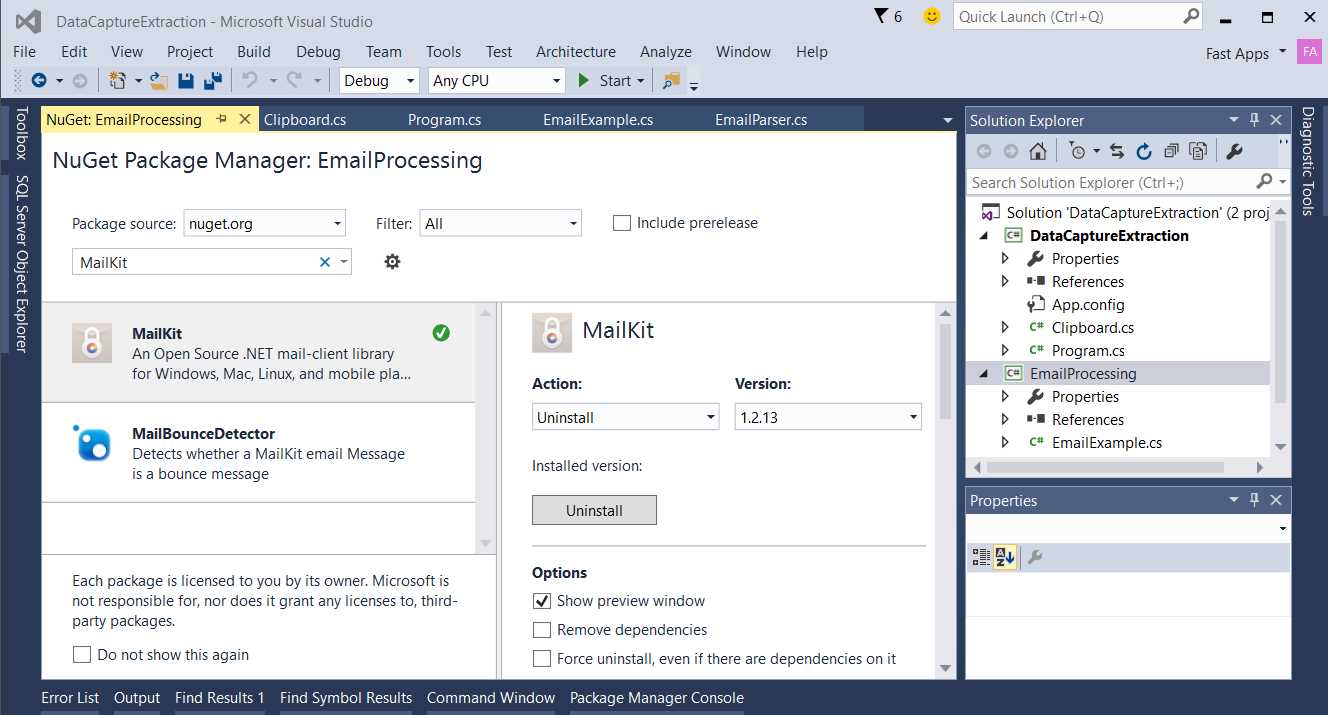
Figure 1: Installing MailKit as NuGet Package with Visual Studio 2015
MailKit supports IMAP4, POP3, SMTP clients, SASL authentication and client-side sorting and threading of messages. The full list of supported features can be found on MailKit website.
Because MailKit is a C# library, the following code examples have been written using Visual Studio 2015, which targets .NET 4.5.2 and might use some of the features of C# 6.0.
Connecting to a POP3 or IMAP server in order to later retrieve emails is a fundamental component of using MailKit. Let’s have a look at how this can be done.
Code Listing 1: Reading Message Subjects from a POP3 Server
// EmailParser.cs: Using MailKit to Retrieve Email Data. Using System; using MailKit.Net.Pop3; using MimeKit; namespace EmailProcessing { public class EmailParser : IDisposable { protected string User { get; set; } protected string Pwd { get; set; } protected string MailServer { get; set; } protected int Port { get; set; } public Pop3Client Pop3 { get; set; } public EmailParser(string user, string pwd, string mailserver, int port) { User = user; Pwd = pwd; MailServer = mailserver; Port = port; Pop3 = null; } public void OpenPop3() { if (Pop3 == null) { Pop3 = new Pop3Client(); Pop3.Connect(this.MailServer, this.Port, false); Pop3.AuthenticationMechanisms.Remove("XOAUTH2"); Pop3.Authenticate(this.User, this.Pwd); } } public void ClosePop3() { if (Pop3 != null) { Pop3.Disconnect(true); Pop3.Dispose(); Pop3 = null; } }
public void DisplayPop3Subjects() { for (int i = 0; i < Pop3?.Count; i++) { MimeMessage message = Pop3.GetMessage(i); Console.WriteLine("Subject: {0}", message.Subject); } }
public void Dispose() { } } } // EmailExample.cs: Email Wrapper Class using System; namespace EmailProcessing { public class EmailExample { private const string cPopUserName = "[email protected]"; private const string cPopPwd = "testPwd123"; private const string cPopMailServer = "mail.popserver.com"; private const int cPopPort = 110; public static void ShowPop3Subjects() { using (EmailParser ep = new EmailParser(cPopUserName, cPopPwd, cPopMailServer, cPopPort)) { ep.OpenPop3(); ep.DisplayPop3Subjects(); ep.ClosePop3(); } } } } // Program.cs: Show Subjects from POP3 Messages. using EmailProcessing; namespace DataCaptureExtraction { class Program { static void Main(string[] args) { EmailExample.ShowPop3Subjects(); } } } |
The main logic is contained within the Main method of Program.cs, which calls the ShowPop3Subjects method. ShowPop3Subjects then executes the OpenPop3, DisplayPop3Subjects, and ClosePop3 methods of the EmailParser class.
In order to fully understand how MailKit is used, let’s focus on the EmailParser class, which contains the calls to the MailKit methods. Three methods perform the connection to the Mail Server, retrieve the email messages, and close the connection. Let’s look at each one.
As its name implies, OpenPop3 opens a connection to a POP3 Server using the MailKit library.
Code Listing 2: Connecting to a POP3 Server
public void OpenPop3() { if (Pop3 == null) { Pop3 = new Pop3Client(); Pop3.Connect(this.MailServer, this.Port, false); Pop3.AuthenticationMechanisms.Remove("XOAUTH2"); Pop3.Authenticate(this.User, this.Pwd); } } |
In Code Listing 2 a Pop3Client instance is created. Next, with the Pop3 variable holding the instance, a call to the Connect method passes the name of the POP3 Mail Server, the POP3 port, and the third parameter indicating whether or not SSL will be used. In this case SSL is not used and is therefore set to false.
We next invoke AuthenticationMechanisms. Because we don’t have an OAuth2 token we disable the XOAUTH2 authentication mechanism.
Then, in order to establish the connection to the POP3 server, Authenticate is called, which passes the user name (usually the same as the name of the email address of the mailbox being queried) and its respective password.
With an open connection to the POP3 server, we can next loop through the email messages and retrieve information for each. In this case, we will be fetching the subject of each email. Code Listing 3 demonstrates how this can be achieved.
Code Listing 3: Fetching Email Subjects
public void DisplayPop3Subjects() { for (int i = 0; i < Pop3?.Count; i++) { MimeMessage message = Pop3.GetMessage(i); Console.WriteLine("Subject: {0}", message.Subject); } } |
Each email message is represented by an instance of a MimeMessage class. The method GetMessage from the Pop3 object is responsible for retrieving the MimeMessage object. The MimeMessage object includes a property called Subject that returns the subject of the email.
Table 3 represents the properties available within a MimeMessage object.
.Attachments | IEnumerable<MimeEntity> |
.Bcc | InternetAddressList |
.Body | MimeEntity |
.BodyParts | IEnumerable<MimeEntity> |
.Cc | InternetAddressList |
.Date | DateTimeOffset |
.From | InternetAddressList |
.Headers | HeaderList |
.HtmlBody | String |
.Importance | MessageImportance |
.InReplyTo | String |
.MessageId | String |
.MimeVersion | Version |
.Priority | MessagePriority |
.References | MessageIdList |
.ReplyTo | InternetAddressList |
.ResentBcc | InternetAddressList |
.ResentCc | InternetAddressList |
.ResentDate | DateTimeOffset |
.ResentFrom | InternetAddressList |
.ResentMessageId | String |
.ResentReplyTo | InternetAddressList |
.ResentSender | MailboxAddress |
.ResentTo | InternetAddressList |
.Sender | MailboxAddress |
.Subject | String |
.TextBody | String |
.To | InternetAddressList |
Table 3: MimeMessage Properties
As you can see, the properties of MimeMessage objects are self-descriptive, and understanding their meanings is quite easy. Be sure to notice that MailKit uses the InternetAddressList object to represent a list of email addresses, and it uses MailboxAddress to represent a single email address.
Several of the properties, such as Sender, To, ReplyTo, From, CC, and BCC, use an equivalent prefix with the word Resent. This prefix is used when an email has been resent and allows MailKit to identify sender and receiver data from emails that have been resent and those that have been not.
Now that we have explored the basic of using MailKit, let’s examine how to do extract more information from emails.
Parsing emails
MailKit is an awesome, easy-to-use library for handling emails. Let’s look at other interesting email data manipulations it offers.
Code Listing 4 demonstrates how we can retrieve the header fields and values for any email.
Code Listing 4: Extracting Header Fields and Values
public void DisplayPop3HeaderInfo() { for (int i = 0; i < Pop3?.Count; i++) { MimeMessage message = Pop3.GetMessage(i); Console.WriteLine("Subject: {0}", message?.Subject); foreach (Header h in message?.Headers) { Console.WriteLine("Header Field: {0} = {1}", h.Field, h.Value); } } } |
When this code runs, the output produced looks similar to Figure 2.

Figure 2: Output of Email Header Data
A wonderful feature of MailKit is that each of its email headers has a field property that indicates the name of the actual header along with a value.
In Code Listing 4, each header field’s corresponding value is written to the Windows console. For example, the header Delivered-To has a value of [email protected]. This particular header allows us to easily determine that the destination email address is being hosted by a mail server at Dreamhost.
We can easily see that the Received header occurs several times and that that header generally describes the email going through several servers—e.g., mail.google.com (the origin server) and dreamhost.com (the destination server).
As Code Listiing 4 demonstrates, all the email headers are stored inside a HeaderList within the MimeMessage object. This list can be iterated with a foreach loop through a Header object. Because headers contain valuable information about the processes involved in sending and receiving emails, they can be used to trace each email back to its original source. We will not address the details of that tracing here, but we can get a good idea of what is possible by checking email header data. MailKit makes retrieving this data very easy. Then it is up to you or your business logic to make sense of it.
Let’s now process an email that has at least one attachment in order to extract the body and save each attachment on a local folder on the Windows file system.
Code Listing 5: Extracting and Saving Email Attachments
public void SavePop3BodyAndAttachments(string path) { for (int i = 0; i < Pop3?.Count; i++) { MimeMessage msg = Pop3.GetMessage(i); if (msg != null) { string b = msg.GetTextBody(MimeKit.Text.TextFormat.Text); Console.WriteLine("Body: {0}", b); if (msg.Attachments != null) { foreach (MimeEntity att in msg.Attachments) { if (att.IsAttachment) { if (!Directory.Exists(path)) Directory.CreateDirectory(path); string fn = Path.Combine(path, att.ContentType.Name); if (File.Exists(fn)) File.Delete(fn); using (var stream = File.Create(fn)) { var mp = ((MimePart)att); mp.ContentObject.DecodeTo(stream); } } } } } } } |
As with our previous examples, the preceding code demonstrates that the email (MimeMessage object) is retrieved using GetMessage. In order to retrieve the body of the email as plain text, we can invoke GetTextBody with the parameter MimeKit.Text.TextFormat.Text. We can achieve this by using the property TextBody. In order to retrieve the body in HTML format, we can use GetTextBody to bypass the parameter MimeKit.Text.TextFormat.Html or, alternatively, by using the property HtmlBody.
After we have retrieved the body of the email, we next check the MimeMessage object for any attachments. If attachments are present, we loop through each and retrieve a MimeEntity object. Before attempting to save the attachment (which is held by the MimeEntity object), we should first check that it is in fact a real attachment by inspecting its IsAttachment property to see if that evaluates to true. If so, the attachment is saved to disk to the location passed as a parameter when calling WriteTo.
Demo program
Let’s now see how we can create an automatic response system using MailKit based on the contents of the email received. This demo program is based on the previous snippets of code provided. The response system will analyze the email’s body, subject and contents of any plain text attachment, will search for particular keywords and, depending upon the type of keywords located, will send back a predefined reply. A similar process can be followed to automate almost any kind business processes that involve receiving and processing emails.
Code Listing 6: Sending Automatic Responses
// Program.cs: Send Automated SMTP Responses. using EmailProcessing; namespace DataCaptureExtraction { class Program { static void Main(string[] args) { EmailExample.AutomatedSmtpResponses(); } } } // EmailExample.cs: Email Wrapper Class using System; using System.Collections.Generic; using System.Linq; using System.Text; using System.Threading.Tasks; namespace EmailProcessing { public class EmailExample { private const string cSmtpUserName = "[email protected]"; private const string cSmtpPwd = "1234"; private const string cSmtpMailServer = "mail.smtpserver.com"; private const int cSmptPort = 465; public static void AutomatedSmtpResponses() { using (EmailParser ep = new EmailParser(cPopUserName, cPopPwd, cPopMailServer, cPopPort)) { ep.OpenPop3(); ep.AutomatedSmtpResponses(cSmtpMailServer, cSmtpUserName, cSmtpPwd, cSmptPort, "[email protected]", "Some Person"); ep.ClosePop3(); } } } } // EmailParser.cs: Use MailKit to Retrieve Email Data. using System; using System.Collections.Generic; using System.Linq; using MailKit.Net.Pop3; using MimeKit; using MailKit.Net.Smtp; namespace EmailProcessing { public class EmailParser : IDisposable { private const string cStrInvoice = "Invoice"; private const string cStrMarketing = "Marketing"; private const string cStrSupport = "Support"; private const string cStrDftMsg = @"Hi, We've received your message but we are unable to classify it properly. -- Cheers. Ed."; private const string cStrMktMsg = @"Hi, We've received your message and we've relayed it to the Marketing department. -- Cheers. Ed."; private const string cStrAptMsg = @"Hi, We've received your message and we've relayed it to the Payment department. -- Cheers. Ed."; private const string cStrSupportMsg = @"Hi, We've received your message and we've relayed it to the Support department. -- Cheers. Ed."; protected string[] GetPop3EmailWords(ref MimeMessage m) { List<string> w = new List<string>(); string b = String.Empty, s = String.Empty, c = String.Empty; b = m.GetTextBody(MimeKit.Text.TextFormat.Text); s = m.Subject; if (m.Attachments != null) { foreach (MimeEntity att in m.Attachments) { if (att.IsAttachment) { if (att.ContentType.MediaType. Contains("text")) { c = ((MimeKit.TextPart)att).Text; } } } w = CleanMergeEmailWords(w, b, s, c); } return w.ToArray(); } private static List<string> CleanMergeEmailWords(List<string> w, string b, string s, string c) { if (b != String.Empty || s != String.Empty || c != String.Empty) { List<string> bl = new List<string>(); List<string> sl = new List<string>(); List<string> cl = new List<string>(); if (b != String.Empty) bl = b.Split(new string[] { " ", "\r", "\n" }, StringSplitOptions.RemoveEmptyEntries).ToList(); if (s != String.Empty) sl = s.Split(new string[] { " ", "\r", "\n" }, StringSplitOptions.RemoveEmptyEntries).ToList(); if (c != String.Empty) cl = c.Split(new string[] { " ", "\r", "\n" }, StringSplitOptions.RemoveEmptyEntries).ToList(); if (bl.Count > 0 || sl.Count > 0 || cl.Count > 0) { bl = bl.Union(sl).ToList(); w = bl.Union(cl).ToList(); } } return w; } public void SendSmtpResponse(string smtp, string user, string pwd, int port, string toAddress, string toName, string msgTxt) { var message = new MimeMessage(); message.From.Add(new MailboxAddress( "Ed Freitas (Automated Email Bot)", "[email protected]")); message.To.Add(new MailboxAddress(toName, toAddress)); message.Subject = "Thanks for reaching out"; message.Body = new TextPart("plain") { Text = msgTxt }; using (var client = new SmtpClient()) { client.Connect(smtp, port, true); client.Authenticate(user, pwd); client.Send(message); client.Disconnect(true); } } protected int DetermineResponseType(string[] w) { int res = -1; foreach (string ww in w) { if (ww.ToUpper().Contains(cStrInvoice.ToUpper())) { res = 1; break; } else if (ww.ToUpper().Contains(cStrMarketing.ToUpper())) { res = 0; break; } else if (ww.ToUpper().Contains(cStrSupport.ToUpper())) { res = 2; break; } } return res; } protected void SendResponses(string[] w, string smtp, string user, string pwd, int port, string toAddress, string toName) { switch (DetermineResponseType(w)) { case 0: // Marketing SendSmtpResponse(smtp, user, pwd, port, toAddress, toName, cStrMktMsg); break; case 1: // Payment SendSmtpResponse(smtp, user, pwd, port, toAddress, toName, cStrAptMsg); break; case 2: // Support SendSmtpResponse(smtp, user, pwd, port, toAddress, toName, cStrSupportMsg); break; default: // Anything Else SendSmtpResponse(smtp, user, pwd, port, toAddress, toName, cStrDftMsg); break; } } public void Dispose() { } public void AutomatedSmtpResponses(string smtp, string user, string pwd, int port, string toAddress, string toName) { for (int i = 0; i < Pop3?.Count; i++) { MimeMessage message = Pop3.GetMessage(i); if (message != null) { string[] words = GetPop3EmailWords(ref message); if (words?.Length > 0) SendResponses(words, smtp, user, pwd, port, toAddress, toName); } } } } } |
This demo program sends an automatic response email out based on the content of a previously received email.

Figure 3: Automatic Email Response Based on the Contents of a Received Email
Figure 3 depicts a connection to a POP3 server and a particular email inbox and, based on the contents of the emails found, inspects each email subject, body and attachment contents, extracting all keywords and checking for any keywords that match a specific predefined set of words (e.g., support, marketing, or invoice). If so, the connection sends an automated response using SMTP. Let’s dig into the details.
The AutomatedSmtpResponses method is called from the Main Program. This method is simply a wrapper of the EmailExample class that invokes the AutomatedSmtpResponses method from the EmailParser class.
AutomatedSmtpResponses loops through all the emails on the POP3 inbox and, for each email, calls the GetPop3EmailWords method responsible for getting all the words located on the email’s subject, body and attachments. If any words are repeated, only one instance of a particular word is left in the returned string array result from GetPop3EmailWords.
This string array result from GetPop3EmailWords is then passed to SendResponses which is also receives the SMTP server, user name, password and port in order to send back the automated response. Let’s analyze a bit more of what GetPop3EmailWords does before moving on to SendResponses.
GetPop3EmailWords retrieves the email body using GetTextBody, and it also retrieves the email subject by calling the Subject property. GetPop3EmailWords next retrieves the contents of each attachment, which requires looping through the Attachments property of the MimeMessage object, because each individual attachment represents a MimeEntity.
The MimeEntity object includes a property called IsAttachment that, when set to true, indicates that the MimeEntity can be treated as an attachment. In order to extract the keywords from the attachment, we must know if the Attachment is indeed a text file. We can discover this by using the property ContentType.MediaType, which will indicate a text file with the word “text.” If the attachment is a text file, the contents can be easily extracted by calling ((MimeKit.TextPart)att).Text.
When all the words present on the email’s subject, body and attachments are retrieved, CleanMergeEmailWords merges them and removes any repeated words from the final string array returned to the caller.
The extracted and filtered words get passed on to the SendResponses method, which loops through all the words and checks if any match the predefined set of words. When a match is produced, a predefined canned response is sent out by calling the SendSmtpResponse method.
SendSmtpResponse creates a MimeMessage object and assigns its corresponding sub-properties objects such as MailboxAddress (receiver details) and TextPart (body). Then a new SmtpClient object is created as the SMTP server and user credentials are assigned. Following a successful call to Connect and Authenticate, the message is finally sent using using the Send method.
Using IMAP
MailKit is a simple but powerful library for managing and working with emails. We’ve learned how to connect to POP3 servers and retrieve email data from headers and contents such as body and attachments. We’ve also examined how responses can be sent out using SMTP. As a final matter, let’s inspect how we can use IMAP instead of POP3.
Each of the POP3 methods we have addressed use a corresponding IMAP equivalent in the Demo Program Source Code.
You will find that working with IMAP in MailKit is similar to connecting and working with a POP3 server. However, in IMAP you must indicate which folder you want to open and what kind of operation you want to perform on the folder, e.g., a Read or ReadWrite operation.
In order to open the Inbox folder using IMAP, you need to call: (cut) Imap.Inbox.Open. With the folder open, you can loop through the MimeMessage objects as you would using POP3 until you reach Imap.Inbox.Count.
The following Code Listing shows the equivalent of the POP3 methods implemented using IMAP.
Code Listing 7: IMAP Equivalent of POP3 Methods
public ImapClient Imap { get; set; } public void DisplayImapSubjects() { var folder = Imap?.Inbox.Open(FolderAccess.ReadOnly); for (int i = 0; i < Imap?.Inbox.Count; i++) { MimeMessage message = Imap.Inbox.GetMessage(i); Console.WriteLine("Subject: {0}", message?.Subject); } } public void DisplayImapHeaderInfo() { var folder = Imap?.Inbox.Open(FolderAccess.ReadOnly); for (int i = 0; i < Imap.Inbox?.Count; i++) { MimeMessage message = Imap.Inbox.GetMessage(i); Console.WriteLine("Subject: {0}", message?.Subject); foreach (Header h in message?.Headers) { Console.WriteLine("Header Field: {0} = {1}", h.Field, h.Value); } } } public void AutomatedSmtpResponsesImap(string smtp, string user, string pwd, int port, string toAddress, string toName) { var folder = Imap?.Inbox.Open(FolderAccess.ReadOnly); for (int i = 0; i < Imap?.Inbox.Count; i++) { MimeMessage message = Imap.Inbox.GetMessage(i); if (message != null) { string[] words = GetPop3EmailWords(ref message); if (words?.Length > 0) SendResponses(words, smtp, user, pwd, port, toAddress, toName); } } } public void SaveImapBodyAndAttachments(string path) { var folder = Imap?.Inbox.Open(FolderAccess.ReadOnly); for (int i = 0; i < Imap?.Inbox.Count; i++) { MimeMessage message = Imap.Inbox.GetMessage(i); if (message != null) { string b = message.GetTextBody( MimeKit.Text.TextFormat.Text); Console.WriteLine("Body: {0}", b); if (message.Attachments != null) { foreach (MimeEntity att in message.Attachments) { if (att.IsAttachment) { if (!Directory.Exists(path)) Directory.CreateDirectory(path); string fn = Path.Combine(path, att.ContentType.Name); if (File.Exists(fn)) File.Delete(fn); using (var stream = File.Create(fn)) { var mp = ((MimePart)att); mp.ContentObject.DecodeTo(stream); } } } } } } } |
Code Listing 7 indicates two main differences with POP3-equivalent methods. First, with IMAP a call to Imap.Inbox.Open needs to specify which type of access to the inbox folder is required. And second, the looping takes into account the count on the inbox folder opened by calling Imap.Inbox.Count. The rest of the process is essentially the same, and each email is represented by a MimeMessage object.
To learn more about MailKit, to the project’s GitHub website and check the code examples and further documentation.
Demo program source code
The following Code Listing contains complete source code for all the examples previously described using MailKit.
Code Listing 8: Demo Program Source Code Using MailKit
// Program.cs: Main Program using EmailProcessing; namespace DataCaptureExtraction { class Program { static void Main(string[] args) { //EmailExample.ShowPop3Subjects(); //EmailExample.DisplayPop3HeaderInfo(); //EmailExample.SavePop3BodyAndAttachments( // @"C:\Attach"); //EmailExample.AutomatedSmtpResponses(); //EmailExample.ShowImapSubjects(); //EmailExample.DisplayHeaderInfoImap(); //EmailExample. SaveImapBodyAndAttachments( // @"C:\Attach"); EmailExample.AutomatedSmtpResponsesImap(); } } } // EmailExample.cs: Email Wrapper Class using System; namespace EmailProcessing { public class EmailExample { private const string cPopUserName = "[email protected]"; private const string cPopPwd = "1234"; private const string cPopMailServer = "mail.popserver.com"; private const int cPopPort = 110; private const string cImapUserName = "[email protected]"; private const string cImapPwd = "1234"; private const string cImapMailServer = "mail.imapserver.com"; private const int cImapPort = 993; private const string cSmtpUserName = "[email protected]"; private const string cSmtpPwd = "1234"; private const string cSmtpMailServer = "mail.smtpserver.com"; private const int cSmptPort = 465; public static void ShowPop3Subjects() { using (EmailParser ep = new EmailParser(cPopUserName, cPopPwd, cPopMailServer, cPopPort)) { ep.OpenPop3(); ep.DisplayPop3Subjects(); ep.ClosePop3(); } } public static void ShowImapSubjects() { using (EmailParser ep = new EmailParser(cImapUserName, cImapPwd, cImapMailServer, cImapPort)) { ep.OpenImap(); ep.DisplayImapSubjects(); ep.CloseImap(); } } public static void DisplayHeaderInfo() { using (EmailParser ep = new EmailParser(cPopUserName, cPopPwd, cPopMailServer, cPopPort)) { ep.OpenPop3();
ep.DisplayPop3HeaderInfo(); ep.ClosePop3(); } } public static void DisplayHeaderInfoImap() { using (EmailParser ep = new EmailParser(cImapUserName, cImapPwd, cImapMailServer, cImapPort)) { ep.OpenImap(); ep.DisplayImapHeaderInfo(); ep.CloseImap(); } } public static void AutomatedSmtpResponses() { using (EmailParser ep = new EmailParser(cPopUserName, cPopPwd, cPopMailServer, cPopPort)) { ep.OpenPop3(); ep.AutomatedSmtpResponses(cSmtpMailServer, cSmtpUserName, cSmtpPwd, cSmptPort, "[email protected]", "Some Person"); ep.ClosePop3(); } } public static void AutomatedSmtpResponsesImap() { using (EmailParser ep = new EmailParser(cImapUserName, cImapPwd, cImapMailServer, cImapPort)) { ep.OpenImap(); ep.AutomatedSmtpResponsesImap(cSmtpMailServer, cSmtpUserName, cSmtpPwd, cSmptPort, "[email protected]", "Some Person"); ep.CloseImap(); } } public static void SavePop3BodyAndAttachments(string path) { using (EmailParser ep = new EmailParser(cPopUserName, cPopPwd, cPopMailServer, cPopPort)) { ep.OpenPop3(); ep.SavePop3BodyAndAttachments(path); ep.ClosePop3(); } } public static void SaveImapBodyandAttachments(string path) { using (EmailParser ep = new EmailParser(cImapUserName, cImapPwd, cImapMailServer, cImapPort)) { ep.OpenImap(); ep.SaveImapBodyAndAttachments(path); ep.CloseImap(); } } public static void OpenClosePop3() { using (EmailParser ep = new EmailParser(cPopUserName, cPopPwd, cPopMailServer, cPopPort)) { ep.OpenPop3(); ep.ClosePop3(); } } public static void OpenCloseImap() { using (EmailParser ep = new EmailParser(cImapUserName, cImapPwd, cImapMailServer, cImapPort)) { ep.OpenImap(); ep.CloseImap(); } } } } |
The complete Visual Studio project source code can be downloaded from this URL:
https://bitbucket.org/syncfusiontech/data-capture-and-extraction-with-c-succinctly


- 1800+ high-performance UI components.
- Includes popular controls such as Grid, Chart, Scheduler, and more.
- 24x5 unlimited support by developers.