
CSS3 Succinctly®

CHAPTER 6
Color
If you've done any web development at all prior to reading this, then you've almost certainly come across the standard way that colors are defined in HTML/CSS using the 6-digit hex notation: #rrggbb
What exactly does this mean? It’s actually quite simple. In effect, it’s a 24-bit color value made up of three 8-bit components.
In the hexadecimal number scheme, digits are counted from 0 to F rather than 0 to 9 as in the normal decimal number system. When you look closely, you realize that you can fit all of those values into 4 bits, and since the maximum number 4 bits can represent in decimal is 15, then 0 to F actually means 0 to 15.
If you double that up, the 4 bits becomes 8 bits, and the maximum you can then fit is 255, so FF (our largest hexadecimal number) becomes 255 (our largest decimal number). My aim here is not to turn this into a lesson on hexadecimal math; my aim is just to explain to you that a color value is made up of 256 (0 to 255) levels of Red, Green, and Blue values, with 0 being no color and 255 being the max amount of that color.
If you wanted a mid grey, for example, you might use 127 for the values of Red, Green, and Blue, which, when translated would give you #7F7F7F.
If you’re using Windows it's very easy to convert by using the Windows Calculator. Type calc into your run box, or search for it in the Start menu. When it loads, on the View menu, choose Programmer.

- Windows Calculator View menu
You should end up with following:

- Windows Calculator in programmer mode
To convert to Hex, make sure you select Dec (marked “1” in Figure 84) then type in your value. Select Hex (marked “2” in Figure 84) and you'll see the value to place in your color value. If your value is only one digit (from 0 to F), then simply prefix it with an extra 0 (01, 02 … 0E, 0F). Do this for each of the three values, and plug them all together to make your final color. Easy, right?
Well no, not really, because you either have to understand hex/dec conversion, or need some kind of tool on hand to make sense of things.
This how it was at the start, and this is how it's always been—at least until CSS3 came along.
Color Names
CSS2 introduced proper names for some colors, but they weren't really publicized; this, however, was greatly expanded with CSS3. You've already in this book that I've used names such as red, green, and blue. There are actually 140 of them altogether, as Figure 85 shows.
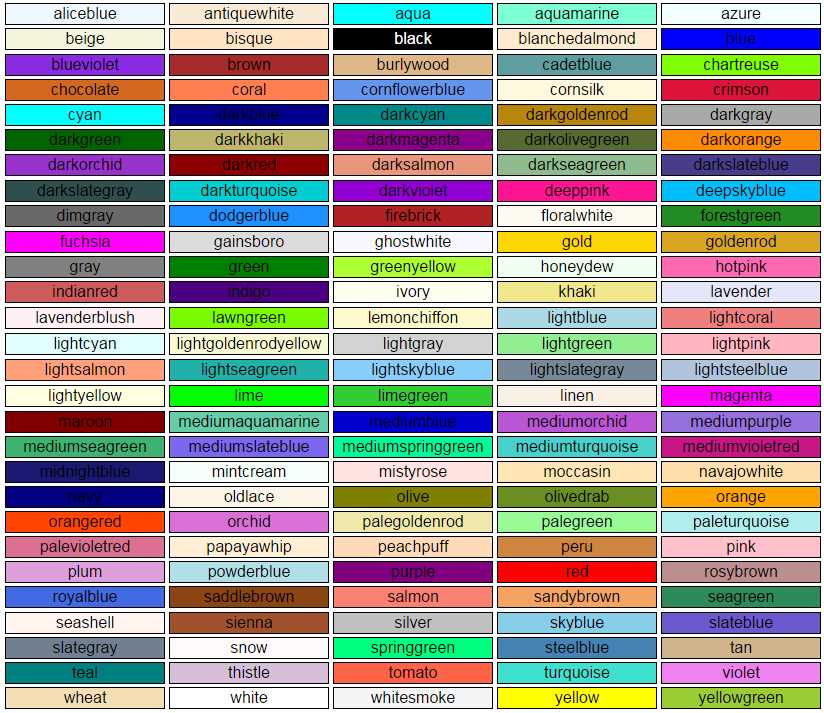
- 140 CSS3 color names
There are actually a few more (147 in total), but those are just alternate spellings of colors already specified, such as “darkslategrey” (for those who spell the word “gray” with an “e”).
Anywhere you have to specify a color in your CSS rules, you can use these color names.
If, like many of us, you have trouble remembering them, then you might find this website useful.
The site gives you a random color from the list on its home screen each time you load or refresh the page and lists the color name in big letters. If you click on the small grid icon just below the text, you'll be taken to a page where you can hover over colors, sort them in different ways, and generally examine the entire list.
CSS-Tricks also has a useful list available. It not only lists the colors, but also the #rrggbb values for each of them.
There's one last color name you need to know, and that’s transparent.
When you use the transparent color name, you’re making the object to which you’re applying the color value 100 percent see-through. Unfortunately, there is no way of varying the level of transparency using color names and hex values, but you can set the opacity CSS rule on an element, unless you want to use direct color values.
Color Values
If named colors are not enough, and the hex notation is too cumbersome for you, then you'll be pleased to know that with CSS3, you can define your colors using one of four new data types.
These types are used in a similar way to those seen previously in the section on gradients, by specifying them as a keyword followed by a set of parameter values in parentheses.
The values inside the parentheses can take either a fixed value or a percentage value. Our medium grey example from the beginning of this chapter could now be represented as follows:
- #7F7F7F
- rgb(127, 127, 127)
- rgb(50%, 50%, 50%)
All three of these values, when used in any place in CSS that a color could be specified, will result in the same color being generated.
You can also now specify colors with an Alpha Channel using the rgba keyword.
Note: An alpha component is a value that specifies a level of opacity that a given color uses. Think of it like a transparecy value where 0 is fully transparent and 255/100 percent is fully non-transparent with values in between offering differing levels of transparency. It’s like a screen door: you can see through the door, but you can't just walk through it, because it's still a physical object. Transparency is similar, and the level of a given Alpha value determines how much you can see through the “door.”
The rgba keyword is used in exactly the same way as the rgb keyword, but takes an additional value that specifies the Alpha level: rgba(127,127,127, 0.5)
Unlike the color values themselves, however, you cannot supply a percentage value or an integer from 0 to 255 for the alpha amount.
Instead, you have to use a floating point based number from 0 to 1 where 0 is fully transparent and 1 is fully non-transparent, with 0.5 representing the halfway mark.
Most people just go for the easy values, such as 0, 0.1, 0.2…. 0.8, 0.9, 1
However, you can get finer control if you need it by doubling the digits up, like this: 0.01, 0.32, 0.84
For the common percentage values, you'll often use the following values:
- 0.00 = 0%
- 0.25 = 25%
- 0.50 = 50%
- 0.75 = 75%
- 1.00 = 100%
When you double the numbers up this way, it suddenly becomes easy to correlate percentage values to the 0-to-1 scale used.
There's one more way of specifying colors we need to cover, and this will make more sense to those of you who have been trained in correct color theory as a professional graphic artist or designer. This is the hsl and hsla way.
Used in exactly the same way as an rgb color value, the hsl method gives different meaning to the first three values.
Rather mixing levels of Red, Green, and Blue, they instead specify Hue, Saturation, and Lightness.
I'm not going to go into the full theory of color here, but the Hue value represents how far along the color chart you are, with 0 degrees being red and 360 degrees being magenta/red; as you go around the 360 degree color wheel from 0 to 360, you get a different root color value.
The Saturation is how strong that selected color value is from 0 percent (very weak) to 100 percent (very strong), and the Lightness value is 0 percent (very dark/usually black) to 100% (very light or bright).
Everything is explained in detail on the W3C color module page. You’ll find a very handy chart on this site that shows the various HSL color combinations and more information on how to specify them.
In the case of the hsla value, the Alpha component is specified in exactly the same way as it is for an rgb color.
Summary
In this fairly short chapter we looked at how colors are defined in CSS3. I've deliberately not created any code listings, as there's plenty of opportunity to go back to previous samples and replace the values in the color, background-color, and gradient rules if you want to experiment.
We've looked at how CSS3 has made it easier to specify colors in your style rules and introduced a few internet resources that will make remembering and specifying them even more useful.
In the next chapter, we’re going to dive into using the new font functionality that's now available for CSS3-based pages.


- 1800+ high-performance UI components.
- Includes popular controls such as Grid, Chart, Scheduler, and more.
- 24x5 unlimited support by developers.