
Beyond Public Speaking for Geeks Succinctly®

CHAPTER 3
Remote Public Speaking: Live Sessions, Recorded Videos, Podcasts, and Conference Calls
Even experienced public speakers are afraid to speak in private or to speak in front of the public when they are recorded. Conference calls risk being annoying and distracting if the content and presentation style are not adapted to the media. Learn to do a wonderful job even when a remote attendee consumes your content.
Start with VALUE
We have already seen the “start with value” rule in the previous book, and in Chapter 1.
Starting with value is even more important when delivering virtual sessions. People don’t care about you, they care about the content. With reduced attention spans due to work-from-home conditions, or distractions in the office, you have to fight to keep them attentive during the session. You cannot lose them in the first minutes. Three ways to start with value in a virtual session are:
- Tell a story—the story must show value.
- Ask a question that uncovers value.
- Tell them why you’re there, not only who you are.
You can try to use other ways, but going around the table or using props in a virtual session is not as effective as in physical sessions.
Know your tools
Knowing the tools used for remote presentations, both by the speaker and the attendees, is essential to the success of the session.
As a speaker, spend time learning how to share your screen, work the camera, configure the microphone, let people in, mute people, use the chat, etc.
If you’re not sure attendees know how to use the tools, consider sending them an email in advance with a short guide. Or add a slide, after presenting the value of the session, to show how to interact with you.
If somebody’s helping you manage the questions, they could post some guidance in the chat to help people figure out how to interact with the session.
Smiling and posture
The first thing that one should consider when recording a virtual session, or when delivering a live session with the webcam turned on, is SMILE!
Smiling improves your executive presence, especially if the smile is sincere and not fake. If you’re giving sad news, or in cases where smiling is not appropriate, it’s better to keep the webcam off.
Posture is another important thing to consider, even with the webcam turned off. If you’re talking about important things, always keep your spine straight, chin up, and your shoulders back. Don’t lean on the back of the chair. You can use a stool.
Tip: Imagine having an invisible string on the top of your head that you can pull and become a little bit taller.
Of course, setting up a corner where you can record or deliver live presentations while standing is even better. People can enjoy your body language a little bit better, depending on the framing.
If you deliver your session while standing, don’t move too much, because all your small movements are naturally amplified by the video.
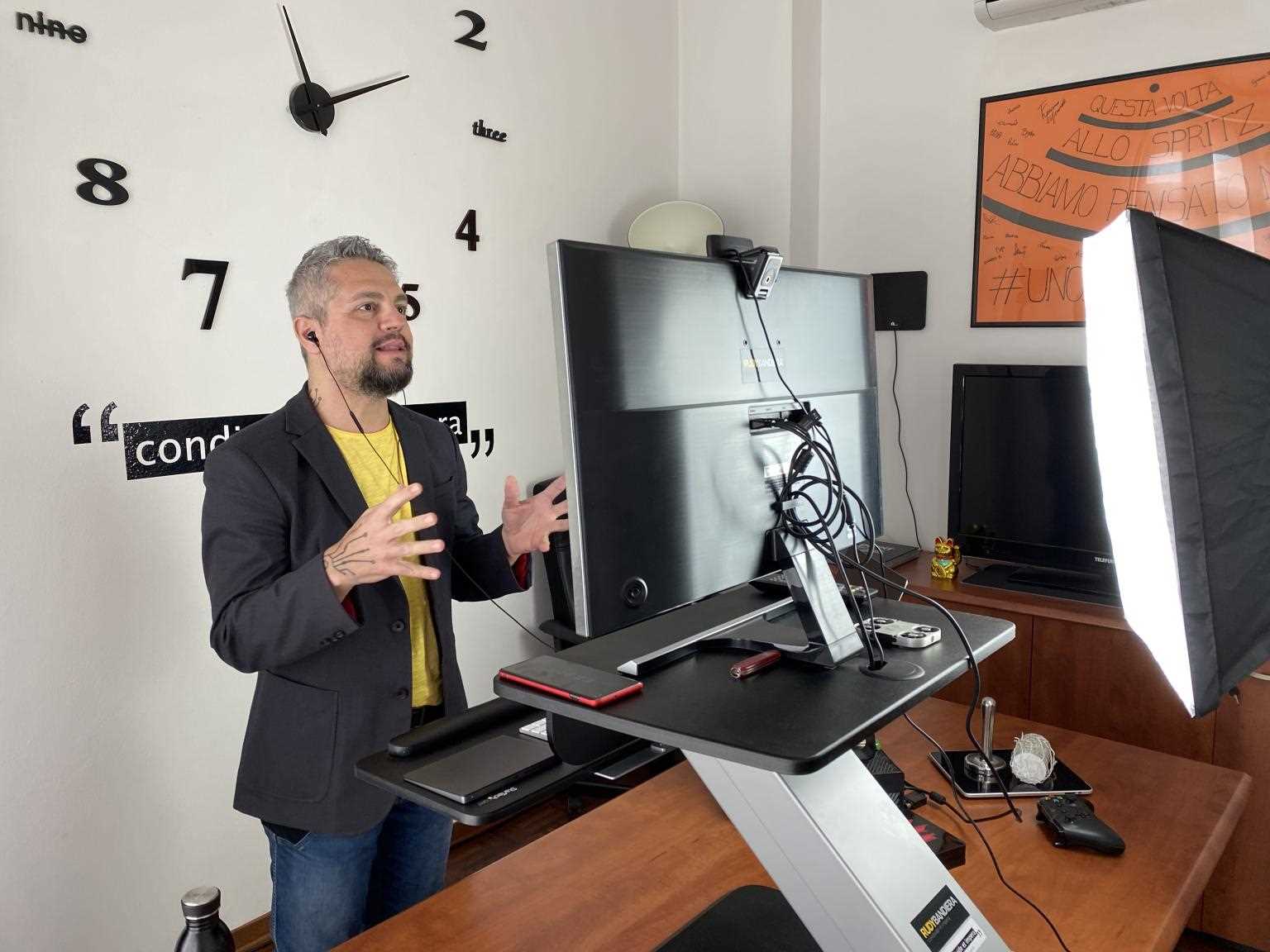
Figure 8: Rudy Bandiera (famous Italian influencer) doing a virtual session with a dedicated stand-up station.
Note: Seasoned speakers know that presenting burns a lot of calories. Even when seated, you can burn a lot of calories if you keep your energy high when presenting.
Define timings, plan breaks, recap often
You probably already know that I’m not a fan of having an agenda slide with all the topics on it, because it wastes important minutes at the beginning of a session. I prefer sharing all the essential information before the session, for example, via email.
But, when doing a virtual session longer than an hour or ninety minutes, I always talk about timing, breaks, etc. I’ll do it after stating the value of the session, before going into the main content.
Breaks are important for long virtual sessions, especially if the attendees are working from home, because they also probably need to sync with their partner, feed their children, etc.
Always reserve time to recap after important sections, and be sure to check notes with the attendees, plan all the follow-ups, and so on.
Storyboard of the session
Some people prefer to have full control of the session while planning and developing it. If you feel more confident, you can create a storyboard of the session with detailed timings for all the slides, exercises, breaks, etc., and print it to use as a reference during the session delivery.
Note: Most of the time, virtual (and in-person) sessions tend to deviate from the storyboard from the beginning. Be prepared to correct it and adapt on the fly, or to ignore it if it’s too detailed and too complex to be fixed on the fly.
Call people by name
Most calls and virtual sessions feel impersonal, because after some time, people forget who said what due to the difficulty of remembering names (and other details) without looking at people directly. It’s important to call people by name; it makes them feel included, more focused, and they learn more.
One trick a speaker can use when the participants list is known in advance is to print the list of attendees. Leave blank spaces after each name to record important words or sentences in.
During the session, one thing that normally impresses people is saying something like “as Lorenzo said this morning when we were talking about…”. This is something that is natural when delivering sessions in person but is rare virtually.
If the session or the course includes exercises, questions, etc., then the presenter can extend the attendee name template, including blank columns to take notes, but also columns related to each exercise and question. In this way, it’s much easier to write only the important parts of the answers.
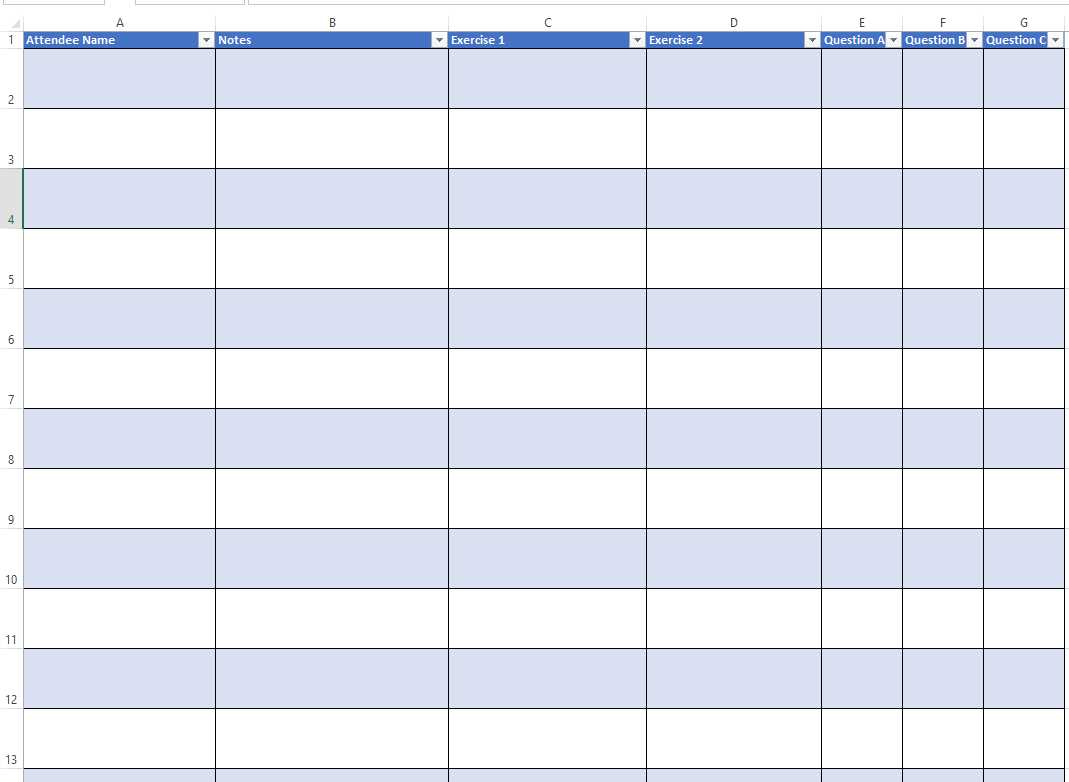
Figure 9: Sample Excel file with an empty list of attendees, with spaces for notes, exercises, and questions for each.
If you have multiple monitors in your configuration, you can easily use an Excel file and write notes in the proper cells. If you have only a single monitor, and in most cases also with two monitors, it’s better to print the file and write on it.
Use multiple monitors and the right hardware
You can do virtual sessions using just one laptop, using the built-in monitor, webcam, microphone, and speakers. Of course, you won’t be too impressed by the results.
Note: One typical error that people make when using just one monitor is to project the designer view of PowerPoint instead of projecting the actual slides full screen. They normally do that because they can control the slides, but they lose a lot of effects, and the result is unprofessional.
A better configuration would be:
- Headphones (wireless or wired) with a microphone.
- At least two monitors (one external monitor is OK if you’re also using your laptop).
With two monitors, you can use one monitor to share the screen and the other to search for information, move through the slides, look at the chat, etc.
Headphones with a microphone should be used to avoid disturbing other people in the room too much, and to avoid keystroke sounds that could be heard using an internal microphone.
An even better configuration can include:
- An external microphone, mounted on a flexible arm or on the desktop.
- Headphones (wired or wireless) or, if working in an isolated room, some good speakers.
- A good webcam, with optional backlighting, that you can position near the screen you’re looking at when presenting to give the impression of good eye contact.
- Three monitors (at least).
I’ve moved to an external microphone, mounted on a flexible arm, and the voice quality has dramatically improved. I haven’t spent too much on it, but the difference is clear. I’ll not use the built-in or the headphones’ microphone again, if possible.
I prefer using wireless headphones. With the external microphone, and if I can turn the webcam off (sometimes it distracts people having a small icon of you while projecting the slides), I can walk around the room without being blocked by the cables.
The external webcam is useful if you’re projecting a screen that isn’t the same as the built-in webcam’s. I normally use the built-in one in my setup.
Three monitors are the minimum for me. I can project one, use another to control slides, and have the other one available for the meeting chat, other chats, a browser for a quick search in documentation, etc.
I discussed my home setup (before the external microphone) here, and my colleague, Fardau, has an even better configuration, and has discussed his professional setup here.
Recorded sessions vs. live sessions
Recorded sessions and live sessions are completely different beasts. There are many speakers (including myself) who prefer doing live sessions, even with their flaws. During live sessions, you’re forced to continue even if something goes wrong, if a demo doesn’t work, etc., like in a physical session. You can feel the energy and the nervous tension of the speaker.
Recorded sessions should be perfect. People know that the show is not live, and they won’t forgive errors, because you normally have the time and resources to cut your video and produce it. A trained eye can spot distinct parts of a recorded session because energy levels of the speaker differ over time.
Tip: My friend, CoderDave, has written an interesting post with tips and tricks that he uses to produce his recorded technical sessions.
There’s also a compromise that I use a lot: recording a live session. I like it because I deliver a live session, and people can feel my energy. But the session is recorded, so people who cannot follow the session live can see the recorded one, knowing that it wasn’t post-produced, but taken live from the show. In rare circumstances, though, the recording of a live session fails, and in that case, you‘ll be forced to create a new one from scratch.
Note: In the previous section, we talked about different configurations. One typical difference between recorded sessions and live sessions is the use of headphones. That’s very uncommon in recorded sessions, but typical during live sessions, especially if people can ask questions live during the Q&A using their voice.
Memory, notes, quotations, and the presenter view
Memory is a bad ally when doing sessions because people tend to forget important things, or they fear they’ll forget something.
Some speakers use slide notes to capture important things, and then use the presenter view to show them on the secondary (typically the laptop) screen.
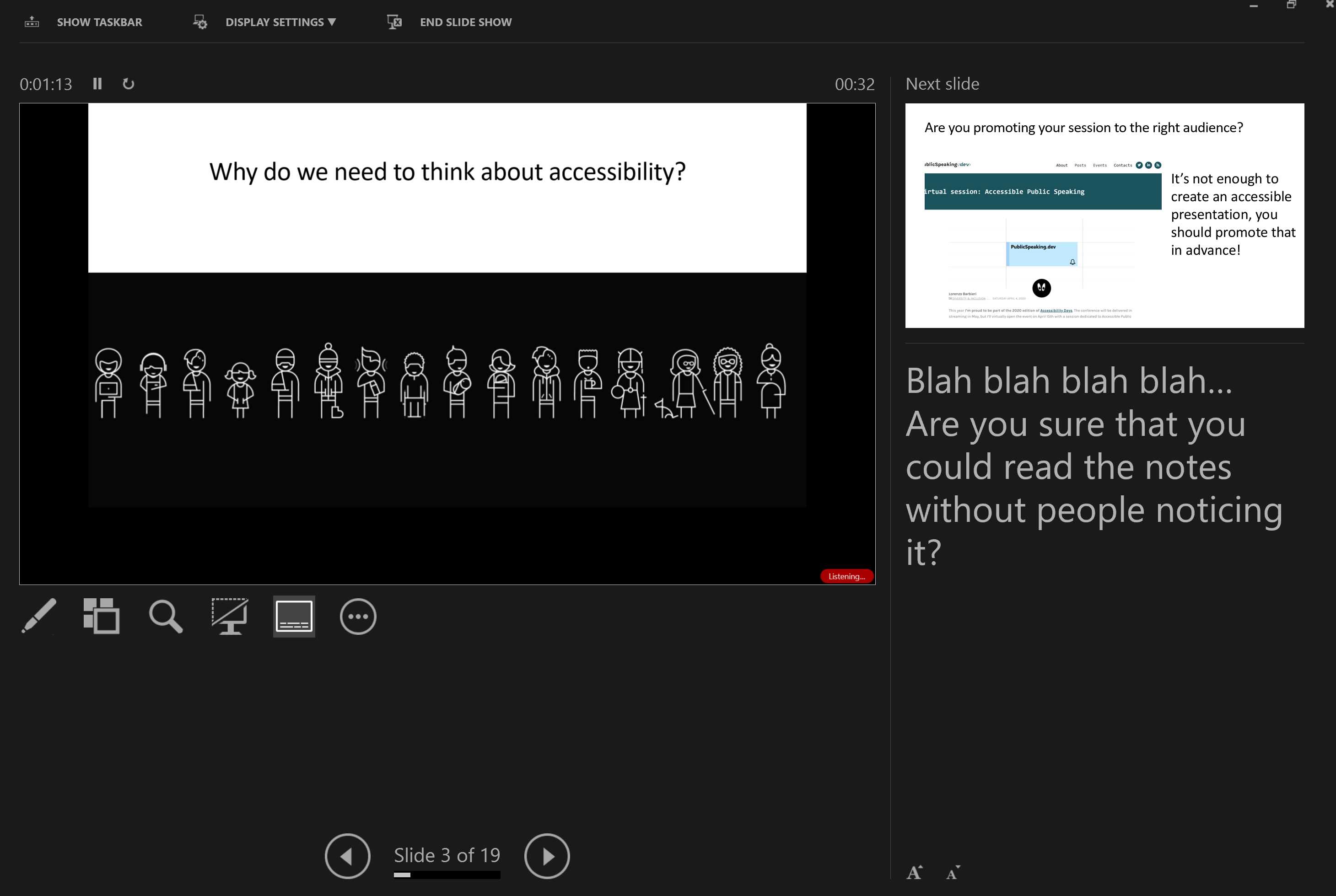
Figure 10: Presenter View in PowerPoint, with the next slide and the notes.
What they don’t understand is that people will catch you immediately if you try to look at the notes in the presenter view. This is true both for physical and virtual sessions.
If something is crucial for your presentation, put it in the slides, not in the notes. If you cannot put it in the slides, use a piece of paper instead of notes on the screen. People will tend to forgive you more for looking at a piece of paper than the secondary screen.
Always pay attention to quotations, because most of the time, we remember them wrongly. Please check their accuracy and if you cannot learn them by heart, write them in the slides or on paper.
Music
Music is vital during virtual events, and sometimes even during conference calls.
You can use music:
- While waiting for people during a virtual session, with a message on the screen that says something like “session will start at [time]. Music is playing in background. If you cannot hear it, please leave a message in the chat.”
- During exercises and stop it when the time is over, so people will immediately understand that it’s time to come back to the session. Always choose a soundtrack that’s not too noisy during the exercises.
- To energize people during a long event, coupled with some physical activity, perhaps with the webcam turned on, if the platform allows that.
- During quizzes, polls, and other activities.
- To entertain people during breaks.
While using music is important, you shouldn’t forget people who cannot hear it, or people who, for example, may have taken off their headphones during an exercise. Always couple music with an appropriate slide, and don’t rely only on the audio.
Tip: Most conferencing software has an option to stream computer audio to the attendees, but it’s usually disabled by default.
Copyright
Streaming copyright-protected material over the internet can lead to problems, depending on regulations that can be different country by country, and that can be different in public events or private conference calls.
Check with an expert in copyright laws on what kind of content can you use inside your virtual sessions, or use content that has a permissive license, like the Creative Commons.
Images, videos, transitions, and animations
Images are crucial in a presentation, and one can be tempted to use many kinds of them in the same slide deck.
Always try to be consistent when using images in your presentations, at least in consecutive slides or sections. You can change the style from time to time, but you should avoid mixing images with assorted styles, resolutions, sharpness, grain, stock photos with icons, etc. People tend to notice differences even more when they have your slides streamed on big monitors.
Videos, transitions, and animations should not be abused in virtual presentations because most people have limited bandwidth (for people who are watching streaming content at the same time).
If you need to play a public video, always include the link (perhaps in the chat) so people can see it directly on their PC and not streamed from yours if they have bandwidth problems.
Note: Animations can be important, for example, when describing processes, or when discussing lists. Don’t use fancy animations; use appear, fade, or other simple effects to avoid visualization problems on attendees’ computers.
We already talked about copyright-protected material in the previous section. The same suggestion to contact an expert before using licensed materials, or using content that has a permissive license, is applicable to images and videos.
If you’re a Microsoft 365 subscriber, you now have access to thousands of images and icons, including stock photos and cutout people who were shot in many different poses.
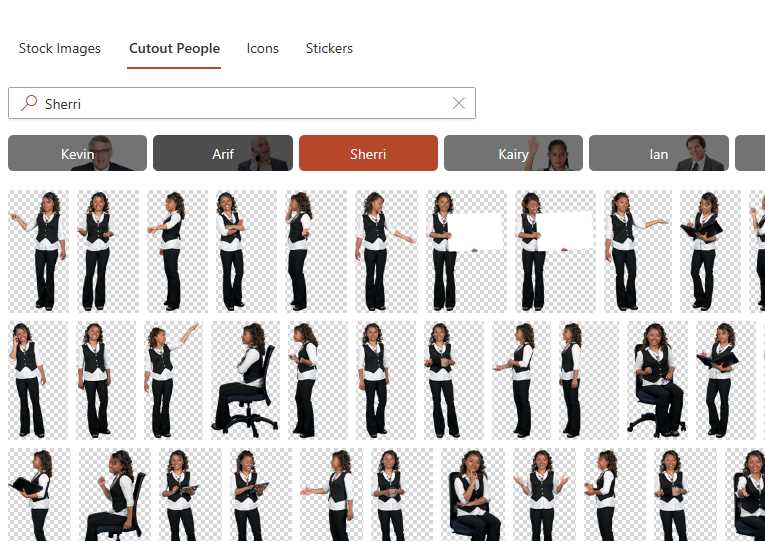
Figure 11: New premium content in PowerPoint for Microsoft 365 subscribers.
If you prefer to use images that are not linked to a subscription, Bing allows you to search for Creative Commons or public domain images, and PowerPoint integrates that feature directly into the application. This can be a lifesaver, but always check if the license is correct before using the image.
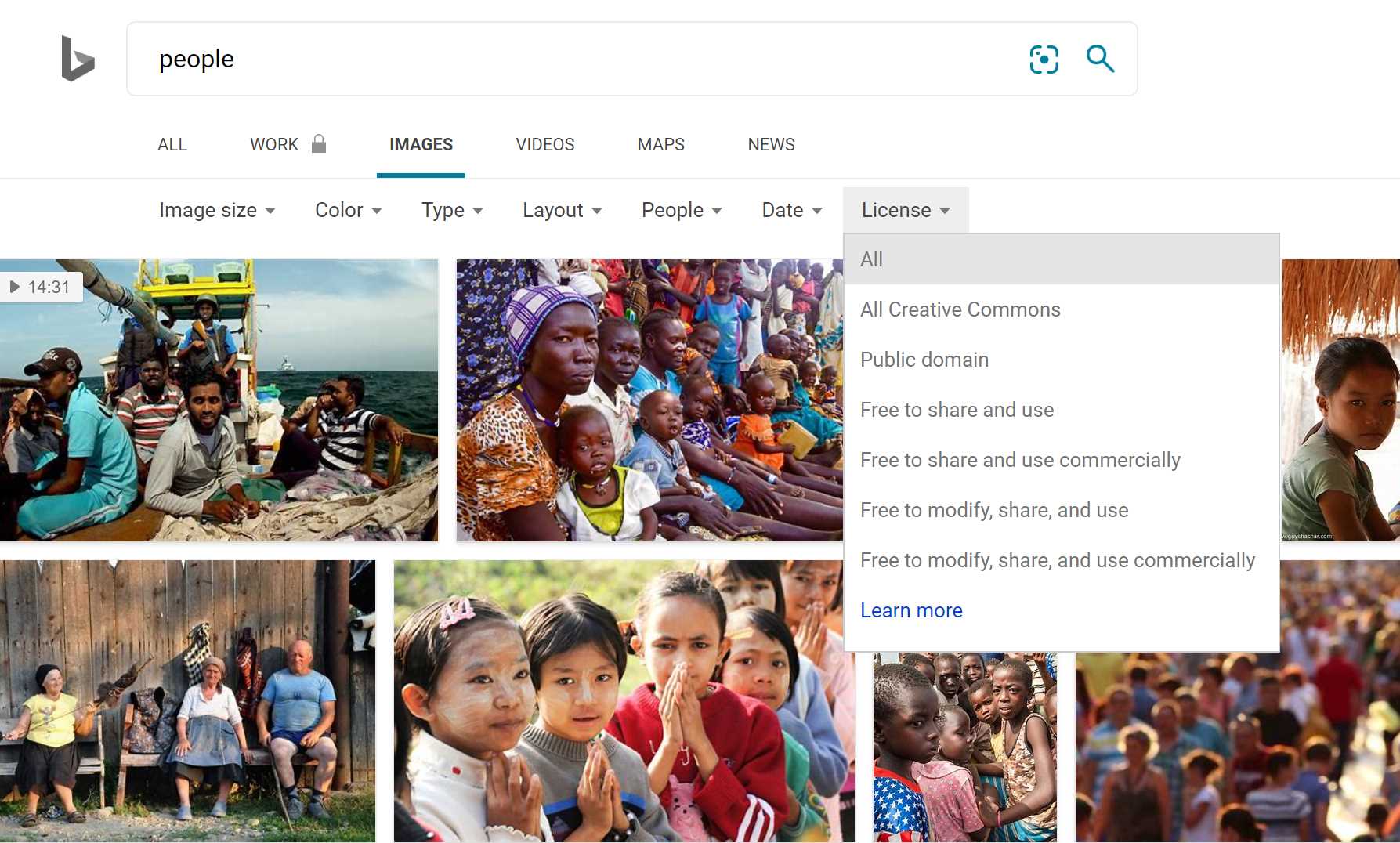
Figure 12: Bing image search, with options to specify the image license.
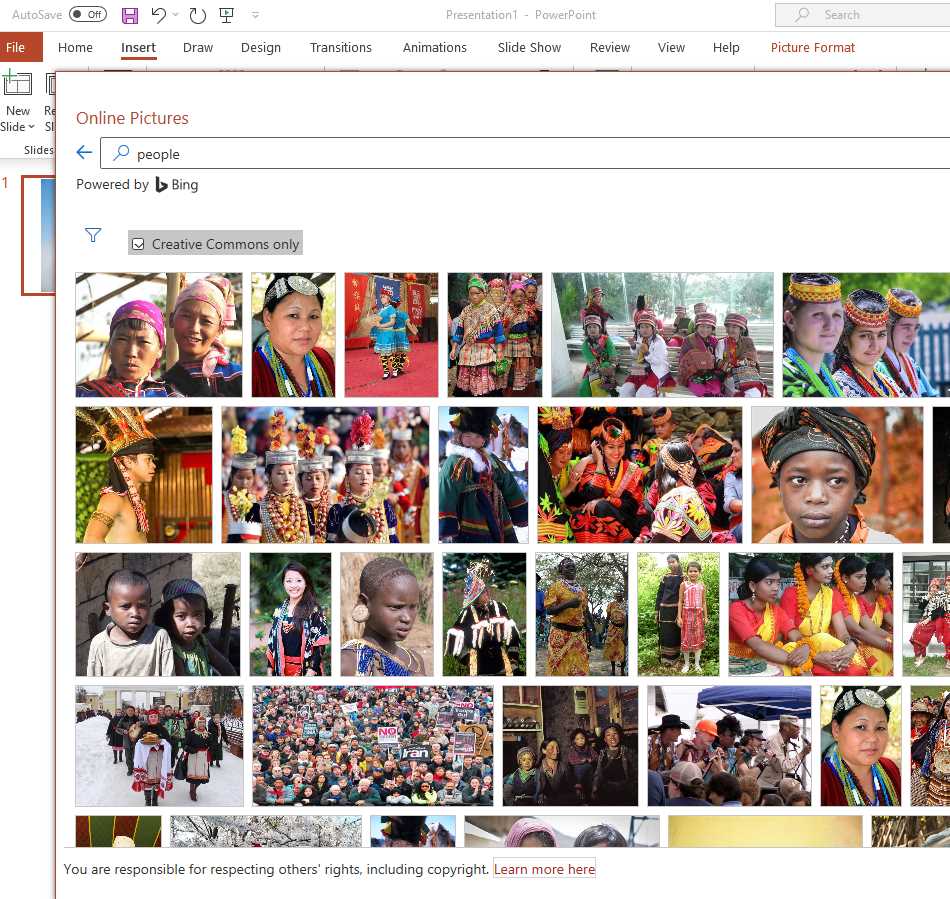
Figure 13: Searching for an image inline in PowerPoint.
Podcasts
Podcasts are a special type of virtual session where only the audio is recorded. They’re normally published on a regular schedule, and you can use dedicated software to subscribe and listen to them.
Note: Most of the things that you find in this book are relevant also to podcasts, including the parts about posture, body language, etc. The way you talk is influenced by your body language. If you record a podcast while relaxed on a sofa, your voice will reflect that, as we already saw in a previous section about posture.
If you need more information about creating a podcast, you can take a look here.
Of course, you don’t need slides during a podcast, but sometimes people prefer having something to follow so they don’t forget important parts. Slides, some printed material, or a list can be useful.
(Virtual) sessions and personal branding
We’ll talk about personal brands and personal branding extensively in Chapter 6, but if you want to create and improve your personal brand, virtual sessions are a great way to do it, especially if they’re recorded and available online.
Note: Keep in mind that the opposite is also true. A bad session available online can reduce your opportunities to be selected as a speaker in conferences, events, etc. If the session is under your control, always check its quality before publishing.
Even if you cannot publish online the full recording of a session, you can always publish your slides (if they aren’t subject to copyright and don’t contain reserved information).
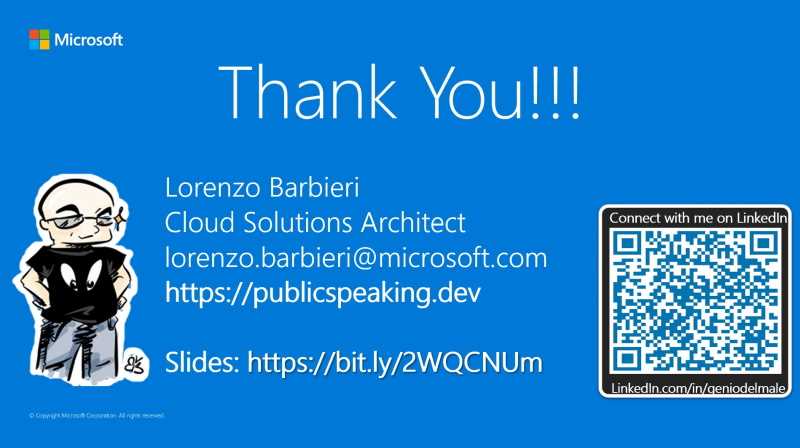
Figure 14: Add the link to the published slides directly at the end of your presentation, before the Q&A.
Use the last slide to invite people to connect with you on social networks, especially on LinkedIn if you’re interested in a professional connection.
The QR code generated from the LinkedIn app is a powerful addition to the final slide.
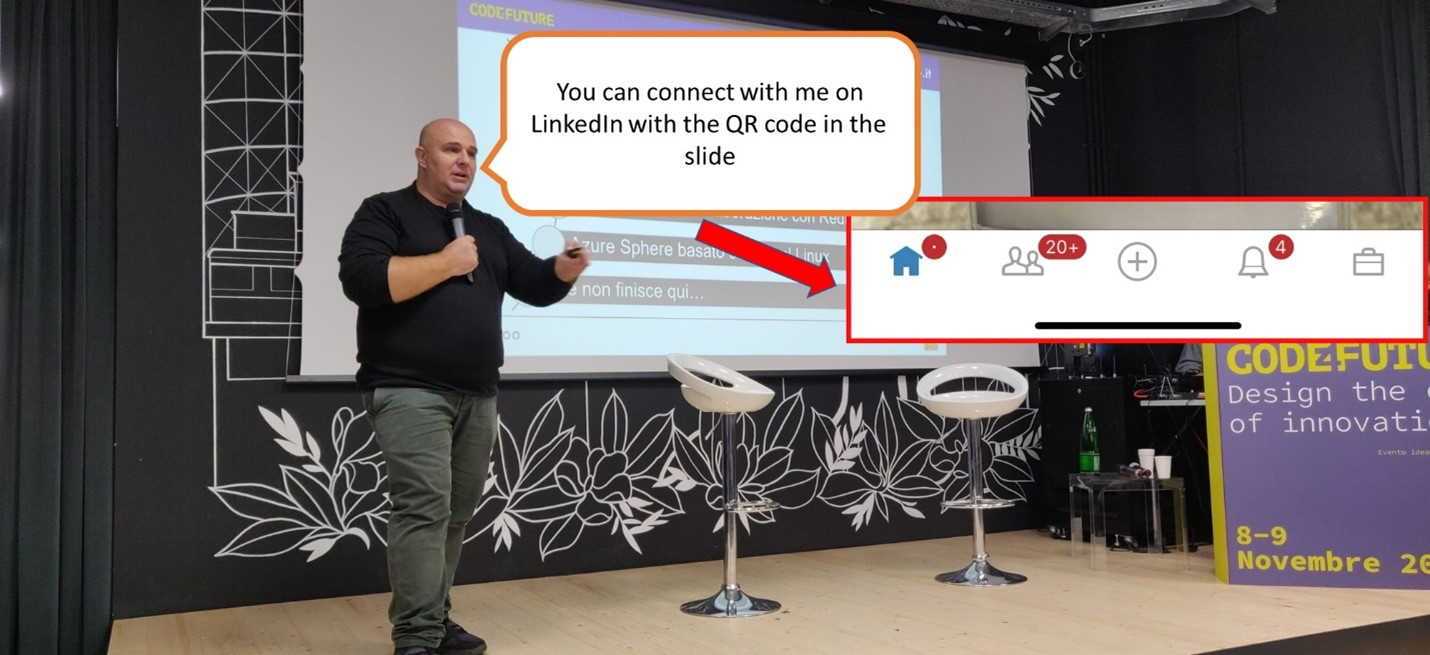
Figure 15: Author promoting his QR code to connect with people on LinkedIn at the end of a session, and actual results after that session.
After you’ve published your videos and the slides, don’t forget to promote them on your social channel, and also add them to the Experience section of your LinkedIn profile.
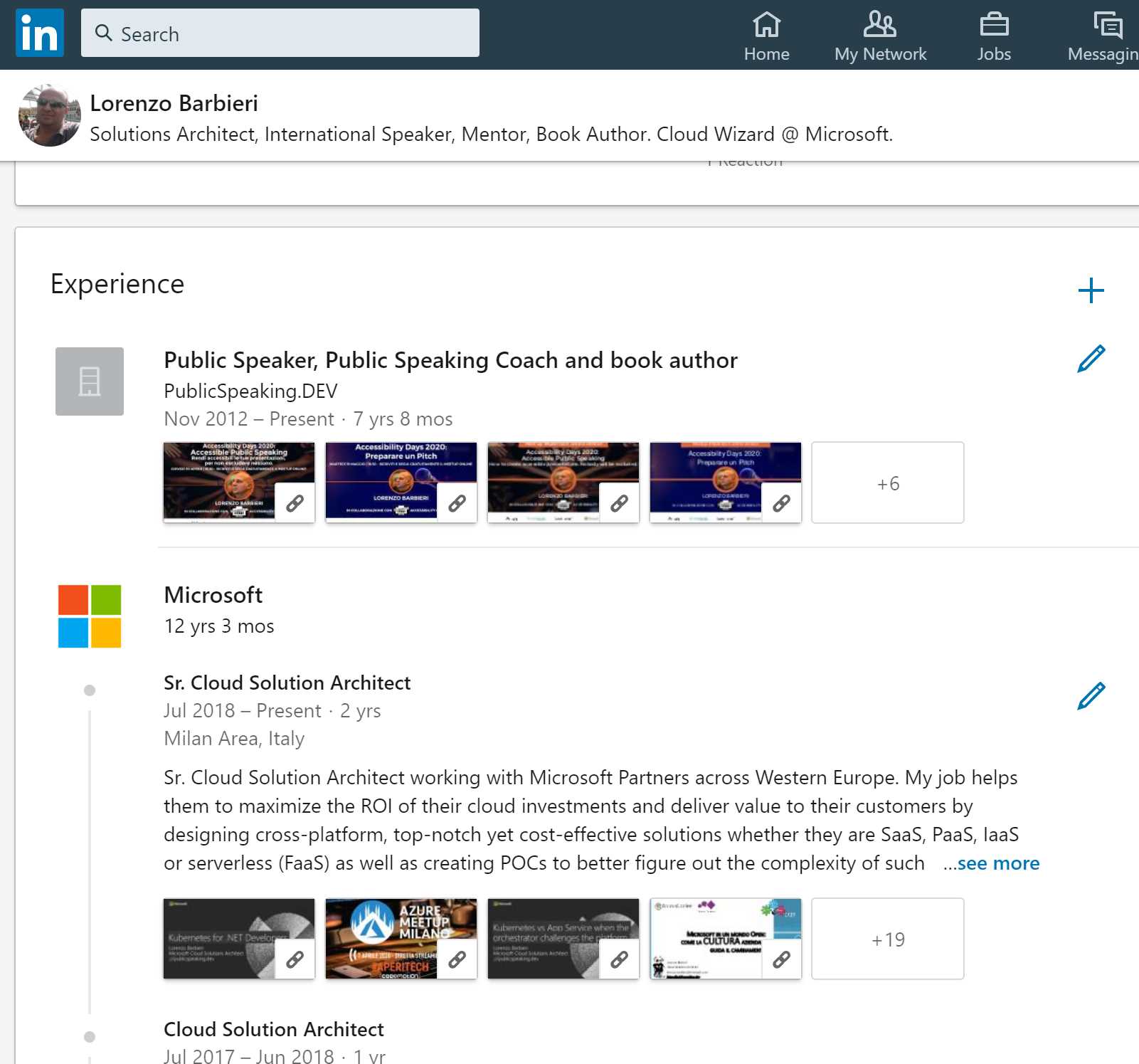
Figure 16: Sample LinkedIn profile with slides and videos.
YouTube, TikTok, Instagram, Telegram, Facebook, LinkedIn video, Twitch, etc.
When “old” people (like the author 😊) think about a virtual session, they normally think about having a virtual event, promoting it to an audience, perhaps through a (virtual) meetup or a company portal, and delivering it at a specified time.
Social media has completely changed the traditional approach. You start by publishing your content on a platform (the list in the section title is incomplete and growing every day) and then promote it to gain followers, or subscribers, or whatever they’re called in the platform you’re using. Then, they can see your other videos promoted by the platform the next time they open it, or they’ll receive a notification when you’re publishing something, live or recorded.
Being a YouTuber (or whatever the term is on other platforms) can be a full-time job or can be part of your full-time job. You can choose to publish on only one platform or go on multiple platforms at the same time, depending on your strategy.
Consider that every platform has its own rules and audience. Also, sometimes an account is closed by the platform owner without much space for manual inquiry or intervention, so it’s better to diversify your range of activities. That way, if one account is closed (perhaps in error, or due to complaints) you still have other ways to do your work or to promote yourself.
Branded masks, clothes, webcam wallpaper, desktop wallpaper
Everything is a brand, including branded masks if you need to deliver your session in-person in a closed and small location. There are many companies that print masks with custom colors and logos. Sometimes it can be worth the money.
Delivering a virtual session doesn’t mean that you cannot invest in the physical part of your personal (or company) brand.
If you have a good webcam or camera, you can dress with branded t-shirts (or whatever branded apparel you like), and people will notice it.
In most software, you can select a virtual background for the image streamed by the webcam, and you can use it with a custom image containing your logo, for example. Or like in the picture from the section on smiling and posture, you can have a dedicated corner in your (home) office with your logo.
Be consistent and use the same (or a similar) image for your desktop wallpaper. People will notice these small but key details.
Questions and answers during live events
Questions and answers during live events can be difficult to manage, more difficult than with in-person events.
In both cases, you can tell the audience that you will answer most of their questions at the end of the presentation, and this, in most cases, is the safest bet.
During in-person events, it’s easier to accept questions while you’re talking because you can see raised hands. You acknowledge that and then, when you’ve finished your sentence or section, you listen to the question. The difficult part is getting back on track after the answer, but that depends on your ability as a speaker, and also on the time you have.
If you decide to take questions during virtual events, they can become distracting. You see the chat during your presentation, and your brain starts reading the messages. Your eyes are focused on the chat window, so you can lose virtual eye contact with the attendees.
It’s much better if somebody is taking care of the questions in the chat while you’re speaking, or perhaps you defer Q&A to the end of each section of the presentation.
If the conferencing software that you’re using allows to people to open the microphone and start talking, it’s better to control that feature. Many events can be damaged by people leaving their microphones open with a background of phone calls, babies screaming, or unpleasant comments, etc.


- 1800+ high-performance UI components.
- Includes popular controls such as Grid, Chart, Scheduler, and more.
- 24x5 unlimited support by developers.