
Azure Virtual Desktop Succinctly®

CHAPTER 7
Windows 365
Recently, Microsoft announced a new cloud service called Windows 365 (W365). This service is based on Azure Virtual Desktop, and is basically publishing virtual machines based on Windows 10 or 11 (when available).
The machines are called Cloud PCs, and the goal of Microsoft is to create a new category, a new way of being productive on any device in any place.
The licensing is based on a monthly fixed price that depends on the size of the Cloud PC that you need (a 4 vCPU + 16 GB of RAM license costs more than a 2 vCPU + 8 GB of RAM one).
The connection can be made from a dedicated web portal or by using the same Windows, iOS, Android, and macOS clients that are available for Azure Virtual Desktop.
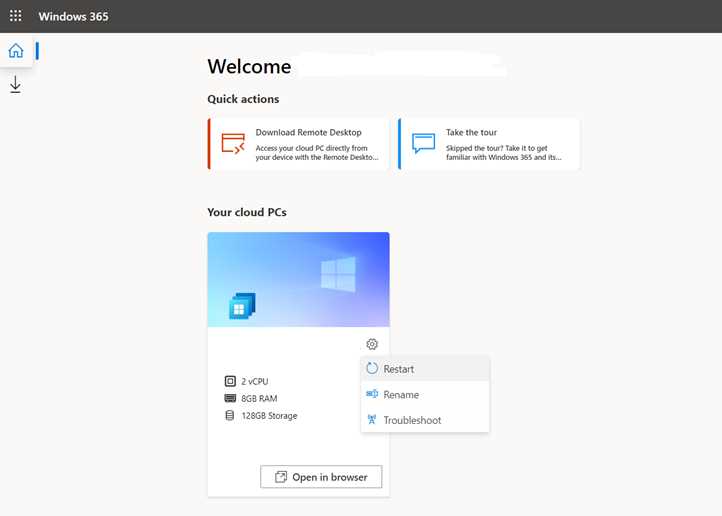
Figure 75: Windows 365 Browser Experience
From the web browser, the user can restart the virtual machine (that is always active), rename it, and (in the future) resize it, if allowed by the IT department.
Even if the underlying engine is Azure Virtual Desktop, there are several differences between the two services:
Table 4: Windows 365 versus Azure Virtual Desktop Service Features
Windows 365 (W365) | Azure Virtual Desktop (AVD) |
|---|---|
Fixed monthly price | Price based on consumption |
Machines available 24 hours per day | Machines can be shut down to optimize costs |
Single session | Single session or pooled |
Windows 10 or 11 (when available) | Windows 7, 10, 11 (when available) |
Remote desktop only | Remote desktop or application publishing |
Local profile only | Local profile or FSLogix profile |
MSIX App Attach not supported | MSIX App Attach supported |
Built for simplicity | Built for elasticity and any kind of scenario |
You can see an interactive demo of Windows 365 here.
In terms of resiliency, Windows 365 is built to grant high availability and disaster recovery, as explained in this official article.
Windows 365 is offered in two versions: Business and Enterprise.
Windows 365 Business
The Business version of the service is the simplest proposition, and it comes with no prerequisites.
If the customer already has a Microsoft 365 tenant (maybe because of email or other services), they can purchase the Windows 365 licenses and assign them to users.
If the customer doesn’t have a Microsoft 365 tenant, it’s enough to own a Windows 365 license, and the service is created automatically inside a brand-new tenant.
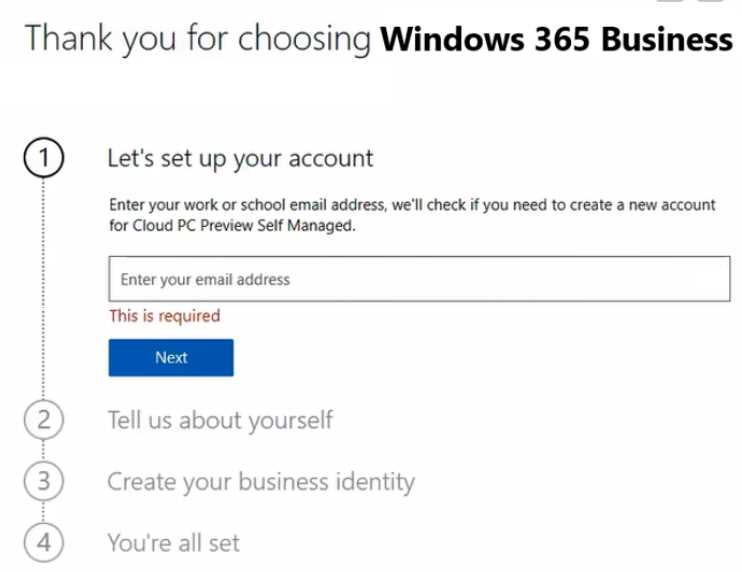
Figure 76: Windows 365 Business License Assignment
In any case, in a matter of minutes, the virtual machine is provisioned and joined to Azure Active Directory, and the assigned user is promoted to local administrator of the machine.
Having the virtual machine joined to Active Directory Domain Services or Azure Active Directory Domain Services is not supported.
The end user can connect to the machine using the web interface windows365.microsoft.com or the multiplatform client that is available for Azure Virtual Desktop.
The operating system is provided by Microsoft, and it already includes M365 Apps, Microsoft Teams, and all the optimization needed.
You can find more information about this version of Windows 365 here.
Windows 365 Enterprise
The Enterprise version of Windows 365 targets larger companies that have an IT department that manages devices in terms of configurations, applications, and security.
This version currently has several prerequisites (but check the actual one, because the service was just announced at the time of writing this book).
The official FAQ webpage states:
“To use Windows 365 Enterprise, each user must be licensed for Windows 10 Enterprise or Windows 11 Enterprise, Microsoft Endpoint Manager, and Azure Active Directory P1. In addition to being available independently, these licenses are included in Microsoft 365 F3, Microsoft 365 E3, Microsoft 365 E5, Microsoft 365 A3, Microsoft 365 A5, Microsoft 365 Business Premium, and Microsoft 365 Education Student Use Benefit subscriptions.”
Regarding the architecture, currently the Cloud PCs are created inside an Azure tenant managed by Microsoft (just like the Business version of Windows 365), but they must be hybrid-joined with a company Azure Active Directory + Active Directory Domain Service (Azure Active Directory Domain Services is not supported).
Therefore, you must have an Azure tenant with a subscription attached, and create a virtual network that will be injected into the Cloud PC.
So basically, the Cloud PC is running in a tenant managed by Microsoft that is a sort of black box that is not directly accessible, but the Cloud PC communications with the Azure Active Directory domain, the Domain Controller, and the internet are going through the provided virtual network.
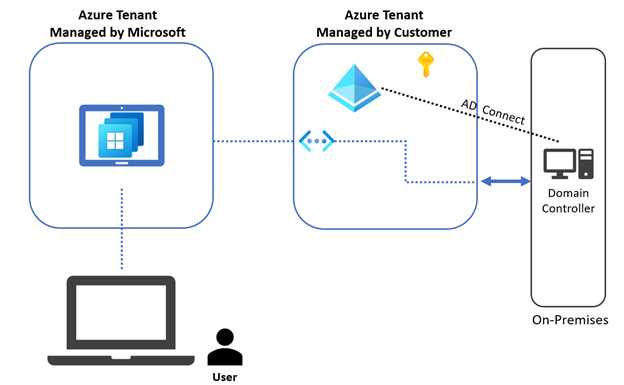
Figure 77: Windows 365 Enterprise High-Level Architecture
In the Windows 365 roadmap, there is the possibility to have Windows 365 Enterprise Cloud PCs joined only to an Azure Active Directory.
This new feature helps avoid the need for a customer to provide an infrastructure and create a virtual network. Check this page for more information.
On the management side, the Cloud PCs can be managed by Microsoft Endpoint Manager (MEM), which is the combination of Microsoft Intune + System Center Configuration Manager.
Inside the MEM console, under Devices, you can find the icon related to Windows 365.
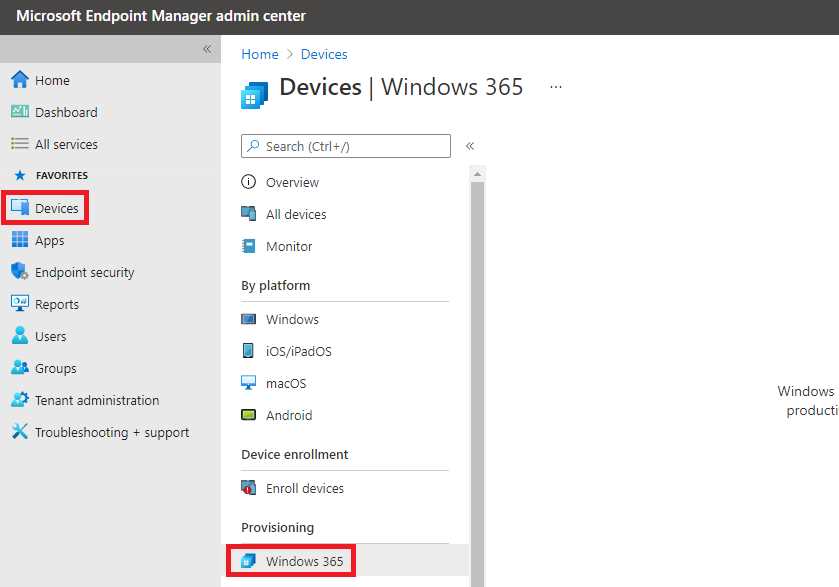
Figure 78: Windows 365 inside the MEM Console
Using the MEM console, it’s possible to provision the Cloud PCs, assign configurations and applications, and monitor them, thanks to the dedicated watchdog service that is continuously checking the status of the Cloud PCs.
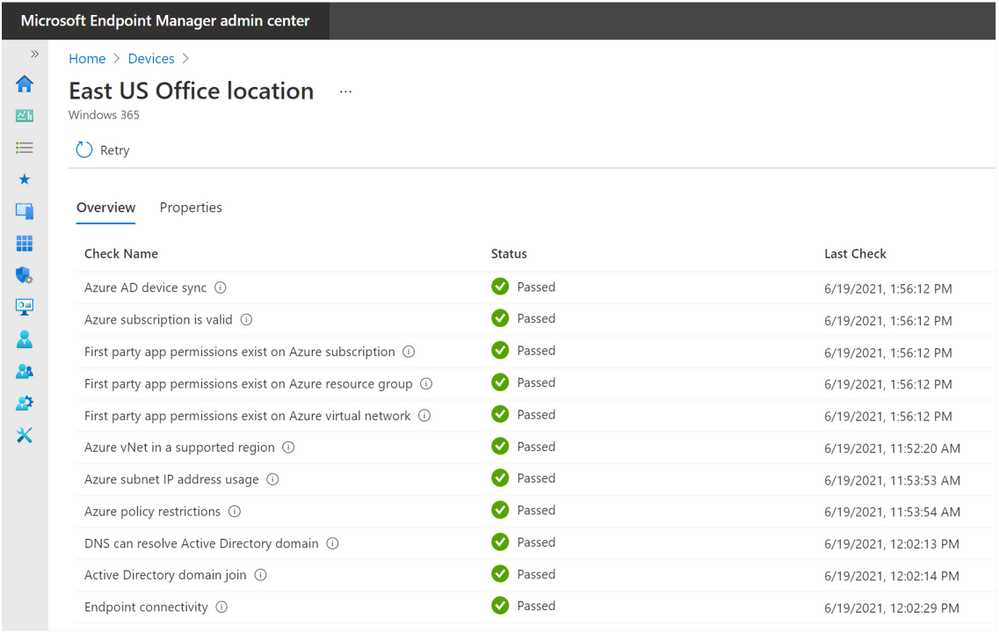
Figure 79: Windows 365 Watchdog Service
With Microsoft Endpoint Manager, it is possible to apply the dedicated security baseline created and updated by the Windows 365 product team.
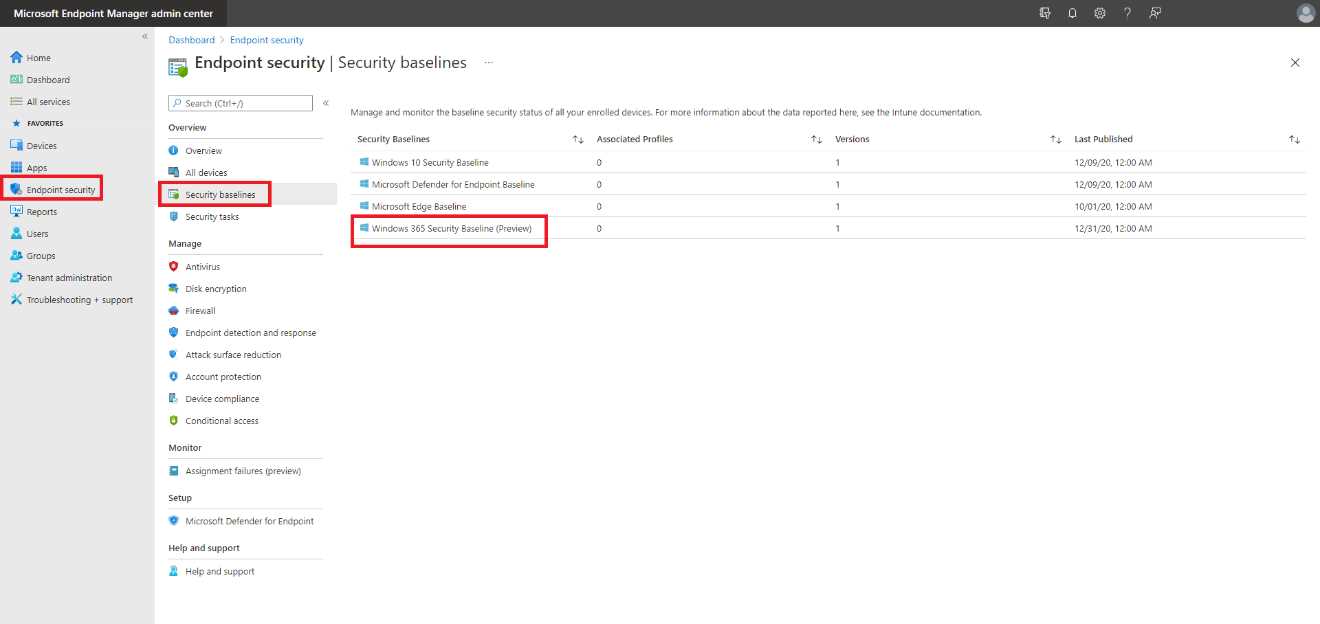
Figure 80: Windows 365 Security Baseline
Take care with the updates that are published for Windows 10 and 11 that must be installed by the customer (like in Azure Virtual Desktop) and the Windows Defender antivirus tool that is included in every Cloud PC.
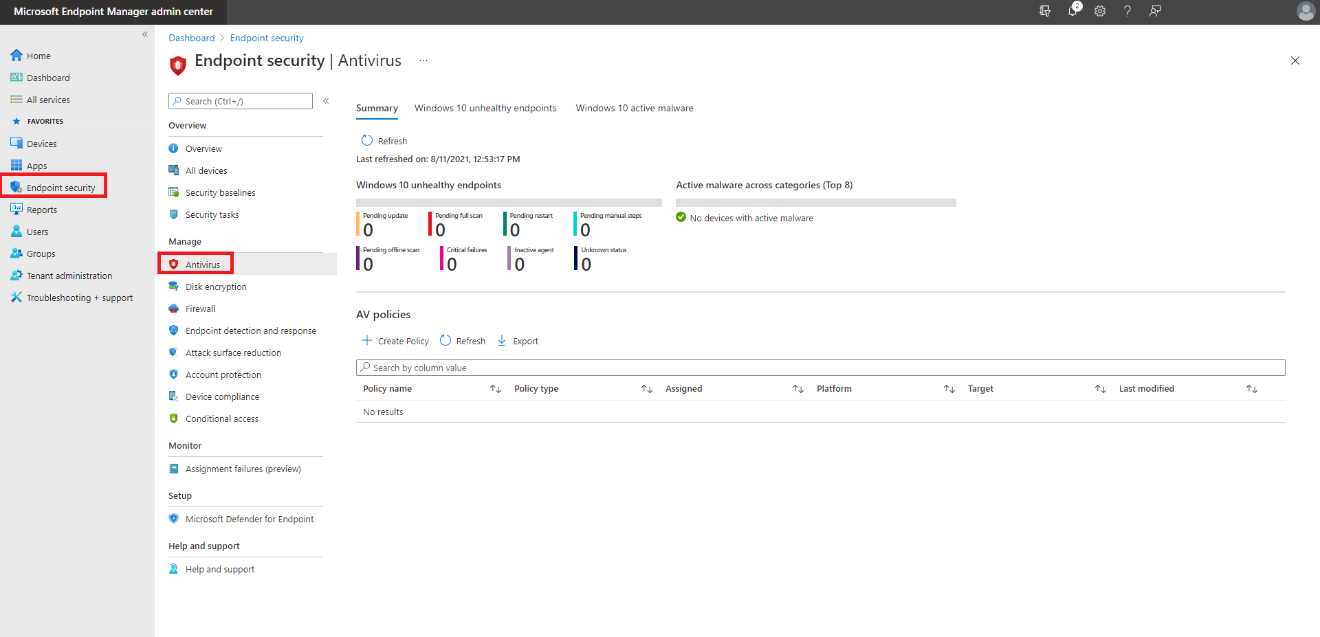
Figure 81: Antivirus Management inside the MEM Console
You can find more information about this version of Windows 365 here.


- 1800+ high-performance UI components.
- Includes popular controls such as Grid, Chart, Scheduler, and more.
- 24x5 unlimited support by developers.