
Azure Virtual Desktop Succinctly®

CHAPTER 3
Security
Reverse connection
One of the most interesting features of Azure Virtual Desktop is that it is accessible from any place through the internet channel.
The end user experience is that a connection from their physical machine to the assigned virtual machine in Azure is created using the RDP protocol.
But is it secure? The answer is yes, because the Azure Virtual Desktop virtual machines are not directly exposed to the public internet.
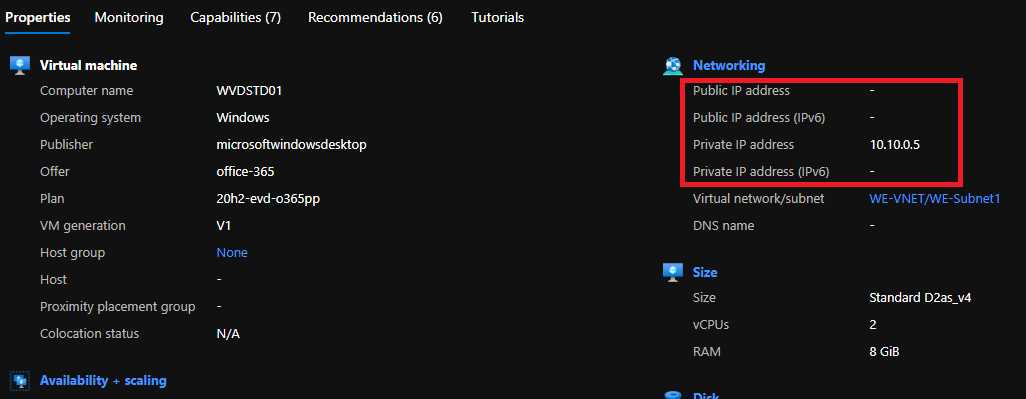
Figure 38: Azure Virtual Desktop Virtual Machine Networking
As you can see, a typical Azure Virtual Desktop virtual machine has an internal IP address, but no external IP address assigned. So how is it possible that a connection is established between my physical machine and my Azure Virtual Desktop virtual machine?
The answer is that Azure Virtual Desktop is using a technology called reverse connection that is implemented thanks to a role called RD Gateway inside the Azure Virtual Desktop control plane.
My physical device and my Azure Virtual Desktop virtual machine are not directly connected. Everything is orchestrated by the RD Gateway role that is a sort of a man-in-the-middle between the two devices (the physical one and the virtual one).
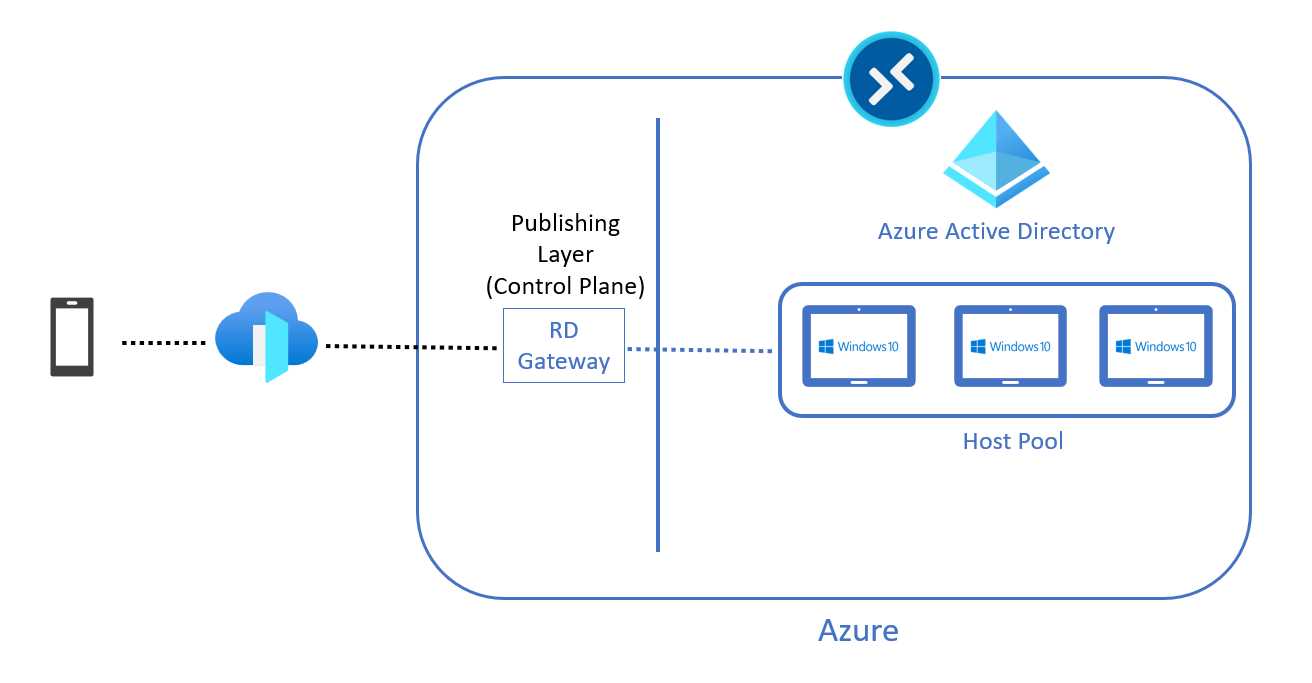
Figure 39: Azure Virtual Desktop Reverse Connection
The main advantage is that no inbound firewall ports need to be opened. The reverse connect technology creates an outbound connection using the TCP protocol on the 443 port.
Note: Sometimes the figures in this book are intentionally minimal because the goal is to introduce and clarify a concept in an easy way. The connection flow can become quite complicated, so for more information about this topic, please read this official article.
Multifactor and conditional access
Multifactor authentication is a widely used technique that can stop most identity attacks.
In Azure Virtual Desktop, this is based on asking the user to provide a second factor of authentication that can be:
- Authenticator apps
- Token hardware OATH
- SMS
- Voice call
I can set up a policy that asks me to provide the second factor when I’m connecting to the Azure Virtual Desktop service.
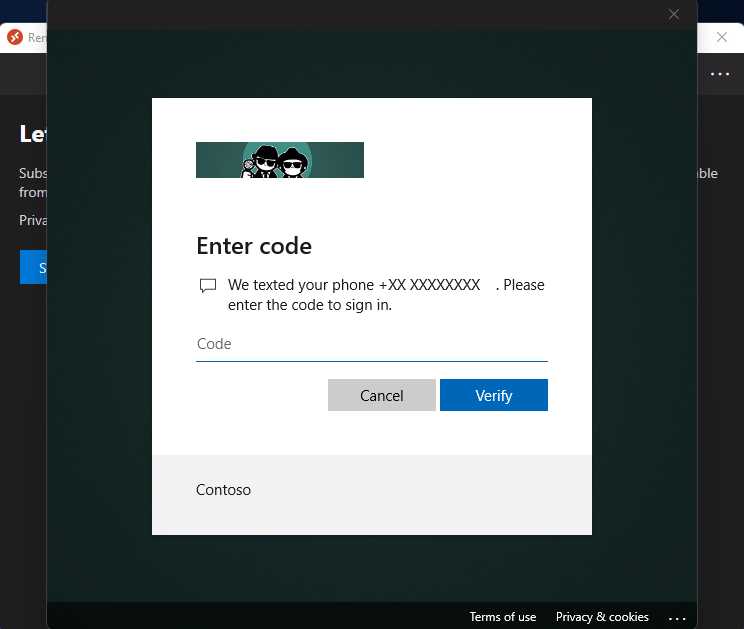
Figure 40: Multifactor Requirement in Azure Virtual Desktop
This policy can be easily created using Azure Active Directory and Conditional Access, which is another very helpful technology that allows us to analyze signals coming from:
- User risks.
- Sign-in risks.
- The device platform used.
- Locations.
- Groups of devices.
The Conditional Access policy can block or allow access to selected applications based on conditions. This allows us to create interesting policies that allow access to Azure Virtual Desktop, but only if the user provides multifactor authentication, and block the access if certain risky conditions are true, like a sign in from an untrusted location.
You can find more info about how to enable multifactor authentication inside a Conditional Access policy here.
Service tag
Sometimes the security requirements are seeking to regulate the communications between the Azure Virtual Desktop virtual machines and the service. This is why Microsoft published this article with the list of URLs that need to be accessible in order to let the service work properly.
Note: Microsoft provides only URLs, and not the underlying IP addresses, because the IPs change continuously.
Microsoft also provides an easier way to achieve the same goal of allowing only the connections with the needed services, and this is done using the virtual network service tags.
The tag groups all the needed IP addresses for a specific service. The one for Azure Virtual Desktop is currently showing the old name, “WindowsVirtualDesktop.”
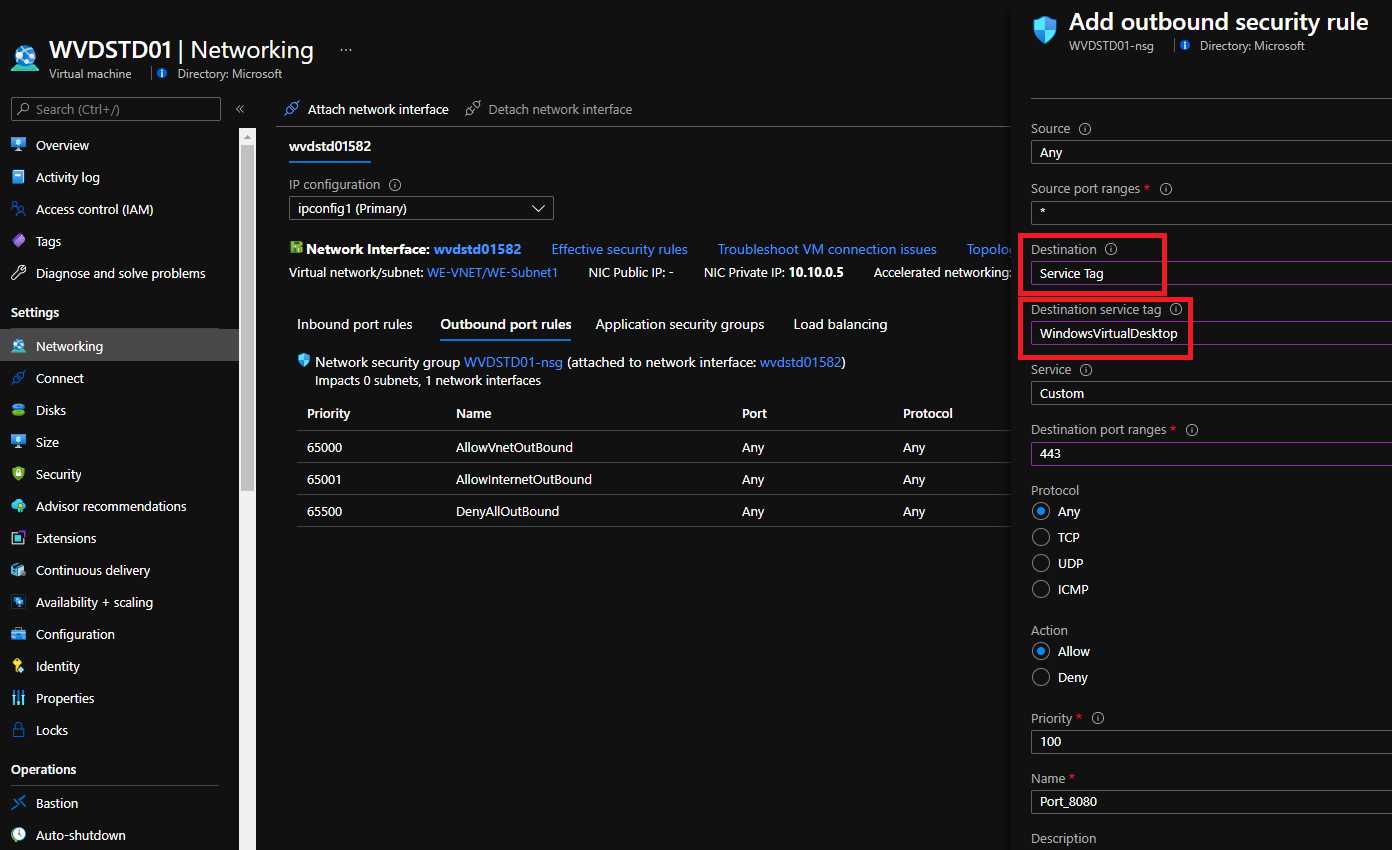
Figure 41: Azure Virtual Desktop Service Tag
This kind of tag can be used inside the network security groups or inside Azure Firewall, as shown in this article.
Web category control
When I’m connected to an Azure Virtual Desktop virtual machine, I can browse the internet without any limitation, taking advantage of the very good connection that Azure can provide me.
What if I would like to prevent my users from connecting to a specific site? I can do that using network security groups, or a firewall (like Azure Firewall) that can block specific URLs or specific IP addresses.
But that means I need to know all the URLs and all the IPs that I want to block, so this is not possible. This is the reason why several companies are offering web content-filtering systems based on categories like adult content, social media, and so on.
So, I can select a third-party service that provides this useful capability, or I can use a couple of Microsoft products that can help me achieve this goal.
The first one is Azure Firewall Premium, which is the most advanced version of our Azure Firewall with many capabilities:
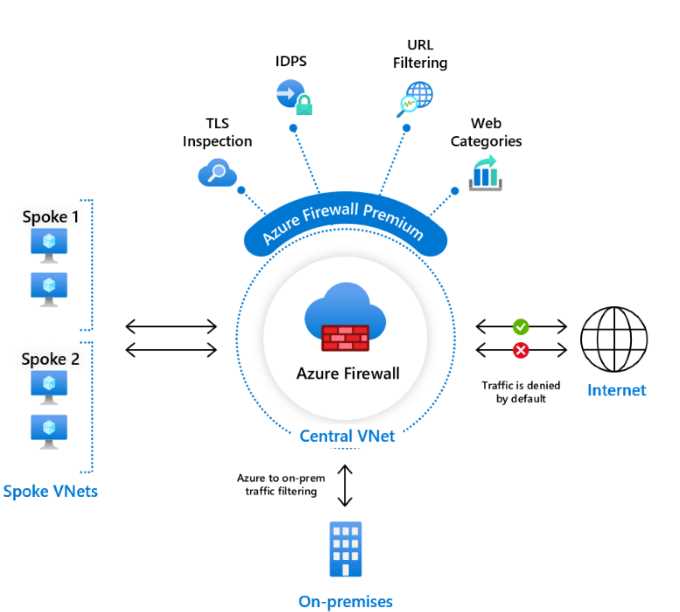
Figure 42: Azure Firewall Premium (Source)
Azure Firewall Premium offers several advanced security features like intrusion detection and prevention, URL filtering, TLS inspection, and web category! I’ve discussed this specific feature in this article.
The other way to block a specific category of sites is using Microsoft Defender for Endpoint.
This cloud service was launched years ago with the name of Windows Defender ATP, and now provides protection to all device types (Linux, iOS, Android, and macOS), so the name has changed to the more generic Microsoft Defender for Endpoint.
The service is an EDR (endpoint detection and response) system, a quite new category of tools that is expanding the protection of endpoints typically based on antivirus that are working with malware signatures.
An EDR can protect a device from any kind of attack because it’s based on behavioral analysis and other technologies that can protect against zero-day attacks, in-memory attacks, and other kinds of modern threats.
But Microsoft Defender for Endpoint is not only a EDR system—inside the console, I can also set up web categories.
I can take advantage of the deep integration between Windows 10 and Microsoft Defender for Endpoint to perform the onboarding for the service simply using a scripted action (no agent installation is required) and utilize the protection capabilities, as well as the access control based on web categories.
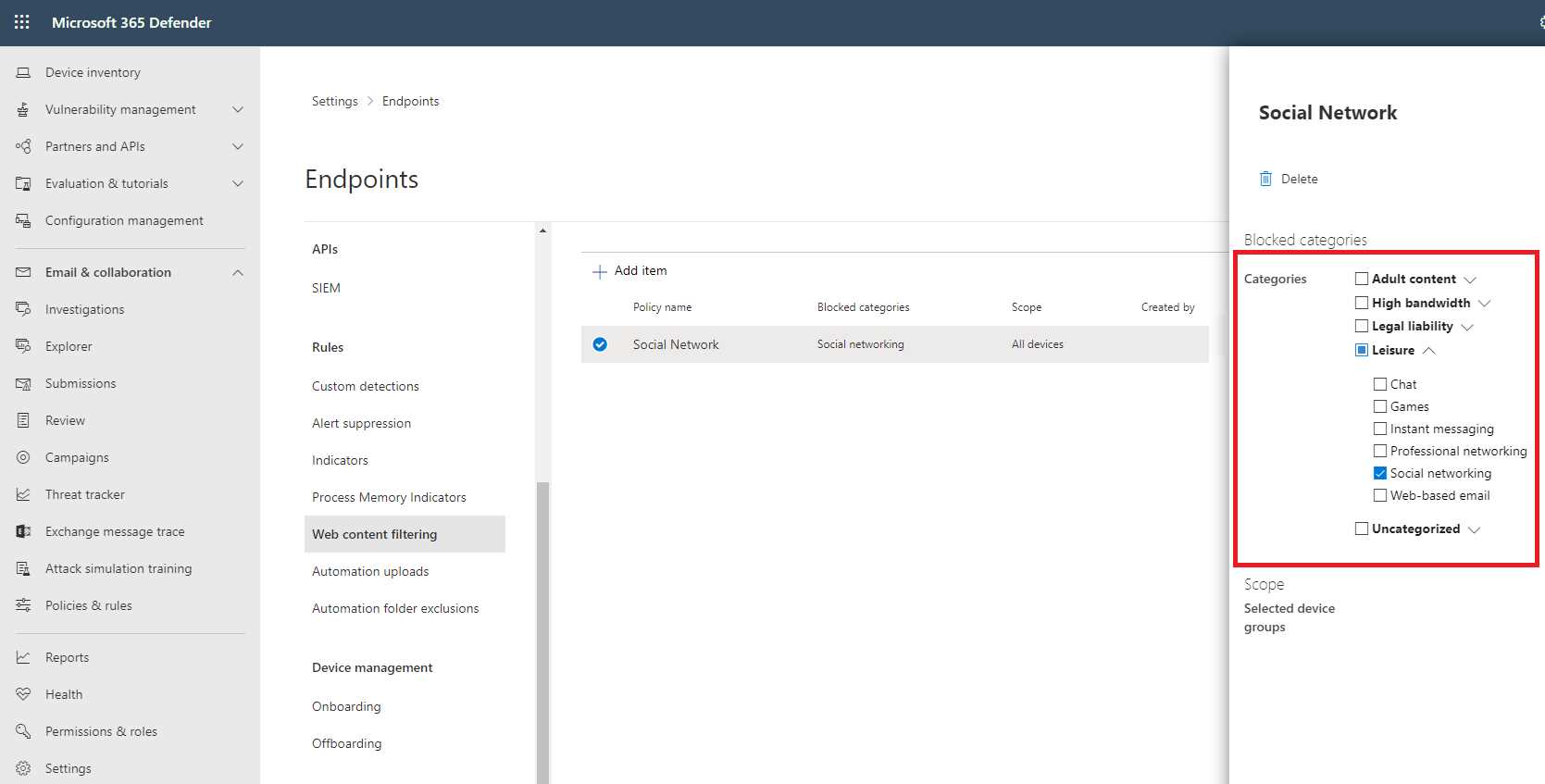
Figure 43: Microsoft Defender for Endpoint Web Categories
I’ve written about this specific feature in this public article.
Note: Currently the web content filtering capability of Microsoft Defender for Endpoint is available only for Windows 10.
Antivirus and anti-malware
Azure Virtual Desktop machines can use Microsoft antivirus protection as well any third-party antivirus software.
Windows Defender Antivirus is already embedded into Windows 10, Windows Server 2016, and later, while for Windows 7 and Windows 2012 it’s possible to install a separate agent using System Center Configuration Manager.
The Microsoft antivirus protection can be managed using group policies, System Center Configuration Manager, or Intune.
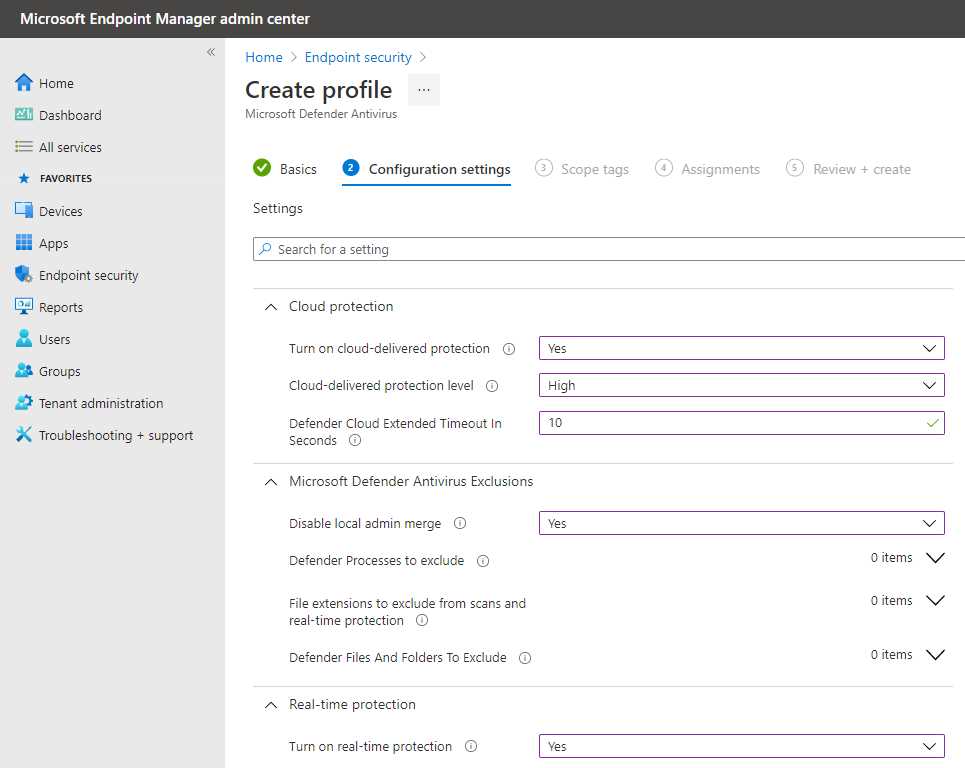
Figure 44: Defender Antivirus Policy in Microsoft Intune
No matter how the antivirus support is managed, it’s interesting to read this article about how to set it up in a virtual desktop infrastructure.
Security baseline
Using Microsoft Intune and your Virtual Desktop solution based on Windows 10, it’s possible to easily apply security baselines.
A security baseline is a group of settings that can help in maintaining the right security posture.
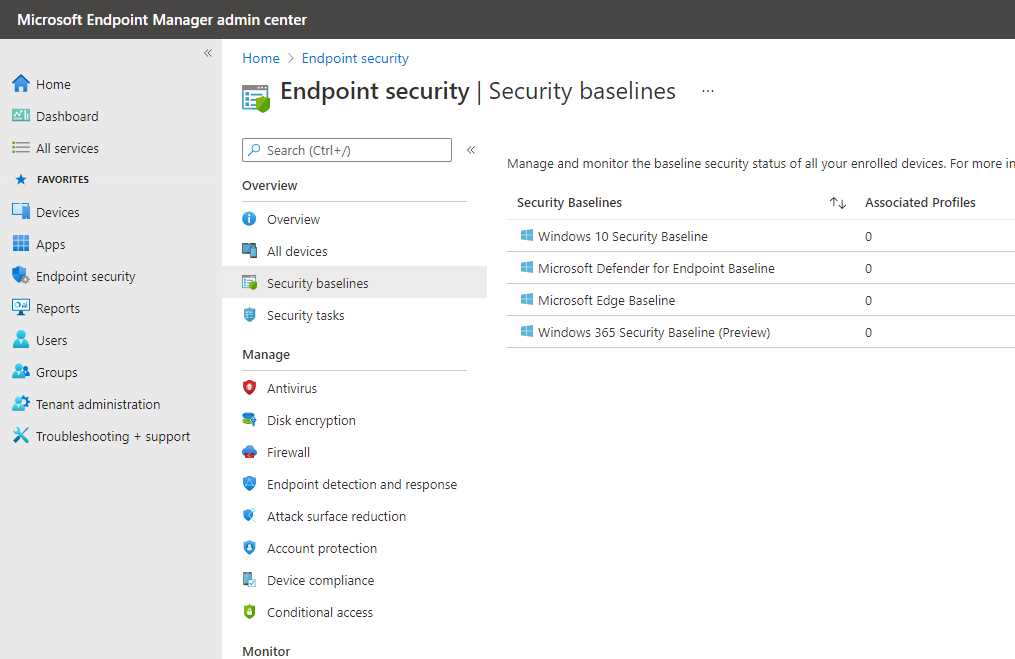
Figure 45: Microsoft Intune Security Baselines
I can apply a security baseline as is, or I can start from one, modify it, and create a custom baseline.
Currently we have the option to use a generic Windows 10 Security Baseline, a Microsoft Edge Baseline (if Microsoft Edge is your browser of choice), and the one dedicated to the new service Windows 365.
If you are managing your Windows 10 devices with Intune, this is a must-have. Read this article for more information.
Azure Security Center
Azure Security Center is an Azure Cloud service that gives me visibility into my security status, provides recommendations, and then allows me to quickly improve my security posture.
The interesting thing is that the security posture management part of this service comes without a cost, so it’s highly recommended to onboard Azure resources like the Azure Virtual Desktop virtual machines into this service.
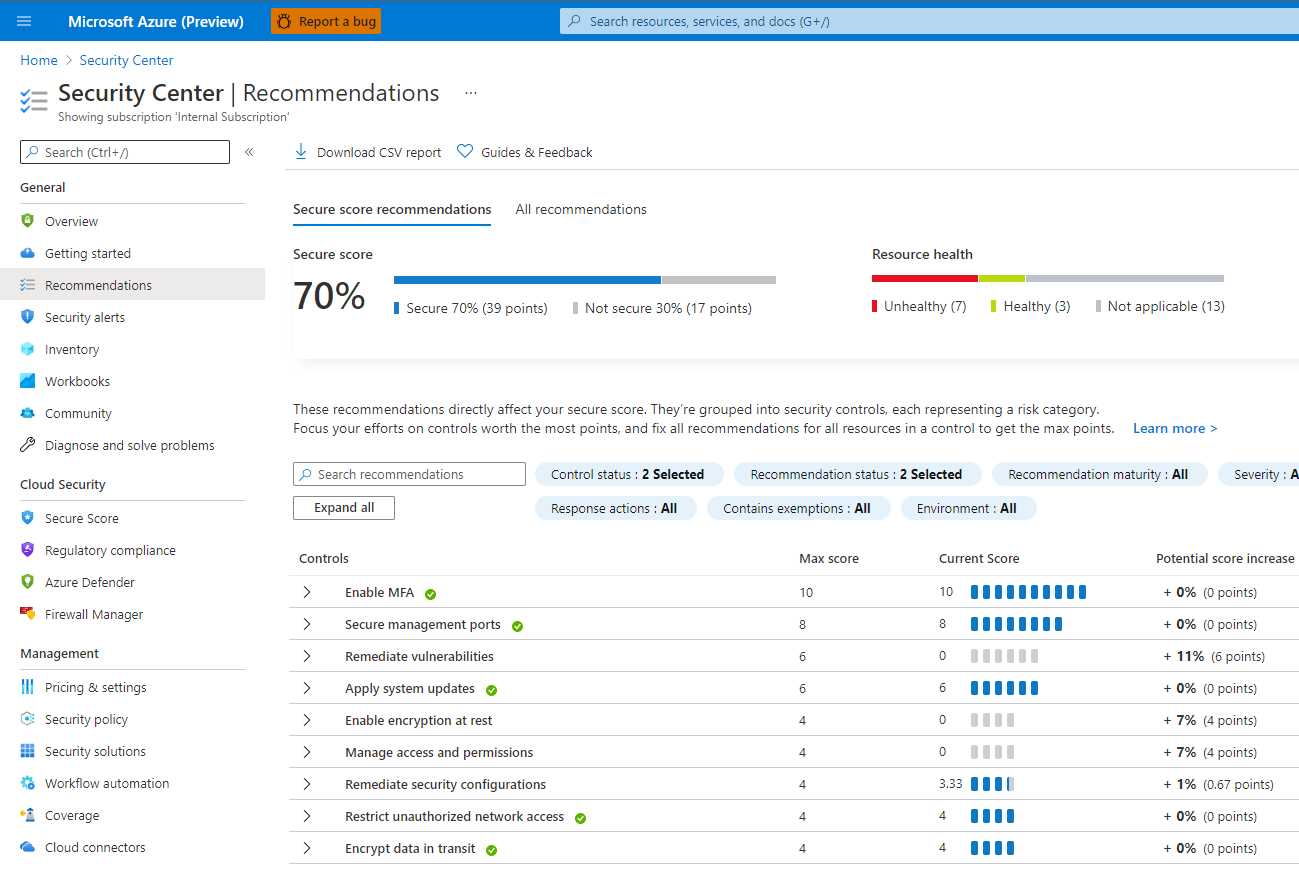
Figure 46: Azure Security Center
You can find information about this interesting security service here.
Azure Defender for Storage
As we learned in the previous chapters, Azure Files can be a good choice for hosting FSLogix profiles. Azure Files is a file share service provided and maintained by Microsoft. That means I don’t need to take care about the underlying architecture, only about the content.
If the content is the user profiles, I need to protect them because the share is where the user maintains important files. I can apply backup, but I can also apply a more active protection using Azure Defender for Storage.
Azure Defender for Storage is part of the Azure Security Center but it comes at a price, unlike the Security Posture Management capability, which is free.
By activating this service, I can immediately gain several good protection engines:
- Suspicious access patterns, such as successful access from a Tor (anonymous communication router) exit node or from an IP considered suspicious by Microsoft Threat Intelligence.
- Suspicious activities, such as anomalous data extraction or unusual change of access permissions.
- Upload of malicious content, such as potential malware files (based on hash reputation analysis) or hosting of phishing content.
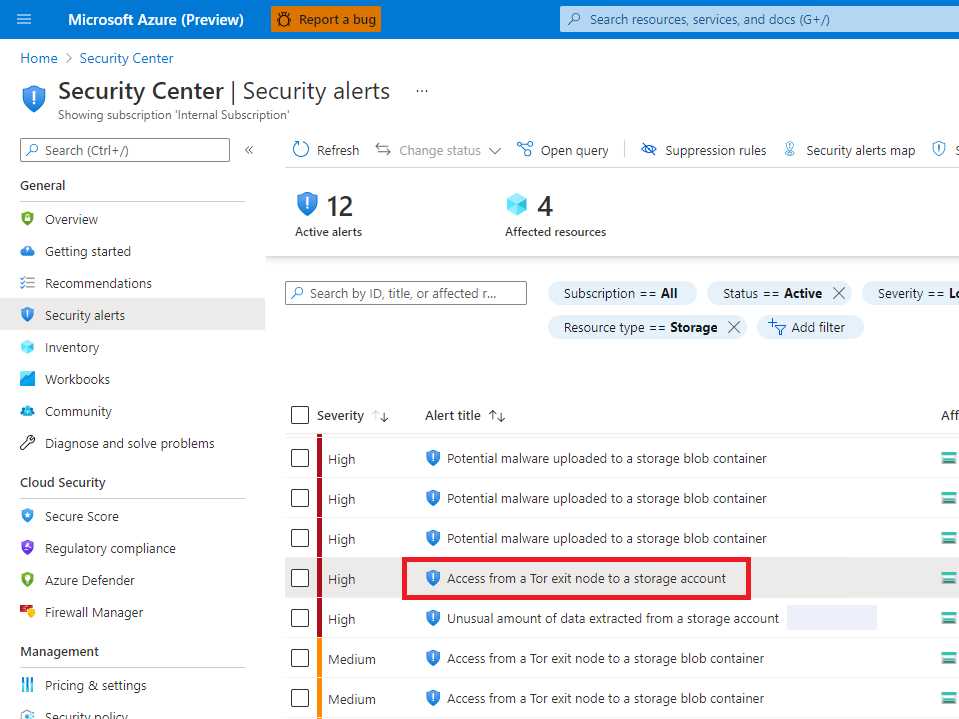
Figure 47: Azure Defender for Storage
Redirection control
Using the Azure Virtual Desktop console, it’s possible to manage the redirection of physical devices like webcams, as well as the physical device clipboard.
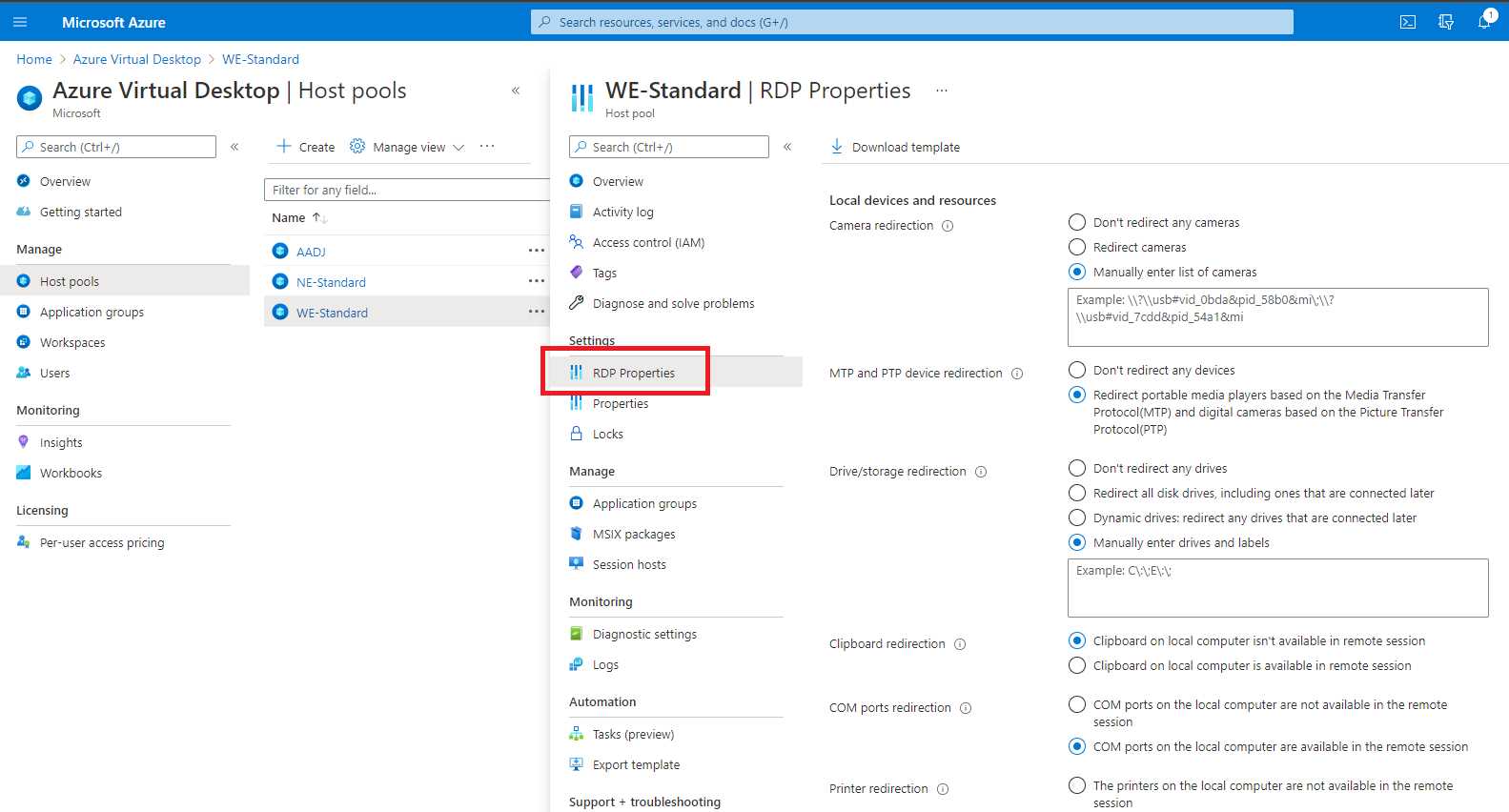
Figure 48: RDP Properties in the Azure Virtual Desktop Console
Security controls
It’s a best practice to set up a couple policies:
- Establish maximum inactive time and disconnection.
- Set up screen locks for idle sessions.
These two settings can help prevent unauthorized access.
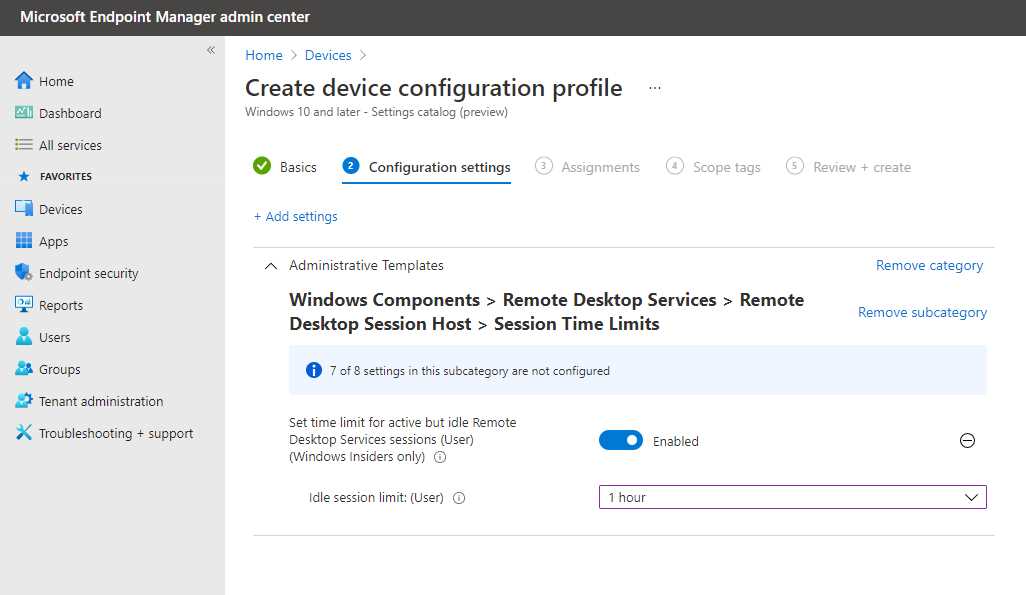
Figure 49: Security Controls Using Microsoft Intune
It’s possible to set these rules using group policies (all Active Directory joined devices) or Microsoft Intune (Windows 10 only).
In general, a Windows Virtual Desktop virtual machine is a Windows machine, so I can apply many other Microsoft or third-party security tools.
On the Microsoft side, AppLocker, Application Control, Attack Surface Reduction, Secure Boot, Network Protection, Controlled Access Folder, and Credential Guard can help reduce the attack surface and maintain the best security posture.
Screen capture protection
This is a feature that prevents the leakage of sensitive information using a screen capture technique as shown in the following image:
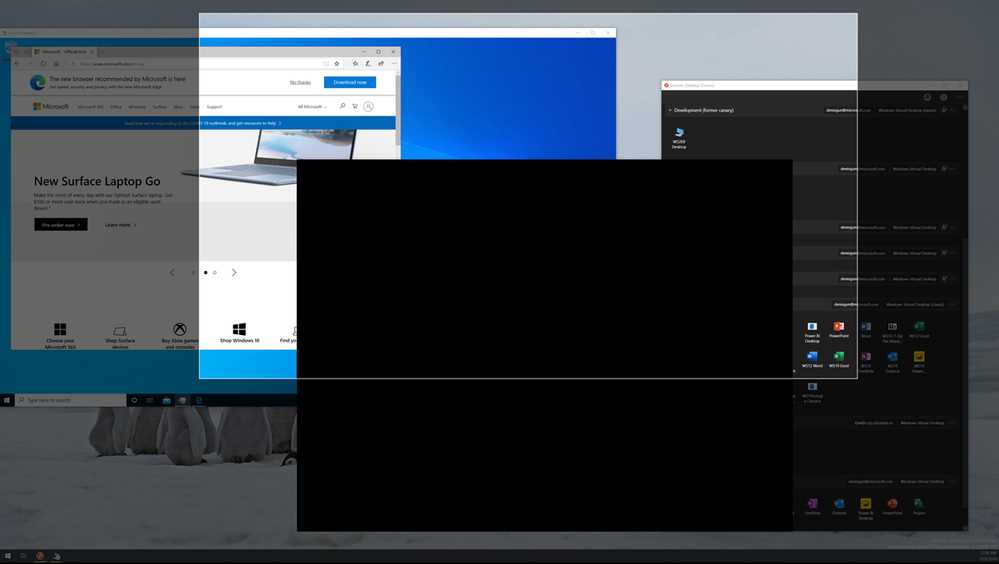
Figure 50: Screen Capture Protection (Source)
This feature can be activated at the host pool level: users that are using a virtual machine inside a host pool with the screen capture protection feature activated are not allowed to take screenshots of remote content coming from Azure Virtual Desktop.
The protection can be enabled modifying the following registry key:
Name: fEnableScreenCaptureProtection
Type: DWORD
Value: 1
Path: HKEY_LOCAL_MACHINE\Policies\Microsoft\Windows NT\Terminal Services


- 1800+ high-performance UI components.
- Includes popular controls such as Grid, Chart, Scheduler, and more.
- 24x5 unlimited support by developers.