
Azure Virtual Desktop Succinctly®

CHAPTER 1
Introduction
What is Azure Virtual Desktop?
Many people are aware of the existence of a new Microsoft service called Azure Virtual Desktop (AVD), but it seems that not so many of them are able to describe exactly what it is and how it can be helpful.
When I’m delivering trainings about this service, my typical introduction is: Azure Virtual Desktop is a Microsoft Azure service that is publishing Windows resources through the internet channel.
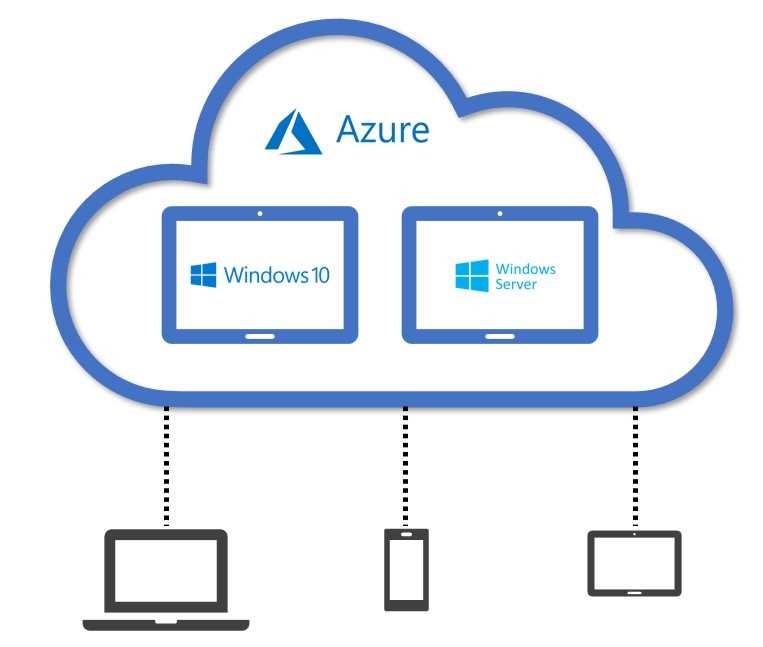
Figure 1: Azure Virtual Desktop
In a nutshell, I can use this service to publish the whole desktop or just specific applications installed inside Azure virtual machines, and my users will be able to consume these resources from any place on any device.
Azure Virtual Desktop was shipped in general availability in the summer of 2019 with the name “Windows Virtual Desktop,” and was recently renamed Azure Virtual Desktop.
This service is about a lot of things: new and old technical concepts, security, productivity, and cost savings.
At the very core, Azure Virtual Desktop is a virtual desktop infrastructure (VDI) service delivered by the Azure public cloud—but it’s much more than that. I hope this brief book will help you understand the whole picture.
First of all, I encourage you to read the official page about this service, “What is Azure Virtual Desktop?”
Microsoft’s goal is to build “the best virtual desktop experience,” and as I’m going to show you, this is already a complete and mature technology, deeply integrated into the Microsoft ecosystem, with several third-party vendors that are building value around this service.
The reason why
At a high level, I hope that now it’s a little bit more clear what Azure Virtual Desktop is, and its importance in the overall Microsoft strategy.
But having something that is new, techy, and cool is typically not enough to convince a company to adopt it.
Implementing a new service from scratch or migrating an existing one is an effort in terms of money, time, and resistance to change—and this is also true for services like Azure Virtual Desktop that are easy and fast to implement and maintain.
So, before going deep into the architecture and technical details, I believe it’s important to understand the value this service can offer to a company at business level.
The business values
We can identify at least three business values that Azure Virtual Desktop can address:
- Security and management
- Flexibility
- Productivity
I don’t want to discuss why a company must take care of these needs; I want only to underline how Azure Virtual Desktop can help.
On the security side, we all know that users need to interact with devices, data, and applications to successfully perform their daily job, and many of these users need to interact with sensitive information, so the security and compliance topic is top of mind for every IT department.
Azure Virtual Desktop is a service centralized in Microsoft Azure and it’s published in a secure way using the internet channel.
This is helpful because:
- A device that is allowed to access the production environment can be protected by several layers of Azure services that are embedded inside the service, or that I can optionally implement (reverse connection, multifactor authentication, firewall, monitoring, security baselines, DLP, encryption, compliance policies, and so on).
- On the management side, the technologies offered by Azure Virtual Desktop allow you to easily maintain and keep the workplace up to date. Sometimes, it’s not easy to manage, update, and monitor several physical devices around the world that are not always well connected. With Azure Virtual Desktop, thanks to the multi-session capability, I can have a small number of objects, centralized in Azure, and I can easily plan how and when to introduce an evolution (we will talk about that in the next chapters).
- The business data is centralized so it’s easier to monitor, back up, protect, and prevent the leakage of sensitive information.
Azure Virtual Desktop is extremely fast to implement and to scale-in and scale-out, and it provides a lot of flexibility. It gives me freedom to support scenarios like the following:
- Mergers and acquisitions. Let’s pretend that Company A acquires Company B, and they want to quickly let an employee from Company B use an application like CRM from Company A. Azure Virtual Desktop can help to quickly publish the CRM app to Company B users.
- Temporary workers. Lots of companies every day have several people like partners or contractors that are accessing their systems to perform maintenance, take on new projects, or perform seasonal work, maybe because it’s Christmas time, summer, winter, Black Friday, or another heavy shopping moment of the year. They need to have more employees only for a small period of time. Buying physical devices for these temporary employees is an option, but at the end of the peak period, these devices will stay unused, and they will be getting old by the time the next peak happens. If I’m using an Azure Virtual Desktop solution, my extra employees can be productive and secure and, once the peak is finished, I can simply turn off everything and pay only the consumed time.
- Branch workers. Azure Virtual Desktop is a service published by the Azure cloud using the internet channel, so I can stay productive from any location on any device. Every time I need to work, I only need an internet connection, and I will be able to jump into my company environment without VPN systems, DMZ zones, and other options that are not always easy to implement and use.
Every company needs to allow employees to be as productive as possible in any condition, and Azure Virtual Desktop can help in doing that. This is not only because it’s a service that is secure and easily accessible from any device, from any part of the world. We need also to consider the following:
- The power of Azure can let users have enough resources to perform their job. CPU power, RAM, and disk size are not a big issue in Azure. Do you need more power? In a matter of minutes, or maybe only seconds, you can have it!
- Specialized workers can have also specialized work devices. Thanks to the capability in Azure to have virtual machines with GPU integrated, it’s possible to let users like engineers work with complex CAD applications (or other GPU intensive workloads). For example, an employee can carry only a small laptop, and when they need to use a graphic-intense application, they will be able to do that using the power of Azure. This also allows you to always have the last CPU/GPU technologies ready to be used.
- What about legacy applications? Maybe you have some very critical application that is not ready to work on Windows 10 or another modern operating system. But Windows 7 is out of support, so how can you let your users work? Do you really want them to work in a Windows 7 environment? What about security, productivity, and user satisfaction? One solution is to publish the legacy application using Azure Virtual Desktop while for the other tasks, the user will use a modern operating system. (Microsoft has special advantages for this scenario, which we will talk about in the next paragraphs.)
On-premises VDI vs. Azure Virtual Desktop
You can say “Hey! The benefits that were presented in the previous paragraphs seem the same as a classic on-premises VDI solution. I don’t see the benefit of using Azure Virtual Desktop. I can simply build a similar solution inside my data center!”
Well, let me explain: Azure Virtual Desktop is a VDI solution with roots in the classic concept of “virtual desktop infrastructure,” so it’s true that most business needs and use cases that can be solved by this service are the same as an on-premises VDI solution.
But even if the main idea is old and common (a bunch of virtual machines publishing the whole desktop, or just a subset of their applications), Microsoft is evolving this concept and bringing many advantages to make Azure Virtual Desktop “the best virtual desktop experience.”
Licensing
Before going deep into the technical and cost advantages, let’s quickly cover the licensing. As I wrote in the previous paragraphs, Azure Virtual Desktop is a solution based on Windows virtual machines running on Microsoft Azure, so which kind of Windows OS can I install?
On this webpage, you can find that Azure Virtual Desktop supports the following x64 operating system images, including both Windows Client (Windows 10 and Windows 7) and Windows Server:
- Windows 10 Enterprise multi-session, version 1809 or later.
- Windows 10 Enterprise, version 1809 or later (Semi-Annual Channel only).
- Windows 7 Enterprise.
- Windows Server 2019.
- Windows Server 2016.
- Windows Server 2012 R2.
It’s up to you to decide what is the best choice. Maybe you need to publish an application that is compatible only with Windows Server, or you need to run an old application that is compatible only with Windows 7, or you’d like to let a user access a complete Windows 10 operating system from a thin client or iPad.
Whatever your architectural choice, the licenses required to access Azure Virtual Desktop are the following (source):
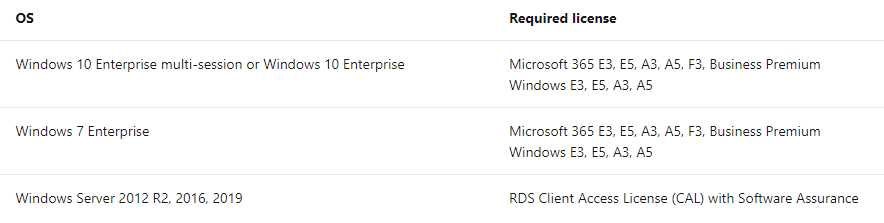
Figure 2: Azure Virtual Desktop Licensing
In a nutshell:
- Windows Client: VDA (Virtual Desktop Access) per user or a bundle like M365 E3 that includes VDA.
- Windows Server: RDS (Remote Desktop Services) CAL per user or per device with Software Assurance.
For example, if my solution is based on Windows 10 and I need to serve 50 users, I need to have at least 50 VDA per-user licenses. If the user is already covered by Microsoft 365 Business Premium, for example, they are already entitled, because this SKU includes VDA.
Otherwise, if my solution is based on Windows Server, I can cover it with an RDS CAL with Software Assurance and in this case, it can be both per user or per device. You can learn more about pricing here.
It’s important to underline that the license needed by Azure Virtual Desktop is very similar to the one that Microsoft is requiring today for the other VDI/Terminal Server solutions. If you want to migrate an existing on-premises solution into Azure Virtual Desktop, this is helpful because at the license level, there is a good chance you are already entitled.
Because the resources (desktop, applications) that Azure Virtual Desktop is publishing are hosted on standard Azure virtual machines, I also need to calculate the cost of these virtual machines (vCPU, RAM, storage, outbound networking, and so on).
It’s also interesting to underline that if the final users are external, I have the ability to let them access my resources using dedicated licensing.
In general, it could be helpful to use the dedicated section of the Azure Pricing Calculator (enter Azure Virtual Desktop in the search box and add it to the calculator).
Now it’s time to talk about the advantages of adopting an Azure Virtual Desktop solution.
Technical advantages
Azure Virtual Desktop is the only way to use Windows 10 multi-session. We will talk more in depth about that in the next chapters, but I believe that you are already guessing the main advantage: a Windows client operating system that, like a Windows Server operating system, is able to serve multiple users at the same time.
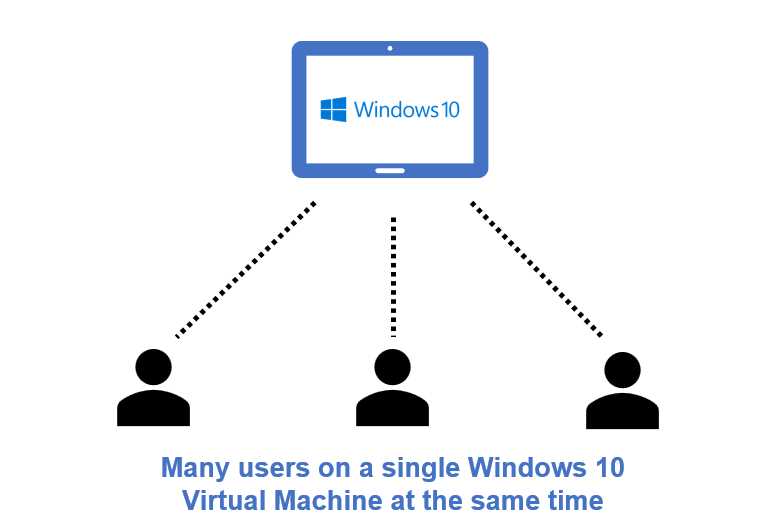
Figure 3: Windows 10 Multi-session
This is both a technical and a cost advantage. It’s a technical advantage because typically in the on-premises world, I’m using Windows Server virtual machines to publish to my users because those VMs allow multiple sessions (and multiple sessions means more users on a single machine, which in turn means fewer virtual machines to implement, maintain, and pay for).
The problem with this strategy is that I’m forcing users to use Windows Server environments, and the average user is more comfortable in a Windows client environment.
And the applications that the users are using are written for Windows client, so letting them work on a Windows Server is not always straightforward (and not always supported).
With Azure Virtual Desktop, I can have the best of both worlds: I can have the efficiency of the multi-session, plus the productivity and support of a real Windows client operating system.
This is a big advantage that is not available outside Azure Virtual Desktop (the only exception is that selected partners like Citrix and VMware can publish Microsoft Azure virtual machines containing Windows 10 multi-session).
This solution is created in conjunction with the Microsoft 365 Apps team to ensure that everything is optimized and designed to work together smoothly.
Microsoft is also simplifying the publishing layer so the administrators can focus on creating and managing only the resources inside the virtual machines that will be published to the end users.
I believe all these concepts will become clearer once we will talk about the architecture and the technology part in the next chapters.
Cost advantages
Now it’s time to talk a little more about the advantages of Azure Virtual Desktop.
Windows 10 multi-session
As I said in the last section, the presence of Windows 10 multi-session allows multiple users to share a single virtual machine (CPU, RAM, disk, network) at the same time.
This is a cost advantage because I need fewer virtual machines to serve multiple users.
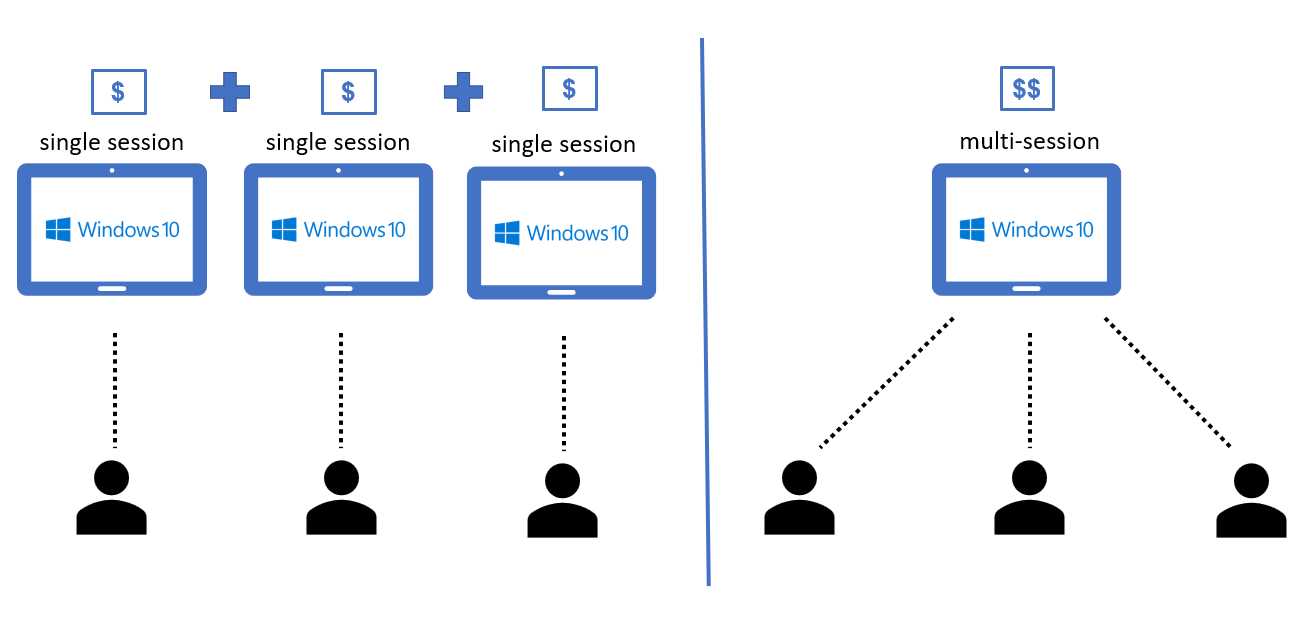
Figure 4: Windows 10 Single Session versus Multi-session
Without Windows 10 multi-session, if I need to provide a Windows 10 experience to 100 users, I need to set up and pay for 100 virtual machines—and I need to update 100 virtual machines!
Using Windows 10 multi-session, I have fewer virtual machines that are serving multiple users at the same time, so I pay less, and I spend less time managing these objects.
A multi-session virtual machine will need more resources (CPU, RAM) than a single session virtual machine because it needs to handle multiple users at the same time. That means a multi-session virtual machine is going to be more costly than a single session virtual machine, but the fact that I need to provision and maintain a fewer number of these objects will result in a cost advantage.
Linux rates
Another interesting cost advantage is that if I want to publish resources that are inside a Windows Server machine, I can do that, but unlike other solutions, Microsoft does not ask me for the operating system license.
As you probably know, Windows Server is not an open-source and free-to-use operating system. You need to pay a license fee that depends on several factors, but basically, it’s a per-core license. You can find more information about that here.
If you are creating a Windows Server virtual machine inside any cloud, you need to pay for the license. In Azure you can add this cost to the overall monthly cost of the virtual machine (that is also including the cost of the CPU, RAM, disk, networking, minutes of usage, and so on), or you can buy it through a reseller and use the Azure Hybrid Benefit to use it inside Azure (more information here).
If you are creating a Windows Server virtual machine inside Azure and you are publishing the resources through Azure Virtual Desktop, you don’t need to pay for the operating system license!
The cost of the virtual machine is calculated using the Linux rates, which means you are charged for the CPU, RAM, disk, and other resources allocated, but not for the operating system. The total cost is the same as an Azure virtual machine with a free Linux distribution installed.
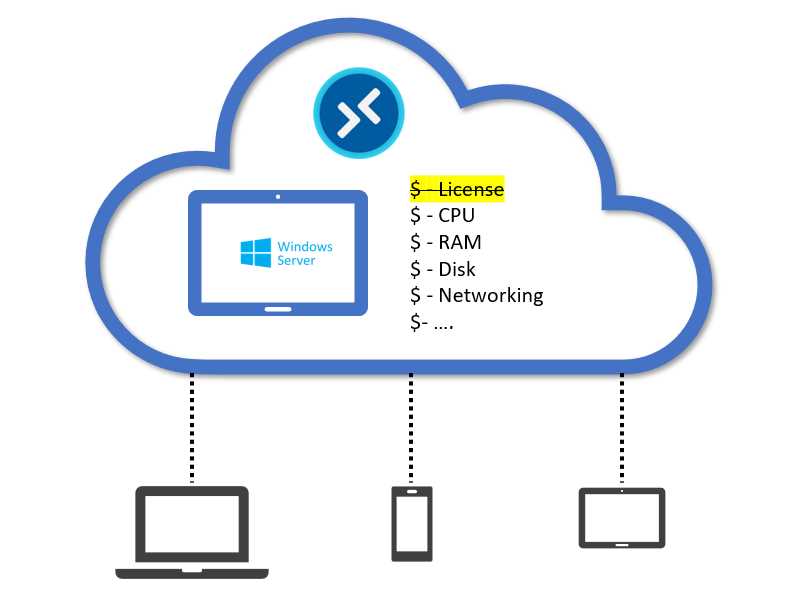
Figure 5: Windows Server Cost inside Azure Virtual Desktop
Extended support included
Windows 7 reached the end of service in January 2020. Microsoft stopped providing new security patches and the support channel stopped working on this operating system.
But Microsoft is offering special critical security updates until 2023 through extended (paid) support. It’s an offering per year and per device, and it’s a sort of a “last call” for customers that have difficulties evolving an application that is working only on Windows 7.
This sort of support could be quite expensive, and it’s not particularly flexible. The cost is per year—what if I need this support only for 8 months? The answer is that I need to pay for the whole year.
In Azure Virtual Desktop, I can publish the desktop of Windows 7 machines (in this case only single session), and the advantage is that the extended support is included!
I can maintain my Windows 7 securely because of the Azure capabilities, and also because I am now entitled to apply the extended support security updates without paying for the extended support.
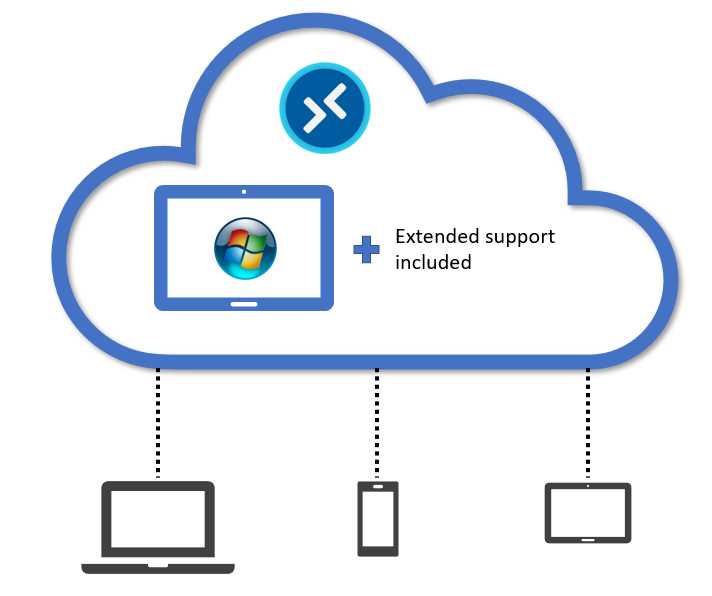
Figure 6: Windows 7 + Extended Support
I can give my users a new Windows 10 machine, MacOS, or other modern physical device and let them continue to consume legacy workloads inside a bubble in Azure that is composed of Windows 7 virtual machines that are up to date.
If, after some months, I am ready to let my users work natively with a new application that is now compatible with their modern devices, I will simply shut down the Azure Virtual Desktop farm and stop paying.
Avoid license double counting
Another interesting advantage is to avoid the cost of the RDS license. As I wrote in the section dedicated to licensing, if my Azure Virtual Desktop farm is composed of Windows client machines, I need to have a VDA per user license. Otherwise, if I use Windows Server in my VDI farm, I need to have an RDS license per device or per user with Software Assurance.
Before Azure Virtual Desktop and Windows 10 multi-session, one typical choice in the VDI world was to use Windows Server, because it was the only operating system that was able to handle multiple and concurrent user sessions.
Today, we have several customers that are paying for RDS CAL because it’s the license that Microsoft is requiring to let a user access a Windows Server virtual machine exposed by a remote desktop service. But maybe the same customers are also paying for the VDA license because it’s included in some bundles they have for other reasons, like email or security capabilities. One example could be Microsoft 365 Business Premium.
If I’m able to technically translate a solution based on Windows Server to another that is based on Windows 10 multi-session, and I am (or my customer is) already paying for the VDA license, I can introduce a double advantage because my new solution in Azure will not need the operating system server license and the RDS CAL.
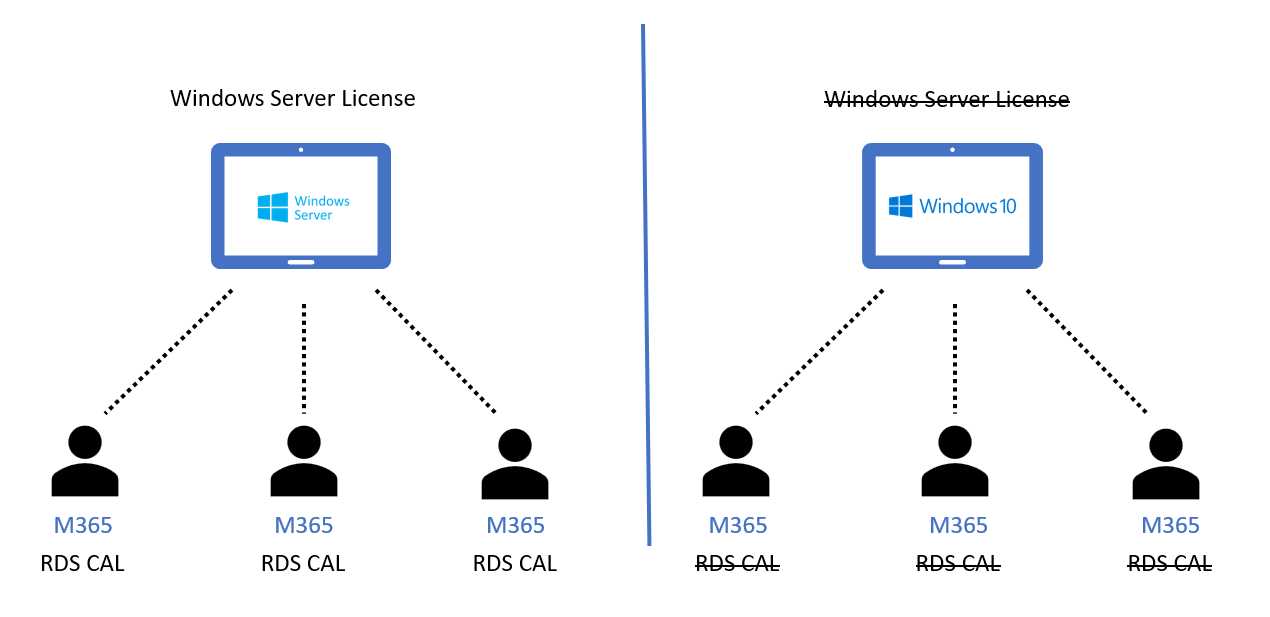
Figure 7: Azure Virtual Desktop License Advantage
Everything will be based on Windows 10 multi-session virtual machines that will allow me to serve multiple users at the same time as the Windows Server solution, but my users will be entitled to use this new solution without paying for the RDS CAL, because now it’s based on Windows Client—so the VDA that they already have inside their macro plans is enough.
Publishing layer
The last cost advantage is related to the cost of publishing the resources.
In a typical VDI solution that involves the publishing of virtual machine resources, I need to architect, deploy, and maintain a publishing layer composed of several roles installed on several virtual machines that are providing different roles. This publishing layer will receive requests from the end users, and the different roles will apply and check licenses, assign resources, and monitor.
Any architecture needs to be scalable, and when you take into account business continuity, disaster recovery, geo replication, and the continuous evolution of the platform, this publishing layer can become quite complex and expensive to create and maintain.
In Azure Virtual Desktop the publishing layer is free of charge, and it’s totally created and maintained by Microsoft.
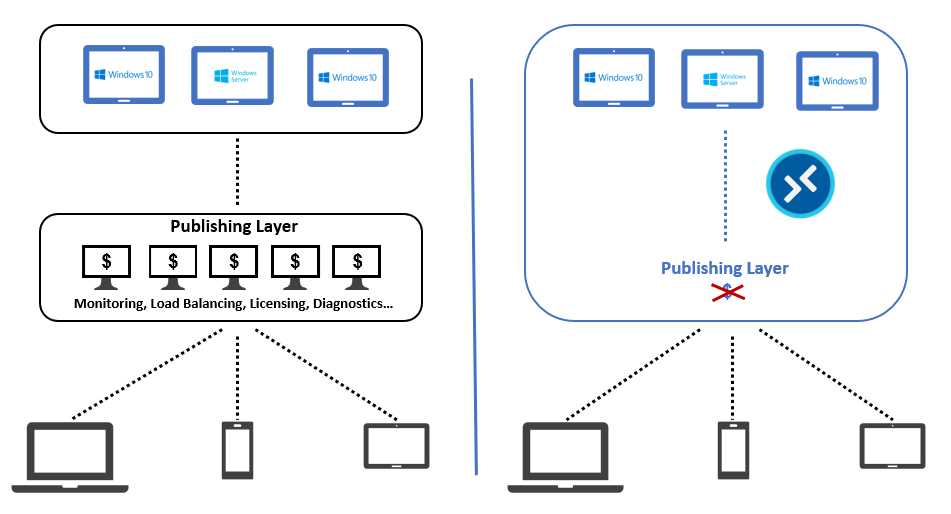
Figure 8: Azure Virtual Desktop Control Plane
This service is called control plane, and it’s available worldwide, so I can create a solution that is always available and can serve my users in different locations, and everything will be managed as a service by Microsoft.
In a nutshell: I don’t need to create, configure, and maintain the publishing layer.
Main adoption scenarios
In general, the adoption of Azure Virtual Desktop is linked with three macro scenarios:
- Migration of an existing solution.
- Support of legacy applications.
- Implementation of new use cases.
Let’s briefly discuss each of these bullet points.
Migration of an existing solution
In this case, I have an existing solution that is publishing Windows resources hosted outside Azure Virtual Desktop. Maybe it’s an on-premises solution; maybe it’s a solution deployed in another public cloud.
For several reasons (like the advantages that we discussed in the previous paragraphs), I’m willing to migrate the solution to Azure Virtual Desktop.
Support of legacy applications
As we already know, I can create a solution based on Windows 7 or Windows 2012 R2 so I can support the consumption of legacy workloads.
Today, it’s not the best choice to give Windows 7 devices to our users because it’s no longer secure, up to date, and productive like Windows 10 or other modern operating systems.
It can also become quite difficult because Windows 7 does not support new hardware and new standards like UEFI.
The best choice is to have a productive, secure, and happy end user who is using a modern physical device and consuming legacy applications using virtual machines inside the Azure cloud published through Azure Virtual Desktop.
Implementation of new use cases
Azure Virtual Desktop has opened several use cases thanks to the presence of Windows 10 multi-session: the deployment speed, agility, power, and flexibility of the Microsoft Azure cloud.
It’s now possible to provide the end user a true and complete Windows 10 experience from any device and any place. This is very helpful for smart working.
I can use Azure Virtual Desktop to help companies’ mergers and acquisitions—it’s quick and easy to let users from company A use applications from company B in the meantime until the acquisition is completed.
I can use this service inside my security strategy because I can let external users connect to my production systems only using an Azure Virtual Desktop machine that I manage. For example: are you using a laptop that belongs to a third-party company, where you don’t manage the security of the device? You can access my production systems, but you must use my Azure Virtual Desktop machines that are the only ones that can access them.
This also helps bring your own device (BYOD) strategies.
Inside Azure I can request the creation of very powerful virtual machines with lots of CPU, RAM, disk, and GPU power.
If I have a group of users that are working with CAD applications, I can let them work with all the power they need in every location using a standard laptop, because the graphics power that they need will be delivered by Azure Virtual Desktop.
Inside Microsoft Azure I can create virtual machines with GPU from NVIDIA or AMD that can provide all the graphics power that my users need, whether they are working from home on a small tablet, or from a building construction site in another country with a standard laptop.
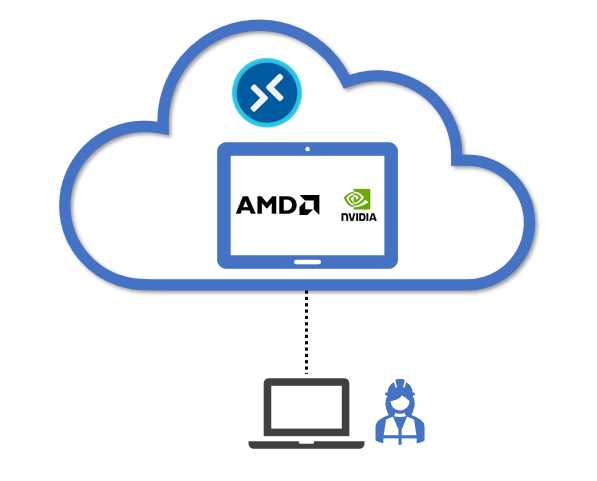
Figure 9: Azure Virtual Desktop GPU Power
These are only examples; you can find several use cases where Azure Virtual Desktop is useful and convenient.


- 1800+ high-performance UI components.
- Includes popular controls such as Grid, Chart, Scheduler, and more.
- 24x5 unlimited support by developers.