
Azure Virtual Desktop Succinctly®

CHAPTER 4
Image Optimization
Virtual Desktop Optimization Tool
When a Windows operating system is working inside a virtual environment as a VDI/terminal server, it’s possible to apply several optimizations to improve the overall performance and avoid unwanted system errors.
These “tricks” are performed by tuning some aspect of the operating system, as well as stopping/deleting services and components that are not useful in a virtualized environment.
Some optimizations can be applied to the base image, and others must be applied per host machine. It’s generally not possible to retain them after a sysprep, so I need to create the final virtual machine first, and then apply the final tuning.
A very good tool that will automatically apply optimizations specifically for Azure Virtual Desktop is the Virtual Desktop Optimization Tool created by the “VDI Guys.”
This tool comes in the form of a PowerShell script that shuts down services, modifies registry keys, applies local policies, and more.
Please test it in a demo environment first; it’s very optimized, so there’s a risk that something tuned down by the script is needed by some of your applications.
The good news is that because it is basically a script, it can be easily modified as needed.
Note: This tool is community driven, and it’s not directly supported by Microsoft at the time of writing.
It’s also possible to use third-party tools like Citrix Optimizer or VMware OS Optimization Tool, though created by Citrix and VMware for their VDI technologies, to prepare a generic Windows image that is running on a generic VDI system.
Logon blur prevention
A small but very useful optimization is to prevent the login screen from showing a blurred image. This is because the blurring process consumes a little bit of resources and slows down the logon process.

Figure 51: Azure Virtual Desktop Virtual Machine Logon with Blur
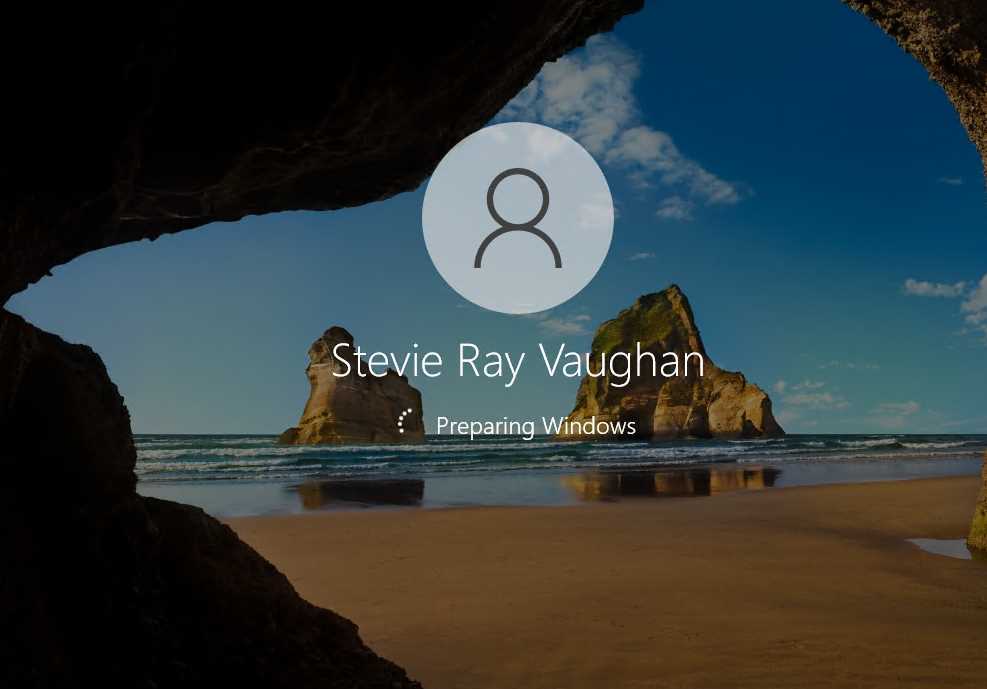
Figure 52: Azure Virtual Desktop Virtual Machine Logon without Blur
This optimization can be done using local policies, group policies, registry keys, or Intune (using the administrative templates).
You can find the group policy by navigating to the following:
Computer Configuration > Administrative Templates > System > Logon > Show clear logon background
The registry key that must be created is:
Name: DisableAcrylicBackgroundOnLogon
Type: DWORD
Value: 1
Path: HKEY_LOCAL_MACHINE\SOFTWARE\Policies\Microsoft\Windows\System
Microsoft Edge tabs optimization
Another small optimization that can have a big impact is to put unused Microsoft Edge tabs on sleep. This is a quite recent feature that is designed to optimize the usage of CPU and RAM.
If Microsoft Edge (Chromium) is your browser of choice, you can use this setting to stop the automatic refresh of webpages that are open in tabs but are not visible because you are reading another tab or doing a different task using another application.
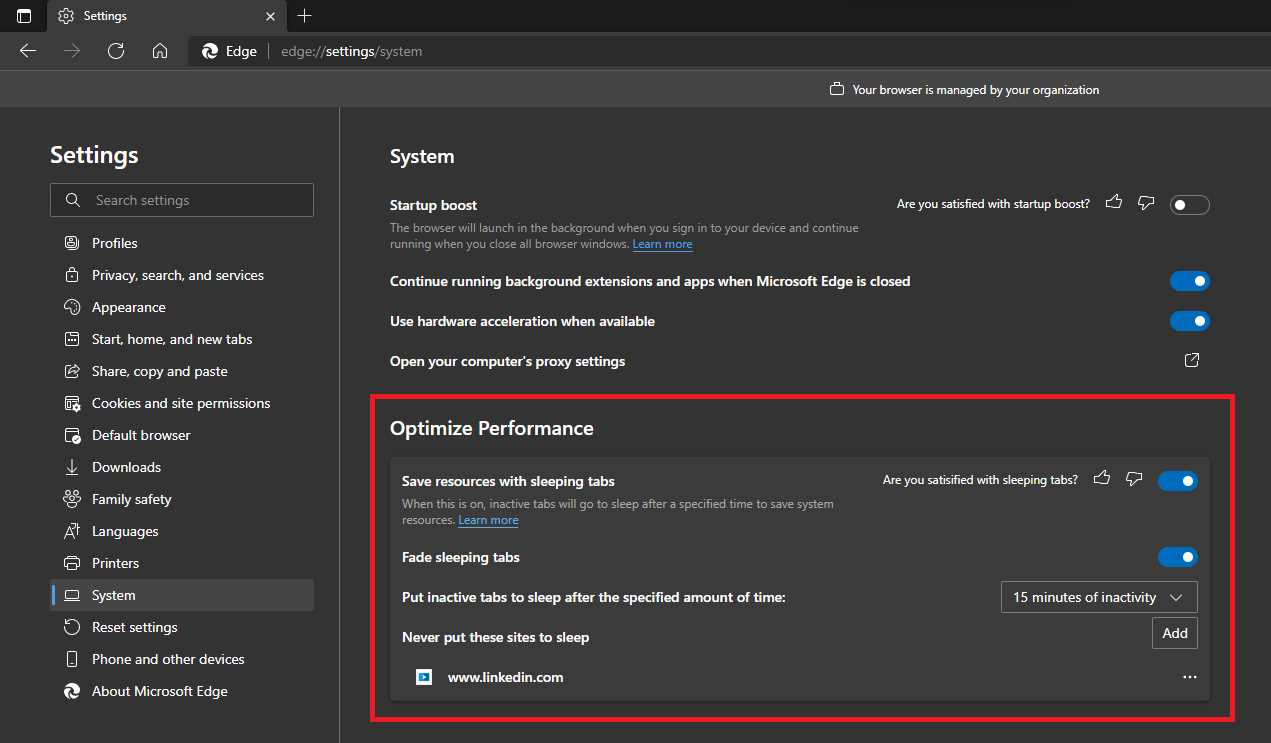
Figure 53: Microsoft Edge Sleeping Tabs
My configuration is putting the tabs that I’m not using after 15 minutes on sleep, but I have an exclusion for LinkedIn because I would like to be aware of incoming chats and notifications.
This optimization can be applied with Group Policy and Intune.
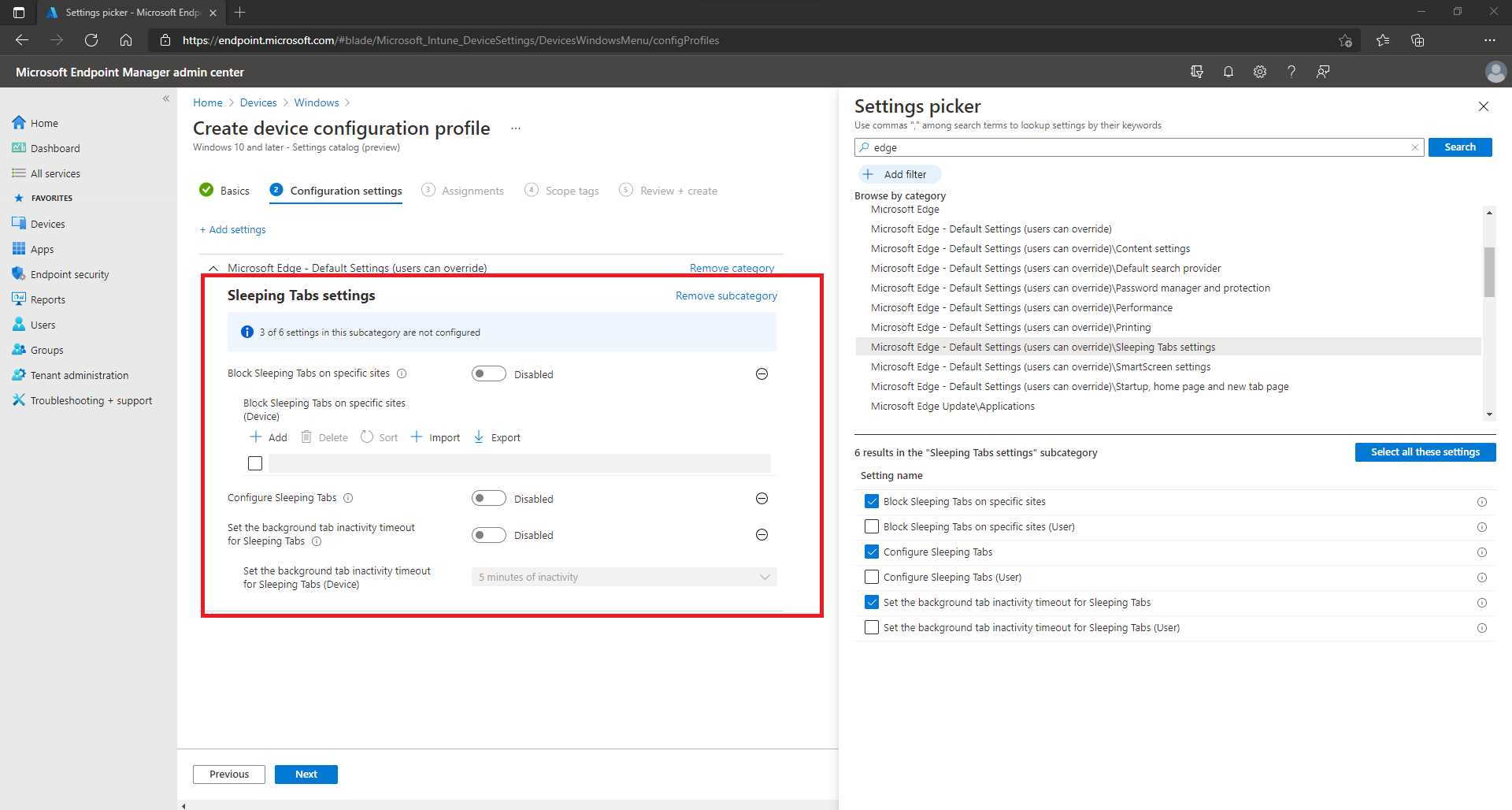
Figure 54: Sleeping Tabs Settings with Microsoft Intune
You can find more information about this feature here.


- 1800+ high-performance UI components.
- Includes popular controls such as Grid, Chart, Scheduler, and more.
- 24x5 unlimited support by developers.