
Azure Virtual Desktop Succinctly®

CHAPTER 2
Architecture
Since this is a Succinctly guide, I don’t have room to go deep inside all the architectural aspects of an Azure Virtual Desktop solution. But I will cover a number of core topics that will be useful to understand the whole picture.
A simple architecture
The following figure shows what is probably the simplest Azure Virtual Desktop architecture that can be implemented.
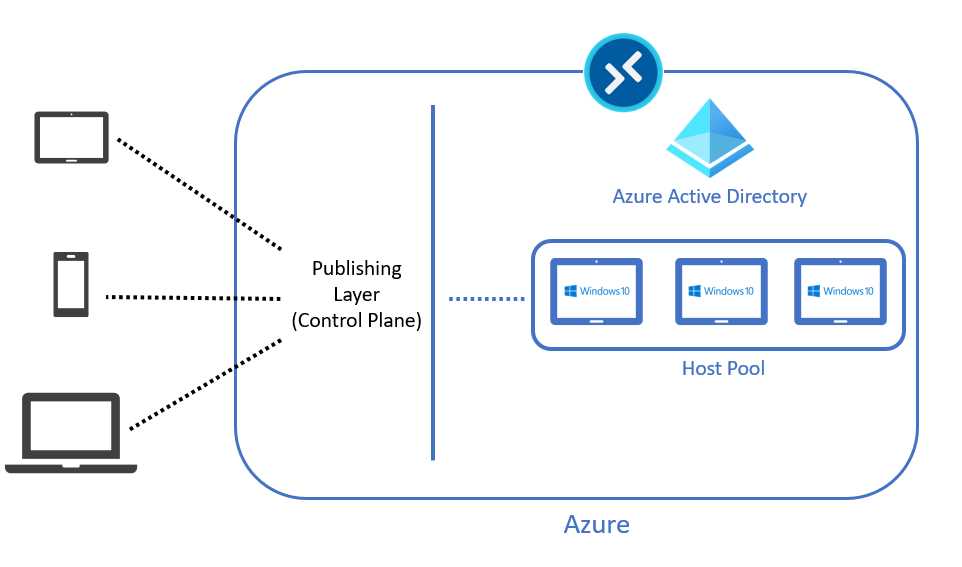
Figure 10: Simple AVD Architecture
In a nutshell, we have different physical devices that are using native applications or web browsers to contact the Azure Virtual Desktop service through the internet channel on port 443.
The service is redirecting the communication to the publishing layer (called the control plane), and inside the control plane we have different roles that are performing several activities, like load balancing, licensing, and monitoring.
The most important one is the Remote Desktop Gateway (RD Gateway) that is responsible for creating a connection (called reverse connect) between the physical device and the virtual machine of destination, which is joined to Azure Active Directory and logically placed inside a group of machines called the host pool.
If you are worried about the fact that the virtual machines are joined to Azure Active Directory only, you have the option to join them to Active Directory only, or to perform a hybrid join. Obviously, the virtual machines need to have a “line of sight” with the domain controller; that means the capability of talking with the domain controller and performing a domain join.
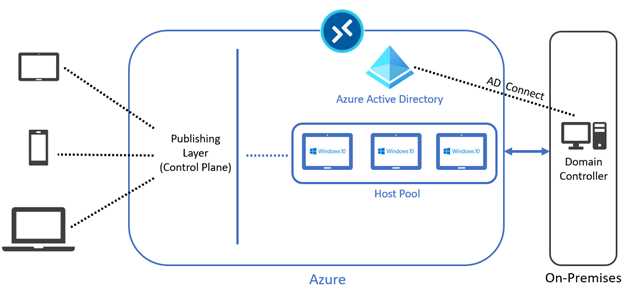
Figure 11: Hybrid Architecture
This is the high-level authentication flow:
- The user authenticates against Azure Active Directory (because Azure Virtual Desktop is an Azure Service, and it’s relying on Azure Active Directory for authentication).
- Optionally, multifactor authentication and conditional access rules are applied.
- The physical device call is redirected to the nearest control plane (Microsoft has deployed several of them in key regions worldwide).
- Several things are happening inside the control plane, and in the end, the Remote Desktop Gateway role is creating the connection between the physical machine and the assigned Azure Virtual Desktop virtual machine.
- The user is logging onto the virtual machine using Azure Active Directory credentials or Azure AD credentials (depending on whether the architecture is cloud only or hybrid/on-premises).

Figure 12: High-Level Authentication Flow
Typically, an Azure Virtual Desktop architecture is more complex than the one shown in the previous figures. It needs to account for other factors like:
- Backup, business continuity, and disaster recovery.
- Storage account needed for FSLogix and MSIX app attach (we will talk about these technologies in the next chapters).
- Monitoring.
- Scaling logic and automation.
- Custom base images.
- On-premises connection.
You can find useful information about how to architect an Azure Virtual Desktop solution here.
Note: Currently, the ability to join virtual machines only to an Azure Active Directory domain is in preview; please check the documentation.
Pooled vs. personal
When it’s time to plan a virtual desktop solution, whether we are talking about Azure Virtual Desktop or another solution, one of the main choices is related to creating a group of pooled virtual machines versus personal virtual machines.
In the first case, the pooled solution allows more users to share the same virtual machine at the same time.
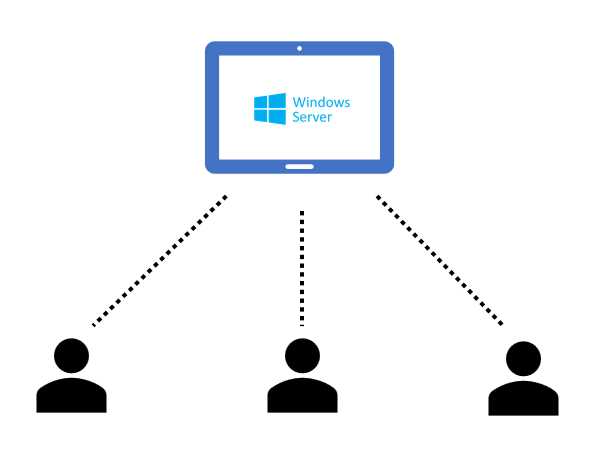
Figure 13: Generic VDI Service Using Multi-session
This is an advantage because I can share the resources of one virtual machine (like CPU, RAM, disk space, and network interface) between several users, and this is good in terms of costs and simplicity (fewer virtual machines that need to be patched and managed).
On the other side, we have the single session type, which means one machine per user.
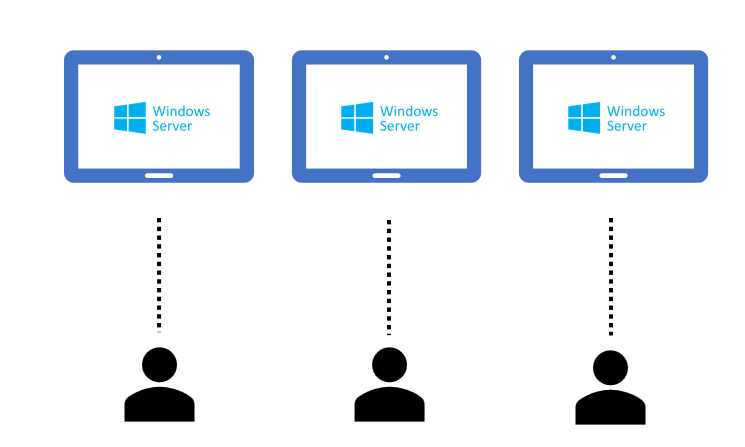
Figure 14: Generic VDI Service Using Single Session
The advantage here is that you can offer a complete separation of computational power, and a complete separation of tools (I’m not sharing my work device with anyone else).
If I have 300 employees and I’m offering a single-session solution, I need to have 300 devices that I need to pay and maintain. With a multi-session strategy, I can let 100 devices serve three users per machine at the same time and save money.
The number of users that a single machine can serve at the same time depends on several factors, such as:
- The style of a user (basically the applications that the user is using every day).
- The power of the machine (such as number of processors, memory, and disk amount).
- Security requirements.
A best practice is to define user personas and have one or more pilot activities to tune the architecture. Maybe a single machine can handle 16 users alone, or maybe only two at the same time.
You can see from the last two figures that Windows Server is able to provide multi-session capabilities, but what about Windows client?
The answer is that Windows client is a single-session operating system, so it’s typically used in the VDI services when it’s better or required to build a personal solution.
In Azure Virtual Desktop, it’s possible to also have Windows 10 multi-session, which is a flavor of Windows 10 that can handle multiple users at the same time.
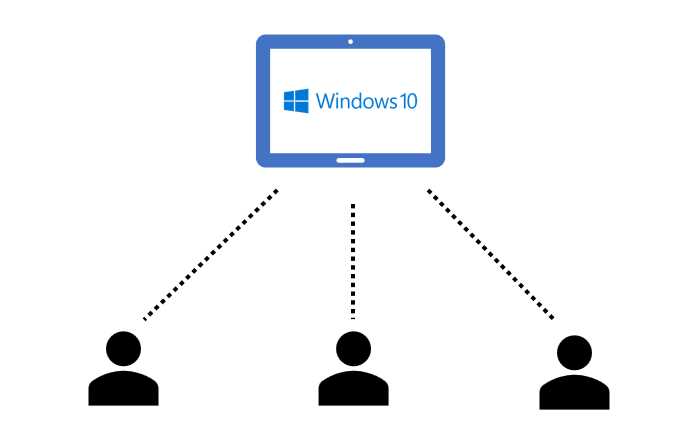
Figure 15: Windows 10 Multi-session
This interesting version of Windows is also available in Azure Virtual Desktop, or by using VMware and Citrix solutions that publish Azure virtual machines (currently it’s not possible to run Windows 10 multi-session outside Azure Cloud, and it must be published by Azure Virtual Desktop or by the other two approved providers).
Identity
Azure Virtual Desktop is a service integrated into Azure Active Directory, so basically when I assign a desktop or an app to a specific group of users, I’m using Azure Active Directory groups and Azure Active Directory users.
If my Azure Virtual Desktop solution is cloud only, I can use cloud-only groups containing cloud-only users to assign resources that are working inside Azure virtual machines that are joined only to Azure Active Directory.
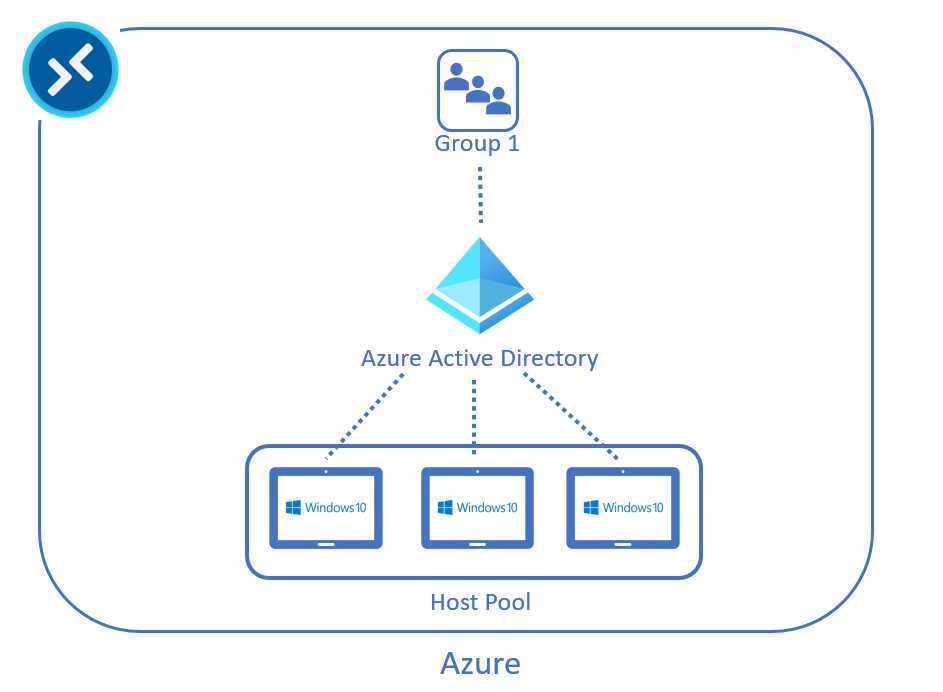
Figure 16: Azure Virtual Desktop Architecture Cloud Only
If I have an on-premises Active Directory domain controller, I can create a hybrid architecture, but in this case the Azure virtual machines must be joined to the on-premises Active Directory (hybrid join is supported). The users must exist in both Active Directory and Azure Active Directory, and this is possible using an Active Directory connection (AD Connect).
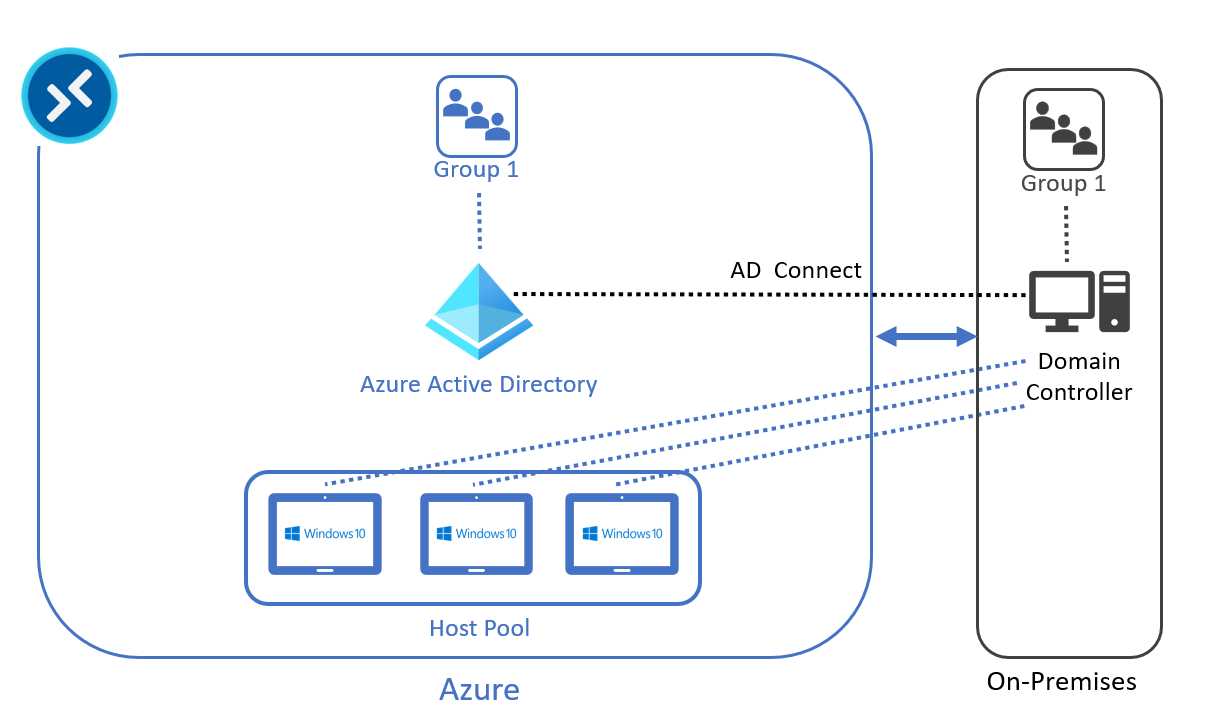
Figure 17: Azure Active Directory Architecture Hybrid
Regarding the authentication of these hybrid accounts, it’s supported for the usage of Active Directory Federation Services, pass-through authentication, and password hashing.
On the connectivity side, both VPN site-to-site and ExpressRoute solutions are supported.
Depending on the architecture, the domain controller can (or must) be placed inside a virtual machine in Azure or left on-premises. Azure Active Directory Domain Service is also supported.
As you can see, Azure Virtual Desktop is very flexible when it comes to having virtual machines joined to an Active Directory domain (virtual machines in workgroup are not currently supported).
End user connection
Once the architecture is defined and the service is online, how is my end user accessing the service?
This could be done in three ways:
- Native applications (called clients).
- Web browsers.
- Thin clients (using the official Linux SDK or Windows OS).
Regarding the native applications, Microsoft is supporting Windows, macOS, iOS, and Android.
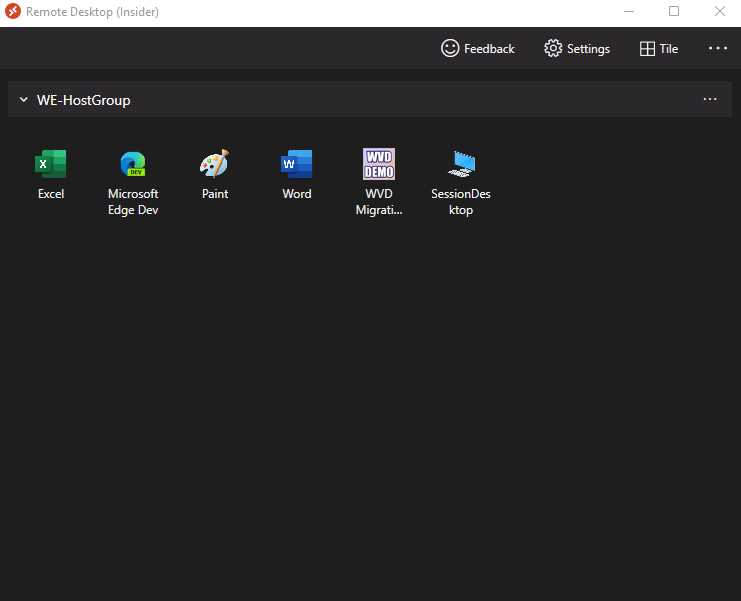
Figure 18: Windows Client Showing Azure Virtual Desktop Resources
You can find more information here.
Regarding the web browsers, basically every HTML 5.0 browser can connect to the Azure Virtual Desktop service, but Internet Explorer 11 is no longer supported.
The thin client space is composed of several vendors that are building their solution around the official Linux SDK or Windows 10 for IoT. You can find the official list here.
In general, it’s possible to use Azure Virtual Desktop from any device, but please read this article showing the differences of experience between the various clients and the web browser.
Azure Portal
Azure Virtual Desktop is an Azure service that is completely integrated into the Azure Portal and the Azure Resource Manager (ARM) logic.
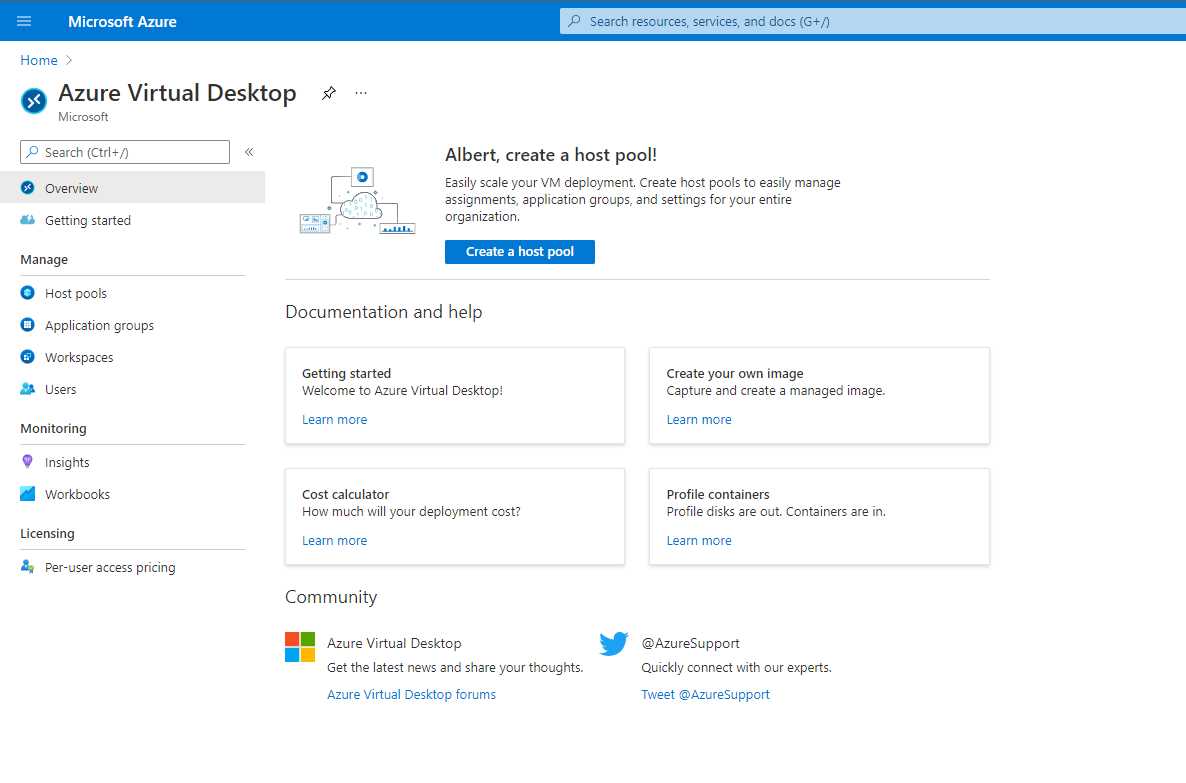
Figure 19: Azure Virtual Desktop Management Console inside the Azure Portal
From this console, it’s possible to create and manage host pools, assign resources, and monitor the user/machine activities.
The various management activities can be performed by different groups of users that have different permissions based on the built-in RBAC (role-based access controls) roles or custom ones.
Virtual machine sizing
Which kind of Azure virtual machine do I need to use for Azure Virtual Desktop? How many CPUs? How much RAM? If I’m using multi-session, how many users per virtual machine I can support?
This depends on the type of workload and the style of usage, so there is not an exact answer, but Microsoft provides guidance in this official article.
Table 1: Multi-session Recommendations
Workload type | Maximum users per vCPU | vCPU/RAM OS storage minimum | Example Azure instance | Profile container storage minimum |
|---|---|---|---|---|
Light | 6 | 8 vCPUs, 16 GB RAM, 16 GB storage | D8s_v4, F8s_v2, D8as_v4, D16s_v4, F16s_v2, D16as_v4 | 30 GB |
Medium | 4 | 8 vCPUs, 16 GB RAM, 32 GB storage | D8s_v4, F8s_v2, D8as_v4, D16s_v4, F16s_v2, D16as_v4 | 30 GB |
Heavy | 2 | 8 vCPUs, 16 GB RAM, 32 GB storage | D8s_v4, F8s_v2, D8as_v4, D16s_v4, F16s_v2, D16as_v4 | 30 GB |
Power | 1 | 6 vCPUs, 56 GB RAM, 340 GB storage | D8s_v4, F8s_v2, D8as_v4, D16s_v4, F16s_v2, D16as_v4, NV12, NVv4 | 30 GB |
In general, the D-series and F-series perform very well in a multi-session scenario.
Network sizing
Like virtual machine sizing, network sizing depends on several factors. Microsoft has an official article about the recommended bandwidth, but the best practice is to test it in a small real environment first.
One factor that influences the overall user experience is the network latency and the distance from the nearest control plane. This value can be tested using the Experience Estimator, a website that shows the round trip from the testing device and the nearest control plane.
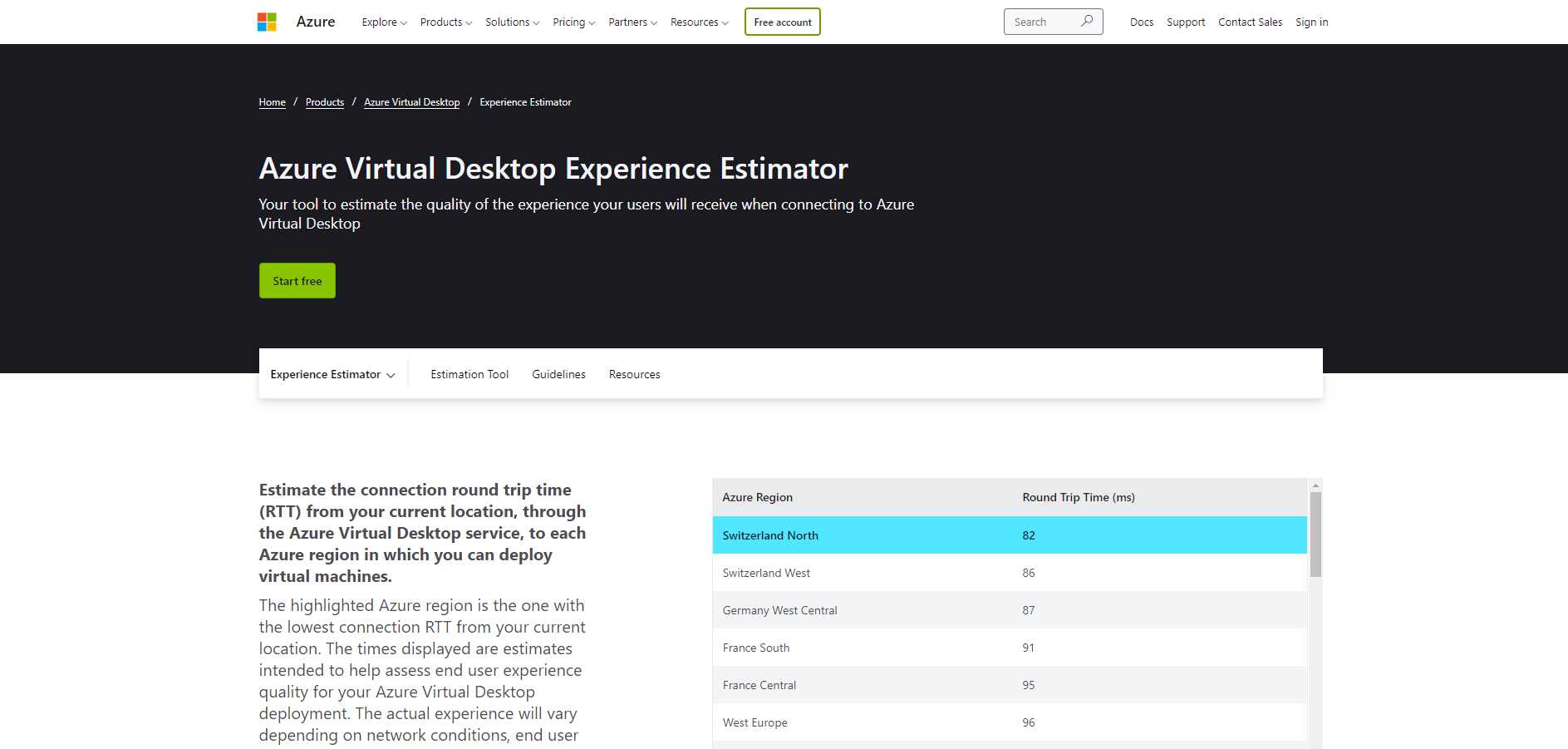
Figure 20: Azure Virtual Desktop Experience Estimator
In this example, my physical test machine is in Italy, where currently no control plane is available, but I have a good round trip time with Switzerland North and other Azure regions that have a control plane ready to serve my connection request of connections.
A round trip around 120 milliseconds is good for general usage.
Scaling logic
Cloud is all about automation, and the Azure Virtual Desktop product team has created a scripting logic that optimizes the number of virtual machines that are started based on the request of connections.
This automation uses Azure Logic Apps and Azure Automation to start existing virtual machines only when the ones that are already started cannot handle any new connections.
Using this technique, it’s possible to save money because I’m paying based on the daily requests.
Let’s look at an example.
I have a pool of 10 virtual machines that can serve five users each. I can instruct the scaling logic to have only 1 virtual machine started at 8:00 AM.
When the fifth user requests the service, the logic starts my second (existing) virtual machine, so I will be able to serve five more users.
At 6:00 PM I can decide that it’s time to automatically shut down all the virtual machines, and if a user is still connected, they will receive a message saying something like, “I need to shut down this machine for maintenance. Please save your work. You will have 10 more minutes.”
But this is just an example; the logic is highly configurable in the hours and the actions (maybe I don’t want to force a user to log off).
You can find more information about this scaling logic here.
FSLogix
Back in 2018, Microsoft announced the acquisition of an Atlanta-based company called FSLogix. Microsoft made this acquisition because the solution developed by FSLogix was very interesting.
What is the goal of FSLogix? The tool does several things, but the main one is profile separation. It’s possible to maintain the user data and preferences outside the device and store everything in a VHD/VHDX file that can be attached at the time of login.
For example, we can have a situation with a host pool composed of three Windows 10 virtual machines that are created from the same base image. All the machines have the same application stack and configurations.
Thanks to FSLogix (an agent installed inside each virtual machine), the user profile is maintained in a share inside Azure (for example in an Azure Files file share), and it’s attached at the time of login. Let’s pretend that the first day of usage, the user is redirected to the first virtual machine of our pool, so the VHD/VHDX file that contains their user profile is attached to virtual machine 1.
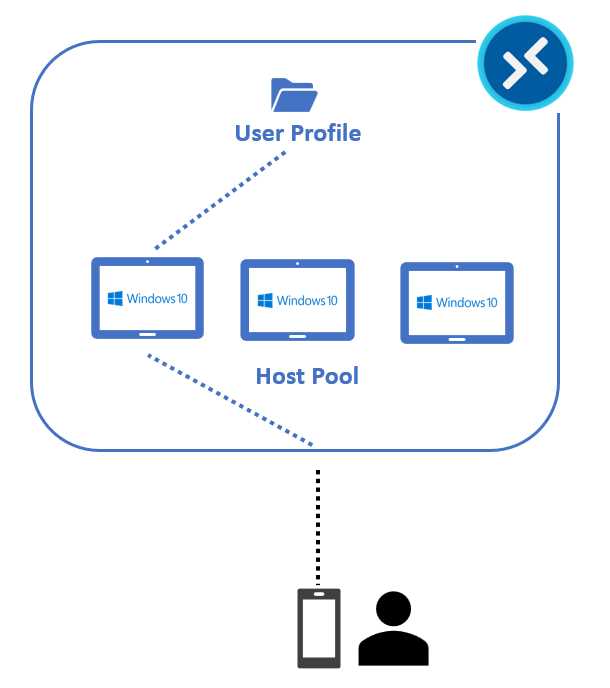
Figure 21: FSLogix User Profile Attach on Day 1
On the second day, the user requests the same service, but now the system is assigning the third virtual machine of the pool, so the VHD/VHDX file is now mounted into the virtual machine 3 file system.
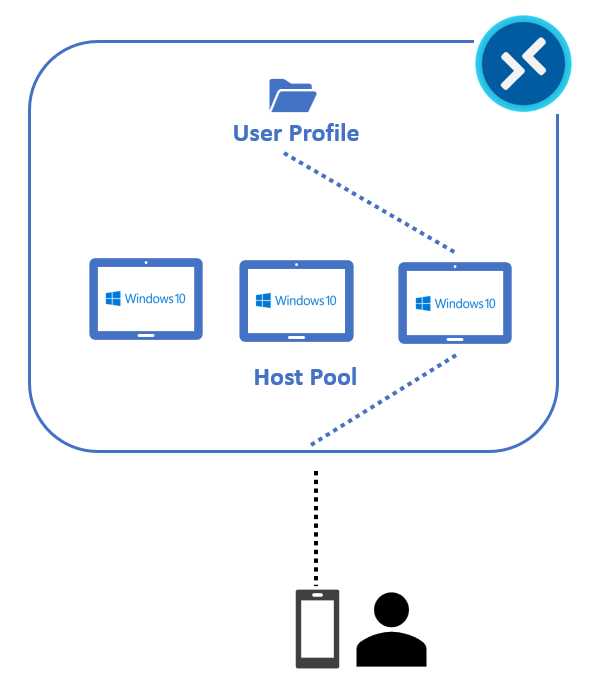
Figure 22: FSLogix User Profile Attach on Day 2
The user can stay productive, and the virtual machines are expendable because they are created from the same base image. All I need to do is protect the file share that is maintaining the user profiles.
This is common in the VDI space and with other vendors as well. Microsoft has other technologies that can achieve the same result, but FSLogix has some advantages:
- The agent is very lightweight.
- The cache of Office and the index of Windows are preserved inside the user profile, so when I’m logging into a new virtual machine, I don’t have to wait for the build of these files.
- It can be simply managed using group policies of registry keys.
Regarding the storage that is maintaining the profiles, I have three choices:
- Azure File Storage
- Azure NetApp
- Storage Spaces
The first one is Azure File Storage, an Azure service that is the mostly commonly used solution in Azure Virtual Desktop. It can fit many different scenarios, from proof of concept to production environments (especially with the Premium SKU).
The Azure NetApp solution is based on a virtual appliance made by NetApp. It’s a very fast and reliable technology that can be used in big complex deployments.
The last one is based on Storage Spaces—that means Windows Server virtual machines acting as file servers. This is recommended only for very basic solutions like proof-of-concept or small-production deployments due to the basic performance that it’s providing.
You can find more information here about the storage choice for your profile.
Regarding the IOPS (input-output operations per second) requirements, there is no official guidance, but consider that each profile is consuming around 10 IOPS in a steady state, and around 50 IOPS at log on/log off.
Azure Files premium can provide up to 100K IOPS, and Azure NetApp up to 320K IOPS, while Storage Spaces depends on the type of physical hard disks that are used (HDD or SSD).
Microsoft recently increased the performance of Azure Files premium, as you can read here.
The general guidance is that for small environments (fewer than 200 users), an Azure File standard share should be enough, while for larger environments, it’s better to use premium (or standard with multiple shares).
For very large and demanding environments, Azure NetApp is the solution that can provide the best performance and latency.
On the licensing part, the requirements for FSLogix are the same as Azure Virtual Desktop, so it’s something that is included in every Azure Virtual Desktop deployment, and it’s a must-have if pooled hosts are used. The official documentation can guide you in setting up this solution.
It’s also possible to use FSLogix to mask the presence of an installed application. For example, we can have a host pool used by two different business units:
- The finance group that is using applications A, B, and C.
- The HR department that is using A, B, X, and Y.
At this point I have two choices: one is to create two different host pools, one for finance, and one for HR, and installing the needed applications in each pool.
The second possibility is to create only one pool that is used by the two departments, and install inside each virtual machine all the applications needed by all the departments (A, B, C, X, Y).
Finally, I will use the Application Masking feature to selectively hide the unwanted applications, so on the same machine, a user from the finance department will be able to see only the apps A, B, and C—even if X and Y are also present. They are masked by FSLogix, so they’re not present in the Start menu, in the file system, or in the registry.
On the other side, a user from the HR department can see A, B, X, and Y, but not C, because C is masked for the group of HR employees.
You can read more information about this feature here.
The last helpful feature that FSLogix provides is Java redirection. This is a feature that forces an application to use a specific version of Java.
A common example is that our finance department is using application A that needs Java version 1, but also application B that needs Java version 2.
On the other side, we also have an HR department that is using application X, which needs Java version 2.
How do we satisfy all these requirements? One solution is to create three host pools: two for the finance department, and one for the HR department; and install the applications with the required versions of Java. But this is not optimal in terms of cost and time for managing all these objects.
The best choice is to create just one pool, install all the applications needed (A, B, and X) and both Java versions (1 and 2), and use Java redirection to force application A to use Java 1, and applications B and X to use Java version 2.
Obviously, I can also use the Application Masking feature to let users from the finance department see only app A and B, and users from the HR department to see only application X.
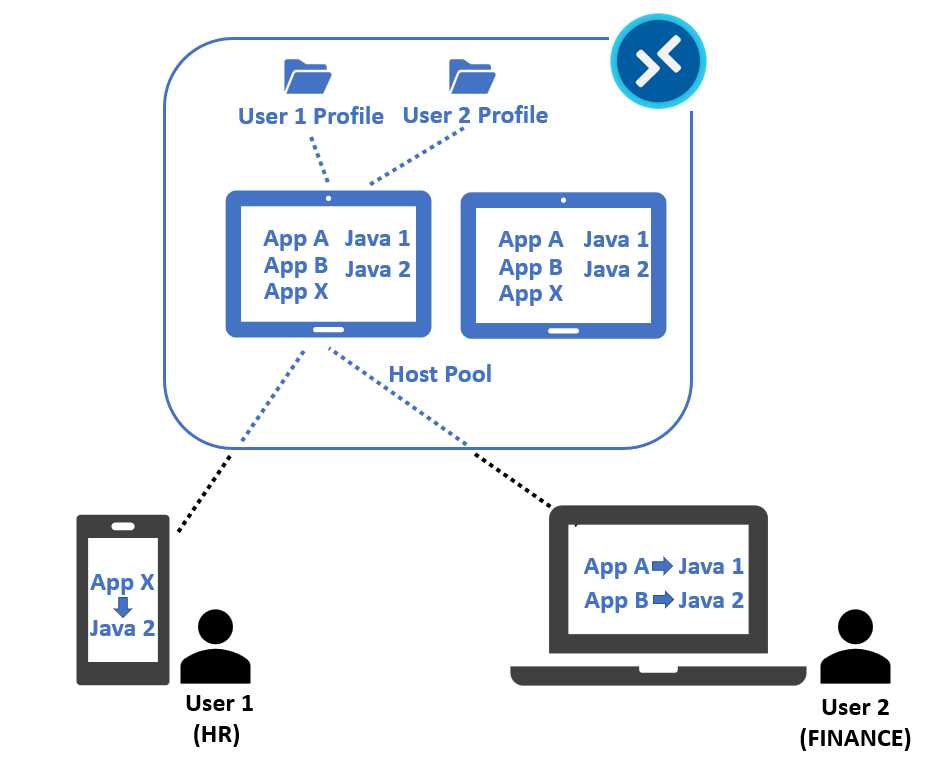
Figure 23: FSLogix Profile Container, Application Masking, and Java Redirection
You can read more about the Java redirection feature here.
FSLogix is not mandatory (I can also use other similar technologies) and can be applied to both pooled and personal virtual machines.
If I’m using it, it’s critical to back up and protect the file share (the virtual machine is quite expendable now, because the data and the preferences are all inside the FSLogix VHD/VHDX). I can do that using Azure Backup or similar third-party tools.
MSIX app attach
As explained in the previous section, FSLogix can isolate, containerize, and mount the user profile into the filesystem. To extend this concept, Microsoft’s Azure Virtual Desktop product team developed MSIX app attach.
MSIX is a new format that Microsoft developed to become a substitute for the classic MSI and EXE formats. With this format, you can create an application from scratch or convert an existing application using a sequencer.
Once I have an application in MSIX format, I can simply double-click it and install it as a normal, classic application. The distribution of applications in MSIX format can be done with tools like Microsoft Intune.
The app attach technology created by the Azure Virtual Desktop team can leverage an MSIX format and attach in read-only format an application that is maintained by a file share in all the virtual machines inside a host pool.
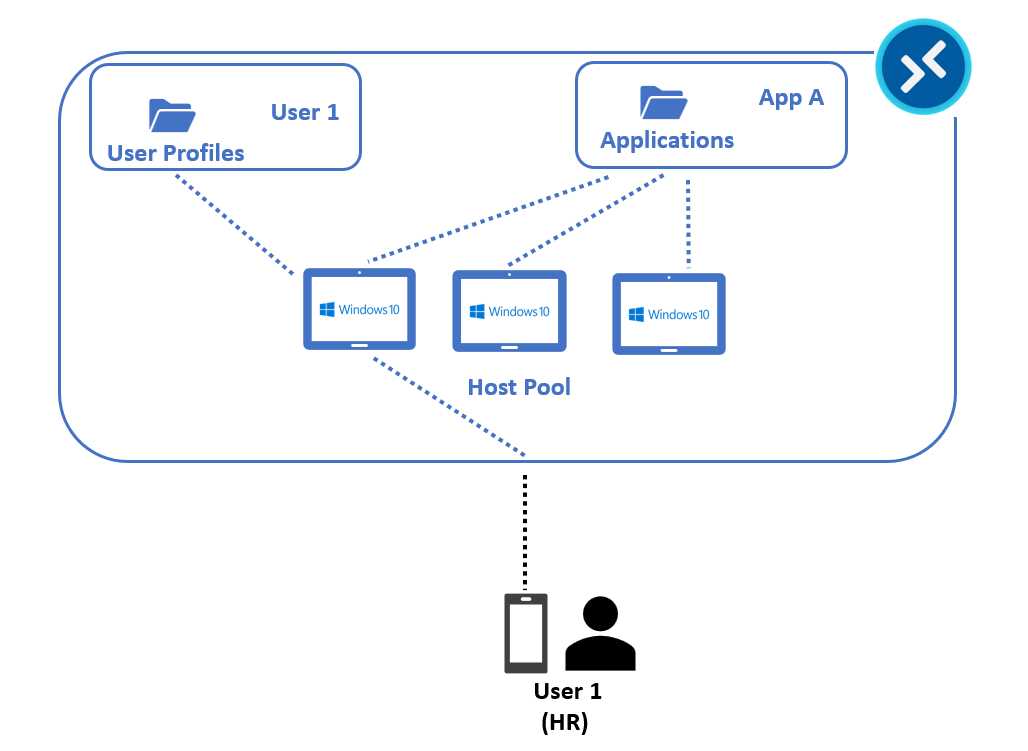
Figure 24: MSIX App Attach
Let’s look at an example:
- User 1 has an application published using Azure Virtual Desktop.
- IT created a host pool composed of three virtual machines with only Windows 10 installed (no application).
- The application in MSIX format is maintained in an Azure file share and attached in read-only format to all three virtual machines of the pool.
- The user profile is maintained in another Azure file share.
When User 1 asks for the application, the Azure Virtual Desktop control plane handles the request and assigns a virtual machine to the user.
The user profile is mounted on the assigned virtual machine, so the user can log on and see their data and use the application—even if it’s not really installed on the virtual machine.
This is a big advantage from a management perspective because when it comes time to update the application, it’s enough to change the MSIX file in the share, and all the virtual machines that have this application linked will be able to use the new version.
And there’s more! MSIX app attach is applying a sort of application masking, so if I have two applications (A and B) and my User 1 is entitled to use only application A, while User 2 can only use application B, I can let them use the same virtual machines that have both applications attached, but the system will show only the one published for the user.
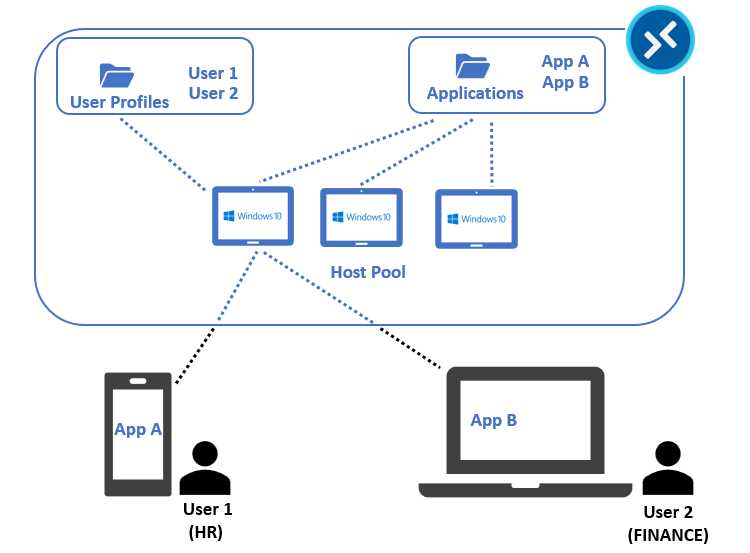
Figure 25: MSIX App Attach for Multiple Applications
Note: Currently MSIX app attach is not supported in environments using Azure Active Directory Domain Services.
You can find more information about MSIX app attach in the Microsoft documentation or in this brief, free ebook.
Disaster recovery and business continuity
Azure Virtual Desktop is a solution composed by different technologies that are creating an architecture that must be preserved from any kind of problems.
Some services, like Azure AD and Azure Active Directory Service Metadata, are naturally resilient and always available, while other services need the use of specific techniques and tools to achieve that.
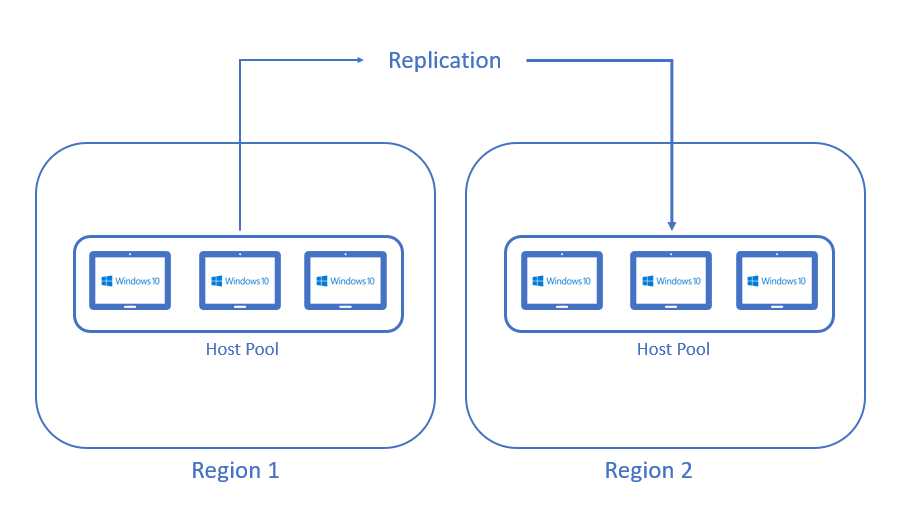
Figure 26: Disaster Recovery Object Replication
The implementation strategy depends on the architecture, because different architectures require different tools and procedures to achieve a good degree of resiliency.
For example, if I’m using pooled virtual machines created from the same base image and FSLogix, the virtual machines are highly expendable because everything that the user needs to have in order to be productive is inside the FSLogix profile. I need to take care of the backup and replication of this kind of object and preserve my base image, so that in case of a disaster, I am able to re-create the pool in few minutes starting from the base image.
But maybe recreating the pool in a few minutes is not enough, and I need to have a near-zero downtime strategy that can be implemented if I’m replicating the virtual machines in a second region, or if I’m pre-creating a secondary pool of virtual machines in the secondary region ready to serve the user.
The following table shows some key topics that must be included in a disaster recovery and business continuity plan.
Table 2: Disaster Recovery and Business Continuity
Service | Action |
Service metadata | Backed up by Microsoft; no action needed. |
Pooled virtual machines | Replicated using a tool like Azure Site Recovery or re-created in a different region as needed. |
Personal virtual machines | Replicated using a tool like Azure Site Recovery and/or backed up using Azure Backup or third-party tools. |
FSLogix profiles | Replicated using FSLogix Cloud Cache and/or backed up using Azure Backup or third-party tools. |
MSIX applications | Replicated using storage replication features like Azure file geo-redundant storage (GRS). |
Active Directory | Have a domain controller in the secondary location, or a connection to an on-premises domain controller. |
Base image | Back up and replicate the image in a secondary location |
A good source of information about this topic is this brief, free ebook.
Microsoft Teams optimization
It’s possible to optimize the audio and video communications produced by Microsoft Teams inside an Azure Virtual Desktop virtual machine.
This can help you avoid voice echo, video lag, and other types of issues due to the latency between the physical device that is receiving the audio/video stream, the Azure Cloud, and the physical device of destination.
This is done using WebRTC, a standard that can redirect the audio/video stream from a physical device to another without crossing the cloud.
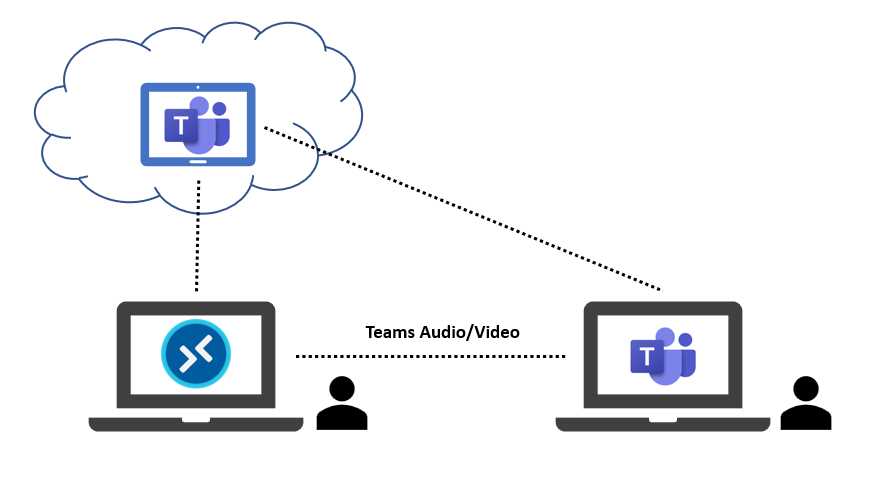
Figure 27: Microsoft Teams Audio/Video Optimization
One interesting thing to know is that all I need to do is install some pre-requirements into the Azure Virtual Desktop virtual machine; I don’t need to install anything on my physical device.
This type of optimization is currently available only using the Windows client in the MSI format (not the Store app), but other platforms are in the product road map, so check the latest news regarding this topic.
If you’re using this optimization, you’ll currently have to deal with a number of limitations that are described here. You can find more general information about using Microsoft Teams on Azure Virtual Desktop here.
How to print
Printing from a VDI is a common topic, and to allow this, Azure Virtual Desktop can redirect a local printer. But what if my printer is not under my desk? What if I need to print everywhere from any device, on any network printer inside my organization?
I can contact a printer server that is hosted in Azure in a virtual machine or on-premises, but today we also have a more modern and “as a service” solution. The one developed directly by Microsoft is called Microsoft Universal Print, and it’s a cloud service that can be used to manage a printer infrastructure.
It’s based on the use of a universal print driver and the ability to register every printer into the service that is globally accessible.
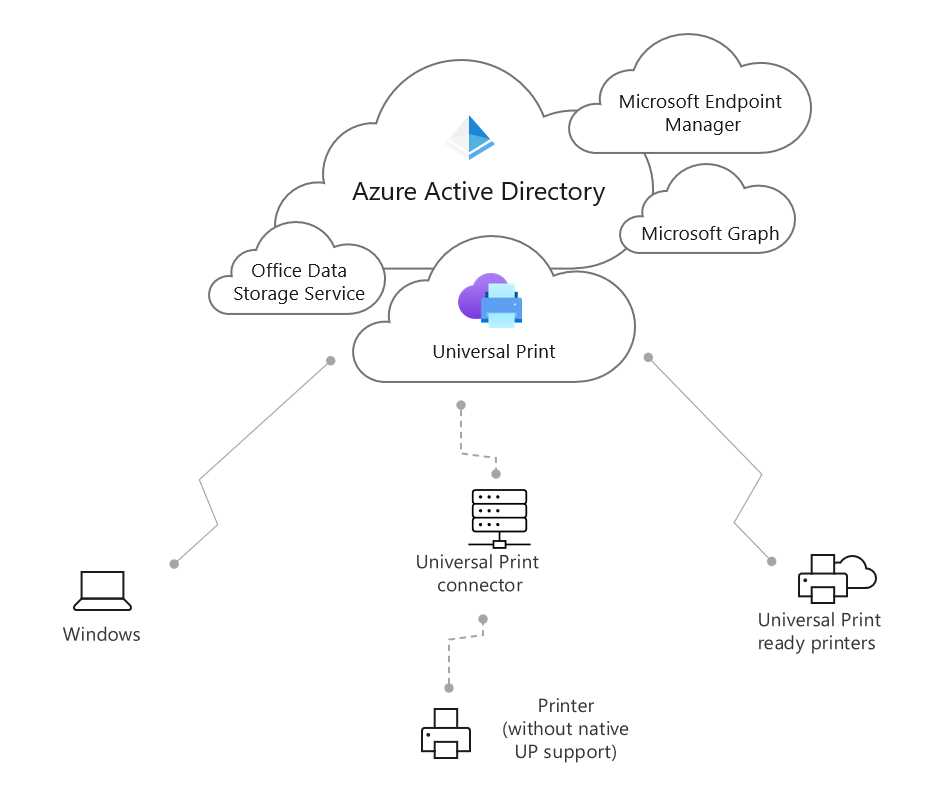
Figure 28: Microsoft Universal Print
Microsoft Universal Print is included in the following licenses:
- Microsoft 365 Enterprise F3, E3, E5, A3, and A5.
- Windows 10 Enterprise E3, E5, A3, and A5.
- Microsoft 365 Business Premium.
You can find more information here.
Note: You can also check other solutions by Printix, ThinPrint, PrinterLogic, and other vendors that are compatible with Azure Virtual Desktop.
Note: At the time of writing, Universal Print does not support Windows 10 multi-session. The support is in the product road map, so check for updates.
Service monitoring
Azure Virtual Desktop includes a monitor capability that allows you to retrieve logs and metrics from the control plane, as well as from the host pool virtual machines.
This is very important for the visibility of:
- Platform errors
- User sessions
- Virtual machine performance
This feature uses Azure Log Analytics to collect and maintain the metrics and Azure Monitor for the presentation layer. Everything is in near-real time, with the ability to access historical data and create useful dashboards.
Inside the Azure Virtual Desktop portal, the Insights section will guide you to activate this feature and use the standard dashboards.
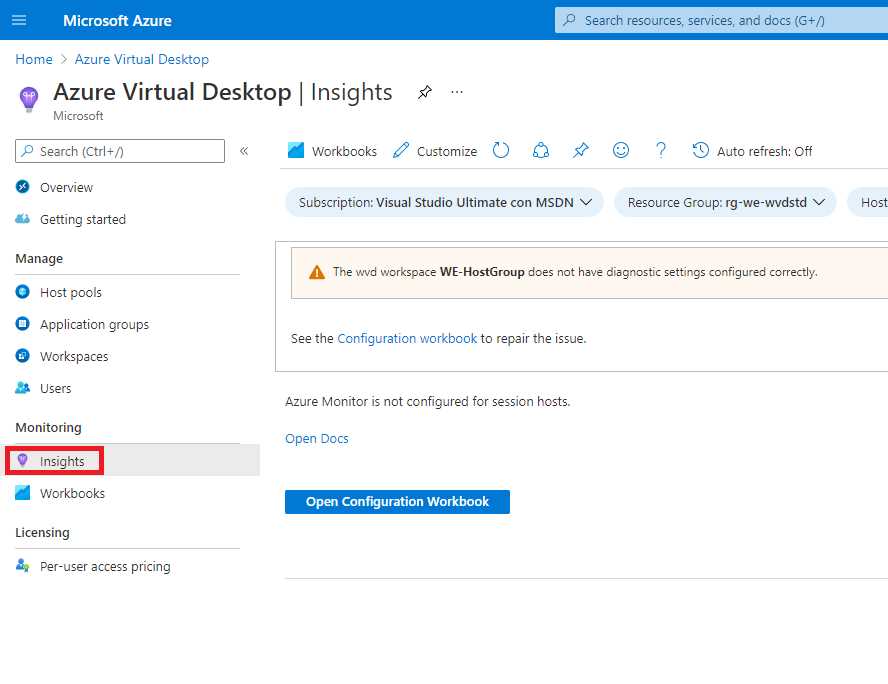
Figure 29: Azure Virtual Desktop Insights
The result is complete visibility across connections, host diagnostics, performance, user statistics, and alerts related to the service.
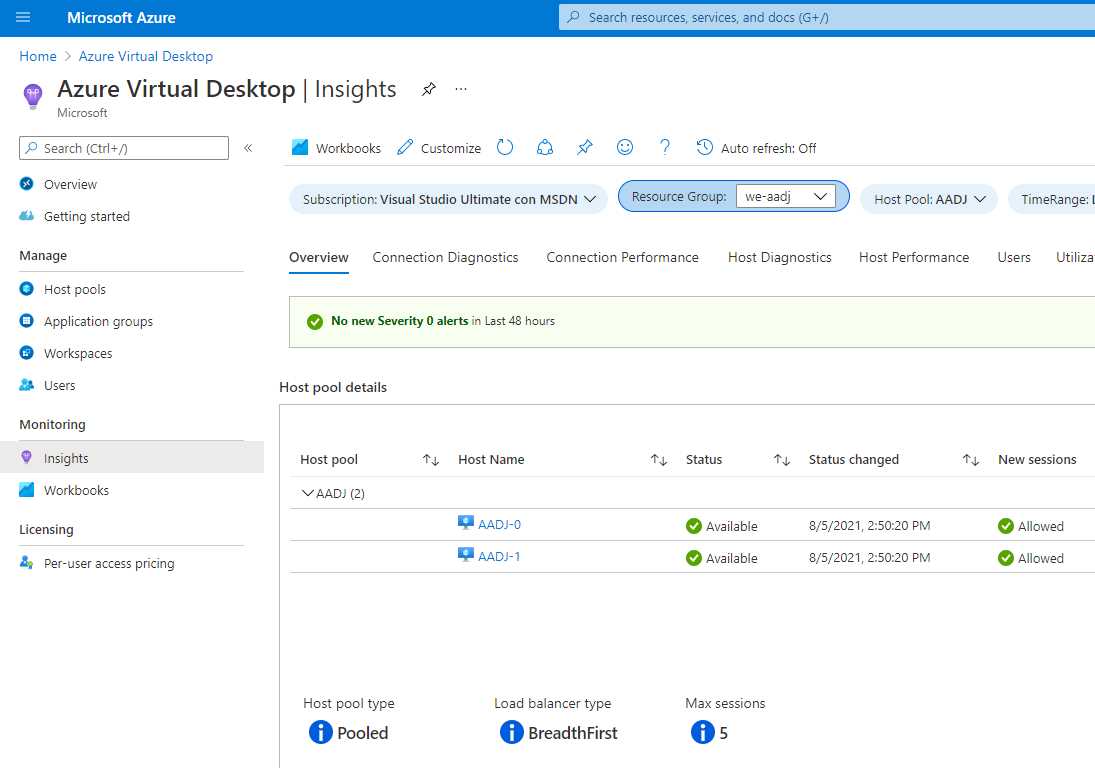
Figure 30: Azure Monitoring Configured
You can find more information about how to monitor an Azure Virtual Desktop architecture here.
GPU workloads
Azure offers virtual machines with GPUs made by Nvidia or AMD.
Virtual machines with one or more GPUs can be used for graphics-intense applications, and for deep neural systems such as PyTorch machine learning models. The family of Azure virtual machines that have GPUs is the N series.
The most used in Azure Virtual Desktop are the ones under the NV series, NVv3 series (Nvidia), and NVv4 series (AMD). The NVv4 series is the only one that currently supports GPU partitioning, meaning I can set up a virtual machine that takes advantage of a fraction of the graphic power of a GPU.
Table 3: NVv4 Available Sizes
Size | vCPU | Memory | GPU Power | GPU Memory |
|---|---|---|---|---|
Standard_NV4as_V4 | 4 | 14 GB | 1/8 | 2 GB |
Standard_NV8as_V4 | 8 | 28 GB | 1/4 | 4 GB |
Standard_NV16as_V4 | 16 | 56 GB | 1/2 | 8 GB |
Standard_NV32as_V4 | 32 | 112 GB | 1 | 16 GB |
This is a good way to provide a little bit of graphic power without raising the overall cost of the virtual machine. Regarding this topic, you can find a good article here.
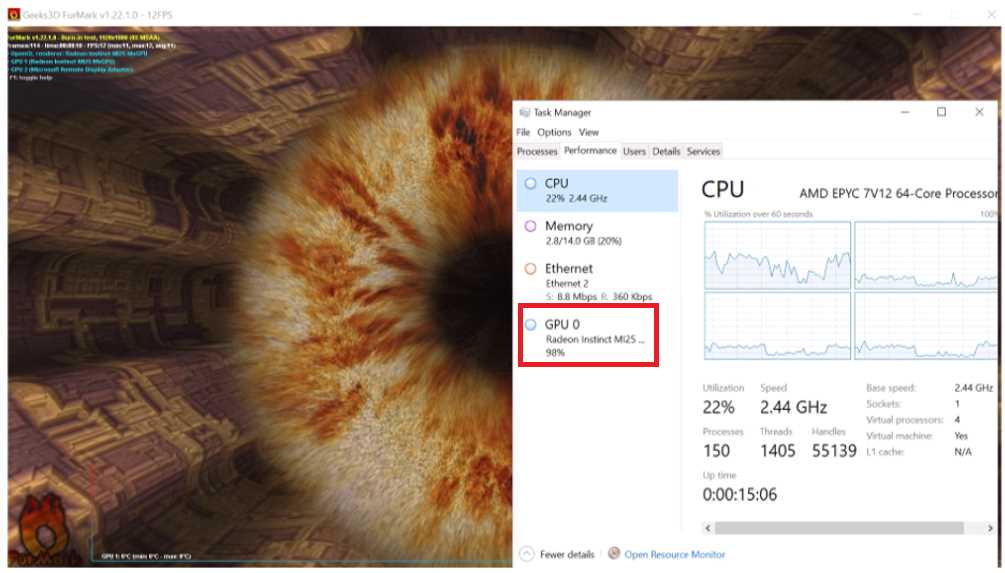
Figure 31: Azure Virtual Desktop Machine with GPU
When I create a machine with GPU power inside my host pool, whether it’s a personal host or a pooled host, I need to perform several configurations to unlock the graphic power:
- Install the correct drivers (it’s possible to use an Azure extension to do this automatically).
- Configure GPU-accelerated frame encoding (Nvidia only). This can be done using an Active Directory group policy.
- Configure full-screen video encoding. This can be done using an Active Directory group policy.
The official documentation reports all the needed configurations.
Image Builder and Shared Image Gallery
When I create a virtual machine inside Azure Virtual Desktop, I can choose from several images that Microsoft has created, and that are always up to date with the latest patches.
These images include the FSLogix agent, and optionally, the Microsoft 365 Apps.
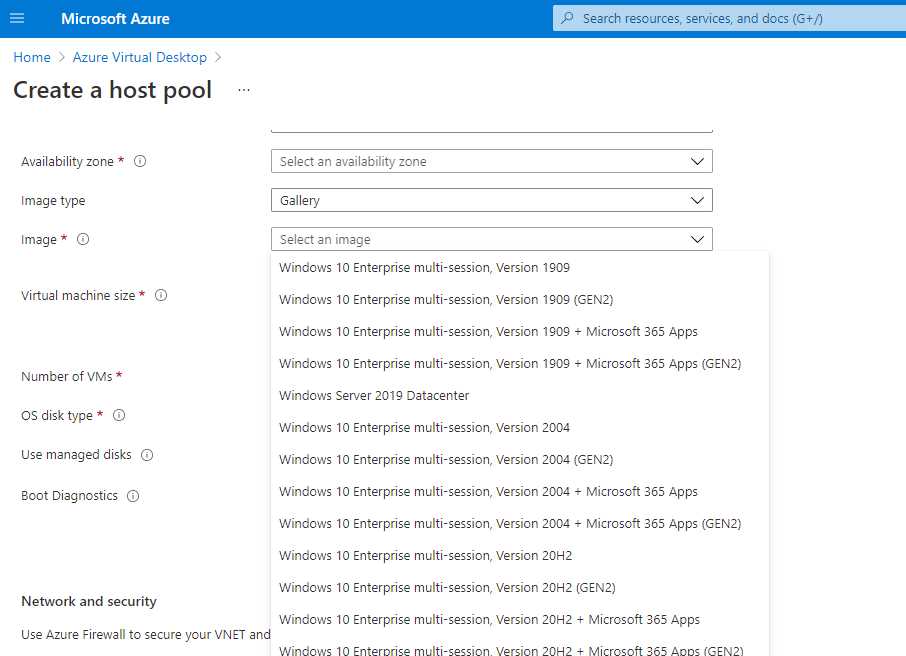
Figure 32: Image Gallery
This is perfect if I don’t have other applications, if I can use MSIX app attach, or if I want to install them using Intune or other management tools.
But what if I would like to create my own base image? I have several ways to do that.
The first one is the classic way:
- Create a virtual machine in Azure or on-premises.
- Use a manual or automatic way to customize it.
- Generalize the operating system using Sysprep.
- Upload the generalized image in a blob storage.
I can use classic tools like Microsoft Deployment Toolkit (MDT) or System Center Configuration Manager (ConfigMgr or SCCM) to customize and generalize the image.
The second, new way I can do it is using Azure Image Builder, an Azure service that utilizes HashiCorp Packer to automate the creation of a Windows (or Linux) image that can be used to create generic Azure virtual machines. (It’s not something dedicated exclusively to Azure Virtual Desktop.)
The following image shows the high-level process.
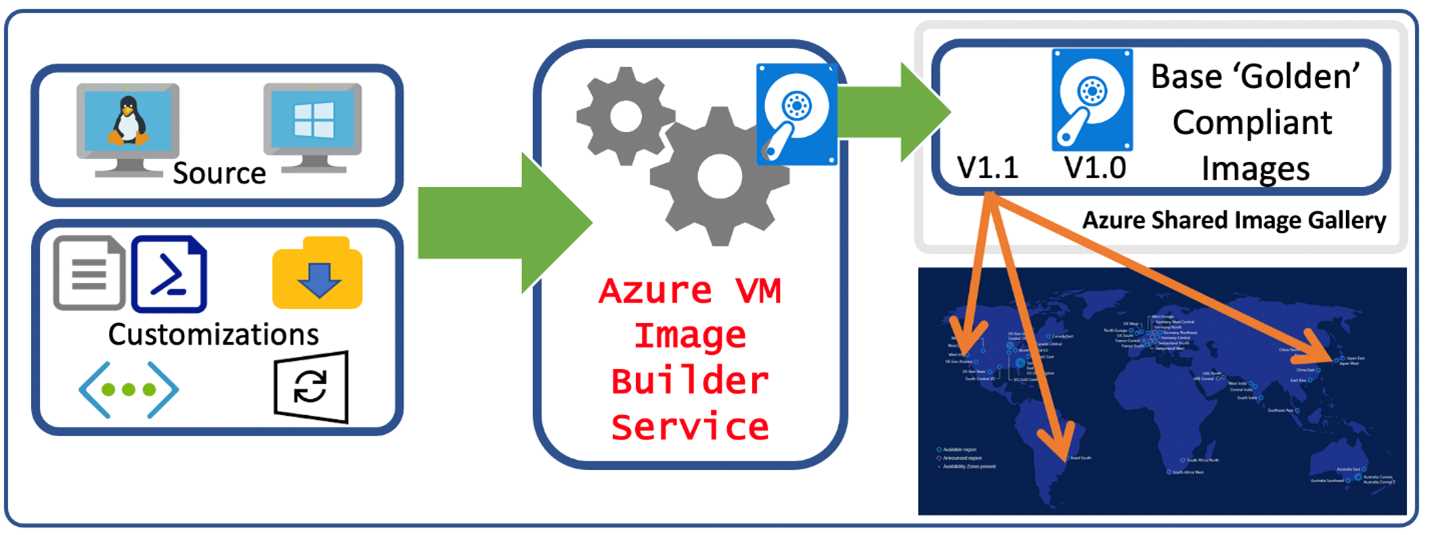
Figure 33: Azure Image Builder (Source)
Currently, the Azure Image Builder service is completely code based, and you can find a number of examples (like this one) about how to create a base image using this service and JSON files.
Once I have created my custom image with a classic tool or with Azure Image Builder, I can upload it inside Azure Blob Storage and use it for creating my Azure Virtual Desktop virtual machines.
But I can also use another interesting service, called Azure Image Gallery, which is basically a container of Windows/Linux images that provides several advantages:
- Global replication of images.
- Versioning and grouping of images for easier management.
- Highly available images with zone-redundant storage (ZRS) accounts in regions that support availability zones. ZRS offers better resilience against zonal failures.
- Premium storage support (Premium_LRS).
- Sharing across subscriptions, and even between Active Directory (AD) tenants, using Azure RBAC.
- Scaling your deployments with image replicas in each region.
The global replication and sharing across subscriptions capabilities are crucial in large deployments where a multinational organization is willing to adopt Azure Virtual Desktop in different countries.
When a new version of my base image is created and placed inside Azure Shared Image Gallery, a replication will start for different Azure regions. This provides consistency across different host pools in different subsidiaries.
The versioning and grouping capabilities help me maintain control over the image versions, so I can always use the most up-to-date image while also being able to use previous versions if I need to.
The following figure shows how the service can maintain different versions of multiple image definitions:

Figure 34: Azure Shared Image Gallery Versioning and Grouping (Source)
In the future, Azure Image Builder will be more integrated into Azure Shared Image Gallery, as shown by the product group in this video.
Note: It’s important to NOT include the Azure Virtual Desktop agent inside the generic image because this can cause deployment problems. The agent is automatically installed into the virtual machines by the host pool creation procedure, or it can be manually installed once the virtual machine is deployed.
User support
How can the IT department help a user that is experiencing a problem inside their Azure Virtual Desktop session? Using Microsoft technology, it’s possible to shadow a user session in three different ways, as explained in this article.
The three methods are:
- Quick Assist
- Remote Assistance (MSRA)
- Remote Desktop Connection (MSTSC)
Because several Azure Virtual Desktop architectures use a multi-session operating system like Windows Server or Windows 10 multi-session, it’s important to know which session host the user is connected to, and the user session number.
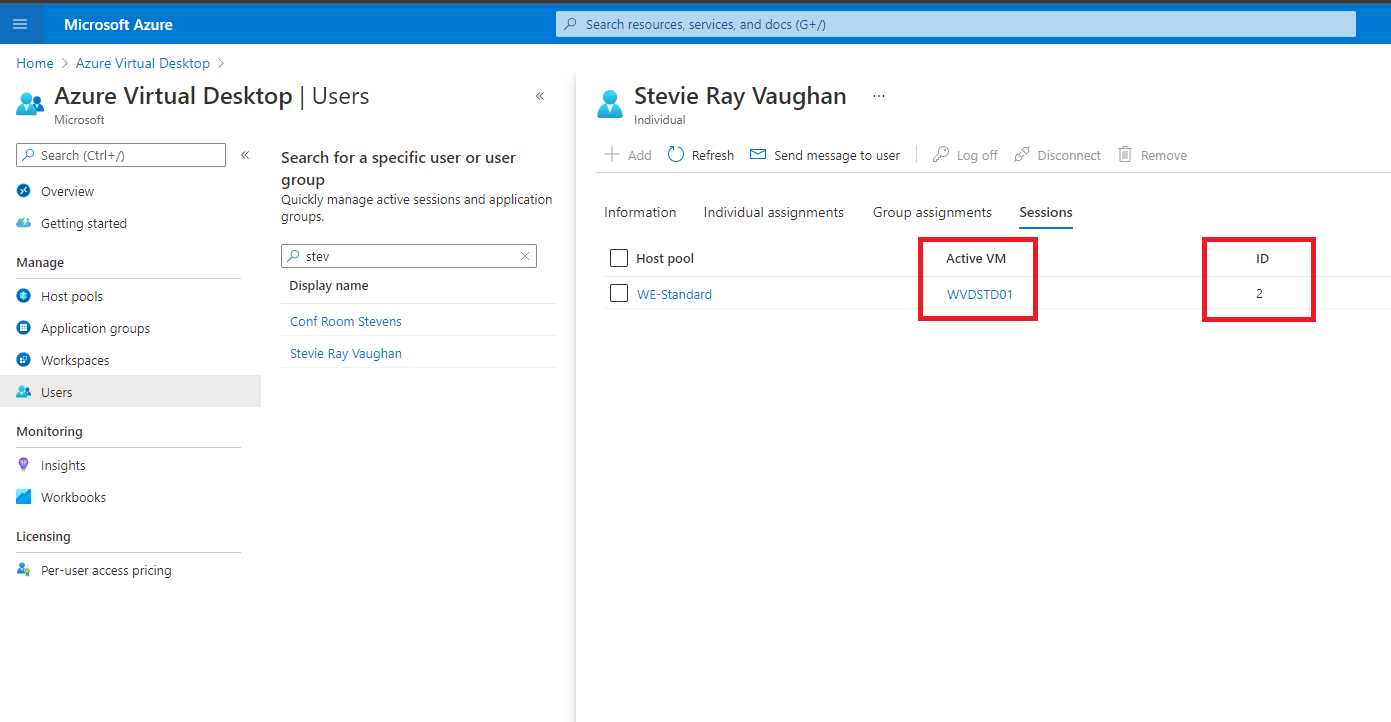
Figure 35: User Session Details
If you are using third-party tools, check if they are compatible with Windows 10 multi-session because it’s still quite new, and not all the remote management tools are supporting it.
RDP Shortpath
The communications between the physical devices and the Azure Virtual Desktop virtual machines are using the RDP protocol with TCP. The communication is established between the physical device and the Azure Virtual Desktop control plane, and from the control plane (RD Gateway) to the virtual machine.
Using RDP Shortpath (still in preview at the time of writing), it’s possible to establish a direct connection between the physical device and the Azure Virtual Desktop virtual machine using UDP and bypassing the gateway. This is a more direct path that offers a better degree of performance because it’s offering a better latency.
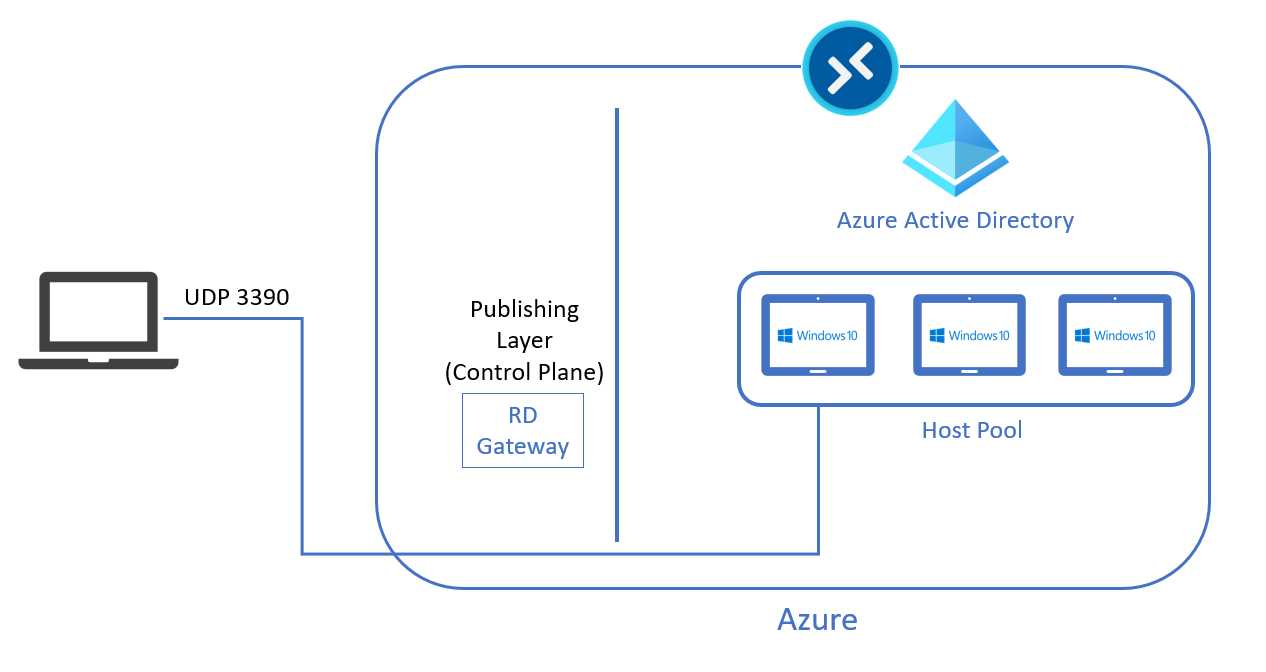
Figure 36: RDP Shortpath
To establish this kind of direct connection, the physical device must be able to “see” the Azure Virtual Desktop virtual machines.
This can be done using any of the following:
- ExpressRoute private peering.
- Site-to-site VPN (IPsec based).
- Point-to-site VPN (IPsec based).
- Public IP address assignment.
Note: As a security best practice, it’s highly discouraged to assign a public IP to an Azure Virtual Desktop virtual machine. It’s something that is supported, but it’s not recommended.
Start VM on connect
The Start VM on connect feature allows users to request an Azure Virtual Desktop resource even if all the virtual machines inside a pool are turned off. This technique helps to optimize the costs because it’s possible to have the virtual machines running only when the user needs them.
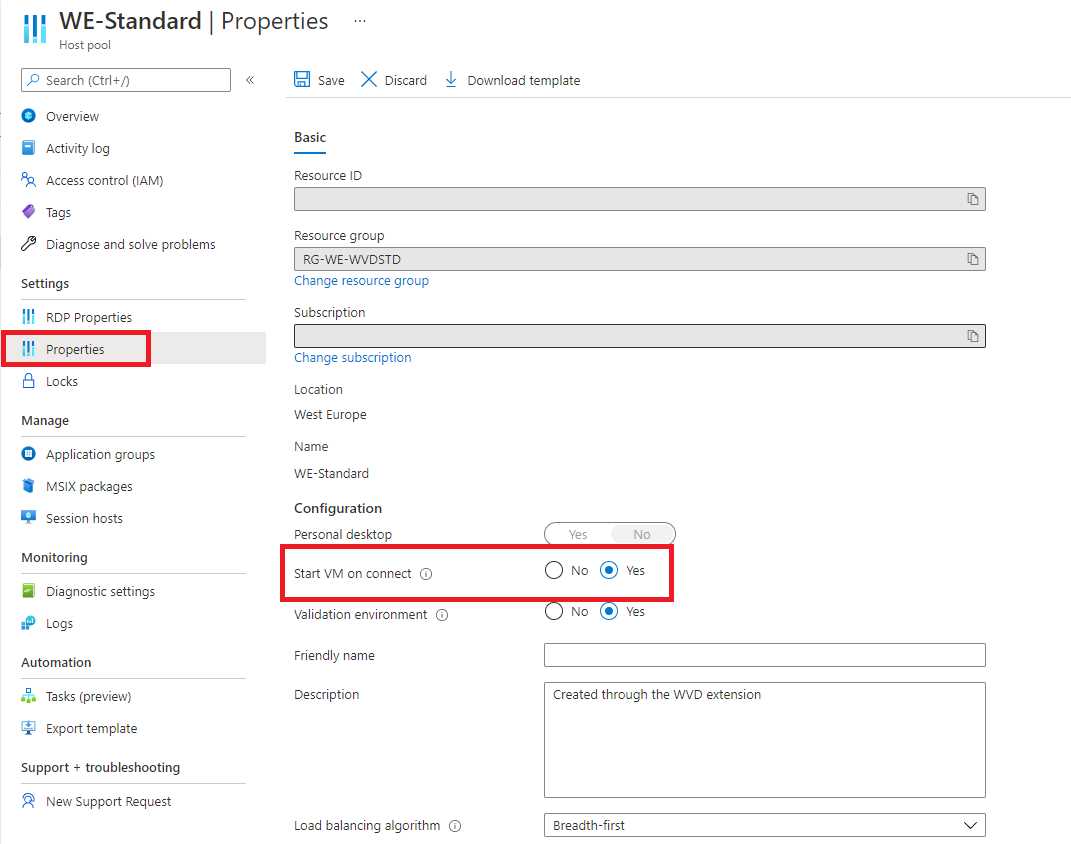
Figure 37: Start VM On Connect
The feature must be enabled from the host pool properties, and it affects all the virtual machines inside the pool. It can be enabled for both personal and pooled virtual machines.
In a personal desktop environment, the experience is that a user is requesting the Azure Virtual Desktop resource using the web browser or the client application, and because their personal virtual machine is not running, they need to wait some minutes to let the system start the virtual machine.
In a pooled desktop environment, the first user that is requesting the service needs to wait until the virtual machine is available, but if the virtual machine can host, for example, five total users, the next four users are connected without waiting for the service because the virtual machine is already running and started by the first user.
You can find more information about this feature here.


- 1800+ high-performance UI components.
- Includes popular controls such as Grid, Chart, Scheduler, and more.
- 24x5 unlimited support by developers.