
Azure Functions Succinctly®

CHAPTER 4
Working with HTTP Triggers
Quick intro
In addition to triggering functions manually, on a timer basis, or in response to a queue or blob events, we can also trigger them through HTTP calls.
In this chapter, we are going to explore how to create an HTTP webhook function that responds to an alert that’s triggered when a new Azure resource group has been created.
We’ll check how we can output that interaction to the log and write it to a blob entry. Let’s get started.
Note: The code samples for this chapter are available for download on GitHub.
Webhooks
In essence, webhooks allow us to get notifications from external third-party systems when events occur. The advantage of using webhooks is that rather than having to periodically poll third-party systems for changes, we can get those third-party systems to inform us about these changes when they happen.
For example, a webhook could be used if we have our own system and an external system—which could be of different types, such as an online shop or a code repository—and we wanted to get notifications whenever a customer buys a product.
To do this, our system can define an HTTP endpoint, which needs to be set up in such a way that it can respond correctly to the data that the third-party system passes to it.
We can then configure the third-party system to be aware of our HTTP endpoint. So, when a customer buys a product, the third-party system will call our HTTP endpoint, passing the sales info of the product sold.
Our system can then respond to this data in whichever way it needs to. In general, Azure Functions supports two major types of webhooks:
- Generic webhook: Not limited to any specific third-party service.
- Specific trigger types: Integrate with specific systems, so it’s possible to have various webhooks for different types of systems.
Now that we know the two fundamental types of webhooks, let’s go over to the Azure Portal to create a generic webhook trigger.
Generic webhook triggers
In the Azure Portal, click the + button to create a new Azure function. Then, select the Generic webhook template with C#.

Figure 4-a: The Generic webhook Template
Once you have clicked the C# option, the following dialog box will appear. Here we can specify a Name and click Create.

Figure 4-b: Creating a C# Generic Webhook
Once created, the code within run.csx will look as follows.
Listing 4-a: The run.csx for the Generic Webhook Function
#r "Newtonsoft.Json" using System; using System.Net; using Newtonsoft.Json; public static async Task<object> Run(HttpRequestMessage req, TraceWriter log) { log.Info($"Webhook was triggered!"); string jsonContent = await req.Content.ReadAsStringAsync(); dynamic data = JsonConvert.DeserializeObject(jsonContent); if (data.first == null || data.last == null) { return req.CreateResponse(HttpStatusCode.BadRequest, new { error = "Please pass first/last properties in the input object" }); } return req.CreateResponse(HttpStatusCode.OK, new { greeting = $"Hello {data.first} {data.last}!" }); } |
Now let’s go to the Integrate option of this function—notice that the configuration looks very similar to the one from an HTTP trigger function.

Figure 4-c: Generic Webhook Function Configuration
Note that the function Mode setting is set to Webhook, and the Webhook type is set to Generic JSON.
If you expand the Webhook type, we can see that we also have options for GitHub and Slack.
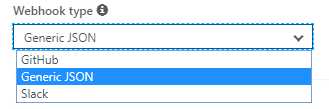
Figure 4-d: Webhook type Options
This means that besides being able to create a Generic webhook, we can also create webhooks that integrate with GitHub or Slack.
Webhook function URL
As we’ll see shortly, we’ll need the public URL of the Azure function we’ve just created for the example we’ll be using. You can obtain the function URL by clicking the Get function URL link, as shown in the following figure.
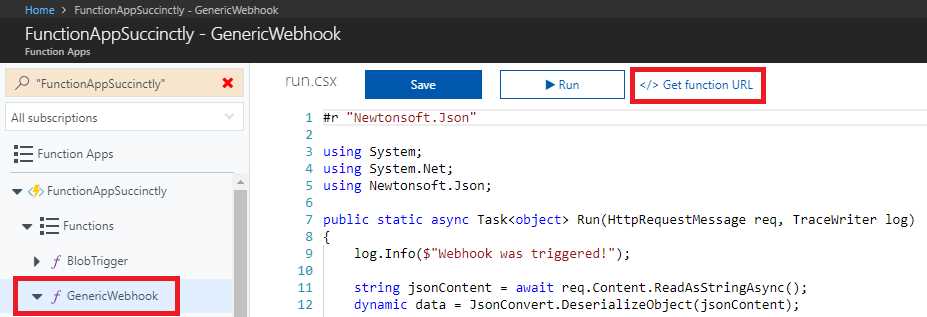
Figure 4-e: The Get function URL Link
Once you have clicked Get function URL, the following dialog box will appear, where we can copy the function URL.
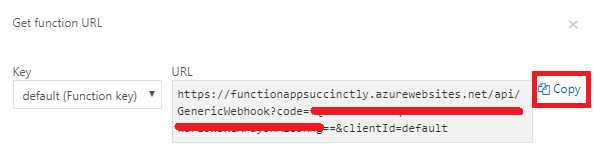
Figure 4-f: The Function URL
Copy it to the system clipboard, as we’ll need it shortly.
Creating an Azure activity alert
The purpose of the Generic webhook function is that it can be triggered by an alert raised by the Azure Monitor service when an Azure resource group is added to your subscription.
So, in the Azure Portal, navigate to the Monitor Service, choose Alerts (classic), and then click Add activity log alert, as shown in the following figure.
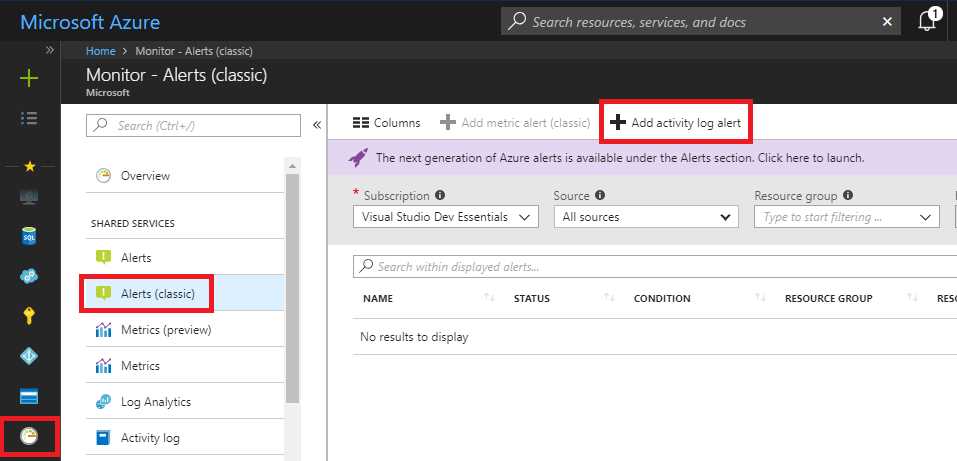
Figure 4-g: Add activity log alert
Once you’ve clicked Add activity log alert, we’ll have to enter some information to create the alert. First, we’ll provide some basic details, such as the Activity log alert name, Subscription, and Resource group.
For the Activity log alert name, you can choose any name you want. I’ve selected the FunctionAppSuccinctly as a Resource group, which I already have available within my Azure subscription.

Figure 4-h: Adding Basic Info for Activity Log Alert
After entering these basic details, we’ll need to specify the Criteria details, as shown in the following figure.
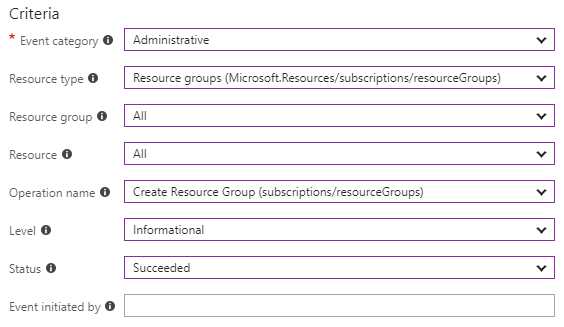
Figure 4-i: Adding Criteria Info for Activity Log Alert
The Criteria section is actually the most important part needed to create an alert. For the Event category, it’s important to select the Administrative option.
The Resource type parameter has been set to the Resource groups option. The Resource group parameter needs to be set to All.
The Resource parameter has been set to All. The Operation name parameter has been set to Create Resource Group.
The Level parameter has been set to Informational—this is because we only want to get alerts that are informational, and not errors or warnings.
After specifying the Criteria data, we have to also specify the Alert via parameters, which we can see as follows.

Figure 4-j: Adding Alert via Info for Activity Log Alert
I’ve selected the New option for the Action group parameter—this is because we don’t have an existing one.
As for the Action group name and Short name, I’ve entered two names that indicate exactly what we are creating.
With all these details entered, we’ve reached the most important part of the activity alert—the Actions section. It’s the most important section because it is how we are going to link the activity alert with the webhook function we created.
To enter the data required in the Actions section, we need to use the URL of the webhook function we created, which you should have already copied.
Under ACTION NAME, enter a valid name. I’ve entered the value CallWebhook. For the ACTION TYPE, I’ve selected Webhook from the list of options available.
Once you have selected the option Webhook, you’ll be presented with an Edit details option, which we’ll have to click to enter the URI of the webhook function. This can be seen in the following screenshot.

Figure 4-k: Adding a Webhook in Adding an Activity Log Alert
Once you’ve entered the URI, click OK.
Finally, you’ll return to the main Add activity log alert pane to finalize the creation of the activity alert. Click OK.

Figure 4-l: Finalizing the Activity Log Alert
Now you’ll see the resource alert we just created under the Alerts (classic) list as follows.

Figure 4-m: The Alerts (classic) List
The webhook is now called when a resource group is created in our Azure subscription.
Next, we need to update the code so our function can handle the JSON log data in the body of the request.
Updating the function code
Let’s update our run.csx code so we can process the data whenever there’s an activity alert triggered after a new resource group is created.
Listing 4-b: The Updated run.csx for the Generic Webhook Function
#r "Newtonsoft.Json" using System; using System.Net; using Newtonsoft.Json; using Newtonsoft.Json.Linq; public static async Task<object> Run(HttpRequestMessage req, TraceWriter log) { log.Info($"Webhook was triggered!"); // Get the activityLog from the JSON in the message body. string jsonContent = await req.Content.ReadAsStringAsync(); JToken activityLog = JObject.Parse(jsonContent.ToString()) .SelectToken("data.context.activityLog"); // Return an error if the resource in the activity log // is not a resource group. if (activityLog == null || !string.Equals((string)activityLog["resourceType"], "Microsoft.Resources/subscriptions/resourceGroups")) { log.Error("An error occurred"); return req.CreateResponse(HttpStatusCode.BadRequest, new { error = "Unexpected message payload or wrong alert received." }); } // Write information regarding the resource group to the log. log.Info(string.Format("Resource group '{0}' was {1} on {2}.", (string)activityLog["resourceGroupName"], ((string)activityLog["subStatus"]).ToLower(), (DateTime)activityLog["submissionTimestamp"])); return req.CreateResponse(HttpStatusCode.OK); } |
Once you’ve made these changes to the code, click Save to save the changes and make sure there are no compilation errors.
Let’s analyze this code. The first thing that happens is the function reads the Content property as a string, received through the HttpRequestMessage object.
That content value is then parsed in order to retrieve the data.context.activityLog object from the activity alert.
Next, we need to check if the activityLog object actually is the resource group. This is done by checking if the resourceType property of the activityLog object contains this string value Microsoft.Resources/subscriptions/resourceGroups.
If the activityLog object is not of the correct resourceType, then an error is returned as the response of the Run method.
If the activityLog object is of the correct type, then we can retrieve the details of this object through its properties, such as resourceGroupName, subStatus, and submissionTimestamp, and output this to the log.
Testing the webhook function
Now that we have the code ready, let’s test things out. We can do this by creating a new resource group within the Azure Portal.
We can do this by clicking the Add button under Resource groups, as shown in the following figure.
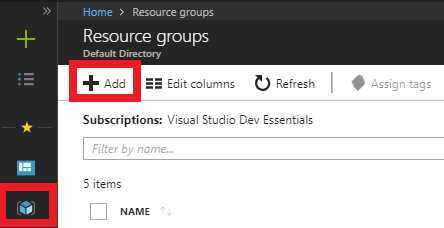
Figure 4-n: Creating a New Resource Group
Once you have clicked Add, you’ll be asked to enter some details about the resource group, which can be seen as follows.

Figure 4-o: New Resource Group Details
Basically, all that needs to be added is the Resource group name, and unless you want to select a different Subscription or a different Resource group location than the default one, you can click Create.
However, before you click Create, open a new browser tab and on the Azure Portal, go to the GenericWebhook function and make sure that the code is visible, and also that the Logs view is just below the code.

Figure 4-p: The Log View for the GenericWebhook Function
Now, go back to your other tab—the one where you have your Resource group ready to be created—and click Create. Then, on the GenericWebhook tab, within the Logs view, you should be able to see the function output a few seconds later. Here’s what it looked like when I ran it.

Figure 4-q: The Log View for the GenericWebhook Function
Notice how the webhook function was triggered, and that the resource group created has been correctly identified and written to the log.
Webhook blob output
Now that we have achieved this milestone, it’s time to modify our webhook function to output the same result, but to a blob rather than to the log. This is actually more useful, but a bit trickier.
To do that, let’s modify the webhook function by setting the same output we previously defined for the QueueTrigger function.
We can do this by going into the Integrate section of our webhook function and creating a new Azure Blob Storage output type as follows.

Figure 4-r: Creating a Blob Output for the Webhook Function
Make sure you specify the correct Path value by setting it to the hello-requests blob we’ve always used, and select the correct Storage account connection. You can leave the Blob parameter name as the default option.
Once you have made these modifications, click Save. Now it’s time to make modifications to our run.csx code. Here’s where things get interesting.
I’ve placed the updated code in the following listing. Please have a good look at it. You’ll notice some significant differences, which I’ve highlighted in bold.
Listing 4-c: The Updated run.csx for the Generic Webhook Function
#load "..\SharedCode\HelloRequest.csx" #r "Newtonsoft.Json" using System; using System.Net; using System.Threading; using Newtonsoft.Json; using Newtonsoft.Json.Linq; public static object Run(HttpRequestMessage req, TraceWriter log, out string outputBlob) { outputBlob = string.Empty; string jsonContent = string.Empty; JToken activityLog = null; log.Info($"Webhook was triggered!"); Task.Run(async () => { jsonContent = await req.Content.ReadAsStringAsync(); activityLog = JObject.Parse(jsonContent.ToString()) .SelectToken("data.context.activityLog"); if (activityLog == null || !string.Equals((string)activityLog["resourceType"], "Microsoft.Resources/subscriptions/resourceGroups")) { log.Error("An error occurred"); activityLog = null; } }); Thread.Sleep(500); if (activityLog == null) return req.CreateResponse(HttpStatusCode.BadRequest, new { error = "Unexpected payload or wrong alert received." }); else { var helloRequest = new HelloRequest { Number = (string)activityLog["resourceGroupName"], Message = string.Format("Resource group '{0}' was {1} on {2}.", (string)activityLog["resourceGroupName"], ((string)activityLog["subStatus"]).ToLower(), (DateTime)activityLog["submissionTimestamp"]) };
outputBlob = JsonConvert.SerializeObject(helloRequest); } return req.CreateResponse(HttpStatusCode.OK); } |
Let’s analyze this code to understand what is going on.
First, we invoke the HelloRequest class from the ShareCode function we previously wrote. We do this because we’ll use the HelloRequest class as a way to write to the blob container.
Next, we’ve added the System.Threading namespace, because we’ll need to pause the execution of the code for 500 milliseconds (half a second) to retrieve the alert activity details, which are obtained from the call to the req.Content.ReadAsStringAsync method.
Notice that the Run method was previously marked with the async keyword, and now it is no longer used. This is because in order to write to a blob container, the Run method cannot be async—and it is also necessary to have the outputBlob added as a parameter. In other words, having an async Run method with an out string outputBlob parameter is incompatible.
However, we still need to be able to manage having a Run method with some async functionality—which is responsible for invoking the req.Content.ReadAsStringAsync method and getting the resource group data—and at the same time, be able to return the outputBlob parameter, which is required to write to the blob container.
To combine these two functionalities, I’ve had to wrap the call to the req.Content.ReadAsStringAsync method, invoked through Task.Run, around an async anonymous function.
Because the execution of the code within Task.Run is asynchronous and the rest of the code that follows is synchronous, we have to wait until the data from the created resource group is available before we can write it to the blob container. This is why we invoke Thread.Sleep: to give the resource data enough time to become available, following the execution of the async code.
Once the resource group data is available (after Thread.Sleep is done), we can write this result to the blob container by creating an instance of the HelloRequest class, serializing it, and assigning it to the outputBlob variable.
Like always, click Save to save the changes and make sure there are no compilation errors.
To test if this works, create a new resource group, exactly like we did previously. Then, using the Microsoft Azure Storage Explorer, go to the hello-requests blob container and look for the most recent blob entry. The following screenshot was taken when I tested this.
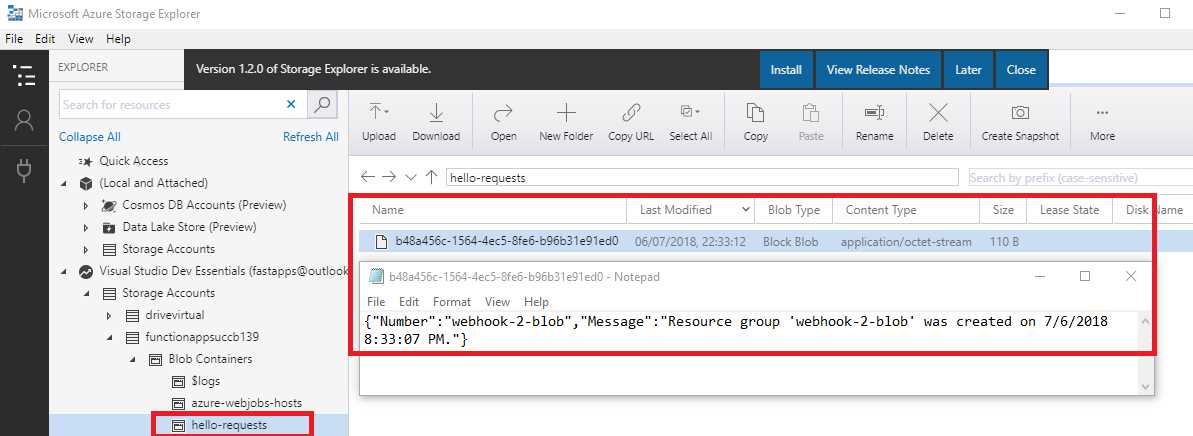
Figure 4-s: The Resource Group Written to the Blob Container
You can clearly see that the blob entry was successfully written to the blob container when the new resource group was created.
In my opinion, this is a really cool example, and shows the possibilities of what can be done with Azure Functions when integrating different services.
Code summary
With our webhook example finished and our objective accomplished, I think it is worthwhile to review the code for each of the Azure functions that we’ve developed and written throughout this book.
The following listing is the code for each of the functions we created.
Listing 4-d: The Final BlobTrigger run.csx Code
#load "..\SharedCode\HelloRequest.csx" #load "..\SharedCode\MsgSentConfirmation.csx" #r "Newtonsoft.Json" #r "Microsoft.WindowsAzure.Storage" using Newtonsoft.Json; using Microsoft.WindowsAzure.Storage.Blob; public static void Run(CloudBlockBlob myBlob, string name, TraceWriter log, Stream outputBlob) { log.Info($"Metadata Name: {myBlob.Name}"); log.Info($"Metadata StorageUri: {myBlob.StorageUri}"); log.Info($"Metadata Container: {myBlob.Container.Name}"); HelloRequest helloRequest = GetHelloRequest(myBlob); log.Info($"Hello Request: {helloRequest}"); string id = SendMessage(helloRequest); var confirm = new MsgSentConfirmation { ReceiptId = id, Number = helloRequest.Number, Message = helloRequest.Message }; UploadMsg(confirm, outputBlob); } public static void UploadMsg(MsgSentConfirmation confirm, Stream outputBlob) { using (var w = new StreamWriter(outputBlob)) { using (var jw = new JsonTextWriter(w)) { JsonSerializer s = new JsonSerializer(); s.Serialize(jw, confirm); jw.Flush(); } } } public static string SendMessage(HelloRequest req) { // We simulate sending SMS with req and returning a unique GUID return Guid.NewGuid().ToString(); } public static HelloRequest GetHelloRequest(CloudBlockBlob blob) { HelloRequest helloRequest;
using (var ms = new MemoryStream()) { blob.DownloadToStream(ms); ms.Position = 0; using (var res = new StreamReader(ms)) { using (var jtr = new JsonTextReader(res)) { var s = new JsonSerializer(); helloRequest = s.Deserialize<HelloRequest>(jtr); } } } return helloRequest; } |
Listing 4-e: The Final GenericWebhook run.csx Code
#load "..\SharedCode\HelloRequest.csx" #r "Newtonsoft.Json" using System; using System.Net; using System.Threading; using Newtonsoft.Json; using Newtonsoft.Json.Linq; public static object Run(HttpRequestMessage req, TraceWriter log, out string outputBlob) { outputBlob = string.Empty; string jsonContent = string.Empty; JToken activityLog = null; log.Info($"Webhook was triggered!"); Task.Run(async () => { jsonContent = await req.Content.ReadAsStringAsync(); activityLog = JObject.Parse(jsonContent.ToString()) .SelectToken("data.context.activityLog"); if (activityLog == null || !string.Equals((string)activityLog["resourceType"], "Microsoft.Resources/subscriptions/resourceGroups")) { log.Error("An error occurred"); activityLog = null; } }); Thread.Sleep(500); if (activityLog == null) return req.CreateResponse(HttpStatusCode.BadRequest, new { error = "Unexpected message payload or wrong alert received." }); else { var helloRequest = new HelloRequest { Number = (string)activityLog["resourceGroupName"], Message = string. Format("Resource group '{0}' was {1} on {2}.", (string)activityLog["resourceGroupName"], ((string)activityLog["subStatus"]).ToLower(), (DateTime)activityLog["submissionTimestamp"]) };
outputBlob = JsonConvert.SerializeObject(helloRequest); } return req.CreateResponse(HttpStatusCode.OK); } |
Listing 4-f: The Final ManualTrigger run.csx Code
#load "..\SharedCode\CreateHelloRequest.csx" using System; public static void Run(CreateHelloRequest input, TraceWriter log, out CreateHelloRequest outputQueueItem) { log.Info( $"C# manually triggered function called with input: {input}"); outputQueueItem = input; } |
Listing 4-g: The Final QueueTrigger run.csx Code
#load "..\SharedCode\CreateHelloRequest.csx" #load "..\SharedCode\HelloRequest.csx" #r "Newtonsoft.Json" using System; using Newtonsoft.Json; public static void Run (CreateHelloRequest myQueueItem, TraceWriter log, out string outputBlob, DateTimeOffset insertionTime, string id) { log.Info( $"C# Queue trigger function processed: {myQueueItem}"); log.Info($"InsertionTime: {insertionTime}"); log.Info($"Id: {id}"); var helloRequest = new HelloRequest { Number = myQueueItem.Number, Message = GenerateHello(myQueueItem.FirstName) };
outputBlob = JsonConvert.SerializeObject(helloRequest); } private static string GenerateHello (string firstName) { string hello; int hourOfTheDay = DateTime.Now.Hour; if (hourOfTheDay <= 12) hello = "The Morning..."; else if (hourOfTheDay <= 18) hello = "The Afternoon..."; else hello = "The Evening..."; return $"{hello} {firstName}"; } |
Listing 4-h: The Final SharedCode run.csx Code
using System; public static void Run(string input, TraceWriter log) { log.Info( $"C# manually triggered function called with input: {input}"); } |
Listing 4-i: The Final CreateHelloRequest.csx Code
public class CreateHelloRequest { public string Number; public string FirstName; public override string ToString() => $"{FirstName} {Number}"; } |
Listing 4-j: The Final HelloRequest.csx Code
public class HelloRequest { public string Number; public string Message; public override string ToString() => $"{Number} {Message}"; } |
Listing 4-k: The Final MsgSentConfirmation.csx Code
public class MsgSentConfirmation { public string Number; public string Message; public string ReceiptId; public override string ToString() => $"{ReceiptId} {Number} {Message}"; } |
Listing 4-l: The Final TimerTrigger run.csx Code
#r "Microsoft.WindowsAzure.Storage" #r "System.Configuration" using Microsoft.WindowsAzure.Storage.Blob; using Microsoft.WindowsAzure.Storage; using System.Configuration; using System; public static void Run(TimerInfo myTimer, TraceWriter log) { log.Info($"C# Timer triggered function executed at: {DateTime.Now}");
log.Info($"Timer schedule: {myTimer.Schedule}"); log.Info($"Timer last execution: {myTimer.ScheduleStatus.Last}"); log.Info($"Timer last execution: {myTimer.ScheduleStatus.Next}"); string conn = ConfigurationManager.AppSettings["functionappsuccb139_STORAGE"];
CloudStorageAccount storageAccount = CloudStorageAccount.Parse(conn); CloudBlobClient blobClient = storageAccount.CreateCloudBlobClient(); CloudBlobContainer container = blobClient.GetContainerReference("receipts");
DateTime oldestTime = DateTime.Now.Subtract(TimeSpan.FromMinutes(5));
log.Info($"Checking for old receipts"); foreach(CloudBlockBlob blob in container.ListBlobs().OfType<CloudBlockBlob>()) { var isOld = blob.Properties.LastModified < oldestTime; if (isOld) { log.Info($"Blob deleted: {blob.Name}"); blob.Delete(); } } } |
That’s all the code we developed throughout this book.
Summary
We’ve reached the end of this chapter, and also this book. We’ve had a good introduction on how to get started with Azure Functions by creating a function app, which included several functions that work seamlessly together.
We’ve barely scratched the surface of what is possible with this amazing technology, so there is still a lot to explore and learn. I’d like to invite you to expand your curiosity and dig a bit further into other Azure Functions-related topics, such as:
- Service bus triggers.
- Event hub triggers.
- Developing and debugging Azure functions in Visual Studio.
- Chaining functions together.
- Durable Azure functions.
- Azure Functions with Logic Apps.
- Monitoring workflows and error-handling.
As you can see, there’s a wealth of Azure Functions-related topics to be explored.
The number of applications that Azure Functions can be used for is practically unlimited—not only is it a versatile technology, but it is also one with lots of useful applications in real-world scenarios.
In my opinion, Azure Functions is a great complement to other technologies, such as Azure Logic Apps, which I also encourage you to explore as it’s a great way to connect multiple systems together.
Finally, the core principle of Azure Functions is to make monolithic systems easier to decouple, simplify processes, and provide a mechanism that allows unrelated systems to interact with each other—all without having to worry about server provisioning, security, or infrastructure.
Thanks for reading and taking the time to explore Azure Functions. I hope that this book serves as a source of inspiration, so you can continue to expand your learning path into this amazing technology.
All the best,
Ed


- 1800+ high-performance UI components.
- Includes popular controls such as Grid, Chart, Scheduler, and more.
- 24x5 unlimited support by developers.