
Azure Cognitive Services Succinctly®

CHAPTER 3
Language
Quick intro
Another very exciting aspect of Cognitive Services is its ability to understand and process language.
In this chapter, we’ll be focusing on Text Analytics with Azure Cognitive Services, which provides a great way of identifying the language, sentiment, key phrases, and entities within text.
In my book Skype Bots Succinctly, we explore in-depth two other fundamental language services within Azure Cognitive Services: Language Understanding (also known as LUIS) and QnA Maker. If you would like to explore both services, feel free to check out this book—it will give you a good understanding of how both services work, and what you can achieve with them.
Without further ado, let’s jump right into the Text Analytics service with Azure.
Removing unused resources
Azure is an amazing cloud platform, and even if you are using free resources, it’s always a good practice to do housekeeping and remove resources that are no longer being used. If you are done experimenting with and using Content Moderator, it’s a good idea to delete the resource—this is a practice I usually follow.
To do that, go to the Azure portal dashboard and click All resources, which you can see as follows.
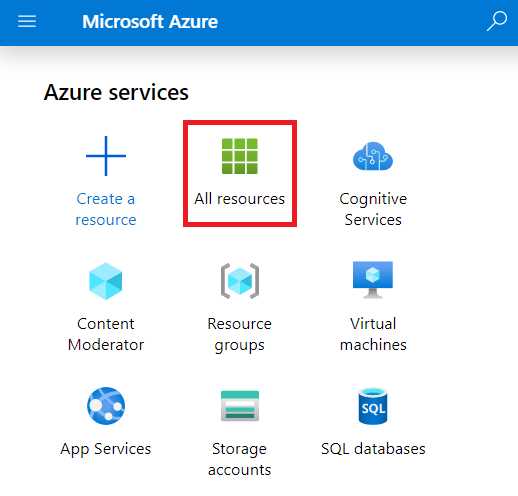
Figure 3-a: Azure Portal Dashboard
Clicking the All resources icon will bring you to the All resources screen, which will list all your active Azure resources. Select the resource you want to remove, and then click Delete. This will remove the resource from your Azure account. Before you can remove the resource, Azure will ask you to confirm this action, as shown in the following figure.
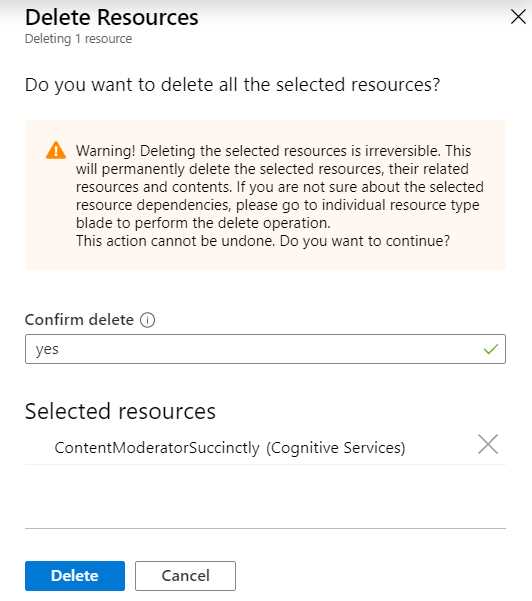
Figure 3-b: Delete Resources Confirmation (Azure Portal)
To confirm, you need to explicitly enter yes inside the Confirm delete text box. Once you’ve done that, the Delete button will become available, which you can then click to perform the operation. The execution of the process usually takes a few seconds. Depending on the type of resource, you should see a message similar to the following one.

Figure 3-c: Deleting a Resource (Azure Portal)
Once the process has ended and the resource has been removed, a notification will appear under the Notifications section of the Azure portal, which we can see as follows.
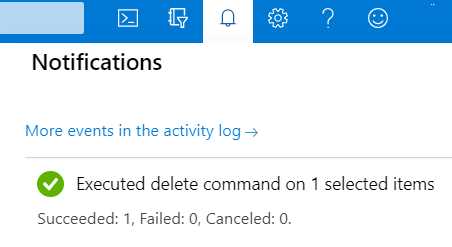
Figure 3-d: Resource Deleted—Confirmation (Azure Portal)
You might have to manually refresh the All resources screen section (referred to in Azure as a blade) because sometimes it doesn’t automatically refresh after a resource has been removed. You can do this by clicking Refresh.

Figure 3-e: All Resources Blade—Upper Part of the Screen (Azure Portal)
With unnecessary resources removed, we can now focus on creating a new one, which is what we’ll do next.
Adding Text Analytics
On the All resources screen, scroll to the bottom, and there you will find the Create resources button. This provides an easy way to create new Azure resources.
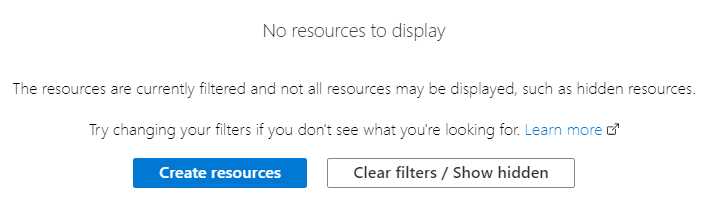
Figure 3-f: All Resources Blade—Bottom Part of the Screen (Azure Portal)
Click Create resources, which will take us to the following screen.
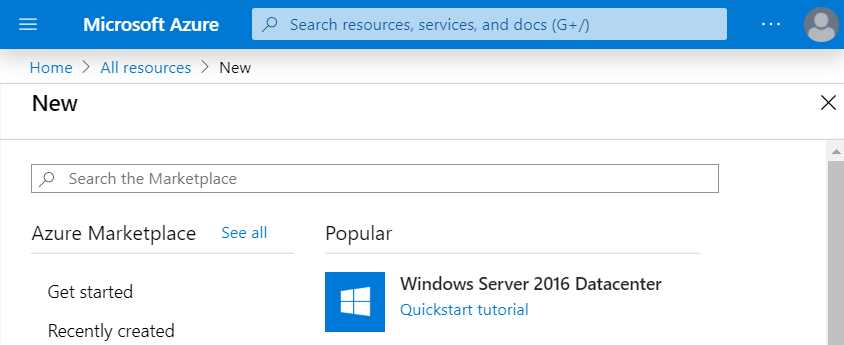
Figure 3-g: New Resources Blade (Azure Portal)
In the Search the Marketplace search bar, type the search term Text Analytics and choose this option from the list. This will take you to the following screen.
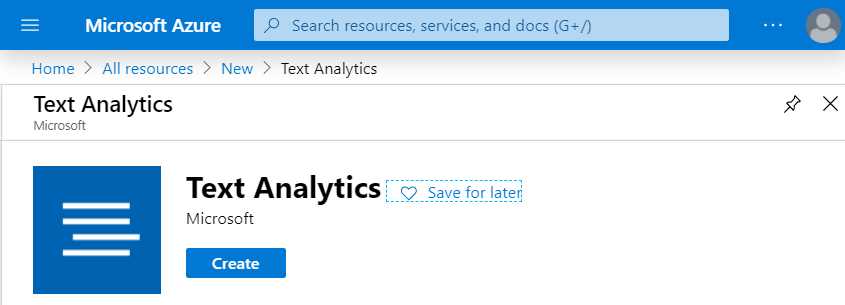
Figure 3-h: Text Analytics (Azure Portal)
Click Create to create the Text Analytics service.
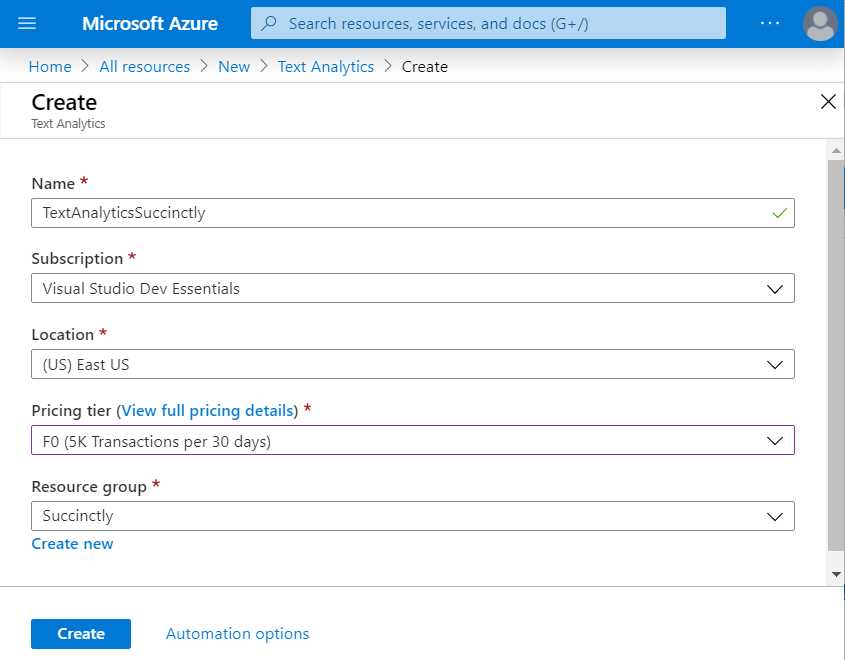
Figure 3-i: Create Text Analytics (Azure Portal)
Next, you’ll need to enter the required field details. The most important field is the Pricing tier. Choose the F0 option, which is the free pricing tier.
As you might remember, we previously created a resource group called Succinctly, so you can select that one from the list, or any other you might have created.
Once you’re done, click Create. One the service has been created, you’ll see a screen similar to the following one.
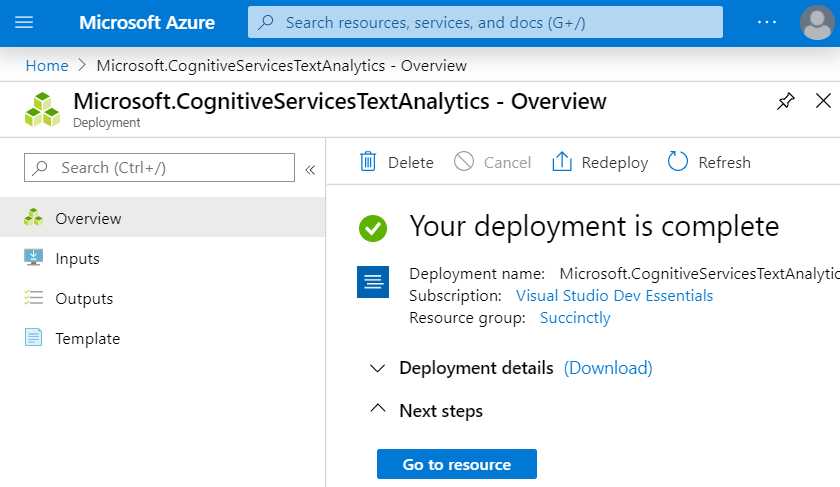
Figure 3-j: Text Analytics Created (Azure Portal)
To access the service, click Go to resource, which will take us to the Quick start screen.
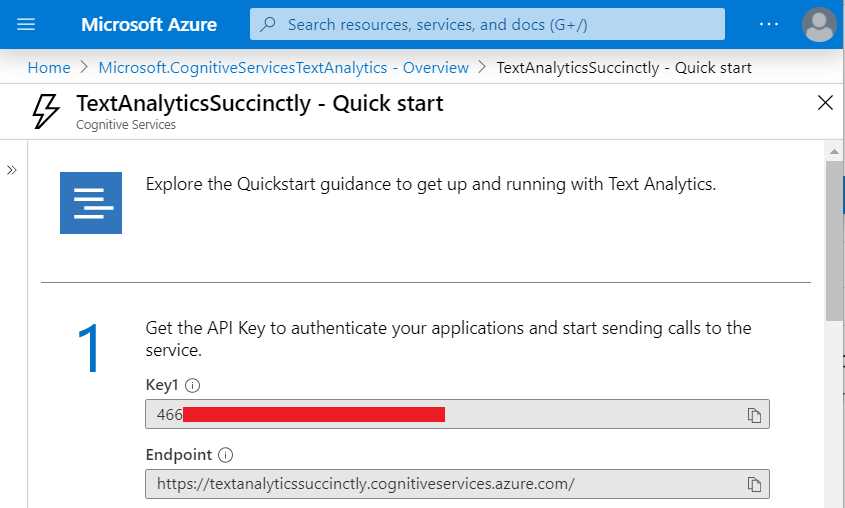
Figure 3-k: Text Analytics Created (Azure Portal)
We have our service up and running—now it’s time to use it.
Text Analytics app setup
With Visual Studio 2019 open, create a new Console App (.NET Framework) project, which you can do by choosing the following option.

Figure 3-l: Console App (.NET Framework) Project Option
Once the project has been created—I’ll name mine TextAnalytics—open Program.cs and add the following code so we can start to build up our logic within this file.
Code Listing 3-a: Program.cs—Setup and Authentication
using System; using System.Collections.Generic; using System.Net.Http; using System.Text; using System.Threading; using System.Threading.Tasks; using Microsoft.Rest; using Microsoft.Azure.CognitiveServices.Language.TextAnalytics; using Microsoft.Azure.CognitiveServices.Language.TextAnalytics.Models; namespace TextAnalytics { class ApiKeyServiceClientCredentials : ServiceClientCredentials { private const string cKeyLbl = "Ocp-Apim-Subscription-Key"; private readonly string subscriptionKey; public ApiKeyServiceClientCredentials(string subscriptionKey) { this.subscriptionKey = subscriptionKey; } public override Task ProcessHttpRequestAsync(HttpRequestMessage request, CancellationToken cancellationToken) { if (request != null) { request.Headers.Add(cKeyLbl, subscriptionKey); return base.ProcessHttpRequestAsync( request, cancellationToken); } else return null; } } // Program class goes here } |
We start by referencing the required libraries that our application will need, which are:
using System;
using System.Collections.Generic;
using System.Net.Http;
using System.Text;
using System.Threading;
using System.Threading.Tasks;
Notice the references to these libraries:
using Microsoft.Rest;
using Microsoft.Azure.CognitiveServices.Language.TextAnalytics;
using Microsoft.Azure.CognitiveServices.Language.TextAnalytics.Models;
You need to add these to the project by using the Solution Explorer. Right-click the References option and choose Manage NuGet Packages.
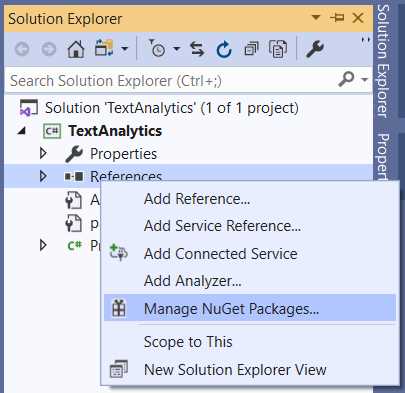
Figure 3-m: Adding Project References
Once you’ve opened the NuGet Package Manager, search for the following packages and install them.
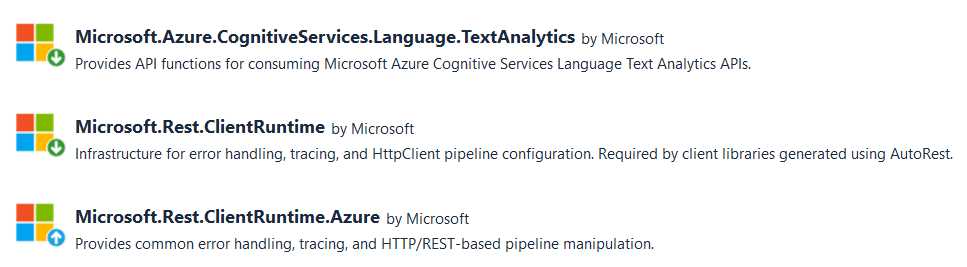
Figure 3-n: Packages to Be Installed
With these packages installed, let’s continue to review our code—notice how we’ve defined an ApiKeyServiceClientCredentials class that inherits from ServiceClientCredentials, which we will use for authentication to the TextAnalytics service.
The constant cKeyLbl represents the label of the Ocp-Apim-Subscription-Key header parameter, which is passed to the TextAnalytics service. subscriptionKey is the value of the subscription key that is passed to the service to perform authentication.
The subscriptionKey value is initialized within the class constructor as follows:
public ApiKeyServiceClientCredentials(string subscriptionKey)
{
this.subscriptionKey = subscriptionKey;
}
The ProcessHttpRequestAsync method is responsible for assigning to the request object headers, the value of subscriptionKey that corresponds to the Ocp-Apim-Subscription-Key header parameter. This method executes when the authentication to the service takes place.
Now that we’ve seen how the authentication works, let’s add the Program class to TextAnalytics, which will contain the logic to interact with the service.
Text Analytics Logic
Within Program.cs, let’s add the Program class, the subscription key, and the API service endpoint, as follows.
Code Listing 3-b: Program.cs—Text Analytics Logic
class Program { private const string cKey = "<< Your Subscription Key goes here >>"; private const string cEndpoint = "https://textanalyticssuccinctly.cognitiveservices.azure.com/"; } |
Assign to cKey the value of the Key1 and to cEndpoint the value of the Endpoint obtained from the Text Analytics service within the Azure portal, as seen in Figure 3-k.
Next, we need to add the following code to Program.cs.
Code Listing 3-c: Program.cs—Text Analytics Logic (InitApi Method)
class Program { // Previous code
private static TextAnalyticsClient InitApi(string key) { return new TextAnalyticsClient(new ApiKeyServiceClientCredentials(key)) { Endpoint = cEndpoint }; } } |
The InitApi method is responsible for creating and returning an instance of the TextAnalyticsClient class by passing an instance of ApiKeyServiceClientCredentials, which will perform the authentication to the Text Analytics service.
Let’s have a look at the Main method of Program.cs so we can work our way back to each of the methods that will make up the logic of the app.
Code Listing 3-d: Program.cs—Text Analytics Logic (Main Method)
class Program { // Previous code
static void Main(string[] args) { Console.OutputEncoding = Encoding.UTF8; string[] items = new string[] { // English text "Microsoft was founded by Bill Gates" + " and Paul Allen on April 4, 1975, " + "to develop and sell BASIC " + "interpreters for the Altair 8800", // Spanish text "La sede principal de Microsoft " + "se encuentra en la ciudad de " + "Redmond, a 21 kilómetros " + "de Seattle" }; ProcessSentiment(items).Wait(); ProcessRecognizeEntities(items).Wait(); ProcessKeyPhrasesExtract(items).Wait(); Console.ReadLine(); } } |
Note: The Console.OutputEncoding = Encoding.UTF8; instruction is set in case you would like to experiment later with languages that aren’t constrained to the ASCII character set, such as Arabic and Chinese, or languages that use the Cyrillic alphabet.
In this example, we want to run the Text Analytics service on the items array, which contains text in both English and Spanish.
The app’s Main method invokes the ProcessSentiment, ProcessRecognizeEntities, and ProcessKeyPhrasesExtract methods.
The ProcessSentiment method is responsible for executing sentiment analysis on the text contained within the items array and returning a result.
The ProcessRecognizeEntities method is responsible for recognizing entities within the text contained in the items array.
The ProcessKeyPhrasesExtract method is responsible for extracting key phrases within the text contained in the items array.
Note: The .Wait(); method instruction is appended to each of the calls to ProcessSentiment, ProcessRecognizeEntities, and ProcessKeyPhrasesExtract methods. This is because these methods are asynchronous, and before the results can be displayed, the program must wait for these methods to finalize their execution.
The Console.ReadLine instruction is placed just before the end of the Main method so that the results returned from these three methods can be displayed on the screen before the execution of the program finalizes.
Now that we understand how the Main method works, let’s explore how each of these three methods works.
Sentiment analysis
Let’s now explore the ProcessSentiment method to understand how sentiment analysis can be done with the Text Analytics service.
Code Listing 3-e: Program.cs—TextAnalytics Logic (ProcessSentiment Method)
class Program { // Previous code
private static async Task ProcessSentiment(string[] items) { string[] langs = await GetDetectLanguage( InitApi(cKey), GetLBI(items)); RunSentiment(InitApi(cKey), GetMLBI(MergeItems(items, langs))).Wait(); Console.WriteLine($"\t"); } } |
The ProcessSentiment method receives the items array as a parameter. This contains the text that is going to be submitted to the Text Analytics service for sentiment analysis.
The GetDetectLanguage method is invoked first; for sentiment analysis to take place, the service must know what language it needs to perform the analysis on.
The GetDetectLanguage method requires two parameters. The first is an instance of TextAnalyticsClient, and the second is a variable of LanguageBatchInput type.
The TextAnalyticsClient object is returned by the InitApi method, which receives the subscription key (cKey), as follows.
Code Listing 3-f: Program.cs—TextAnalytics Logic (InitApi Method)
class Program { // Previous code
private static TextAnalyticsClient InitApi(string key) { return new TextAnalyticsClient(new ApiKeyServiceClientCredentials(key)) { Endpoint = cEndpoint }; } } |
As we can clearly observe, the TextAnalyticsClient instance is created by passing an ApiKeyServiceClientCredentials instance as a parameter, assigning the key and Endpoint.
The GetLBI method returns the LanguageBatchInput object, which is obtained from the items array. Let’s have a look at the implementation of the GetLBI method.
Code Listing 3-g: Program.cs—TextAnalytics Logic (GetLBI Method)
class Program { // Previous code
private static LanguageBatchInput GetLBI(string[] items) { List<LanguageInput> lst = new List<LanguageInput>(); for (int i = 0; i <= items.Length - 1; i++) lst.Add(new LanguageInput((i + 1).ToString(), items[i])); return new LanguageBatchInput(lst); } } |
The GetLBI method starts by creating a LanguageInput list (lst), which will store the language information returned by the method.
To do that, we loop through the items array and for each item, we create a LanguageInput instance, to which we pass an index as a string ((i + 1).ToString()) and the item itself (items[i]). Each LanguageInput instance is added to lst.
Why are we determining the language first? The reason is that the Text Analytics service needs to know the language of the text that is going to be analyzed. This is done to ensure that the result of the analysis can be as accurate as possible, which is the reason why we need to determine the languages of the text elements contained within the items array by invoking the GetDetectLanguage method before calling RunSentiment.
The language of each text element contained within the items array is kept within the langs array, which we can see as follows.
string[] items = new string[] {
// English text
"Microsoft was founded by Bill Gates" +
" and Paul Allen on April 4, 1975, " +
"to develop and sell BASIC " +
"interpreters for the Altair 8800",
// Spanish text
"La sede principal de Microsoft " +
"se encuentra en la ciudad de " +
"Redmond, a 21 kilómetros " +
"de Seattle"
};
Here are the results assigned to the langs array after executing the GetDetectLanguage method:

Figure 3-o: Values of the langs Array
Let’s have a look at the code of the GetDetectLanguage method to better understand what it does.
Code Listing 3-h: Program.cs—TextAnalytics Logic (GetDetectLanguage Method)
class Program { // Previous code
private static async Task<string[]> GetDetectLanguage( TextAnalyticsClient client, LanguageBatchInput docs) { List<string> ls = new List<string>(); var res = await client.DetectLanguageBatchAsync(docs); foreach (var document in res.Documents) ls.Add("|" + document.DetectedLanguages[0].Iso6391Name); return ls.ToArray(); } } |
This method takes the TextAnalyticsClient instance as a parameter, as it is required to be able to invoke the DetectLanguageBatchAsync method from the Text Analytics service, to which docs (the resultant object returned from the GetLBI method) is passed.
Then, we loop through each of the Documents found within the results (res) obtained from the call to the DetectLanguageBatchAsync method. This is done so that we can obtain the ISO 639-1 code of each of the languages detected. These are appended to ls, which is a string list that will be returned as an array by the GetDetectLanguage method.
Going back to the ProcessSentiment method code listing, we can see that these language values are merged into a single array with their corresponding text items. This is done by invoking the MergeItems method, which renders the following results when executed.

Figure 3-p: Values Returned by the MergeItems Method
To understand this better, let’s explore the code of the MergeItems method, which we can see as follows.
Code Listing 3-i: Program.cs—TextAnalytics Logic (MergeItems Method)
class Program { // Previous code
private static string[] MergeItems(string[] a1, string[] a2) { List<string> r = new List<string>(); if (a2 == null || a1.Length == a2.Length) for (int i = 0; i <= a1.Length - 1; i++) r.Add($"{(i + 1).ToString()}|{a1[i]}{a2[i]}"); return r.ToArray(); } } |
The MergeItems method literally merges the values of the items array (a1[i]) with those of the langs array (a2[i]), and it appends an index (a sequential number—(i + 1).ToString()) at the beginning of each element of the resultant array. This sequential number is required by the Text Analytics service.
The resultant array (r.ToArray()) returned by the MergeItems method is passed to the GetMLBI method as a parameter, which returns a MultiLanguageBatchInput object. This is how the Text Analytics service expects the information in order to process it.
Let’s now explore the code of the GetMLBI method to understand what it does.
Code Listing 3-j: Program.cs —TextAnalytics Logic (GetMLBI Method)
Class Program { // Previous code
private static MultiLanguageBatchInput GetMLBI(string[] items) { List<MultiLanguageInput> lst = new List<MultiLanguageInput>(); foreach (string itm in items) { string[] p = itm.Split('|'); lst.Add(new MultiLanguageInput(p[0], p[1], p[2])); } return new MultiLanguageBatchInput(lst); } } |
If you pay close attention, you’ll notice that the code of the GetMLBI method is quite similar to the code of the GetLBI method.
We loop through each of the string elements (itm) contained within the items array and split each string element into parts—the splitting is done using the pipe (|) character.
Then, the parts obtained are passed as parameters when creating an instance of the MultiLanguageInput class.
For each string element (itm) contained within the items array, a MultiLanguageInput instance is created and added to a list of the same type.
The method then returns a MultiLanguageBatchInput instance from the resultant MultiLanguageInput list.
The returned MultiLanguageBatchInput instance will later be used by the RunSentiment, RunRecognizeEntities, and RunKeyPhrasesExtract methods.
Now, let’s explore the RunSentiment method, which is the final piece of the puzzle required to understand how sentiment analysis is done using the Text Analytics service.
Code Listing 3-k: Program.cs—TextAnalytics Logic (RunSentiment Method)
Class Program { // Previous code
private static async Task RunSentiment(TextAnalyticsClient client, MultiLanguageBatchInput docs) { var res = await client.SentimentBatchAsync(docs); foreach (var document in res.Documents) Console.WriteLine($"Document ID: {document.Id}, " + $"Sentiment Score: {document.Score:0.00}"); } } |
As we can see, the code is quite straightforward. The RunSentiment method receives a TextAnalyticsClient parameter, which is responsible for calling the Text Analytics service, through the client object.
The RunSentiment method also receives a MultiLanguageBatchInput parameter, which represents the text that is going to be sent to the Text Analytics service for processing. This occurs when the SentimentBatchAsync method is invoked.
Once the result from the SentimentBatchAsync method is received (the value assigned to the res object), we loop through all the results by specifically checking the Documents property of the res object.
Each document’s (document.Id) sentiment score is obtained by inspecting the document.Score property.
Now that we have this, we need to comment out the following two lines within the Main method. We can do this as follows.
ProcessRecognizeEntities(items).Wait(); // Comment out this line within Main
ProcessKeyPhrasesExtract(items).Wait(); // Comment out this line within Main
Awesome—that’s all we need to perform sentiment analysis using the Text Analytics service. Let’s run the code we’ve written and see what results we get.

Figure 3-q: Sentiment Analysis Results
Sentiment analysis full code
To fully appreciate what we’ve done, let’s have a look at the full source code of Program.cs that we’ve created to perform sentiment analysis.
Code Listing 3-l: Program.cs—TextAnalytics Logic (Full Code)
using System; using System.Collections.Generic; using System.Net.Http; using System.Text; using System.Threading; using System.Threading.Tasks; using Microsoft.Rest; using Microsoft.Azure.CognitiveServices.Language.TextAnalytics; using Microsoft.Azure.CognitiveServices.Language.TextAnalytics.Models; namespace TextAnalytics { class ApiKeyServiceClientCredentials : ServiceClientCredentials { private const string cKeyLbl = "Ocp-Apim-Subscription-Key"; private readonly string subscriptionKey; public ApiKeyServiceClientCredentials(string subscriptionKey) { this.subscriptionKey = subscriptionKey; } public override Task ProcessHttpRequestAsync( HttpRequestMessage request, CancellationToken cancellationToken) { if (request != null) { request.Headers.Add(cKeyLbl, subscriptionKey); return base.ProcessHttpRequestAsync( request, cancellationToken); } else return null; } } class Program { private const string cKey = "<< Key goes here >>"; private const string cEndpoint = "https://textanalyticssuccinctly.cognitiveservices.azure.com/"; private static TextAnalyticsClient InitApi(string key) { return new TextAnalyticsClient(new ApiKeyServiceClientCredentials(key)) { Endpoint = cEndpoint }; } private static MultiLanguageBatchInput GetMLBI(string[] items) { List<MultiLanguageInput> lst = new List<MultiLanguageInput>(); foreach (string itm in items) { string[] p = itm.Split('|'); lst.Add(new MultiLanguageInput(p[0], p[1], p[2])); } return new MultiLanguageBatchInput(lst); } private static LanguageBatchInput GetLBI(string[] items) { List<LanguageInput> lst = new List<LanguageInput>(); for (int i = 0; i <= items.Length - 1; i++) lst.Add(new LanguageInput((i + 1).ToString(), items[i])); return new LanguageBatchInput(lst); } private static async Task RunSentiment(TextAnalyticsClient client, MultiLanguageBatchInput docs) { var res = await client.SentimentBatchAsync(docs); foreach (var document in res.Documents) Console.WriteLine($"Document ID: {document.Id}, " + $"Sentiment Score: {document.Score:0.00}"); } private static async Task<string[]> GetDetectLanguage(TextAnalyticsClient client, LanguageBatchInput docs) { List<string> ls = new List<string>(); var res = await client.DetectLanguageBatchAsync(docs); foreach (var document in res.Documents) ls.Add("|" + document.DetectedLanguages[0].Iso6391Name); return ls.ToArray(); } private static string[] MergeItems(string[] a1, string[] a2) { List<string> r = new List<string>(); if (a2 == null || a1.Length == a2.Length) for (int i = 0; i <= a1.Length - 1; i++) r.Add($"{(i + 1).ToString()}|{a1[i]}{a2[i]}"); return r.ToArray(); } private static async Task ProcessSentiment(string[] items) { string[] langs = await GetDetectLanguage( InitApi(cKey), GetLBI(items)); RunSentiment(InitApi(cKey), GetMLBI(MergeItems(items, langs))).Wait(); Console.WriteLine($"\t"); } static void Main(string[] args) { Console.OutputEncoding = Encoding.UTF8; string[] items = new string[] { "Microsoft was founded by Bill Gates" + " and Paul Allen on April 4, 1975, " + "to develop and sell BASIC " + "interpreters for the Altair 8800", "La sede principal de Microsoft " + "se encuentra en la ciudad de " + "Redmond, a 21 kilómetros " + "de Seattle" }; ProcessSentiment(items).Wait(); Console.ReadLine(); } } } |
Recognizing entities
Now that we have seen how to perform sentiment analysis on text, let’s see how we can recognize entities in them.
Let’s start off by looking at the implementation of the ProcessRecognizeEntities method.
Code Listing 3-m: Program.cs—TextAnalytics Logic (ProcessRecognizeEntities Method)
class Program { // Previous code
private static async Task ProcessRecognizeEntities(string[] items) { string[] langs = await GetDetectLanguage(InitApi(cKey), GetLBI(items));
RunRecognizeEntities(InitApi(cKey), GetMLBI( MergeItems(items, langs))).Wait(); Console.WriteLine($"\t"); } } |
As you can see, the code for this method is almost identical to the code of the ProcessSentiment method. The only difference is that it invokes the method RunRecognizeEntities instead, but the overall structure and logic is the same.
We’ve already looked at the code for the GetDetectLanguage, InitApi, GetLBI, GetMLBI, and MergeItems methods, so we are only missing the RunRecognizeEntities code. Let’s have a look at it.
Code Listing 3-n: Program.cs—TextAnalytics Logic (RunRecognizeEntities Method)
class Program { // Previous code
private static async Task RunRecognizeEntities( TextAnalyticsClient client, MultiLanguageBatchInput docs) { var res = await client.EntitiesBatchAsync(docs); foreach (var document in res.Documents) { Console.WriteLine($"Document ID: {document.Id} "); Console.WriteLine("\tEntities:"); foreach (var entity in document.Entities) { Console.WriteLine($"\t\t{entity.Name}"); Console.WriteLine($"\t\tType: {entity.Type ?? "N/A"}"); Console.WriteLine( $"\t\tSubType: {entity.SubType ?? "N/A"}"); foreach (var match in entity.Matches) Console.WriteLine ($"\t\tScore: {match.EntityTypeScore:F3}"); Console.WriteLine($"\t"); } } } } |
All the RunRecognizeEntities method does is execute the EntitiesBatchAsync method from the client object.
Once the result is returned—which contains the extracted entities found within the text—we loop through res.Documents. Each document object contains document.Entities.
Then we loop through each entity. This way, we can print out each of the entity properties found, such as Name, Type, SubType, and EntityTypeScore, from entity.Matches.
That’s all there is to it. As you can see, recognizing entities was super simple. Let’s now invoke ProcessRecognizeEntities from the Main method.
Code Listing 3-o: Program.cs—TextAnalytics Logic (Main Method)
class Program { // Previous code
static void Main(string[] args) { Console.OutputEncoding = Encoding.UTF8; string[] items = new string[] { “Microsoft was founded by Bill Gates” + “ and Paul Allen on April 4, 1975, “ + “to develop and sell BASIC “ + “interpreters for the Altair 8800”, “La sede principal de Microsoft “ + “se encuentra en la ciudad de “ + “Redmond, a 21 kilómetros “ + “de Seattle” };
ProcessRecognizeEntities(items).Wait(); Console.ReadLine(); } } |
Let’s run the code to see what we get—here’s a snippet of the results.
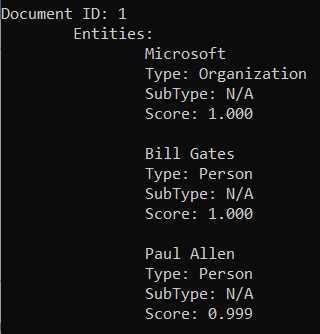
Figure 3-r: Recognizing Entities Results
As you can see, the Text Analytics service was able to identify Microsoft as an organization, and Bill Gates and Paul Allen as persons.
Extracting key phrases
We are now ready to explore how to extract key phrases from text by using the Text Analytics service. Let’s start off with the ProcessKeyPhrasesExtract method.
Code Listing 3-p: Program.cs—TextAnalytics Logic (ProcessKeyPhrasesExtract Method)
class Program { // Previous code
private static async Task ProcessKeyPhrasesExtract(string[] items) { string[] langs = await GetDetectLanguage( InitApi(cKey), GetLBI(items)); RunKeyPhrasesExtract(InitApi(cKey), GetMLBI(MergeItems(items, langs))).Wait(); Console.WriteLine($"\t"); } } |
As you can see, the pattern is the same one we’ve seen before. The languages are first detected when the GetDetectLanguage method is invoked, and then the call to the Text Analytics service is made—which, in this case, is done by executing the RunKeyPhrasesExtract method.
As we’ve already seen in each of the other methods invoked by ProcessKeyPhrasesExtract, all we are missing is to look at the code behind RunKeyPhrasesExtract—which is what we’ll do next.
Code Listing 3-q: Program.cs—TextAnalytics Logic (RunKeyPhrasesExtract Method)
class Program { // Previous code
private static async Task RunKeyPhrasesExtract( TextAnalyticsClient client, MultiLanguageBatchInput docs) { var res = await client.KeyPhrasesBatchAsync(docs); foreach (var document in res.Documents) { Console.WriteLine($"Document ID: {document.Id} "); Console.WriteLine("\tKey phrases:"); foreach (string keyphrase in document.KeyPhrases) Console.WriteLine($"\t\t{keyphrase}"); } } } |
The RunKeyPhrasesExtract method receives as parameters a TextAnalyticsClient object, which is used to invoke the Text Analytics service, and the text to process, which is a MultiLanguageBatchInput object.
The call to the Text Analytics service is made by executing the KeyPhrasesBatchAsync method, and the results returned are assigned to the res object.
For each document contained within res.Documents, we can get each keyphrase by looping through the document.KeyPhrases object.
As you have seen, that was also very easy to do! Now, let’s run the code to check what results we get.
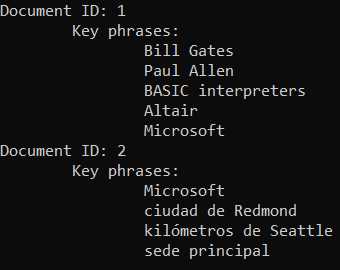
Figure 3-s: Recognizing Key Phrases
Notice how the Text Analytics service has recognized various key phrases for the text submitted.
Text Analytics full code
The following listing shows the complete source code that we’ve written throughout this chapter for working with the Text Analytics service.
Code Listing 3-r: Program.cs—Text Analytics Logic (Full Source Code)
using System; using System.Collections.Generic; using System.Net.Http; using System.Text; using System.Threading; using System.Threading.Tasks; using Microsoft.Rest; using Microsoft.Azure.CognitiveServices.Language.TextAnalytics; using Microsoft.Azure.CognitiveServices.Language.TextAnalytics.Models; namespace TextAnalytics { class ApiKeyServiceClientCredentials : ServiceClientCredentials { private const string cKeyLbl = "Ocp-Apim-Subscription-Key"; private readonly string subscriptionKey; public ApiKeyServiceClientCredentials(string subscriptionKey) { this.subscriptionKey = subscriptionKey; } public override Task ProcessHttpRequestAsync( HttpRequestMessage request, CancellationToken cancellationToken) { if (request != null) { request.Headers.Add(cKeyLbl, subscriptionKey); return base.ProcessHttpRequestAsync( request, cancellationToken); } else return null; } } class Program { private const string cKey = "<< Key goes here >>"; private const string cEndpoint = "https://textanalyticssuccinctly.cognitiveservices.azure.com/"; private static TextAnalyticsClient InitApi(string key) { return new TextAnalyticsClient(new ApiKeyServiceClientCredentials(key)) { Endpoint = cEndpoint }; } private static MultiLanguageBatchInput GetMLBI(string[] items) { List<MultiLanguageInput> lst = new List<MultiLanguageInput>(); foreach (string itm in items) { string[] p = itm.Split('|'); lst.Add(new MultiLanguageInput(p[0], p[1], p[2])); } return new MultiLanguageBatchInput(lst); } private static LanguageBatchInput GetLBI(string[] items) { List<LanguageInput> lst = new List<LanguageInput>(); for (int i = 0; i <= items.Length - 1; i++) lst.Add(new LanguageInput((i + 1).ToString(), items[i])); return new LanguageBatchInput(lst); } private static async Task RunSentiment(TextAnalyticsClient client, MultiLanguageBatchInput docs) { var res = await client.SentimentBatchAsync(docs); foreach (var document in res.Documents) Console.WriteLine($"Document ID: {document.Id}, " + $"Sentiment Score: {document.Score:0.00}"); } private static async Task<string[]> GetDetectLanguage( TextAnalyticsClient client, LanguageBatchInput docs) { List<string> ls = new List<string>(); var res = await client.DetectLanguageBatchAsync(docs); foreach (var document in res.Documents) ls.Add("|" + document.DetectedLanguages[0].Iso6391Name); return ls.ToArray(); } private static async Task RunRecognizeEntities( TextAnalyticsClient client, MultiLanguageBatchInput docs) { var res = await client.EntitiesBatchAsync(docs); foreach (var document in res.Documents) { Console.WriteLine($"Document ID: {document.Id} "); Console.WriteLine("\tEntities:"); foreach (var entity in document.Entities) { Console.WriteLine($"\t\t{entity.Name}"); Console.WriteLine($"\t\tType: {entity.Type ?? "N/A"}"); Console.WriteLine ($"\t\tSubType: {entity.SubType ?? "N/A"}"); foreach (var match in entity.Matches) Console.WriteLine ($"\t\tScore: {match.EntityTypeScore:F3}"); Console.WriteLine($"\t"); } } } private static async Task RunKeyPhrasesExtract( TextAnalyticsClient client, MultiLanguageBatchInput docs) { var res = await client.KeyPhrasesBatchAsync(docs); foreach (var document in res.Documents) { Console.WriteLine($"Document ID: {document.Id} "); Console.WriteLine("\tKey phrases:"); foreach (string keyphrase in document.KeyPhrases) Console.WriteLine($"\t\t{keyphrase}"); } } private static string[] MergeItems(string[] a1, string[] a2) { List<string> r = new List<string>(); if (a2 == null || a1.Length == a2.Length) for (int i = 0; i <= a1.Length - 1; i++) r.Add($"{(i + 1).ToString()}|{a1[i]}{a2[i]}"); return r.ToArray(); } private static async Task ProcessSentiment(string[] items) { string[] langs = await GetDetectLanguage( InitApi(cKey), GetLBI(items)); RunSentiment(InitApi(cKey), GetMLBI(MergeItems(items, langs))).Wait(); Console.WriteLine($"\t"); } private static async Task ProcessRecognizeEntities(string[] items) { string[] langs = await GetDetectLanguage( InitApi(cKey), GetLBI(items));
RunRecognizeEntities(InitApi(cKey), GetMLBI(MergeItems(items, langs))).Wait(); Console.WriteLine($"\t"); } private static async Task ProcessKeyPhrasesExtract(string[] items) { string[] langs = await GetDetectLanguage( InitApi(cKey), GetLBI(items)); RunKeyPhrasesExtract(InitApi(cKey), GetMLBI(MergeItems(items, langs))).Wait(); Console.WriteLine($"\t"); } static void Main(string[] args) { Console.OutputEncoding = Encoding.UTF8; string[] items = new string[] { "Microsoft was founded by Bill Gates" + " and Paul Allen on April 4, 1975, " + "to develop and sell BASIC " + "interpreters for the Altair 8800", "La sede principal de Microsoft " + "se encuentra en la ciudad de " + "Redmond, a 21 kilómetros " + "de Seattle" }; ProcessSentiment(items).Wait(); ProcessRecognizeEntities(items).Wait(); ProcessKeyPhrasesExtract(items).Wait(); Console.ReadLine(); } } } |
Summary
In this chapter, we looked at how to use Text Analytics to identify languages, run sentiment analysis, and extract key phrases and entities within text.
As you have seen, the code was easy to understand and relatively easy to implement, and the results we obtained were great.
If you are done experimenting with the Text Analytics service, I encourage you to remove any unused Azure resources, especially if they are not in the free pricing tier.
In the next chapter, we’ll explore how to work with some of the speech-processing capabilities that are provided by Azure Cognitive Services.


- 1800+ high-performance UI components.
- Includes popular controls such as Grid, Chart, Scheduler, and more.
- 24x5 unlimited support by developers.