
Azure AI Services Succinctly®

CHAPTER 5
Azure AI Document Intelligence
Microsoft Azure AI Document Intelligence is a specialized AI service that focuses on automating the extraction, analysis, and processing of information from various document types. This chapter describes the different features provided by this service, with code examples that will help you work with forms and documents leveraging the power of AI.
Introducing Azure AI Document Intelligence
Azure AI Document Intelligence is designed to intelligently extract text, key-value pairs, tables, and other structured information from documents like invoices, receipts, contracts, or any form requiring data entry. Azure AI Document Intelligence leverages machine learning models to identify and structure data, minimizing the need for manual intervention. It offers capabilities to customize and train models specific to your business documents, allowing for improved accuracy and adaptability. The service is especially useful in scenarios involving high volumes of documents, where manual data entry can be time-consuming, expensive, and error-prone.
Azure AI Document Intelligence provides prebuilt and custom models to extract information from structured, semistructured, and unstructured documents. These models are trained to understand the format of specific documents, like invoices, identity cards, or business forms. The service supports multiple languages and formats, including PDFs, scanned images, and photographs. More specifically, it offers:
· Prebuilt models: Prebuilt models are designed to recognize and extract information from common document types, such as receipts, invoices, and business cards. These models are trained by Microsoft and can be used immediately without the need for further training.
· Custom models: Custom models allow users to train AI models tailored to their specific document layouts. Using labeled data, users can train models to recognize key-value pairs and other structured information in documents that do not conform to standard templates.
· General document model: This subservice extracts content and layout information from any document without the need for training or labeling. It can handle a wide variety of documents, extracting text, tables, and other data.
· Layout model: This is a base model used to extract document layout information, including text, tables, selection marks, and the overall structure. It is often used as a preprocessing step before further processing with other models.
Azure AI Document Intelligence exposes the aforementioned models through a number of services, described in the next section.
Services of Azure AI Document Intelligence
In terms of AI services that you can use in your applications, Azure AI Document Intelligence provides the following:
· Form Recognizer: Form Recognizer is the core component of Azure AI Document Intelligence. It allows the extraction of information from forms, invoices, and other documents through prebuilt or custom models. It can recognize fields, checkboxes, signatures, and tables from scanned or digital documents. The form processing models within Form Recognizer support various forms such as receipts, invoices, and business cards.
· Invoice Recognizer: This is a specialized prebuilt model that extracts information from invoices, including fields like invoice number, date, total amount, and due date. It helps automate the processing of accounts payable by accurately extracting and categorizing invoice data.
· Receipt Recognizer: The receipt recognizer model extracts information from sales receipts, such as the transaction date, total amount, items purchased, and merchant details. This model is useful in automating expense reporting and tracking.
· Business Card Recognizer: This prebuilt model extracts contact details from business cards, including name, phone number, email address, and company name. It is particularly useful for customer relationship management (CRM) systems to automate the entry of new contacts.
· ID Document Recognizer: This model is used to extract key fields from identification documents, such as driver’s licenses, passports, and ID cards. The fields it extracts typically include name, date of birth, and document number.
Each of these subservices is built to handle specific document types and extract information in a way that can be easily integrated into other business processes and workflows. In the next sections, you will get some code examples about document analysis via Azure AI Document Intelligence services.
Configuring the Azure resources
Before writing code, you need to set up the Azure AI Document Intelligence service on the Azure Portal. This is going to be quite fast, since you will perform the same steps you did with the previous services.
Once logged in, click AI Services. Locate the Document Intelligence service and click Create. In the service creation page, select the resource group created previously and choose the closest region to your location. Specify document-intelligence-succinctly as the service name and select the Free pricing tier. Finally, click Review + Create > Create. As usual, retrieve and store the service endpoint and API key for later use.
Sample application: processing invoices
The goal of the example is showing how to create a WPF application in Visual Studio Code that uses the Azure AI Document Intelligence service to process invoices. The application will allow the user to select a local PDF file of an invoice and then extract key information, such as the invoice number, total amount, and due date. The companion code contains a prebuilt PDF document that you can use, with the following structure:
-------------------------------------------------
Invoice #: INV-1001
Invoice Date: August 25, 2024
Due Date: September 25, 2024
Bill To:
Alessandro Del Sole
123 Main St
Seattle, WA 98000
Item Description Amount
-------------------------------------------------
Website Development Services $1,500.00
Monthly Hosting (August 2024) $100.00
-------------------------------------------------
Total Amount Due: $1,600.00
-------------------------------------------------
This is more than enough to leverage the power of the AI Document Intelligence service.
Tip: You can create your own invoice sample in Microsoft Word, using a similar structure, and then save the document as PDF.
Following the lessons learned in the previous chapters, create a new WPF project in Visual Studio Code called InvoiceProcessorApp. Make sure you install the Azure.AI.FormRecognizer NuGet package, which is the library that allows for interacting with the AI Document Intelligence service.
In summary, these are the command lines you need to run:
> md \AIServices\InvoiceProcessorApp
> cd \AIServices\InvoiceProcessorApp
> dotnet new wpf
> dotnet add package Azure.AI.FormRecognizer
When finished, open the new project in Visual Studio Code.
Defining the user interface
In the MainWindow.xaml file, add the code shown in Code Listing 5 to implement a simple UI with a button that loads a PDF document, and a TextBlock that shows the results of the document processing.
Code Listing 11
<Window x:Class="InvoiceProcessorApp.MainWindow" xmlns="http://schemas.microsoft.com/winfx/2006/xaml/presentation" xmlns:x="http://schemas.microsoft.com/winfx/2006/xaml" xmlns:d="http://schemas.microsoft.com/expression/blend/2008" xmlns:mc="http://schemas.openxmlformats.org/markup-compatibility/2006" xmlns:local="clr-namespace:InvoiceProcessorApp" mc:Ignorable="d" Title="MainWindow" Height="450" Width="800"> <Grid> <Grid.RowDefinitions> <RowDefinition Height="Auto" /> <RowDefinition /> </Grid.RowDefinitions> <Button Name="BtnSelectFile" Content="Select Invoice" HorizontalAlignment="Left" VerticalAlignment="Top" Margin="10,10,10,0" Width="100" Height="30" Click="BtnSelectFile_Click"/> <TextBlock Grid.Row="1" Name="TxtInvoiceData" HorizontalAlignment="Left" VerticalAlignment="Top" Margin="10,10,10,0" Width="500" TextWrapping="Wrap" /> </Grid> </Window> |
The next step is about adding the document processing logic to the C# code.
Document analysis in C#
When the application runs, the user can select a PDF invoice from the local file system using a dialog. The application will then send the selected file to Azure AI Document Intelligence, specifically using the prebuilt invoice model. Once the invoice is processed, the extracted information, such as the invoice number, total amount due, and due date, will be displayed in the text block within the WPF window.
To accomplish this, add the code shown in Code Listing 6 to the MainPage.xaml.cs file, with comments following shortly.
Code Listing 6
using Azure; using Azure.AI.FormRecognizer.DocumentAnalysis; using Microsoft.Win32; using System.IO; using System.Windows;
namespace InvoiceProcessorApp { public partial class MainWindow : Window { private readonly string endpoint = "your-endpoint"; private readonly string apiKey = "your-api-key";
public MainWindow() { InitializeComponent(); }
private async void BtnSelectFile_Click(object sender, RoutedEventArgs e) { OpenFileDialog openFileDialog = new OpenFileDialog(); openFileDialog.Filter = "PDF files (*.pdf)|*.pdf"; if (openFileDialog.ShowDialog() == true) { string filePath = openFileDialog.FileName; await ExtractInvoiceData(filePath); } }
private async Task ExtractInvoiceData(string filePath) { var credential = new AzureKeyCredential(apiKey); var client = new DocumentAnalysisClient(new Uri(endpoint), credential);
using var stream = new FileStream(filePath, FileMode.Open); AnalyzeDocumentOperation operation = await client.AnalyzeDocumentAsync( WaitUntil.Completed, "prebuilt-invoice", stream);
AnalyzeResult result = operation.Value;
string invoiceNumber = result.Documents[0].Fields["InvoiceId"].Content; string totalAmount = result.Documents[0].Fields["AmountDue"].Content; string dueDate = result.Documents[0].Fields["DueDate"].Content;
TxtInvoiceData.Text = $"Invoice Number: {invoiceNumber}\nTotal Amount: " + $"{totalAmount}\nDue Date: {dueDate}"; } } } |
The following is an explanation of .NET objects used in the code to interact with Azure AI Document Intelligence:
· The DocumentAnalysisClient class is the core client used to interact with Azure AI Document Intelligence. This class facilitates document analysis by enabling the submission of documents to prebuilt models or custom models. In the current example, the AnalyzeDocumentAsync method is invoked to analyze an invoice. Additionally, this client provides other methods, like StartAnalysisAsync, for handling larger documents in a more granular way. The constructor requires the service endpoint and an instance of AzureKeyCredential to authenticate API requests.
· The AnalyzeDocumentOperation class represents an asynchronous operation that processes documents using a specific model. In the sample code, it has been used to handle the document analysis request, waiting for the operation to complete with await. The AnalyzeDocumentOperation can be polled periodically for long-running document processing tasks, which is particularly useful when working with documents that contain multiple pages or complex layouts. While the code invoked AnalyzeDocumentAsync for a straightforward analysis, other methods in this class, like GetDocumentResult, allow for retrieving the analysis results directly, which can be useful when integrating with workflows that need finer control over document processing.
· The AnalyzeResult object holds the result of a document analysis. It contains extracted content, such as key-value pairs, tables, and text. The Documents property is of type IReadOnlyList<AnalyzedDocument>, which represents the analyzed documents with fields and their corresponding values. Besides basic extraction, the AnalyzeResult class supports complex scenarios. For instance, if your document contains tables, you can access them via the Tables property, which provides structured table data. The Pages property also provides detailed information about the layout of each page, such as lines of text, selection marks, and bounding boxes, making it easier to implement custom rendering or export logic based on the extracted data.
· Each field extracted from the document is represented by the DocumentField class. This class provides access to the field’s content, confidence score, and bounding box (if available). In our example, we used the Content property to extract the recognized values, such as invoice numbers and total amounts. Depending on the type of field, the DocumentField class has several properties that provide strongly typed access to data, such as ValueType, ValueString, ValueDate, and ValueCurrency. These specialized properties allow for the type-safe extraction of data, reducing the need for manual parsing and enhancing the reliability of the extracted information.
Notice how the Fields property requires specifying a conventional identifier that the AI service can use to detect the various document parts quickly, such as InvoiceId, AmountDue, and DueDate. This is based on the prebuilt invoice model (prebuilt-invoice), and the full list of conventional identifiers is available in the official documentation, where you will also find the identifier of the other prebuilt models.
Errors and exceptions
If language analysis fails, the Azure AI Language service can throw the following exceptions:
· InvalidDocumentFormatException: Thrown when the document submitted for analysis, such as OCR or form recognition, is in an unsupported format or is unreadable.
· UnsupportedLanguageException: Raised when the document contains text in a language not supported by the Document Intelligence service.
Do not forget to implement a try..catch block as a best practice for exception handling.
Running the application
Press F5 to run the application. When the main window appears, click Select Invoice. As you can see in Figure 20, the AI Document Intelligence service has retrieved the information specified in the C# code from the loaded PDF document.
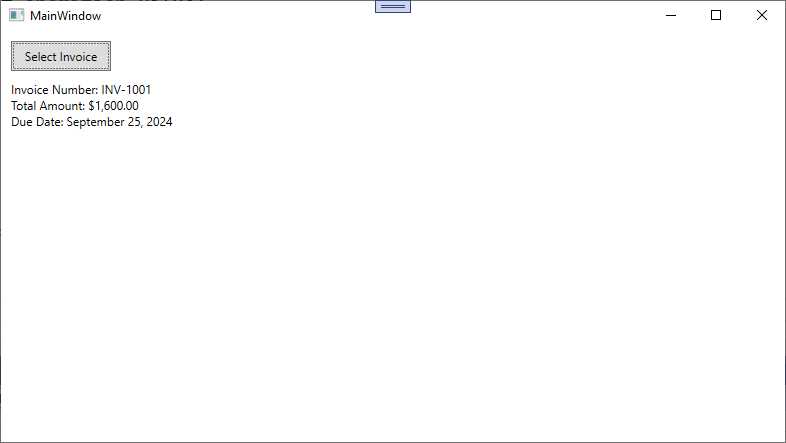
Figure 20: Detecting invoice elements with AI Document Intelligence
As you can easily imagine, with limited effort you can automate the analysis and data extraction from complex documents. Especially with PDFs, this is extremely valuable.
Hints about training and analyzing custom models
To create a sample app using Azure AI Document Intelligence against custom models, you must follow a structured approach that includes defining a custom model, training it with labeled data, and integrating it into your application. Custom models are especially useful when dealing with specific document layouts that prebuilt models may not fully support, allowing for more tailored and accurate data extraction.
In the Azure Portal, you navigate to your Azure AI Document Intelligence resource, and then you will upload a set of documents (PDFs, images) for manually labelling key fields that you want the model to recognize. The labeling process involves marking areas of interest (e.g., invoice numbers, dates, amounts) in the document. Once labeled, train your custom model by specifying the set of labeled documents as the training data. The service uses these annotations to learn the structure and recognize similar patterns in future documents. You can find detailed guidance on training custom models in the official documentation.
After training, you’ll be provided with a model ID, which uniquely identifies your custom model. To use this model in a .NET app, follow a similar process to the example outlined previously. The difference lies in invoking the custom model by using its model ID instead of prebuilt model IDs. In your code, replace the call to the prebuilt model (e.g., prebuilt-invoice) with your custom model ID when using the AnalyzeDocumentAsync method of the DocumentAnalysisClient class. This allows the application to process new documents using the tailored extraction logic of your custom model. For more detailed steps and best practices for custom models, you can refer to the official Azure AI Document Intelligence documentation for composing custom models. This resource covers everything from creating and training custom models to integrating them into applications.
Chapter summary
Azure AI Document Intelligence simplifies the extraction and processing of data from various types of documents, from invoices to business cards, by leveraging powerful AI models. The service supports both prebuilt models for common document types and custom models for specific layouts, making it a versatile solution for automating document workflows. By integrating this service into a WPF application using Visual Studio Code, you have seen how to create a practical, real-world example that processes invoices, extracts critical data, and presents it in an intuitive user interface. This approach can significantly reduce manual data entry and enhance productivity across various industries.


- 1800+ high-performance UI components.
- Includes popular controls such as Grid, Chart, Scheduler, and more.
- 24x5 unlimited support by developers.