
Azure AI Services Succinctly®

CHAPTER 6
Azure AI Content Safety
Microsoft Azure AI Content Safety is a cloud-based service that leverages machine learning and AI techniques to help organizations monitor, review, and moderate user-generated content. This chapter describes the AI Content Safety service and provides examples to analyze text and images, with hints about video analysis.
Introducing Azure AI Content Safety
Microsoft Azure AI Content Safety is a powerful, AI-driven service designed to help businesses and organizations maintain a safe and legally compliant digital environment by automatically identifying harmful, inappropriate, or offensive content. As user-generated content continues to proliferate on platforms such as social media, forums, and gaming communities, the need to monitor and moderate this content effectively has become extremely important. Azure AI Content Safety provides an automated, scalable solution that utilizes advanced AI models to flag content that violates community guidelines or legal regulations. Replacing the deprecated Azure AI Content Moderator, Azure AI Content Safety enhances the accuracy of detection by leveraging cutting-edge AI models that have been trained on diverse datasets to recognize various forms of harmful content, including hate speech, violent imagery, and more.
Summary of Azure AI Content Safety capabilities
The service allows developers to integrate moderation capabilities directly into their applications and websites via a set of APIs, ensuring that harmful content can be intercepted before it reaches a broader audience. It provides real-time moderation capabilities, making it ideal for live platforms that require immediate action, such as social media networks, streaming services, and online forums. The service uses a range of machine learning techniques to identify harmful content, allowing users to set up rules and thresholds according to their needs.
Azure AI Content Safety can detect various types of undesirable content, including hate speech, sexually explicit material, violence, harassment, and more. This detection can be fine-tuned with custom settings, giving businesses the flexibility to align the moderation engine with their specific guidelines.
One of the most interesting features of Azure AI Content Safety is its ability to handle multilingual content, making it a viable solution for global platforms. Additionally, it integrates seamlessly with human review workflows, ensuring that flagged content can be reviewed manually when needed. This combination of AI and human moderation helps improve the overall effectiveness and fairness of the moderation process.
Services of Azure AI Content Safety
Azure AI Content Safety is broken down into several services, each tailored to a specific type of content: text safety, image safety, and video safety. These subservices allow developers to implement moderation based on the type of content their platforms handle:
· Text safety focuses on analyzing textual content to detect inappropriate or harmful language. This includes identifying hate speech, threats, sexually explicit language, and offensive comments. The service can analyze text in multiple languages, making it a versatile tool for global content moderation. Additionally, it can detect personally identifiable information (PII) in text, which helps businesses comply with data protection regulations.
· Image safety analyzes images to detect offensive or inappropriate visual content. The AI models are trained to recognize explicit content, such as nudity or graphic violence, and flag these images accordingly. The service can also detect potentially risky content in various categories, allowing businesses to manage visual content more effectively. For custom use cases, it is possible to configure custom image lists for the service to reference during moderation.
· Video safety is built upon image safety by allowing for the moderation of video content. The service analyzes video frames to detect harmful content, such as graphic violence or explicit scenes, and flags them for review. Video safety can moderate both recorded and live video streams, making it suitable for a variety of use cases, including video-sharing platforms, live-streaming services, and online conferencing tools. The next section provides code examples to help you understand how these services work.
Configuring the Azure resources
Before diving into the code, you need to set up the Azure AI Content Safety service on the Azure Portal. Once logged in, and following the lesson learned in Chapter 3, click AI Services and then locate the Content Safety service (usually at the bottom of the dashboard page).
Click Create under the service card and fill out the necessary details, such as subscription, resource group, and region, as you did for the previous services. Assign content-safety-succinctly as the service name for consistency with the current example. If the name is not available, provide one of your choosing. Select the Free pricing tier and click Review + Create. Finally, click Create to deploy the service.
Once the service is deployed, click Go to resource and retrieve your API key and endpoint URL, which will be required for the code examples.
Note: In the Azure Portal, you will also see the Content Moderator service, which is the previous version of Azure AI Content Safety. Because Content Moderator has been deprecated, it is available in read-only mode, and you can only view existing resources.
Sample application: text safety
The purpose of the first example is to create a .NET console application that integrates with the Azure AI Content Safety API to analyze and moderate text input. The goal is to detect harmful or offensive language in user-generated content, such as social media posts or forum comments. To accomplish this, open Visual Studio Code and an instance of the Terminal, where you type the following commands:
> md c:\AIServices\TextSafetyExample
> cd c:\AIServices\TextSafetyExample
> dotnet new console
> dotnet add package Azure.AI.ContentSafety
The Azure.AI.ContentSafety NuGet package is a library from the Azure SDK that allows for interaction with the Content Safety service from .NET code. It will be required in all the examples in this chapter. When the code editor is ready, add the content of Code Listing 7.
Code Listing 7
using System; using System.Threading.Tasks; using Azure; using Azure.AI.ContentSafety; namespace TextSafetyExample { class Program { private static readonly string contentSafetyEndpoint = "your-endpoint"; private static readonly string contentSafetyApiKey = "your-api-key"; static async Task Main(string[] args) { var client = new ContentSafetyClient( new Uri(contentSafetyEndpoint), new AzureKeyCredential(contentSafetyApiKey)); string textToModerate = "I think AI Services Succinctly is a good learning resource."; Console.WriteLine("Text to moderate:"); Console.WriteLine(textToModerate); var moderationRequest = new AnalyzeTextOptions(textToModerate); Response<AnalyzeTextResult> result = await client.AnalyzeTextAsync(moderationRequest); Console.WriteLine("\nModeration Results:"); if (result.Value.BlocklistsMatch != null) { Console.WriteLine("Blocked text match found:"); foreach (var block in result.Value.BlocklistsMatch) { Console.WriteLine($"Name: {block.BlocklistName}, term: {block.BlocklistItemText}"); } } if (result.Value.CategoriesAnalysis != null) { Console.WriteLine("\nCategory Analysis:"); foreach (var category in result.Value.CategoriesAnalysis) { Console.WriteLine($"Category: {category.Category}, Confidence: {category.Severity}"); } } } } } |
The code uses the following objects and members from the Azure AI Content Safety SDK:
· ContentSafetyClient: This is the core class that facilitates interaction with the Azure AI Content Safety service. It is used to send text content for moderation. The client requires a Uri for the service endpoint and an AzureKeyCredential for authentication. For text content moderation, the AnalyzeTextAsync method is employed, which takes in an AnalyzeTextOptions object and returns a Response<AnalyzeTextResult>. This client is not limited to text moderation, as it also supports analyzing images and videos via methods like AnalyzeImageAsync and AnalyzeVideoAsync, making it versatile for different content moderation scenarios.
· AnalyzeTextOptions: This class encapsulates the configuration for a text moderation request. It requires the text to be moderated as a string. The constructor also allows you to include optional parameters, such as blocklist IDs, if you want to moderate content against custom-defined blocklists. This flexibility makes it possible to tailor text moderation to the specific needs of your application, such as filtering out sensitive language or enforcing community guidelines.
· AnalyzeTextResult: This class represents the result of a text moderation operation, and it exposes properties described in the next points.
· BlockListMatch: This class is part of the AnalyzeTextResult and encapsulates information about blocked terms detected in the analyzed text. Each BlockListMatch object contains properties like Term, which indicates the exact term that matched, and ListId, which refers to the blocklist that triggered the match. This is particularly useful when multiple blocklists are in use, allowing you to differentiate between different types of violations or content concerns. You can also retrieve additional blocklist details using methods like GetBlockListDetailsAsync if more context is needed.
· CategoriesAnalysis: This property is a collection of TextCategoriesAnalysis objects. Each object in the collection exposes a Category property of type TextCategory, an enumeration described in Table 2, and labels harmful content categories detected in the text. Each category may appear with a confidence score, giving insight into the AI's level of certainty. The categories span a wide range of harmful content types, such as hate speech, adult content, and violence. For even more refined moderation, developers can call methods like GetCategoryDetailsAsync, which offers a deeper breakdown of the content categories.
· Response<T>: This is a generic class that wraps the result of the AnalyzeTextAsync method. It provides access to the actual moderation result (AnalyzeTextResult) through the Value property. Additionally, it contains HTTP response information like status codes and headers, which can be helpful for debugging or logging purposes.
Table 2: Values from the TextCategory enumeration
Sexual | Indicates the content contains adult or sexually explicit material. |
Hate | Indicates the content contains hate speech or offensive language targeting individuals or groups. |
Violence | Indicates the content contains violent or graphic imagery. |
SelfHarm | Indicates the content promotes self-harm or suicidal ideation. |
For the current example, there is intentionally no offensive or harmful content, since this is a professional publication. However, you can try writing different text to see the results.
Running the application
Press F5 to start debugging the application. When you run a Console app for the first time, Visual Studio Code will ask you to specify a debugger, as shown in Figure 21. Make sure you click the C# option.
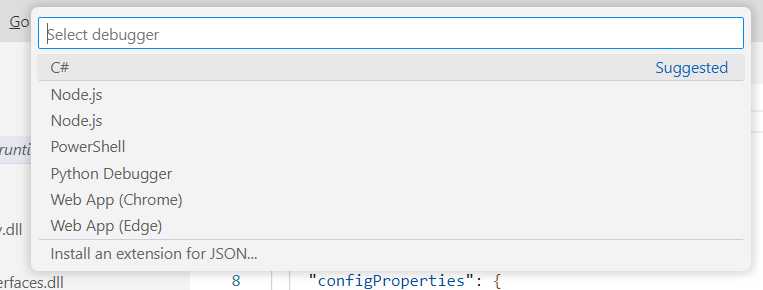
Figure 21: Selecting the C# debugger for Console apps
At this point, Visual Studio Code will ask you to specify the project that you want to debug from a similar dropdown. You have only one project, so click its name. Now the application will be built and started with an attached instance of the debugger. The application output is sent to the DEBUG CONSOLE panel. Figure 22 shows the result of the text analysis for content safety.
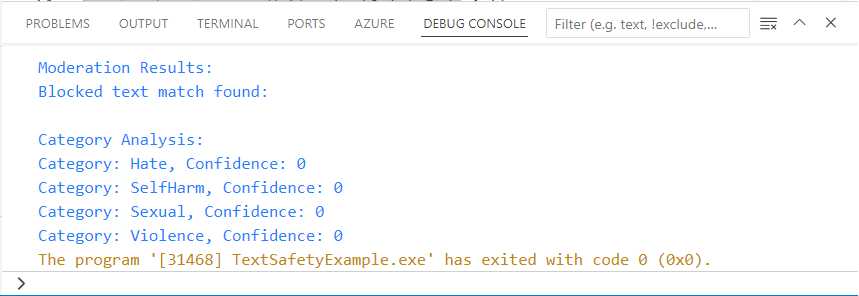
Figure 22: The result of the text analysis for content safety
There is nothing offensive in the source text, and this is why nothing is found. Try on your machine with different sentences to see how the result changes.
Sample application: image safety
The goal of the second example is creating a WPF app that allows users to select an image from their local machine and send it to the Azure AI Content Safety service for moderation. The goal is to analyze the selected image for harmful content, such as explicit images or graphic violence, and display the results in the user interface. You do not need to set up a new resource in Azure, you can reuse the existing service with its endpoint and key. What you instead need to do is create a new WPF project with the following commands to be run in Visual Studio Code’s Terminal:
> md c:\AIServices\ImageSafetyApp
> cd c:\AIServices\ImageSafetyApp
> dotnet new wpf
> dotnet add package Azure.AI.ContentSafety
As you can see, you will also use the same NuGet package from the Azure SDK, which implies reusing some of the objects described in the first example.
Defining the user interface
The user interface for the sample application is very simple. It contains a button that allows for loading an image, an Image control that displays the selected image, and a TextBlock that will show the analysis result. Code Listing 8 contains the code that you need to add to the MainPage.xaml file.
Code Listing 8
<Window x:Class="ImageSafetyApp.MainWindow" xmlns="http://schemas.microsoft.com/winfx/2006/xaml/presentation" xmlns:x="http://schemas.microsoft.com/winfx/2006/xaml" xmlns:d="http://schemas.microsoft.com/expression/blend/2008" xmlns:mc="http://schemas.openxmlformats.org/markup-compatibility/2006" xmlns:local="clr-namespace:ImageSafetyApp" mc:Ignorable="d" Title="MainWindow" Height="450" Width="800"> <Grid> <Grid.RowDefinitions> <RowDefinition Height="Auto" /> <RowDefinition Height="Auto"/> <RowDefinition /> </Grid.RowDefinitions> <Button x:Name="SelectImageButton" Content="Select Image" Width="200" Click="SelectImageButton_Click" Margin="10" /> <Image x:Name="SourceImage" Grid.Row="1" Margin="10" Width="320" Height="240"/> <TextBlock x:Name="ModerationResult" Grid.Row="2" Margin="10" /> </Grid> </Window> |
Now that you have a convenient user interface, you are ready to analyze an image for content safety in C#.
Image safety in C#
The imperative code for this example needs to load an image, analyze it for content safety, and display the results. This is accomplished with the code shown in Code Listing 9 (comments will follow shortly). For the endpoint and API key, reuse the same ones from the previous example.
Code Listing 9
using Azure; using Azure.AI.ContentSafety; using Microsoft.Win32; using System; using System.IO; using System.Threading.Tasks; using System.Windows; using System.Windows.Media.Imaging; namespace ImageSafetyApp { public partial class MainWindow : Window { private static readonly string contentSafetyEndpoint = "your-endpoint"; private static readonly string contentSafetyApiKey = "your-api-key"; public MainWindow() { InitializeComponent(); } private async void SelectImageButton_Click(object sender, RoutedEventArgs e) { OpenFileDialog openFileDialog = new OpenFileDialog(); openFileDialog.Filter = "Image files (*.jpg, *.png)|*.jpg;*.png"; if (openFileDialog.ShowDialog() == true) { string imagePath = openFileDialog.FileName; SourceImage.Source = new BitmapImage(new Uri(imagePath)); await ModerateImage(imagePath); } } private async Task ModerateImage(string imagePath) { var client = new ContentSafetyClient( new Uri(contentSafetyEndpoint), new AzureKeyCredential(contentSafetyApiKey)); string moderationResult = string.Empty; using (var imageStream = File.OpenRead(imagePath)) { BinaryData imageData = BinaryData.FromStream(imageStream); var contentSafetyImageData = new ContentSafetyImageData(imageData); var moderationRequest = new AnalyzeImageOptions(contentSafetyImageData); Response<AnalyzeImageResult> result = await client.AnalyzeImageAsync(moderationRequest); foreach(var item in result.Value.CategoriesAnalysis) { moderationResult = string.Concat( moderationResult, $"\nCategory: {item.Category}, Severity: {item.Severity}"); } ModerationResult.Text = moderationResult; } } } } |
For the image analysis example, the following is the list of relevant objects and members from the Azure AI Content Safety SDK:
· ContentSafetyClient: As in the text analysis example, this class is the primary way to communicate with the Azure AI Content Safety service. However, in this case, the focus is on analyzing images. The AnalyzeImageAsync method is used to send image content for moderation. This method requires an AnalyzeImageOptions object and returns a Response<AnalyzeImageResult>. This client can also handle text and video moderation, making it adaptable for various content moderation needs. Beyond basic moderation, developers can also utilize other client methods, such as starting moderation jobs or fetching moderation summaries for more complex scenarios.
· AnalyzeImageOptions: This class represents the configuration for an image moderation request. It requires an image stream (such as a file stream or a memory stream) and provides options for configuring the moderation settings. You can define additional parameters like blocklists or metadata, depending on the specific needs of your application. This flexibility allows for different types of images to be moderated, from user avatars to more complex media, ensuring that all visual content adheres to your platform's guidelines.
· AnalyzeImageResult: This class encapsulates the result of an image moderation operation. The primary property, IsHarmfulContent, is a Boolean value indicating whether the image contains harmful or inappropriate content.
· CategoriesAnalysis: This property of the AnalyzeImageResult class provides a list of harmful content categories detected in the image, each associated with a confidence score. It is of type ImageCategory, an enumeration that exposes the same values shown in Table 2 for the TextCategory enumeration but targeting images. The categories cover a broad spectrum of harmful content, and the confidence scores allow developers to adjust moderation thresholds based on how certain the AI is about the content. For advanced use cases, the GetCategoryDetailsAsync method can provide a more granular analysis of the categories detected in the image.
Now that you have learned the meaning of the relevant objects, you can run the sample application.
Running the application
Press F5 to run the application. Select an image on your local machine and wait for the content safety analysis to be completed. Figure 23 shows an example based on an image that does not contain any offensive content.
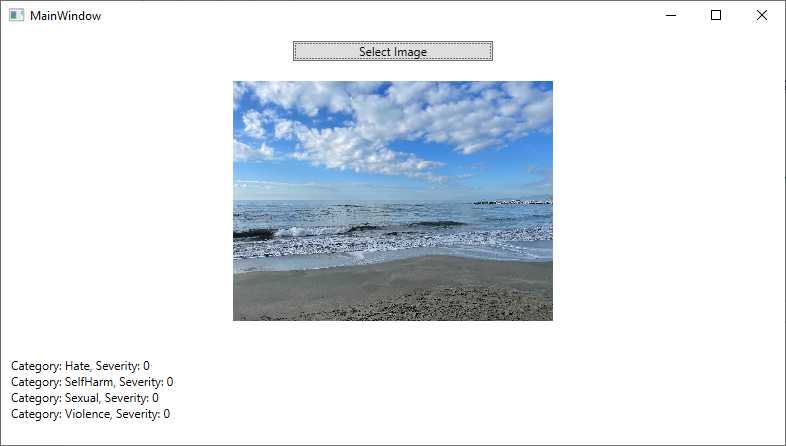
Figure 23: Analyzing an image for content safety
As you can see, the application displays the severity level for each category of offensive content. You can try yourself with different images to see the result.
Hints about content safety analysis on videos
If you want to perform content safety analysis on videos, you need to implement code that extracts individual frames from the video and then analyzes such frames as images. While for the image analysis you can reuse the code shown in Code Listing 9, frame extraction from videos depends on the input format and the libraries you want to use, so it is not possible to provide an example here. However, you know how to approach content safety analysis for videos, too.
Errors and exceptions
If content analysis fails, the Azure AI Content Safety service can throw the following exceptions:
· UnsupportedContentTypeException: If the content type provided (such as an unsupported image or text format) is invalid or not supported, this exception is thrown.
· ContentViolationException: Raised if the provided content violates Azure Content Safety policies, potentially flagging inappropriate or restricted content.
Do not forget to implement a try..catch block as a best practice for exception handling.
Chapter summary
The Azure AI Content Safety service is a highly effective tool for automating the moderation of user-generated content across various formats, including text, images, and videos. By leveraging advanced AI models, the service helps businesses and platforms maintain compliance with legal regulations and community guidelines, while also enhancing user safety.
The code examples provided demonstrate how to integrate and use these services in real-world applications using Visual Studio Code. Whether moderating text for offensive language or analyzing video frames for graphic content, Azure AI Content Safety empowers developers to build safer online environments with minimal manual intervention.


- 1800+ high-performance UI components.
- Includes popular controls such as Grid, Chart, Scheduler, and more.
- 24x5 unlimited support by developers.