
Aurelia Succinctly®

CHAPTER 14
Dynamic Views
We have seen how we can use Aurelia’s compose capabilities for dynamic scenarios to handle bits and pieces of our screen. What about scenarios where we want to have the whole screen be dynamic? We could use compose again, but what if we wanted our screen markup to come from a database? This is where getViewStrategy comes in. It gives us the ability to pass in a string that represents our view. Let’s take a look at our dynamic.js file:
Code Listing 122
import {InlineViewStrategy} from 'aurelia-templating'; export class Dynamic { constructor() { } getViewStrategy() { let template = ` <template> <h2>Inside dynamic template!</h2> </template> `; let vs = new InlineViewStrategy(template, this); return vs; } } |
In all of your view-models, Aurelia provides the ability to change the default convention for how views and view-models are loaded. Here, we are hijacking the view strategy process and providing our own implementation. We use the InlineViewStrategy to allow us to provide our template. Aurelia doesn’t care where we get the template, so it could be inline like we have here, or from a data service call.
In this example, we used a compose element to point to our view-model. You can see how we did this in the following app.html file:
Code Listing 123
<template> <h1>${title}</h1> <compose view-model="dynamic"></compose> </template> |
Here is the app.js file:
Code Listing 124
export class App { title = 'Dynamic Screens' } |
The following is a screenshot of what you should see:
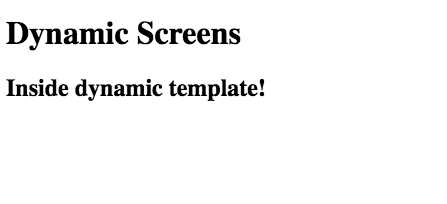
Figure 32: Dynamic template
You can see this example in action here.
Let’s mix things up bit and introduce a view service so that we can simulate getting our views from a back-end server. Consider the following view-service.js file:
Code Listing 125
/** * Provides view markup. * * @class ViewService */ export class ViewService { constructor() { this.views = []; this.initViews(); } getView(name) { return this.views.find((v) => { return v.name === name; }) } initViews() { this.views = [ { name: 'simple', view: ` <template> <h2>Inside simple dynamic template!</h2> </template> ` } ]; } } |
Currently, this view service only has one view definition, but we will add another soon. The service has a views array that contains all of our view definitions. We have a helper getView function that allows us to pass in the name of the view and return the item found. We also have an initViews function that sets up all our views. This represents what we received back from a data service call.
Let’s see how our dynamic.js file would look now that we have a view service created:
Code Listing 126
import {InlineViewStrategy} from 'aurelia-templating'; import {ViewService} from './view-service'; export class Dynamic { static inject = [ViewService];
constructor(viewService) { this.viewService = viewService; } getViewStrategy() { let template = this.viewService.getView('simple'); let vs = new InlineViewStrategy(template.view, this); return vs; } } |
Here, we are importing our ViewService and injecting it into our constructor. In our getViewStrategy function, we call the getView function, passing in simple for the name of the view.
You can see this example in action here.
Let’s go a step further and add another view to our view service file, this time with some databinding:
Code Listing 127
/** * Provides view markup. * * @class ViewService */ export class ViewService { constructor() { this.views = []; this.initViews(); } getView(name) { return this.views.find((v) => { return v.name === name; }) } initViews() { this.views = [ { name: 'simple', view: ` <template> <h2>Inside simple dynamic template!</h2> </template> ` }, { name: 'data-entry', model: { heading: 'User Registration', username: '' }, handlers: { submit: (payload) => { alert(`Saving ${payload}`); }, cancel: (payload) => { alert('canceling'); } }, view: ` <template> <form role="form" submit.delegate="controller.handlers.submit(controller.model.username)"> <h1>\${controller.model.heading}</h1> <label for="username">Username</label> <input type="text" value.bind="controller.model.username" id="username" placeholder="User Name"> <button type="submit"> Submit </button> <button type="button" click.delegate="controller.handlers.cancel()"> Cancel </button> </form> </template> ` } ]; } } |
We have now added a data-entry view definition. We see that we have a simple user registration form. We are binding the submit event on the form. Notice that we are referencing a controller variable on our view-model, which simply represents this record in the view service. You will see that all of our bindings are attached to either the model or handlers properties. This allows us to not only bring in a dynamic view, but also dynamic logic that corresponds to the views.
Note: You may have noticed that we are escaping (\) the $ symbol for the heading. If we did not do this, the string interpolation would be executed immediately in our view-model, and we want to have this executed after our template has been loaded. Take note to do the same if you are using string interpolation in your dynamic templates.
Let’s take a look at what we did to the dynamic.js file for this example:
Code Listing 128
import {InlineViewStrategy} from 'aurelia-templating'; import {ViewService} from './view-service'; export class Dynamic { static inject = [ViewService];
controller;
constructor(viewService) { this.viewService = viewService; } getViewStrategy() { let template = this.viewService.getView('data-entry'); this.controller = template; let vs = new InlineViewStrategy(template.view, this); return vs; } } |
We load our new data-entry view by calling the getView function. Next, we set our controller property in the getViewStrategy function.
Let’s see what this renders:
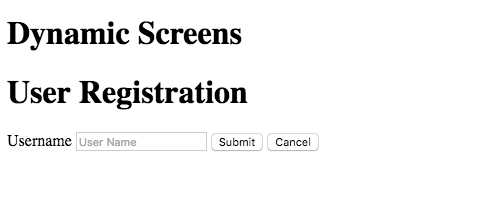
Figure 33: ViewService with databinding
Here is the screen when we put in a username and click Submit:
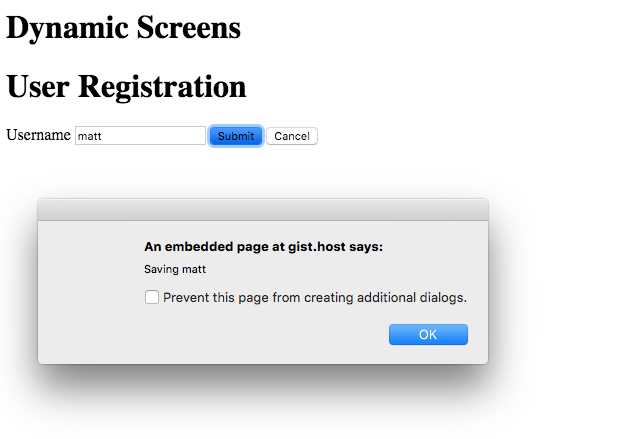
Figure 34: ViewService with click.delegate
You can see this example in action here.
Hopefully, this gives you an idea as to what you can do with getViewStrategy and service calls. Like all bright and shiny new toys, take care how you use this, but it does present a lot of interesting possibilities.


- 1800+ high-performance UI components.
- Includes popular controls such as Grid, Chart, Scheduler, and more.
- 24x5 unlimited support by developers.