
Asynchronous Programming Succinctly®

CHAPTER 3
Some Real World Examples
Displaying the progress of an async method
All developers should consider developing asynchronous code in order to make their applications more responsive. Rather than adding async code as an afterthought, consider developing your code with async methods baked in from the start. This makes it easier to pick up issues and design problems.
One feature worth considering is having the ability to report the progress of an async method to the user. To the user, the async method is not obvious because they can’t see (or understand) the code. In all fairness, they should not need to see it. But one thing the user does see or feel is an app that doesn’t seem to be doing anything.
Whenever your application performs a host of long-running tasks that you have made asynchronous, you should probably consider notifying the user of the progress of those tasks. The standard Windows Progress bar control has been around for ages, and its implementation with async methods is easy. In order to allow the application to report its progress, you must use the IProgress interface.
The code listings here will illustrate how to accomplish this. I reckon that there are better ways to code this, but I want to demo a concept here. You can roll your own if you prefer.
First, you will need to create a new Windows Form. Add to this Windows Form a button control, a ProgressBar control, and a label control. This form will create a number of Student objects with a delay between each object before adding each to a List<Student> collection.

Figure 16: Progress Example Form Design
In the code-behind for the file ProgressExample.cs, import the following namespace System.Threading.Tasks if not already imported.
Code Listing 41
Now we need to create a new class called Student. You can create a new class file called Student.cs or simply add it to the existing code at the bottom of your existing code file. Add the various properties needed (as in Code Listing 42 or add your own).
Code Listing 42
public class Student { public string FirstName { get; set; } public string LastName { get; set; } public string StudentNumber { get; set; } public int Age { get; set; } public string FullName() => FirstName + " " + LastName; } |
Code Listing 43 creates a Helper class with an extension method called ToPercent. This helper method will act on an integer value and calculate the percentage of the max value passed as a parameter that that integer occupies.
You will notice that I have taken a few liberties in the helper method, but I want to illustrate the progress bar update from an async method, not how to write an extension method. The comments in the helper method explain its purpose. For background reading on Extension Methods, see the following MSDN article: https://msdn.microsoft.com/en-us//library/bb383977.aspx.
Suppose that an integer value is the number 50. If I want to know what percentage of 250 the integer value of 50 is, I would call this extension method.
Code Listing 43
|
{ public static int ToPercent(this int value, int maxValue) { int retVal = 0; // value = 50 // maxValue = 250 // 250 / 50 = 5 // 100% / 5 = 20% double factor = 0.0; if (value != maxValue) { factor = (maxValue / (value + 1)); retVal = Convert.ToInt32(100 / factor); } else retVal = 100; return retVal; } } |
Next, let’s write the async method. You will notice that the async method returns a List<Student> object. One of the parameters to this async method is the progress of type IProgress<T> where T is the type of progress on which you want to report. In our case, we will be returning an integer count for the progress.
Note that we’re simply creating a number of Student objects. The number created is passed to the async method as a parameter. Assume that we only want to return the first 250 Student objects. As each Student object is created (with dummy data), we perform a small delay.
Just after we add the Student object to the List<Student> collection, we report the progress back to the progress bar. Therefore, the value of i being reported to the progress bar is the iterator count.
Code Listing 44
public async Task<List<Student>> GetStudents(IProgress<int> progress, int iRecordCount) { // Read students from database. // Return only the first iRecordCount entries (e.g. 250). List<Student> oStudents = new List<Student>(); for (int i = 0; i < iRecordCount; ++i) { await Task.Delay(100); Student oStudent = new Student() { FirstName = "Name" + i, LastName = "LastName" + i, Age = 20, StudentNumber = "S203237" + i }; oStudents.Add(oStudent); if (progress != null) progress.Report(i); } return oStudents; } |
Next, we add the following code in the click event handler of the button on the form. As we’ve seen earlier, we are assuming a maximum count of 250 entries. This is where things get interesting. The progress bar contains a maximum of 100 percent. We will therefore need to calculate the percentage of the maximum of 250 that reflects the iterator count. This is why we need the extension method.
Code Listing 45
private async void btnStartProgress_Click(object sender, EventArgs e) { int iMaxRecordToRead = 250; progressBar.Maximum = 100; var progress = new Progress<int>(percentComplete => { int perc = percentComplete.ToPercent(250); progressBar.Value = perc; lblProgress.Text = $"Student records {perc}% processed"; }); List<Student> oStudents = await GetStudents(progress, iMaxRecordToRead); lblProgress.Text = "Done!"; } |
As the async method processes, the iterator count is reported to the progress bar, but not after it is calculated into the percentage part of 100%. Run your application and click Start.

Figure 17: Progress Complete
Pausing the progress of an async method
Figure 18 shows the Task.Delay we have been using throughout this e-book in order to mimic a long-running task. Here, however, we are using it for its intended purpose—to pause a task.
We might need to pause a task because we need to retry a process until the user cancels or until the retry count has matured. Imagine for a minute that the process invoked by the Start button is a file download. This file, however, is versioned, and the application must always download a newer version than it previously downloaded.
If the file has not been updated, the application will retry until the user cancels or the retry count lapses. The application in the following code listings illustrates this logic. It contains a delay to pause the application between retries. It also contains a cancel button to cancel the process prematurely, and it updates the current progress to a label on the form.
Start by creating a Windows Form with a button and label control placed on it.

Figure 18: Pause Progress Form Design
Import the System.Treading.Tasks namespace.
Code Listing 46
At the top of the Windows Form, add a CancellationTokenSource object so that it is in scope to the whole form.
Code Listing 47
Next, add a method named PerformTask that tries to process the file. Pass arguments of type IProgress and CancellationToken to the async method. The cancel object will allow us to cancel the async process prematurely when the user clicks Cancel. The progress object is used to report the progress of the current async method. You will notice that the IProgress<T> in this instance takes a string as the type of T.
Code Listing 48
private async Task PerformTask(IProgress<string> progress, CancellationToken cancel) { UpdateProgress(progress, "Started Processing..."); bool blnTaskCompleted = false; int iDelaySeconds = 0; while (!blnTaskCompleted) { iDelaySeconds += 2; await Task.Delay((iDelaySeconds * 1000), cancel); // Retry long-running task. if (iDelaySeconds >= 10) { blnTaskCompleted = true; UpdateProgress(progress, "Process completed"); } else UpdateProgress(progress, $"Process failed. Retrying in {iDelaySeconds} seconds..."); } } |
Let’s next add a method to update the progress in the label. Instead of adding the code all over the place, we can simply call the UpdateProgress method.
Code Listing 49
private void UpdateProgress(IProgress<string> progress, string message) { if (progress != null) progress.Report(message); } |
Now, I must admit that I cheated a little with the Start button. When the Start button is clicked, it will change the text to Cancel. If the Cancel button is clicked, it will change the text to Start. Next, I check the button text, then I either start or cancel the async method.
You will notice that the CancellationTokenSource is instantiated when the Start button is clicked. I also create the process object and specify that it needs to return a string when updating the progress.
When the async method is cancelled, an OperationCancelledException is thrown, and we need to handle that in the try/catch.
Code Listing 50
private async void btnStart_Click(object sender, EventArgs e) { if (btnStart.Text.Equals("Start")) { btnStart.Text = "Cancel"; cancelSource = new CancellationTokenSource(); try { var progress = new Progress<string>(progressReport => { lblProgress.Text = progressReport; }); await PerformTask(progress, cancelSource.Token); } catch (OperationCanceledException) { lblProgress.Text = "Processing Cancelled"; } } if (btnStart.Text.Equals("Cancel")) { btnStart.Text = "Start"; if (cancelSource != null) cancelSource.Cancel(); } } |
Now, run the application. Click Start and notice how the text changes to Cancel. The async method starts delaying.

Figure 19: Delay before Retry
After a while, we assume that the file processing has been completed and that the application completed the async task.
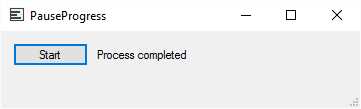
Figure 20: Process Completed
Run the application again. This time, however, click Cancel before the process can complete. Note that the Task.Delay is immediately cancelled, and the application completes processing, updating the status label to notify the user of the cancellation.

Figure 21: Process Cancelled
Using Task.WhenAll() to wait for all tasks to complete
When you need to run several async methods, remember that you must wait for all those methods to complete before you carry on. The Task.WhenAll() provides a perfect construct for developers that allows them to do just that.
The example that follows illustrates how to wait for three async methods that return nothing and three async methods that return integers. First, create a new Windows form and add a TextBox control with its Multiline property set to true.

Figure 22: Form Designer for WhenAll
After you have set the Multiline property to True, set the Dock property to Fill.

Figure 23: Form Properties
In the code view, ensure that you add the System.Threading.Tasks namespace to your form.
Code Listing 51
Next, add the following method that simply appends the string argument passed.
Code Listing 52
Now, we will add three void async methods. Because these async methods return nothing, we will call the Output() method and pass the nameof(<methodName>) to be written to the textbox.
In each async method, we will delay each by one, two, and three seconds, respectively.
Code Listing 53
private async Task Delay1kms() { await Task.Delay(1000); Output($"{nameof(Delay1kms)} completed"); } private async Task Delay2kms() { await Task.Delay(2000); Output($"{nameof(Delay2kms)} completed"); } private async Task Delay3kms() { await Task.Delay(3000); Output($"{nameof(Delay3kms)} completed"); } |
Next, add three async methods that each return an integer value. As before, each method will delay for one, two, and three seconds, respectively.
Code Listing 54
private async Task<int> DoWorkA() { await Task.Delay(1000); return 1; } private async Task<int> DoWorkB() { await Task.Delay(2000); return 2; } private async Task<int> DoWorkC() { await Task.Delay(3000); return 3; } |
Lastly, you must add the code in Code Listing 55 to the Form1_Load event handler method. Then you need to await Task.WhenAll() and pass it the three void async methods that delay and output the text to the textbox.
You will see each async method name output to the textbox before seeing the “DelayTasks Completed” text. This means that all three methods finished before continuing.
The second Task.WhenAll() will call the async methods that return the integer values. These are returned to an integer array and are output to the textbox.
Code Listing 55
private async void WhenAllExample_Load(object sender, EventArgs e) { await Task.WhenAll(Delay1kms(), Delay2kms(), Delay3kms()); Output("DelayTasks Completed"); int[] iArr = await Task.WhenAll(DoWorkA(), DoWorkB(), DoWorkC()); for (int i = 0; i <= iArr.GetUpperBound(0); i++) { Output(iArr[i].ToString()); } } |
Next, run the application.

Figure 24: Run WhenAllExample
You will notice that as each void async method completes, the method name is output to the textbox. When all async methods have completed, the last delay message is output to the textbox. Lastly, the int returning async methods run and only output the array values after the methods have completed.
You can also write this code by adding the async methods to a List<Task> and List<Task<int>> collections. Then you pass these collections to the Task.WhenAll() method.
Code Listing 56
List<Task> oVoidTasks = new List<Task>(); oVoidTasks.Add(Delay1kms()); oVoidTasks.Add(Delay2kms()); oVoidTasks.Add(Delay3kms()); await Task.WhenAll(oVoidTasks); Output("DelayTasks Completed"); List<Task<int>> oIntTasks = new List<Task<int>>(); oIntTasks.Add(DoWorkA()); oIntTasks.Add(DoWorkB()); oIntTasks.Add(DoWorkC()); int[] iArr = await Task.WhenAll(oIntTasks); for (int i = 0; i <= iArr.GetUpperBound(0); i++) { Output(iArr[i].ToString()); } |
Running the application again, you’ll see that the output remains the same as in the previous example. Using Task.WhenAll() is an efficient way to ensure that all the required async methods have completed before you continue your code.
Using Task.WhenAny() to wait for any tasks to complete
Sometimes you might need to call several async methods, but keep in mind that you only need the result from any one async method. This means that the first async method to complete will be used while the rest can be cancelled.
Think of it like accessing a couple of web services that return the same result from different sources. Any one of these results can be used in your code, but in order to optimize your application you need to use the fastest code possible. The calls to the web services don’t consistently complete in the same amount of time, so there is no way for you to choose the fastest web service.
Task.WhenAny() offers you a solution—you can call them all asynchronously but only use the first method to return a result, then cancel the rest. Let’s look at this following example that first calls Task async methods and second calls Task<T> async methods.
You will need to create a new Windows Form and add a textbox.

Figure 25: WhenAnyExample Form Designer
Next, select the textbox, then set the Multiline property to True and the Dock property to Fill.

Figure 26: WhenAny Textbox Properties
In the code-behind, add the System.Threading and System.Threading.Tasks namespace to your form.
Code Listing 57
Add a CancellationTokenSource object to your form with the scope visible to the entire form.
Code Listing 58
Add three async Task methods and add Task.Delay to each async method with different delays. As parameter, pass the CancellationToken, then pass that to the Task.Delay method. Lastly, output the name of the method that first completes the task.
Code Listing 59
private async Task Delay1kms(CancellationToken cancel) { await Task.Delay(1000, cancel); Output($"{nameof(Delay1kms)} completed first"); } private async Task Delay2kms(CancellationToken cancel) { await Task.Delay(2000, cancel); Output($"{nameof(Delay2kms)} completed first"); } private async Task Delay3kms(CancellationToken cancel) { await Task.Delay(3000, cancel); Output($"{nameof(Delay3kms)} completed first"); } |
Create the Output() method and set the txtOutput textbox equal to the val parameter.
Code Listing 60
private void Output(string val) { txtOutput.AppendText("\r\n" + val); } |
Next, change the Form Load event handler method to an async method, then instantiate the CancellationTokenSource object. You will now call the Task.WhenAny() method and pass it each Task async method. Notice that each method is passed the cancelSource.Token object. The first async method that completes will allow the cancelSource object to be cancelled, which effectively stops the remaining async methods—you don’t want to have code still running when you aren’t going to use the result. Wrap this code in a try catch block because the cancel will throw an OperationCanceledException.
Code Listing 61
private async void WhenAnyExample_Load(object sender, EventArgs e) { cancelSource = new CancellationTokenSource(); try { await Task.WhenAny(Delay1kms(cancelSource.Token), Delay2kms(cancelSource.Token), Delay3kms(cancelSource.Token)); if (cancelSource != null) cancelSource.Cancel(); } catch (OperationCanceledException) {
} catch (Exception) {
}
cancelSource = null; } |
Run your application and you will see that the fastest async method completes first and calls the Output() method. The remaining async methods are cancelled, so they output nothing.

Figure 27: WhenAny Example Task Async Method
Let’s now add async methods that return Task<TResult>. These also take the CancellationToken as parameter that is passed to the Task.Delay(). Each async method delays for a different duration before calling the Output() method. Each then returns the int result.
Code Listing 62
private async Task<int> DoWorkA(CancellationToken cancel) { await Task.Delay(3500, cancel); Output($"{nameof(DoWorkA)} completed first"); return 1; } private async Task<int> DoWorkB(CancellationToken cancel) { await Task.Delay(2800, cancel); Output($"{nameof(DoWorkB)} completed first"); return 2; } private async Task<int> DoWorkC(CancellationToken cancel) { await Task.Delay(1900, cancel); Output($"{nameof(DoWorkC)} completed first"); return 3; } |
Modify your load method to call the Task.WhenAny() method passing the DoWorkA(), DoWorkB(), and DoWorkC() methods. Each of these takes the cancelSource.Token object as parameter. The Task<int> result is returned and the rest of the async methods are cancelled. After that, we simply pass the returned value to the Output() method.
Code Listing 63
private async void WhenAnyExample_Load(object sender, EventArgs e) { cancelSource = new CancellationTokenSource(); try { Task<int> firstTask = await Task.WhenAny(DoWorkA(cancelSource.Token), DoWorkB(cancelSource.Token), DoWorkC(cancelSource.Token)); if (cancelSource != null) cancelSource.Cancel(); Output(firstTask.Result.ToString()); } catch (OperationCanceledException) {
} catch (Exception) {
}
cancelSource = null; } |
Run your application again and you will see that the DoWorkC() async method completed first, returning a value of 3. The remaining async methods are cancelled immediately.

Figure 28: WhenAny Example Task<T> Async Method
This way of using what you need and cancelling the rest of the async methods is very useful when you want to take a ‘first come, first served’ approach.
Process tasks as they complete
The example in the following code listings illustrates how to process tasks as they complete. Sometimes you might be in the position of needing to process all tasks while also needing to continue some other process while they complete.
In our example, we are reading the size of the HTML returned from three websites. As each one completes, the URL is loaded into a WebBrowser control. Therefore, we can logically expect that the smallest site will be loaded first, then the second largest, and finally the largest. This is one of those examples that is quite tough to explain in words but is pretty easy to understand when you create the code and run the application. So, if the explanations below don’t fully make sense, just try reading the code and running the application.
First, create a new Windows Form that resembles the design in Figure 29.

Figure 29: AsTasksCompleteExample Form Designer
Add a button to the Windows Form and call it Cancel Operation. Then add a textbox and set the Multiline property to True. Lastly, add three WebBrowser controls to the form and call them site1, site2 and site3.
Be sure to add the System.Net.Http, System.Threading and System.Threading.Tasks namespaces to the code-behind.
Code Listing 64
Right below the class declaration, add a CancellationTokenSource object and a List<string> object to the form so that they are visible to the entire form (globally scoped). We will be using the CancellationTokenSource object to cancel the async processing if that becomes necessary. The CancellationTokenSource object will provide a cancellation token via the Token property and send a cancellation message to the async method.
The List<string> will contain the three website URLs that we want to load into the WebBrowser controls site1, site2, and site3.
Code Listing 65
public partial class AsTasksCompleteExample : Form { CancellationTokenSource cancelSource; List<string> urlList; |
Create an event handler for the cancel button that will set the CancellationTokenSource object to a cancelled state. Because it is scoped globally, all the async methods that use the CancellationTokenSource object will receive the cancellation token.
Code Listing 66
private void btnCancel_Click(object sender, EventArgs e) { if (cancelSource != null) cancelSource.Cancel(); } |
Next, we need to add the code to load the list of URLs when the form loads. Note that the URLs are in reverse alphabetical order. The last URL (alphabetically) will be processed first, and so on. Also make sure that you add the async keyword to the form load event handler as private async void AsTasksCompleteExample_Load.
We next call the async method AccessWebAsync(), passing it the CancellationTokenSource object that was initialized on the first line of code in the form load event. Note that the code is wrapped in a try catch event handler. This is done because the cancellation of an asynchronous method will throw an OperationCancelledException.
Code Listing 67
The AccessWebAsync() method does several important things. It processes the URL list, returning a collection of Task<string> objects into the taskCollection variable. It then creates a List<Task<string>> object that contains the process URLs. Each Task<string> object will contain a pipe delimited string as [siteLength] | [url] that will be split later on in the AccessWebAsync() method.
We also need to create a List<string> object to contain the names of the WebBrowser controls on the form. Here, you can change the code and make it more generic. You could, for example, create a method that loops through all the controls on the Windows Form and finds only WebBrowser controls, ordering them by the integer value added to the end of the control name. Then you could add any number of WebBrowser controls to the form without hard coding the List<string> siteControls object. However, for the purposes of this example, I have simply hard coded the three WebBrowser controls to the list using the nameof keyword to return the string representation of the control name into the list.
We next need to loop through the downloadTasks list and await the processing. As soon as one of those completes, we continue by calling Task.WhenAny(). Then we remove that task from the list so that we don’t process it again, and we split the returned value into the array arrVal. We use this same logic for the siteControls list. It gets the first WebBrowser control name in the List<string> siteControls object that holds these control names in alphabetical order as site1, site2, and site3. As soon as we get the first WebBrowser control name, we remove it from the list. We do this so that we don’t overwrite previously loaded WebBrowser controls with a different URL returned from the downloadTasks list.
The very last lines of code write the output to our multiline textbox and load the processed sites URL into the appropriate WebBrowser control. It is here that the first task that has finished processing will be loaded into the first WebBrowser control, then the second, and finally the last, which will be loaded into the third WebBrowser control.
Code Listing 68
private async Task AccessWebAsync(CancellationToken cancel) { HttpClient httpClnt = new HttpClient(); // Get a collection of tasks. IEnumerable<Task<string>> taskCollection = from url in urlList select ProcessURLList(url, httpClnt, cancel); // Get a list of Tasks. List<Task<string>> downloadTasks = taskCollection.ToList(); List<string> siteControls = new List<string>() { nameof(site1), nameof(site2), nameof(site3) }; // Process each task for each site until none are left. while (downloadTasks.Count > 0) { string strSite = ""; // Identify the first task that completes. Task<string> firstFinishedTask = await Task.WhenAny(downloadTasks); strSite = siteControls.First(); // Remove so that you only process once. downloadTasks.Remove(firstFinishedTask); siteControls.Remove(strSite); // Await the completed task. string strValue = await firstFinishedTask; string[] arrVal = strValue.Split('|');
txtResults.Text += $"\r\nDownload length of {arrVal[1]} is {arrVal[0]}"; await LoadBrowserControl(strSite, arrVal[1]); } } |
The ProcessURLList() method processes the URL to return the HTTP content of the website as a string and then get the length of the string. That is concatenated to the URL to return the pipe delimited Task<string> object for processing by the calling code.
Code Listing 69
private async Task<string> ProcessURLList(string url, HttpClient cl, CancellationToken cancel) { // Get the Task<HttpResponseMessage> object asynchronously. HttpResponseMessage resp = await cl.GetAsync(url, cancel); // Serialize the HTTP content to a string asynchronously. string strSite = await resp.Content.ReadAsStringAsync(); // Return the string.Length|www.url.com return strSite.Length + "|" + url; } |
Lastly, we create the method that loads the URL into the appropriate WebBrowser control on the form. Because we added the WebBrowser control names into the siteControls list by using the nameof operator (new to C# 6.0), we have a string representation of the control name. That means we can pass that string variable to the LoadBrowserControl() method and switch on it. This will set the correct WebBrowser control based on which Task<string> object from the downloadTasks list completes first, second, and third.
Code Listing 70
private async Task LoadBrowserControl(string controlName, string strUrl) { Uri url = new Uri(strUrl); switch (controlName) { case nameof(site1): site1.Url = url; break; case nameof(site2): site2.Url = url; break; case nameof(site3): site3.Url = url; break; default: break; } await Task.CompletedTask; } |
When you have added all the code, build and run your application.
Note: We are calling Task.CompletedTask because the method is called asynchronously but doesn’t actually return anything or run any asynchronous methods.
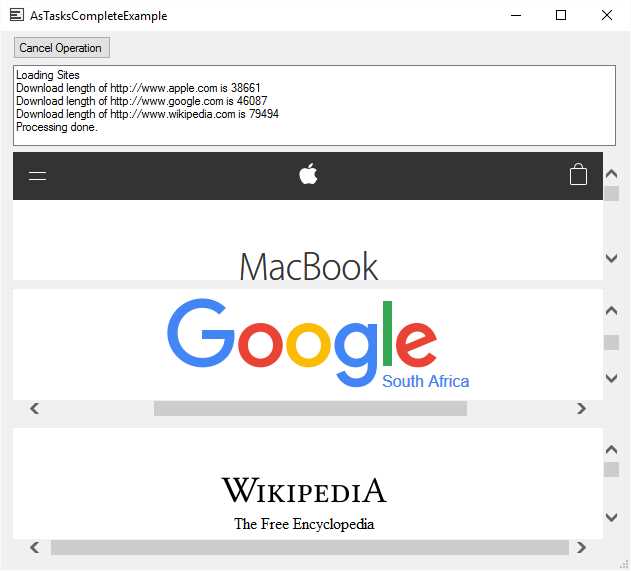
Figure 30: Websites Loaded
When the form loads, you will see that as the processed URLs are added to the multiline textbox control, the WebBrowser controls are loaded with the processed URLs. This is all done in the order that each completes processing (as opposed to the order in which each started).


- 1800+ high-performance UI components.
- Includes popular controls such as Grid, Chart, Scheduler, and more.
- 24x5 unlimited support by developers.