
Asynchronous Programming Succinctly®

CHAPTER 1
Getting Started
What is asynchronous programming?
Recently, a friend of mine was tasked with improving a Windows Forms application that had been written about four years ago. As I looked on, I saw that calls to the database locked up the UI for several seconds. The search functionality (which searched a table consisting of only 60,000 entries) took from 30 seconds to a minute to return results to the form. This meant that while the application was querying the database and doing what it needed to do, the UI was totally unresponsive. The user could not resize it, move it around, or interact with it in any way. Instead, users had to sit and wait for the application to respond. Reading and writing files was equally frustrating. The unresponsiveness of the application created negative feelings—that the application was malfunctioning, was old (which was technically true), and was no good.
In actual fact, the application was not malfunctioning. The search returned true results from the database. Saving information to the database worked every time, and the files the application created or read always worked. Nothing was “broken,” but the fact that the UI was slow and unresponsive at times (especially as the customer’s workload increased) made using the app extremely frustrating.
While this situation might have been due to a combination of poor code and inefficient SQL statements, in fact the form was not responsive because it was doing everything synchronously—any process that accesses the UI thread (UI-related tasks usually share a single thread) will be blocked in a synchronous application. Therefore, if one process is blocked, all processes are blocked.
Asynchrony is the saving grace for these kinds of applications. Using asynchronous methods will allow the application to remain responsive. The user can resize, minimize, maximize, move the form around, or even close the application should they wish to. Introducing asynchronous functionality into applications had long been a complicated endeavour for developers, but the introduction of async programming in Visual Studio 2012 introduced a simplified approach. Async programming leveraged the .NET Framework 4.5, which made it easier to code and moved all the heavy lifting and complicated code to the compiler. Don’t get me wrong, though—while asynchronous programming is still a complex bit of technology, it has been made much easier to use.
Examples of potentially blocking activities
We now know one thing: async improves the responsiveness of your application. But just which activities are potentially blocking? For example, take accessing a web resource. In a synchronous scenario, the entire program will be blocked if the web resource being accessed is slow or overloaded. The following list defines several areas in which async programming will improve the responsiveness of your application.
Web Access
Files
- StorageFile
- StreamWriter
- StreamReader
- XmlReader
Images
- MediaCapture
- BitmapEncoder
- BitmapDecoder
WCF
- Asynchronous Service Operations
Note: Microsoft Visual Studio Enterprise 2015 (Update 3) will be used to create all the code samples in this e-book. The .NET Framework 4.6.1 is the framework that will be used.
Writing async methods
The async and await keywords are essential in async programming. Using these keywords, developers are able to create async methods. But what else characterizes async methods? As it turns out, there are a few things to consider. The signature of the method must include the async modifier. The method must have a return type of Task<TResult>, Task, or void. The method statements must include at least a single await expression—this tells the compiler that the method needs to be suspended while the awaited operation is busy. Lastly, the method name should end with the “async” suffix (even though this is more convention than required). Why would this convention be significant, you ask? Well, that’s the convention used in the .NET Framework 4.5 and newer versions. Have a look at how easy it is to find the asynchronous methods of the HttpClient class. Typing “.async” after the instance of the HttpClient object will filter the available methods in the Intellisense list, as you can see in Figure 1.
Note: It is important to note that methods are not awaitable. Types are awaitable. That is why you can await a Task<TResult> or Task.

Figure 1: Async Methods of the HttpClient Class
Naming your asynchronous methods in a similar manner will allow other developers to easily spot the asynchronous methods you created in your classes.
Let’s look at how easy it is to create a method that simulates reading text from some data store that takes six seconds to complete. We want our Windows Forms application to remain responsive throughout the process. To do this, we will put a timer on our form and click a button that delays for six seconds before returning text and setting the value of a label on the form. Throughout that process, the timer will continue to display the current time (including seconds) in the title bar of the Windows Form.
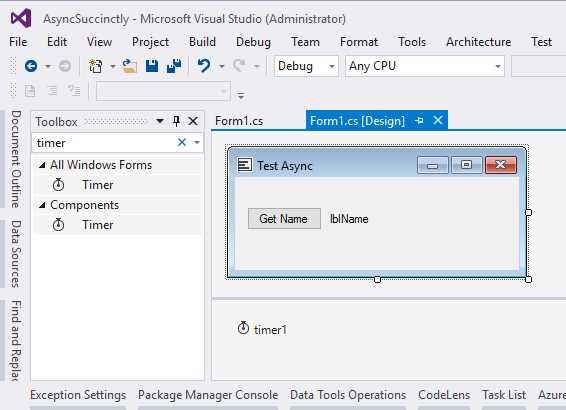
Figure 2: Create Windows Forms Application
You can design the form as you like, but there are a few components you’ll need to add. These are:
- Button
- Label
- Windows Forms Timer (don’t add the Components timer)
For the timer, create the tick event and add the following code:
Code Listing 1
private void timer1_Tick(object sender, EventArgs e) { this.Text = DateTime.Now.ToLongTimeString(); } |
In the Form Load, add the following code in order to start the timer. This is essential because otherwise the timer will not work.
Code Listing 2
Add a method called ReadTextAsync() and use the async keyword on the method signature. The Task<string> tells us that this method returns a string value. It will only return the string value after a six-second delay.
Code Listing 3
private async Task<string> ReadTextAsync() { await Task.Delay(TimeSpan.FromMilliseconds(6000)); return "async succinctly"; } |
Next, create a click event for the button that you added to your Windows Form. Be sure to add the async keyword to this button click event. Call the ReadTextAsync() method using the await keyword. Lastly, set the label’s text value to the text returned from the async method.
Code Listing 4
private async void button1_Click(object sender, EventArgs e) { string text = await ReadTextAsync(); lblName.Text = text; } |
Run the application and you will notice the time, with the seconds counting, in the title of the form.
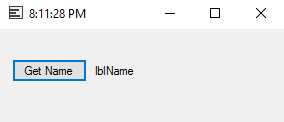
Figure 3: Async Windows Form
Click the Get Name button and wait for the label to be populated with the text returned from the ReadTextAsync() method. You will notice that the form remains responsive, allowing you to move it around and even resize it. You will also notice that the timer continues to tick.
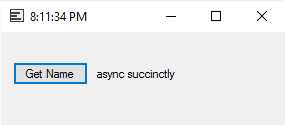
Figure 4: Return Text Asynchronously
Performing long-running or potentially blocking tasks asynchronously allows you to keep your application responsive, which improves usability.
Tip: While it is possible to return a void from an async method, try not to use void unless you are creating an async event handler. As a general rule of thumb, all of your async methods should return Task if they return nothing or Task<T> if they return a value.
Avoid deadlocks when using async
Many developers experience the problem of deadlocks when they begin exploring asynchronous programming. For example, you can easily cause a deadlock in your code when mixing asynchronous code with synchronous code. Let’s first look at an example before we investigate why the application is deadlocked.
Start by adding a second button and label to your form. When you are done, your form should look like Figure 5.
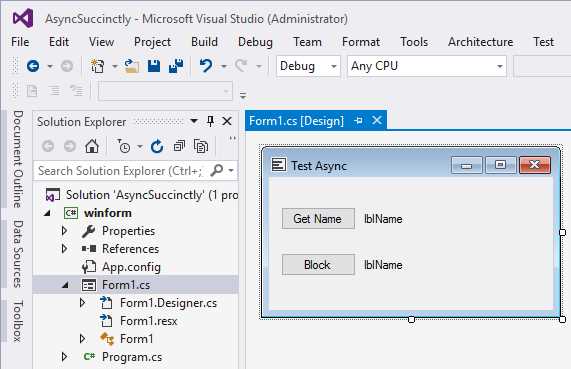
Figure 5: Modify Windows Form
I have simply added a second button and label to the form we created earlier. The code behind the Block button will call an async method that will cause a deadlock. The code in Code Listing 5 needs to be added to your code-behind.
Code Listing 5
private static async Task<string> ReadHelloWorldAsync(string value) { await Task.Delay(TimeSpan.FromMilliseconds(6000)); return $"hello {value}"; } |
The ReadHelloWorldAsync(string value) is an async method that awaits a delay before returning a string value concatenated (by using string interpolation) with the string parameter value. In your button click event, the code in Code Listing 6 will cause a deadlock.
Code Listing 6
private void button2_Click(object sender, EventArgs e) { var stringValue = ReadHelloWorldAsync("world"); lblName2.Text = stringValue.Result; } |
Here, I am trying to illustrate a problem that affects UI applications, including ASP.NET apps. Of course, this does not cause an issue in a Console application. Run your application and click the Block button.
Note: You should save all your important items before doing this. The code illustrated in this example will cause your application to deadlock.
When you click Block, your application becomes unresponsive and will stay that way until you stop debugging it. In order to stop the application, hold down Shift + F5 or click Stop Debugging in Visual Studio.
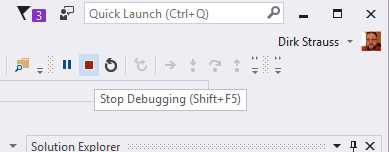
Figure 6: Stop Debugging
So, what happened here? Well, the answer has to do with contexts. What do we mean when we refer to a context? Without going into too much detail, here’s an explanation:
- WinForm Applications uses an UI thread, and therefore the context is an UI context.
- When responding to ASP.NET requests, the context is an ASP.NET request context.
- If neither is the case, then the thread pool context is used.
The button click in our example blocks the context thread because it is waiting for the async method to finish. The async method, on the other hand, is waiting patiently for the context to get free so that it can finish. This happens because it continues on the same context that started it. If both wait for the other, we’re deadlocked.
There are only two ways we can avoid a deadlocked application. The first technique is to use async in order to avoid blocking the task. Think of it this way—use async all the way down. The other technique is to use ConfigureAwait(false). In order to illustrate this, we need to modify the code slightly in the async method. In the ReadHelloWorldAsync(string value) method, add ConfigureAwait(false) to the end of the Delay.
Code Listing 7
private static async Task<string> ReadHelloWorldAsync(string value) { await Task.Delay(TimeSpan.FromMilliseconds(6000)).ConfigureAwait(false); return $"hello {value}"; } |
Doing this tells the async method not to resume on the context. It will then resume on a thread in the thread pool. Have a look at the definition of the property when calling ConfigureAwait.

Figure 7: ConfigureAwait(false)
Running your application now will not cause a deadlock. The application becomes responsive again after the six-second delay is over.
I also mentioned avoiding deadlocks by using async all the way down. Do this by modifying the code as in the following code listings.
Code Listing 8
private static async Task<string> ReadHelloWorldAsync(string value) { await Task.Delay(TimeSpan.FromMilliseconds(6000)); return $"hello {value}"; } |
The button click event now uses the async keyword and the code, then calls await on the async ReadHelloWorldAsync() method.
Code Listing 9
private async void button2_Click(object sender, EventArgs e) { var stringValue = await ReadHelloWorldAsync("world"); lblName2.Text = stringValue.ToString(); } |
Run your application and notice that this time, not only does your application avoid a deadlock, but it also remains responsive throughout the delay. This is because all the waits are done asynchronously.


- 1800+ high-performance UI components.
- Includes popular controls such as Grid, Chart, Scheduler, and more.
- 24x5 unlimited support by developers.