
ASP.NET MVC 4 Mobile Websites Succinctly®

CHAPTER 7
Using Mobile Device Meta Tags
“The difference between the right word and the almost right word is the difference between lightning and a lightning bug.”
Mark Twain
There are several easy options for enhancing your website to make it function more like a mobile application. Earlier we looked at the viewport tag briefly. We’ll look at it in more detail in this chapter, along with other special tags shown in the following code sample:
<meta name="viewport" content="width=device-width" />
<meta name="apple-touch-fullscreen" content="no" />
<meta name="apple-mobile-web-app-capable" content="no" />
<link rel="apple-touch-icon"
href="~/Content/images/apple-touch-icon.png" />
<link rel="apple-touch-startup-image"
href="~/Content/images/iPhone_Startup.png" />
The Viewport Tag
We briefly looked at the viewport tag previously, and it looked like this:
<meta name="viewport" content="width=device-width" />
This tag is fairly simple. It tells the webpage to always try to use the width of the device that is requesting the page. For example, the iPhone has a resolution of either 320 × 480 pixels or 640 × 960 pixels (depending on which model you are using—see the chart later in this chapter for more detailed iOS screen resolutions). Therefore, a request from an iPhone will use a width of 320 or 640, and it will try not to exceed that width. If your content is structured properly, then it will reformat to fit that dimension. If you go to a normal website that doesn’t have this tag and the site is formatted to be 900 pixels or 1024 pixels wide (like most desktop-targeted sites), it will look tiny on a phone. Unless it has this tag, it will continue to zoom out until the content fits on the screen.
If you use a header image wider than your device, then you may have a problem. If you specify a style tag on your image like <img you should be okay. If you don’t have that type of style tag, your page size will expand to the size of the image (even if you have a viewport tag), and the user may end up scrolling left and right.
There are a few other attributes on the viewport tag that you can use if needed:
<meta name="viewport" content="width=device-width, initial-scale=1.0, maximum-scale=1.0, user-scalable=no"/>
The user-scalable tag determines whether you will allow the user to pinch-zoom at all. The initial-scale sets the size of the page when it loads, and the maximum-scale defines how much the user will be able to zoom in. Both tags are set on a scale from 0 to 10.0. Typically you’ll either set them to 1.0, or set the maximum-scale to a value like 3.0.
For more info, search the Apple Developer website4 for viewport where they have a full specification on this tag.
The Web Application Tags
The next two tags, apple-mobile-web-app-capable and apple-touch-fullscreen, go together and should be set in conjunction with each other:
<meta name="apple-mobile-web-app-capable" content="no" />
<meta name="apple-touch-fullscreen" content="no" />
Typically you’ll set both to yes or no, depending on your application. During your normal browsing within the browser, these tags do very little for you. They come into play once a user sets a shortcut on his or her home page while using an Apple device like an iPhone or iPad. When using such a shortcut, and if you have these tags set to yes, your webpage will run in a web application mode. All of the browser bling like the address bar and back buttons will disappear and your app will take up the entire screen, just like a native app (sweet!).
Closely related to the apple-mobile-web-app-capable tag is the apple-mobile-web-app-status-bar-style tag. If you set apple-mobile-web-app-capable to yes, you can change the color of the status bar.
<meta name="apple-mobile-web-app-status-bar-style" content="black" />
You can set that tag to default (which turns it to gray), black, or black-translucent. This tag is totally optional and you don’t see it used very often.
By setting these two simple values, you’ve made a webpage that looks and functions almost like a native application. You are still running a webpage and running a browser, but all of the things that make it look like a browser are hidden.
Use Caution When Using Web App Mode
When you first see these tags, you may be tempted to use them all the time on all of your sites—after all, they make your webpage look like a native app without any of the problems of creating a native app. However, there are a few gotchas to be aware of when using web app mode. The biggest problem comes when you try to link to an external item like a PDF file or an external website. When you do that, the link will open up in the Safari browser, so users will see a new window open and will lose their context in the app. Worse yet, when users return to your app, it will start all over at the beginning: splash screen, login, home page, etc. You won’t notice this behavior when you test this in Safari on your desktop, but it will definitely be noticeable on a mobile device. Make sure you’ve tested all of your links before you commit to using this tag in your app.
Creating a Nice Icon on Your Desktop
As a web developer, you have probably used this tag before to create icons in the browser for your desktop websites:
<link rel="shortcut icon" href="~/favicon.ico" type="image/x-icon" />
<link rel="icon" href="~/favicon.ico" type="image/x-icon" />
You use the icon tags to have your browser shortcuts, tab bar, and header use your icon. Creating a good favicon.ico file has been kind of tricky in the past, but Microsoft has a really nice website to help you create one. Go to http://www.xiconeditor.com/ where you can easily upload any image (preferably 64 × 64 pixels), and the editor will create a perfectly formatted favicon.ico file for you. When you are done, you can save the file and place it in the root of your website.
Even though the icon tags work great on a desktop, they don’t have the same effect on mobile devices. The following tag is essentially the mobile browser equivalent to the shortcut icon tag:
<link rel="apple-touch-icon" href="~/Content/images/apple-touch-icon.png"/>
This tag will allow users to create a shortcut and have your pretty icon displayed as their desktop shortcut to your app. If you don’t supply this tag, when users create a desktop shortcut, iOS devices will take a thumbnail snapshot of the app screen and use that. Android devices will use the system-defined bookmark icon.
At first glance, this tag seems simple, but there are many permutations of this tag that you will need to use. It works okay in most instances, but won’t give you optimal results with the basic version. On an iOS device, using the basic version of this tag will add the highlight shadow on the upper half of your image. If you don’t want to have that white shadow on your image, you can remove it by using a slightly modified tag (adding -precomposed to the name):
<link rel="apple-touch-icon-precomposed"
href="~/Content/images/apple-touch-icon.png"/>
The deceptive part of this tag is that each of the mobile operating systems has its own specification for how big an icon should be. This tag supports an attribute that specifies different icons for different sizes.
Start by saving copies of your application icon image in each of the following sizes, putting them in your Content/Images folder, and using a naming scheme like this:
apple-touch-icon-57x57.png
apple-touch-icon-72x72.png
apple-touch-icon-114x114.png
apple-touch-icon-144x144.png
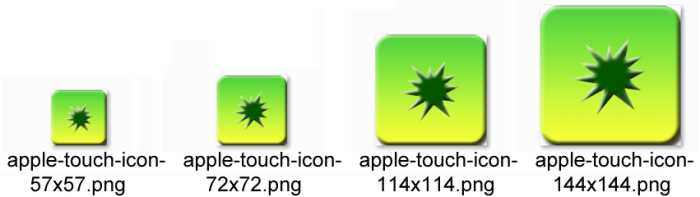
Multiple Sizes of Icons
The phone and the tablet use different sizes of icons, so we’ll have to add unique lines to each of the layout files. Add the following tags to your _Layout.Phone.cshtml file:
<!-- iPhone Low-Res -->
<link rel="apple-touch-icon-precomposed" sizes="57x57"
href="~/Content/images/apple-touch-icon-57x57.png" />
<!-- iPhone Hi-Res -->
<link rel="apple-touch-icon-precomposed" sizes="114x114"
href="~/Content/images/apple-touch-icon-114x114.png" />
<!-- Android -->
<link rel="apple-touch-icon-precomposed" sizes="android-only"
href="~/Content/images/apple-touch-icon-57x57.png" />
<!-- default -->
<link rel="apple-touch-icon-precomposed"
href="~/Content/images/apple-touch-icon-57x57.png" />
The Android browser doesn’t support the size tag so we will put in a value of android-only in one tag so that other browsers don’t try to use this one. iOS versions before 4.2 don’t support the size tag either, so they will use the last one specified in the list, which is why you see a default version without a size listed at the end of the code.
Do the same thing in your _Layout.Tablet.cshtml file by adding the following code (note that these tags are similar to but different than what we used in the _Layout.Phone page):
<!-- iPad Low-Res -->
<link rel="apple-touch-icon-precomposed" sizes="72x72"
href="~/Content/images/apple-touch-icon-72x72.png" />
<!-- iPad Hi-Res -->
<link rel="apple-touch-icon-precomposed" sizes="144x144"
href="~/Content/images/apple-touch-icon-144x144.png" />
<!-- Android -->
<link rel="apple-touch-icon-precomposed" sizes="android-only"
href="~/Content/images/apple-touch-icon-57x57.png" />
<!-- default -->
<link rel="apple-touch-icon-precomposed"
href="~/Content/images/apple-touch-icon-57x57.png" />
With these settings, you should be able to create shortcuts on a variety of iOS and Android devices and have a properly formatted and sized icon show up on the desktop.
Prompting the User to Create a Shortcut
Even though we now have the properly formatted HTML to create nice desktop shortcuts and icons, that does not mean that users will actually take the time to create the shortcut—it doesn’t happen automatically! Let’s look at a way that we can prompt users to create a desktop shortcut the first time they start our app. When using an iOS device, the navigator.standalone property will tell us whether a page is operating in full-screen mode.
Here is some JavaScript we can use to perform this check. Save this JavaScript in the /Scripts/PromptForBookmark.js file:
// Contents of file "/Scripts/PromptForBookmark.js"
$(document).ready(function () {
// This script should only be enabled if you are using the
// apple-mobile-web-app-capable=yes option.
var cookie_name = "PromptForBookmarkCookie";
var cookie_exists = false;
documentCookies = document.cookie;
if (documentCookies.length > 0) {
cookie_exists = (documentCookies.indexOf(cookie_name + "=")
!= -1);
}
if (cookie_exists == false) {
// If it's an iOS device, then we check if we are in a
// full-screen mode, otherwise just move on.
if ((navigator.userAgent.indexOf("iPhone") > 0 ||
navigator.userAgent.indexOf("iPad") > 0 ||
navigator.userAgent.indexOf("iPod") > 0)) {
if (!navigator.standalone) {
window.alert('This app is designed to be used in full screen mode. For best results, click on the Create Bookmark icon in your toolbar and select the Add to Home Screen option and start this app from the resulting icon.');
}
}
//Now that we've warned the user, set a cookie so that
//the user won't be asked again.
document.cookie = cookie_name +
"=Told You So;expires=Monday, 31-Dec-2029 05:00:00 GMT";
}
});
This script checks to see if the user has already been warned by checking for the existence of a cookie. If the user has not been warned before, the script will first make sure this is an iOS device by looking at the user agent, and then it will open an alert to notify the user that he or she should really use a desktop shortcut to start this application. Finally, it will store a cookie with a long expiration date so that the user won’t be bothered by this again.
To enable this feature, enable the apple-mobile-web-app-capable option, and then add the following script line in your _Layout.Phone.cshtml and _Layout.Tablet.cshtml files:
<meta name="apple-touch-fullscreen" content="yes" />
<meta name="apple-mobile-web-app-capable" content="yes" />
<script type="text/javascript"
src="@Url.Content("~/Scripts/PromptForBookmark.js")" ></script>
These tags will tell iOS devices to run the application in full-screen mode. They will also enable the script that informs the user that he or she should create a shortcut for this application the first time the application is run.
Creating a Splash Screen
Most applications show a nice-looking startup screen while you are loading the application. If you want to have a nice splash screen when the application is run in full screen mode, you will need to add the following tag:
<link rel="apple-touch-startup-image" href="startup.png">
At first glance, this tag also seems simple, but once again, looks can be deceiving. In this first very simple example, this tag specifies the startup image that will be displayed when you start your app from a desktop shortcut and you have it set to use the web app mode. Unfortunately, most of the time this tag will have no effect at all. Your image needs to be EXACTLY the right size for your specific device, so there are many possible options. If the conditions are not exactly right, then the image just doesn’t show up. You can even have the image just right in portrait mode, and then if the user changes the device to landscape mode, the image will not appear.
To make things even more complicated, there are two versions of displays you have to worry about: the original iPhone and iPad, and the newer Retina displays for the iPhone and iPad. The following table lists the sizes for the startup image:
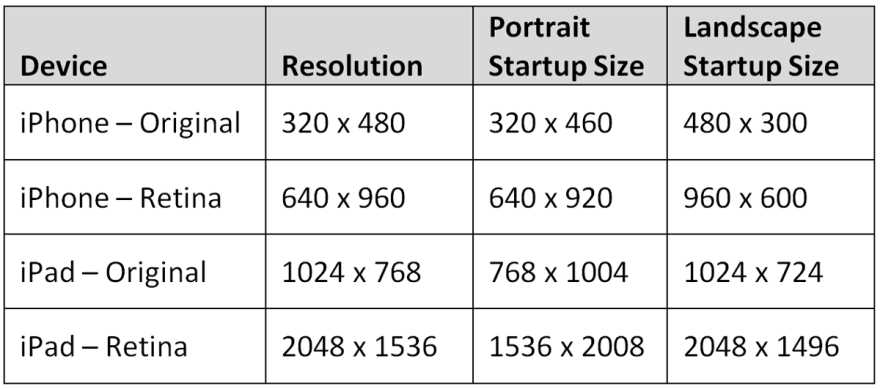
As you can see from the chart, on the original devices we have to subtract 20 pixels from one side to account for the header bar, and on the Retina devices we have to subtract 40 pixels. You may want to make your images different sizes, but don’t give in to that temptation. These devices are very fussy and if you don’t make your images EXACTLY one of these sizes they simply won’t show up. To account for all of these possible situations, you will need to create each of the following images and put them in your Content\Images folder:
startup_image_320x460.png (iPhone Low-Res)
startup_image_640x920.png (iPhone Retina)
startup_image_480x300.png (iPhone Low-Res Landscape)
startup_image_960x600.png (iPhone Retina Landscape)
startup_image_768x1004.png (iPad Low-Res)
startup_image_1536x2008.png (iPad Retina)
startup_image_1024x748.png (iPad Low-Res Landscape)
startup_image_2048x1496.png (iPad Retina Landscape)
In order to get your images to show up on all the different devices at the right times, you’ll need a variety of different versions of the apple-touch-startup-image tags in your page. Adding CSS media rules will help to determine which image to use in each situation.
The best place to put this code is in your layout pages. Add the following tags to your _Layout.Phone.cshtml:
<!-- iPhone Low-Res -->
<link rel="apple-touch-startup-image"
href="~/Content/images/startup_image_320x460.png"
media="(device-width: 320px)" />
<!-- iPhone Retina -->
<link rel="apple-touch-startup-image"
href="~/Content/images/startup_image_640x920.png"
media="(device-width: 640px) and
(-webkit-device-pixel-ratio: 2)" />
<!-- iPhone Low-Res Landscape -->
<link rel="apple-touch-startup-image"
href="~/Content/images/startup_image_480x300.png"
media="(device-width: 320px) and (orientation: landscape)" />
<!-- iPhone Retina Landscape -->
<link rel="apple-touch-startup-image"
href="~/Content/images/startup_image_960x600.png"
media="(device-width: 640px) and (orientation: landscape) and
(-webkit-device-pixel-ratio: 2)" />
<!-- (iPhone default) -->
<link rel="apple-touch-startup-image"
href="~/Content/images/startup_image_320x460.png" />
Do the same thing for your tablet layout pages by creating the following tags (note that once again these are similar to but different than the tags we used in the phone pages):
<!-- iPad Low-Res -->
<link rel="apple-touch-startup-image"
href="~/Content/images/startup_image_768x1004.png"
media="(device-width: 768px) and (orientation: portrait)" />
<!-- iPad Retina -->
<link rel="apple-touch-startup-image"
href="~/Content/images/startup_image_1536x2008.png"
media="(device-width: 1536px) and (orientation: portrait)
and (-webkit-device-pixel-ratio: 2)" />
<!-- iPad Low-Res Landscape -->
<link rel="apple-touch-startup-image"
href="~/Content/images/startup_image_1024x748.png"
media="(device-width: 768px) and (orientation: landscape)" />
<!-- iPad Retina Landscape -->
<link rel="apple-touch-startup-image"
href="~/Content/images/startup_image_2048x1496.png"
media="(device-width: 1536px) and (orientation: landscape)
and (-webkit-device-pixel-ratio: 2)" />
<!-- (iPad default) -->
<link rel="apple-touch-startup-image"
href="~/Content/images/startup_image_768x1004.png" />
With these tags in place, you should have a startup image that will display for all of the iOS devices currently on the market. Although you can use the web app mode and create desktop icons on an Android device, these startup images will be ignored on Android devices.


- 80+ high-performance ASP.NET MVC controls, including DataGrid, Charts, and Scheduler.
- Feature demos teach you how to make the most of the controls.
- Lightweight and user-friendly.
- Stunning built-in themes.