
ASP.NET MVC 4 Mobile Websites Succinctly®

CHAPTER 9
More jQuery.Mobile Features
“You know nothing for sure, except the fact that you know nothing for sure.”
John F. Kennedy
One thing I’ve learned over the years is that the more I learn, the more that I realize there is to learn. In this chapter, we’ll look at some of the things that are important to know about jQuery.Mobile. There are other books that explore many of these concepts in more depth, and I would encourage you to read them if the concepts discussed here pique your interest. This chapter is intended to give you a good overview of some of the more important topics of jQuery.Mobile.
jQuery.Mobile Container Objects
In Chapter 6, we discussed the main jQuery.Mobile sections: page, header, content, footer, and navbar. There are many other sections available which we will briefly discuss here.
Nested Collapsible Containers
We talked about the collapsible container object in the Tips and Tricks section already, but one thing we didn’t talk about was nesting containers. You can nest collapsible containers inside of other collapsible containers. However, using more than two levels is not recommended because of the complexity that ensues.
In addition to nesting, one other thing you can do with collapsible containers is create an accordion-type effect using the data-role="collapsible-set" attribute. If you wrap a set of collapsible containers inside this attribute, you get a nice, space-saving effect. Only one of the containers in the set will open at one time, so when you click on any of the plus signs, all of the other containers will automatically close.
<div data-role="collapsible-set">
<div data-role="collapsible" data-collapsed="false">
<h2>Section 1 Title</h2>
Section 1 Content
</div>
<div data-role="collapsible" data-collapsed="false">
<h2>Section 2 Title</h2>
Section 2 Content
</div>
<div data-role="collapsible" data-collapsed="false">
<h2>Section 3 Title</h2>
Section 3 Content
</div>
</div>
Here is an example with plain collapsible containers on the left and containers using the accordion effect on the right.
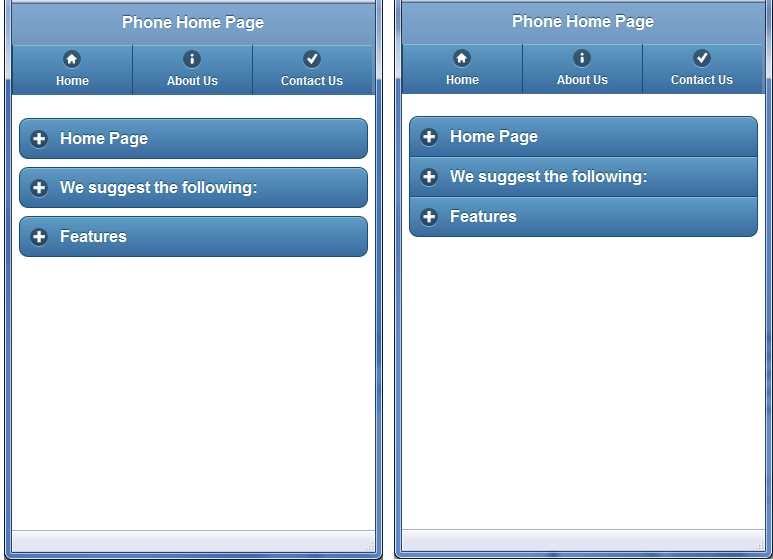
Plain Collapsible Containers (Left) and Containers with Accordion Effect (Right)
Field Container
If you are creating forms, you will probably want to wrap your fields inside a field container as done in the following code sample:
<div data-role="fieldcontain">
@Html.LabelFor(m => m.UserName)
@Html.TextBoxFor(m => m.UserName)<br />
<span style="Color: Red;">@Html.ValidationMessageFor(m =>
m.UserName)</span>
</div>
This tag helps mostly when you are working with wider screens. The framework will align the input and label side by side if the screen width is greater than 480 pixels, or it will stack them vertically if it is smaller than that. This tag will also add a thin bottom line below each of the fields to help break up the screen visually.
List View
You have probably used list components many times in your projects. jQuery.Mobile has many features that can enhance lists, and we could have an entire chapter just for that topic. However, we will cover only the most frequently used here, and will create a short cheat sheet of options that you will come back to often.
Simple Unordered List: Full Screen Width
<ul data-role="listview">
This example creates a simple unordered list that uses the full screen width.
Inset List
<ul data-role="listview" data-inset="true">
This example creates a simple unordered list that is in a bubble with rounded corners, and is inset from the borders a little bit.
Ordered List
<ol data-role="listview">
This example creates a simple ordered list with a number for each list item.
List with Search Header
<ul data-role="listview" data-filter="true">
This example creates an unordered list with a search bar at the top of the screen that will let users filter the contents of the list easily.
List Header or Divider
<li data-role="list-divider">@ViewBag.Title</li>
This example creates a header item in your list, which separates the content visually.
Simple List Item
<li>Home</li>
This example creates a simple list item.
Bold List Item
<li><h1>Home</h1></li>
This example creates an item which will appear much larger in the list. You can adjust the size by using different header level tags, or even use a <p> tag to decrease the size of the row.
List Item with Link

<li>@Html.ActionLink(Movie.MovieName, "Details",
new { id = Movie.MovieId })</li>
This example creates an interactive list item. Users can click anywhere in the row to activate the link.
List Item with Link and Icon

<li>
<a href="@Url.Action("Details",
new { id = Movie.MovieId })" >
<img src="@string.Format("images/{0}.png",
Movie.Genre)"
alt="Email" class="ui-li-icon" />@Movie.MovieName</a>
</li>
This example creates an item with an icon on the left that is part of the clickable area for this item. You can specify any icon you want or make it data driven.
Complex Split Button List Item

<li>
<a href="@Url.Action("Details",
new { id = Movie.MovieId })" >
<img src="@string.Format("images/{0}",
Movie.MovieIconURL)" />
<h3>@Movie.MovieName</h3>
<p>@Movie.MovieDscr</p>
</a>
<a href="@Url.Action("Purchase",
new { id = Movie.MovieId })">Purchase Movie</a>
</li>
This example creates a moderately complicated split-button view. The first link controls the left portion of the item, and encompasses an icon, title, and description. The second link automatically creates a small section on the right with an icon and ignores any text you put in there. A bordered arrow icon is used as the default, but you can specify any of the jQuery.Mobile icons by putting the data-split-icon tag on the <ul> tag at the top of the section that defines your list.
List Item with Count Bubble

<li>
<a href="@Url.Action("GenreDetails",
new { id = Genre.GenreId })" >@Genre.GenreName
<span class="ui-li-count">@Genre.MovieCount</span>
</a>
</li>
This tag creates a list item with a count bubble number on the right. Typically this will show you the number of items you would expect to see if you clicked on this row. In this particular example, we’re showing the number of movies in a single genre.
Columns
jQuery.Mobile offers a convenient way to lay out the screen with a grid-based system of two, three, four, or five columns. However, as we discussed in previous chapters, try to think about mobile devices in more of a single column format (or two columns), so don’t get carried away with this and return to the table-driven HTML design mentality of years past! There is a place for tables, such as when trying to put a few items side by side, especially when they are in a container like a footer, but use restraint. Here is an example of a simple two column grid:
<div class="ui-grid-a">
<div class="ui-block-a"><strong>I'm Block A</strong>
and text inside will wrap</div>
<div class="ui-block-b"><strong>I'm Block B</strong>
and text inside will wrap</div>
</div>
The class name will determine how many columns are created. In this case, we’ve used the ui-grid-a class, which signifies that we want two columns, and those columns are labeled ui-block-a and ui-block-b. If you want three columns, use the ui-grid-b tag and add a ui-block-c div. For four columns, use the ui-grid-c tag and add a ui-block-d div. And finally, for five columns, use the ui-grid-d tag and add a ui-block-e div; however, for most screens you’ll probably be better off just avoiding this one.
Button
Buttons seem relatively simple, but there are several ways to render them in jQuery.Mobile. Normally any element of type button will render as a jQuery.Mobile button, as will input elements with the attributes of type=button, type=submit, type=reset, or type=image. To turn any <a href> link into a button, all you have to do is add the data-role="button" tag to that link. Note that any link in a header or footer gets that treatment also, whether or not you add the data-role=button tag. By default, buttons are rendered as the entire width of the page. To make the button auto-size to fit its content, add the tag data-inline="true" to the button. As we mentioned in previous chapters, you can also add icons to the button using the data-icon attribute, and you can set the position of that icon using the data-iconpos attribute.
If you want to group several buttons together into one compact container, you can use the controlgroup container. By default, the container lists the buttons vertically, but you can change that by setting the data-type attribute. Starting with jQuery.Mobile version 1.1, you can also add the data-mini attribute so that your buttons are rendered in a smaller format.
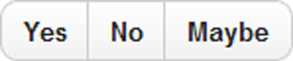
Control Group
<div data-role="controlgroup" data-type="horizontal"
data-mini="true">
<a href="index.html" data-role="button">Yes</a>
<a href="index.html" data-role="button">No</a>
<a href="index.html" data-role="button">Maybe</a>
</div>
Dialogs
jQuery.Mobile supports a pop-up dialog item which operates in a modal fashion (i.e. you have to close the dialog before you move on to something else). You will want to use these when asking for confirmation from a user (“Are you sure want to delete this?”), requiring the user to choose between a couple of choices (“Black or Blue?”), or giving the user information (“Your order has been submitted!”).
A dialog is very simple to create. Just create your page as a view like any other view, and then when you link to that view, add the data-rel="dialog" tag to the link as shown in the following code sample:
<a href="@Url.Action("Delete", new { id = Movie.MovieId })"
data-rel="dialog">Delete @Movie.MovieName</a>
You can also add the data-role="dialog" tag in your page instead of using the data-role="page" tag, and then you won’t have to include it on every link referencing your page. In our case, since we are using shared layout pages, that means you would set up a LayoutDialog.Phone.cshtml file and a LayoutDialog.Tablet.cshtml file.
When a user clicks on a link in the dialog page, the dialog page is automatically closed and the link is opened. If you want to go back to the previous page, just include the data-rel="back" attribute on the link.
NoJS
jQuery.Mobile rates its browser support on a scale from A to C, with A meaning full support, B meaning full support minus AJAX, and C meaning support for basic HTML only. If you want to provide content for browsers that are not A-grade supported, you can add a special section that is just for them as shown in the following code sample:
<div data-role="nojs">
Please upgrade your phone!
</div>
Multipage Documents
All of the examples we’ve seen so far in our MVC projects have used single-page templates. In other words, there is one and only one <div data-role="page"> element on a page. jQuery.Mobile supports the concept of a multipage document in which you can define multiple <div data-role="page"> elements, each with a different page. Each page element must have a unique ID such as <div id="divExample">. When you switch pages, you must specify a link with that ID <a href="#divExample">, which will cause the browser to look for that internal page and then transition it into view.
This idea is very attractive because it makes your site extremely fast when switching between pages. However, one drawback is that if you make your home page a multipage document with all of your pages on it, your entire site is loaded the first time a user hits the page, including all of the images and content on all of the sub-pages. This can make your page very slow to load, and it also makes it hard to track any sort of website analytics on a page-level basis.
In addition, if you start on a single-page document and then link to a multipage document, you must use the data-ajax="false" attribute on the link. If you don’t, the framework will only load the first page node when it does an AJAX request.
If you are considering using multipage documents, make sure you test it thoroughly on actual devices. Mixing that with "apple-mobile-web-app-capable" tags can cause a lot of frustration when debugging your app.
Custom Icons
In a previous section we discussed how you can put icons on your buttons using the standard built-in icons. However, the selection is limited and it won’t be long before you will find yourself saying, “I wish they had an icon that looked like an ice cream sandwich,” or something equally absurd.
jQuery.Mobile makes it easy to create your own custom icons that you can use in your project. The standard jQuery.Mobile icons use a CSS sprite technique to combine all of their images into one image, and then display a portion of that image using a CSS style sheet tag. Take a look at the /Content/Images/icons-36-white.png file to see the file with all the standard icons.
You can create your own icons in a file similar to that one and then reference it the same way in your code. Let’s look at an example. The following is an image file (displayed over a dark background) with five custom icons:

Custom Icon Sprite
Note the spacing in this sprite. It’s got alternating sections of 36 pixels of content, and 36 pixels of transparent background, which make it cleaner and easier to use in CSS.
To use these custom icons, you will need to create the following CSS styles:
/* create multiple icons using a sprite with multiple images */
.ui-icon-custom-bell,
.ui-icon-custom-donot,
.ui-icon-custom-asterick,
.ui-icon-custom-thought,
.ui-icon-custom-bug {
background-image: url(images/CustomIcons-36-white.png);
-moz-background-size: 180px 18px;
-o-background-size: 180px 18px;
-webkit-background-size: 180px 18px;
background-size: 180px 18px;
}
.ui-icon-custom-bell {
background-position: -0 50%;
}
.ui-icon-custom-donot {
background-position: -36px 50%;
}
.ui-icon-custom-asterick {
background-position: -72px 50%;
}
.ui-icon-custom-thought {
background-position: -108px 50%;
}
.ui-icon-custom-bug {
background-position: -144px 50%;
}
/* Create an icon using a single image without sprites. */
.ui-icon-custom-bugimage {
background-image: url(images/Bug18.png);
}
/* Hi-res version. */
@media only screen and (-webkit-min-device-pixel-ratio: 2)
{
.ui-icon-custom-bugimage {
background-image: url(images/Bug36.png) !important;
background-size: 18px 18px;
}
}
It may seem a bit counterintuitive that we show the background position as a negative number. What we are doing is telling our page to shift the image that many pixels to the left. In other words, for the custom-thought icon, we have the page chop off the first 108 pixels from the left side of the image and then show the result.
The last two styles demonstrate how you can reference a single image without using the sprite technique, and how you can target Retina displays with a high-resolution image by setting the pixel-ratio attribute to 2 when you are using a high-resolution Apple screen.
This style sheet should be saved and referenced in your layout pages. You can embed these style tags in your page if you want, but I’d recommend creating a site-specific style sheet. By default, MVC creates a Site.css file in your Content folder. A best practice is to create a Site.Mobile.css file in the Content folder and put your custom mobile styles there, then include that style sheet in each of your mobile layout pages (or in your custom mobile bundle if you are using that technique).
Now that we have our image created and our style sheets that define the tags, we can now reference these new icon tags in our page just like we reference the standard icons. The first item in the following code sample uses a stock icon, the second uses a custom sprite icon, and the third uses a custom image.
<div data-role="navbar" data-theme="b" data-iconpos="top">
<ul>
<li>@Html.ActionLink("Home", "Index", "Home", null,
new { data_icon = "home" })</li>
<li>@Html.ActionLink("About Us", "About", "Home", null,
new { data_icon = "custom-thought" })</li>
<li>@Html.ActionLink("Bug Us", "Contact", "Home", null,
new { data_icon = "custom-bugimage" })</li>
</ul>
</div>
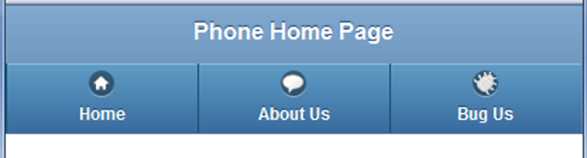
Header with Stock and Custom Icons
Now that you know how to create your own icon files and use them, you are limited only by your imagination. Get your graphic designer to draw some custom images for you and make your site look unique!
Mini UI Elements
One of the nifty new features in jQuery.Mobile 1.1 is the ability to create mini-elements. All of the form elements accept a new data-mini="true" tag. You can also put this tag on the controlgroup for making a group of buttons smaller. This tag has no effect on the elements other than to make them smaller, but can be very useful if you are trying to put multiple items into a header or footer.
jQuery.Mobile Startup Options
There are several things that you may want to change in the default behavior of jQuery.Mobile. The easiest way to do this is to change the startup options. If you have created JavaScript with jQuery before, you are probably familiar with the ready event. In jQuery.Mobile, there is a similar event named mobileinit which is fired when the framework is loaded and before it renders the UI, so we can make changes here that will affect how the UI is created. One thing to note is that this needs to be included in your header BEFORE you include the jQuery.Mobile.js file, and AFTER you include the jQuery.js file, so your layout file should look like this:
<script src="http://code.jquery.com/jquery-1.6.4.min.js" type="text/javascript"></script>
<script src="@Url.Content("~/Scripts/CustomJQMobileInit.js")"
type="text/javascript"></script>
<script src="http://code.jquery.com/mobile/1.1.0/jquery.mobile-1.1.0.min.js" type="text/javascript"></script>
So, what kinds of things would you want to change here? Let’s suppose that we wanted to change the default page animation on every page from the default "fade" to "flip" because we like to see things flip. To do that, you would insert the following code in your /Scripts/CustomJQMobileInit.js file:
$(document).bind('mobileinit', function() {
$.mobile.defaultPageTransition = "flip";
});
We could also use this if we had to create a multi-lingual site with localization. Some things like the text in the Back button are set by default within the framework. We can override this by setting one of the internal values in this initialization script.
There are also many other events that you should investigate such as the pagebeforechange, pagebeforeload, pagebeforecreate, pagecreate, pageinit, pageload, pagebeforehide, pagebeforeshow, pagehide, pageshow, and pagechange. All of these events in the jQuery.Mobile event model are available for you to access within JavaScript on your page.
There are too many details to go into here. There are several good jQuery.Mobile books that go into greater detail. This is just a quick introduction to give you a starting place for your research so that you know that it is possible to do these types of things with jQuery.Mobile.


- 80+ high-performance ASP.NET MVC controls, including DataGrid, Charts, and Scheduler.
- Feature demos teach you how to make the most of the controls.
- Lightweight and user-friendly.
- Stunning built-in themes.