
ASP.NET WebHooks Succinctly®

CHAPTER 3
Creating a Real-time Application
In this chapter, we will create an application that will talk with Bitbucket and receive event notification data. We will then work with the received data.
Introduction
We will create an application that will listen to our Bitbucket repository to get notifications. Our application will then:
- Receive notification using the handler class
- Store received data
- Display data using Web API
Prerequisite
Here are the prerequisites for continuing with the sample application:
- Basic knowledge of ASP.NET WebHooks (including WebHook receivers, handlers, etc.)
- Visual Studio 2015
- Basic knowledge of MVC5, WebAPI, and JQuery
- SQL Server 2008 R2 or later
- A valid Azure subscription
- Basic knowledge of AngularJS
- Basic knowledge of Bootstrap
- Basic knowledge of Entity Framework
Application: architecture and design
In this section we will discuss the architecture and design of the application we want to build. This includes how our application will interact with the Bitbucket repository, and what technologies and frameworks we are going to use in this application.

Figure 16: Overview of application
Figure 16 shows an overview of our application. Our main application will contain Restful APIs (Web API) and will be hosted on Azure as App Services. This API application will talk with the SQL Server Database hosted on Azure itself. These APIs can then be consumed by any client (desktop, web or mobile). In this sample, we are only going to develop a web client using AngularJS.
Note: RESTful is short form of “Representational state transfer,” and RESTful APIs or RESTful Webservices provide a way to access services in a manner of stateless operations.
We can divide the preceding figure into three parts:
Database
This part of application is important to persist all the application activities. Here we will be using SQL Server database hosted on Azure. Furthermore, our database will be:
- Named: Activity (or name of your choice)
- Having table : ActivityModel (or name of your choice)
The database will be used to persist and retrieve all data received from Bitbucket repository.
API
This is the main part of our sample application. To make it simple and more flexible, we are using WebAPI2.0, and it is further divided into:
- Data access layer
- Business layer
- Repository classes
- Common classes
- Model entities
User Interface (UI)
This part represents a client application that will be consuming these APIs. Our client can be one of the following:
- Desktop application
- Web application
- Mobile application
To make our application simple, we will create a web application using MVC5 and AngularJS.
Creating the sample application
In Chapter 2, we created a sample application of BitbucketWebHook Receiver, where we discussed how our WebHook receiver receives the data from the Bitbucket repository. The scope for that application was just to showcase that the data was finally received.
In this section, we will discuss all the steps required to create a production application, and take it one step further by persisting the data received locally and making it available through a WebAPI.
New web application
To get started with this application, just create a simple WebAPI project using Visual Studio. You can also refer to Chapter 2 for help creating a WebAPI project.

Figure 17: Creating web project
We will name our new project ActivityTracker, select a location, and provide a suitable Solution name. Click OK once you’re done.
Select template
From the next screen, select an empty template and check the Web API checkbox, as shown in Figure 18.
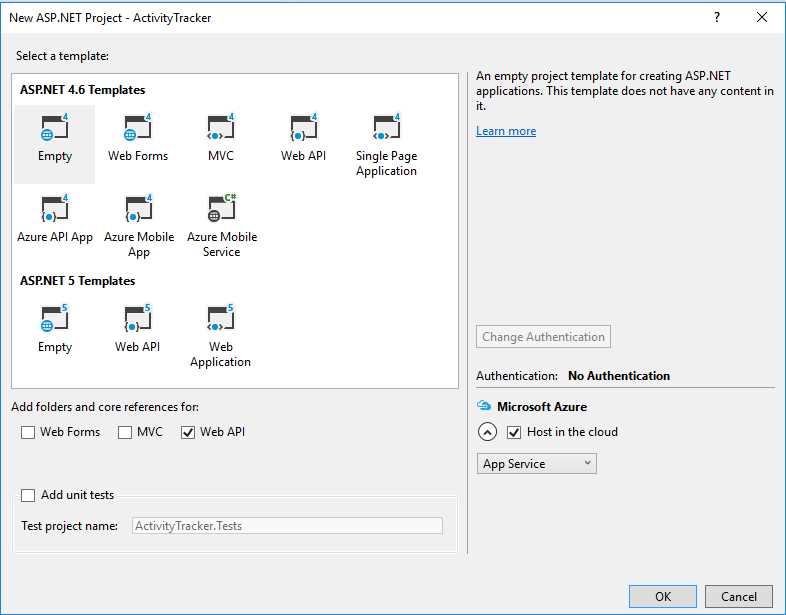
Figure 18: Selecting a template
As we will be deploying this app to Azure, it’s good if you check the option Host in the cloud in the Microsoft Azure section. If you select this option, you will be be prompted to select an Azure app name and location. Please follow all the steps. You can just click on Cancel if you don’t want to do this at the moment (we can publish it later).
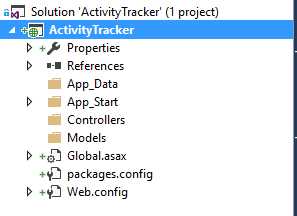
Figure 19: Project structure
Visual Studio will create an empty project, as shown in Figure 19.
Adding support of Bitbucket WebHook receiver
We have created an empty project, and now we need to add support for our Bibucket WebHook receiver to start collecting the data sent by Bitbucket.
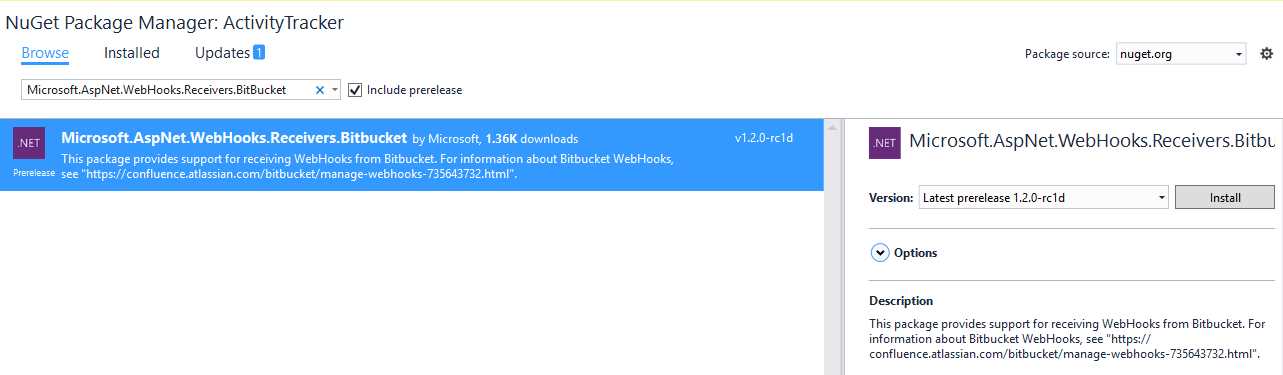
Figure 20: Adding NuGet packages
Open NuGet Package Manager, and under the Browse tab, enter Microsoft.AspNet.WebHooks.Receivers.BitBucket. Check the Include prerelease option, and then install the NuGet package.
Adding Entity Framework support
We are using Entity Framework to support our persistence models. Now, in the NuGet Package Manager dialog box, enter EntityFramework. Do not forget to uncheck the Include prerelease option.
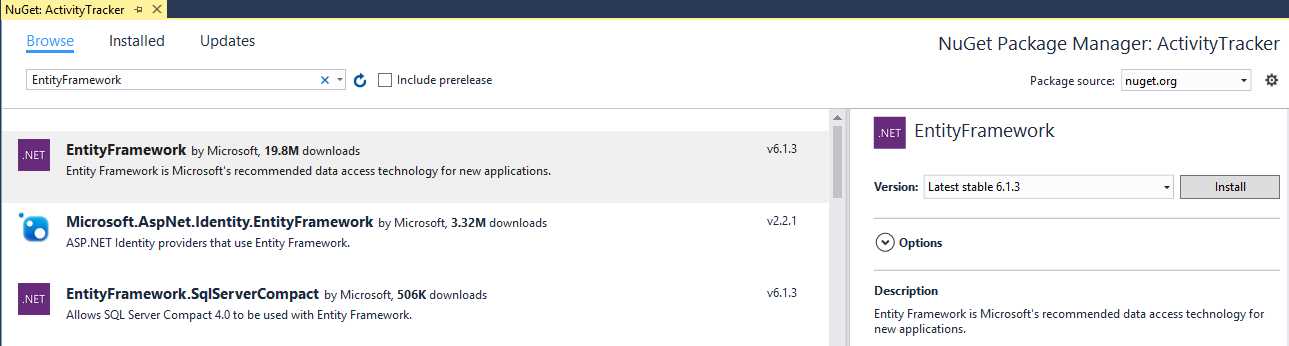
Figure 21 Adding EntityFramework
Click on Install, and it will install EF6.1.3 to the project.
Now that we have met all basic framework requirements for our project, we are ready to write our code.
Note: We created an application and named it ActivityTracker. This application will show us our all activities (what we have configured for WebHook).
Start writing Handler class
Let us start to write code to our sample application.
From Visual Studio, open the Solution Explorer and the new folder WebHooks. Add a BitBucketWebhookHandler class to the application under the newly created folder. This class should inherit an abstract class, WebHookHandler.
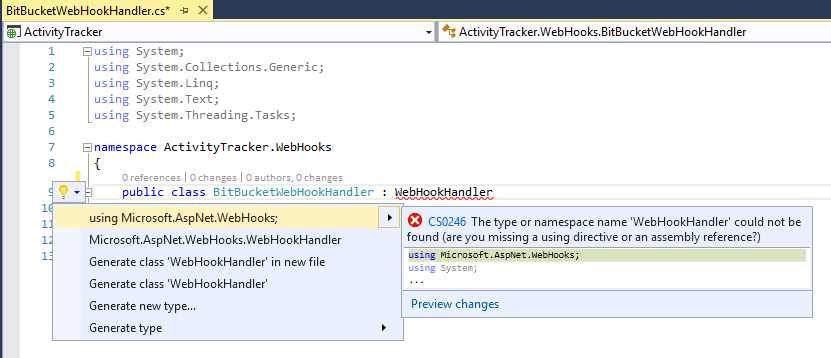
Figure 22: Missing namespace
Add required the namespace (Microsoft.AspNet.Webhooks) as shown in Figure 22, and implement its method (ExecuteAsync).
Note: We have already discussed the ExecuteAsync method in Chapter 2.
Implement the ExecuteAsync method to receive data from Bitbucket repository; the parameter WebHookhandlerContext contains all actions occurring during an operation. Action is a list of string. Always get First action, and then grab the data.
Code Listing 6
public class BitBucketWebHookHandler : WebHookHandler { public override Task ExecuteAsync(string receiver, WebHookHandlerContext context) { if (Common.IsBitBucketReceiver(receiver)) { var dataJObject = context.GetDataOrDefault<JObject>(); var action = context.Actions.First(); switch (action) { case "repo:push": //do something break; case "repo:fork": //do something break; case "repo:updated": //do something break; default: var data = dataJObject.ToString(); break; } } return Task.FromResult(true); } } |
In Code Listing 6, we are evaluating action and implementing code based upon its value. Bitbucket has these pre-defined actions, such as repo:fork and repo:updated. Based upon the value of action received by us, we will perform some specific operations. If it does not match any of these conditions, then we will simply get the data and store it in a var data type.
Sometimes it can be erroneous when comparing hard-coded strings. As humans, we can somehow add spaces or truncate some words (for example, repo:fork could be repo:fork or rep : fork).
To avoid scenarios where we might create errors, we can go with:
- constants
- enums
If we go with constants, then we can have a constant class, which can look something like this:
Code Listing 7
public class BitBucketRepoAction { //Refer to: https://confluence.atlassian.com/bitbucket/event-payloads-740262817.html#EventPayloads-RepositoryEvents public const string Push = "repo:push"; public const string Fork = "repo:fork"; public const string Updated = "repo:updated"; public const string CommitCommentCreated = "repo:commit_comment_created"; public const string CommitStatusCreated = "repo:commit_status_created"; public const string CommitStatusUpdated = "repo:commit_status_updated"; } |
With the use of constants, the ExecuteAsync method of our BitBucketWebHookHandler class would look like the following:
Code Listing 8
public override Task ExecuteAsync(string receiver, WebHookHandlerContext context) { if (Common.IsBitBucketReceiver(receiver)) { var dataJObject = context.GetDataOrDefault<JObject>(); var action = context.Actions.First(); switch (action) { case BitBucketRepoAction.Push: //do something break; case BitBucketRepoAction.Fork: //do something break; case BitBucketRepoAction.Updated: //do something break; case BitBucketRepoAction.CommitCommentCreated: //do something break; case BitBucketRepoAction.CommitStatusCreated: //do something break; case BitBucketRepoAction.CommitStatusUpdated: //do something break; default: var data = dataJObject.ToString(); break; } } return Task.FromResult(true); } |
If we go with enum, then we can have an enum declaration, which goes something like this:
Code Listing 9
namespace ActivityTracker.Enums { public enum EnumRepository { [EnumDisplayName("Changes pushed to remote")] [EnumDisplayCode("repo:push")] push, [EnumDisplayName("Fork")] [EnumDisplayCode("repo:fork")] fork, [EnumDisplayName("Updated")] [EnumDisplayCode("repo:updated")] updated, [EnumDisplayName("Commit comment created")] [EnumDisplayCode("repo:commit_comment_created")] commitcommentcreated, [EnumDisplayName("Commit status created")] [EnumDisplayCode("repo:commit_status_created")] commitstatuscreated, [EnumDisplayName("Commit status updated")] [EnumDisplayCode("repo:commit_status_updated")] commitstatusupdated } } |
In Code Listing 9, we have created EnumRepository and declared all possible enums that fall in BitBucket Repository Events.
Note: Details of Bitbucket repository events can be found here.
We have created two custom attributes, EnumDisplayName and EnumDisplayCode, which represent a short description of enum and an action of the Bitbucket repository event. We will use these EnumDisplayCode to analyze the WebHookHandlerContext action.
In Code Listings 10 and 11, we will see how these attributes look, and how we can get the values of these attributes.
Code Listing 10
namespace ActivityTracker.Attributes { /// <summary> /// A custom attribute used to associate a display name with an enum /// value /// </summary> [AttributeUsage(AttributeTargets.All)] public class EnumDisplayNameAttribute : Attribute { /// <summary> /// initializes an instance of the <see cref="EnumDisplayNameAttribute" /> /// custom attribute with the specified displayName /// </summary> /// <param name="displayName"> /// the displayName to associate with the /// custom attribute /// </param> public EnumDisplayNameAttribute(string displayName) { DisplayName = displayName; } /// <summary> /// gets the displayName property for the <see cref="EnumDisplayNameAttribute" /> /// custom attribute /// </summary> public string DisplayName { get; } } } |
Code Listing 11
namespace ActivityTracker.Attributes { /// <summary> /// A custom attribute used to associate a display code with an enum /// value /// </summary> [AttributeUsage(AttributeTargets.All)] public class EnumDisplayCodeAttribute : Attribute { /// <summary> /// initializes an instance of <see cref="EnumDisplayCodeAttribute"/> /// custome attribute with the specified displaycode /// </summary> /// <param name="displayCode"> /// the displayCode to associate with the /// custom attribute /// </param> public EnumDisplayCodeAttribute(string displayCode) { DisplayCode = displayCode; } /// <summary> /// Gets the displaycode property for the <see cref="EnumDisplayCodeAttribute"/> /// custom attribute /// </summary> public string DisplayCode { get; } } } |
These custom attribute classes simply contain the properties DisplayName and DisplayCode. Both classes are inherited from System.Attribute, and their usage is set for all targets.
Note: For more details regarding attributes, refer here.
We have created custom attributes, but to access these attributes we need to write some custom code. Our best bet to access attribute values is by using reflection. To achieve this, I have written a helper class. In order to access the attribute values, we would have two methods: one to access DisplayName, and another to access DisplayCode.
We won’t go into great detail for this class as a whole, but we will cover these two methods in detail.
Note: The complete source code is available here.
Code Listing 12
/// <summary> /// Retrieves the display name (specified in the <see cref="EnumDisplayNameAttribute" /> /// custom attribute) for the passed in <see cref="System.Enum" /> instance. /// </summary> /// <param name="enumeratedValue"></param> /// <param name="enumProp"></param> /// <returns>the display name for the specified enum</returns> /// <remarks> /// The enum specified must implement the <see cref="EnumDisplayNameAttribute" /> /// custom attribute. If it does not, an empty string is returned /// </remarks> public static string GetEnumDisplayName(System.Enum enumeratedValue, EnumProp enumProp) { var fieldInfo = enumeratedValue.GetType().GetField(enumeratedValue.ToString()); var attribArray = GetCustomAttributes(fieldInfo, enumProp); return attribArray.Length == 0 ? string.Empty : GetEnumDisplay(enumProp, attribArray); } |
This method is accepting enumeratedValue and enumProp and finding the custom attribute. It then calls another method GetEnumDisplay(enumProp, attribArray) to display the value.
Code Listing 13
public enum EnumProp { /// <summary> /// display name custom property /// </summary> DisplayName, /// <summary> /// display code custom property /// </summary> DisplayCode } |
EnumProp is nothing but another enum that contains two enums: DisplayName and DisplayCode.
Code Listing 14
private static object[] GetCustomAttributes(FieldInfo fieldInfo, EnumProp enumProp) { return enumProp == EnumProp.DisplayName ? fieldInfo.GetCustomAttributes(typeof(EnumDisplayNameAttribute), false) : fieldInfo.GetCustomAttributes(typeof(EnumDisplayCodeAttribute), false); } |
GetCustomAttributes() first locates the value of DisplayName, and if it is not found, it then gets the custom attribute using the reflection method GetCustomAttributes(), and returns an object array.
Code Listing 15
private static string GetEnumDisplay(EnumProp enumProp, object[] attribArray) { switch (enumProp) { case EnumProp.DisplayName: { var attrib = attribArray[0] as EnumDisplayNameAttribute; return attrib != null ? attrib.DisplayName : string.Empty; } case EnumProp.DisplayCode: { var attrib = attribArray[0] as EnumDisplayCodeAttribute; return attrib != null ? attrib.DisplayCode : string.Empty; } default: return string.Empty; } } |
The GetEnumDisplay() method is getting a DisplayName or a DisplayCode as per enumProp, and it returns an empty string in case of no match. There might be cases where the provided custom attribute name is actually not available; in such conditions we will get an empty string, which is by design.
We have seen that it will make our code easier to read and understand if we go with either a constant or an enum.
In our application, I will go with enum. The reason I prefer to go with enum is that our customized attribute will give us more facility while we will work with either action or dataobject in our BitBucketWebHookHandler. With the help of the helper class and extension methods, we can easily access the custom attribute as per our need.
Our BitBucketWebHookhandler class would look like Code Listing 16, when we are using this for Repository events.
Note: There are different approaches to achieve this; we will discuss a few in coming sections.
Code Listing 16
public class BitBucketWebHookHandler : WebHookHandler { public override Task ExecuteAsync(string receiver, WebHookHandlerContext context) { if (Common.IsBitBucketReceiver(receiver)) { var dataJObject = context.GetDataOrDefault<JObject>(); var action = context.Actions.First(); var enumAction = EnumHelper.GetEnumValue<EnumRepository>(action, EnumProp.DisplayCode, false); switch (enumAction) { case EnumRepository.push: //do something break; case EnumRepository.fork: //do something break; case EnumRepository.updated: //do something break; case EnumRepository.commitcommentcreated: //do something break; case EnumRepository.commitstatuscreated: //do something break; case EnumRepository.commitstatusupdated: //do something break; default: var data = dataJObject.ToString(); break; } } return Task.FromResult(true); } } |
Now, our BitBucketWebHookHandler class looks neat and clean, and we can easily go to an enum and read its description. In every case, we can also use our EnumHelper class for various operations.
Before going any further, let us draft out what we want to do with the data. Our data is nothing but some information that our WebHook received via WebHookHandlerContext.
Entity framework: Using code-first approach
We have already added Entity Framework support to our project. Now the only thing remaining is to add few models, mapping, and persistence classes.
Under the folder Models, add a new class with the name ActivityModel. The model class looks like Code Listing 17:
Code Listing 17
public class ActivityModel { [Key] public int ActivityId { get; set; } [MaxLength(10)] public string Activity { get; set; } [MaxLength(25)] public string Action { get; set; } [MaxLength(65)] public string Description { get; set; } public string Data { get; set; } } |
Note: The validation attributes may cause validation errors in API method calls if the data passed in is longer than specified by the attributes, but the attributes are used to create the data model.
Setting up the repository
Before writing code for our repository, which will enforce the code-first approach, let’s add a connection string in the webconfig file. From the Solution Explorer, open the web.config file and add the connection string, as shown in Code Listing 18.
Code Listing 18
<connectionStrings> <add name="ActivityDBConnectionString" connectionString="data source=.\sqlexpress;initial catalog=Activity;integrated security=True;MultipleActiveResultSets=True;App=EntityFramework" providerName="System.Data.SqlClient"/> </connectionStrings> |
Note: We used SQL Express as a database, so we used a connection string of SQLServer. If you are using MySQL or any other database, you would be required to change connection string accordingly.
Now we are ready to write our repository classes. Open Solution Explorer and add a new folder, Persistance. Add a new class called ActivityContext, which should inherit from DbContext. Our context class would look like the following:
Code Listing 19
public class ActivityContext : DbContext { public ActivityContext() : base("name=ActivityDBConnectionString") {
} public DbSet<ActivityModel> ActivityTrackers { get; set; } } |
In our context, we passed connectionstring to let Dbcontext know about our database. We have also added one DbSet of our ActivityModel class.
To complete our repository classes, we also added IActivityRepository interface and a class ActivityRepository which implements the interface.
Rewriting the BitBucketWebHookHandler class
Our handler class is not persisting data. Let us rewrite our BitBucketWebHookhandler class so it will start persisting our data received from the Bitbucket repository. The new code would look like the following:
Code Listing 20
public class BitBucketWebHookHandler : WebHookHandler { public BitBucketWebHookHandler() {
} public override Task ExecuteAsync(string receiver, WebHookHandlerContext context) { if (Common.IsBitBucketReceiver(receiver)) { var dataJObject = context.GetDataOrDefault<JObject>(); var action = context.Actions.First(); var processActivities = new ProcessActivities(dataJObject, action); processActivities.Process(); } return Task.FromResult(true); } } |
In our new code, we have introduced a new class, ProcessActivities, and upon calling the Process method, our data will be persisted in our SQL Database.
Code Listing 21
public void Process() { var firstPart = _action.Split(':'); if (firstPart[0].ToLower() == "repository") ProcessRepository(); else if (firstPart[0].ToLower() == "pullrequest") ProcessPullRequest(); else if (firstPart[0].ToLower() == "issue") ProcessIssue(); else throw new System.Exception("UnIdentified action!"); } |
Write APIController
The next step is to add write to our WebAPI controller (TrackerController) code to complete the Web API.
Code Listing 22
public class TrackerController : ApiController { private readonly IActivityRepository _activityRepository; public TrackerController() { _activityRepository = new ActivityRepository(); } public TrackerController(IActivityRepository activityRepository) { _activityRepository = activityRepository; } // GET api/<controller> public IEnumerable<ActivityModel> Get() { return _activityRepository.GetAll(); } // GET api/<controller>/5 public ActivityModel Get(int activityId) { return _activityRepository.GetBy(activityId); } } |
We are ready with two GET resources. One retrieves complete records from database, while another fetches records of a particular ActivityId.
We are done with our Web API, the next step is to create a client. As we discussed previously, we are going to create a web client using MVC5 and AngularJS. To achieve this, we need to follow these steps:
Wire up API using AngularJS
Add the MVC controller
Open Solution Explorer and right-click on the controllers folder, and add a new MVC controller called DashboardController. This task will add MVC5 support to our project. Now we just need to add the following code snippet to our config file.
Code Listing 23
public class WebApiApplication : HttpApplication { protected void Application_Start() { GlobalConfiguration.Configure(WebApiConfig.Register); //Add these lines, after adding MVC5 Controller AreaRegistration.RegisterAllAreas(); RouteConfig.RegisterRoutes(RouteTable.Routes); FilterConfig.RegisterGlobalFilters(GlobalFilters.Filters); BundleConfig.RegisterBundles(BundleTable.Bundles); } } |
Add AngularJS references
To start with angularjs, open the NuGet Package Manager and add the AngularJS NuGet packages:
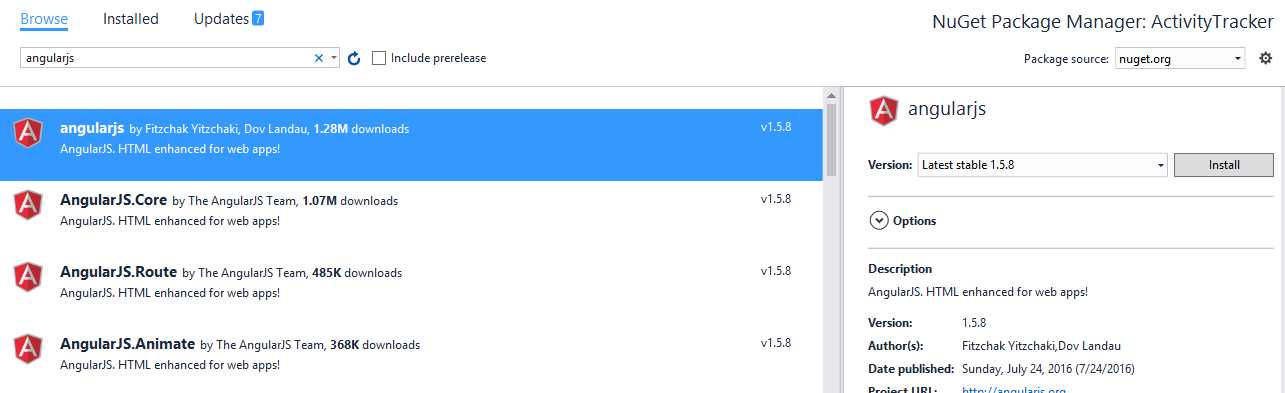
Figure 23: AngularJS
In Solution Explorer, open the new folder app in the scripts folder. Right-click the folder and add a new item from the New Item dialog box, and select the angularjs controller.
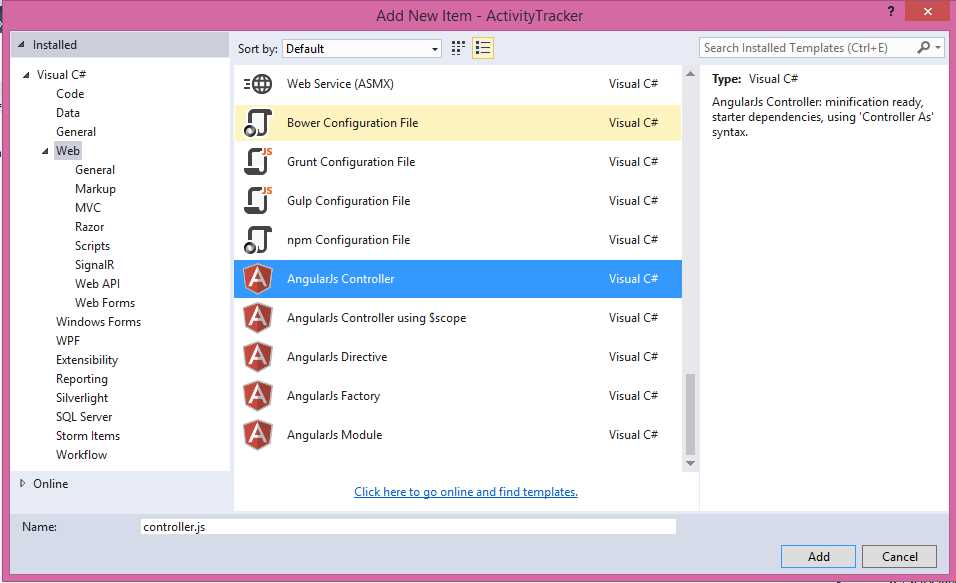
Figure 24: Adding AngularJS controller
Wire up the API call
Now add AngularJS services, and name it service.js. Then add this code to the js file:
Code Listing 24
app.service("activityService", function($http) { 'use strict'; //Get Activities this.getAll = function() { return $http.get("api/Tracker"); }; //Get single activity this.getActivity = function(activityId) { return $http.get("api/Tracker/" + activityId); }; }); |
In our service.js file, we are just wrapping up our API calls in such a way that our getAll function will use the Web API resource api/Tracker.
Now, get back to our AngularJS controller and add code so that we can use it in our View.
Code Listing 25
app.controller('activityController', function($scope, $log, activityService) { refreshGrid(); function refreshGrid() { activityService.getAll().then(function(promise) { $scope.Activities = promise.data }, function(err) { $log.error('error while connecting API', err); }); }; $scope.get = function(activityId) { activityService.get(activityId).then(function(promise) { $scope.Id = promise.ActivityId; $scope.Activity = promise.Activity; $scope.Action = promise.Action; $scope.Description = promise.Description; $scope.Data = promise.Data; }, function(err) { $log.error('error while connecting API', err); }); }; }); |
In controller.js, we are calling the refreshGrid() function, which will fetch complete data from our database as soon as our application is initiated.
- Add View
Add Razor view by right-clicking on the Index action method of DashboardController, and select Blank view. It adds the Index.cshtml view under the folder Dashboard of the Views folder. Add the following code to our view to initiate the data:
Code Listing 26
<div ng-app="activityModule"> <div class="container" ng-controller="activityController"> <h2>Activity Dashboard</h2> <p>Glimpse of all activities of Bitbucket repository <c>repository name</c></p> <table class="table"> <thead> <tr> <th>Activity</th> <th>Action</th> <th>Description</th> <th>Data</th> </tr> </thead> <tbody ng-repeat="activity in Activities"> <tr ng-class-odd="'warning'" ng-class-even="'success'"> <td>{{activity.Activity}}</td> <td>{{activity.Action}}</td> <td>{{activity.Description}}</td> <td ng-click="getActivity({{activity.ActivityId}})">View Details</td> </tr> </tbody> </table> </div> </div> |
Our view represents a simple table, and we are using ng-repeat to bind our table with whole data.
- Initialize WebHook controller
Open WebAPIconfig.cs and add following code:
Code Listing 27
// Initialize Bitbucket WebHook receiver config.InitializeReceiveBitbucketWebHooks(); |
This will initialize our Bitbucket WebHook receiver.
Note: Please make sure you have configured the Bitbucket repository to receive notifications and have added a secret key to your web.config file. Refer to Chapter 2 for more details.
- Deploying to Azure
In Chapter 2, we explained how to publish an application over Azure—if you skipped this chapter, please refer back for more details.
- Perform operation and validate results
Go to your Bitbucket repository and perform a few actions to push changes, create an issue, etc. If you have configured everything correctly, you will get the result on your index page.
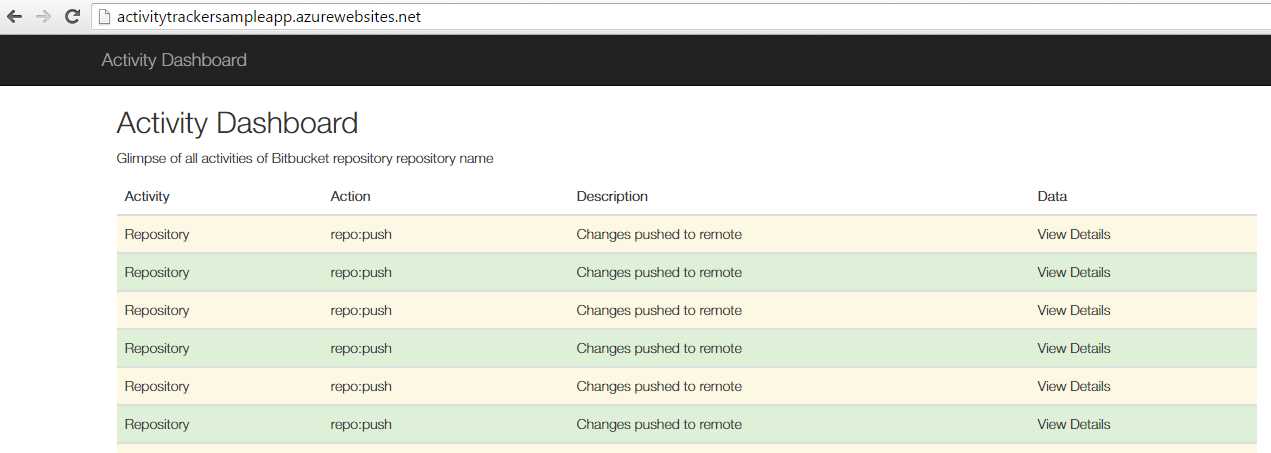
Figure 25: Activity Dashboard
Conclusion
In this chapter we have developed a real-time application using the Bitbucket Webhook Receiver. There is no limit to the ways you can extend the application. To keep it simple, we will just save the data to our database and display it in a table using MVC5 and AngularJS.


- 1800+ high-performance UI components.
- Includes popular controls such as Grid, Chart, Scheduler, and more.
- 24x5 unlimited support by developers.