
ASP.NET Core 2 Succinctly®

CHAPTER 4
Getting Started with .NET Core
Now that it is clear what ASP.NET Core and .NET Core are, and why they were created, it's time to look at how to install them and how to build a simple application with them.
Installing .NET Core on Windows
Installing .NET Core on Windows is pretty easy. With Visual Studio 2017, chances are you already installed it. If not, go back to the Visual Studio Installer and make sure you have the .NET Core workload selected.
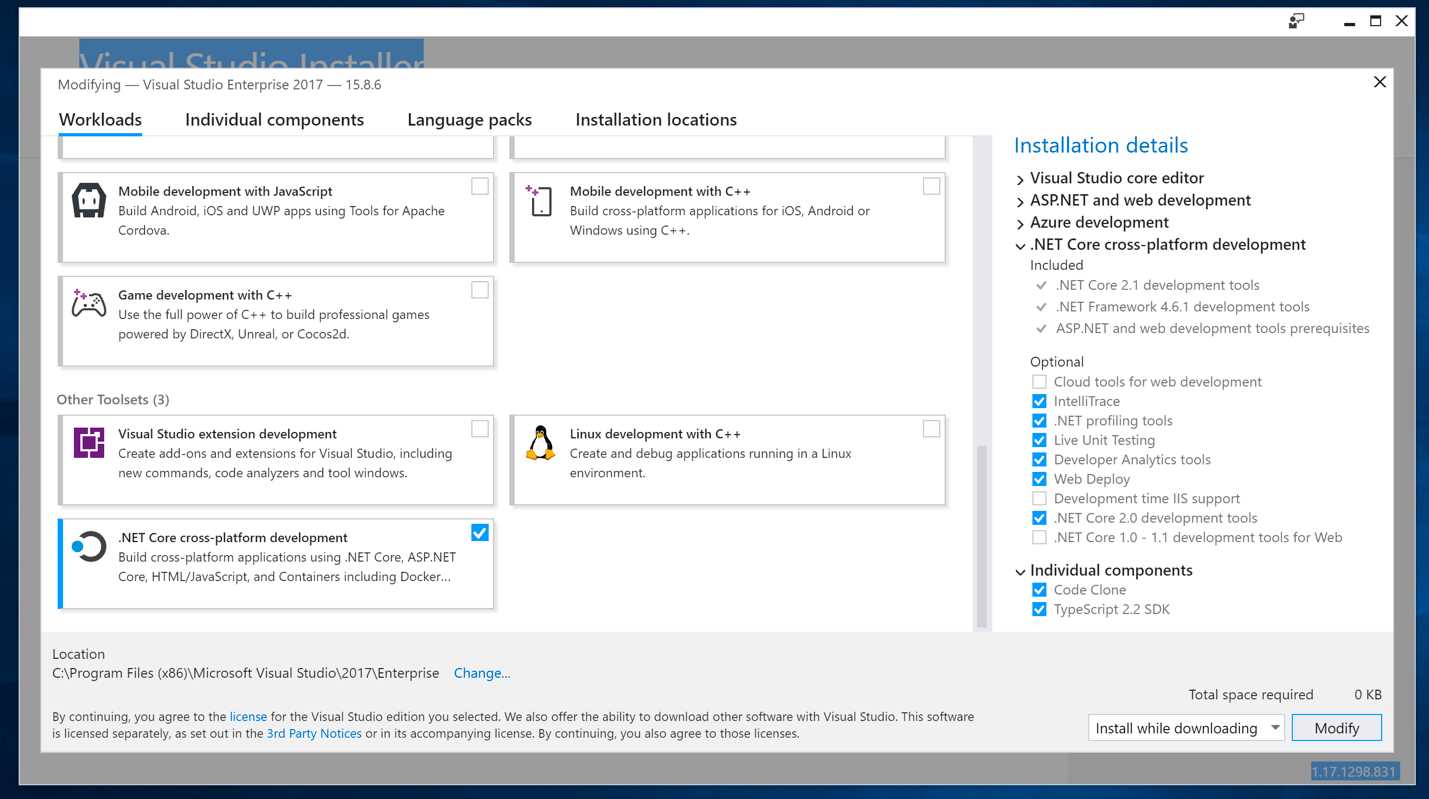
Figure 3-1: Visual Studio Installer
Installing .NET Core on a Mac (or Linux)
The beauty of .NET Core is that it can also be installed on a Mac (or Linux, for that matter) without relying on third-party frameworks, as was needed before with Mono.
Each distribution of Linux has its own way of installing, but the process boils down to the same general steps:
- Install prerequisites and configure the package manager of your distribution.
- Invoke the package manager to download and install .NET Core and its tools.
You can read instructions specific to your distribution on the official .NET Core website.
There are no prerequisites for macOS, so you can install the official SDK for macOS by downloading it directly from the official .NET Core website.
On Linux and Mac, you do not have Visual Studio to develop apps, but you can use the .NET Core SDK or Visual Studio Code, which is a lightweight, extensible, cross-platform text editor built by Microsoft and the community. The last chapter of this book covers each of the tools with which you can build .NET Core apps.
Building the first .NET Core application
With so many operating systems and tools available, there are many ways to create a .NET Core application, but all the visual tools rely on the SDK to get things done. Here you are going to build your first .NET Core application using the dotnet command-line interface (CLI).
The main entry point for the SDK is the dotnet command. This command, depending on the verb used, can do lots of things, from acting as host and runner for the application to creating a new project, managing dependencies, and building applications.
Command-line tools
As an example, let's create a simple "Hello World" command-line application using the dotnet CLI. Since the command-line tools are cross-platform, the following steps can be performed on any of the supported systems: Windows, Mac, or Linux.
Code Listing 3-1
dotnet new console -o HelloWorldApp |
This command creates a new application of type console, and puts it (-o for output) in the folder HelloWorldApp.
Now, move into the folder where the application has been created (cd HelloWorldApp) and launch the dotnet run command to build and run the project.
Figure 3-2 shows the output of this sequence of commands.
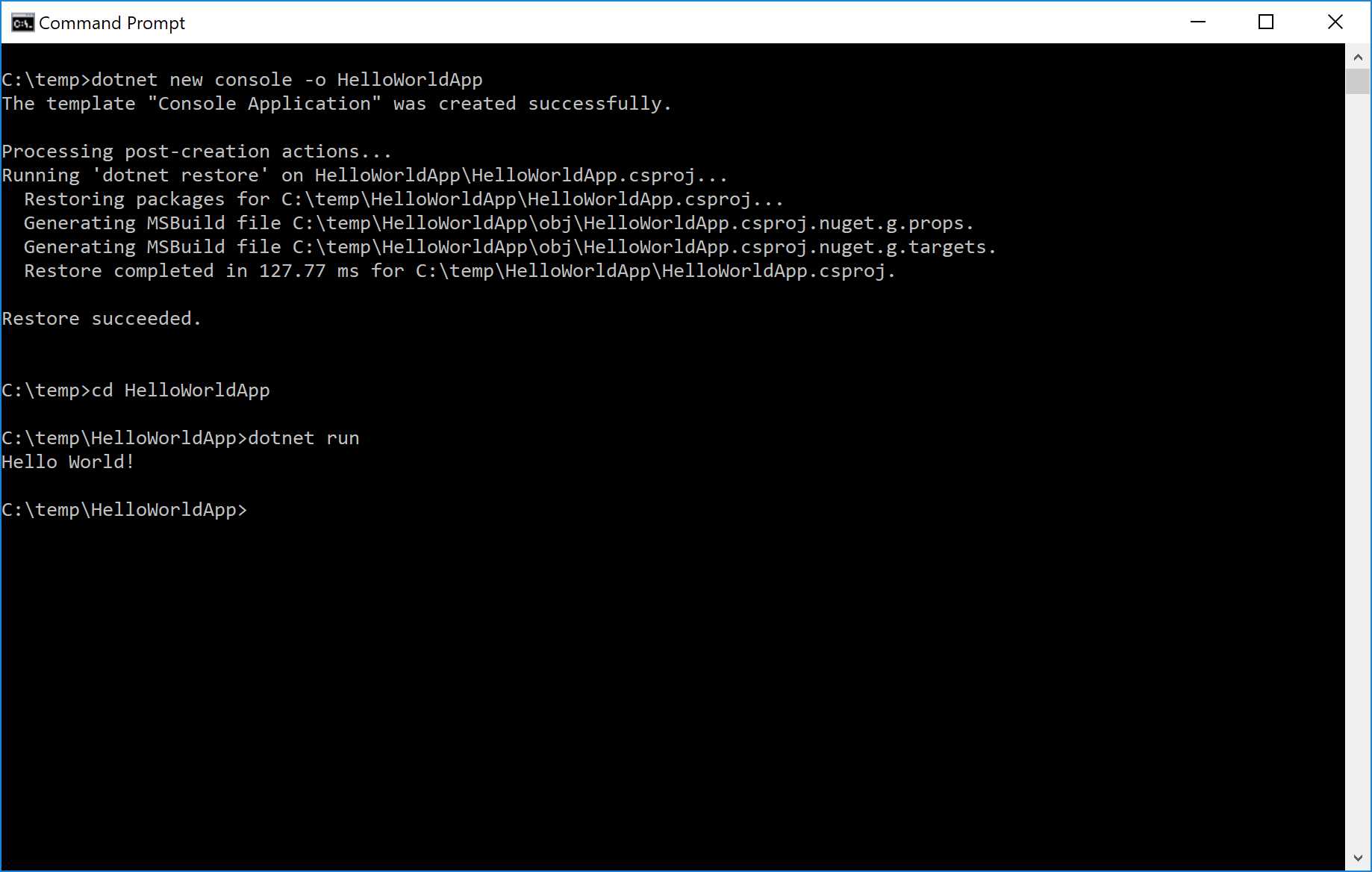
Figure 3-2: dotnet CLI
Let's dive into what happened here.
The dotnet new command added two files to the folder:
- HelloWorldApp.csproj: an XML file containing the configuration of the project.
- Program.cs: the actual code file.
The Program.cs file is pretty simple; it just prints the Hello World! string to the console.
Code Listing 3-2
using System; namespace HelloWorldApp { class Program { static void Main(string[] args) { Console.WriteLine("Hello World!"); } } } |
What is more interesting to look at is the HelloWorldApp.csproj file. If you’ve ever looked at the project files used by Visual Studio with the full .NET Framework, you might wonder why we would even discuss them. You probably rarely looked inside them, as they were black boxes written in XML. However, with .NET Core, they become easier to modify manually or via other commands of the dotnet tool.
Code Listing 3-3
<Project Sdk="Microsoft.NET.Sdk"> <PropertyGroup> <OutputType>Exe</OutputType> <TargetFramework>netcoreapp2.2</TargetFramework> </PropertyGroup> </Project> |
This is pretty simple, and it just says that the application targets the netcoreapp2.2 framework.
Visual Studio
Another way you can build the same console application is by using Visual Studio. First, go to the New Project dialog and select Console App (.NET Core), as shown in Figure 3-3.
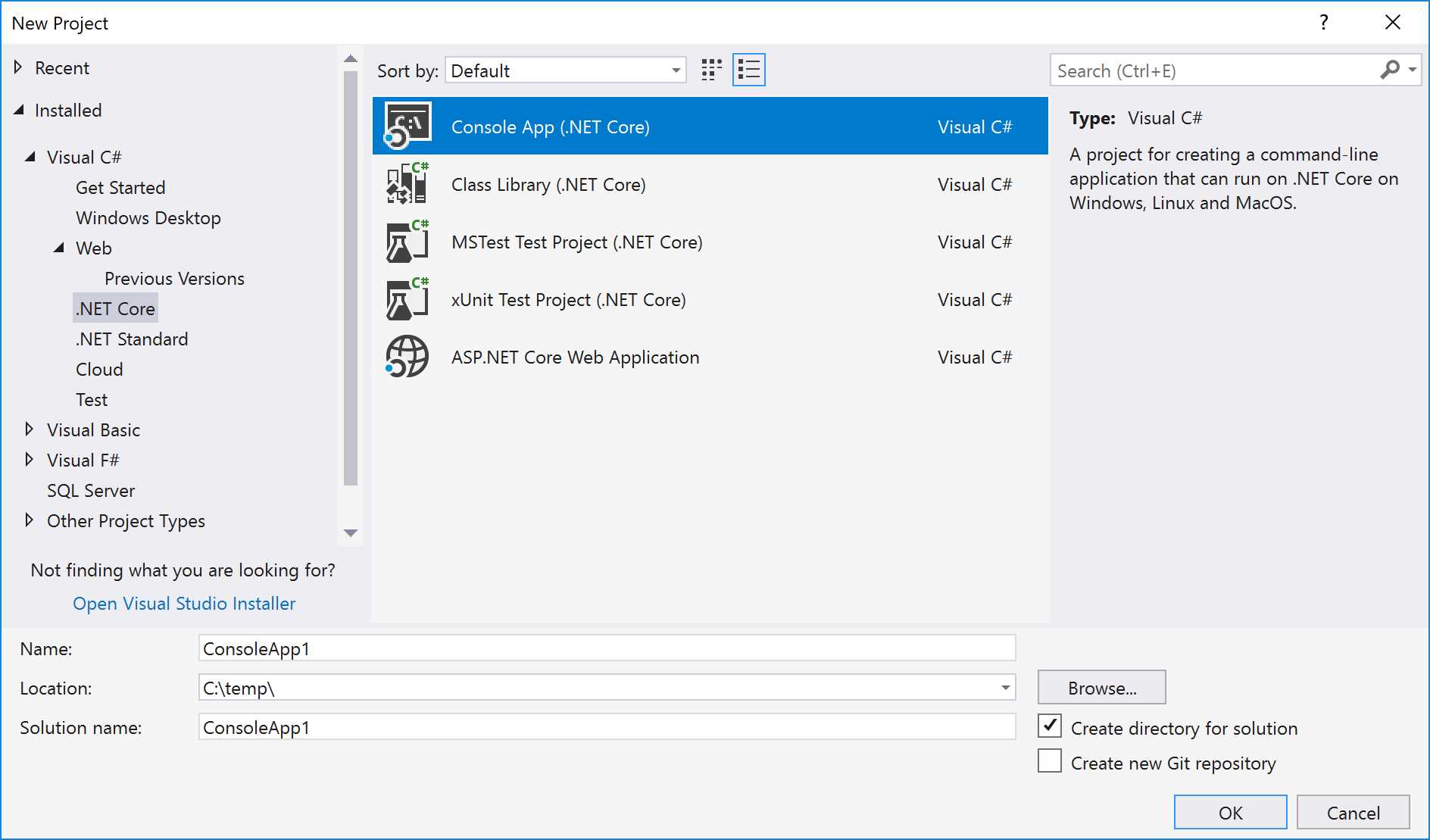
Figure 3-3: New Console Application Using Visual Studio 2017
Once the project has been created, you can edit it as you normally would, and run it. Figure 3-4 shows Visual Studio with the console application loaded in.
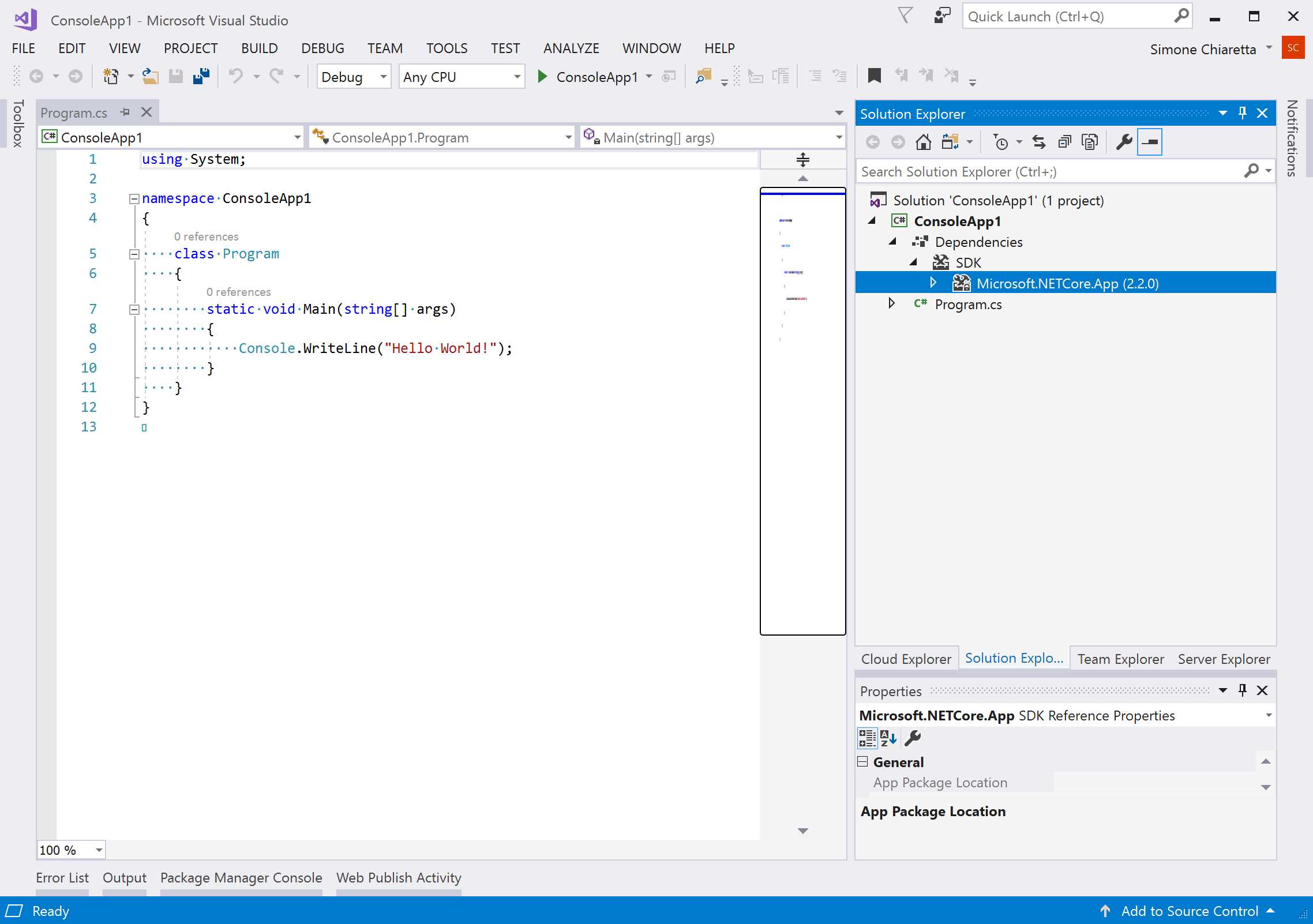
Figure 3-4: Hello World Application
Note: If you used .NET Core 1.1, you will remember that even a project as simple as "Hello World" had zillions of dependencies. This was because of the modular approach of the framework, staying true to the "reference what you need" approach. It proved to be a bit too much, so with .NET Core 2.0, all the basic dependencies are included in the Microsoft.NETCore.App metapackage. You can trim it down if you want to, but it at least simplifies the initial application development.
Conclusion
In these chapters, we've shown why 2016 is one of the few landmarks in our industry, along with Microsoft’s release of Classic ASP in 1996, and the release of the .NET Framework and ASP.NET in 2002.
.NET Core is the next evolution of the Microsoft web development stack. While not as different from the .NET Framework as the .NET Framework was from ASP Classic, it still changed the foundations on which ASP.NET applications are built.
You've also seen how to install .NET Core on Windows, Mac, and Linux, and how to build a simple application using the base layer of .NET tools: the dotnet CLI. With this knowledge, you are ready to explore the new ASP.NET Core application framework.


- 80+ high-performance ASP.NET Core controls, including DataGrid, Charts, and Scheduler.
- Lightweight and responsive.
- Modular and touch-friendly.
- Built-in themes.