
ASP.NET Core 6 Succinctly®

CHAPTER 1
Getting Started with ASP.NET Core 6.0
The .NET 6.0 framework is a major release for Microsoft and allows developers to build almost anything using one unified platform. The .NET Framework was released in 2002 for Windows development, and later evolved into what we know as .NET Core. This lightweight, cross-platform framework allows developers to build different types of applications.
Note: All the code for this book is available in this GitHub repository.
With the release of .NET 5.0 in 2020, Microsoft began to solidify its unified vision for the entire platform, culminating in .NET 6.0. In this book, we will have a look at .NET 6.0 as it relates to ASP.NET Core.
Introducing .NET 6.0
Released in November 2021, .NET 6 delivered significant performance improvements as well as language improvements for C# 10 and F# 6. It also included native support for Apple Silicon (ARM64). New APIs were also added for HTTP/3, mathematics, and JSON processing using the new System.Text.Json source generator.
Here are some of the features highlighted by Microsoft program manager Richard Lander regarding .NET 6 in the announcement blog:
· It will be supported for three years.
· Serves as a unified platform across browser, cloud, desktop, IoT, and mobile applications.
· Increases performance throughout the framework.
· Includes language improvements for C# 10 and F# 6.
· Supports Hot Reload in Visual Studio 2022.
· Delivers better performance for JSON APIs.
· Introduces minimal APIs.
Installing .NET 6.0
The easiest way to install .NET 6.0 is just installing Visual Studio 2022, because .NET 6.0 comes bundled with Visual Studio 2022.
Note: Visual Studio 2022 is a required update to use .NET 6.0, and all the code samples in this book will be using Visual Studio 2022.
If you are using Visual Studio Code, you will need to install .NET 6.0 directly using a separate download. If you want to use Visual Studio, you can download the Community edition (Figure 1), which is free, and will be good enough for what we want to achieve in this book.

Figure 1: Download Visual Studio Community Edition
You can download a copy of Visual Studio Community 2022 here.
When performing the installation, make sure that you select the ASP.NET and web development workload option, as shown in Figure 2. If you have already installed Visual Studio 2022, make sure that you have this workload added. If you want to install just .NET 6.0 without Visual Studio, you can download the installer here.
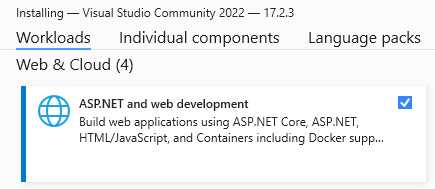
Figure 2: Select the ASP.NET and Web Development Workload
You can verify the installed versions of .NET on your machine by typing the following in the command prompt.
Code Listing 1: Verify Installed .NET Version
You only need .NET 6.0 for the examples in this book, so as long as you have that installed, you’re good to go.
Exploring ASP.NET Core 6.0
With all the mentioning of .NET 6.0, it is easy to confuse the fact that when it comes to ASP.NET Core 6.0, Microsoft still uses “Core” in the name. This means that while the overall platform does not use “Core” in the name, the specific application model names do when we talk about ASP.NET Core 6.0 and Entity Framework Core 6.0.
With ASP.NET Core 6.0, we can create:
· MVC/web API apps built on the MVC pattern.
· Razor pages that use a page-oriented abstraction for building web apps.
· Blazor apps that provide a way to build rich UIs, instead of using JavaScript and Razor.
· Signal R apps that use WebSockets to provide real-time communication.
· gRPC services that provide a language-agnostic, high-performance remote procedure call framework.
· Minimal APIs, a lightweight pattern for creating APIs and an alternative to creating web APIs.
We will be looking into minimal APIs in more detail in a later chapter.
Upgrading existing applications to ASP.NET Core 6.0
If your application is built on a recent version of .NET, upgrading your application to .NET 6.0 is relatively easy. Upgrading applications built on ASP.NET Core 2.0 and later requires minimal changes to references and configurations. Upgrading from any ASP.NET Core 1.x application requires some structural and configuration changes, taking more effort to accomplish. If you have an application built on the ASP.NET framework, you will have to make considerable changes to the configuration and architecture.
Some developers choose to upgrade incrementally. In such cases, if you have an ASP.NET Core 2.1 application, you’d upgrade it to ASP.NET Core 3.1 before upgrading to ASP.NET Core 6.0.
Check out Microsoft’s documentation on upgrading to ASP.NET Core by visiting this link. It provides useful information about upgrading earlier versions of .NET Core applications. As luck would have it, I have a book repository API that I wrote in ASP.NET Core 5.0 that I need to upgrade to ASP.NET Core 6.0.
Tip: I would suggest going through this exercise of upgrading the book repository project to ASP.NET Core 6.0. We will be using this project again later in the book to add the data service when we look at minimal APIs. Remember, all the code is available in the GitHub repository.
Let’s use this book repository and upgrade it to ASP.NET Core 6.0.
Upgrading BookRepository.Core
You will notice from Figure 3 that the solution contains three projects. Each one of these projects will need to be upgraded to ASP.NET Core 6.0.
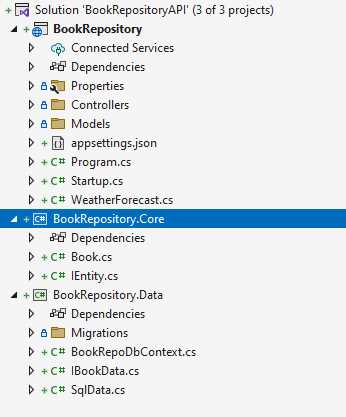
Figure 3: The BookRepositoryAPI Project
Let’s start by editing the csproj files for the BookRepository.Core project. Right-click the project and choose the Edit Project File option.
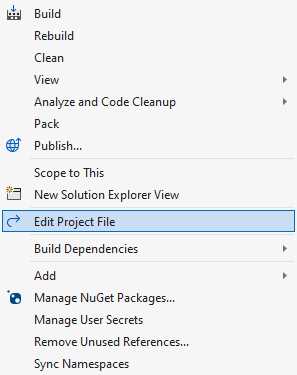
Figure 4: Edit the csproj File
In Code Listing 2, you will see the familiar TargetFramework tag specifying .NET 5.0. We also have a package reference to include Microsoft.AspNetCore.Mvc.Versioning, but at the time of writing this book, version 5.0.0 is the latest one available.
Code Listing 2: The BookRepository.Core csproj File
<Project Sdk="Microsoft.NET.Sdk"> <PropertyGroup> <TargetFramework>net5.0</TargetFramework> </PropertyGroup> <ItemGroup> <PackageReference Include="Microsoft.AspNetCore.Mvc.Versioning" Version="5.0.0" /> </ItemGroup> </Project> |
Modify the TargetFramework from net5.0 to net6.0 as illustrated in Code Listing 3.
Code Listing 3: Change the Target Framework to .NET 6.0
<Project Sdk="Microsoft.NET.Sdk"> <PropertyGroup> <TargetFramework>net6.0</TargetFramework> </PropertyGroup> <ItemGroup> <PackageReference Include="Microsoft.AspNetCore.Mvc.Versioning" Version="5.0.0" /> </ItemGroup> </Project> |
To verify that the upgrade to .NET 6.0 was successful for the BookRepository.Core project, right-click the project and perform a rebuild. If it succeeds, then the upgrade for that specific project in the solution worked as expected.
Upgrading BookRepository
The next project that I need to update is the BookRepository project. Right-click the project and edit the project file by clicking Edit Project File as shown in Figure 4. The project file is listed in Code Listing 4.
Code Listing 4: The BookRepository csproj File
<Project Sdk="Microsoft.NET.Sdk.Web"> <PropertyGroup> <TargetFramework>net5.0</TargetFramework> </PropertyGroup> <ItemGroup> <Compile Remove="Controllers\WeatherForecastController.cs" /> </ItemGroup> <ItemGroup> <PackageReference Include="Microsoft.AspNetCore.Mvc.Versioning" Version="5.0.0" /> <PackageReference Include="Microsoft.EntityFrameworkCore" Version="5.0.11" /> <PackageReference Include="Microsoft.EntityFrameworkCore.Design" Version="5.0.11"> <PrivateAssets>all</PrivateAssets> <IncludeAssets>runtime; build; native; contentfiles; analyzers; buildtransitive</IncludeAssets> </PackageReference> <PackageReference Include="Microsoft.EntityFrameworkCore.SqlServer" Version="5.0.11" /> <PackageReference Include="Swashbuckle.AspNetCore" Version="5.6.3" /> </ItemGroup> <ItemGroup> <ProjectReference Include="..\BookRepository.Data\BookRepository.Data.csproj" /> </ItemGroup> </Project> |
In this project, we have a few more package references. As before, change the TargetFramework from net5.0 to net6.0 and save your changes. Now go ahead and open the NuGet package manager and view the Updates tab.
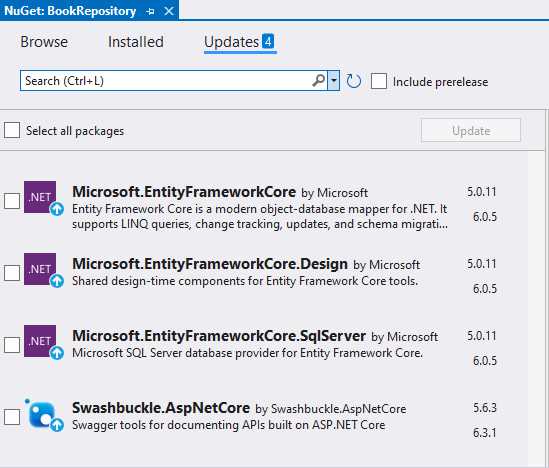
Figure 5: Update NuGet Packages for the BookRepository Project
Upgrade each of these packages to the latest versions and keep an eye on the Package Manager Output window for any errors. After updating the NuGet packages, your csproj file should look like the code in Code Listing 5.
Code Listing 5: The Upgraded BookRepository csproj File
<Project Sdk="Microsoft.NET.Sdk.Web"> <PropertyGroup> <TargetFramework>net6.0</TargetFramework> </PropertyGroup> <ItemGroup> <Compile Remove="Controllers\WeatherForecastController.cs" /> </ItemGroup> <ItemGroup> <PackageReference Include="Microsoft.AspNetCore.Mvc.Versioning" Version="5.0.0" /> <PackageReference Include="Microsoft.EntityFrameworkCore" Version="6.0.5" /> <PackageReference Include="Microsoft.EntityFrameworkCore.Design" Version="6.0.5"> <PrivateAssets>all</PrivateAssets> <IncludeAssets>runtime; build; native; contentfiles; analyzers; buildtransitive</IncludeAssets> </PackageReference> <PackageReference Include="Microsoft.EntityFrameworkCore.SqlServer" Version="6.0.5" /> <PackageReference Include="Swashbuckle.AspNetCore" Version="6.3.1" /> </ItemGroup> <ItemGroup> <ProjectReference Include="..\BookRepository.Data\BookRepository.Data.csproj" /> </ItemGroup> </Project> |
Give the BookRepository project a rebuild and if it works, the upgrade is successful.
Note: The versions of the package references in the csproj file are correct as of the time of writing this book. These might, however, differ for you if you are upgrading this sample project at a later time.
The last project that I need to upgrade is the BookRepository.Data project. Let’s do that next.
Upgrading BookRepository.Data
The last project that I need to update is the BookRepository.Data project. Right-click the project and edit the project file by clicking Edit Project File as shown in Figure 4. The project file is listed in Code Listing 6.
Code Listing 6: The BookRepository.Data csproj File
<Project Sdk="Microsoft.NET.Sdk"> <PropertyGroup> <TargetFramework>net5.0</TargetFramework> </PropertyGroup> <ItemGroup> <PackageReference Include="Microsoft.AspNetCore.Mvc.Versioning" Version="5.0.0" /> <PackageReference Include="Microsoft.EntityFrameworkCore" Version="5.0.11" /> <PackageReference Include="Microsoft.EntityFrameworkCore.Design" Version="5.0.11"> <PrivateAssets>all</PrivateAssets> <IncludeAssets>runtime; build; native; contentfiles; analyzers; buildtransitive</IncludeAssets> </PackageReference> <PackageReference Include="Microsoft.EntityFrameworkCore.Relational" Version="5.0.11" /> <PackageReference Include="Microsoft.EntityFrameworkCore.SqlServer" Version="5.0.11" /> </ItemGroup> <ItemGroup> <ProjectReference Include="..\BookRepository.Core\BookRepository.Core.csproj" /> </ItemGroup> </Project> |
Just like the BookRepository project, we have a few more package references in this project. Change the TargetFramework from net5.0 to net6.0 and save your changes.
Next, we need to upgrade the NuGet packages.
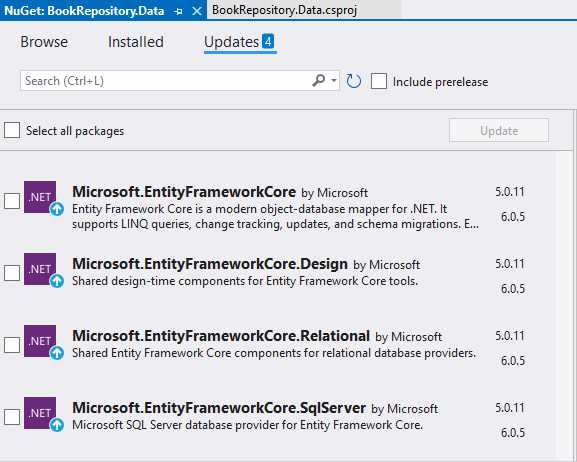
Figure 6: The NuGet Packages for the BookRepository.Data Project
As before, we can see on the Updates tab that several NuGet Packages need to be upgraded.
Note: The order in which you update the NuGet packages matters. If you tried updating the Microsoft.EntityFrameworkCore.Design package before the Microsoft.EntityFrameworkCore.Relational package, you could receive an error because Relational is a dependency of Design.
It is worth noting that each NuGet package lists any dependencies in its package description, as shown in Figure 7.
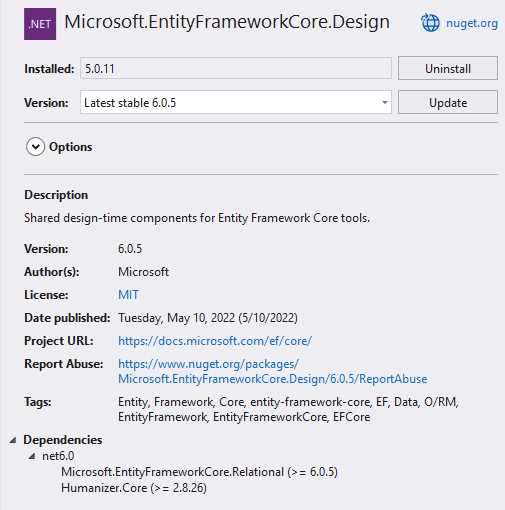
Figure 7: Listed Package Dependencies
It is therefore required that the dependencies be updated before the package is updated; otherwise, the update will fail.
Once this has been completed, your csproj file will look like the code in Code Listing 7. Rebuild the project and check that everything went as planned.
Code Listing 7: The Updated BookRepository.Data csproj File
<Project Sdk="Microsoft.NET.Sdk"> <PropertyGroup> <TargetFramework>net6.0</TargetFramework> </PropertyGroup> <ItemGroup> <PackageReference Include="Microsoft.AspNetCore.Mvc.Versioning" Version="5.0.0" /> <PackageReference Include="Microsoft.EntityFrameworkCore" Version="6.0.5" /> <PackageReference Include="Microsoft.EntityFrameworkCore.Design" Version="6.0.5"> <PrivateAssets>all</PrivateAssets> <IncludeAssets>runtime; build; native; contentfiles; analyzers; buildtransitive</IncludeAssets> </PackageReference> <PackageReference Include="Microsoft.EntityFrameworkCore.Relational" Version="6.0.5" /> <PackageReference Include="Microsoft.EntityFrameworkCore.SqlServer" Version="6.0.5" /> </ItemGroup> <ItemGroup> <ProjectReference Include="..\BookRepository.Core\BookRepository.Core.csproj" /> </ItemGroup> </Project> |
Finally, right-click the top-level solution and do a complete rebuild of the solution. If all builds successfully, you have completely upgraded the ASP.NET Core 5.0 project to ASP.NET Core 6.0.
Checking that the API still runs
The last thing I need to check is that the API still works. This portion of the chapter is for informational purposes, and only applicable if you want to run this API project on your own machine. If you do not want to run the API project, then feel free to skip to the next chapter.
The web API uses a LocalDB database called BookRepo. You can see this in Figure 8. I will not go into any detail on how to create this database and how to use migrations; I will leave this to you as homework should you be curious.

Figure 8: The SQL Server Object Explorer
The next thing I need to check is what the debug URL is. Right-click the BookRepository project and click Properties.

Figure 9: The BookRepository Debug Properties
You will notice in Figure 9 that the properties look slightly different. Under the Debug section, click the Open debug launch profiles UI link.
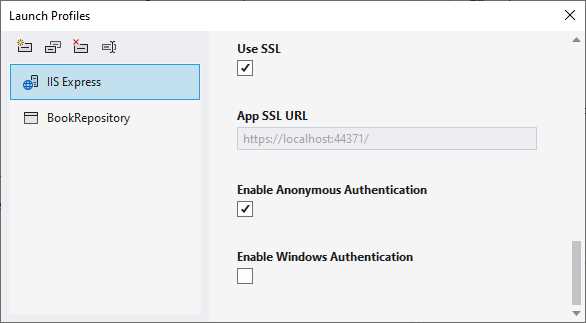
Figure 10: The Debug Launch Profiles UI
As seen in Figure 10, ensure that you:
· Select Use SSL.
· Make a note of the App SSL URL.
· Clear the Launch Browser option.
In the BookController.cs file in the BookRepository project, there are two GetBooks methods with the [HttpGet] verb attribute. Each GetBooks method has a different MapToApiVersion attribute. One is [MapToApiVersion("1.0")], and the other is [MapToApiVersion("1.1")]. Depending on the version of the route I call, the method will list all the books in the database based on that particular version and logic.
I also notice that the BookController.cs class has a route attribute of [Route("api/v{version:apiVersion}/[controller]")].
Based on this information, I know that once I run the web API in Visual Studio 2022, the browser will not be launched (because the Launch Browser checkbox was not selected), and I can list all the books in the database by calling one of the following endpoints in Postman, as shown in Code Listings 8 and 9.
Code Listing 8: Endpoint for API Version 1.0
https://localhost:44371/api/v1.0/book |
To call version 1.1 of the API, just change v1.0 to v1.1 in the URL.
Code Listing 9: Endpoint for API Version 1.1
Calling one of these endpoints in Postman results in the JSON output shown in Figure 11, with the list of books returned from the GetBooks method.
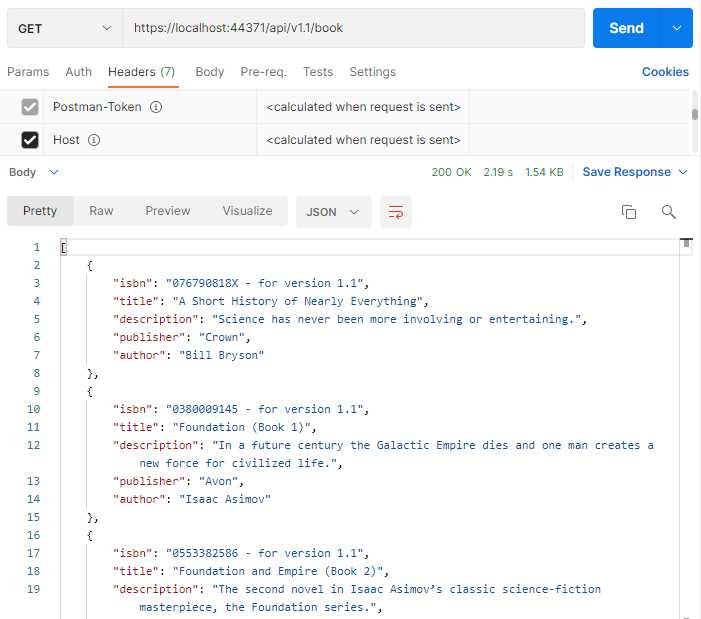
Figure 11: The Result from Postman
Now that I have tested the web API, I am satisfied that the upgrade process from ASP.NET Core 5.0 to ASP.NET Core 6.0 was successful.


- 80+ high-performance ASP.NET Core controls, including DataGrid, Charts, and Scheduler.
- Lightweight and responsive.
- Modular and touch-friendly.
- Built-in themes.