
Application Insights Succinctly®

CHAPTER 8
Visual Studio and SDKs
It’s time to see some code. After all those chapters about configuring and using various features, we can finally see a developer’s point of view.
If you are involved with software development that relates to web applications or services, Application Insights has an SDK for almost any programming language or technology, so any developer can easily feel comfortable with it.
Where to find the right SDK
You can find the right SDKs for Application Insights here. As you can see, there are various languages and frameworks supported, including some by third-party vendors. Each item connects you to a specific page where you can begin integrating with Application Insights. This contains useful information on which SDK to use.
In this book, the focus is on Microsoft technologies, so we will explore the process on how to integrate Application Insights into a web application based on ASP.NET MVC, with Visual Studio.
Integrating with Visual Studio
Using Application Insights with Visual Studio is very simple due to the high integration between both products and technologies.
In the following examples, we will use Visual Studio Enterprise 2017. Any other edition (such as the free Community edition) would work fine as well. There are some minor differences when using Visual Studio 2015, but the process is almost the same in either version.
We will start by creating a new ASP.NET MVC project from within Visual Studio.
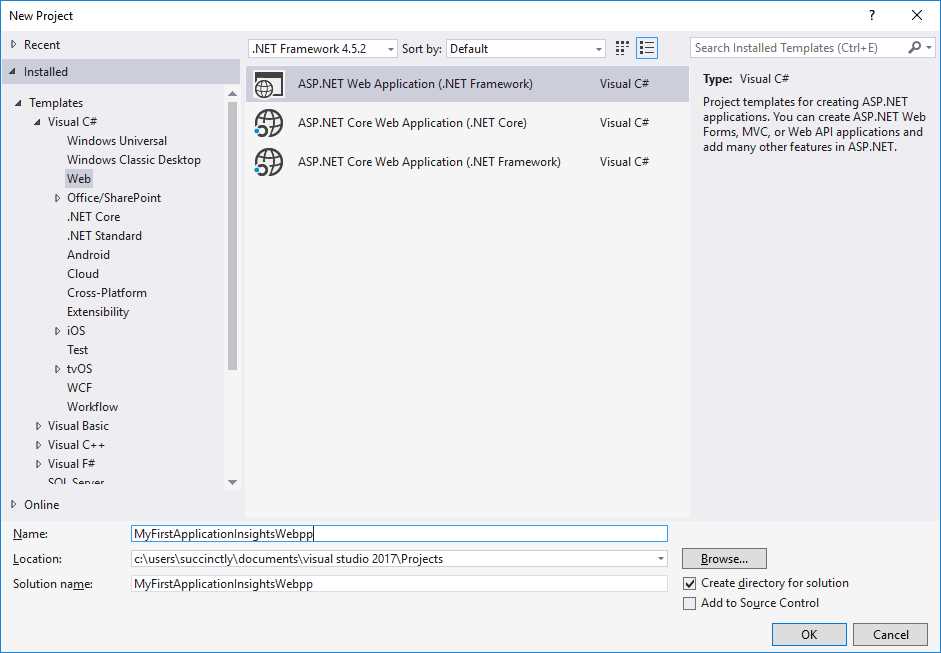
Figure 28: Starting a New Project
For this particular example, choose ASP.NET MVC with no authentication.
Once the project is created, we can add Application Insights by right-clicking on the project in the Solution Explorer window and choosing Configure Application Insights from the context menu.
A page will appear, and from there you will be able to choose the subscription and other information to register your app with Application Insights. At the bottom of this page, there is the option to use a free account.
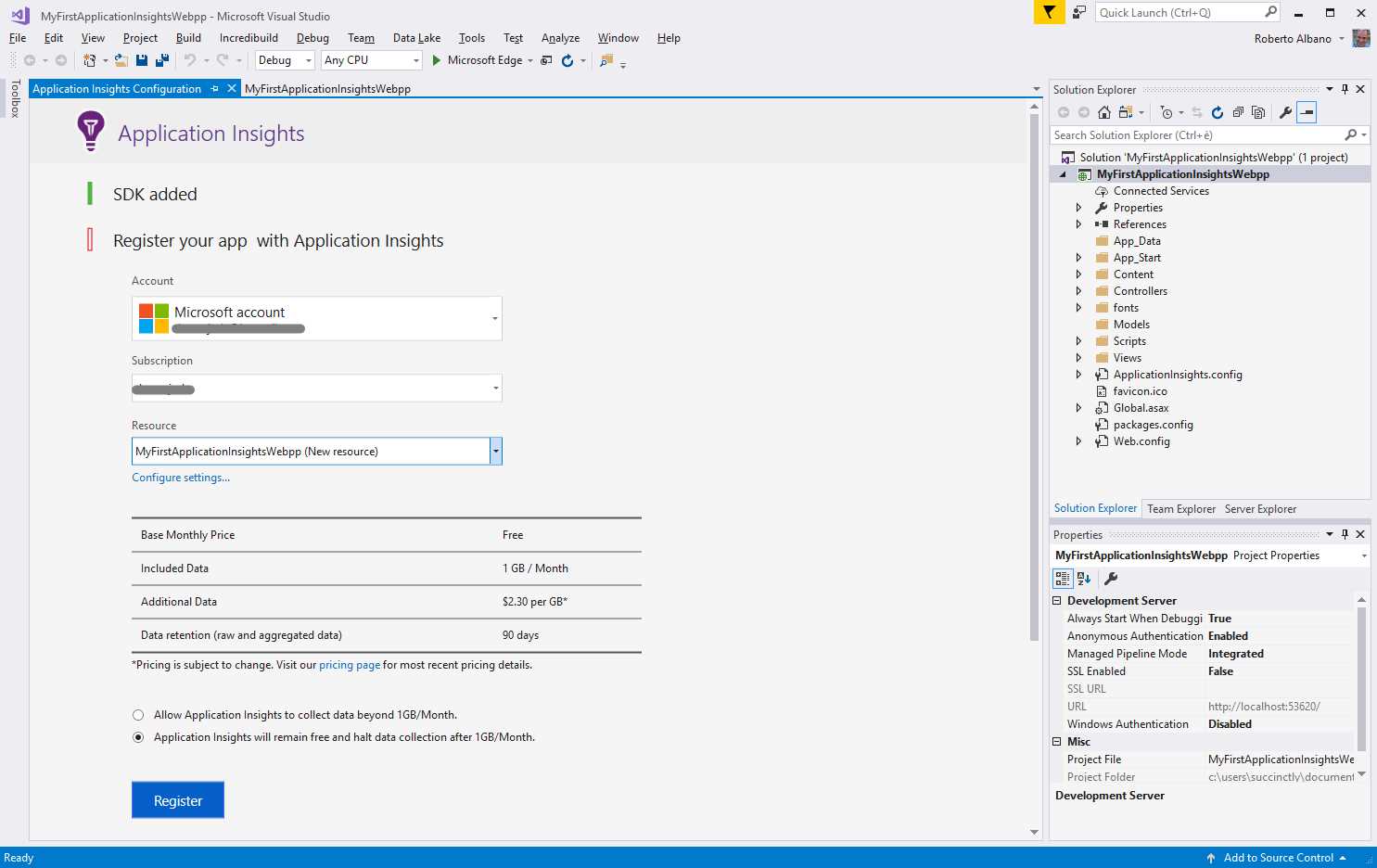
Figure 29: The Web Application Registration
Once you have activated an Application Insights resource, every call you execute from your code using one of the following lines will be collected into Application Insights and will be visible from the Dashboard on the Azure portal:
System.Diagnostics.Trace.TraceInformation("Information");
System.Diagnostics.Trace.TraceWarning("Warning");
System.Diagnostics.Trace.TraceError("Error");
After a few moments, the web application will be registered to use telemetry locally in Visual Studio instead of using a brand-new Application Insights resource. You can return to this page to activate an Application Insights resource on the Azure portal at any point.
What happened to my project?
If you followed the previous steps to register Application Insights, you’ll see some changes in the project. The references that you will see in the following sections are related to a project in Visual Studio. If you use Application Insights from within other languages or IDEs, the behavior could be different.
References
First, we need to add the required Application Insights assemblies to our project.
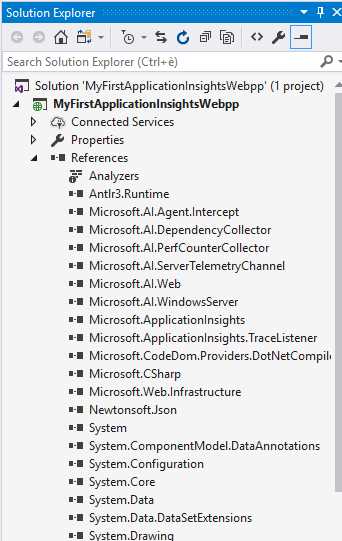
Figure 30: Project References
These references have been added behind the scenes by NuGet. It has added the references Microsoft.AI.*.dll and Microsoft.ApplicationInsights*.dll to the project.
Connected services
In the project, a new file will be added to the Connected Services section. This will be the ConnectedService.json configuration file.
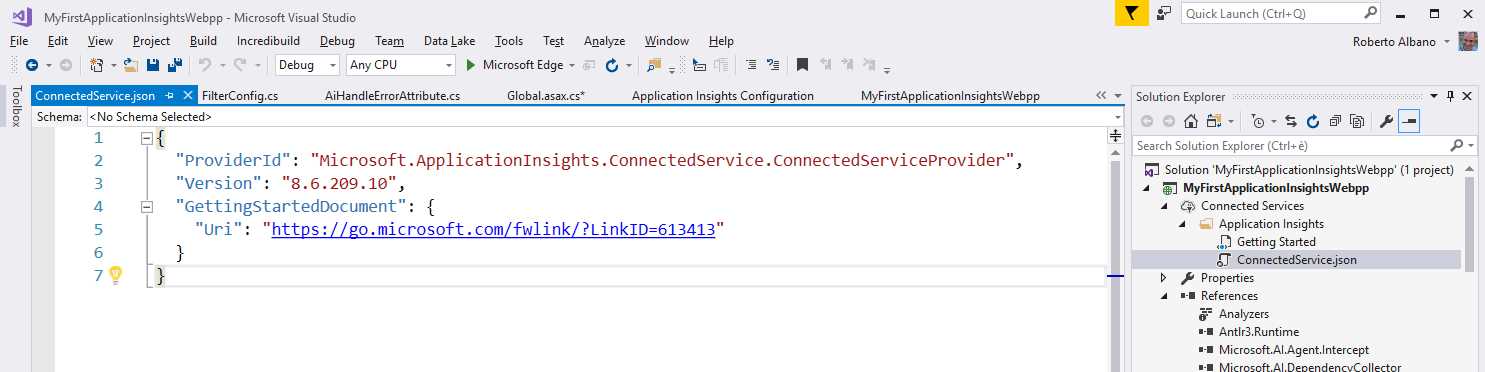
Figure 31: The Connected Service Configuration File
Configuration
A new ApplicationInsights.config file will appear in our project.
This is an XML file that holds all the information related to the resource used in the project. Here we will find the instrumentation key (which we talked about in the section The instrumentation key) that uniquely identifies the resource within the whole project.
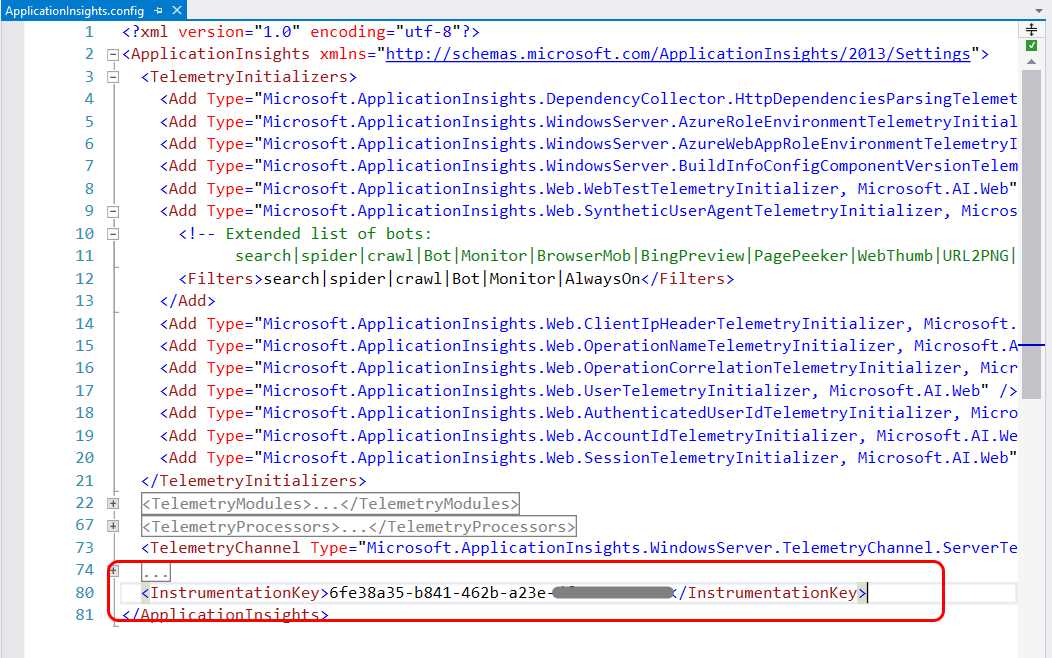
Figure 32: The ApplicationInsights.config File
Apart from this key, there are other parameters such as modules and assemblies to consider within the telemetry data collection process.
Another part of the configuration is placed inside the Web.config file. In this XML file, you can find a couple of elements that register the Application Insights modules used to track every exception that occurs.
Code Listing 1: Changes to the Web.config File
<system.web> ...omitted... <httpModules> <add name="ApplicationInsightsWebTracking" type="Microsoft.ApplicationInsights.Web. ApplicationInsightsHttpModule, Microsoft.AI.Web" /> </httpModules> <system.webServer> ... omitted... <modules> <remove name="ApplicationInsightsWebTracking" /> <add name="ApplicationInsightsWebTracking" type="Microsoft.ApplicationInsights.Web. ApplicationInsightsHttpModule, Microsoft.AI.Web" preCondition="managedHandler" /> </modules> </system.webServer> |
These parameters are important for error handling with Application Insights.
Scripts
Since there is a lot of information we can gather in a repetitive way (for instance, page visits and origin of requests), Visual Studio helps us retrieve this information directly from the master page of our project by placing inside this view a JavaScript snippet that is called directly from the Application Insights SDK.
In our example, we are using an ASP.NET MVC web application, and the snippet can be found inside the _Layout.cshtml view (which is sort of a master page for this kind of web application).
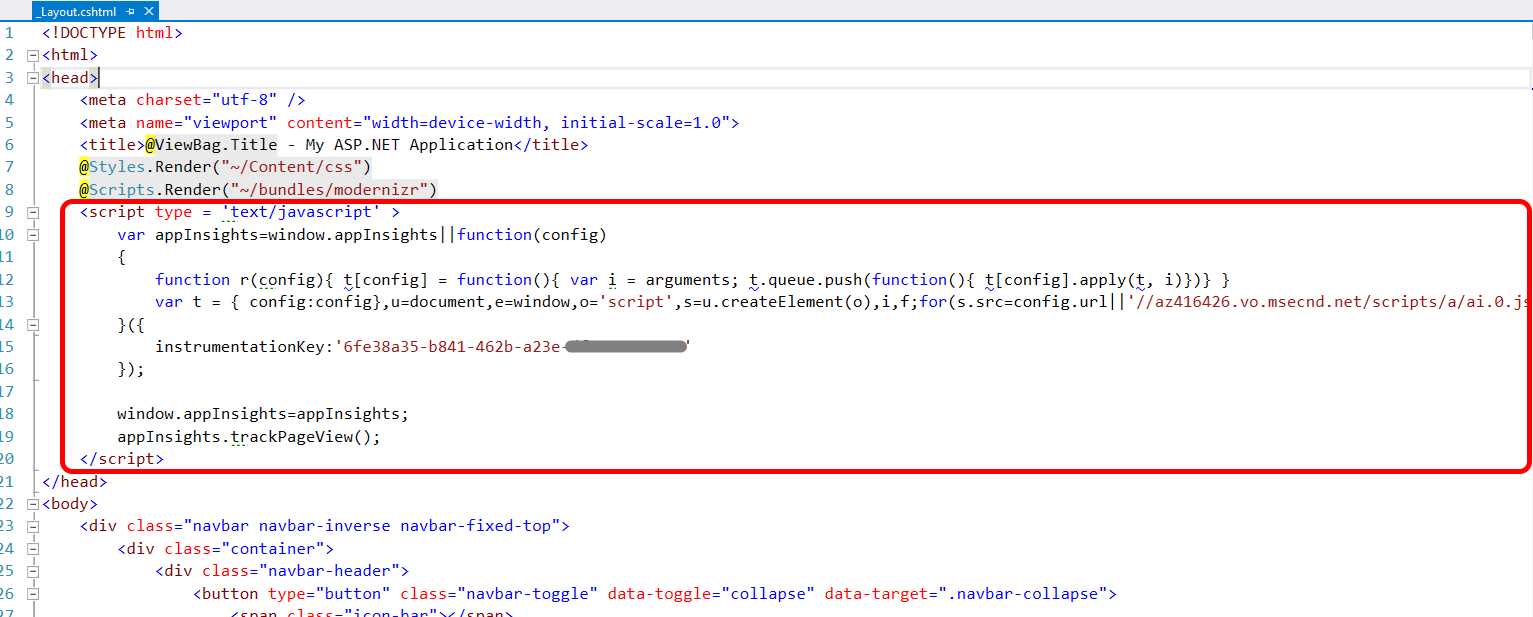
Figure 33: The Application Insights JavaScript Snippet
Placing the snippet here allows us to track all the visits to every page that uses this layout, without the annoyance of having to paste this code into every view.
Tip: When working regularly with ASP.NET MVC, I usually strip off this snippet from its original location and place it into a partial view. This strategy will allow you to reuse this code more efficiently when there are more layout views within your project.
As you can see, the snippet refers to the InstrumentationKey that is used within the code as a copy of the key registered within the Web.config file. We will explore another way to do this in the Using different instrumentation keys for various environments section.
Error handling
One of the files that Visual Studio automatically adds to our web application project for us is the AiHandleErrorAttribute.cs file (contained within the ErrorHandler folder).
This file defines the following class.
Code Listing 2: The AiHandleErrorAttribute Class
This class handles exceptions and inherits from the HandleErrorAttribute class. It can be used to decorate other classes or methods in which we can potentially catch an exception and send it to our Application Insights resource.
However, if we search for the FilterConfig.cs file (in the App_Start folder) we can see that this class is used in the RegisterGlobalFilters method, whose purpose is to register the filters to use for incoming requests.
This means an instance of this class is present in the stack of filters that the ASP.NET MVC application will use for every request, so when an exception is thrown, this class will register it with Application Insights for us.
Tip: Be careful that the exception isn’t trapped when using this class if the custom error setting in the Web.config file is turned off. In that case, the exception will be held by the Application Insights HTTP module.
In Code Listing 2, we can see the TelemetryClient class for the first time. We will discuss it in detail in the next chapter.
Let’s go ahead and start writing code from a web application and record data into Application Insights.


- 1800+ high-performance UI components.
- Includes popular controls such as Grid, Chart, Scheduler, and more.
- 24x5 unlimited support by developers.