
Application Insights Succinctly®

CHAPTER 5
Access Control
Usually, data collected from Application Insights resources can be analyzed by people with different skills to check a web application from various points of view, covering aspects from performance to marketing.
For this reason, in a large team, we could have more users accessing the dashboard and treat the same data in multiple ways. This means that every user could have different privileges on different parts of that data.
With the Access control (IAM) feature, we can assign distinct roles to different people, defining limited access to specific information.
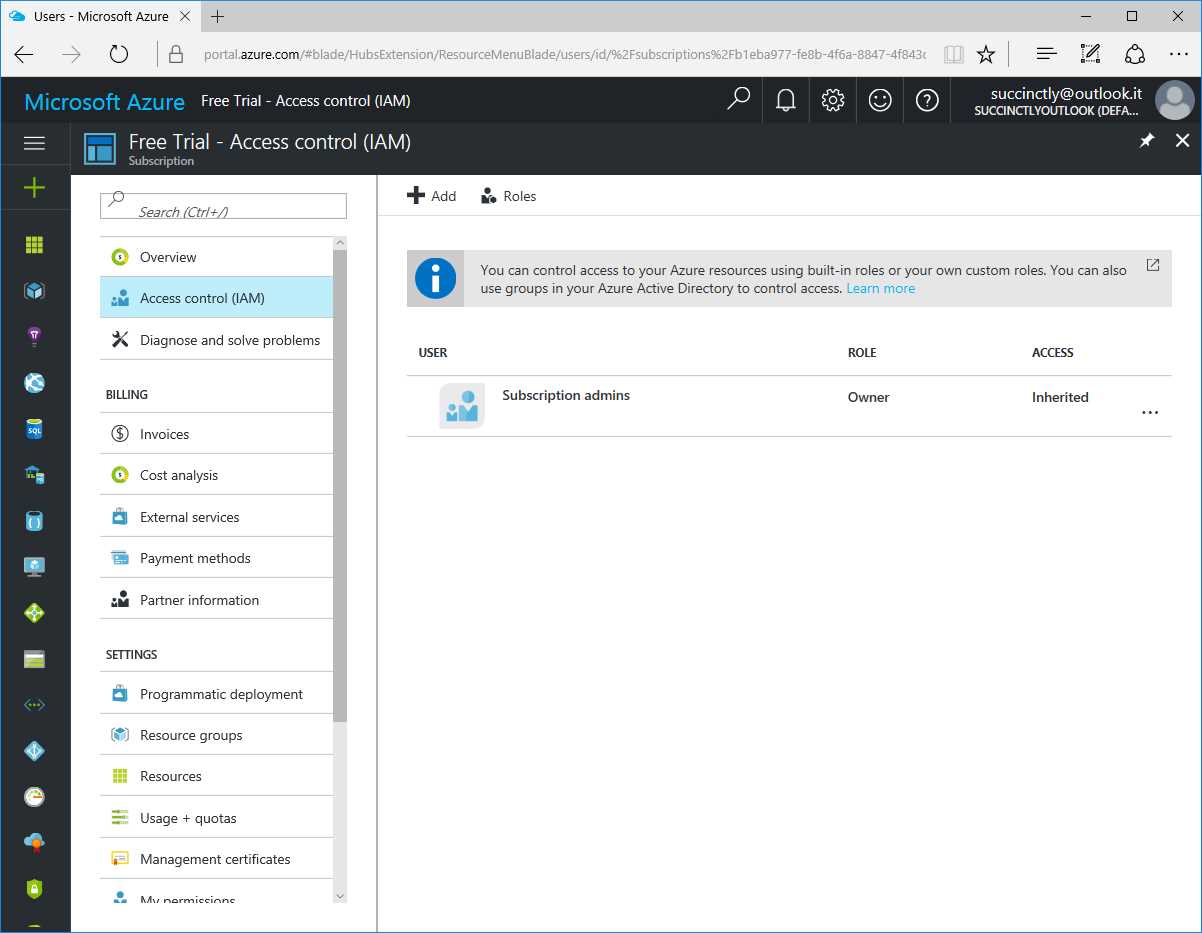
Figure 15: The Access Control (IAM) Feature
When you create a new Application Insights resource, the Subscription admins user is defined by default, with the Owner role.
By clicking the Roles button at the top of the Access control (IAM) blade, as seen in Figure 15, we will see the built-in roles for Application Insights and its resources.
This list contains the following roles:
- Owner: Can manage everything about Application Insights resources, including access rights.
- Contributor: Can manage everything about Application Insights resources, excluding access rights.
- Reader: Can view everything about Application Insights resources, but cannot manage anything.
- Application Insights Component Contributor: Can manage Application Insights components.
- Application Insights Snapshot Debugger: Can use Application Insights Snapshot Debugger features.
- Log Analytics Contributor: Can read all monitoring data and edit monitoring settings.
- Log Analytics Reader: Can view and search all monitoring data as well as view monitoring settings.
- Monitoring Contributor: Can read all monitoring data and update monitoring settings.
- Monitoring Reader: Can read all monitoring data.
- Resource Policy Contributor: Can create and modify resource policies and create support tickets.
- User Access Administrator: Can manage user access to Azure resources.
- Website Contributor: Can manage websites, but cannot access them.
To add a user to the access list, you can use the Add button or the Roles button at the top of the Access control (IAM) blade. In both cases, a new blade on the right will open where you can choose the role to assign.
To be sure that the role fits user activities, you can use the Permissions button at the top of the Roles blade to see the full list of permissions assigned to a role as shown in Figure 16.
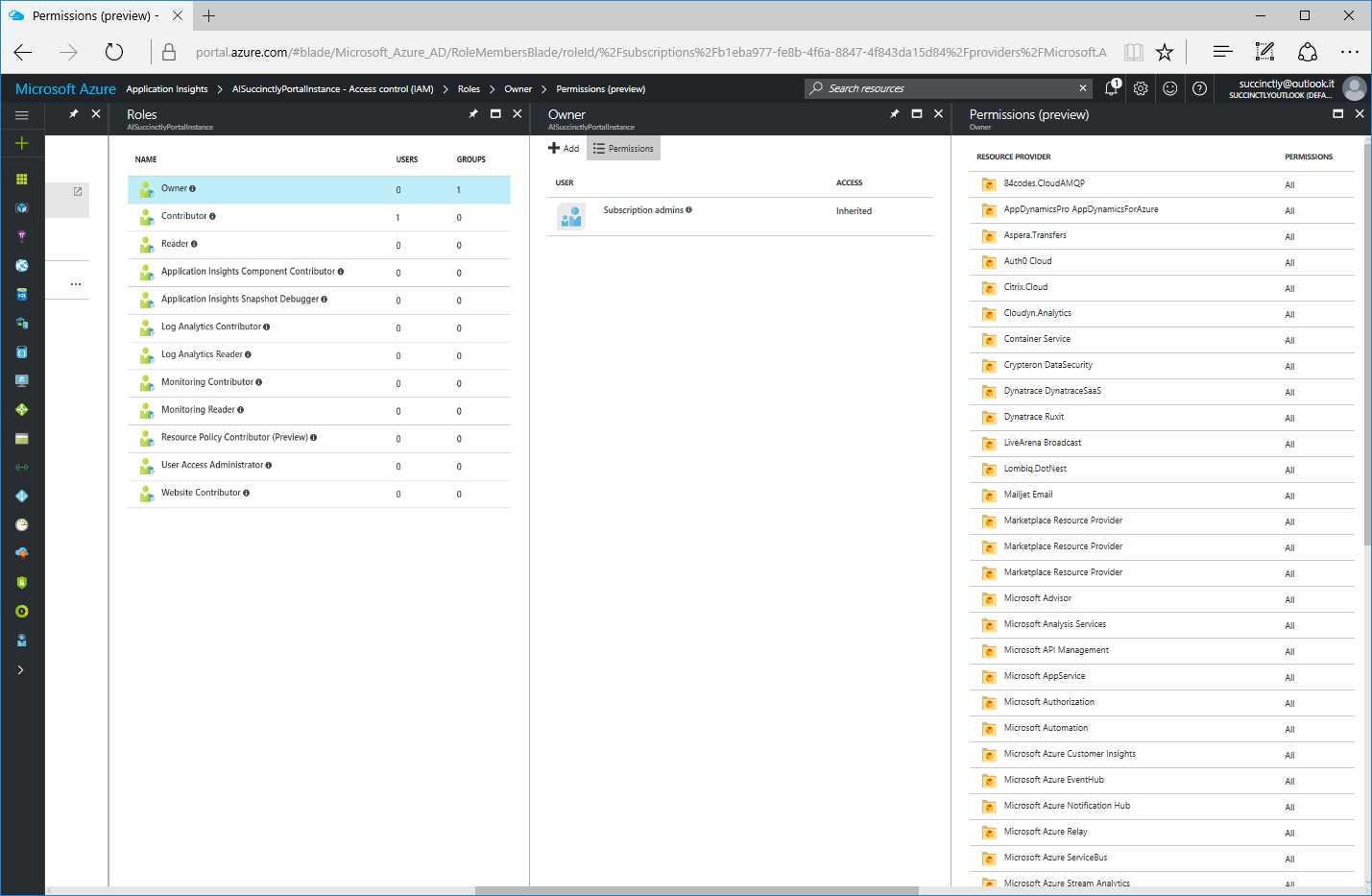
Figure 16: The Permissions List
By selecting a permission from that list, you can see in detail what actions that role can execute as in Figure 17.
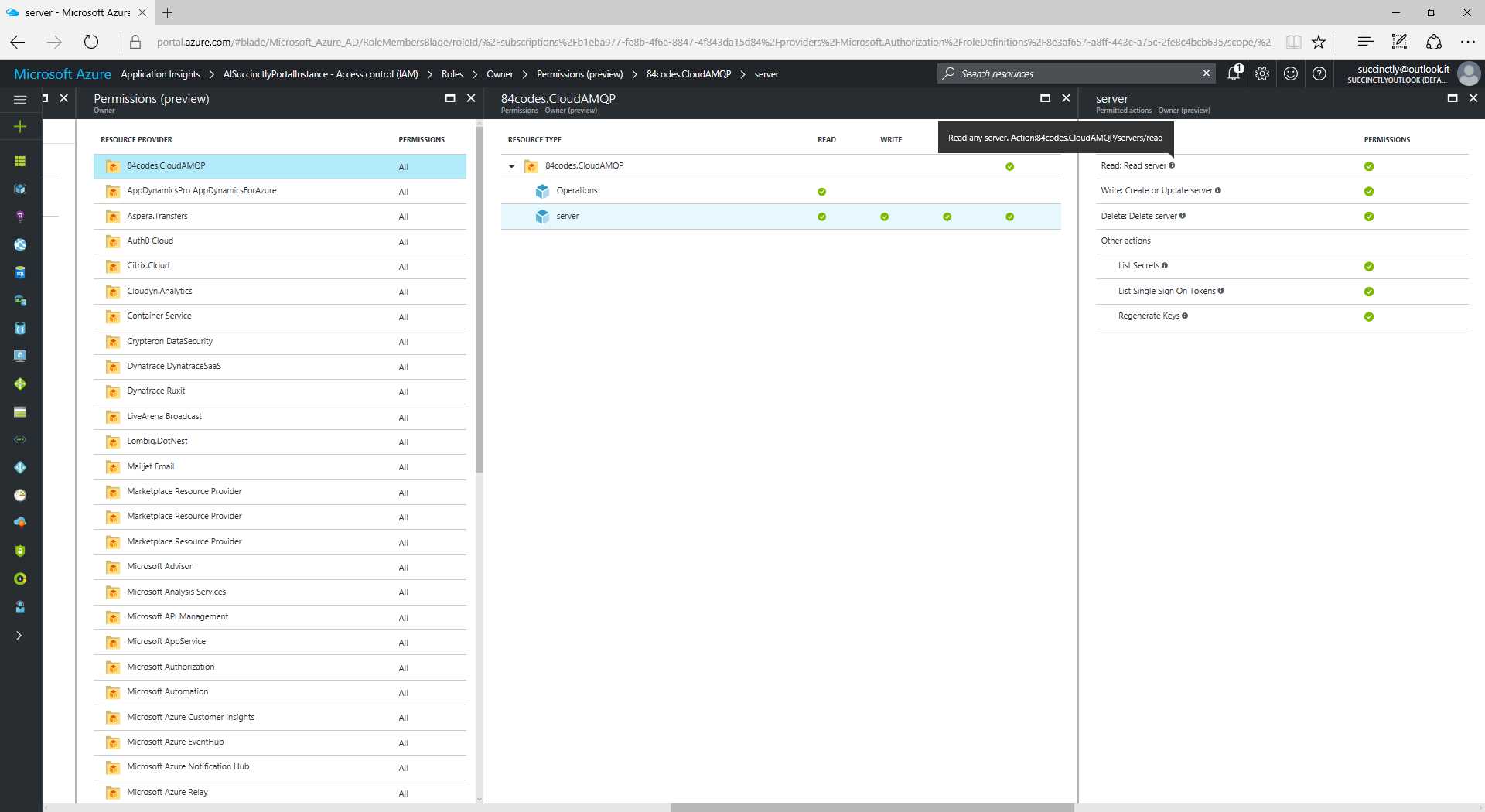
Figure 17: Actions Allowed for a Single Role
In the next chapter, we will see how to define alert rules and warnings to notify users.


- 1800+ high-performance UI components.
- Includes popular controls such as Grid, Chart, Scheduler, and more.
- 24x5 unlimited support by developers.