
App Modernization on Azure Succinctly®

CHAPTER 2
Cloud Migration, IaaS to the Rescue
Virtual machines
Virtual machines and virtual networks are the basis of a cloud migration (also called lift and shift) strategy. Of course, there are disks and IP addresses, but the first step is understanding how many VMs are needed, from which family, the network topology, OS, and so on.
Note: If you’re not interested in cloud migration using IaaS, it’s still important to understand many of the concepts of this chapter, because they will be essential to understanding the sizing of app service plans, AKS, and many other services.
There are many VM families available on Azure, and every family can contain tens of different VM sizes.
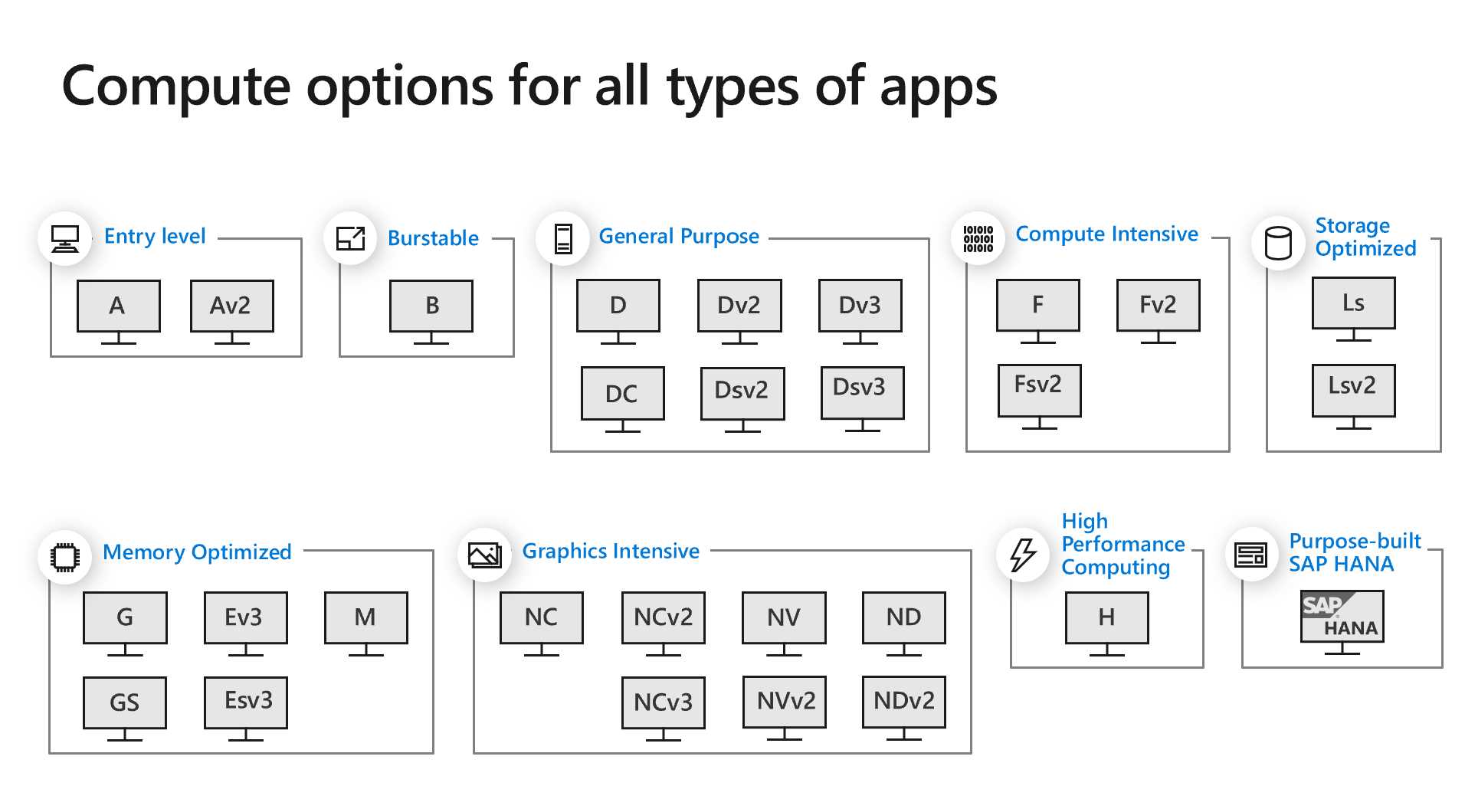
Figure 9: Common Azure VM families
Note: As usual, not all VM families are available in every region. Be careful when choosing the family; always check availability in the region that you need.
Every family has specific features, like SSD support, dedicated GPUs, CPU-to-memory ratios, maximum IOPS for the storage, the maximum number of virtual network cards, and maximum bandwidth. If you chose the wrong family and the wrong size, you could have bottlenecks in your app, or you could pay more than needed. You can find more information on the different families here.
The pricing of virtual machines varies a lot among families, and it’s different if you’re using Windows or if you’re using Linux as the guest OS. In general, Linux VMs cost less because the price of the OS is not included. If you already have a Windows license that you can use in the cloud, you can spare the cost. There are many ways to reduce the cost of a set of VMs; one is to see if there are price reductions if you plan to keep the VMs for one year or more. As usual, check the Azure website for the latest information on licensing and prices.
Note: Generation 2 virtual machines are now generally available with UEFI boot architecture, large OS disk size (2TB or more), large VM size (up to 12TB), and so on.
If you considered moving to the cloud but were blocked by the lack of support for Gen2 VMs, you can finally migrate those to Azure.
Disks
Virtual machines on Azure use managed disks on Azure Storage for all their OS, app, and data storage. There are many types of disks that you can choose from, with different performances and costs (note that Ultra SSDs were in preview when this e-book was written).
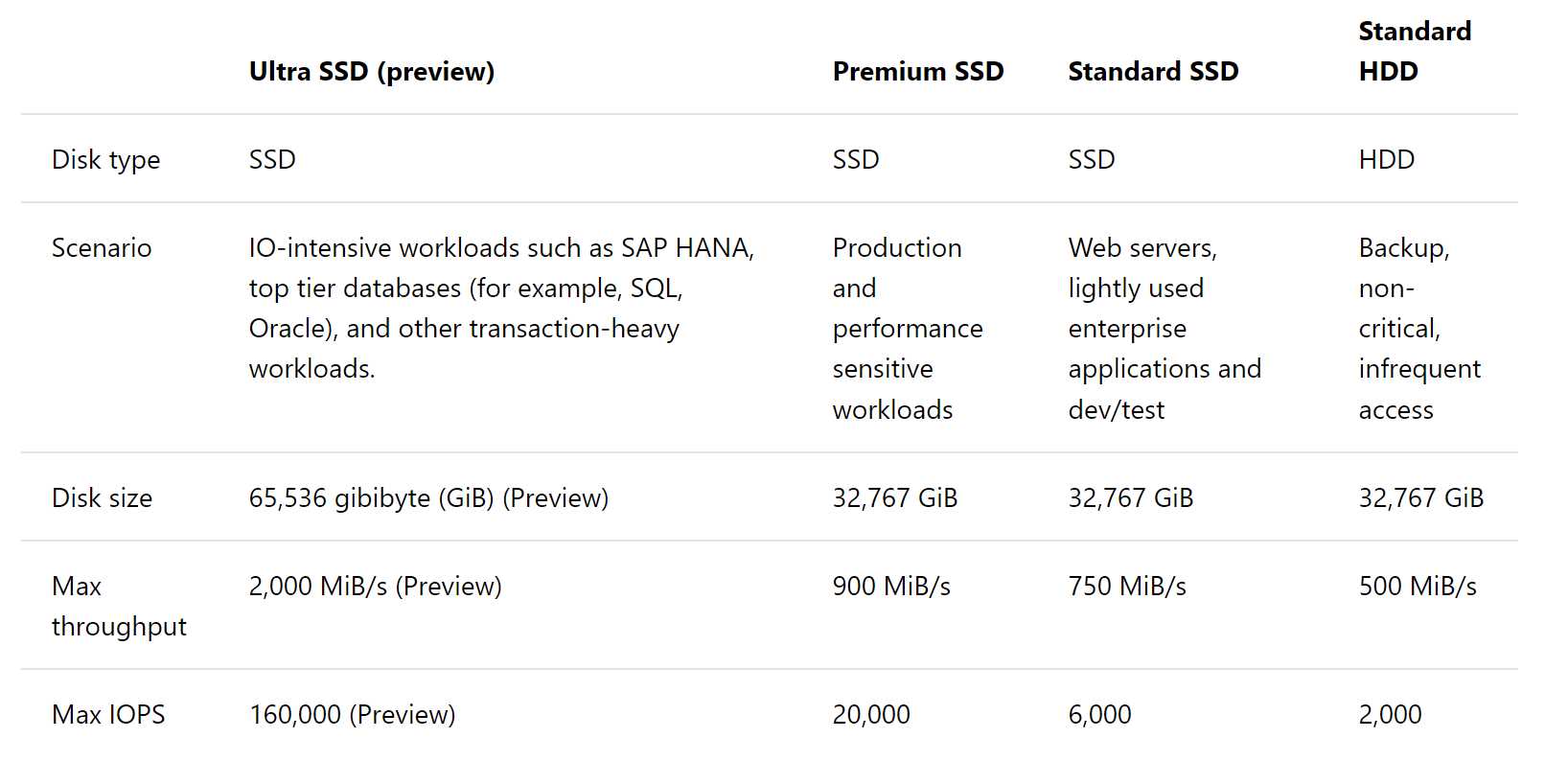
Figure 10: Azure disk types
Managed disks are designed for 99.999 percent availability. Each disk is duplicated at least three times, and they support backup, snapshots, role-based access control (RBAC), server-side encryption with customer-managed keys, and many other features. You can find more information here.
For a limited time, premium SSDs can also boost their performance up to 30 times the provisioned performance target to better support spiky workloads.
There are three types of disk roles in Azure:
- OS disk: contains the OS image, selected when the VM was created.
- Data disk: attached as SCSI Drives, every VM can have more than one disk, depending on the VM family.
- Temporary disk: used for temporary data, such as swap file and so on. Survives a reboot but can be destroyed when the VM is redeployed or there is a maintenance event.
Availability sets and zones
Availability sets and availability zones are used to increase VM redundancy and availability:
- Availability set: Two or more VMs deployed across different fault domains and update domains. A fault domain is a collection of servers that share common resources like power and network. Availability sets provide proper protection to faults inside a datacenter, or when a server inside a domain needs to be updated because the VM can run on another server inside another update domain.
- Availability zone: A fault-isolated area inside an Azure region where power, network, cooling, etc., are established redundant. Availability zones are available only in some regions. They provide proper protection to more significant problems, like part of a datacenter that’s completely inaccessible, because other zones are isolated from the first one with different providers for the network, power, and so on.
To achieve better business continuity, you should keep in mind that a region might go down completely. A comprehensive solution should asynchronously replicate data to other regions for disaster recovery protection. SQL Database, CosmosDB, and Azure Site Recovery are examples of technologies that support this scenario.
Virtual networks, network security groups, and application security groups
Azure Virtual Networks (VNET) allows many types of Azure resources to securely communicate with each other, with on-premises networks or on the internet.
Virtual networks are scoped to a single Azure region, but many VNETs in different regions can be connected with virtual network peering.
Network security groups (NSG) can filter network traffic to and from Azure resources inside a VNET, using security rules. Each rule can contain ports (source and destination), protocols, direction, ranges, and so on. Service tags can be used to specify specific Azure resources, like Azure Load Balancer, App Service, SQL, CosmosDB, and Azure KeyVault, without knowing detailed IP and protocol information.
Rules inside an NSG are executed using a priority order so that one can block all the traffic except for some specific IPs or protocols.
Application security groups (ASG) are used to define groups of Azure resources and define network security policies on the group, instead of single resources or single IP.
It’s important to know that there are many ways to diagnose connection problems between VNETs, especially when NSGs are present. For example, you can enable the NSG flow log to check what’s happening.
Azure management
Azure Resource Manager
Azure Resource Manager (ARM) is the service used to deploy and manage Azure resources in a consistent way, independently of the tool used to access the resources.
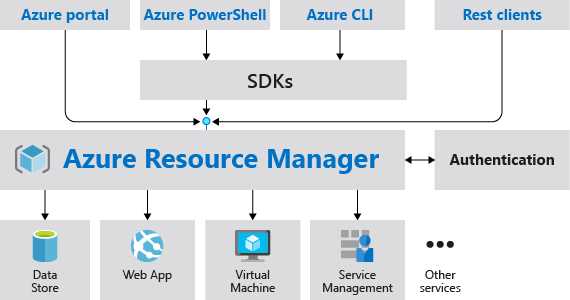
Figure 11: ARM is the key to deploying and managing Azure resources (from Azure documentation)
ARM allows you to use templates to declare the structure of a group of Azure resources. Templates are in JSON format and can contain parameters, functions, loops, and so on. Templates can be created by hand, or can be created starting from existing resources or RGs, like in the following figure.
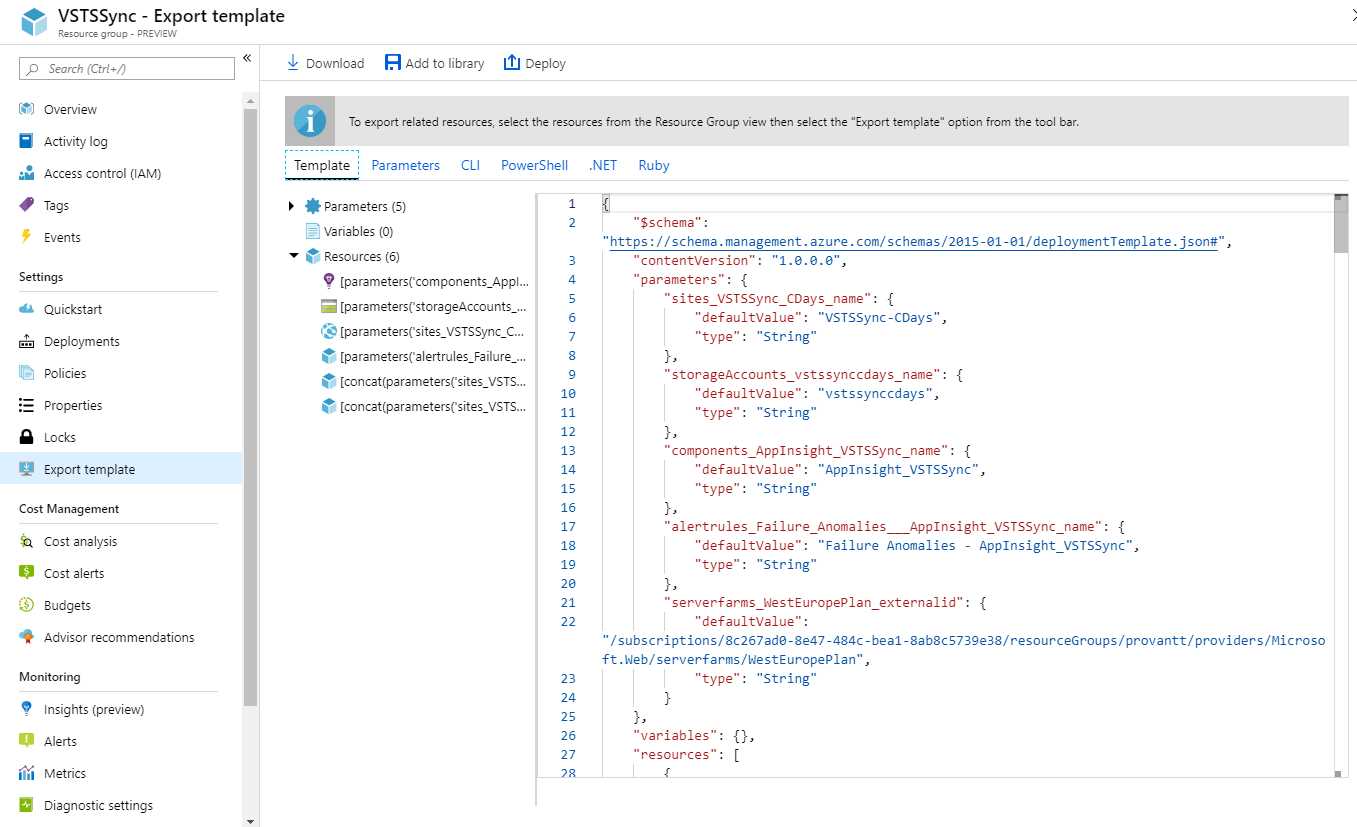
Figure 12: Export template
Using ARM templates is idempotent because the Azure Resource Manager will apply only the different parts. This is better than using imperative style scripts that should handle the fact that the script can fail at some point. If you rerun an imperative style script, it should handle a state where some resources were created, and some were not.
Azure Automation
Azure Automation is a set of process automation, update management, and configuration management features. Azure Automation can use PowerShell Desired State Configuration to describe the configuration of Azure resources and apply the configuration across physical and virtual machines, in the cloud or on premises, on Windows and Linux. Azure Automation can execute runbooks built graphically, or using PowerShell or Python. It can be integrated with source control systems (like Azure Repos), supports role-based access control, and much more.
Third-party tools
ARM templates and Azure Automation runbooks are powerful tools, but you can use other tools if they’re already in use in the organization, such as Ansible, Chef, Puppet, Packer, or Terraform.
All these tools can be integrated into Azure Pipelines, Jenkins, or others. You can find more information here.
Virtual machine application scaling
Virtual machine scale sets
Virtual machine scale sets (VMSS) are used to autoscale or manually scale a set of identical VMs horizontally.
Autoscaling is based on metrics, such as CPU usage, memory, or disk. You specify a minimum and a maximum number of VMs. Of course, the application inside the VMs should be stateless, or the state should be kept outside of the scale set to provide the expected result. Scaling can be configured inside the VMSS or in an Azure Automation runbook.
Before VMSS, you had to create the various VMs, VNET, load balancer, NSG, and so on, and then the appropriate monitoring of the VMs and the proper scripts.
VMSS horizontal autoscale is very similar to the app service autoscale that will be discussed in the following chapters, but that is specific to HTTP services, while VMSS can be used for many more scenarios.
Vertical scaling
VMSS makes it very easy to scale a group of identical VMs horizontally. It is also possible to scale a single VM (or a VMSS) from a powerful VM to a less powerful one (or vice versa) to reduce costs or increase performance, but it should be done manually (for example, by using an Azure Automation runbook or a script). There can be some downtime when a VM is upgraded or reduced, so it’s better to do it using a strategy to keep the service available.
Migration
Azure Migration Center
Azure Migration Center is the starting point for the migration journey. It contains all the resources and the tools needed to migrate, including links to partners’ solutions that cover advanced scenarios.
Azure Site Recovery
Azure Site Recovery is not only used to migrate physical servers or on-premises VMs to Azure, but can be used in a broader business continuity and disaster recovery (BCDR) strategy.
It works with Azure VMs, Hyper-V, VMware, Azure Stack, and physical machines, and the migration could also be set up to have a secondary site for failover.
Web apps and containers
As we saw in Figure 3 in Chapter 1, virtual machines are not the only way to migrate an app. If it’s a web app that doesn’t require low-level access or special features, it can be directly migrated using Azure App Service web apps (see Chapter 3).
If the app can run inside containers, it can be easier to migrate it in the cloud (see Chapter 4).
Database migration
You can, of course, migrate the VM or the server where your database (DB) is running by using one of the previous tools. For DBs, though, it’s better to use dedicated tools that analyze the content and structure of the DB to check if it can be moved to a SQL database (PaaS) or a managed instance, instead of a VM that should be managed by you, updated, patched, and so on.
See more information on database migration in Chapter 7.
Datacenter migration
Datacenter migration refers to the process of migrating multiple applications and services, networks, and all the configurations. You can also migrate very complex configurations by keeping a structure that is very similar to the on-premises one, using dedicated machines (for example, complex VMware infrastructure or Cray supercomputers).
A datacenter migration process should be planned and evaluated using the previous tools and with the help of experts if needed, but it’s outside the scope of this e-book. You can find more info about business-related considerations in this blog post and in the follow-up about technical considerations.
Licensing costs
Migrating to the cloud could require a revision of all the licensing fees of the solution. Some software has the right to be moved to the cloud. Other software can expect an upgrade or a new purchase. Sometimes the parameters used to determine the price could change (think about the number of processors, cores, and MIPS).
It’s better to check with the provider of the software, DB, OS, and so on to understand the better strategy and reduce costs.
Keeping multiple versions
Most of the time, an application exists only on premises or in the cloud (we don’t consider the overlap that can exist during migration to keep the services running).
Independent software vendors (ISVs), which develop proprietary solutions with their intellectual properties, sometimes need to keep many versions:
- An on-premises solution that is sold to the customer and deployed in its datacenter (or a third-party datacenter).
- A cloud solution that is offered as SaaS to the customers from the ISV’s subscription.
- A cloud solution that is sold to the customer and deployed in its cloud subscription, through Azure Marketplace or directly from the ISV.
To be able to keep multiple deployment options, there are many approaches, like using VMs or containers for everything, or refactoring the app to access different services, depending on the actual deployment.
To limit manual errors and misconfigurations, it’s better to have the right DevOps strategy, with a repository containing all the source code, multiple build and release pipelines for the various configurations, and a set of tests that cover both functional and nonfunctional requirements in the different environments.
Azure Arc, Azure Security Center (covered later in this chapter), and Azure Monitor (see Chapter 8) can be used to manage and monitor multiple infrastructures.
What to do after migration
Moving from a physical on-premises datacenter or a hosted datacenter to the cloud requires some additional checks to the infrastructure. VNETs should be secured using NSGs; public IPs should be reviewed and checked; secrets should be stored in an Azure KeyVault for better security; and so on.
Azure Advisor
Azure Advisor is a virtual consultant that analyzes resource configuration and telemetry and gives suggestions to improve performance, high availability, security, and to optimize costs for virtual machines, availability sets, application gateways, App Services, SQL servers, and Azure Cache for Redis.
More resource recommendations will be added in the future.
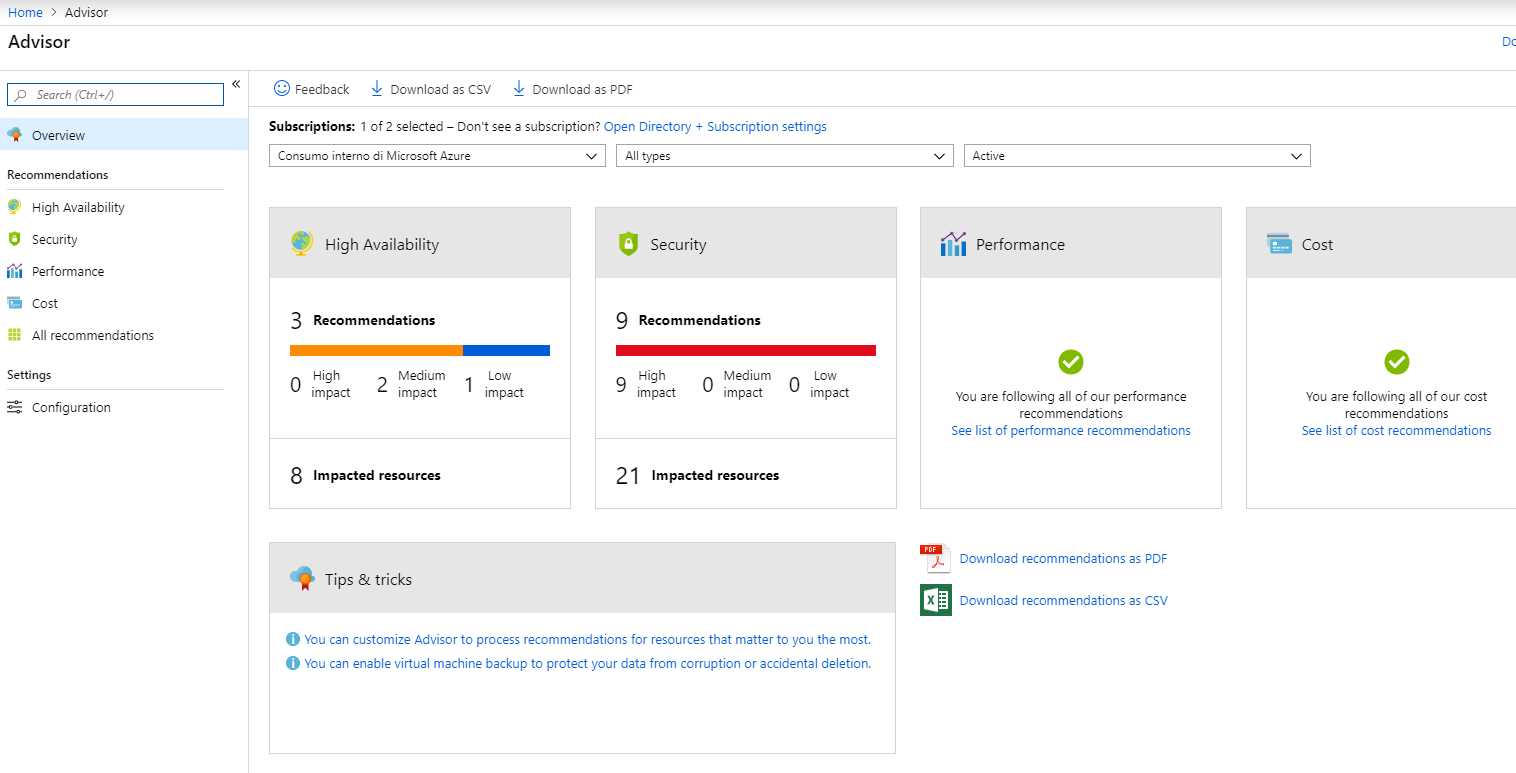
Figure 13: Azure Advisor recommendations
Azure Security Center
One starting point to check the security of the migrated solution is Azure Security Center (ASC).
ASC is a unified security management system that can work across your cloud and on-premises workloads to detect misconfigurations, policy violations, best-practices violations, attacks, and more. It’s continually updated by experienced Microsoft engineers and uses advanced AI techniques to analyze traffic and configurations to find possible problems in the network, infrastructure, and application layers.
Some features are included for free in every subscription, and some are premium features with a 30-day trial period.
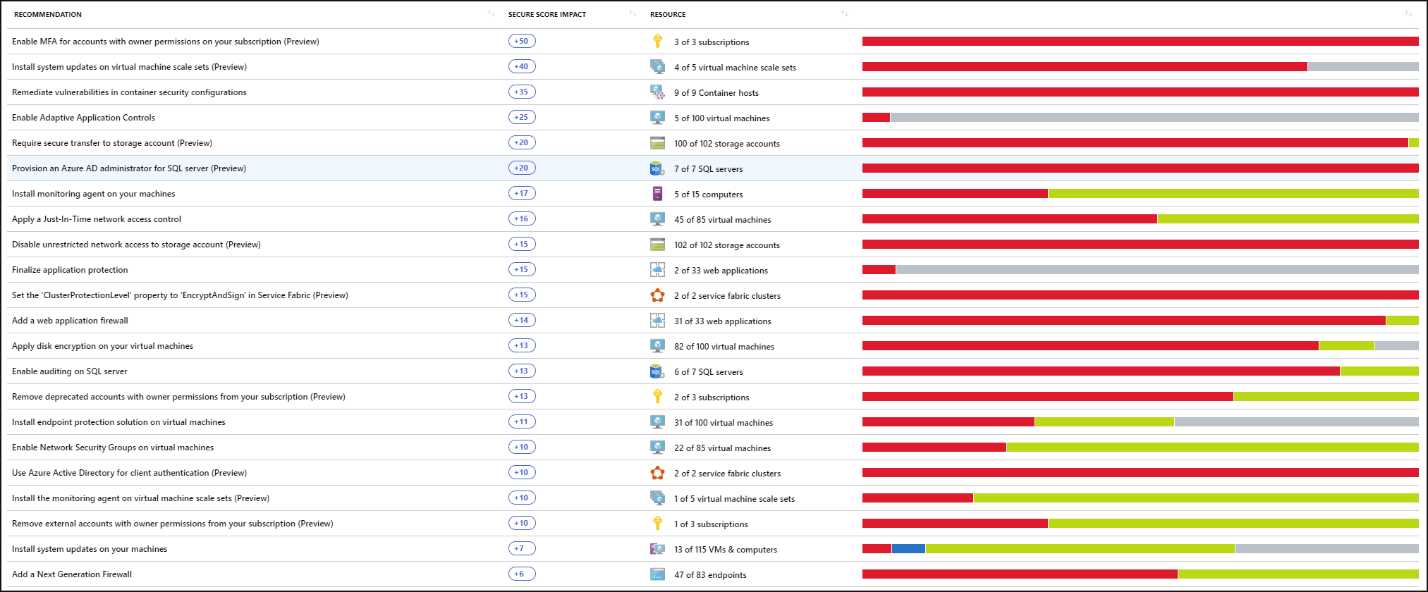
Figure 14: Azure Security Center report with recommendations (taken from Azure documentation)
Azure Monitor
Azure Monitor is the entry point for all the monitoring features for cloud and on-premises solutions. We’ll cover Azure Monitor in Chapter 8.
Automation, automation, automation
Once moved to the cloud, a solution should not be administered manually (unless there are strange or unexpected problems). Automation of every process, from scaling to reacting to events, should be reached to exploit all the benefits of the cloud and reduce operational costs.
DevOps pipelines should be used to automate deployments; automatic scale-out/scale-in features should be used when possible; scheduled or point-in-time backups should be used; and multiple deployment slots or configurations should be used when a fast rollback to a previous version is necessary.
Automation is the key to have a smooth solution running in the cloud.
It’s always the right time to modernize!
You don’t have to wait until the solution is entirely migrated to the cloud to start modernizing it. You can modernize in small bites by applying the Pareto principle and working on the best solution for small problems that can lead to great results.
For example, you can replace a network share with Azure Blob Storage, or directly move a database using a managed service instead of a VM. If the application’s architecture is modular and pluggable, it’s possible to modernize some pieces by moving them to PaaS, serverless or containers, to achieve scalability for those parts without impacting the others. We’ll explore many modernization options in the next chapters.


- 1800+ high-performance UI components.
- Includes popular controls such as Grid, Chart, Scheduler, and more.
- 24x5 unlimited support by developers.