
Apache Solr Succinctly®

CHAPTER 5
Schema.xml: The Content
Have you ever heard of the learning triangle? It basically states that the level of mastery on any specific topic increases as you go through the following process: reading, seeing, hearing, watching, doing, and teaching. You are reading this right now, but to maximize the learning process, I encourage you to follow along in your own Solr installation.
In this chapter, we will create our own example using real-life data: a list of books in the Syncfusion Succinctly Series. It's not a large set of data, but it'll do just fine for me to demonstrate the steps required to index your own content.
Our Own Example
I chose the Succinctly series because it is something that I identify with, and it is easy to understand. We will take the library and create an application to index the books, and allow people to browse them via tags or by text searching. Let’s get this party started!

- Syncfusion Succinctly Series
We will start by indexing data for only three fields, and then over the course of the chapter, incrementally add a few more so we can perform queries with faceting, dates, multi-values, and other features that you would most likely need in your application. Let’s take a quick look at our sample data to see what it contains. As you can see, we have things like book title, description, and author. We will be using a CSV file; however, for display, I am currently showing you the data using Excel.
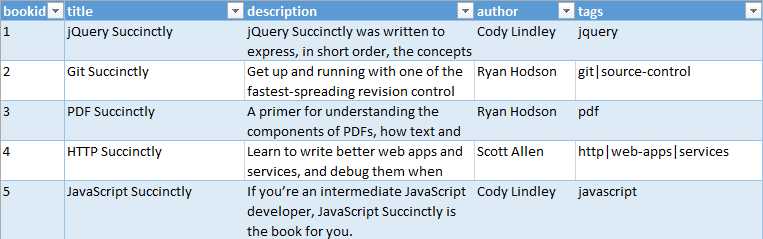
- Sample data
Whenever you want to add fields to your index, you need to tell Solr the name, type, and a couple of other attributes so that it knows what to do with them. In layman’s terms, you define the structure of the data of the index.
You do this by using the Schema.xml file. This file is usually the first one you configure when setting up a new installation. In it you declare your fields, field types, and attributes. You specify how to treat each field when documents are added to or queried from the index, if they are required or multi-valued, and whether they need to be stored or used for searching. Even though it is not required, you can also declare which one is your primary key for each document (which needs to be unique). One very important thing to remember is that it's not advisable to change the schema after documents have been added to the index, so try to make sure you have everything you need before adding it.
If you look at the schema.xml provided in your download, you'll see it includes the following sections:
Version
The version number tells Solr how to treat some of the attributes in the schema. The current version is 1.5 as of Solr 4.10, and you should not change this version in your application.

- Version number
Type Definitions
Logically there are two types: simple and complex. Simple types are defined as a set of attributes that define its behavior. First you have the name, which is required, and then a class that indicates where it is implemented. An example of a simple type is string, which is defined as:

- Type definition
Complex types, besides storing data, include tokenizers and filters grouped into analyzers for additional processing. Let’s define what each one is used for:
Tokenizer
Tokenizers are responsible for dividing the contents of a field into tokens. Wikipedia defines a token as: “a string of one or more characters that are significant as a group. The process of forming tokens from an input stream of characters is called tokenization.” A token can be a letter, one word, or multiple words all embedded within a single phrase. How those tokens emerge depends on the tokenizer we are currently using.
For example, the Standard Tokenizer splits the text field into tokens, treating whitespace and punctuation as delimiters. Delimiter characters are discarded, with a couple of exceptions. Another example is the Lower Case Tokenizer that tokenizes the input stream by delimiting at non-letters and then converting all letters to lowercase. Whitespace and non-letters are discarded. A third one is the Letter Tokenizer, which creates tokens from strings of contiguous letters, discarding all non-letter characters. And the list goes on and on.
Filter
A filter consumes input and produces a stream of tokens. It basically looks at each token in the stream sequentially and decides whether to pass it along, replace it, or discard it. It can also do more complex analysis by looking ahead and considering multiple tokens at once, even though this is not very common.
Filters are chained; therefore, the order affects the outcome significantly. In a typical scenario, general filters are used first, while specialized ones are left at the end of the chain.
Analyzers
Field analyzers are in charge of examining the text of fields and producing an output stream. In simpler terms, they are a logical group of multiple operations made up of at least one (but potentially multiple) tokenizers and filters. It is possible to specify which analyzer should be used at query time or at index time.

- Analyzers
Back to Complex Types
Let’s take a look at one example. In this case, we are going to use one of the most commonly used types, text_general. By using this field to store text, you will be removing stop words and applying synonyms at query time, as well as other operations. Also, you can see that there are two analyzers: one for query time, and the other for index time.
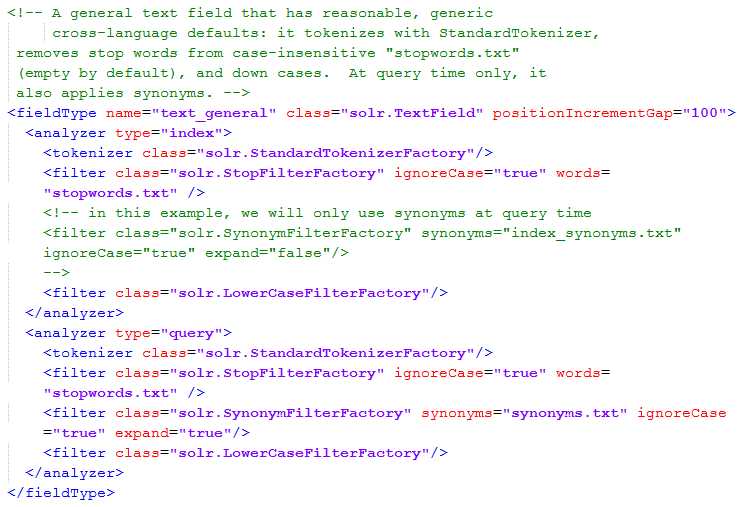
- Text general type
Field Definitions
In this section, you specify which fields will make up your index. For example, if you wanted to index and search over the books in Syncfusion’s Succinctly Series or Pluralsight’s Online trainings, then you could specify the following fields:

- Solr fields for sample data
A field definition has a name, a type, and multiple attributes that tell Solr how to manage each specific field. These are known as Static Fields.
Solr first looks for static definitions, and if none are found, it tries to find a match in dynamic fields. Dynamic fields are not covered in this book.
Copy Fields
You might want to interpret some document fields in more than one way. For this purpose, Solr has a way of performing automatic field copying. To do this, you specify in copyField tag the source, description, and optionally, a max size as maxChars of the field you wish to copy. Multiple fields can easily be copied into a single copyField using this functionality.

- Solr copy fields
Copy fields can also be specified using patterns; for example, source="*_i" will copy all fields that end in _i to a single copyField.
Field Properties by Use Case
In the Apache Solr documentation wiki, there is an incredibly useful table that tells you the required values of the attributes for each use case. I am copying the table here verbatim, and will explain with an example. Please look for “Field Properties by Use Case” in the Solr wiki for more information.

- Field properties by use case
The way to use this table is to look for the specific scenario that you want for your field, and determine the attributes. Let’s say you want a field where you can search, sort, and retrieve contents.
This means there are three scenarios: Search within field, Retrieve contents, and Sort on field. Looking for the required attributes in the columns, you would need to set indexed=“true”, stored=“true”, and multivalued=“false”.
Common Mistakes with Schema.Xml
Now let's talk about how to avoid some of the mistakes that people make with the schema.xml.
- You need to keep your schema.xml simple and organized. I actually have a friend that cleans up the entire schema.xml first, then adds the sections that she needs. I think you may not actually need to go to that extent, but everybody has their own way of working.
- There's the other extreme where some people just change the field names from the default configuration. I say this could bring some unintended consequences, as you will be copying the fields into other fields that you don't actually intend to.
- And then there's another extreme, where there are some people who do a lot of over-planning and have the “everything but the kitchen sink” methodology. They over-plan for things that they don't even intend to use. There is an acronym that describes this very well: YAGNI, or, “you aren’t gonna need it.” Planning is good, but over-planning is usually bad. Don't include attributes and fields that you don't need.
- Finally, this may not be a mistake, but it's a good recommendation: upgrade your Solr when possible. Solr has a very active development community, and you should upgrade when there are new versions available. Of course, stick to what works with your development capacity.
Succinctly Schema.Xml
It’s time to make it our own Solr with our data. We will take our sample data, which can be found in GitHub in the following repository: https://github.com/xaviermorera/solr-succinctly.git.
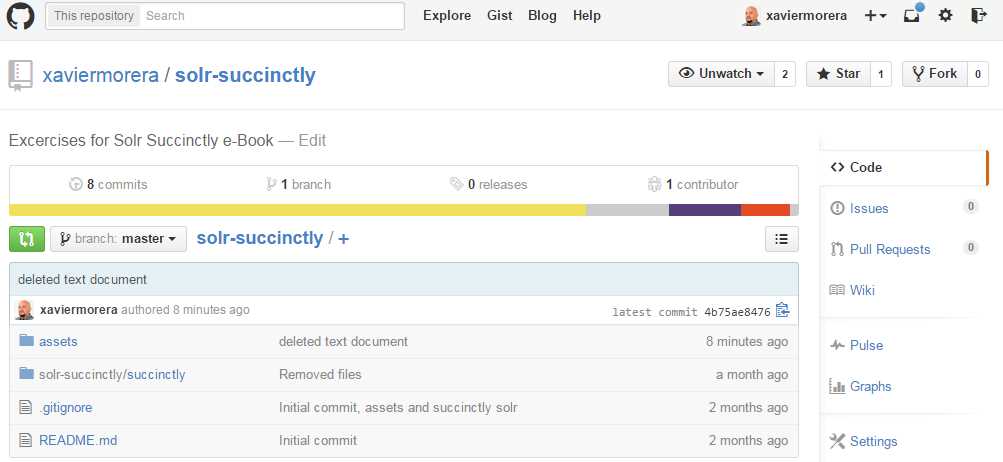
- The exercise repository
The repository includes two main folders:
- The source files for the exercises, located in the assets folder. It is under 50KB in size, so you can download them separately if required.
- A finished example, which you may not need if you follow the instructions provided in this book.
Understanding the documents that we will index in this demo is easy. In the real world, it can be trickier.
Create Your Collection
Up until now, we indexed some sample documents included in the Solr download. We will use this collection as a base to create our own, and will use a more appropriate name. It is worth mentioning that whenever the word “document” is used, it refers to a logical group of data. It is basically like saying a “record” or “row” in database language. I’ve been in meetings where non-search-savvy attendees only think of Word documents (or something similar) when we use this specific word. Don’t get confused.
Here are the steps to create our first index:
- Open the command line and navigate to where we unzipped Solr earlier. It should be in C:\solr-succinctly\succinctly\solr. This is where collection1 is located.
- In this directory, you will find the collections that are available in the current installation. Right now, we only have collection1. We need to clone collection1, so please copy and paste, and rename the new collection to succinctlybooks.
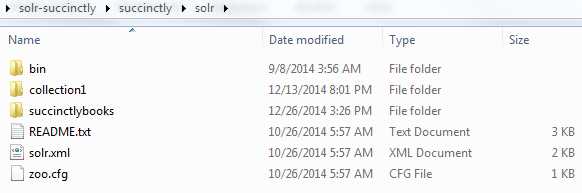
- Create succinctlybooks collection
Now go into the succinctlybooks folder and open core.properties. Here is where you specify the name of the core, which is also called collection. It should look like this:
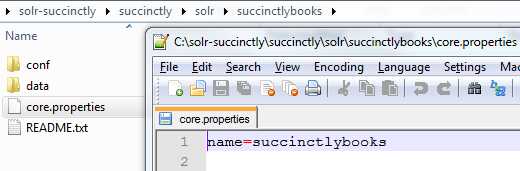
- Name the collection
- Now restart your Solr and go to the Core Selector. Succinctlybooks should be displayed.

- New collection loaded
If you forget to rename the collection name within core.properties and try to restart, you will get an error telling you that the collection already exists. The error displayed in the console will be similar to the following:
2972 [main] ERROR org.apache.solr.core.SolrCore ull:org.apache.solr.common.SolrException: Found multiple cores with the name [collection1], with instancedirs [C:\solr-succinctly\succinctly\solr\collection1\] and [C:\solr-succinctly\succinctly\solr\succinctlybooks\] |
Quick Cleanup
It is not a requirement to clear the index and comment out the existing fields; however, given that we have data in our index, we need to do it to avoid errors on fields we remove and types we change.
The following two steps will show you how to ensure we clean out the redundant data.
Step 1: Clear the index
The collection that we just copied came with the sample data we indexed recently. So where does Solr store the index data? Inside the current collection in a folder called “index” in the data folder. If you ever forget, just open the Overview section in the Admin UI section where you can see the current working directory (CWD), instance location, data, and index.

- The index as seen in the Admin UI
In our case, it can be found here: C:\solr-succinctly\succinctly\solr\succinctlybooks\data\index. If you view the folder contents, this is what a Lucene index looks like:
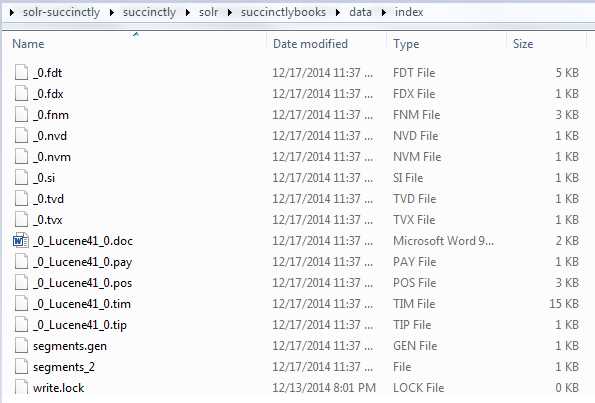
- A Lucene index
The next step is to clear the index, as we will be modifying the fields so that we can create our new index. Please stop Solr first by typing Ctrl + C from the console window where you started Solr, open Windows Explorer in your Lucene index, select all files within the index, and delete.
When you restart Solr, your index now has 0 documents. We now have an empty index to start with.
It is necessary to point out that if you do not delete the index, we will be changing the uniquekey from string to int. Given that some of the keys in the original samples have keys that look like “MA147LL/A,” you will get the following error when you restart:

- A Solr error
Soon, we will be changing our uniquekey’s name, but not its type. If you insist that you want int as the type for bookid instead of string, you will get the error I just showed you at the start, even if you have a clean index. Figure 65 shows the error you will run into if you do not follow the instructions.

- A Solr error stack trace
I’ll leave it to you to play around and figure out what the elevate.xml file is used for, which is one of the two potential culprits of this error:
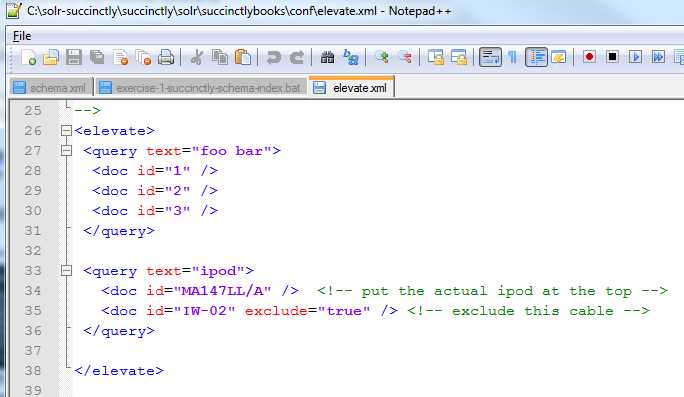
- Elevate.xml
Step 2: Comment out existing fields
There are two sections that I like to remove within Schema.xml:
- The field definitions for the out-of-the-box sample data.
- Solr Cell fields.
First, look for the definition of id and comment it out all the way to store, as shown in the following image. Do it with an XML comment, which starts with <!-- and ends in -->.

- Commenting out existing fields
Now let’s look for the Solr Cell fields, and comment out from title all the way to links. There are a few more fields that you should comment out, which are content, manu_exact, and payloads. Notice I did not comment out text, as it is a catchall field implemented via copyFields. We will soon get to it.

- Solr Cell fields
Finally, look for copyFields and comment them out.

- copyFields commented out
Leave dynamicFields and uniqueKey as they are; we will get to them soon.
Start by Understanding Your Data
Creating a search UI for Syncfusion’s Succinctly series could take a long time, and potentially give you some headaches—or it can be done rather quickly, if you have the proper resources. And if you have this book in your hands, you are in luck, as you have a proper resource. Here is the data that we will be using:

- Row of source data
- Bookid: The book id is just a number that will serve its purpose as a unique key.
- Title: The title of the book. This is the text that will be searched, stored, and retrieved.
- Description: A slightly larger text, with the description of the book.
- Author: The Succinctly series usually includes only one author per book; however, it is potentially multivalued, so we will declare as such. We will use this one as a facet.
- Tags: Another multivalued field; we’ll use it also as a facet.
Open the schema.xml file for the "succinctlybooks” collection in Notepad++ or any other text editor. In case you forgot or skipped the previous exercises, it is located here: C:\solr-succinctly\succinctly\solr\succinctlybooks\conf.
It is time to define our static fields. The fields should be located in the same section as the sample data fields that we just commented out. Please look for the id field definition, and add them at the same level, starting with bookid.
Bookid will be our unique key. We declare a field with this name, and add the type, which in this case is string. If you want, it can also be an int; it does not really make a big difference. Given that it is a uniquekey, it needs to be indexed to retrieve a specific document; it is required, and unique keys cannot be multivalued. Remember Field Properties by Use Case? Also, please be mindful of capitalization; for example, multiValued has an upper-case V.

- Bookid
We changed the name of the unique key from id to bookid. Look for the uniquekey tag and change accordingly.

- Unique key changed
And now we define the rest of the static fields. You should end up with some entries in the schema like this:

- Schema entries
You may have noticed by now that title and description are of type text_general, while author and tags are of type string. As you might have guessed, these are different data types in the Solr landscape.
String is defined as a simple type with no tokenization. That is, it stores a word or sentence as an exact string, as there are no analyzers. It is useful for exact matches, i.e. for faceting.

- String definition
On the other hand, the type definition of text_general is more complex, including query and index time analyzers, for performing tokenization and secondary processing like lower casing. It’s useful for all scenarios when we want to match part of a sentence. If you define title as a string, and then you searched for jquery, you would not find jQuery Succinctly. You would need to query for the exact string. This is not what we would most definitively want.

- Querying the string
We will be creating facets for tags and authors, which means a string is the correct type to use for these. Will we be able to find them if we only type the name or last name? Let’s wait and see.
Summary
In this chapter, we started looking at the schema.xml file. We found out how important this file is to Solr, and we started editing it to define our own collection containing information about the Succinctly e-book series.
In the next chapter, we'll move on to the next stage in our game plan and cover the subject of indexing.


- 1800+ high-performance UI components.
- Includes popular controls such as Grid, Chart, Scheduler, and more.
- 24x5 unlimited support by developers.