
Android Programming Succinctly®

CHAPTER 1
Setting Up
Before we start writing any code, our first task is to set up a development environment. The major components necessary for building an Android app are as follows:
- A text editor for writing your code.
- The Android framework for linking against your application code.
- The Android command-line tools for compiling your code into a working app.
- An emulator or actual device for testing your compiled application.
While it’s possible to use virtually any IDE or text editor to create apps, the easiest way to get started with the Android platform is the official Android Software Development Kit (SDK), which contains all of these components in a single convenient download.
The Android SDK
The Android SDK (available for OS X, Windows, and Linux) includes the Eclipse IDE with the Android Developer Tools (ADT) plugin, along with an emulator, a graphical layout editor, and some other useful features. This is also the development environment that we’ll be using in this book, so go ahead and download it now so you can follow along.
Installation
After the download has completed, unzip the file and open the eclipse folder. It should contain an Eclipse executable that you can launch to start the IDE. You’ll be prompted to select a workspace folder, and then Eclipse should be ready to go. And that’s it for installation!
Creating a Project
Let’s jump right in by creating a new Android project. On the File menu, click New. In the resulting wizard, select Android Application Project.
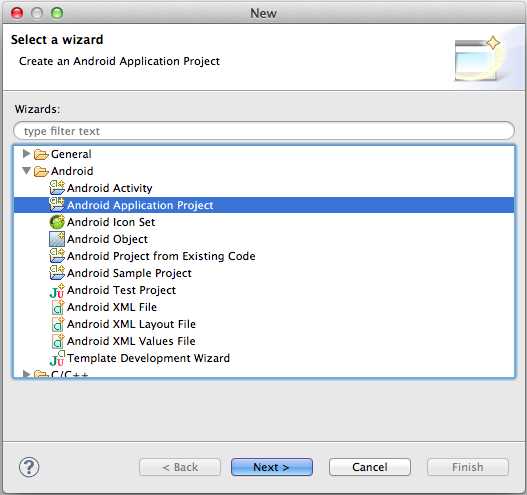
- Creating a new Android project
This will prompt you for some information about your new project:
- Application Name: The name of your app. Use Hello Android for this field.
- Project Name: The name of the project directory. This should be automatically populated with HelloAndroid, and you can leave this value as is.
- Package Name: The unique namespace for the project. Since it’s just an example app, you can leave the default com.example.helloandroid, but you should use the reverse domain name of your organization for real applications.
The remaining fields define important platform requirements, and you can leave them all at their default values. Your configuration should look like the following when you’re done:
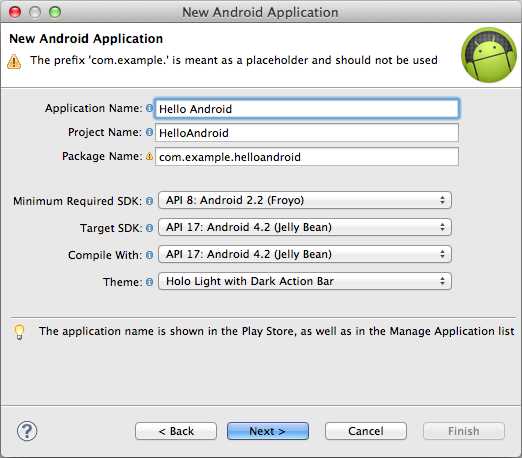
- Configuring a new Android project
The next two windows ask you about some other miscellaneous details and the app’s icon. You can leave all of them at their default values. Finally, you’ll come to the following window asking if you want to create an activity:
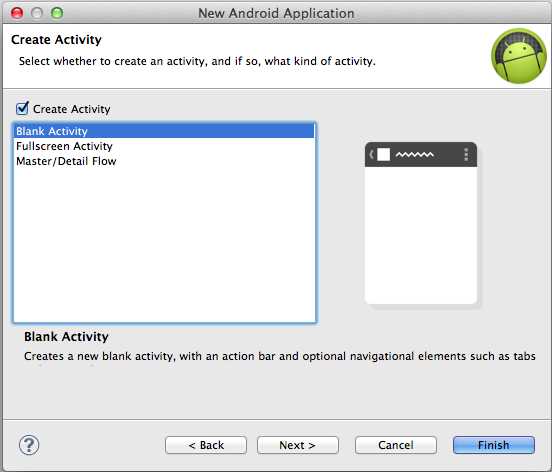
- Creating an initial activity
We’ll talk about activities in great detail next chapter, but all you need to know for now is that an activity represents a single screen of your application. We want to have something to look at initially, so make sure Create Activity is checked, then select Blank Activity to specify an empty screen. In the next window, you can use the default MainActivity and activity_main values for the Activity Name and Layout Name fields (again, we’ll discuss layouts in the next chapter). Click Finish to create a brand new Eclipse project.
Setting Up the Emulator
Unfortunately, we can’t immediately compile the template project to see what it does. First, we need to set up a device on which to test our new app. Android is designed to let you run a single application on devices of wildly differing dimensions and capabilities, making it a very efficient platform for porting apps from smartphones to tablets to anything in between. The Android Virtual Device Manager included in the SDK allows you to emulate virtually any device on the market.
To view the list of emulated devices, navigate to Window and select Android Virtual Device Manager. This window makes it easy to see how your application behaves on all sorts of Android devices, test different screen resolutions and dimensions, and experiment with various device capabilities (e.g., hardware keyboards, cameras, storage capacity).
To create an emulated device for our project, click New... and use GalaxyNexus for the AVD Name, then select Galaxy Nexus from the Device dropdown menu, and leave everything else as the default. For development purposes, it’s also a good idea to check the Use Host GPU to use your computer’s GPU, since emulating animations can be quite slow and clunky. Your configuration should resemble the following:
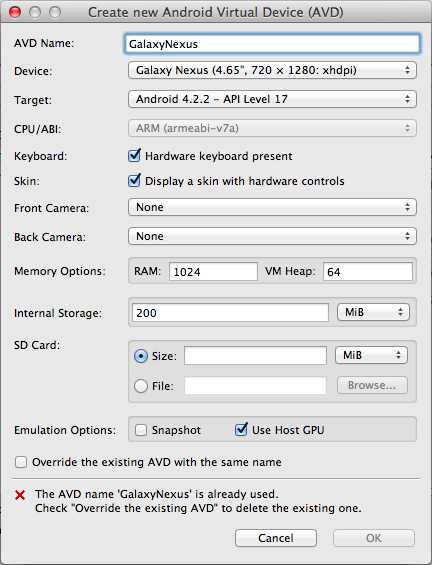
- Creating a new emulated device
After clicking OK, you should find your device in the Android Virtual Device Manager window. To start the emulator, select the GalaxyNexus item, and click Start. Leave the launch options at their default values, and click Launch. This will start spinning up the emulator, which looks something like the following:
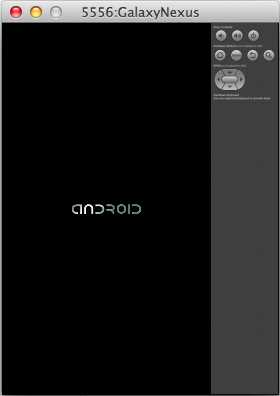
- The Android device emulator
The emulator has to boot up the Android operating system (just like a real device), so you might be staring at that Android logo for a while before the emulator is actually ready to use. When it is finally ready, you’ll see the typical Android home screen, and you can click around to launch apps and explore the emulated device:
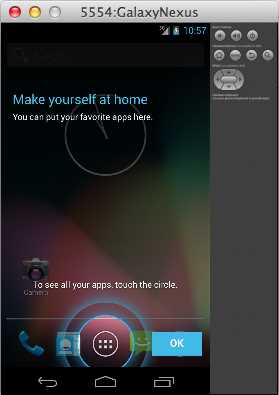
- The emulator after it’s ready to use
Since it takes so long to boot, you’ll want to keep the emulator running as you start writing code (Eclipse can re-launch the application on the emulator without restarting it).
Compiling the Application
We’re finally prepared to compile the sample project. Back in Eclipse, make sure one of the source files is selected in the Package Explorer, then click Run, select Run as, and choose Android Application. After taking a moment to compile, you should see your first Android app in the device emulator. As you can see, the default template contains a single text field that says “Hello world!”
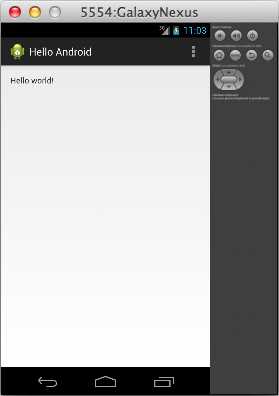
- The compiled template project
In the next chapter, we’ll learn how to change the contents of this text field, add other UI components, and organize a simple Android application.


- 1800+ high-performance UI components.
- Includes popular controls such as Grid, Chart, Scheduler, and more.
- 24x5 unlimited support by developers.