
 Balaji Elumalai
TL;DR: AI-generated code can save time, but missing dependencies, outdated APIs, and incomplete component configuration often lead to manual fixes. Learn how Syncfusion Agent Skills and MCP Servers help AI coding assistants generate more reliable code and provide instant access to the latest documentation without leaving your editor.
As AI developer tools become part of everyday development, improving the accuracy of generated code has become just as important as generating it quickly.
AI coding assistants can generate a form, dashboard, or data grid in seconds. The initial results often look impressive, but developers quickly discover that generating code is only part of the job.
When working with a component library such as Syncfusion®, small implementation details matter. Missing imports, incorrect configuration, outdated APIs, or overlooked dependencies can turn a seemingly complete solution into a debugging session.
This is especially true when building applications with feature-rich UI components. An AI coding assistant might know how to create a grid, chart, or scheduler, but it doesn’t always know the recommended way to implement those components within a specific ecosystem.
To help bridge that gap, Syncfusion provides two AI coding assistant tools:
- Agent Skills: Provide component-specific implementation knowledge directly to the AI coding assistant.
- MCP Servers: Give AI coding assistants access to Syncfusion’s latest documentation, APIs, and code examples.
Together, they help reduce manual fixes and make AI-assisted development more reliable.
Why AI-generated component code still needs manual fixes
Modern AI coding assistants are excellent at understanding programming concepts and generating working code. However, component libraries introduce an additional layer of complexity that generic AI models don’t always have access to.
When generating code for a UI component, the assistant may need to understand:
- Component-specific APIs,
- Required modules and dependencies,
- Recommended configuration patterns,
- Accessibility considerations,
- Framework-specific implementation details, and
- Recently introduced features and updates.
Without that context, generated code can be incomplete or based on outdated examples.
For example, imagine prompting an AI assistant to:
Create a Syncfusion DataGrid with paging, sorting, filtering, and Excel export enabled.
The generated code may render successfully, but developers often encounter issues such as:
- Missing service injections,
- Incorrect export configuration,
- Required modules not being included,
- Deprecated APIs, and
- Additional manual cleanup before deployment.
The challenge isn’t that the AI can’t build a grid. The challenge is ensuring it builds a Syncfusion Grid using the recommended implementation approach.
That’s the problem the Syncfusion AI coding assistant tools aim to solve.
Agent Skills: Write Syncfusion components the right way
Agent Skills are installable project-level guidance packages centered around SKILL.md instructions that AI coding assistants can use during development.
Each skill captures the recommended implementation patterns for a Syncfusion component, including:
- Setup,
- Required modules,
- Properties,
- Events,
- Theming, and
- Accessibility guidance.
Whenever your AI coding assistant is about to generate or modify Syncfusion code, it consults the relevant skill and follows those patterns.
The result is code that is more likely to follow established Syncfusion patterns, including the appropriate modules, feature configuration, theming guidance, and current recommended APIs. It’s especially handy for teams that want every developer, and every prompt, to stay on the same page by default.
For example, when asked to create a Syncfusion DataGrid with sorting and filtering enabled, an AI coding assistant using Agent Skills automatically includes the required modules and feature configuration instead of generating incomplete boilerplate code.
MCP Servers: Get answers directly from Syncfusion documentation
Even with implementation guidance, developers regularly run into questions that require up-to-date information.
They might need to:
- Explore a newly released feature,
- Verify an API change,
- Troubleshoot an unexpected behavior,
- Review advanced implementation examples, and
- Check the updated documentation.
This is where MCP Servers become valuable.
The MCP Servers allow AI coding assistants to retrieve information directly from Syncfusion documentation through the #search_docs tool.
Rather than relying entirely on model training data, your assistant can query current documentation and return relevant guidance while you’re working in your editor.
For example, if you’re configuring Excel export for a Grid component, the assistant can pull the latest implementation guidance from the documentation instead of relying on potentially outdated examples.
It runs locally and works in any MCP-compatible editor: VS Code, Syncfusion Code Studio, Cursor, JetBrains, and more. It also works across the full range of components and SDKs available in Syncfusion Essential Studio.
This helps reduce context switching and minimizes the need to manually search through documentation while developing.
Important note: For active Syncfusion users, access is unlimited and privacy-first: your requests are not used for model training.
A real-world example: Building an internal dashboard
Consider a developer building an internal reporting dashboard that includes:
- DataGrid filtering and sorting,
- Excel export functionality,
- Interactive charts, and
- Scheduling components.
An AI coding assistant can generate much of the initial implementation quickly. However, issues often appear during integration:
- A required module is missing.
- An export feature isn’t configured correctly.
- A recently updated API behaves differently than expected.
In this scenario:
- Agent Skills help generate code using recommended implementation patterns from the beginning.
- MCP Servers provide current reference information when questions arise during development.
Instead of switching between generated code, documentation pages, and troubleshooting articles, developers can stay focused on building features.
Which tool should you use?
Not sure where to begin? Here’s a quick way to match each tool to what you’re doing.
| Tool | Best for | When to use it |
| Agent Skills | Generating Syncfusion code correctly. | Day-to-day coding assistance. |
| MCP Servers | Retrieving product documentation. | Research and troubleshooting. |
A better development experience when used together
Each tool solves a different problem.
Agent Skills improve code generation by giving AI assistants implementation guidance. MCP Servers complement that by providing access to Syncfusion’s documentation and reference material whenever additional context is needed.
A typical development process might look like this:
- Use Agent Skills to generate an initial implementation.
- Build and iterate on the feature.
- Use MCP Servers whenever you need documentation, API details, or troubleshooting help.
- Refine and validate the implementation before deployment.
The result is a development experience with fewer interruptions, fewer manual corrections, and greater confidence in the generated output.
Getting started with Agent Skills and MCP Servers
Each tool is installed separately, so you can pick the one that matches your task and add the others whenever you need them.
Here’s how to set up each one.
Agent Skills
Agent Skills help your assistant generate code that follows Syncfusion’s recommended patterns and best practices. They work across the full range of Syncfusion components and SDKs, providing focused guidance for controls such as Grid, Scheduler, Charts, and many others. Skills are installed at the project level, making them easy to commit to source control and share across your team.
For React projects, you can install the complete set of skills with a single command:
npx skills add syncfusion/react-ui-components-skills -yAfter installation, simply describe what you want to build in natural language, and your AI coding assistant will generate code using the appropriate Syncfusion components, APIs, and implementation patterns.
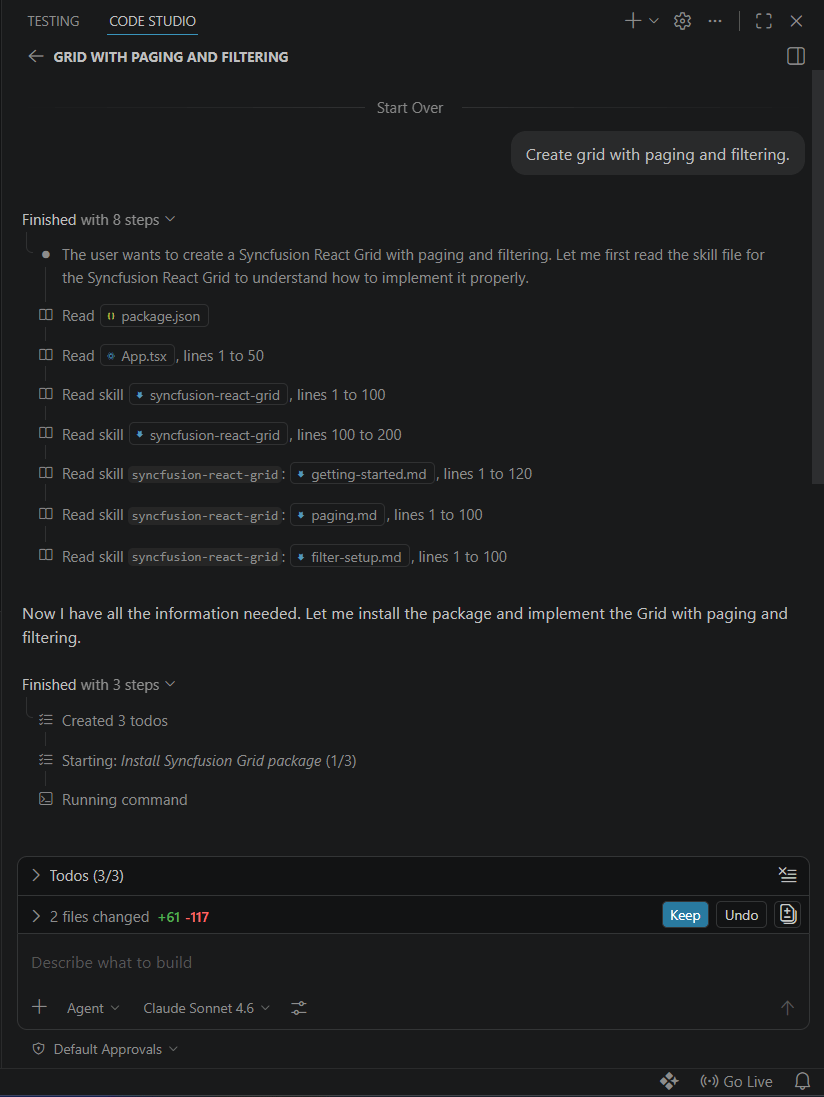
Agent Skills support multiple frameworks, AI coding assistants, and development environments. For the latest list of supported platforms, installation options, and available skill packages, see the Agent Skills page.
MCP Servers
The Syncfusion MCP Servers connect your AI coding assistant directly to Syncfusion’s current documentation, API references, code examples, release updates, and troubleshooting resources. Instead of relying on training data or outdated examples, your assistant can retrieve authoritative answers directly from Syncfusion documentation during development.
For React projects, add the MCP Server to your editor’s MCP configuration. In VS Code, for example, add the following to the .vscode/mcp.json file.
{
  "servers": {
    "sf-react-mcp": {
      "type": "stdio",
      "command": "npx",
      "args": ["-y", "@syncfusion/react-mcp@latest"],
      "env": {
        "Syncfusion_API_Key": "YOUR_API_KEY"
      }
    }
  }
}
With the server configured, your assistant can search documentation, look up APIs, discover newly released features, and resolve implementation questions without leaving the editor.
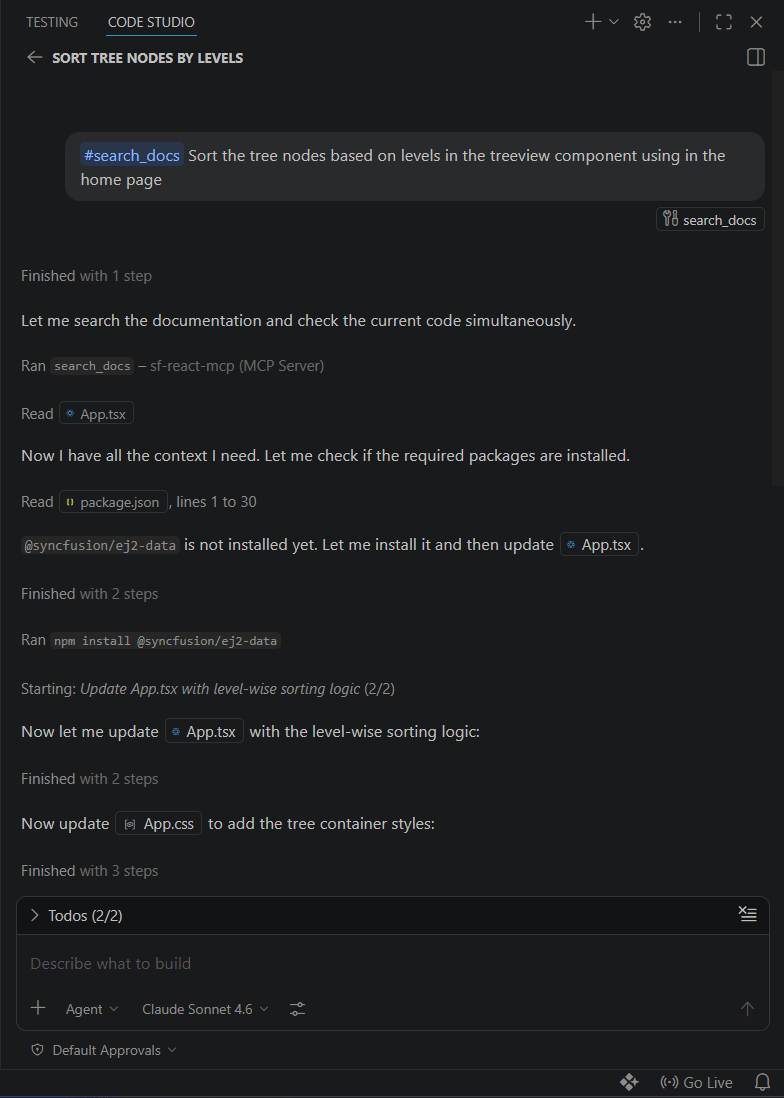
The MCP Server is available for multiple frameworks and integrates with a variety of AI-powered development tools and editors. For the latest list of supported platforms, configuration options, and setup instructions, see the MCP Servers page.
Note: Always review AI-generated code for accuracy, security, performance implications, accessibility requirements, and compliance with your app’s requirements before production use.
Use AI agents to create implementation plans, generate production-ready code, automate repetitive tasks, and improve code quality across your projects.
Discover Code StudioStart building more reliable AI-assisted Syncfusion apps
Whether you’re generating Syncfusion component code or looking up the latest APIs, documentation, and code examples, Agent Skills and MCP Servers can help reduce manual fixes and improve the quality of AI-generated output.
Use Agent Skills to guide code generation with recommended implementation patterns, and MCP Servers to retrieve accurate technical information when you need it. Together, they help developers spend less time troubleshooting and more time building features.
Ready to try them? Explore Agent Skills and MCP Servers today. If you’re new to Syncfusion, start your 30-day free trial and experience a more reliable AI-assisted development process.
If you have questions, reach out through our support forum, support portal, or feedback portal. We’re always happy to assist you!



 No spam, just valuable updates.
Comments (2)
AI coding assistants and agent-based development are changing how developers approach software engineering. Understanding capabilities such as tool use and automation is becoming increasingly important. This [Lovable vs. Replit comparison](https://medium.com/@Mobisoft.Infotech/lovable-vs-replit-which-ai-tool-is-better-for-building-apps-without-coding-3a1a86109783) is a helpful resource for exploring modern AI development tools.
AI coding assistants and agent-based development are changing how developers approach software engineering. Understanding capabilities such as tool use and automation is becoming increasingly important.