
 Vikas S
TL;DR: Manual PDF redaction is slow, error-prone, and difficult to scale, especially when dealing with large volumes of documents containing sensitive information. This guide walks developers through automating the detection and redaction of personally identifiable information (PII) in WPF applications using Azure OpenAI and a PDF Viewer. By leveraging AI, you can streamline document workflows, improve accuracy, and ensure compliance with privacy regulations like GDPR and HIPAA, while maintaining full control over the redaction process.
Redacting sensitive information from PDFs is essential for privacy compliance, but doing it manually is inefficient and risky. The Syncfusion® WPF PDF Viewer already offers manual redaction of text, graphics, and images, but manually finding sensitive data is time-consuming. By integrating Azure OpenAI, you can build a smart redaction tool that automatically detects personally identifiable information (PII), such as names, addresses, phone numbers, and lets users review and redact it within your WPF app.
In this blog, you’ll learn how to implement AI-powered redaction in a WPF application using Syncfusion’s PDF Viewer and Azure OpenAI. We’ll outline the workflow, discuss use cases and advantages, and walk through a step-by-step implementation with code snippets.

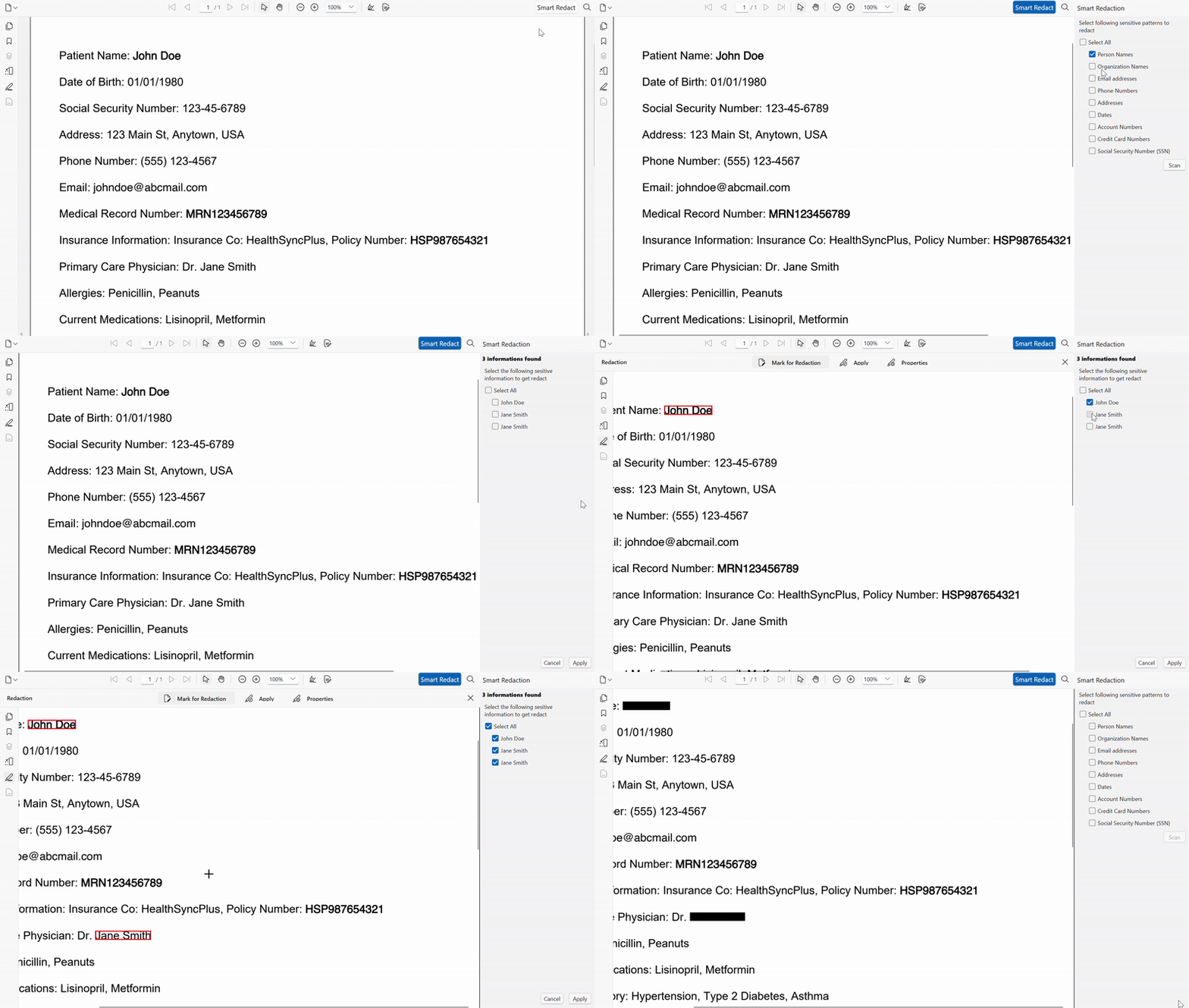
How AI-Powered PDF redaction works:
- User triggers smart redaction: A custom Smart Redact button on the PDF Viewer’s toolbar opens a panel where users choose the types of sensitive data to detect names, addresses, phone numbers, etc.
- Extract text from the PDF: For each page, call
pdfViewer.ExtractText(pageIndex, out List<TextData>textData)to obtain the raw text and bounding boxes. Concatenate the text from all pages to form the input for the AI model. - Identify sensitive information via Azure OpenAI: Send the extracted text to Azure OpenAI using an API client. The request includes a prompt describing the categories selected by the user. Parse the AI’s response into a plain list of sensitive strings.
- Locate and mark sensitive regions: Use
pdfViewer.FindText(string query, out Dictionary<int, List<TextData>>bounds)to find each detected string in the document. Convert the returned TextData into rectangles and call thepdfViewer.PageRedactor.MarkRegions(pageIndex, regions)for each page. Enable redaction mode with thepdfViewer.PageRedactor.EnableRedactionMode = true. - User review and selection: Display a checklist of detected items. Users can deselect items they don’t want to redact. When checked or unchecked, update a collection of regions to be removed.
- Apply redaction: When the user confirms, call
pdfViewer.PageRedactor.ApplyRedaction()to permanently remove the marked content. Clear the marked regions afterward.
This workflow automates the identification of sensitive information while keeping the user in control of what gets removed.
Use cases
- Healthcare: Automatically redact patient names, dates of birth, and medical record numbers in clinical reports before sharing them externally.
- Legal: Hide client names, case numbers, and other identifiers in contracts or filings.
- Finance: Remove account numbers, credit card details, and transaction dates from financial statements.
- Enterprise: Ensure compliance by redacting employee data and proprietary information before distributing documents.
- Education: Protect student records and personal details in transcripts and research papers.
Benefits
- Automated detection: The tedious process of locating sensitive text is offloaded to the AI, saving time and reducing human error.
- User control: Users can review and selectively redact the detected items, ensuring precision and avoiding accidental removals.
- Seamless integration: The feature builds on Syncfusion’s existing PDF Viewer control, so it fits naturally into WPF applications.
- Security and compliance: Automating redaction helps meet regulations such as GDPR, HIPAA, and CCPA by ensuring sensitive data is removed before sharing.
- Developer-friendly APIs: Syncfusion’s methods like ExtractText, FindText, MarkRegions, and ApplyRedaction simplify the implementation of redaction workflows.
Implementation guide: Creating a smart redact app
Prerequisites
To get started, ensure you have:
- Visual Studio 2022 or newer with the WPF workload installed.
- The Syncfusion.PdfViewer.WPF NuGet package.
- An Azure OpenAI resource and a valid API key.
Step 1: Set up the environment
Create a new WPF project and add the Syncfusion® PDF Viewer to your XAML:
<Window x:Class="PdfRedactAI.MainWindow"
        xmlns="http://schemas.microsoft.com/winfx/2006/xaml/presentation"
        xmlns:x="http://schemas.microsoft.com/winfx/2006/xaml"
        xmlns:pdfviewer="clr-namespace:Syncfusion.Windows.PdfViewer;assembly=Syncfusion.PdfViewer.WPF">
    <Grid>
        <pdfviewer:PdfViewerControl x:Name="pdfViewer"
                                    HorizontalAlignment="Stretch"
                                    VerticalAlignment="Stretch" />
    </Grid>
</Window>
Step 2: Connect to Azure OpenAI
Create a helper class that wraps the OpenAI client. This example uses AzureOpenAIClient and implements a simple chat completion method, as shown below.
using Azure;
using Azure.AI.OpenAI;
using System;
using System.Collections.Generic;
using System.Threading.Tasks;

internal class OpenAIHelper
{
      private readonly ChatClient chatClient;

      public OpenAIHelper(string endpoint, string deploymentName, string apiKey)
      {
          var client = new OpenAIClient(new Uri(endpoint), new AzureKeyCredential(apiKey));
          chatClient = client.GetChatClient(deploymentName);
      }

      public async Task<string> GetSensitiveDataAsync(string systemPrompt, string userText)
      {
          var messages = new[]
          {
              new ChatMessage(ChatRole.System, systemPrompt),
              new ChatMessage(ChatRole.User, userText)
          };
          var response = await chatClient.GetChatCompletionsAsync(messages);
          return response.Value.Choices[0].Message.Content;
      }
}

//Instantiate the helper in your main window:
private readonly OpenAIHelper openAI = new OpenAIHelper(
      endpoint: "https://YOUR-AI-ENDPOINT",
      deploymentName: "YOUR-DEPLOYMENT-NAME",
      apiKey: "YOUR-OPENAI-KEY");

public MainWindow()
{
      InitializeComponent();
      pdfViewer.Load("../../Data/Confidential_Medical_Record.pdf");
}
Step 3: Add a Smart Redact button
Extend the PDF Viewer’s toolbar by inserting a toggle button. When checked, show a panel for category selection; when unchecked, hide it.
private ToggleButton smartRedactButton;

private void AddSmartRedactButton(DocumentToolbar toolbar)
{
    smartRedactButton = new ToggleButton
    {
        Content = new TextBlock { Text = "Smart Redact", FontSize = 14 },
        VerticalAlignment = VerticalAlignment.Center,
        Margin = new Thickness(0, 0, 8, 0),
        Padding = new Thickness(4)
    };
    smartRedactButton.Checked += SmartRedactButton_Checked;
    smartRedactButton.Unchecked += SmartRedactButton_Unchecked;

    var textSearchStack = (StackPanel)toolbar.Template.FindName("PART_TextSearchStack", toolbar);
    textSearchStack.Children.Insert(0, smartRedactButton);
}
Step 4: Extract text from the PDF
When the user starts redaction, iterate through each page and build a single string of text. Also, keep a list of TextData to map back to page coordinates:
private string ExtractDocumentText(out List<TextData> textDataCollection)
{
    textDataCollection = new List<TextData>();
    var fullText = new StringBuilder();
    for (int i = 0; i < pdfViewer.PageCount; i++)
    {
        fullText.Append(pdfViewer.ExtractText(i, out List<TextData> pageData));
        textDataCollection.AddRange(pageData);
    }
    return fullText.ToString();
}Step 5: Send the text to Azure OpenAI
Construct a prompt based on the selected categories, such as names, addresses, and phone numbers. Ask the AI to return a comma-separated list of PII:
private async Task<List<string>> DetectSensitiveItemsAsync(string[] categories, string documentText)
{
    var prompt = new StringBuilder();
    prompt.AppendLine("Identify and extract PII from the following categories:");
    foreach (var item in categories) prompt.AppendLine(item);
    prompt.AppendLine("Return a plain list, comma-separated, no prefixes.");

    string response = await openAI.GetSensitiveDataAsync(prompt.ToString(), documentText);

    // Split and trim the response into individual items.
    return response.Split(',', StringSplitOptions.RemoveEmptyEntries)
                   .Select(s => s.Trim())
                   .ToList();
}
Step 6: Locate and mark sensitive regions
For each detected item, call pdfViewer.FindText(item, out var boundsByPage) to obtain the bounding boxes of the matched text. Convert the bounds to RectangleF and call pdfViewer.PageRedactor.MarkRegions(pageIndex, regions):
private void MarkSensitiveRegions(IEnumerable<string> items)
{
    foreach (var item in items)
    {
        pdfViewer.FindText(item, out Dictionary<int, List<TextData>> boundsByPage);
        foreach (var kvp in boundsByPage)
        {
            var regions = kvp.Value.Select(t => t.Bounds).ToList();
            pdfViewer.PageRedactor.MarkRegions(kvp.Key, regions);
        }
    }
    pdfViewer.PageRedactor.EnableRedactionMode = true;
}
Step 7: Provide user review
Create a checklist UI listing each detected item. Bind each checkbox to the corresponding regions via a tag or a separate data structure. When unchecked, remove the associated region from the pending redaction list.
foreach (var item in detectedItems)
{
    var checkBox = new CheckBox
    {
        Content = item,
        IsChecked = true
    };
    checkBox.Checked += (s, e) => AddItemToRedaction(item);
    checkBox.Unchecked += (s, e) => RemoveItemFromRedaction(item);
    reviewPanel.Children.Add(checkBox);
}
Step 8: Apply redaction
Once the user confirms, call pdfViewer.PageRedactor.ApplyRedaction() to permanently remove the marked regions. Afterwards, clear the marked regions for the next operation.
private void ApplyRedaction()
{
    if (pdfViewer.PageRedactor.EnableRedactionMode)
    {
        pdfViewer.PageRedactor.ApplyRedaction();
        pdfViewer.PageRedactor.ClearMarkedRegions();
    }
}
Refer to the following image.
GitHub reference
For more details, refer to the GitHub demo.
Conclusion
Automating PDF redaction with Azure OpenAI in WPF applications streamlines privacy workflows and reduces human error. The smart redaction workflow extracts text, leverages AI to identify sensitive information, marks the relevant regions, allows user review, and permanently redacts the selected content.
This approach reduces manual work, increases precision, improves security, and helps meet compliance requirements. With Syncfusion’s developer-friendly APIs like ExtractText, FindText, MarkRegions, and ApplyRedaction, implementing AI-powered redaction in WPF is straightforward and scalable.
Existing customers can download the new version of Essential Studio® on the license and downloads page. If you are not a Syncfusion® customer, try our 30-day free trial to check our incredible features.
If you require assistance, please don’t hesitate to contact us via our support forum, support portal, or feedback portal. We are always eager to help you!




 No spam, just valuable updates.