
 Moulidharan Gopalakrishnan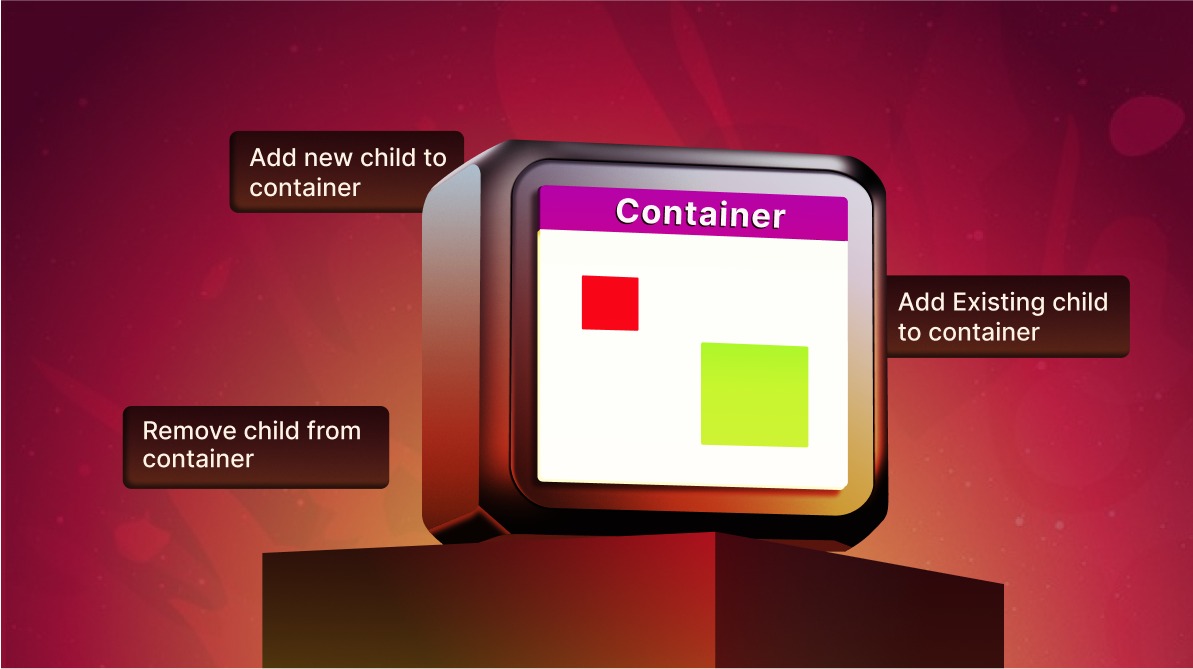
TL;DR: Struggling to organize complex structures in your JavaScript Diagrams?
Diagram containers are your solution for clean, scalable, and interactive node grouping. This guide walks you through implementing containers, customizing their behavior, and using them to build structured diagrams from UML models to cloud architectures.
Organizing complex diagrams can be a challenge, especially when modeling systems like cloud infrastructure or UML components. The new container feature in JavaScript Diagram offers a clean, scalable way to group related nodes and improve diagram clarity.
In this blog post, we’ll discuss containers, how they work, and how you can use them to build structured, dynamic diagrams.
What is a container?
A container is a specialized shape that encapsulates nodes or other diagram elements. It’s designed to improve the organization and management of diagram components, especially in complex scenarios where grouping multiple elements is essential.
Key features
- Logical grouping: Containers allow you to group elements, making it easier to manage them as a single entity. For example, you can use a container to hold services and resources within a cloud environment, helping to visually categorize them.
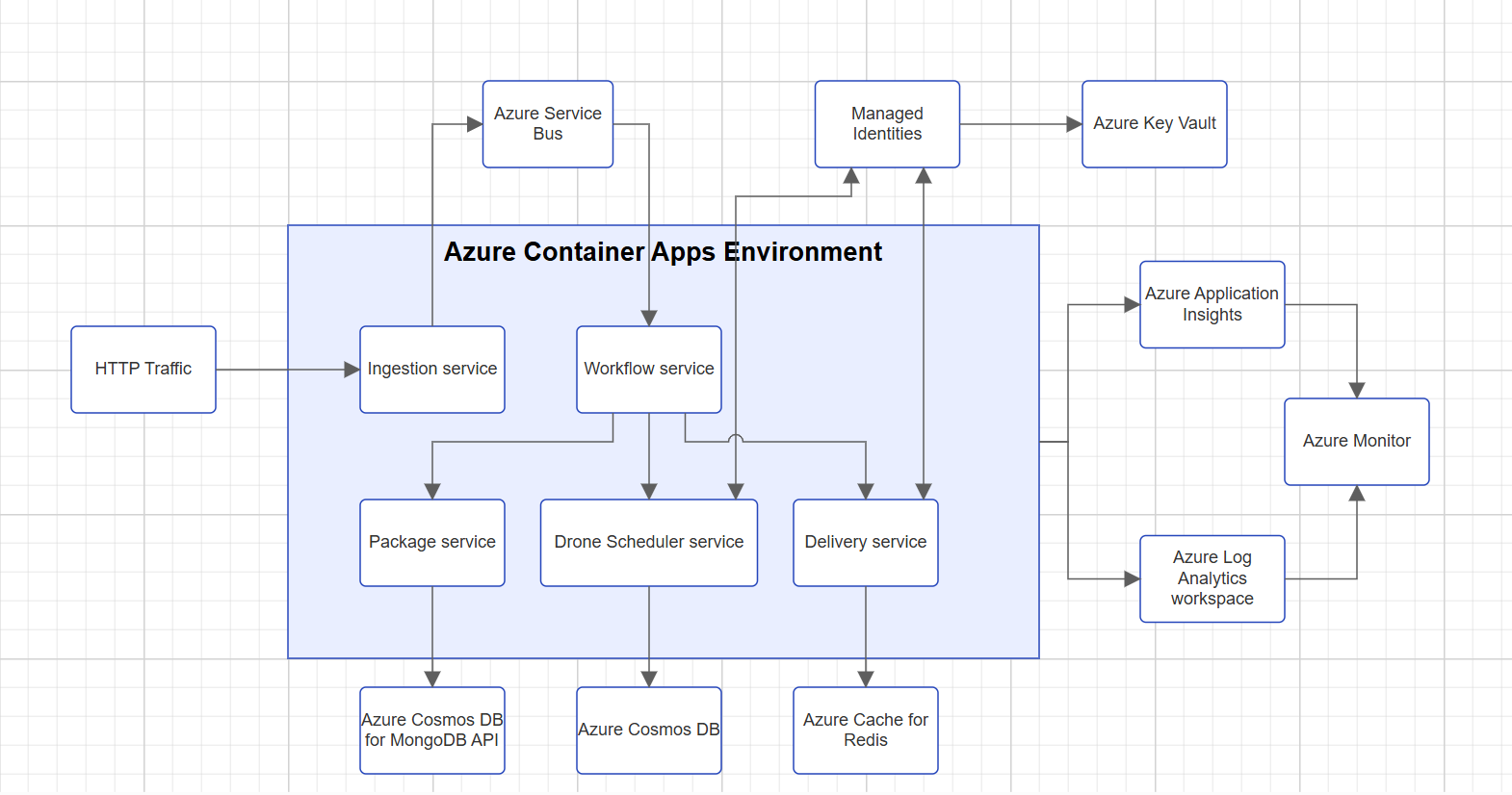
Logical grouping of services using containers
- Hierarchical structuring: Containers can be nested to create hierarchical diagrams. This is ideal for representing complex relationships and dependencies.
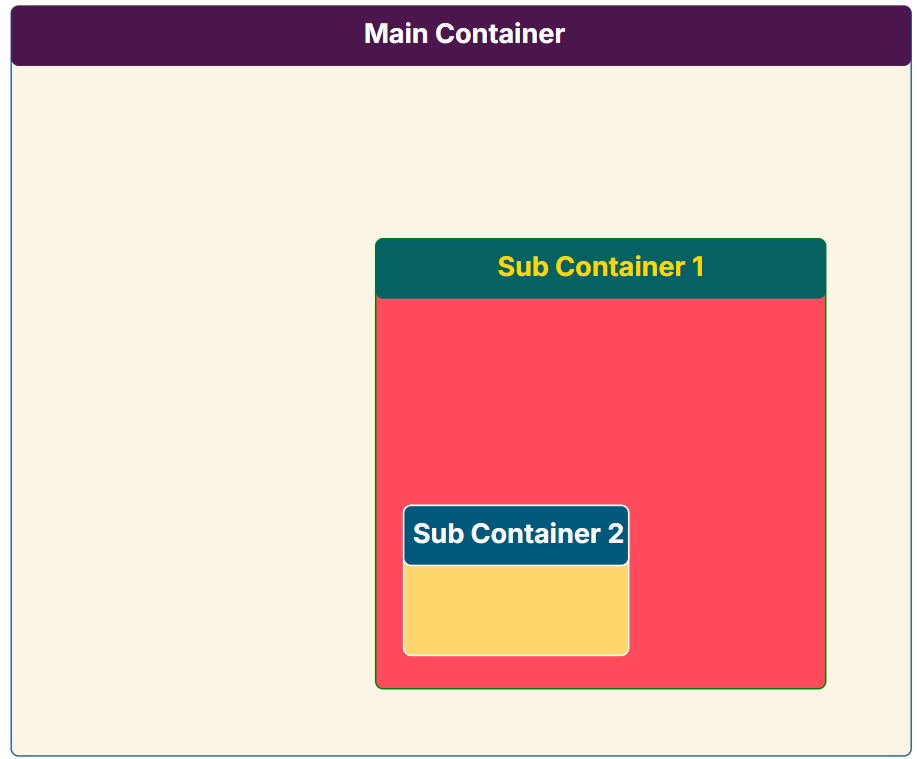
Representation of nested Containers
- Interactive features: Containers support interactions like selection, dragging, resizing, and rotating, just like regular nodes, giving you full control over the diagram.
- Customizable appearance: You can style containers with colors, borders, and animations to match your design needs.
Note: Check out the interactive demo to see containers in action.
How to implement containers
Implementing containers is straightforward. You can define a node with its shape type set to Container and list its child node IDs.
Here is a basic example:
import { Diagram } from '@syncfusion/ej2-diagrams';

// Create a diagram instance.
let diagram = new Diagram({
    nodes: [
        {
            id: 'containerNode',
            offsetX: 250,
            offsetY: 250,
            // Specify the container shape type.
            shape: {
                type: 'Container'
            },
            // Add child nodes by referencing their IDs.
            children: ['node1', 'node2']
        },
        {
            id: 'node1',
            // Note: A child node’s position is relative to the parent container, not the diagram’s origin (0, 0).
            // Margin from the left and top
            margin: { left: 100, top: 50 },
        },
        {
            id: 'node2',
            margin: { left: 200, top: 150 },
        }
    ]
});

// Render the diagram.
diagram.appendTo('<#element>');
Working with containers at runtime
You can dynamically modify containers and their children using the diagram’s public methods.
Adding a container
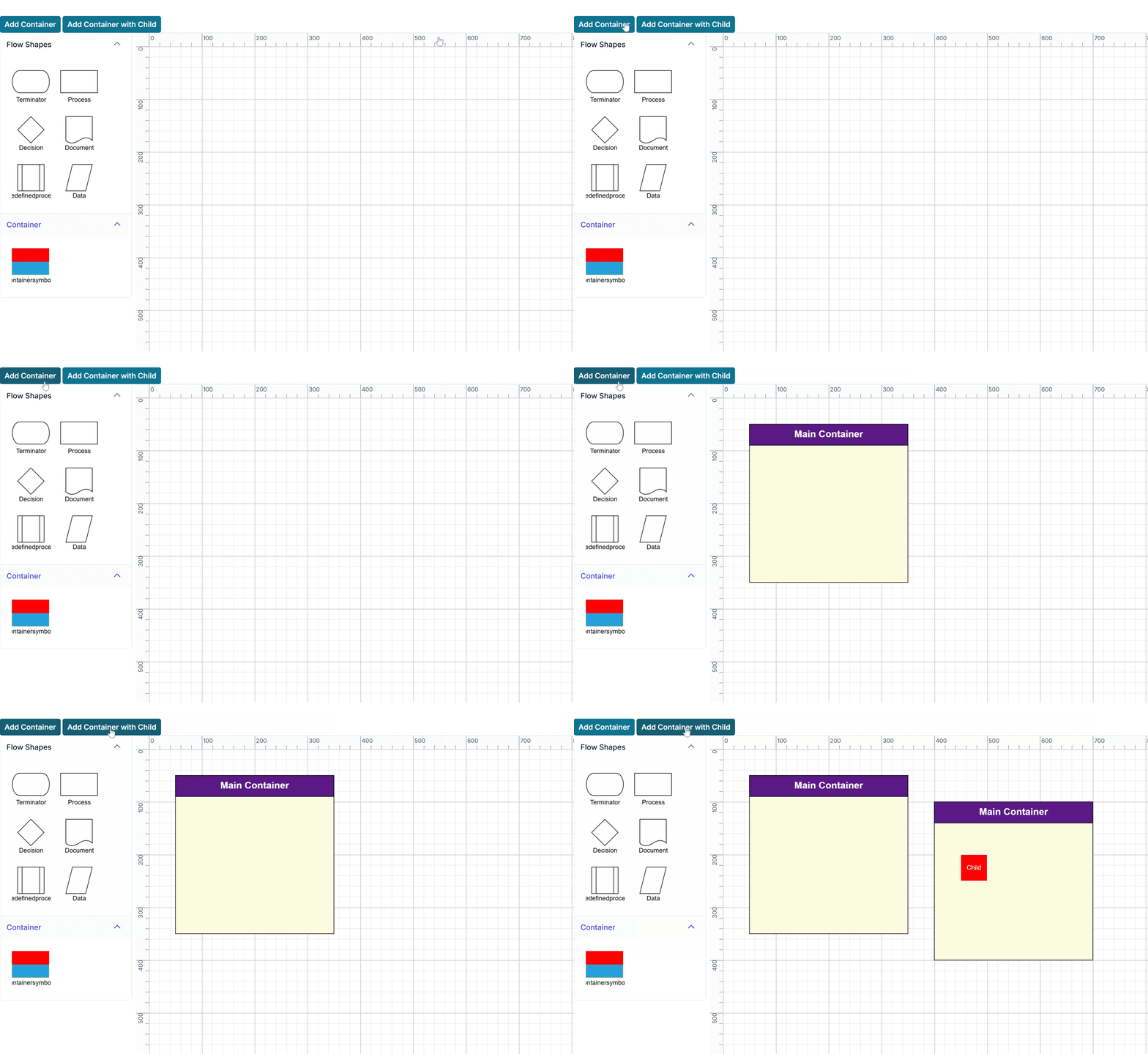
Containers can be seamlessly added to a diagram at runtime using the diagram’s add method. This method accepts a container object as a parameter, enabling dynamic diagram updates. Here’s how you can implement this:
function addContainer(diagramInstance) {
    const container = {
        id: 'newContainer',
        offsetX: 200,
        offsetY: 200,
        height: 300,
        width: 300,
        shape: {
            type: 'Container',
            header: {
                annotation: { content: "New Container" },
                height: 40,
            }
        }
    };

    diagramInstance.add(container);
}
Adding a container with children
You can add containers and child nodes separately.
Method A: Add the child first, then the container that references those children by ID.
function addContainerWithChildren(diagramInstance) {
    const childNode = { id: 'child3', offsetX: 600, offsetY: 250 };
    diagramInstance.add(childNode);

    const containerNode = {
        id: 'container3',
        offsetX: 600,
        offsetY: 250,
        children: ['child3'],
        shape: { type: 'Container' }
    };
    diagramInstance.add(containerNode);
}
Method B: Add both simultaneously using the addElements method.
function addContainerWithChildren(diagramInstance) {
    const childNode = { id: 'child3', offsetX: 600, offsetY: 250 };
    const containerNode = {
        id: 'container3',
        offsetX: 600,
        offsetY: 250,
        children: ['child3'],
        shape: { type: 'Container' }
    };
    diagramInstance.addElements([childNode, containerNode]);
}
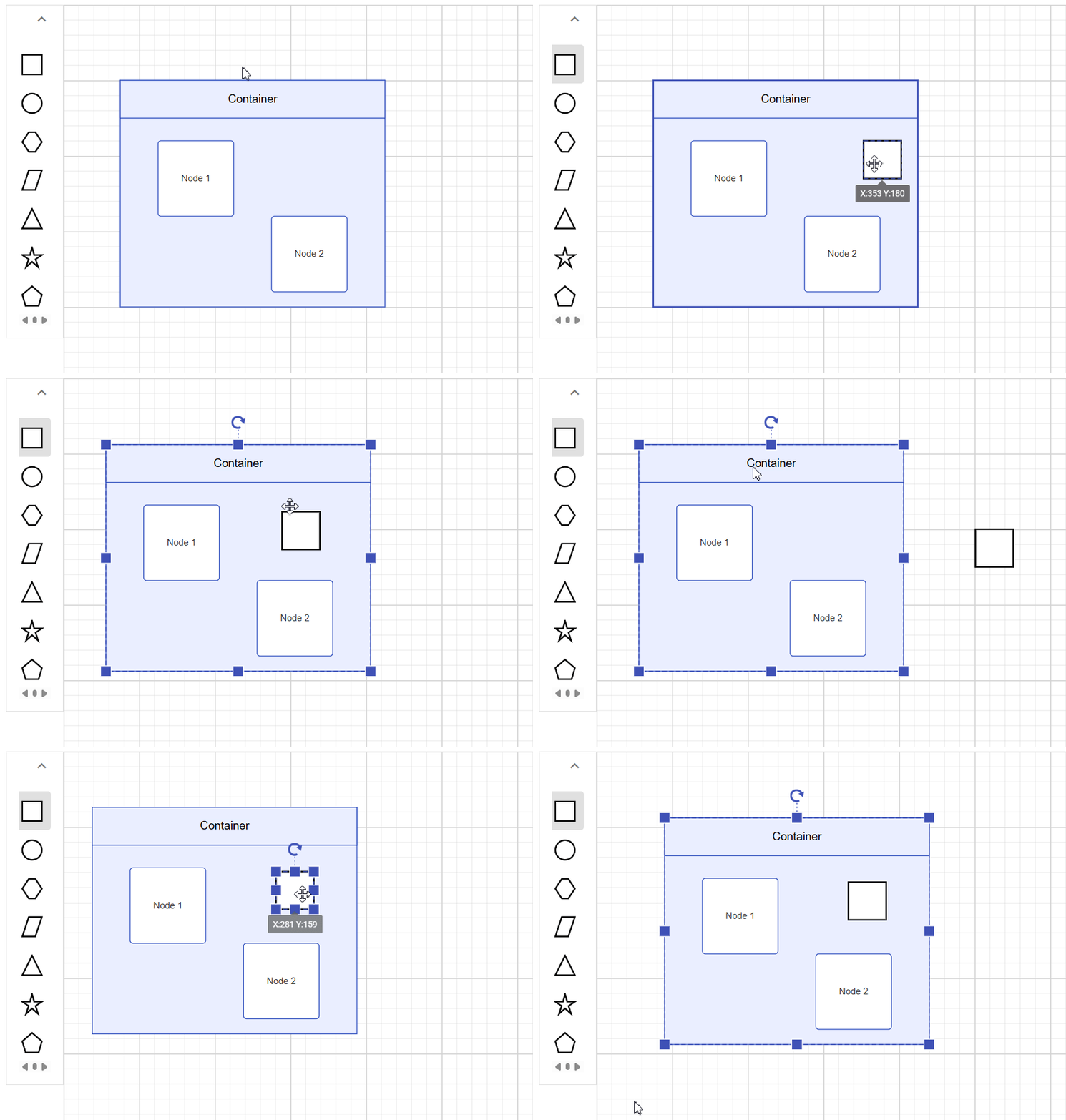
Adding a new child to a container
To add a new node to an existing container at runtime, use the diagram’s addChildToGroup method by providing the container object and the child node’s ID.
// Usage:
diagram.addChildToGroup(containerObject, childNodeID);
Adding an existing child to a container
You can also move an existing node into a container. For example, you can select a node and add it to a container, as shown in the code snippet below:
function addSelectedNodeToContainer(diagramInstance, container) {
    if (diagramInstance.selectedItems.nodes.length > 0) {
        const selectedNodeId = diagramInstance.selectedItems.nodes[0].id;
        diagramInstance.addChildToGroup(container, selectedNodeId);
    } else {
        console.log("Please select a node to add to the container.");
    }
}
Removing a child from a container
To remove a child node from a container, use the diagram’s removeChildFromGroup method, passing the container object and the ID of the child node to be removed.
// Usage:
diagram.removeChildFromGroup(containerObject, childNodeID);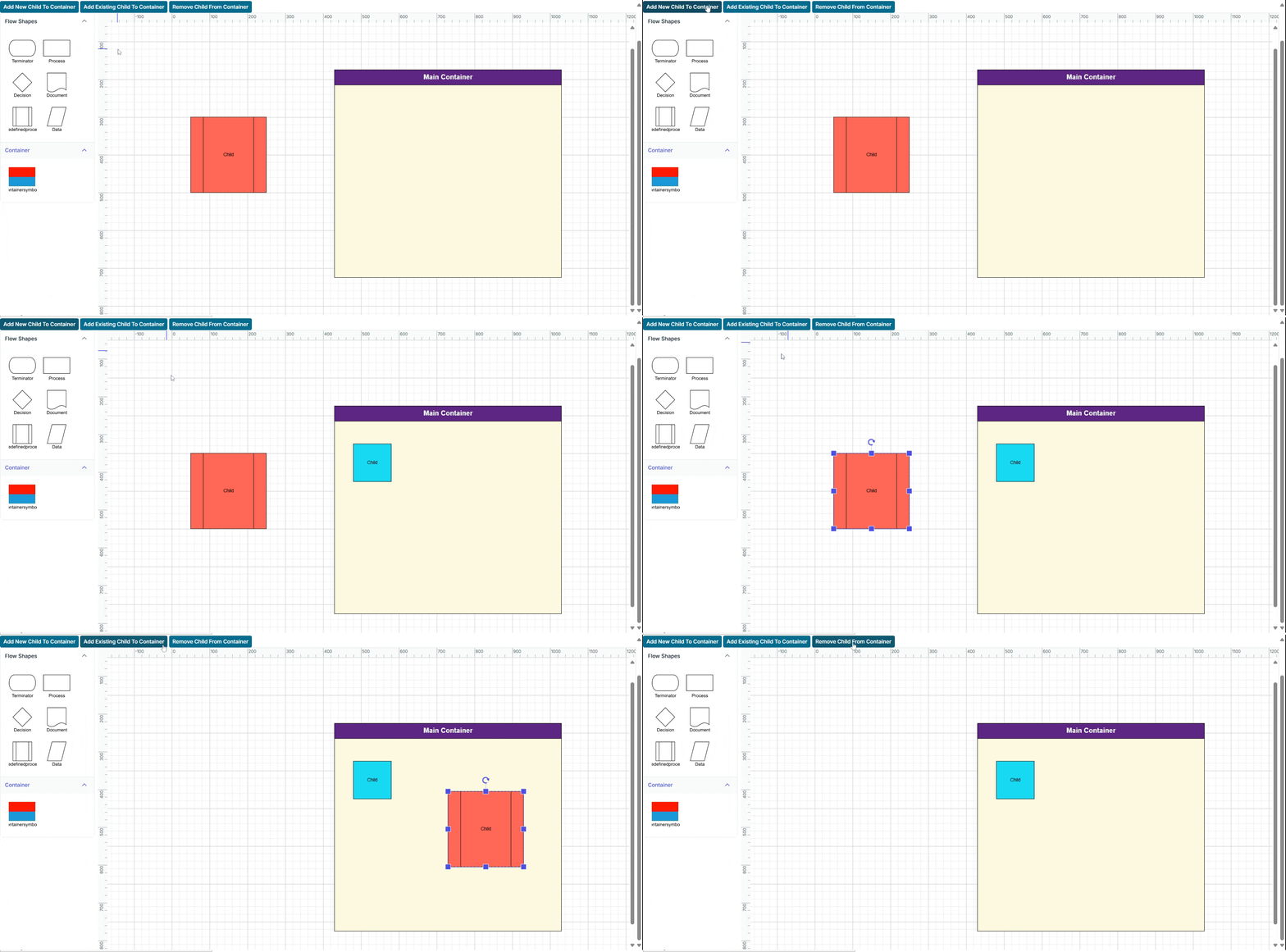
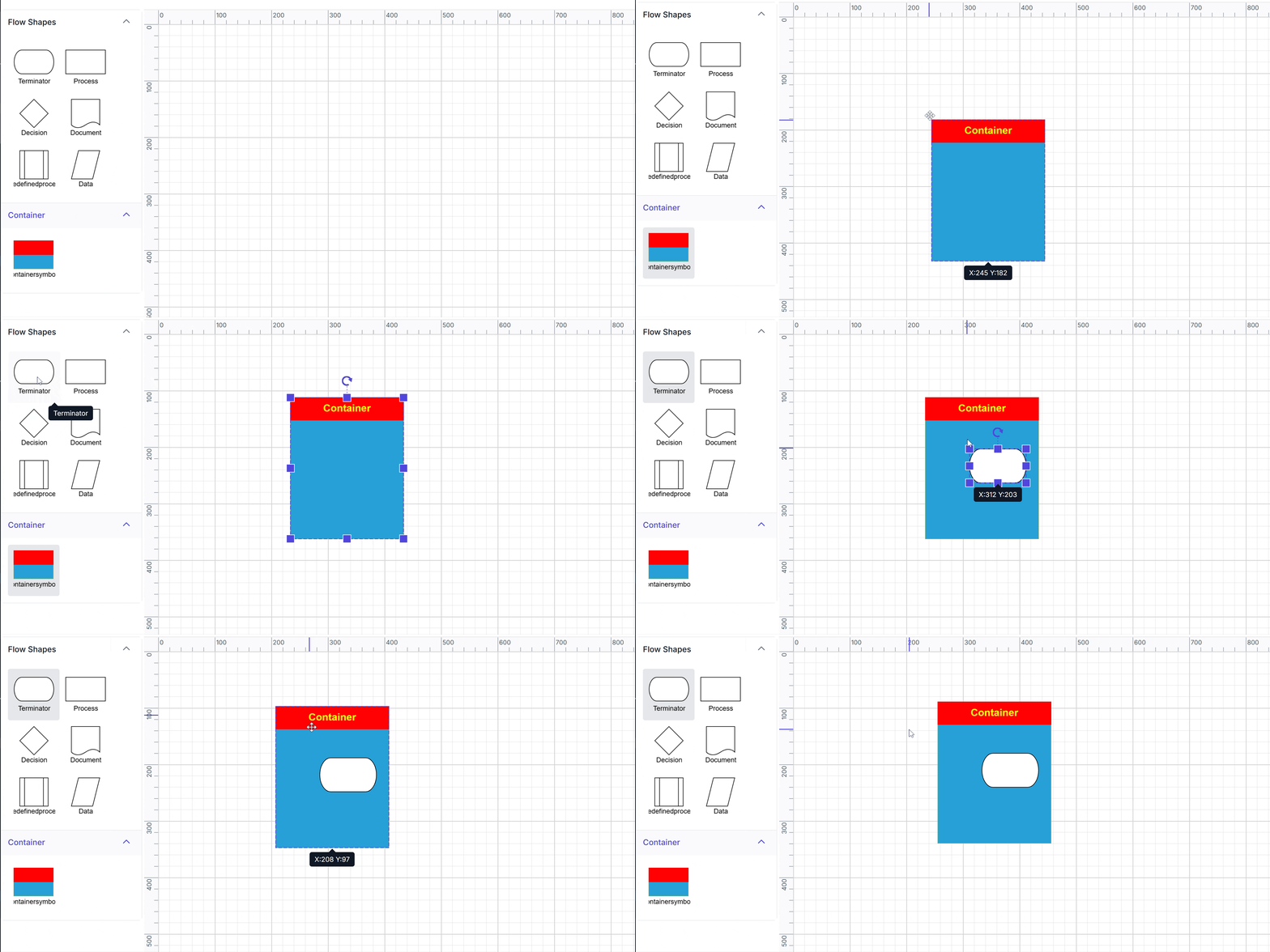
Adding a container from the palette
You can define a container as a symbol in the palette, allowing users to drag and drop pre-configured containers onto the diagram. Child nodes can be added programmatically or dropped directly into the container.
Note: Check out the symbol palette documentation for more details.
Applications for containers
Containers are a fundamental building block for creating sophisticated, real-world diagrams that are both intuitive and easy to manage. Here are several practical applications where containers excel.
- Modeling network topologies: Containers are ideal for representing logical boundaries like subnets, VPCs, or cloud resource groups. Grouping servers, routers, and databases inside a container helps visualize traffic flow, security rules, and dependencies. Moving the container moves all its contents, preserving layout.
- Designing UML component diagrams: In UML diagrams, containers can represent components that encapsulate classes and interfaces. This reinforces the principle of encapsulation and helps developers understand system architecture at a glance.
Conclusion
Containers in Syncfusion JavaScript Diagram simplify node management and add a powerful layer of structure and flexibility to diagrams. Whether you’re building flowcharts, network maps, or UML diagrams, containers help you create clean, maintainable visuals.
For more information and advanced Syncfusion JavaScript Diagram features, refer to the official documentation.
For existing Syncfusion customers, the latest version of Essential Studio is available from the license and downloads page. If you are not a customer, try our 30-day free trial to check out these new features.
If you require assistance, please don’t hesitate to contact us via our support forums, support portal, or feedback portal. We are always eager to help you!



 No spam, just valuable updates.