
 Mohan Chandran
TL;DR: Effortlessly export data from your Blazor apps to Excel files! Syncfusion XlsIO (.NET) empowers you to generate, read, edit, and convert Excel files within your Blazor applications, eliminating the need for Microsoft Office. This guide walks you through the steps for both server-side and client-side Blazor apps.
Exporting data to Excel is a crucial feature for any modern web application, especially when users need to analyze and share information outside of the app. With Blazor, adding Excel export functionality is easier than ever. Syncfusion® .NET Excel Library (XlsIO) provides support to export data from data tables, collection objects, arrays, HTML Tables, XML and nested class objects to Excel for handling the data efficiently.
The Syncfusion Excel Library, also known as Essential XlsIO, is a robust tool that facilitates the smooth creation, reading, and editing of Excel documents using C#. It supports the creation of Excel documents from scratch, modification of existing Excel documents, import and export of data, Excel formulas, conditional formats, data validations, charts, sparklines, tables, pivot tables, pivot charts, template markers, and much more.
In this blog, we are going to see how to create an Excel file, export data from a data table to a worksheet, and download the output Excel file in the Blazor platform.

Steps to export data to Excel in Blazor
Let’s follow these steps to export data to Excel document in Blazor Server and client-side apps:
- Create a Blazor application.
- Install the Syncfusion.XlsIO.Net.Core NuGet package.
- Add exporting data to Excel code.
- Run the application.
- Download the output Excel document.
Note: If you are new to using our Excel library, please follow the instructions in our Getting started guide.
Blazor Server application
Step 1. Create a Blazor Server application
Create a Blazor Server application using Visual Studio.
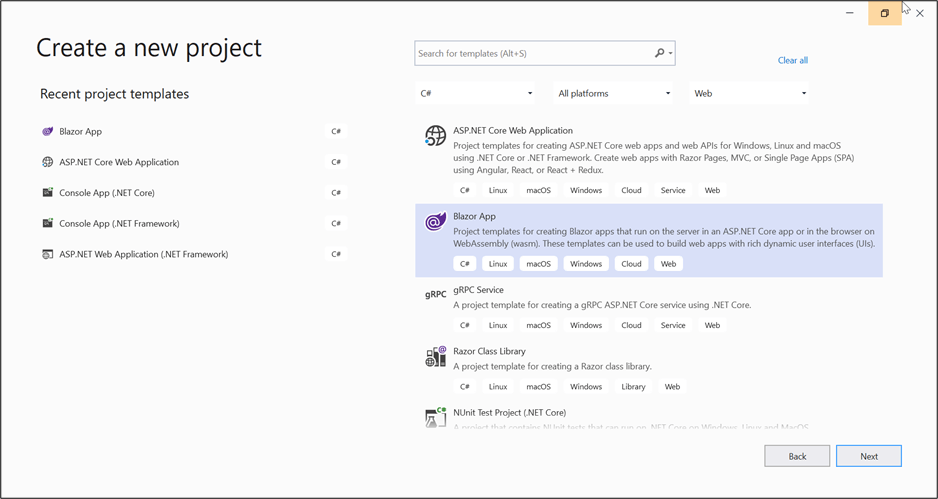
Choose the Blazor Server App from the list and select the configure for HTTPS check box in the Advanced section. Then, click Create to create a new Blazor Server-side application project.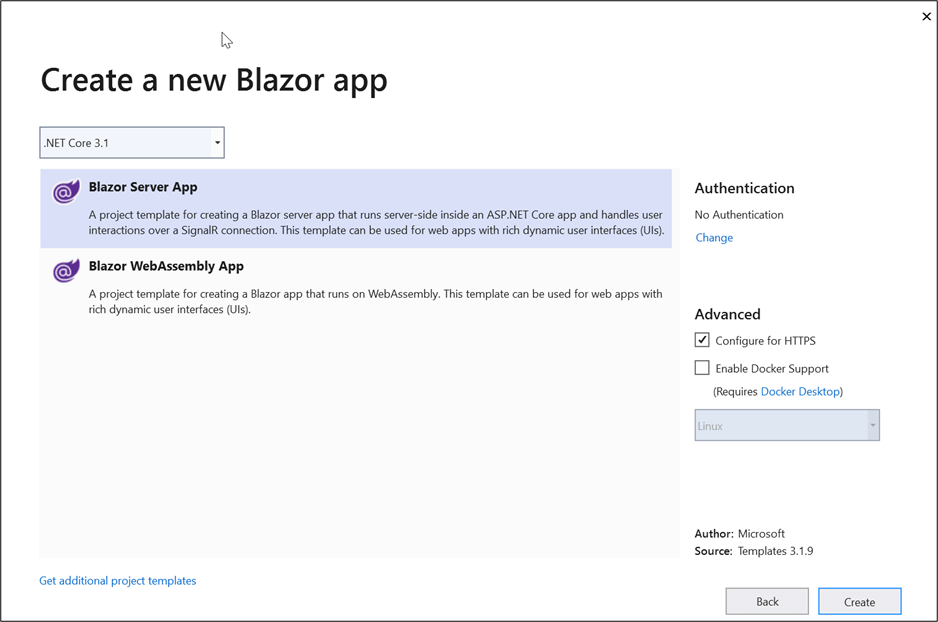
Step 2. Install the XlsIO NuGet package
- Right-click on the project and select Manage NuGet Packages.
- Navigate to the Browse tab, and install the Syncfusion.XlsIO.Net.Core NuGet package as a reference in your Blazor application from NuGet Gallery.
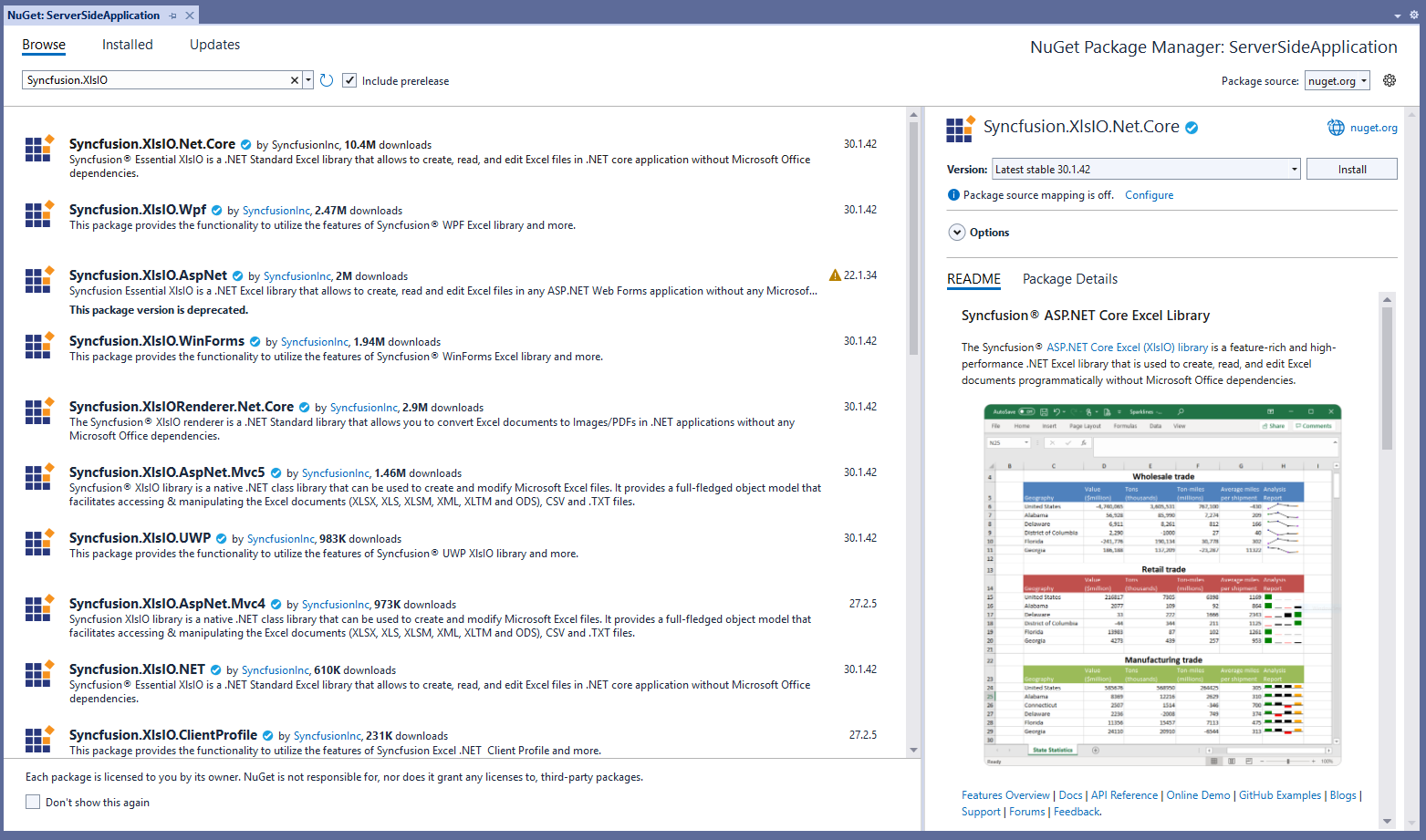
Note: To learn more, refer to the NuGet Packages required for XlsIO documentation.
Step 3. Add necessary code to Server-side application
- Create a Razor file with the name Excel in the Pages folder and include the following namespaces.
@page "/Excel"
@using System.IO;
@using ServerSideApplication;
@inject ServerSideApplication.Data.ExcelService service
@inject Microsoft.JSInterop.IJSRuntime JS
- Add the following code to create a new button (Create Document) in your application.
<h2>Syncfusion Excel library (Essential XlsIO)</h2>
<p>Syncfusion Excel library (Essential XlsIO) is a Blazor Excel library used to create, read, edit, and convert Excel files in your applications without Microsoft Office dependencies.</p>
<button class="btn btn-primary" @onclick="@CreateDocument">Create Document</button>
- Then, add the following code to the Excel.razor file to create and download the Excel file.
@code { MemoryStream excelStream; /// <summary> /// Create and download the Excel document. /// </summary> protected async void CreateDocument() { excelStream = service.CreateExcel(); await JS.SaveAs("Sample.xlsx", excelStream.ToArray()); } } - Now, create a new class file named ExcelService in the Data folder. Then, create a new method CreateExcel and include the following code to export data to an Excel document in your Blazor Server-side application.
We are going to export data from a data table to Excel worksheets in the Blazor platform using the Excel library’s ImportDataTable method.using Syncfusion.XlsIO; using System.IO; using System.Data; namespace ServerSideApplication.Data { public class ExcelService { public MemoryStream CreateExcel() { //Create an instance of ExcelEngine. using (ExcelEngine excelEngine = new ExcelEngine()) { IApplication application = excelEngine.Excel; application.DefaultVersion = ExcelVersion.Xlsx; //Create a workbook. IWorkbook workbook = application.Workbooks.Create(1); IWorksheet worksheet = workbook.Worksheets[0]; //Initialize DataTable and data get from SampleDataTable method. DataTable table = SampleDataTable(); //Export data from DataTable to Excel worksheet. worksheet.ImportDataTable(table, true, 1, 1); worksheet.UsedRange.AutofitColumns(); //Save the document as a stream and return the stream. using (MemoryStream stream = new MemoryStream()) { //Save the created Excel document to MemoryStream. workbook.SaveAs(stream); return stream; } } return null; } private DataTable SampleDataTable() { DataTable reports = new DataTable(); reports.Columns.Add("SalesPerson"); reports.Columns.Add("Age", typeof(int)); reports.Columns.Add("Salary", typeof(int)); reports.Rows.Add("Andy Bernard", 21, 30000); reports.Rows.Add("Jim Halpert",25, 40000); reports.Rows.Add("Karen Fillippelli", 30, 50000); reports.Rows.Add("Phyllis Lapin", 34, 39000); reports.Rows.Add("Stanley Hudson", 45, 58000); return reports; } } }Next, add the below service code under the ConfigureServices method in the Startup.cs file.
public void ConfigureServices(IServiceCollection services)
{
    services.AddRazorPages();
    services.AddServerSideBlazor();
    services.AddSingleton<WeatherForecastService>();
    services.AddSingleton<ExcelService>();
}
Then, create a new class file in the project named FileUtils and add the following code to invoke the JavaScript action for downloading the file in a browser.
public static class FileUtils
{
    public static ValueTask<object> SaveAs(this IJSRuntime js, string filename, byte[] data)
        => js.InvokeAsync<object>(
            "saveAsFile",
            filename,
            Convert.ToBase64String(data));
}
Note: We can export data from the ADO.NET objects such as datatable, datacolumn, and dataview to Excel worksheets. The exporting can be done as column headers by recognizing column types or cell value types, like hyperlinks, and a large dataset, all in just a few seconds. You can find the various easy ways to export data to Excel in the blog, 6 easy ways to Export data to Excel in C#.
- Add the saveAsFile JavaScript function in the _Host.cshtml file present under the Pages folder.
<script type="text/javascript">
    function saveAsFile(filename, bytesBase64) {

        if (navigator.msSaveBlob) {
            //Download document in Edge browser
            var data = window.atob(bytesBase64);
            var bytes = new Uint8Array(data.length);
            for (var i = 0; i < data.length; i++) {
                bytes[i] = data.charCodeAt(i);
            }
            var blob = new Blob([bytes.buffer], { type: "application/octet-stream" });
            navigator.msSaveBlob(blob, filename);
        }
        else {
            var link = document.createElement('a');
            link.download = filename;
            link.href = "data:application/octet-stream;base64," + bytesBase64;
            document.body.appendChild(link); // Needed for Firefox
            link.click();
            document.body.removeChild(link);
        }
    }
</script>
Step 4. Run the application
Add the Excel page to the navigation panel in the NavMenu.razor file located under the Shared folder. Then, run the application.
<li class="nav-item px-3">
  <NavLink class="nav-link" href="excel">
   <span class="oi oi-list-rich" aria-hidden="true"></span> Excel
  </NavLink>
</li>
Step 5. Download the output Excel document
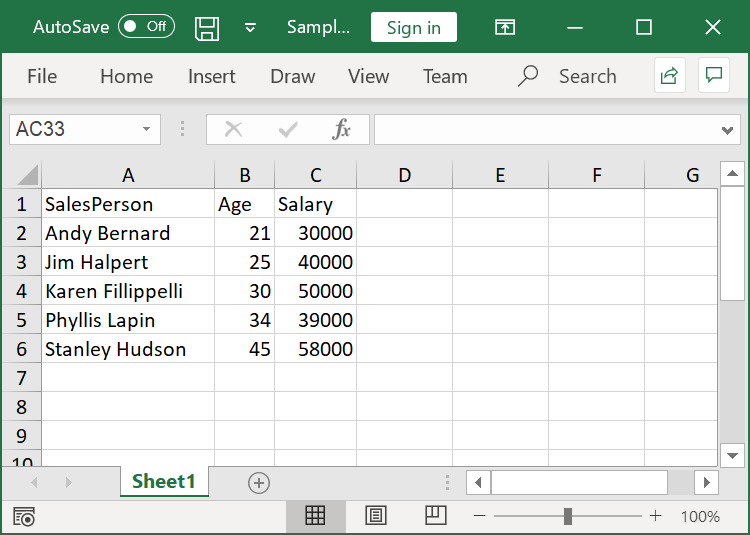
Finally, navigate to the Excel page in your application and click on the Create Document button.
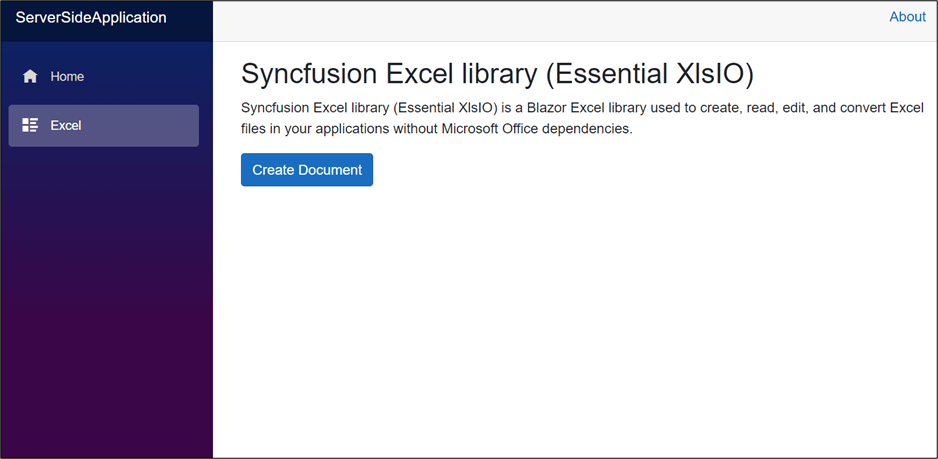
Then, we will get the output Excel file like in the following screenshot.
Blazor client-side application
Step 1. Create a Blazor client-side app
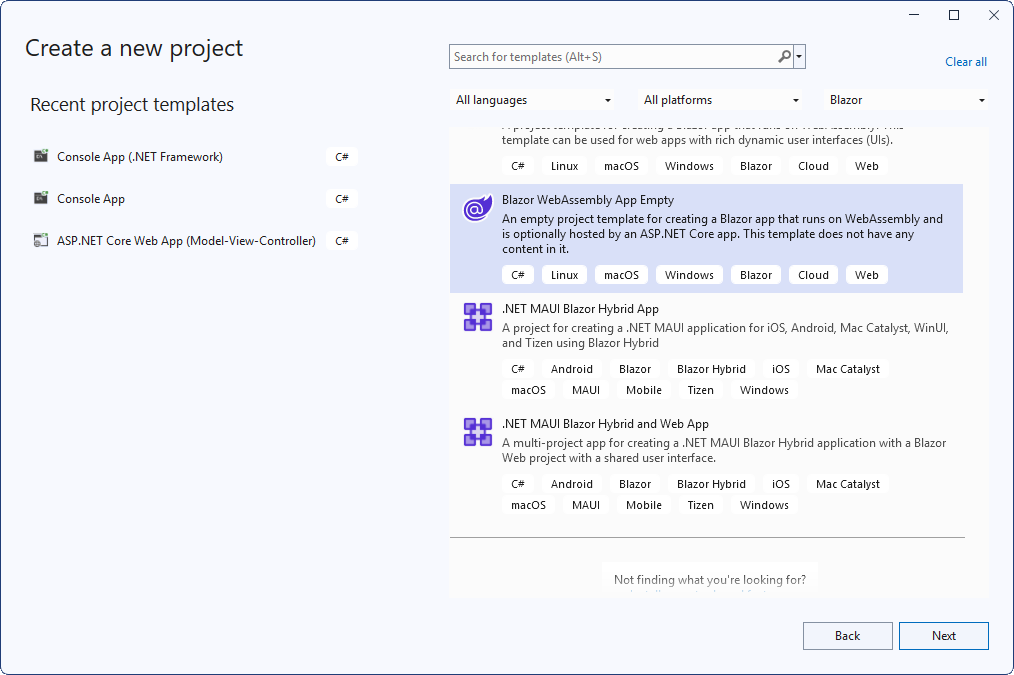
Create a new C# Blazor client-side application similar to the creation Server-side application. Here, you have to choose the Blazor WebAssembly App option from the list as in the following screenshot.
Step 2. Install the XlsIO package
Install the Syncfusion.XlsIO.Net.Core NuGet package as a reference to your Blazor application from NuGet.org.
Step 3. Add necessary code to the client-side application
- Create a Razor file with the name Excel in the Pages folder and include the following namespaces in it.
@page "/Excel"
@using Syncfusion.XlsIO;
@using Syncfusion.Drawing;
@using System.IO;
@inject Microsoft.JSInterop.IJSRuntime JS
@using System.Data;
- Then, add the following code to create a new button (Create Document) in your application.
<h2>Syncfusion Excel library (Essential XlsIO)</h2>
<p>Syncfusion Excel library (Essential XlsIO)  is a Blazor Excel library used to create, read, edit, and convert Excel files in your applications without Microsoft Office dependencies.</p>
<button class="btn btn-primary" @onclick="@CreateDocument">Create Document</button>
- Add the following code in the Excel.razor file. In it, create a new method with the name CreateDocument to create, download and export data to the Excel document in the Blazor client-side application.
@code { /// <summary> /// Create an Excel document. /// </summary> public async void CreateDocument() { //Create an instance of ExcelEngine. using (ExcelEngine excelEngine = new ExcelEngine()) { IApplication application = excelEngine.Excel; application.DefaultVersion = ExcelVersion.Xlsx; //Create a workbook. IWorkbook workbook = application.Workbooks.Create(1); IWorksheet worksheet = workbook.Worksheets[0]; //Initialize DataTable and data get from SampleDataTable method. DataTable table = SampleDataTable(); //Export data from DataTable to Excel worksheet. worksheet.ImportDataTable(table, true, 1, 1); worksheet.UsedRange.AutofitColumns(); //Save the document as a stream and return the stream. using (MemoryStream stream = new MemoryStream()) { //Save the created Excel document to MemoryStream workbook.SaveAs(stream); //Download the excel file. await JS.SaveAs("Sample.xlsx", stream.ToArray()); } } } private DataTable SampleDataTable() { DataTable reports = new DataTable(); reports.Columns.Add("SalesPerson"); reports.Columns.Add("Age", typeof(int)); reports.Columns.Add("Salary", typeof(int)); reports.Rows.Add("Andy Bernard", 21, 30000); reports.Rows.Add("Jim Halpert", 25, 40000); reports.Rows.Add("Karen Fillippelli", 30, 50000); reports.Rows.Add("Phyllis Lapin", 34, 39000); reports.Rows.Add("Stanley Hudson", 45, 58000); return reports; } } - Now, create a new class file in the project, with the name FileUtils the same as in the Server-side application.
- Then, add the saveAsFile JavaScript function in the _Host.cshtml file present in the Pages folder the same as for the Server-side application.
Step 4. Run the application
Now, add the Excel page in the navigation panel in the NavMenu.razor file under the Shared folder. Then, run the application the same as for the Server-side application.
Step 5. Download the output Excel document
Finally, navigate to the Excel page in your app and click Create Document.
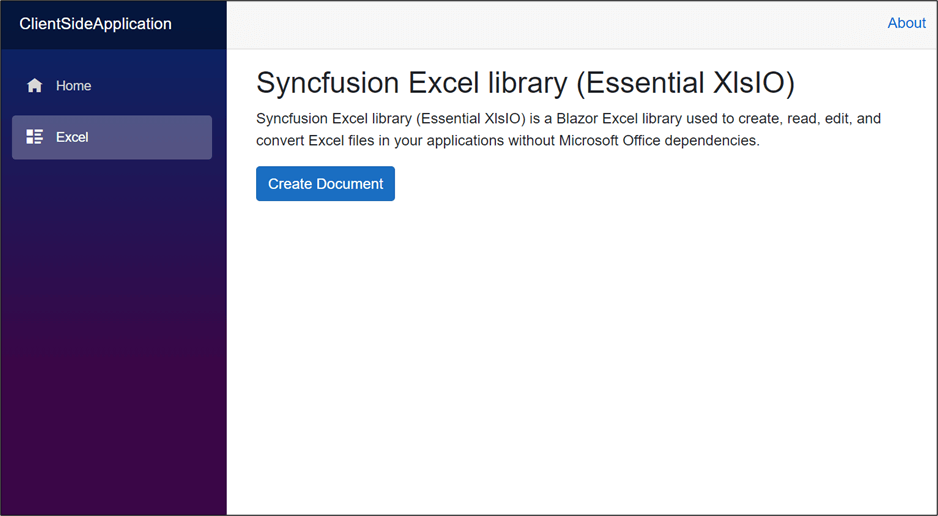
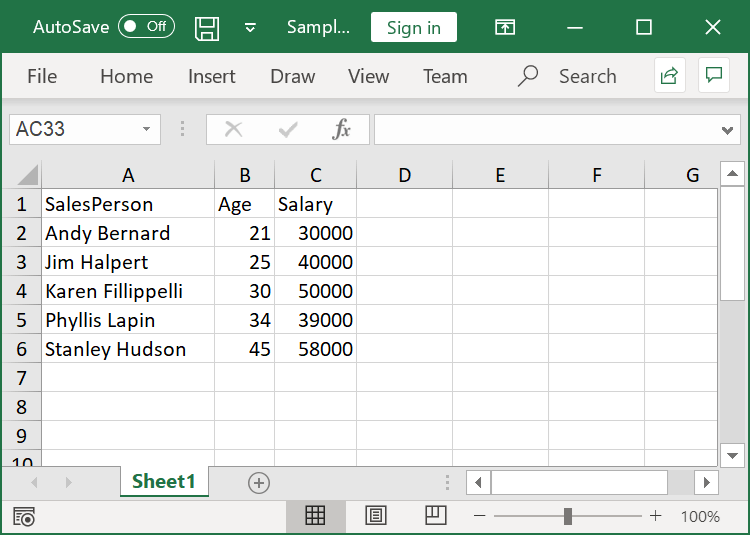
Then, we will get the output Excel document like in the following screenshot.
GitHub reference
For more details, refer to the example of exporting data to Excel in Blazor available in the GitHub repository.
Conclusion
Thanks for reading! As you’ve seen, working with Excel in Blazor is straightforward using the Syncfusion Excel library (XlsIO). You can easily generate files, export data from a DataTable, and download the results directly within your Blazor applications. Beyond that, the same library empowers you to create Excel documents seamlessly in Blazor MAUI and Blazor WebApp projects, making it a versatile solution across platforms.
Use the library to generate Excel reports with high performance and to process large amounts of data. Take a moment to peruse our documentation, where you’ll find other options and features, all with accompanying code examples. Using the library, you can also export or write Excel data to PDF, images, CSV, TSV, HTML, ODS, JSON.
If you’re a Syncfusion user, you can download the setup from the license and downloads page. Otherwise, you can download a free 30-day trial.
You can also contact us through our support forum, support portal, or feedback portal for queries. We are always happy to assist you!







 No spam, just valuable updates.