
 Mohan Chandran
TL;DR: Developers often need to convert Excel charts into image formats for reporting or sharing. This guide shows how to export Excel charts to PNG or JPEG using C# in .NET, solving a common automation challenge.
Why export Excel Charts to an image in C#?
Exporting Excel charts as images is a common need for developers building reporting tools or dashboards. Whether you’re embedding visuals in PDFs, sending charts via email, or integrating them into web apps, having a reliable way to convert charts to image files is essential.
In this guide, you will learn how to convert Excel charts into high-quality PNG or JPEG images using the Syncfusion® .NET Excel library in C#.
Why Syncfusion® .NET Excel library?
The .NET Excel Library is a robust tool that facilitates the smooth creation, reading, and editing of Excel documents using C#. It supports the creation of Excel documents from scratch, modifying existing Excel documents, data import and export, Excel formulas, conditional formats, data validations, charts, sparklines, tables, pivot tables, pivot charts, template markers, and much more.

Prerequisites
To follow along, you’ll need:
- .NET SDK 8.0 or later
- Syncfusion® XlsIO NuGet package
- Visual Studio or VS Code
Step-by-step implementation
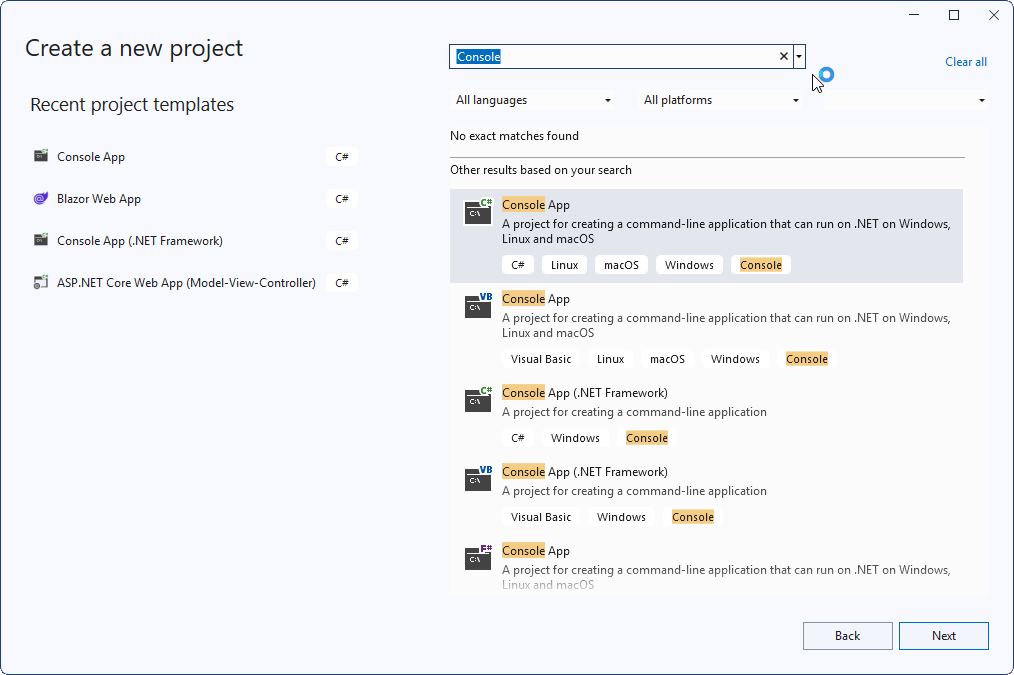
Step 1: Create a .NET Core Console app
First, create a .NET Core Console application in Visual Studio, as shown in the following image.
Step 2: Install the NuGet packages
Install the latest Syncfusion.XlsIORenderer.NET.Core NuGet package in your application.
Step 3: Convert the chart to an image
Use the following code to convert the chart in the Excel document to an image using Syncfusion® .NET Excel library.
using System.IO;
using Syncfusion.XlsIO;
using Syncfusion.XlsIORenderer;

namespace Chart_to_Image
{
    class Program
    {
        static void Main(string[] args)
        {
            //Initialize ExcelEngine
            using (ExcelEngine excelEngine = new ExcelEngine())
            {
                //Initialize application
                IApplication application = excelEngine.Excel;

                //Set the default version as Xlsx
                application.DefaultVersion = ExcelVersion.Xlsx;

                // Initialize XlsIORenderer
                application.XlsIORenderer = new XlsIORenderer();

                //Set converter chart image format to PNG or JPEG
                application.XlsIORenderer.ChartRenderingOptions.ImageFormat = ExportImageFormat.Png;

                //Set the chart image quality to best
                application.XlsIORenderer.ChartRenderingOptions.ScalingMode = ScalingMode.Best;

                //Open existing workbook with chart
                FileStream inputStream = new FileStream(Path.GetFullPath(@"Data/InputTemplate.xlsx"), FileMode.Open, FileAccess.Read);
                IWorkbook workbook = application.Workbooks.Open(inputStream);
                IWorksheet worksheet = workbook.Worksheets[0];

                //Access the chart from the worksheet
                IChart chart = worksheet.Charts[0];

                #region Save
                //Exporting the chart as an image
                FileStream outputStream = new FileStream(Path.GetFullPath("Output/Image.png"), FileMode.Create, FileAccess.Write);
                chart.SaveAsImage(outputStream);
                #endregion

                //Dispose streams
                outputStream.Dispose();
                inputStream.Dispose();
            }
        }
    }
}Example: Exporting a sales report chart
Consider an Excel document containing a chart that visualizes a sales report. The screenshot below shows the original Excel chart.
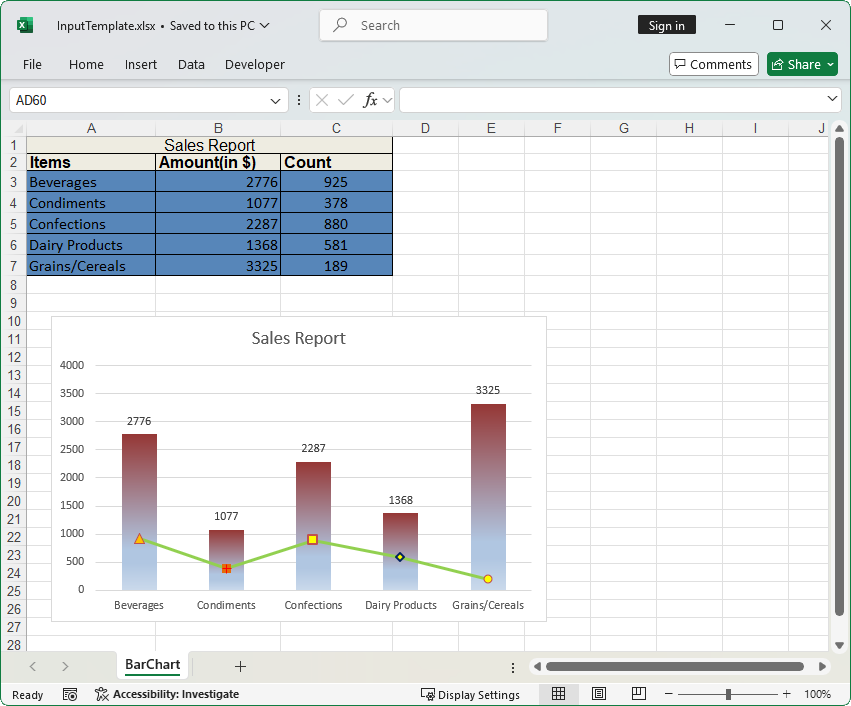
This chart is then programmatically extracted and converted into a PNG image. To export it as a JPEG instead, change the image format in code:
// Set the image format as JPEG
application.XlsIORenderer.ChartRenderingOptions.ImageFormat = ExportImageFormat.JPEG;
The screenshot below shows the converted PNG image from the chart in an Excel document.
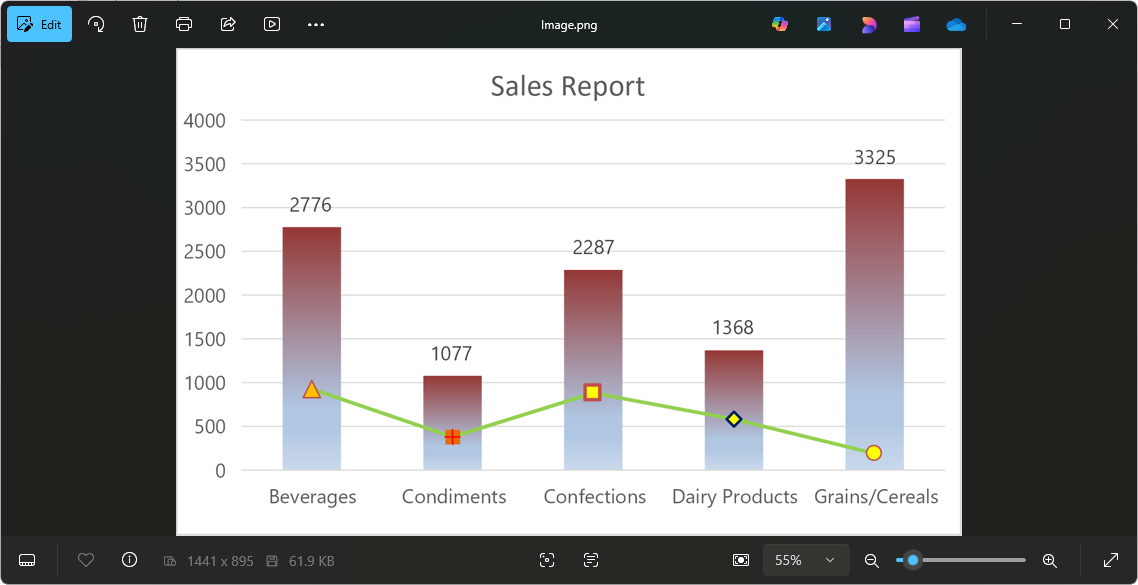
This image can now be seamlessly integrated into mobile or web applications, email notifications, automated document generation systems, or image archives.
Use cases
- Embed chart images in automated PDF reports for business intelligence.
- Send chart snapshots in scheduled email alerts for sales or KPIs.
- Display Excel-generated charts in web dashboards without Excel dependency.
- Archive chart visuals for audit trails or compliance documentation.
- Integrate chart images into mobile apps for lightweight analytics.
- Insert chart images into Word proposals or invoices using document automation.
GitHub reference
You can download the complete sample from the GitHub demo.
Conclusion
Thanks for reading! In this blog, we explored how to convert Excel charts to images using C# with the Syncfusion® Excel Library. With it, you can also export Excel data to PDF, data tables, HTML, CSV, TSV, collections of objects, ODS, JSON, and more file formats.
If you are new to our .NET Excel library, it is highly recommended that you follow our guide. Try out these conversions and share your feedback in the comment section of this blog post!
Are you already a Syncfusion® user? You can download the product setup here. If you’re not a Syncfusion® user, you can download a free, 30-day trial here.
If you have any questions or require clarification about these features, please let us know in the comments below. You can also contact us through our support forum, support portal, or feedback portal. We are happy to assist you!




 No spam, just valuable updates.