
 Deepa Thiruppathy
TL;DR: Embed a DOCX Editor in your React web page to deliver a native, Word-like editing experience directly in the browser. This guide walks through setting up a React workspace with Vite, installing, and configuring the Syncfusion DOCX Editor component. You’ll learn how to enable rich text formatting, track changes, comments, and export options, all without external tools or conversion errors. Perfect for building secure, compliance-ready apps with customizable UI and real-time collaboration.
Imagine giving your users a seamless, Microsoft Word-like experience, right inside your web application. No downloads. No external tools. Just pure, browser-based editing.
With Syncfusion DOCX Editor, you can embed editable Word documents directly on a web page, allowing users to create, edit, and collaborate on DOCX files without leaving your app.
In this guide, we’ll cover the benefits, common challenges, and a step-by-step React implementation for embedding a Word editor.

Why embed a DOCX Editor in your Web page?
Traditional document workflows often involve downloading files, editing them in Microsoft Word or Google Docs, and re-uploading. This creates friction for users and headaches for developers.
Common problems with offline DOCX editing:
- Security risks from unmanaged downloads
- Interrupted workflows leading to poor user experience
- Versioning chaos from multiple uploads
- Formatting inconsistencies from file conversions
- Limited control over document access and styling
Most online editors convert DOCX files to HTML or other formats, which can break layout and styling. Syncfusion Document Editor solves this by enabling native DOCX editing in the browser, ensuring true WYSIWYG fidelity.
Benefits of embedding a DOCX Editor
Embedding a Word Editor directly into your web page offers:
- Flawless user experience: No download-edit-upload cycle; users stay in your app.
- Real-time collaboration: Edits, comments, and changes are captured in one place.
- Cross-browser compatibility: Works across Chrome, Firefox, Safari, and Edge.
- Secure file access: No external storage or third-party dependencies.
- Native DOCX editing: No conversion errors or formatting loss.
- True WYSIWYG experience: What users see is exactly what they get.
- Client-side security: All processing happens in the browser, ideal for compliance-sensitive apps.
- Customizable UI: Match your app’s branding and user roles with toolbar and layout options.
Key features of Syncfusion Document Editor
The Syncfusion Document Editor offers a robust set of features to streamline document creation and editing in web applications:
- Create and edit DOCX documents
- Rich text formatting (bold, italics, underline)
- Font and heading customization
- Paragraph alignment and spacing
- Bullets, numbered lists, and tables
- Find and replace
- Spell check
- Cut, copy, paste with formatting
- Zoom, scroll, and selection via touch, mouse, or keyboard
- Track changes and comments
- Export to DOCX, PDF, or SFDT formats
Explore these features in our interactive demo or dive into the documentation to learn more.
Supported platforms
You can embed Syncfusion Document Editor into:
How to embed the DOCX Editor in a Web page (React example)
Step 1: Set up your React workspace
To begin, you need a React environment. The fastest way to set this up is by using Vite, which offers quick development, smaller bundles, and optimized builds.
Run the following commands in your terminal:
npm create vite@latest my-app -- --template react
cd my-app
What happens here?
- Vite downloads and runs its latest scaffolding tool.
- A new folder named my-app is created.
- A React template is set up inside that folder, ready for development.
Step 2: Install Syncfusion Document Editor
Now that your React app is ready, the next step is to add the Syncfusion document editor package. This will provide the Word-like editing functionality.
Run this command:
npm install @syncfusion/ej2-react-documenteditorStep 3: Import styles and components
Next, add the required styles for the document editor. Open your app’s CSS file and include the import statements for the editor and its dependencies. These styles are available in the ../node_modules/@syncfusion folder.
src/App.css
@import '../node_modules/@syncfusion/ej2-base/styles/material.css';
@import '../node_modules/@syncfusion/ej2-buttons/styles/material.css';
@import '../node_modules/@syncfusion/ej2-inputs/styles/material.css';
@import '../node_modules/@syncfusion/ej2-popups/styles/material.css';
@import '../node_modules/@syncfusion/ej2-lists/styles/material.css';
@import '../node_modules/@syncfusion/ej2-navigations/styles/material.css';
@import '../node_modules/@syncfusion/ej2-splitbuttons/styles/material.css';
@import '../node_modules/@syncfusion/ej2-dropdowns/styles/material.css';
@import "../node_modules/@syncfusion/ej2-documenteditor/styles/material.css";
@import "../node_modules/@syncfusion/ej2-ribbon/styles/material.css";
With the initial setup complete, it’s time to integrate the Document Editor into your application. Let’s get started by opening src/App.jsx and using the code below to initialize the DocumentEditorContainer component.
App.jsx
import * as React from 'react';
import { DocumentEditorContainerComponent, Ribbon } from '@syncfusion/ej2-react-documenteditor';
import './App.css'
DocumentEditorContainerComponent.Inject(Ribbon);
function App() {
    return (
        <DocumentEditorContainerComponent
            id="container"
            style={{ 'height': '590px' }}
            serviceUrl="https://document.syncfusion.com/web-services/docx-editor/api/documenteditor/"
            enableToolbar={true} toolbarMode= {"Ribbon"}
        />
    );
}
export default App
Step 4: Run your app
Finally, your React app includes a fully functional Word editor with DOCX support, rich formatting tools, and export options. To start the development server, run:
npm run devThis command compiles your code and opens the app in your browser. You now have an embedded Word editing experience, complete with save, print, formatting, and native DOCX support.
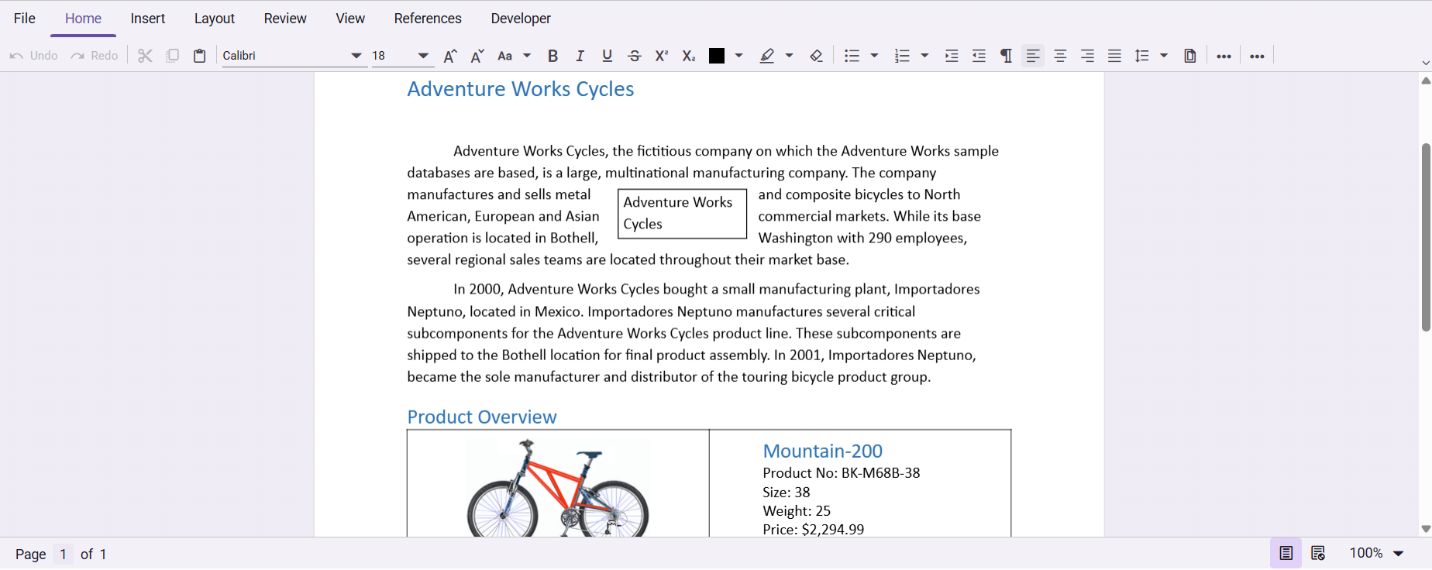
For detailed instructions and advanced configurations, check out our user guide on integrating the Document Editor into a React web application.
Conclusion
Thank you for taking the time to read our blog post. In this guide, we have explored how to embed the Syncfusion DOCX Editor in your React app, delivering a powerful, browser-based document editing experience, right inside your application. This integration removes the need for external tools and streamlines workflows with native DOCX support.
To get the most out of it, customize the editor’s look and functionality to match your app’s design and user roles. Whether you’re building a legal portal, educational platform, or enterprise document system, this approach ensures a secure, cohesive, and user-friendly experience.
If you’re a Syncfusion user, you can download the setup from the license and downloads page. Otherwise, you can download a free 30-day trial.
You can also contact us through our support forum, support portal, or feedback portal for queries. We are always happy to assist you!



 No spam, just valuable updates.