
 Arun Kumar Ragu
TL;DR: The Blazor Smart TextArea, introduced in the 2024 Volume 3 release, brings AI-powered sentence autocompletion to your fingertips, boosting typing speed, accuracy, and efficiency. In this blog, you’ll learn how to integrate it with Azure OpenAI to deliver intelligent, real-time suggestions in your Blazor apps.
In a world where every keystroke counts, developers need smarter tools, not just faster fingers. Syncfusion Blazor components offer a robust set of UI tools to help developers build modern, high-performance applications.
With the 2024 Volume 3 release, we introduced the Syncfusion Blazor Smart TextArea, and now we’re taking innovation a step further with AI-powered sentence autocompletion. This smart component predicts and completes sentences in real time, helping users draft responses, messages, and content more efficiently. Whether you’re replying to GitHub issues or handling live chat, this tool can save time and reduce errors.
In this blog, we’ll explore its key features, how it works, and how to easily integrate it with Azure OpenAI in your Blazor applications.
Why Smart TextArea?
The traditional TextArea is functional but lacks intelligence, leaving users to rely entirely on their own typing speed and accuracy. Smart TextArea, an AI-powered enhancement, transforms the way users interact with text input. By offering sentence-level autocompletions based on configuration and user input, Smart TextArea dramatically improves typing speed, efficiency, and communication quality.
Whether you’re drafting responses, writing emails, or participating in live chat conversations, Smart TextArea is your intelligent companion. It reduces manual effort and makes every keystroke more productive.
Key features
The Blazor Smart TextArea component is designed with several powerful features that boost productivity and provide extensive customization.
- AI-powered sentence completion: Automatically suggests contextually relevant text as users type, reducing manual input and enhancing writing efficiency.
- Customizable suggestions: Configure predefined phrases and AI-generated completions to match different use cases, from technical responses to customer interactions.
- Real-time assistance: Provides instant suggestions while typing, helping users complete sentences faster and with greater accuracy.
- Seamless integration: Easily integrates into Blazor applications, enabling AI-powered autocompletion in various text-based workflows.
How does Smart TextArea work?
Smart TextArea functions as an enhanced version of the traditional TextArea. Once integrated, it analyzes user input in real time, recognizing patterns and context to suggest sentence completions that the user can select or modify. The system works by accessing predefined suggestions based on specific use cases or workflows, and AI algorithms determine the most appropriate completions based on the current text.
For example:
- In a GitHub issue response, typing To investigate, could trigger suggestions like We will need a reproducible example as a public Git repository.
- In live chat customer support, typing Hello! could lead to suggestions like “How can I assist you today?“
These suggestions allow users to compose messages quickly and efficiently, reducing cognitive load and repetitive typing.
Benefits
- Increased typing speed: Reduces keystrokes with intelligent predictions, helping users to complete sentences effortlessly.
- Improved writing accuracy: Minimizes spelling and grammar errors by providing structured and relevant suggestions.
- Consistent communication: Ensures uniform and professional responses.
- Reduced repetitive typing: Frequently used phrases and responses can be auto-suggested, eliminating the need for redundant typing.
APIs
The Syncfusion Blazor Smart TextArea component fully inherits all the properties, types, and styling options of the Syncfusion TextArea component. This means that you can leverage the existing features of the Syncfusion® Blazor TextArea while benefiting from the enhanced functionality of the Smart TextArea.
Integrating the Blazor Smart TextArea with Azure OpenAI
The Smart TextArea component seamlessly integrates into a Blazor Server application. Let’s walk through the process of creating and implementing it.
Syncfusion® Blazor Smart components are compatible with both OpenAI and Azure OpenAI and fully support server interactivity mode apps.
Prerequisites:
- .NET SDK: Ensure you have the .NET 8 or .NET 9 SDK installed.
- Blazor application: Create a new Blazor Web App with Server interactivity.
- OpenAI / Azure OpenAI Account
Step 1: Create a new Blazor project
You can create a Blazor Web App Interactive Server using Visual Studio via Microsoft Templates or the Syncfusion Blazor Extension.
Step 2: Install Syncfusion Blazor Smart components and themes NuGet in the app
To add Blazor Smart TextArea component in the app, open the NuGet package manager in Visual Studio (Tools → NuGet Package Manager → Manage NuGet Packages for Solution), search and install Syncfusion.Blazor.SmartComponents and Syncfusion.Blazor.Themes. Alternatively, you can utilize the following package manager command to achieve the same.
Package manager:
Install-Package Syncfusion.Blazor.SmartComponents -Version 29.1.33
Install-Package Syncfusion.Blazor.Themes -Version 29.1.33
Step 3: Register Syncfusion Blazor service
Open ~/_Imports.razor file and import the Syncfusion.Blazor and Syncfusion.Blazor.SmartComponents namespace.
_Imports.razor:
@using Syncfusion.Blazor
@using Syncfusion.Blazor.SmartComponents
Now, register the Syncfusion Blazor service in the ~/Program.cs file of your Blazor App.
Program.cs:
using Microsoft.AspNetCore.Components;
using Microsoft.AspNetCore.Components.Web;
using Syncfusion.Blazor;

var builder = WebApplication.CreateBuilder(args);

// Add services to the container.
...
builder.Services.AddSyncfusionBlazor();

var app = builder.Build();
...
Step 4: Configure AI service
Follow the instructions below to register an AI model in your application.
OpenAI
For OpenAI, create an API key and place it at openAIApiKey. The value for openAIModel is the model you wish to use (e.g., gpt-3.5-turbo, gpt-4, etc.).
Install the following NuGet packages to your project:
Install-Package Microsoft.Extensions.AI
Install-Package Microsoft.Extensions.AI.OpenAI
To configure the AI service, add the following settings to the ~/Program.cs file in your Blazor.
using Microsoft.AspNetCore.Components;
using Microsoft.AspNetCore.Components.Web;
using Syncfusion.Blazor;
using Syncfusion.Blazor.SmartComponents;
using Syncfusion.Blazor.AI;
using Microsoft.Extensions.AI;
using OpenAI;

var builder = WebApplication.CreateBuilder(args);

....

builder.Services.AddSyncfusionBlazor();

string openAIApiKey = "API-KEY";
string openAIModel = "OPENAI_MODEL";
OpenAIClient openAIClient = new OpenAIClient(openAIApiKey);
IChatClient openAIChatClient = openAIClient.GetChatClient(openAIModel).AsIChatClient();
builder.Services.AddChatClient(openAIChatClient);

builder.Services.AddSyncfusionSmartComponents()
.InjectOpenAIInference();

var app = builder.Build();
....
Azure OpenAI
For Azure OpenAI, first deploy an Azure OpenAI Service resource and model, then values for azureOpenAIKey, azureOpenAIEndpoint and azureOpenAIModel will all be provided to you.
Install the following NuGet packages to your project:
Install-Package Microsoft.Extensions.AI
Install-Package Microsoft.Extensions.AI.OpenAI
Install-Package Azure.AI.OpenAI
To configure the AI service, add the following settings to the ~/Program.cs file in your Blazor WebApp.
using Syncfusion.Blazor.SmartComponents;
using Syncfusion.Blazor.AI;
using Azure.AI.OpenAI;
using Microsoft.Extensions.AI;
using System.ClientModel;

var builder = WebApplication.CreateBuilder(args);

....

builder.Services.AddSyncfusionBlazor();

string azureOpenAIKey = "AZURE_OPENAI_KEY";
string azureOpenAIEndpoint = "AZURE_OPENAI_ENDPOINT";
string azureOpenAIModel = "AZURE_OPENAI_MODEL";
AzureOpenAIClient azureOpenAIClient = new AzureOpenAIClient(
     new Uri(azureOpenAIEndpoint),
     new ApiKeyCredential(azureOpenAIKey)
);
IChatClient azureOpenAIChatClient = azureOpenAIClient.GetChatClient(azureOpenAIModel).AsIChatClient();
builder.Services.AddChatClient(azureOpenAIChatClient);

builder.Services.AddSyncfusionSmartComponents()
.InjectOpenAIInference();

var app = builder.Build();
....
Ollama
To use Ollama for running self-hosted models:
- Download and install Ollama
Visit Ollama’s official website and install the application appropriate for your operating system. - Install the desired model from the Ollama library
You can browse and install models from the Ollama Library (e.g., llama2:13b, mistral:7b, etc.). - Configure your application
- Provide the Endpoint URL where the model is hosted (e.g., http://localhost:11434).
- Set ModelName to the specific model you installed (e.g., llama2:13b).
Install the following NuGet packages to your project:
Install-Package Microsoft.Extensions.AI
Install-Package OllamaSharp
Add the following settings to the ~/Program.cs file in your Blazor WebApp.
using Syncfusion.Blazor.SmartComponents;
using Syncfusion.Blazor.AI;
using Microsoft.Extensions.AI;
using OllamaSharp;

var builder = WebApplication.CreateBuilder(args);

....

builder.Services.AddSyncfusionBlazor();

string ModelName = "MODEL_NAME";
IChatClient chatClient = new OllamaApiClient("http://localhost:11434", ModelName);
builder.Services.AddChatClient(chatClient);

builder.Services.AddSyncfusionSmartComponents()
.InjectOpenAIInference();

var app = builder.Build();
....
Step 5: Add stylesheet and script resources
The theme stylesheet and script can be accessed from NuGet through Static Web Assets. For a .NET 8 or .NET 9 Blazor server app, include it in the ~Components/App.razor file. Reference the stylesheet and script in the <head> and <body> of the main page as follows:
_Layout.cshtml (or) App.razor:
<head>
    ....
    <link href="_content/Syncfusion.Blazor.Themes/tailwind.css" rel="stylesheet" />
</head>

....

<body>
    ....
    <script src="_content/Syncfusion.Blazor.Core/scripts/syncfusion-blazor.min.js" type="text/javascript"></script>
</body>
Step 6: Add Syncfusion Blazor Smart TextArea component
Add the Syncfusion® Blazor Smart TextArea component in the ~Pages/Index.razor file.
<SfSmartTextArea UserRole="@userRole" UserPhrases="@userPhrases" Placeholder="Enter your queries here" @bind-Value="prompt" Width="75%" RowCount="5"></SfSmartTextArea>

@code {
    private string? prompt;
    public string userRole = "Maintainer of an open-source project replying to GitHub issues";
    public string[] userPhrases = [
        "Thank you for contacting us.",
        "To investigate, We will need a reproducible example as a public Git repository.",
        "Could you please post a screenshot of NEED_INFO?",
        "This sounds like a usage question. This issue tracker is intended for bugs and feature proposals. Unfortunately, we don't have the capacity to answer general usage questions and would recommend StackOverflow for a faster response.",
        "We do not accept ZIP files as reproducible examples.",
        "Bug report: File not found error occurred in NEED_INFO"
    ];
}
- UserRole: This attribute is required to define the context of the autocompletion based on the role of the person typing.
- UserPhrases: This attribute is optional to provide predefined expressions that align with the User/application’s tone and frequently used content.
Press Ctrl+F5 (Windows) or ⌘+F5 (macOS) to launch the application. This will render the Syncfusion® Blazor Smart TextArea component in your default web browser. Type “We are working” to experience instant sentence autocompletion.

Customizing the appearance of suggestions
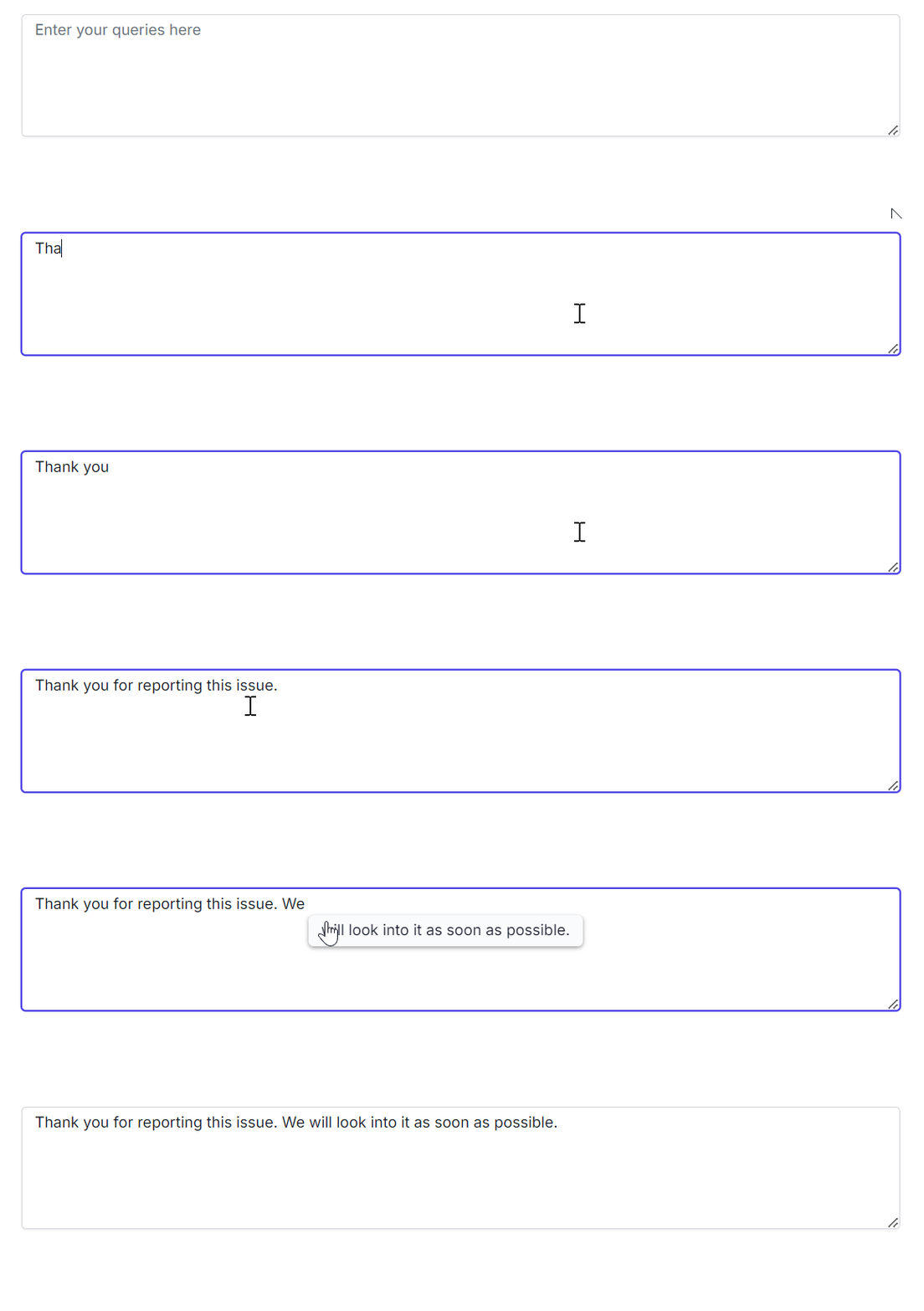
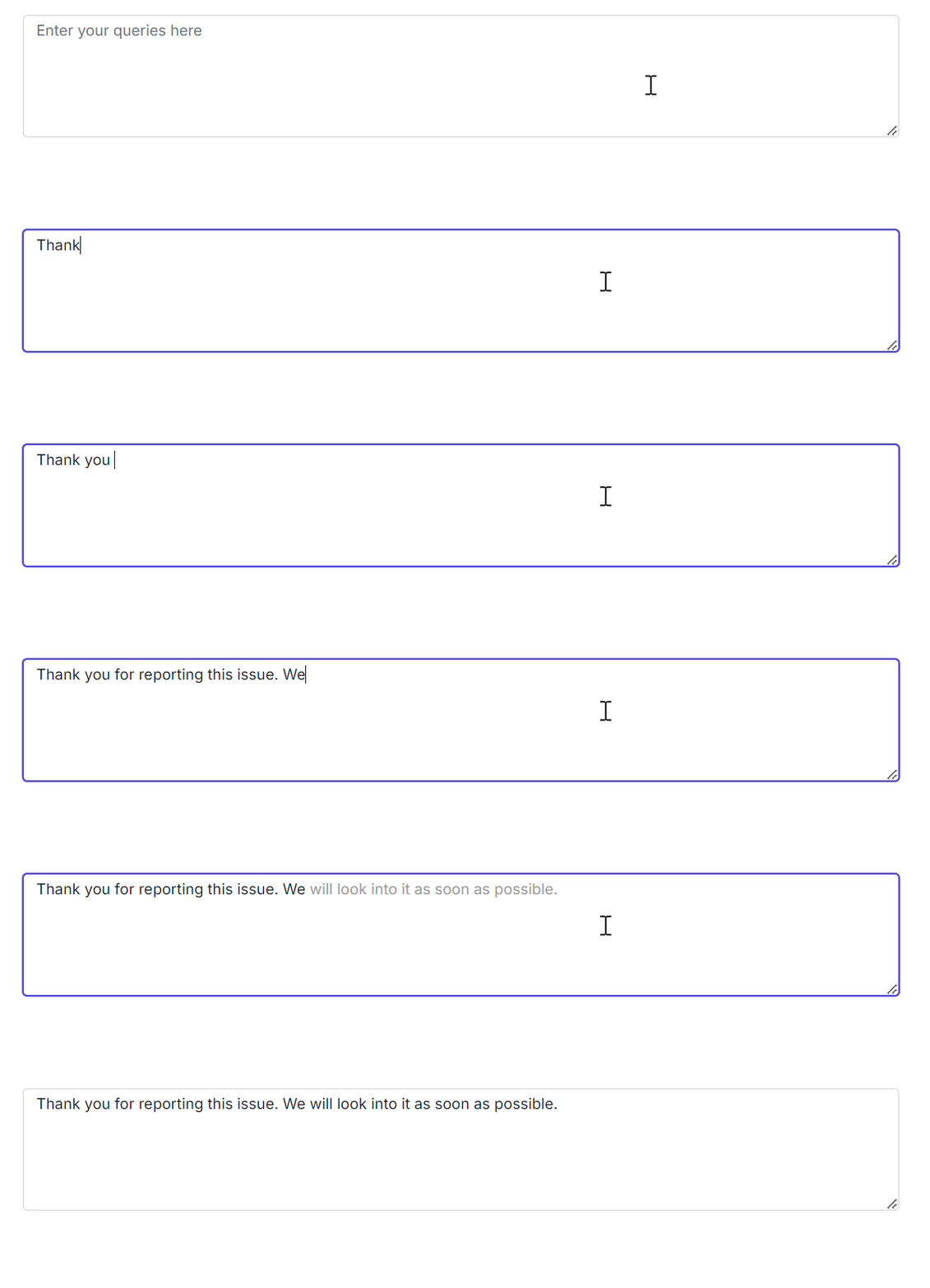
The ShowSuggestionOnPopup attribute in Syncfusion Blazor Smart TextArea allows you to control how text suggestions are displayed to the users.
If ShowSuggestionOnPopup is true, suggestions are displayed in the pop-up window.
<SfSmartTextArea
    UserRole="@userRole"
    Placeholder="Enter your queries here"
    @bind-Value="prompt"
    Width="75%"
    RowCount="5"
    ShowSuggestionOnPopup="true">
</SfSmartTextArea>

@code {
    private string? prompt;
    public string userRole = "Maintainer of an open-source project replying to GitHub issues";
}
If ShowSuggestionOnPopup is false, suggestions are displayed inline.
<SfSmartTextArea
    UserRole="@userRole"
    Placeholder="Enter your queries here"
    @bind-Value="prompt"
    Width="75%"
    RowCount="5"
    ShowSuggestionOnPopup="false">
</SfSmartTextArea>

@code {
    private string? prompt;
    public string userRole = "Maintainer of an open-source project replying to GitHub issues";
}

GitHub reference
Check out the full working sample on our GitHub demo.
FAQs
Q1: What is the Blazor Smart TextArea?
It’s an AI-enhanced text input component from Syncfusion that offers sentence-level autocompletion in Blazor apps.
Q2: How does the Smart TextArea improve productivity?
It reduces typing effort by predicting and suggesting contextually relevant sentences as you type.
Q3: Can I integrate it with Azure OpenAI?
Yes, the component supports integration with OpenAI and Azure OpenAI for intelligent suggestions.
Q4: Is the Smart TextArea customizable?
Absolutely. You can configure user roles, predefined phrases, and display modes for suggestions.
Conclusion
The Syncfusion® Blazor Smart TextArea isn’t just a productivity booster; it’s a smarter way to write. By integrating it with Azure OpenAI, you can deliver faster, more consistent communication in your apps. With AI-powered sentence-level autocompletion and seamless Azure OpenAI integration, it transforms how users compose text by reducing typing effort and enhancing communication speed.
By integrating this smart component into your Blazor applications, you can streamline content creation, ensure consistent messaging, and elevate the overall user experience.
- Watch the YouTube tutorial to get started with the Blazor Smart TextArea component.
- Explore the documentation for setup guidance.
- Discover more Syncfusion® AI-powered components demo for Blazor, Angular, React, Vue, and JavaScript platforms.
Customers with an active license can download the latest release of Essential Studio® from the license and downloads page. If you’re new, we welcome you to begin a 30-day free trial to explore the latest features and gain access to a rich library of more than 1,900 UI components.
If you have questions, you can contact us through our support forum, feedback portal, or support portal. We are always happy to assist you!







 No spam, just valuable updates.