
 Ankit Sharma
TL;DR: In Part 2, we create the interactive UI for our AI Writing Assistant using Angular and Google Gemini. We’ll build a Suggestions Panel, a smart Editor component, and configure the template for a seamless writing experience. This architecture utilizes signals, effects, computed properties, and clean component composition to achieve scalability and performance.
In Part 1, we establish the foundation for our AI Writing Assistant by integrating the Google Gemini API, creating services, and managing settings.
Now, in Part 2, we’ll bring everything together with an interactive UI that includes:
- A Suggestions Panel for grammar corrections.
- A smart Editor component that orchestrates state and interactions.
- A template that ties it all together with modern Angular patterns.
Let’s dive in!
Step 5: Building the Suggestions Panel component
The Suggestions Panel is a sleek component that displays grammar suggestions and allows users to apply or dismiss them. It serves as a presentational component, receiving input data and emitting output actions without business logic.
1. Creating component structure
Let’s create the suggestions panel component and update the src/app/components/suggestions-panel/suggestions-panel.ts file.
Refer to the following code.
export class SuggestionsPanelComponent {
  suggestions = input.required<AISuggestion[]>();
  applySuggestion = output<AISuggestion>();
  dismissSuggestion = output<AISuggestion>();
}
Component architecture highlights:
- Pure presentational component: Takes input and emits output, without business logic or services.
- Suggestions input: Retrieves a grammar suggestions array from the parent.
- applySuggestion output: Emits when the user clicks Apply to replace text with the suggestion.
- dismissSuggestion output: Emits when the user clicks Dismiss to remove a suggestion from the list.
2. Template setup
Now, update the src/app/components/suggestions-panel/suggestions-panel.html file as per the source code from GitHub.
Key Angular features in the template:
- It uses the
@forloop with track to iterate over suggestions while ensuring efficient rendering and minimal DOM updates.
- Shows the Apply button only if
originalTextexists, hiding it for error suggestions.
- Each button emits events directly through
applySuggestion.emit(suggestion), removing the need for extra wrapper methods and keeping the logic clean.
- When no suggestions are available, the component shows an empty state with a guiding icon.
This clear separation of concerns makes the component both highly reusable and easy to test.

Step 6: Building the Editor component: Bring everything together in Angular
The Editor component is the main container that brings together all the pieces:
- AI service,
- Settings component, and
- Suggestions panel.
This smart component manages state, handles user interactions, and orchestrates communication between child components.
Let’s break down this complex component into digestible chunks.
1. Setting the component and dependencies
Create the Editor component and update the src/app/components/editor/editor.ts file as shown below.
export class EditorComponent {
    wordCount = computed(() => {
        const text = this.currentText().trim();
        if (!text) return 0;
        return text.split(/\s+/).filter((word) => word.length > 0).length;
    });

    characterCount = computed(() => this.currentText().length);
    filteredSuggestions = computed(() => this.suggestions().slice(0, 5));
}
The computed signals automatically recalculate when their dependencies change:
- wordCount: Splits text by whitespace and counts non-empty words.
- characterCount: Simple length calculation including spaces.
- filteredSuggestions: Limits displayed suggestions to 5 for a better User experience.
These computed values are reactive. When currentText() or suggestions() change, they automatically update without manual recalculation.
2. Adding autosuggestions effect with debouncing
Refer to the following code example to add autosuggestions with debouncing.
private setupSuggestionsEffect() {
    effect((onCleanup) => {
        const text = this.currentText().trim();
        const auto = this.settings().autoSuggestions;

        if (this.debounceHandle) {
            clearTimeout(this.debounceHandle);
            this.debounceHandle = undefined;
        }

        if (!text || !auto) {
            this.suggestions.set([]);
            this.isProcessing.set(false);
            return;
        }

        if (text === this.lastQuery) {
            return;
        }

        this.debounceHandle = setTimeout(() => {
            this.requestSuggestions(text);
        }, 500);

        onCleanup(() => {
            if (this.debounceHandle) {
                clearTimeout(this.debounceHandle);
                this.debounceHandle = undefined;
            }
        });
    });
}
How this works:
- Effect triggers whenever
currentText()orsettings().autoSuggestionschanges. - Clears the previous timeout to cancel pending requests.
- Returns early if text is empty, autosuggestions are off, or text hasn’t changed.
- Debounces by waiting 500ms after the user stops typing.
- The cleanup function clears timeouts to prevent memory leaks when the effect re-runs.
This pattern prevents excessive API calls while the user is actively typing.
3. Adding API status monitoring effect
Then, configure the API status monitoring effect by referring to the following code example.
private setupAiStatusNoticeEffect() {
    effect(() => {
        const status = this.aiSuggestionService.getAIStatus();

        if (status.kind === 'invalidApiKey' || status.kind === 'noApiKey') {
            this.apiKeyNoticeMessage.set(
                status.message || 'Your API key seems invalid. Update it in Settings.'
            );
            this.showApiKeyNotice.set(true);
        } else {
            this.showApiKeyNotice.set(false);
            this.apiKeyNoticeMessage.set('');
        }
    });
}
Purpose: Automatically displays a notice banner when there are API key issues. This effect occurs whenever the AI service’s status changes, providing users with real-time feedback.
4. Request suggestions
Refer to the following code example for requesting suggestions.
private requestSuggestions(text: string): Subscription {
    this.isProcessing.set(true);
    return this.aiSuggestionService
        .getSuggestions(text)
        .pipe(
            catchError(() =>
                of([
                    {
                        id: SUGGESTION_IDS.API_ERROR,
                        text: 'Failed to get suggestions.',
                    },
                ])
            ),
            finalize(() => this.isProcessing.set(false)),
            takeUntilDestroyed(this.destroyRef)
        )
        .subscribe((suggestions) => {
            const filtered = suggestions.filter(
                (s) =>
                    s.id !== SUGGESTION_IDS.NO_API_KEY &&
                    s.id !== SUGGESTION_IDS.INVALID_API_KEY
            );
            this.suggestions.set(filtered);
            this.lastQuery = text;
    });
}
RxJS highlights:
- catchError: Returns a generic error suggestion if the API call fails.
- Finalize: Stops the processing spinner regardless of success or error.
- takeUntilDestroyed: Automatically unsubscribes when the component is destroyed (no memory leaks)
- Filters out: Removes API key error suggestions (shown in the notice banner instead.)
5. Apply and dismiss suggestions
Let’s implement the code logic to apply and dismiss suggestions.
applySuggestion(suggestion: AISuggestion) {
    const currentText = this.currentText();
    let newText = currentText;

    if (suggestion.originalText) {
        newText = currentText.replace(suggestion.originalText, suggestion.text);
    } else {
        newText = suggestion.text;
    }

    this.currentText.set(newText);
    this.dismissSuggestion(suggestion);
}

dismissSuggestion(suggestion: AISuggestion) {
    this.suggestions.update((suggestions) =>
        suggestions.filter((s) => s.id !== suggestion.id)
    );
}
Suggestion management:
applySuggestion: Replaces the original text with the corrected text iforiginalTextexists, otherwise just sets the new text.dismissSuggestion: Removes the suggestion from the array using an immutable update pattern.
6. Settings management
Refer to the following example code to manage settings.
onSettingsChange(updates: Partial<UserSettings>) {
    this.settings.update((current) => ({ ...current, ...updates }));
    this.settingsService.updateUserSettings(updates);

    if (updates.geminiApiKey !== undefined) {
        this.aiSuggestionService.setApiKey(updates.geminiApiKey || '');
        this.showApiKeyNotice.set(false);
        this.apiKeyNoticeMessage.set('');
    }
}

toggleSettings() {
    this.showSettings.set(!this.showSettings());
}

closeSettings() {
    this.showSettings.set(false);
}

toggleAutoSuggestions() {
    const current = this.settings().autoSuggestions;
    this.onSettingsChange({ autoSuggestions: !current });

    if (!this.settings().autoSuggestions) {
        this.suggestions.set([]);
        this.isProcessing.set(false);
    }
}

dismissApiKeyNotice() {
    this.showApiKeyNotice.set(false);
}
Settings coordination:
onSettingsChange: Updates local state, persists storage, and updates the AI service.toggleAutoSuggestions: Clears suggestions when autosuggestions are turned off.- Modal management: Shows or hides settings and API key notices.
7. Configuring the template
Now, update the src/app/components/editor/editor.html file as shown below.
@if (showApiKeyNotice()) {
    <div class="inline-api-key-notice" role="status" aria-live="polite">
        <span class="notice-icon">⚠️</span>
        <span class="notice-text">
            {{ apiKeyNoticeMessage() || "Your API key seems invalid. Update it in Settings." }}
        </span>
        <button class="notice-action" type="button" (click)="toggleSettings()">
            Open Settings
        </button>
        <button
            class="notice-dismiss"
            type="button"
            (click)="dismissApiKeyNotice()"
            title="Dismiss"
        >
            X
        </button>
    </div>
}

@if (showSettings()) {
    <app-settings
        [settings]="settings()"
        [tokenUsage]="tokenUsage()"
        (settingsChange)="onSettingsChange($event)"
        (close)="closeSettings()"
    />
}

<div class="editor-container">
    <div class="editor-main">
        <textarea
            #textEditor
            [(ngModel)]="currentText"
            placeholder="Start writing your masterpiece..."
            class="main-textarea"
        ></textarea>

        @if (isProcessing()) {
            <div
                class="inline-processing-indicator"
                aria-live="polite"
                aria-busy="true"
            >
                <div class="loading-spinner"></div>
                <span>Analyzing...</span>
            </div>
        }
        </div>

        @if (settings().autoSuggestions) {
            <app-suggestions-panel
                [suggestions]="filteredSuggestions()"
                (applySuggestion)="applySuggestion($event)"
                (dismissSuggestion)="dismissSuggestion($event)"
            />
        }
</div>
Template highlights:
- Computed values in template:
{{ wordCount() }}and{{ characterCount() }}update reactively. - Conditional rendering: Displays a settings modal, API notice, and suggestions panel based on specific signals.
- Component composition: Integrates
<app-settings>and<app-suggestions-panel>child components. - Two-way binding:
[(ngModel)]="currentText"syncs the textarea with the signal. - Event handling: Passes event handlers to child components for
applySuggestionanddismissSuggestionactions.
This editor component demonstrates modern Angular architecture with signals, effects, computed properties, and clean component composition.
Run the app
Finally, run the app using the command ng serve.
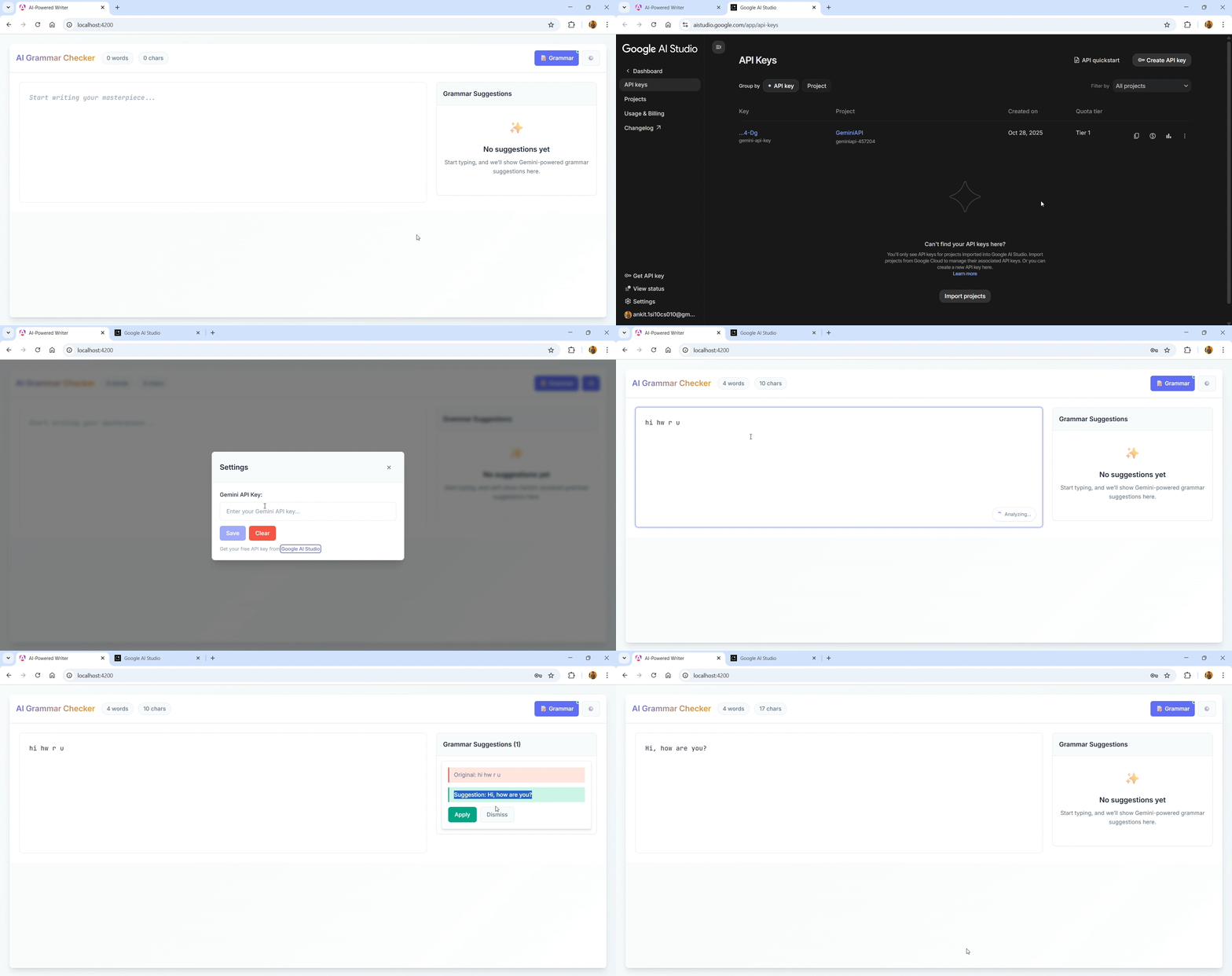
Navigate to http://localhost:4200/ and you can see the AI Writing Assistant app in action.
Refer to the following GIF image.
Demos
For more details, refer to the complete source code on GitHub, and a live demo to see it in action.
Conclusion
Thanks for reading! We’ve just built a production-ready AI grammar assistant that combines Angular’s modern reactive patterns with Google’s Gemini API. More importantly, we’ve learned architectural principles that extend far beyond this single app.
What makes this architecture powerful
We’ve implemented a blueprint for building an intelligent application:
- Signal-driven reactivity that makes state management transparent and automatic.
- Type-safe API integration with runtime validation using type guards and JSON Schema.
- Defensive programming that gracefully handles errors and edge cases.
- Smart performance optimization through debouncing and computed values.
- Component composition following the container/presentational pattern.
- Effect-based side effects that replace complex lifecycle management with declarative logic.
These patterns work whether you’re building chatbots, content generators, recommendation engines, or code assistants. The principles remain the same: type safety, reactive state, error resilience, and clean separation of concerns.
We now have a foundation for creating AI-powered experiences that are maintainable, testable, and delightful to use in Angular.
Syncfusion’s Angular component library offers over 145 high-performance, lightweight, and responsive UI components, including data grids, charts, calendars, and editors. Plus, an AI-powered coding assistant streamlines development and enhances efficiency.
If you’re a Syncfusion user, you can download the setup from the license and downloads page. Otherwise, you can download a free 30-day trial.
You can also contact us through our support forum, support portal, or feedback portal for queries. We are always happy to assist you!




 No spam, just valuable updates.