
 Sudarsan Muthuselvan
TL;DR: Dynamic item loading in a .NET MAUI ComboBox is explored through MVVM and async patterns, covering how JSON files and REST APIs supply data to shared binding structures. The discussion includes ObservableCollection updates, XAML bindings, and how the approach adapts as data or API requirements grow.
Filling a mobile ComboBox with real data can be tricky, JSON shapes can vary, the UI may freeze during loading, and it’s easy to mix up search vs. display fields. Without a solid MVVM setup, bindings can break, and selections can get out of sync.
In this blog, we’ll show how Syncfusion® .NET MAUI SfComboBox fixes these issues with clean MVVM data binding and fully async workflows. You’ll get a responsive UI, smooth loading, accurate search and display, and a polished user experience.
What you will build
In this guide, you’ll implement the following:
- A ComboBox loading data from a local JSON file.
- A ComboBox loading data from a remote REST API.
- Fully async loading flows that keep your UI buttery-smooth.
- MVVM-driven bindings that stay simple, predictable, and testable.
Bind a local JSON file to a .NET MAUI ComboBox
JSON is a lightweight, developer-friendly format widely used for configuration and API data. It stores information using simple key–value pairs and arrays. The MIME type is application/json.
Below is the sample dataset we’ll use.
[
    { "Name": "United States", "Code": "US" },
    { "Name": "Canada", "Code": "CA" },
    { "Name": "Germany", "Code": "DE" },
    { "Name": "France", "Code": "FR" },
    { "Name": "United Kingdom", "Code": "GB" },
    { "Name": "India", "Code": "IN" },
    { "Name": "Japan", "Code": "JP" },
    { "Name": "Australia", "Code": "AU" },
    { "Name": "Brazil", "Code": "BR" },
    { "Name": "South Africa", "Code": "ZA" }
]
We load the countries.json file directly from the app package, deserialize it into a collection of Country objects, and populate an ObservableCollection so the ComboBox updates instantly. After loading, the ComboBox displays the country names, and selecting one updates the Selected property and label immediately.
Model & ViewModel (MVVM)
The MVVM pattern keeps your UI logic clean, testable, and easy to maintain. In this example, the Country model represents each JSON record, while JsonViewModel loads the countries.json file asynchronously and exposes the data through an ObservableCollection.
When LoadAsync runs, it opens the bundled JSON file, reads it as text, deserializes it into a list of Country objects (with case-insensitive property mapping), clears any previous items, and repopulates the observable collection. The ComboBox updates automatically as the collection changes.
Here’s the complete code block:
public class Country
{
    public string Name { get; set; }
    public string Code { get; set; }
}

public class JsonViewModel
{
    public ObservableCollection<Country> Countries { get; } = new();
    public async Task LoadAsync()
    {
        using var stream = await FileSystem.OpenAppPackageFileAsync("countries.json");
        using var reader = new StreamReader(stream);
        var json = await reader.ReadToEndAsync();

        var data = JsonSerializer.Deserialize<List<Country>>(json,
            new JsonSerializerOptions { PropertyNameCaseInsensitive = true }) ?? new();

        Countries.Clear();
        foreach (var c in data)
            Countries.Add(c);
    }
}
In the code example below, we include a button to load data, a combo box bound to the Countries list that displays country names and updates the selected item, and a label that shows the selected country’s name.
<ContentPage.Content>
    <VerticalStackLayout Padding="50" Spacing="12">
        <Button Text="Load JSON" WidthRequest="320" Clicked="OnLoadClicked" />
        <inputs:SfComboBox WidthRequest="320" ItemsSource="{Binding Countries}" DisplayMemberPath="Name" TextMemberPath="Name" SelectedItem="{Binding Selected, Mode=TwoWay}" />
        <Label Text="{Binding Selected.Name, StringFormat='Selected country: {0}'}" />
    </VerticalStackLayout>
</ContentPage.Content>
Here’s a preview of this implementation in action:

Populate the .NET MAUI ComboBox with REST API data
REST APIs let your app interact with remote services over HTTP using standard methods like GET, POST, PUT/PATCH, and DELETE. Responses are usually returned as JSON, making them ideal for ComboBox data.
You’ll implement two features:
- Load users from a REST API
- Create a new user (POST) and insert it into the ComboBox
REST API ViewModel
It retrieves users from a REST endpoint, sorts them by name, and updates the ComboBox through the LoadAsync method. It also supports creating a new user. CreateAsync sends a POST request, receives the created user, and inserts it at the top of the list so the UI refreshes immediately.
Code snippet to achieve this:
public class RestViewModel
{
    public ObservableCollection<UserDto> Users { get; } = new();

    private readonly HttpClient http = new HttpClient { Timeout = TimeSpan.FromSeconds(20) };
    private const string BaseUrl = "https://jsonplaceholder.typicode.com/users";

    public async Task LoadAsync(CancellationToken ct = default)
    {
        Users.Clear();
        using var req = new HttpRequestMessage(HttpMethod.Get, BaseUrl);
        using var resp = await http.SendAsync(req, HttpCompletionOption.ResponseHeadersRead, ct);
        resp.EnsureSuccessStatusCode();
        var options = new JsonSerializerOptions { PropertyNameCaseInsensitive = true };
        await using var stream = await resp.Content.ReadAsStreamAsync(ct);
        var data = await JsonSerializer.DeserializeAsync<List<UserDto>>(stream, options, ct);

        if (data is null || data.Count == 0)
        {
            // Nothing returned; leave Users empty
            return;
        }
        foreach (var u in data
            .Where(u => u is not null)
            .OrderBy(u => u.Name ?? string.Empty))
        {
            u.Name ??= string.Empty; // avoid null in bindings
            Users.Add(u);
        }
    }

    public async Task CreateAsync(string name)
    {
        var newUser = new UserDto { Name = name };
        var resp = await http.PostAsJsonAsync(BaseUrl, newUser);
        resp.EnsureSuccessStatusCode();

        // JSONPlaceholder returns the created resource with an id
        var created = await resp.Content.ReadFromJsonAsync<UserDto>();

        if (created != null)
        {
	    Users.Insert(0, created);
        }
    }
}<ScrollView>
<Grid Padding="0"
RowSpacing="12"
ColumnSpacing="12"
RowDefinitions="Auto,Auto"
ColumnDefinitions="*,*">
<Button Text="Load from API"
Grid.Row="0"
Grid.Column="0"
HeightRequest="{OnPlatform Android=56, iOS=52, WinUI=48}"
MinimumHeightRequest="48"
MaximumWidthRequest="320"
HorizontalOptions="Fill"
Clicked="OnLoadClicked" />
<Button Text="Create user (POST)"
Grid.Row="0"
Grid.Column="1"
HeightRequest="{OnPlatform Android=56, iOS=52, WinUI=48}"
MinimumHeightRequest="48"
HorizontalOptions="Fill"
MaximumWidthRequest="320"
Clicked="OnCreateClicked" />
<inputs:SfComboBox Grid.Row="1"
Grid.Column="0"
HeightRequest="{OnPlatform Android=56, iOS=52, WinUI=48}"
MinimumHeightRequest="48"
HorizontalOptions="Fill"
MaximumWidthRequest="320"
ItemsSource="{Binding Users}"
DisplayMemberPath="Name"
TextMemberPath="Name"
Placeholder="Select a user"
Margin="0,0,0,0" />
<Entry x:Name="NameEntry"
Grid.Row="1"
Grid.Column="1"
HeightRequest="{OnPlatform Android=56, iOS=52, WinUI=48}"
MinimumHeightRequest="48"
HorizontalOptions="Fill"
MaximumWidthRequest="320"
Keyboard="Text"
ReturnType="Done"
ClearButtonVisibility="WhileEditing"
Placeholder="Enter new user name to POST" />
</Grid>
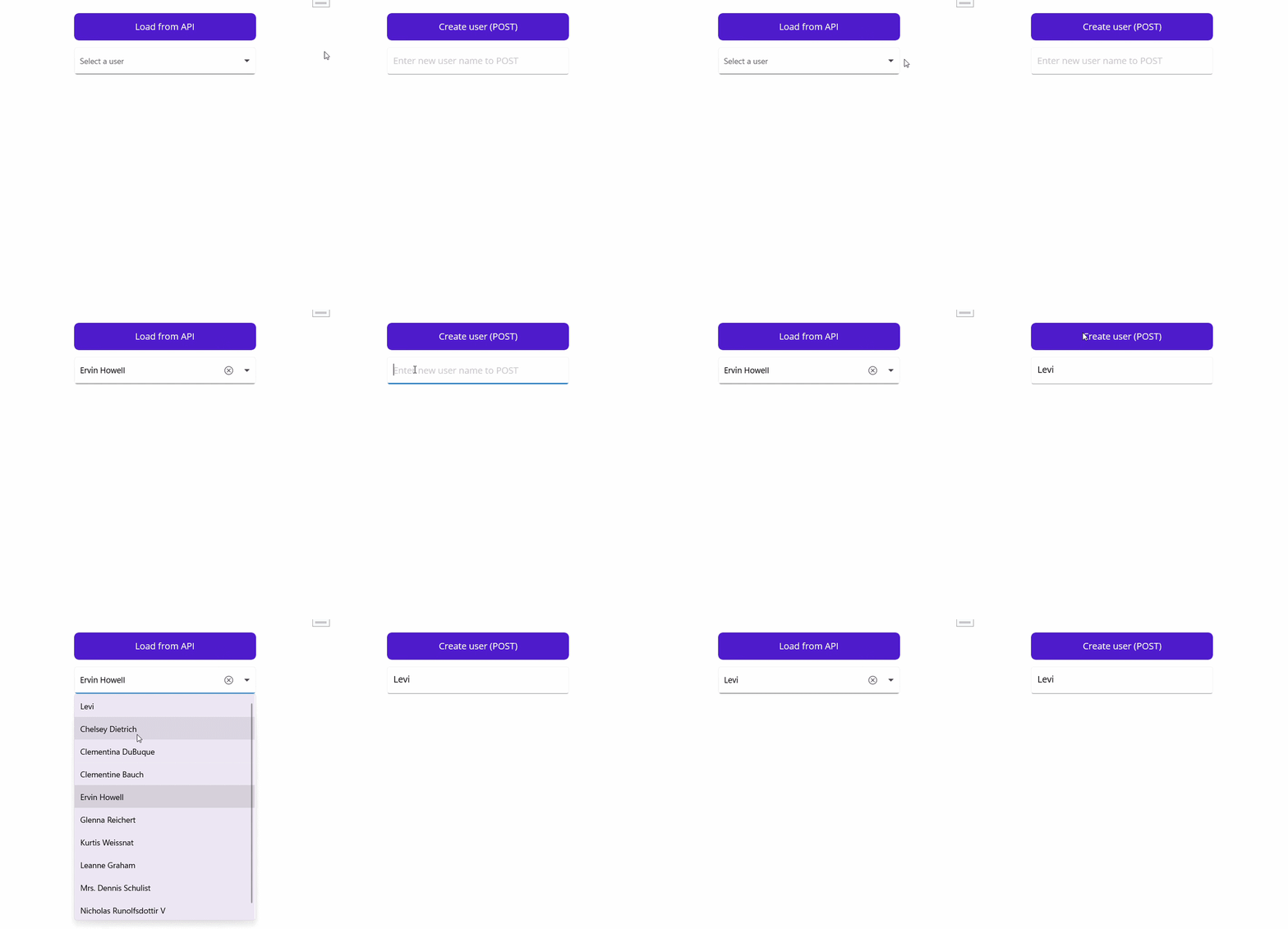
</ScrollView>The sample UI provides a Load from API button to fetch users, a ComboBox that lists the results by name, an Entry for adding a new user, and a Create user (POST) button to send the new name to the API and update the list instantly.
See the implementation in action below:
GitHub reference
For more details on data binding in .NET MAUI ComboBox, refer to the GitHub demo.
Frequently Asked Questions
How can I speed up loading in a .NET MAUI ComboBox by caching API results?
Save API responses in memory, local storage, or a simple cache with an expiration time. When possible, display cached data instantly for a faster user experience, then update it in the background. Refresh the cache when users perform specific actions or when the data may be outdated.
What if the API is offline or unavailable when loading data into a .NET MAUI ComboBox?
Store the most recent data locally (for example, in SQLite, a file, or Preferences) and load it when the app is offline. Show an offline message, disable features that require an internet connection, and allow users to continue viewing previously loaded data. Provide an option to retry syncing when the network is available.
What if users trigger multiple searches or load at once in a .NET MAUI ComboBox?
Use cancellation tokens to cancel previous requests and prevent outdated results from being applied. Ignore responses that arrive out of order and ensure UI updates happen on the main thread. When multiple loads occur, make sure only the most recent request is reflected in the ComboBox.
How can I create a custom item template for a .NET MAUI ComboBox without affecting performance?
Use lightweight and simple DataTemplates. Avoid heavy bindings, complex layouts, or converters directly within the template. Render only visible items using virtualization and precompute complex display properties in your data model to keep rendering efficient.

Conclusion
Thanks for reading! You’ve now wired the Syncfusion .NET MAUI ComboBox to both local JSON files and live REST APIs using clean MVVM architecture and fully asynchronous workflows. This approach keeps your UI responsive, your bindings predictable, and your codebase maintainable.
If you’re a Syncfusion user, you can download the setup from the license and downloads page. Otherwise, you can download a free 30-day trial.
You can also contact us through our support forum, support portal, or feedback portal for queries. We are always happy to assist you!







 No spam, just valuable updates.