
 Parthipan R
TL;DR: Document-heavy Blazor apps need a unified UI to navigate bookmarks/thumbnails, review annotation comments, and manage embedded file attachments inside PDFs. Enable the Modern Panel in Blazor PDF Viewer to centralize navigation, annotation review, and attachment operations, add toolbar actions, display attachments via a grid/list, and persist them when saving the PDF.
In today’s digital-first world, users expect more than just a basic PDF viewer; they want a seamless and intuitive experience that makes navigating complex documents effortless. If your Blazor app handles PDFs with bookmarks, annotations, and embedded files, the Modern Panel in the Blazor PDF Viewer is the game-changer you need.
In this guide, you’ll learn how to enable and use the Modern Panel in Syncfusion® Blazor PDF Viewer, with a special focus on managing file attachments for document-heavy workflows in legal, finance, education, and enterprise applications.
What is the modern panel in the Blazor PDF Viewer?
The Modern Panel is a collapsible sidebar that centralizes PDF navigation and interaction. Instead of scattering tools across multiple menus, it consolidates everything into a single, clean, and responsive interface.
Key features of the Modern Panel:
- Bookmarks: Navigate structured sections effortlessly using a hierarchical bookmark view.
- Thumbnails: Quickly jump to any page using visual previews.
- Annotation comment panel: Review highlights, notes, and shapes in one place for faster collaboration.
Built with a modern UI/UX approach, the panel ensures responsive design, accessibility, and a professional-grade experience across devices.
Why it matters
Traditional PDF viewers require users to search for additional tools. The Modern Panel solves this by:
- Streamlining navigation: All essential tools in one sidebar.
- Improving discoverability: Easy access to bookmarks, annotations, and thumbnails.
- Boosting productivity: Perfect for legal reviews, audits, and academic research.
- Enhancing user satisfaction: A modern, intuitive interface improves engagement.
Whether you’re building a document management system, legal portal, or knowledge base, the Modern Panel ensures users have everything they need at their fingertips.
How it works
The Modern Panel appears as a collapsible sidebar on the left.
- It organizes features into interactive tabs: Bookmarks, Thumbnails, and Annotation Comments.
- Tabs update dynamically based on the loaded document.
- Fully responsive and customizable for different screen sizes and themes.
Why file attachments Matter in PDFs
Modern PDFs aren’t static, they can embed spreadsheets, images, additional PDFs, and text files. These attachments are critical for:
- Legal: Contracts with annexures or case files.
- Finance: Audit reports with linked spreadsheets.
- Healthcare: Patient records with diagnostic images.
- Education: Research papers with datasets and citations.
Without attachment support, users struggle with external tools and broken workflows. The Modern Panel solves this by making attachments accessible in one unified interface, improving efficiency and accuracy.
How to enable Modern Panel in Blazor PDF Viewer
To enable the Modern Panel in your Blazor application, start by integrating the Blazor PDF Viewer component. If you haven’t set it up yet, follow the official documentation to add the PDF Viewer to your project.
Once the viewer is ready, enabling the Modern Panel is straightforward, it only takes a few property configurations. In your Razor component, update the SfPdfViewer with the following settings.
@using Syncfusion.Blazor.SfPdfViewer;

<SfPdfViewer2 DocumentPath="https://cdn.syncfusion.com/content/pdf/pdf-succinctly.pdf"
              Height="100%"
              Width="100%"
              EnableNavigationPanel="true">
</SfPdfViewer2>
This activates the Modern Panel, giving users access to bookmarks, thumbnails, and annotation comments in a responsive layout. For more details on customizing the Modern Panel, refer to the official documentation.

Modern Panel for file attachments in document review
The Modern Panel also supports viewing, downloading, and managing embedded file attachments:
- Display: Attachments appear with icons and metadata.
- Interaction: Add or remove attachments easily.
- Toolbar integration: Quick access via a dedicated icon.
Real-World use case: Contract review with embedded attachments
Imagine a legal team reviewing a contract that includes financial statements and compliance documents as embedded attachments. Here’s how the workflow looks:
- All related files are embedded directly in the PDF.
- Reviewers use the Modern Panel to preview attachments inline without leaving the viewer.
- Clicking the toolbar icon opens the attachment panel, showing all embedded files.
- Users can download or reference attachments while adding comments to the main document.
Benefits:
- Legal: Centralized access to all supporting documents.
- Finance: Quick validation of financial clauses.
- Enterprise: Reduced email/file-sharing overhead.
Implementing file attachment UI in Syncfusion Blazor PDF Viewer
Modern document workflows often require reviewing PDFs alongside supporting files like spreadsheets, images, or Word documents. The Blazor PDF Viewer makes this seamless by allowing embedded file attachments to be displayed, added, and saved directly within the viewer interface.
Here’s how to implement this feature step by step:
Step 1: Add the file attachment button to the primary toolbar
Customize the PDF Viewer’s primary toolbar by adding buttons for:
- File attachment
- Document loading
- Downloading the updated PDF
These buttons improve user interaction and streamline the review process, as shown below.

Here’s a code example to add a file attachment button.
// Add custom attachment/download/load buttons to main toolbar
customToolbarItems = new List<PdfToolbarItem>()
{
    new PdfToolbarItem()
    {
        CustomToolbarName = "File Attachment Button",
        Index =  4,
        Template = GetTemplate("File Attachment Button")

    },
    new PdfToolbarItem()
    {
        CustomToolbarName = "Download Button",
        Index =  6,
        Template = GetTemplate("Download Button")

    },
    new PdfToolbarItem()
    {
        CustomToolbarName = "Load Button",
        Template = GetTemplate("Load Button")

    },
};
case "File Attachment Template":
{
    <SfGrid @ref="Grid" oncontextmenu="return false;" ID="FileManagement" ContextMenuItems="ContextMenuItems" DataSource="@uploadedFiles" Height="100%" Width="100%" AllowSorting="false" AllowFiltering="false" AllowSelection="false">
        <GridEvents TValue="UploadedFile" ContextMenuItemClicked="OnContextMenuClick" ContextMenuOpen="OnContextMenuOpen"></GridEvents>
        <GridColumns>

            <GridColumn Field="@nameof(UploadedFile.Name)" HeaderText="Name" TextAlign="TextAlign.Left" Width="50%">
                <Template Context="uploadedFile">
                    @{
                        var file = (uploadedFile as UploadedFile);
                    <div class="name-of-file">
                        <div class="@FileType(file!.ContentType)"></div>
                        <div class="file-name">@file.Name</div>
                    </div>
                 }
                </Template>
            </GridColumn>
            <GridColumn Field="@nameof(UploadedFile.Description)"  HeaderText="Description"  TextAlign="TextAlign.Left" Width="50%">
                <Template Context="uploadedFile">
                    @{
                        var file = (uploadedFile as UploadedFile);
                    <div class="description-of-file">
                        <div class="e-pv-file-attachment-progress @(file!.ShowProgressBar? "e-pv-flex" : "e-pv-none")">
                            <SfProgressBar Type="ProgressType.Linear" Value="ProgressValue" Width="145" Height="2" Minimum="0" Maximum="100">
                                <ProgressBarAnimation Enable="true"></ProgressBarAnimation>
                            </SfProgressBar>
                        <div>@ProgressValue%</div>
                    </div>
                    <div class="file-description @(file!.ShowProgressBar? "e-pv-none" : "e-pv-block")">@file.Description</div>
                </div>
                }
            </Template>
        </GridColumn>
    </GridColumns>
</SfGrid>
}
break;
case "File Attachment Button":
{
    <ToolbarItem Disabled="ButtonDisabled" TooltipText="Add Attachments" Id="file_attachment_btn" CssClass="file-attachment-btn" PrefixIcon="e-pv-file-attachment-icons add-attachment-icon e-pv-icon" OnClick="AttachmentButtonClicked" Text="Add Attachment" Align="ItemAlign.Right"></ToolbarItem>
}
Each button is defined using:
- CustomToolbarName: Unique identifier
- Index: Position in the toolbar
- Template: Razor component for UI (icons, tooltips, click handlers)
Step 2: Design the file attachment panel UI
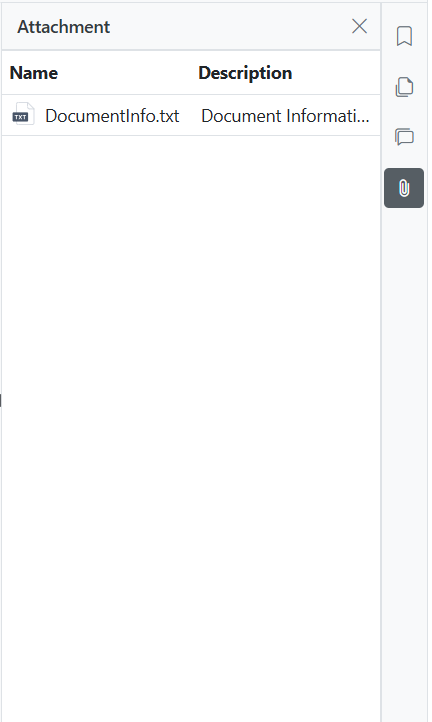
Once attachments are added, they need to be displayed in a user-friendly format. Use Syncfusion’s SfGrid component to show:
- File name
- Description
- Upload progress
This ensures reviewers can easily manage and track attachments.
Here’s what the file attachment UI looks like.
Here’s a code example to add a file attachment UI.
// Add custom attachment button to navigation toolbar
customNavigationToolbarItems = new List<CustomNavigationToolbarItem>()
{
    new CustomNavigationToolbarItem()
    {
        IconCss = "e-icons e-attachment",
        TooltipText = "File Attachment",
        HeaderText = "Attachment",
        Index = 3,
        Name = "File Attachment",
        ItemType = NavigationToolbarItemType.Button,
        Template = GetTemplate("File Attachment Template")
    }
};
// Initializes the grid with a default attachment when the PDF viewer is created.
private async void Created()
{
    string content = "This attachment provides metadata details regarding the associated PDF document and its attachments.\n- File Name: hive-succinctly.pdf\n- File Size: [ 2.5 MB]\n- File Type: PDF Document\n- Author: Elton Stoneman\n- Created By: Syncfusion Succinctly Series\n- Creation Date: [Enter actual date, e.g., 2016-04-01]\n- Description: Hive Succinctly provides an overview and practical introduction to using Hive for Big Data solutions.\nNote: This file serves as an example of how to provide metadata alongside document attachments for context and reference.";
    byte[] bytes = System.Text.Encoding.UTF8.GetBytes(content);
    uploadedFiles.Add(new UploadedFile
    {
        Name = "DocumentInfo.txt",
        ContentType = "txt",
        Description = "Document Information",
        Data = bytes
    });
    await Grid!.Refresh();
}Step 3: Fetch embedded attachments
When a PDF is uploaded:
- Extract embedded attachments using
PdfLoadedDocument. - Populate them into the grid by binding to the
uploadedFilescollection.
This guarantees all supporting files are visible and accessible during review.
// Handles when a PDF file is uploaded: extracts its attachments and displays them.
private async void PdfUploaded(UploadingEventArgs args)
{
    uploadedFiles.Clear();
    await Grid!.Refresh();
    string base64string = args.FileData!.RawFile!.ToString()!.Split(',')[1];
    byte[] fileBytes = Convert.FromBase64String(base64string);
    using MemoryStream inputStream = new MemoryStream(fileBytes);
    PdfLoadedDocument loadedDocument = new PdfLoadedDocument(inputStream);
    if (loadedDocument.Attachments != null)
    {
        foreach (PdfAttachment attachment in loadedDocument.Attachments)
        {
            // Save to collection
            uploadedFiles.Add(new UploadedFile
            {
                Name = attachment.FileName,
                Description = attachment.Description,
                ContentType = attachment.MimeType ?? "application/octet-stream",
                Data = attachment.Data
            });
        }
        loadedDocument.Attachments.Clear();
        await Grid!.Refresh();
    }
    await ViewerInstance!.LoadAsync( args.FileData.RawFile.ToString()!);
}
case "Load Button":
{
    <ToolbarItem Disabled="ButtonDisabled" TooltipText="Open" Id="load_btn" Text="Open File" CssClass="load-btn" PrefixIcon="e-pv-file-attachment-icons e-pv-open-document-icon e-pv-icon" OnClick="LoadDocument" Align="ItemAlign.Left"></ToolbarItem>
}
Step 4: Saving the PDF with embedded attachments
After reviewing or adding new attachments, users can save the updated PDF with all attachments embedded. This is handled by the DownloadDocument method, which:
- Retrieves the current document.
- Adds new attachments and updates existing ones.
- Saves the PDF and triggers the download using JavaScript interop.
Here’s a code example to embed all uploaded files as PDF attachments.
// Embeds all uploaded files as PDF attachments and lets the user download the new PDF.
private async void DownloadDocument()
{
    byte[] documentBytes = await ViewerInstance!.GetDocumentAsync();
    using MemoryStream inputStream = new MemoryStream(documentBytes);
    PdfLoadedDocument loadedDocument = new PdfLoadedDocument(inputStream);
    if (loadedDocument.Attachments != null)
    {
        loadedDocument.Attachments.Clear();
    }
    foreach (var file in uploadedFiles)
    {
        using MemoryStream stream = new MemoryStream(file.Data);

        PdfAttachment attachment = new PdfAttachment(file.Name, stream)
        {
            ModificationDate = DateTime.Now,
            Description = file.Description,
            MimeType = file.ContentType
        };
        if (loadedDocument.Attachments == null)
            loadedDocument.CreateAttachment();
        loadedDocument.Attachments!.Add(attachment);
    }
    using MemoryStream outputStream = new MemoryStream();
    loadedDocument.Save(outputStream);
    loadedDocument.Close(true);

    string base64 = Convert.ToBase64String(outputStream.ToArray());
    await JSRuntime.InvokeVoidAsync("downloadPdfFile", "DocumentWithAttachments.pdf", base64);
}

case "Download Button":
{
    <ToolbarItem Disabled="ButtonDisabled" TooltipText="Download" Text="Download" Id="download_btn" CssClass="download-btn" PrefixIcon="e-pv-file-attachment-icons e-pv-download-document-icon e-pv-icon" OnClick="DownloadDocument" Align="ItemAlign.Right">
    </ToolbarItem>
}
Step 5: Add context menu for attachment actions
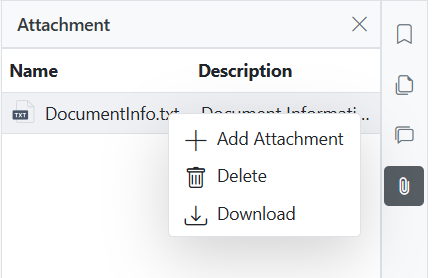
To make the attachment panel more interactive, implement a context menu that allows users to:
- Add new attachments.
- Delete existing attachments.
- Download files directly from the grid.
This improves usability by providing users with quick access to essential actions without requiring them to leave the panel.
The following code example adds context menu for attachment actions.
// Dynamically configures context menu options in the grid section.
private void OnContextMenuOpen(ContextMenuOpenEventArgs<UploadedFile> args)
{
if (args.Column == null || args.Column.Field == null)
{
ContextMenuItems = new List<object>
{
"AddAttachment", new ContextMenuItemModel { Text = "Add Attachment", Target = ".e-content", Id = "Item_Add", IconCss = "e-icons e-plus", Hide = false}
};
}
else
{
if (args.Column.Field == "Name" || args.Column.Field == "Description")
{
fileIndex = args.RowInfo.RowIndex;
ContextMenuItems = new List<object>
{
"AddAttachment", new ContextMenuItemModel { Text = "Add Attachment", Target = ".e-content", Id = "Item_Add", IconCss = "e-icons e-plus", Hide = false},
"DeleteItem", new ContextMenuItemModel { Text = "Delete", Target = ".e-content", Id = "Item_Delete", IconCss = "e-icons e-trash"},
"Download", new ContextMenuItemModel { Text = "Download", Target = ".e-content", Id = "Item_Download", IconCss = "e-icons e-download"}
};
}
}
}
// Handles context menu actions for grid (add, delete, download).
private void OnContextMenuClick(ContextMenuClickEventArgs<UploadedFile> args)
{
switch (args.Item.Id)
{
case "Item_Add":
{
AttachmentButtonClicked();
}
break;
case "Item_Delete":
{
DeleteAttachment();
}
break;
case "Item_Download":
{
DownloadAttachment();
}
break;
}
}
// Downloads the selected attachment in the browser.
private async void DownloadAttachment()
{
if (uploadedFiles != null && fileIndex >= 0 && fileIndex < uploadedFiles.Count)
{
var file = uploadedFiles[fileIndex];
string base64 = Convert.ToBase64String(file.Data);
await JSRuntime.InvokeVoidAsync("downloadPdfFile", file.Name, base64);
}
}
// Removes the selected attachment from the list of uploaded files.
private async void DeleteAttachment()
{
if (uploadedFiles != null && fileIndex >= 0 && fileIndex < uploadedFiles.Count)
{
uploadedFiles.RemoveAt(fileIndex);
}
await Grid!.Refresh();
} FAQ
FAQ
Q1: Can I view file attachments in a PDF using the Modern Panel?
Yes, the Modern Panel includes an Attachments tab in the application level that automatically detects and displays all embedded files in the PDF. Users can download attachments directly from the viewer.
Q2: What types of files can be attached to a PDF?
PDFs can include a variety of file attachments, such as:
- Excel spreadsheets
- Word documents
- Images (JPG, PNG)
- Other PDFs
- Text files
These attachments are accessible through the Modern Panel in the Blazor PDF Viewer.
Q3: Is the Modern Panel customizable?
Absolutely. You can enable or disable specific tabs (e.g., bookmarks, annotations comments), apply custom themes, and control the panel’s visibility programmatically to match your application’s design and user needs.
Q4: Does the Modern Panel work on mobile devices?
Yes, the Modern Panel is fully responsive and optimized for mobile, tablet, and desktop devices, ensuring a consistent and user-friendly experience across all screen sizes.
Q5: How can I create a PDF with file attachments?
You can create PDFs with embedded file attachments using tools like Adobe Acrobat or programmatically using the documentation, which supports adding attachments to PDF documents.
Conclusion
Thanks for reading! The Modern Panel in Syncfusion Blazor PDF Viewer combines navigation, annotations, and file attachments into a single, clean interface. With just a few lines of code, you can deliver a modern, intuitive PDF experience in your Blazor apps.
Whether you’re building solutions for legal, finance, education, or enterprise workflows, the Modern Panel with attachment support is a must-have feature to boost usability, productivity, and user satisfaction.
Ready to modernize your PDF viewing experience? Explore the live demo, read the full documentation, or try the local sample.
If you’re a Syncfusion user, you can download the setup from the license and downloads page. Otherwise, you can download a free 30-day trial.
You can also contact us through our support forum, support portal, or feedback portal for queries. We are always happy to assist you!


 No spam, just valuable updates.