Build a WPF Health Tracker Dashboard: Visualize Calories and Steps with Interactive Charts
 ChatGPT
 Perplexity
 Claude
 Grok
GrokTL;DR: Build a WPF Health Tracker using MVVM architecture and Syncfusion chart controls to visualize calories and steps data. This guide walks through creating a modular dashboard with real-time data binding, custom chart configurations, and responsive UI components for personal wellness tracking.
Welcome to the Chart of the Week blog series!
Ready to turn health metrics into interactive, real-time insights? In this hands-on tutorial, you’ll build a modular WPF health tracker dashboard using Syncfusion WPF Chart controls and the MVVM architecture, a robust foundation for scalable and maintainable desktop applications.
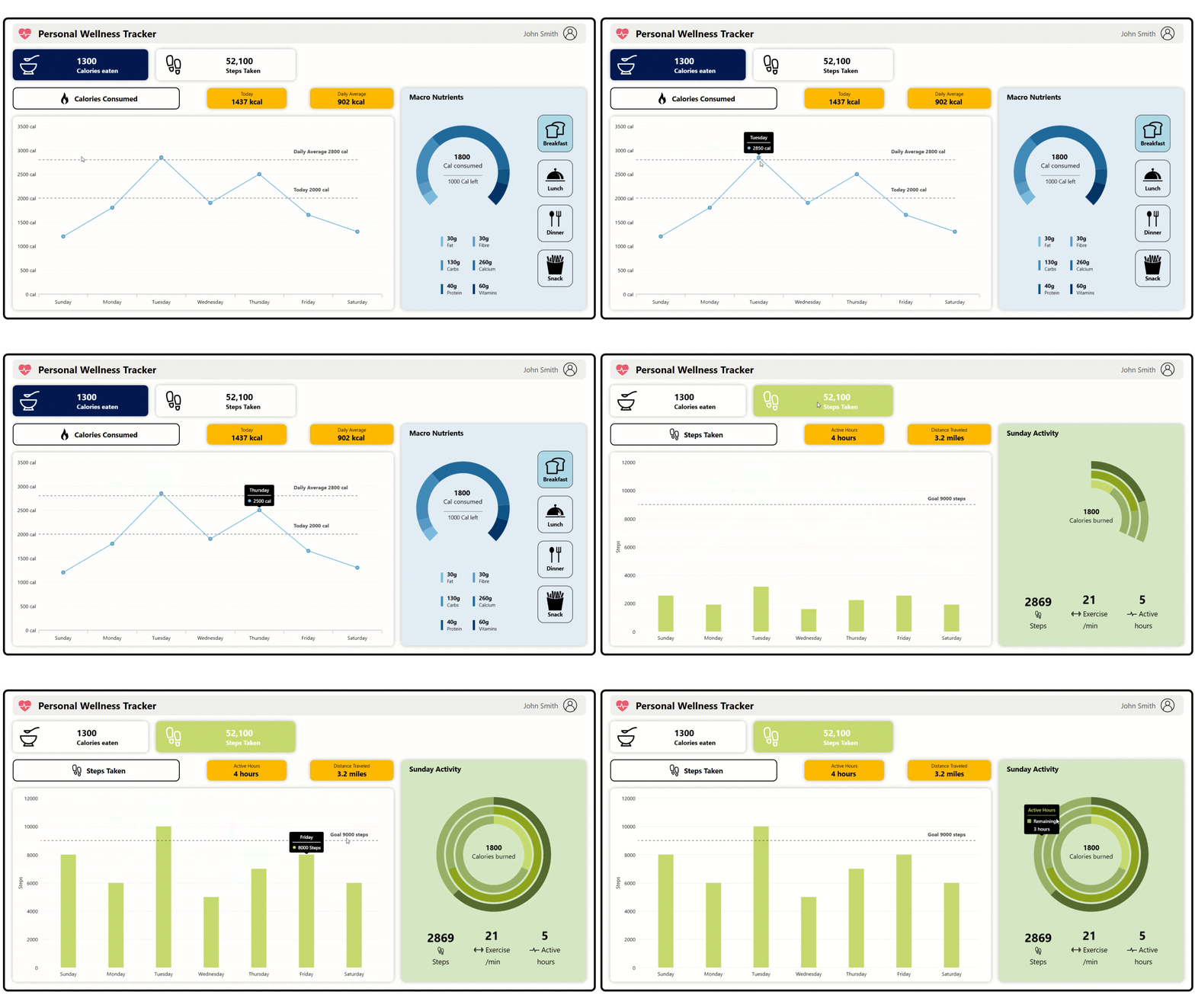
The personal health tracker dashboard provides a centralized, interactive view of daily and weekly health metrics.
Core features of the wellness dashboard
- Interactive navigation: Tile-based switching between wellness modules using ContentControl.
- Real-time data visualization: Syncfusion charts and gauges display trends and summaries.
- MVVM architecture: Ensures clean separation of UI and logic for scalability and maintainability.
Phase roadmap
This roadmap outlines the journey of building a health and wellness dashboard, from foundational analytics to advanced health insights. We’ve divided the development into two phases:
- Phase 1: Building the dashboard shell with calories and steps analytics.
- Phase 2: Unlocking advanced hydration and sleep insights.
In this blog, we’ll explore the first phase, which focuses on two essential wellness modules:
- Calories tracker: Weekly intake, macronutrient breakdown.
- Steps tracker: Daily count, goal progress, activity metrics.
You’ll learn how to visualize weekly trends, daily metrics, and macronutrient breakdowns using Line, Doughnut, and Column Charts, all powered by Syncfusion’s high-performance charting library.
Designing the dashboard layout
To create a clean and responsive dashboard, we use a three-row Grid layout in WPF.
- Header: Displays the application title, icon, and user profile. This top bar stays visible across all views, ensuring a consistent layout and helping users stay oriented within the dashboard.
- Navigation tiles: Contains two interactive tiles: Calories, and steps, allowing users to switch between modules.
- Content area: Hosts a ContentControl that dynamically loads the selected module’s view, keeping the shell consistent while the content changes.
This structure ensures clarity, modularity, and seamless navigation between health metrics, all while maintaining a unified and intuitive visual experience.
<Window ...>
  <Border ...>
    <ScrollViewer ...>
      <Grid>
        <Grid.RowDefinitions>
          <RowDefinition Height="1*"/>    <!-- Header -->
          <RowDefinition Height="1.5*"/>  <!-- Tiles -->
          <RowDefinition Height="9*"/>    <!-- Content -->
        </Grid.RowDefinitions>

        <!-- Header row -->
        <Border Grid.Row="0" ...>
          <Grid>
             ...
          </Grid>
        </Border>

        <!-- Navigation tiles row -->
        <Grid Grid.Row="1">
                   ...
        </Grid>

        <!-- Content host -->
        <ContentControl Grid.Row="2" x:Name="mainView"/>

      </Grid>
    </ScrollViewer>
  </Border>
</Window>
Implementing MVVM architecture
The MVVM (Model-View-ViewModel) architecture is essential for building scalable and maintainable WPF applications.
- Model classes: Define the structure for calories and steps data.
- ViewModel: Manages ObservableCollection for real-time updates.
- UserControls: Modular views for each health metric.
Creating model classes for health metrics
Both calorie and step metrics are represented by a dedicated model class. These models define the structure of the data used.
public class CalorieEntry
{
    public string? Day { get; set; }
    public int Calories { get; set; }
}

public class StepCount
{
    public string? Day { get; set; }
    public int Steps { get; set; }
}

. . .
Note: Check the model classes for more details on GitHub.
Building the ViewModel for real-time updates
The ViewModel manages observable collections and serves as the data bridge between the UI and models. It supports real-time updates and dynamic chart rendering.
public class HealthDashboardViewModel
{
    public ObservableCollection<CalorieEntry> CalorieData { get; set; }
    public ObservableCollection<FitnessMetric> Steps { get; set; }
    ...

    public HealthDashboardViewModel()
    {
        CalorieData =
        [
            new CalorieEntry { Day = "Sunday", Calories = 1200 },
            new CalorieEntry { Day = "Monday", Calories = 1800 },
            ...
        ];
        StepsData =
        [
            new StepCount { Day = "Sunday", Steps = 8000 },
            new StepCount { Day = "Monday", Steps = 6000 },
            ...
        ];

        ...
    }
}
Note: Check the ViewModel class for more details on GitHub.
Building the Modular Views with UserControls
1. Calorie tracker module
The calorie tracker page integrates multiple visualization components:
- Quick metrics: Displays today’s calorie count and daily average.
- Weekly trend: A line chart with a tooltip and an annotated target line for recommended intake.
- Macro nutrients section: Doughnut Chart visualizing: Fat, Fibre, Carbohydrates, Calcium, Protein, and Vitamins for the selected meal.
- Meal selection: Four interactive buttons (breakfast, lunch, dinner, snacks) to toggle nutrient data per meal.
<UserControl x:Class="HealthAnalysisDashboard.CaloriesEaten">
  <Grid >
    <Grid.ColumnDefinitions>
      <ColumnDefinition Width="4*"/> <!-- Main panel -->
      <ColumnDefinition Width="2*"/> <!-- Side panel -->
    </Grid.ColumnDefinitions>

    <!-- Left Section -->
    <Grid Grid.Column="0">
      <Grid.RowDefinitions>
        <RowDefinition Height="1*"/> <!-- Header tiles -->
        <RowDefinition Height="6*"/> <!-- Line chart -->
      </Grid.RowDefinitions>

      <!-- Header: Title + Today + Average badges -->
      <Grid Grid.Row="0">
    ...
      </Grid>

      <!-- Weekly Calories Line Chart -->
      <Border Grid.Row="1">
        <syncfusion:SfChart>
          <!-- Category & Numerical Axes -->
          <!-- LineAnnotations for target lines -->
          <!-- LineSeries with tooltip and markers -->
        </syncfusion:SfChart>
      </Border>
    </Grid>

    <!-- Right Section -->
    <Border Grid.Column="1">
      <Grid>
        <Grid.ColumnDefinitions>
          <ColumnDefinition Width="4*"/> <!-- Doughnut -->
          <ColumnDefinition Width="2*"/> <!-- Meal Buttons -->
        </Grid.ColumnDefinitions>

        <!-- Doughnut Chart + Nutrient List -->
        <Grid Grid.Column="0">
          <Grid.RowDefinitions>
            <RowDefinition Height="1*"/> <!-- Title -->
            <RowDefinition Height="6*"/> <!-- Doughnut Chart -->
            <RowDefinition Height="4*"/> <!-- Nutrient Legend -->
          </Grid.RowDefinitions>
        </Grid>

        <!-- Meal Selection Buttons -->
        <StackPanel Grid.Column="1">
          <!-- Breakfast, Lunch, Dinner, Snacks -->
        </StackPanel>
      </Grid>
    </Border>
  </Grid>
</UserControl>
Note: For more details, refer to the calories tracker UserControl on GitHub.
2. Steps tracker module
The steps tracker page uses layered visual components to present activity data:
- Quick metrics: Displays today’s step count and weekly average.
- Weekly trend: Column Chart with tooltip and an annotated target line for daily step goals.
- Activity panel: Nested Doughnut Charts showing progress vs. remaining for steps, exercise minutes, and active hours, with a center label for calories burned. Includes tooltip and three quick stat labels for completed metrics.
<UserControl x:Class="HealthAnalysisDashboard.StepsTaken">
  <Grid Grid.Row="1">
    <Grid.ColumnDefinitions>
      <ColumnDefinition Width="4*"/> <!-- Main panel -->
      <ColumnDefinition Width="2*"/> <!-- Side summary panel -->
    </Grid.ColumnDefinitions>

    <!-- Left Panel -->
    <Grid Grid.Column="0">
      <Grid.RowDefinitions>
        <RowDefinition Height="1*"/> <!-- Header badges -->
        <RowDefinition Height="6*"/> <!-- Weekly column chart -->
      </Grid.RowDefinitions>

      <!-- Title + Active Hours + Distance -->
      <Grid Grid.Row="0">
    ....
      </Grid>

      <!-- Weekly Steps Column Chart -->
      <Border Grid.Row="1">
        <syncfusion:SfChart>
          <!-- Category & Numerical Axes -->
          <!-- LineAnnotation for step goal -->
          <!-- ColumnSeries with tooltip -->
        </syncfusion:SfChart>
      </Border>
    </Grid>

    <!-- Right Panel -->
    <Border Grid.Column="1">
      <Grid>
        <Grid.RowDefinitions>
          <RowDefinition Height="1.5*"/> <!-- Title -->
          <RowDefinition Height="5*"/>   <!-- Doughnut charts -->
          <RowDefinition Height="3*"/>   <!-- Stats row -->
        </Grid.RowDefinitions>

        <!-- Title -->
        <TextBlock Grid.Row="0" Text="Sunday Activity"/>

        <!-- Nested Doughnut Charts -->
        <syncfusion:SfChart Grid.Row="1">
          <!-- DoughnutSeries for Steps, Exercise, ActiveHours -->
          <!-- CenterView: Calories burned -->
          <!-- TooltipTemplate -->
        </syncfusion:SfChart>

        <!-- Stats Row -->
        <Grid Grid.Row="2">
          <Grid.ColumnDefinitions>
            <ColumnDefinition/> <!-- Steps -->
            <ColumnDefinition/> <!-- Exercise -->
            <ColumnDefinition/> <!-- Active Hours -->
          </Grid.ColumnDefinitions>
        </Grid>
      </Grid>
    </Border>
  </Grid>
</UserControl>
Note: For more details, refer to the steps tracker UserControl on GitHub.
Navigation and visual feedback
Each dashboard tile is a border element with a MouseDown event handler. When clicked, it dynamically loads the corresponding UserControl (e.g., CaloriesEaten, StepsTaken) into the mainView container, enabling seamless navigation and modular content rendering.
XAML
...
<!-- Navigation tiles row -->
<Grid Grid.Row="1">
    <Grid.ColumnDefinitions>
        <ColumnDefinition />
        <ColumnDefinition />
        <ColumnDefinition />
        <ColumnDefinition />
    </Grid.ColumnDefinitions>

    <!-- Calories Tracker Tile -->
    <Border Grid.Column="0" x:Name="caloriesEatenBorder" MouseDown="caloriesEaten_MouseDown" ...>
        <Grid>
            <Grid.ColumnDefinitions>
                <ColumnDefinition Width="1*" />
                <ColumnDefinition Width="3*" />
            </Grid.ColumnDefinitions>
            <Path ... />
            <StackPanel Grid.Column="1" ...>
                <TextBlock Text="..." />
                <TextBlock Text="Calories Eaten" />
            </StackPanel>
        </Grid>
    </Border>

    <!-- Steps Tracker Tile -->
    <Border Grid.Column="1" :Name="stepTakenBorder" MouseDown="stepTaken_MouseDown" ...>
        <Grid>
            <Grid.ColumnDefinitions>
                <ColumnDefinition Width="1*" />
                <ColumnDefinition Width="3*" />
            </Grid.ColumnDefinitions>
            <Path ... />
            <StackPanel Grid.Column="1" ...>
                <TextBlock Text="..." />
                <TextBlock Text="Steps Taken" />
            </StackPanel>
        </Grid>
    </Border>

    <!-- Water Consumed Tile -->
    <Border Grid.Column="2" x:Name="waterConsumedBorder" MouseDown="waterConsumed_MouseDown" ...>
        <Grid>
            <Grid.ColumnDefinitions>
                <ColumnDefinition Width="1*" />
                <ColumnDefinition Width="3*" />
            </Grid.ColumnDefinitions>
            <Path ... />
            <StackPanel Grid.Column="1" ...>
                <TextBlock Text="..." />
                <TextBlock Text="Water Consumed" />
            </StackPanel>
        </Grid>
    </Border>

    <!-- Sleep Tracker Tile -->
    <Border Grid.Column="3" x:Name="sleepDurationBorder" MouseDown="sleepDuration_MouseDown" ...>
        <Grid>
            <Grid.ColumnDefinitions>
                <ColumnDefinition Width="1*" />
                <ColumnDefinition Width="3*" />
            </Grid.ColumnDefinitions>
            <Path ... />
            <StackPanel Grid.Column="1" ...>
                <TextBlock Text="..." />
                <TextBlock Text="Sleep Duration" />
            </StackPanel>
        </Grid>
    </Border>
</Grid>
...
C#
// In MainWindow.xaml.cs
private void caloriesEaten_MouseDown(object sender, MouseButtonEventArgs e)
{
    SetViewAndHighlight(
        new CaloriesEaten(),
        caloriesEatenBorder,
        "#001950",
        CaloriesValue,
        CaloriesLabel,
        caloriesEaten
    );
}

private void stepTaken_MouseDown(object sender, MouseButtonEventArgs e)
{
    SetViewAndHighlight(
        new StepsTaken(),
        stepTakenBorder,
        "#C6D870",
        stepTakanValue,
        stepTakanLabel,
        stepTakan
    );
}

private void sleepDuration_MouseDown(object sender, MouseButtonEventArgs e)
{
    SetViewAndHighlight(
        new SleepDuration(),
        sleepDurationBorder,
        "#AE75DA",
        sleepDurationValue,
        sleepDurationLabel,
        sleepDuration
    );
}

private void waterConsumed_MouseDown(object sender, MouseButtonEventArgs e)
{
    SetViewAndHighlight(
        new WaterConsumed(),
        waterConsumedBorder,
        "#77BEF0",
        waterConsumedValue,
        waterConsumedLabel,
        waterConsumed
    );
}
By following these steps, you’ve built the core of a WPF Personal Health Tracker using Syncfusion charts. The dashboard now features a structured shell layout, intuitive navigation tiles, and two interactive modules: Calories tracker and steps tracker, designed for real-time data visualization and a seamless user experience.
GitHub reference
For more details, refer to the complete project on the GitHub demo.
Conclusion
Thanks for reading! With the first phase complete, we’ve laid the foundation for a dynamic health tracker dashboard. This phase introduced a modular design and two core health modules, Calories and Steps, leveraging Syncfusion WPF Charts for real-time data visualization.
So what’s next? Phase 2 will take your dashboard further with advanced analytics focused on:
- Hydration tracking using an hourly column and spline charts.
- Sleep analysis with bubble charts and doughnut visualizations for REM, deep, and light sleep stages.
Curious how hydration trends evolve hour by hour? Wondering what sleep phases look like in a Doughnut Chart?
Stay tuned, Phase 2 is coming soon!
If you’re a Syncfusion user, you can download the setup from the license and downloads page. Otherwise, you can download a free 30-day trial.
You can also contact us through our support forum, support portal, or feedback portal for queries. We are always happy to assist you!