
ASP.NET Web Forms Diagram: Powerful & Feature-Rich Control
- Automatic layout algorithm for organizational charts, hierarchical trees, and mind maps.
- Flowchart maker, BPMN editor, floor planner app, and diagrams based on external data sources.
- Experience seamless interaction and editing capabilities.
Trusted by the world’s leading companies

Overview
The ASP.NET Web Forms Diagram is a feature-rich control for visualizing, creating, and editing interactive diagrams. It supports creating flowcharts, organizational charts, mind maps, and BPMN charts either through code or a visual interface.
Flowchart
The ASP.NET Web Forms Diagram provides all the standard flowchart shapes as ready-made objects to build flowcharts, making it is easy to add them to a diagram surface in a single call.

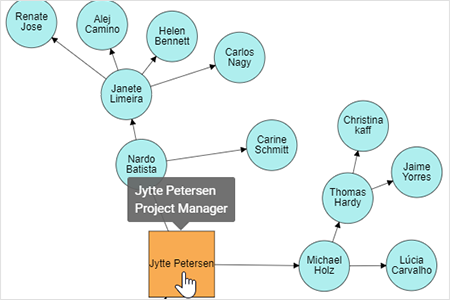
Organizational chart
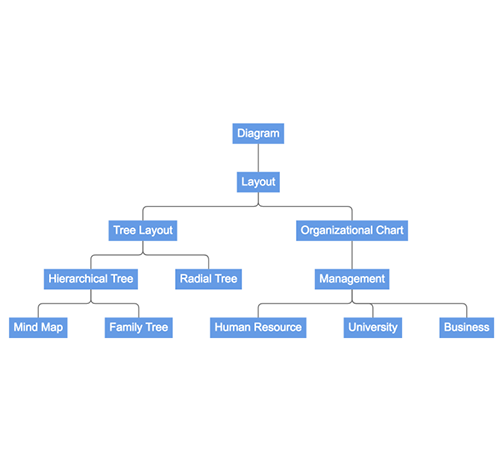
Built-in automatic layout algorithm specifically made for organizational charts to arrange the parent and child node positions automatically.

Swim lane
A swim lane is a visual element used in process flow diagrams or flowchart. A swim lane may be arranged either horizontally or vertically. It has built-in lanes and phases where nodes can be added to it. It has rich interactive features and automatic alignment options, which makes editing easy.

Nodes
Visualize any graphical object using nodes, which can be arranged and manipulated at the same time on a diagram page. They allow the following:
- Use many predefined standard shapes
- Create and add custom shapes easily.
- Fully customize the appearance of a node.
- Design a node UI template and reuse it across multiple nodes.


Connectors
A connector represents a relationship between two nodes. Some of the key features like connector types, bridging, and more are listed below.
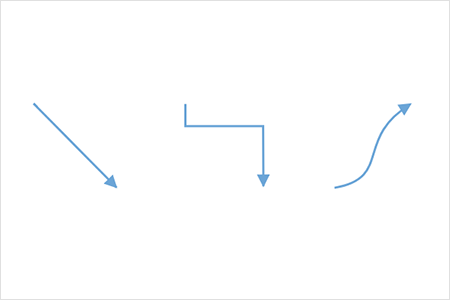
Types
The ASP.NET Web Forms Diagram Control provides straight, orthogonal, polyline, and curved connector types. You can choose any of these based on the type of diagram or relationship between the connected nodes.
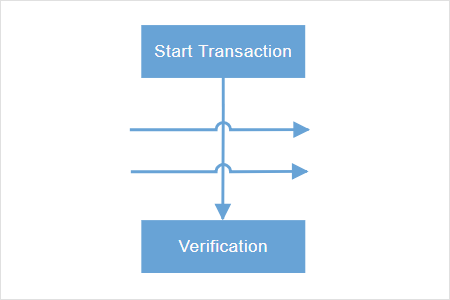
Bridging or line jumps
Use bridging (line jumps) to illustrate a connector’s route, making it easy to read where connectors overlap each other in a dense diagram.
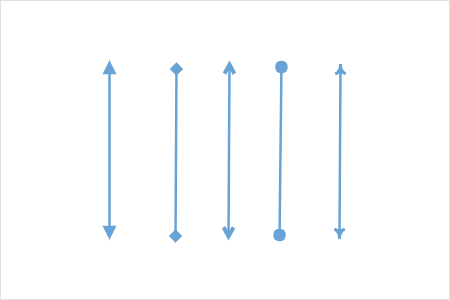
Arrowheads
Use different types of predefined arrowheads to illustrate flow direction in flowchart diagrams. You can also build your own custom arrowheads.

Appearance
Like nodes, the connector look and feel can also be customized any way you want. The ASP.NET Web Forms Diagram Control provides a rich set of properties through which you can customize connector color, thickness, dash and dot appearance, rounded corners, and even decorators.
Ports (connection points)
Attach connectors to specific places on a node through different types of ports or connecting points.
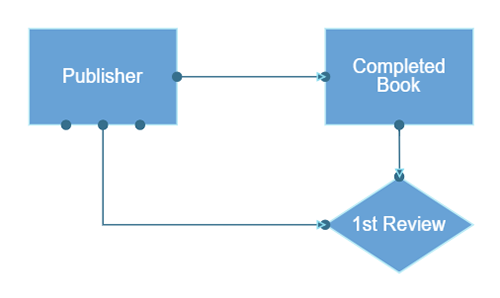
Labels
Additional information can be shown by adding text or labels on nodes and connectors.
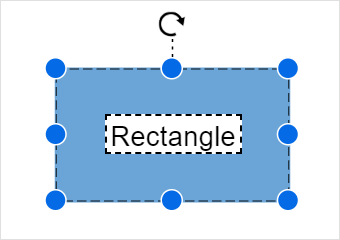
Edit
You can add and edit text at runtime and mark it read-only if it should not be edited.
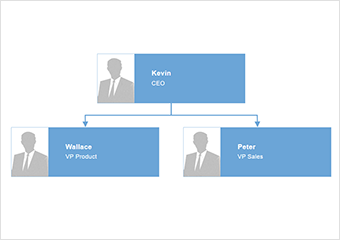
Multiple labels
Add any number of labels and align them individually.

Alignment
Labels include sophisticated alignment options: Place inside or outside a node, or at the source or target end of a connector. Automatically align when a node or connector moves.
Interactive features
Use interactive features to improve the editing experience of a diagram at runtime. Furthermore, you can easily edit a diagram with mouse, touchscreen, or keyboard interfaces.

Select and drag
Select one or more nodes, connectors, or annotations and edit them using thumbs or handlers.

Resize
You can resize a node in eight different directions and lock a node’s aspect ratios to keep its shape. You can also resize multiple objects at the same time.


Undo and redo
Don’t worry when you edit by mistake—undo and redo commands help to easily correct recent changes.

Clipboard
Cut, copy, paste, or duplicate selected objects within and across diagrams.

Z-order
When multiple objects overlap, the z-order controls which object is at the top and which is at the bottom.

Snap
Precisely align nodes, connectors, and annotations easily while dragging just by snapping to the nearest gridlines or objects.
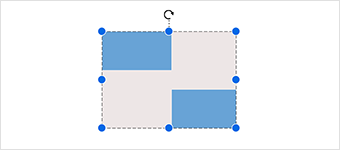
Grouping
You can combine multiple nodes into a group and then interact with them as a single object. Nested groups are also possible with our ASP.NET Web Forms Diagram Control.

Quick commands
Frequently used commands like delete, connect, and duplicate can be shown as buttons near a selector. This makes it easy for users to quickly perform those operations instead of searching for the correct buttons in a toolbox.
Alignment
Our ASP.NET Web Forms Diagram Control has predefined alignment commands that enable you to align the selected objects nodes and connectors with respect to the selection boundary.
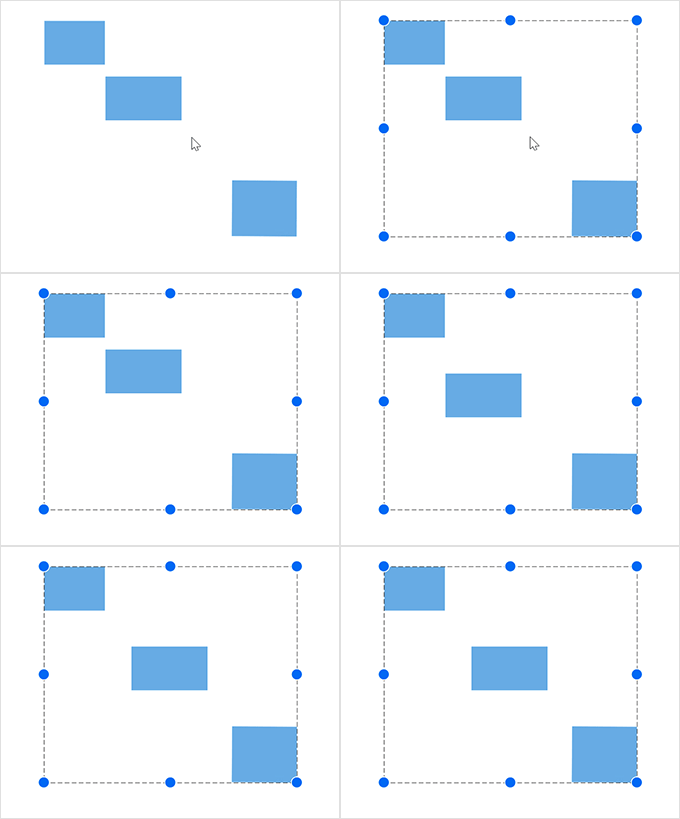
Spacing commands
Spacing commands enable you to place selected objects on the diagram at equal intervals from each other.

Sizing commands
Use sizing commands to equally size selected nodes with respect to the first selected object.

Align commands
All the nodes or connectors in the selection list can be aligned at the left, right, or center horizontally, or aligned at the top, bottom, or middle vertically with respect to the selection boundary.
Automatic layout
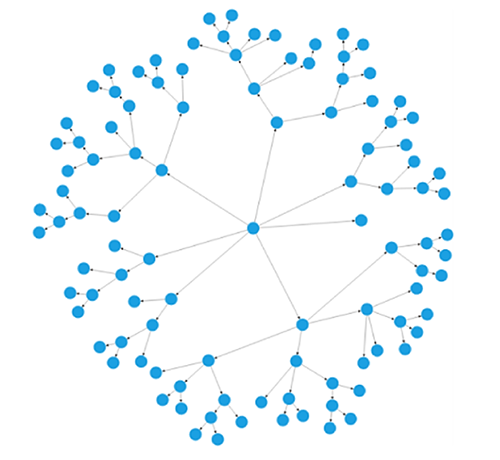
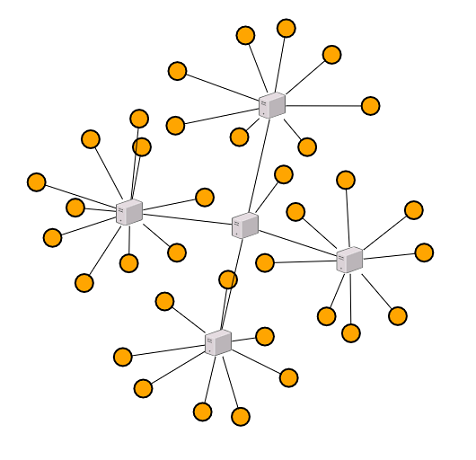
Use automatic layouts to arrange nodes automatically based on a predefined layout algorithm. Features built-in hierarchical tree, radial tree, and symmetric layouts.
Ruler
Rulers allow you to measure the distance of nodes or connectors from the origin of the page. This is especially useful in creating scale models.

Symbol palette
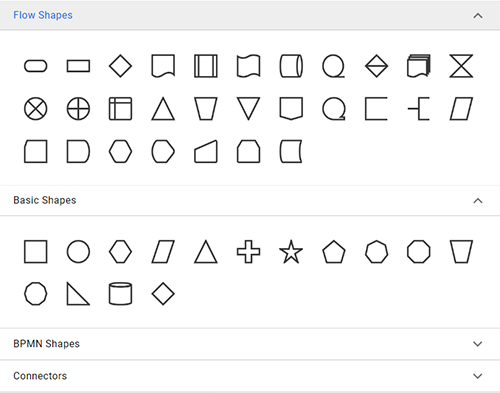
Includes a gallery of stencils, reusable symbols, and nodes that can be dragged onto the surface of a diagram.
Overview panel
The overview panel allows you to improve the navigation experience when exploring large diagrams. It displays a small preview of the full diagram page that allows users to zoom and pan within it.

Drawing tools
Draw all kinds of built-in nodes and connect them with connectors interactively by just clicking and dragging on the drawing area.
Zoom and pan tools
View a large diagram closely or assume a wider view by zooming in and out. Also, navigate from one region of a diagram to another by panning across the diagram.
Data binding
Populate diagrams with nodes and connectors created and positioned based on data from data sources. In addition, data in any format can be easily converted, mapped, and consumed in the diagram by setting a few properties, without having to write any code. The Diagram control also supports loading data from a list or IEnumerable collection.

Exporting
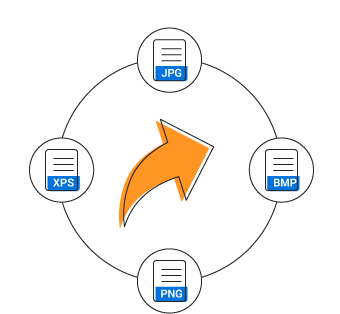
You can export the diagram to different image files such as PNG, JPEG, BMP, and SVG.
Printing
Print diagrams from the browser. You can also customize the page size, orientation, and page margin, and fit a diagram to a single page.

Serialization
You can save your diagram state in JSON format and load it back later for further editing using the serializer.

Localization
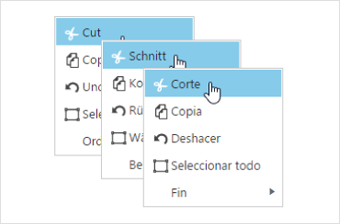
All static text within the diagram can be localized to any desired language.
Miscellaneous
In addition to all the features listed thus far, there many more that enhance the diagramming experience.

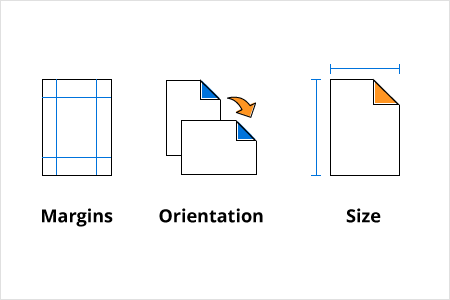
Page layout
Give a page-like appearance to the drawing surface using page size, orientation, and margins.

75+ ASP.NET UI CONTROLS
ALL CONTROLS
GRIDS
DATA VISUALIZATION
DATA SCIENCE
EDITORS
NAVIGATION
NOTIFICATION
BUSINESS INTELLIGENCE
Our Customers Love Us
Having an excellent set of tools and a great support team, Syncfusion® reduces customers’ development time.Here are some of their experiences.

We chose Essential Studio based on the breadth and quality of the components and the excellent support.
I would highly recommend using Essential Studio and have found that the Syncfusion support team is one of the fastest I have worked with.
Rated by users across the globe



Syncfusion ASP.NET Resources
Learning
 Documentation
 Documentation


Awards
Greatness—it’s one thing to say you have it, but it means more when others recognize it. Syncfusion® is proud to hold the following industry awards.