 ChatGPT
 Perplexity
 Claude
 Grok
GrokTL;DR: The Syncfusion AI Coding Assistant is your new AI-powered development partner, powered by the MCP Server to deliver smart, context-aware code suggestions, in-depth documentation, and real-time troubleshooting. Whether you’re using React or Blazor, this assistant integrates into your IDE to streamline development and boost productivity. This blog walks you through setup, usage, and how to get the most out of intelligent assistance tailored for developers.
We’re excited to introduce the Syncfusion AI Coding Assistant, a powerful solution designed to enhance your development experience with Syncfusion components—whether you’re building with React or Blazor.
What is the Syncfusion AI Coding Assistant?
The Syncfusion AI Coding Assistant is a powerful developer tool built on the MCP Server, offering intelligent support for both React and Blazor components.
Key benefits
The Syncfusion AI Coding Assistant offers:
- Intelligent code generation for Syncfusion components.
- Detailed component documentation and usage examples.
- Troubleshooting assistance for common integration challenges.
- Unlimited access for Syncfusion users.
Let’s see how to integrate the Syncfusion AI Coding Assistant into your React application.
SyncfusionReactAssistant MCP Server
This is a local AI-powered server that integrates with supported IDEs like VS Code, Code Studio, and JetBrains IDEs. It provides:
- Real-time, context-aware code suggestions.
- Access to Syncfusion React component documentation.
- Troubleshooting support for common integration issues.
Prerequisites
Before you begin, make sure you have:
- Node.js version 18 or later (for MCP Server).
- A compatible MCP client (e.g., VS Code, Code Studio).
- A valid Syncfusion license (Commercial, Community, or Free trial).
- An active Syncfusion API Key.
Once you are ready with the above prerequisites, install the MCP Server
Installing and configuring the SyncfusionReactAssistant MCP Server
To invoke the Syncfusion React Assistant MCP Server, configure your MCP client with the following generic server settings:
- npm package name: @syncfusion/react-assistant
- Type: stdio (standard input/output transport)
- Command: npx
- Arguments: -y
- Server name: syncfusionReactAssistant
You need to add your Syncfusion API key as an env parameter in the configuration file:
"env": {
  "Syncfusion_API_Key": "YOUR_API_KEY"
}
Configuration in VS Code
To configure SyncfusionReactAssistant in VS Code:
1. Create a .vscode folder in your project root
2. Create an mcp.json file with the following content:
{
  "servers": {
    "syncfusion-react-assistant": {
      "type": "stdio",
      "command": "npx",
      "args": [
        "-y",
        "@syncfusion/react-assistant@latest"
      ],
      "env": {
        "Syncfusion_API_Key": "YOUR_API_KEY"
      }
    }
  }
}
3. Use the “Start” option in your IDE’s MCP settings interface
4. Confirm the server is running with a message like: “SyncfusionReactAssistant is running…”
For other IDEs like Syncfusion Code Studio, Cursor, and JetBrains, refer to the official documentation for setup instructions.
How to use Syncfusion React Assistant
To activate the server, use one of the following prompts:
SyncfusionReactAssistant/syncfusion-react-assistant/syncfusion-react@syncfusion-react@ask_syncfusion_reactej2-react
In VS Code, you can also use #SyncfusionReactAssistant to explicitly invoke the server.
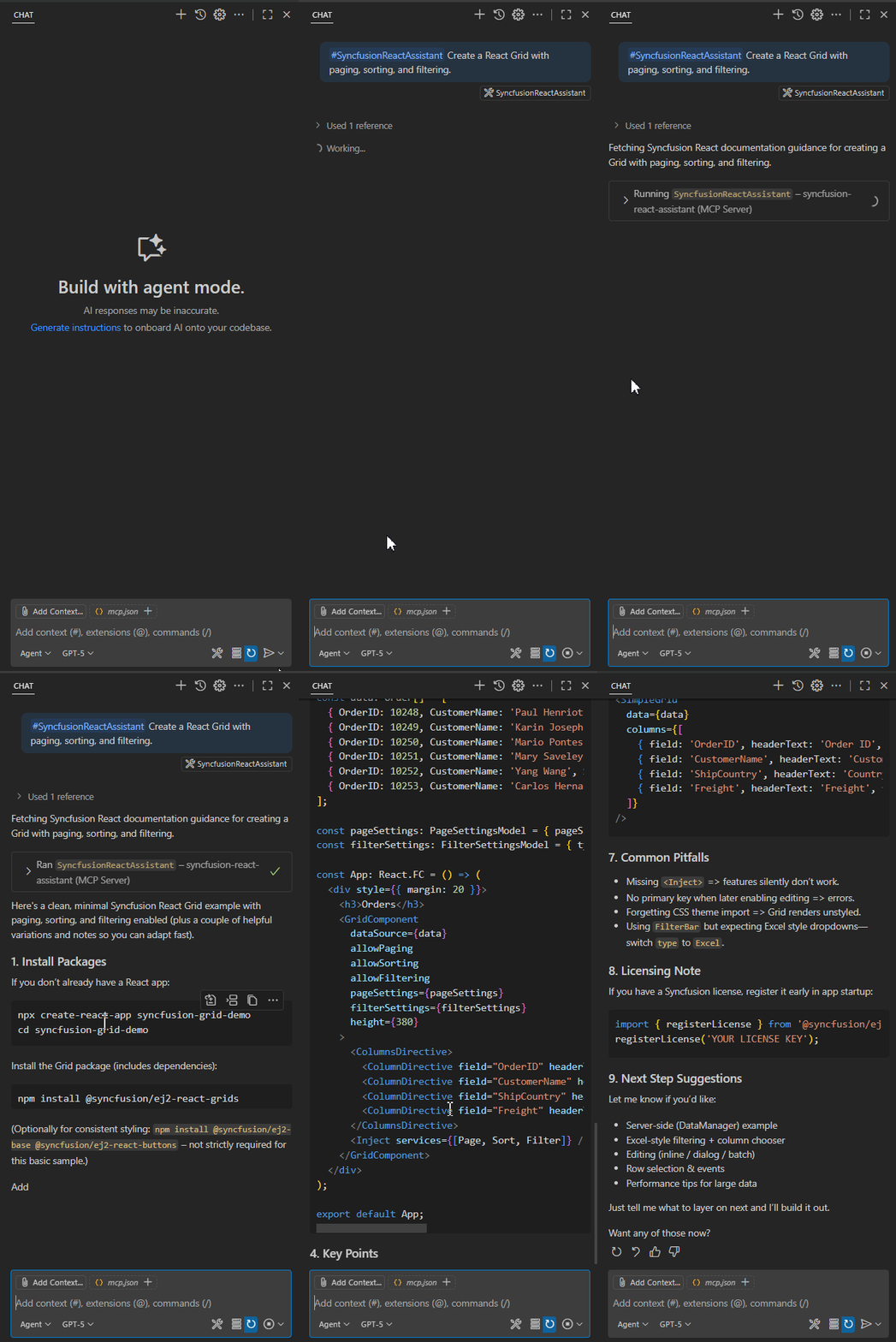
SyncfusionBlazorAssistant MCP Server
Similarly, we’ve extended MCP Server support for Blazor developers through the SyncfusionBlazorAssistant. It offers the same benefits as the React Assistant.
To install and configure the SyncfusionBlazorAssistant MCP Server, please refer to the official documentation. Like the SyncfusionReactAssistant, you can invoke the Blazor assistant using any of the supported prompts:
SyncfusionBlazorAssistant/syncfusion-blazor-assistant/syncfusion-blazor@syncfusion-blazor@ask_syncfusion_blazorej2-blazor
In VS Code, you can also use #SyncfusionBlazorAssistant to explicitly invoke the server.
AI Modes: Chat, Edit, and Agent
The Syncfusion AI Coding Assistant supports all three AI interaction modes to suit different development needs:
- Chat mode: Interact with the assistant using natural language to ask questions or generate code. Ideal for brainstorming, planning, and getting quick help without modifying your code.
- Edit mode: Quickly transform selected code with AI-powered suggestions for refactoring, bug fixes, or enhancements. Perfect for improving code quality with minimal effort.
- Agent mode: Describe a task in plain English, and the assistant applies changes across your codebase. Useful for making multi-file updates and automating fixes.
Best practices for effective usage
- Be specific: Mention both the framework (React or Blazor) and the component (e.g., Grid, Chart).
- Provide context: Include details about your use case for tailored suggestions.
- Use descriptive queries: Avoid vague questions for precise responses.
- Start fresh for new topics: Begin a new chat session for unrelated topics.
Troubleshooting
If you run into issues while using the Syncfusion AI Coding Assistant, try the following:
- Check your API key: Ensure it’s correctly configured in your environment.
- Verify activation: Make sure the MCP Server is enabled in your IDE.
- Check compatibility: Confirm your IDE supports MCP.
- Restart your IDE: Sometimes, a simple restart resolves configuration or connectivity issues.
Uninstallation
Need to remove the assistant from MCP Server? Simply delete the mcp.json configuration file from your project’s .vscode folder.
Conclusion
Thank you for reading! The Syncfusion AI Coding Assistant, powered by the MCP Server, is your ultimate companion for building high-performance applications with Syncfusion components, whether you’re working with React or Blazor. This intelligent tool empowers developers of all levels to code efficiently and overcome challenges quickly.
Get started today!
Experience the power of AI-assisted development with the Syncfusion AI Coding Assistant. Start your 30-day free trial and build smarter, faster, and better. If you have questions, you can contact us through our support forum, feedback portal, or support portal. We are always happy to assist you!