 ChatGPT
 Perplexity
 Claude
 Grok
GrokTL;DR: Navigating large PDFs can be slow and inefficient. This guide shows how to build a cross-platform PDF Thumbnail Navigator using .NET MAUI and Syncfusion® PDF Viewer, enabling fast, visual page access with thumbnail previews.
Introduction
Navigating large PDF documents is a common challenge for developers building productivity, educational, or design apps. Traditional scrolling and page input methods are slow and clunky. Thumbnail navigation, often seen as a filmstrip of page previews, offers a fast, visual way for users to scan and jump to specific pages without relying on manual scrolling or page numbers.
With .NET MAUI, developers can build native Android, iOS, macOS, and Windows apps using a single codebase. This allows them to implement rich features like thumbnail navigation across platforms with minimal effort.
In this blog, we’ll explore how to build a sleek, cross-platform PDF Thumbnail Navigator using Syncfusion® .NET MAUI PDF Viewer to deliver a seamless and intuitive document viewing experience in your apps.
Why Thumbnail Navigation?
Traditional PDF navigation methods like sequential scrolling, manual page number input, or bookmarks can be slow and inefficient, especially for large or visually rich documents. Thumbnail navigation transforms how users interact with PDF documents, especially when those documents are lengthy, visual, or structurally complex. Here are the primary advantages and improvements it provides:
Key benefits
Visual content detection: Instantly identify charts, diagrams, tables, and sections without opening each page, perfect for visually structured documents.
- Instant page access: A single tap or click on a thumbnail takes users to the desired page, dramatically speeding up navigation.
- Smart page previewing: Users can preview pages visually, reducing the need for excessive scrolling or typing and making navigation more intuitive.
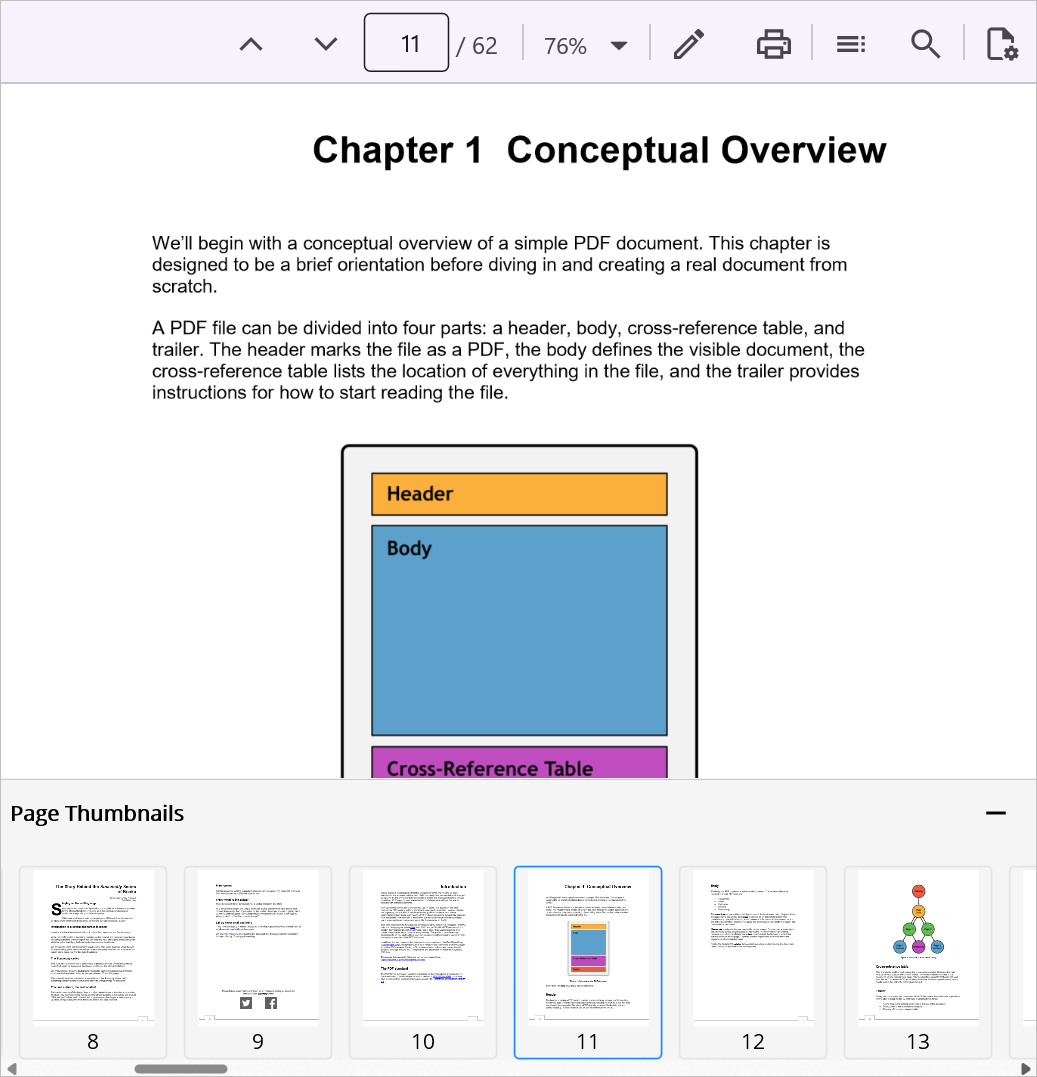
- Current location awareness: The thumbnail bar highlights the currently viewed page, helping users stay oriented within the document.
- Adaptable workspace: A collapsible thumbnail panel allows users to toggle between a focused reading mode and a structural overview, offering flexibility and control.
- Improved productivity: Reviewers, students, engineers, or analysts can save significant time over traditional page navigation methods.
Tools & Setup: What you’ll need
Creating a seamless cross-platform PDF thumbnail navigator requires the right combination of frameworks, components, and architectural patterns to ensure performance and maintainability.
Core Frameworks & Languages
- .NET MAUI: Cross-platform framework for building native apps on Android, iOS, macOS, and Windows, all from a single codebase.
- XAML: Used to define and style UI components, such as arranging thumbnails in a ScrollView, configuring the PdfViewer.
- C#: Handles application logic, including thumbnail tap responses, page navigation, and PDF loading.
Syncfusion PDF Viewer
Syncfusion® .NET MAUI PDF Viewer is a robust library for rendering, navigating, and interacting with PDF files. It includes built-in support for converting pages to images using PdfToImageConverter, which is essential for generating thumbnails.
Installation tip
To add Syncfusion PDF Viewer from NuGet, run the command below in the Package Manager Console.
dotnet add package Syncfusion.Maui.PdfViewerRecommended architectural patterns
- MVVM (Model-View-ViewModel): Promotes clean separation of concerns and testable architecture, making your app easier to maintain and scale.
- Command Pattern: Ideal for handling user interactions and navigation, enabling loose coupling between UI and business logic.
- Observer Pattern (INotifyPropertyChanged): This pattern enables dynamic UI updates when data changes, which is especially useful for thumbnail selection and active page state.
By combining these tools and frameworks, you will have a solid foundation for developing high-performance, visually rich PDF thumbnail navigation in any modern .NET MAUI application.
Designing the Thumbnail Panel
Creating an effective thumbnail navigation experience involves thoughtful UI design that balances clarity, responsiveness, and usability. This section breaks down the layout, individual thumbnail design, visual state management, and interaction logic.
Thumbnail Pane Layout
The thumbnail pane serves as the container for all thumbnail-related UI elements, positioned strategically at the bottom of the main PDF viewer. This two-row structure below separates the header (containing title and controls) from the scrollable content area, providing clear visual organization.
<Grid>
    <Grid.RowDefinitions>
        <RowDefinition Height="Auto" />
        <RowDefinition Height="*" />
    </Grid.RowDefinitions>

    <!-- Header with title and controls -->
    <Label Text="Page Thumbnails" Grid.Row="0"
           VerticalTextAlignment="Center" FontAttributes="Bold" />

    <!-- Scrollable thumbnail content -->
    <ScrollView Grid.Row="1" Orientation="Horizontal">
        <!-- Thumbnail items go here -->
    </ScrollView>
</Grid>
Key design elements:
- Header row: Contains a clear title like “Page Thumbnails” and can be extended with control icons.
- Scrollable content: Horizontally scrollable area showing miniature page previews for quick selection.
This layout ensures a clean separation between controls and content, improving aesthetics and usability.
Individual Thumbnail UI
Each thumbnail is a compact visual representation of a PDF page. It’s interactive and styled to reflect the selection state:
<Border StrokeThickness="1"
        Stroke="{Binding IsSelected, Converter={StaticResource BoolToColorConverter}}">
    <Grid>
        <Grid.RowDefinitions>
            <RowDefinition Height="*" />
            <RowDefinition Height="20" />
        </Grid.RowDefinitions>

        <!-- Page preview image -->
        <Image Grid.Row="0" Source="{Binding ThumbnailImage}"
               Aspect="AspectFit" BackgroundColor="White" />

        <!-- Page number label -->
        <Label Grid.Row="1" Text="{Binding PageNumber}"
               HorizontalOptions="Center" VerticalOptions="Center"/>

    </Grid>
</Border>
Key design elements:
- Border: Acts as a visual container and selection indicator. The border color changes based on the thumbnail selected.
- Image: Displays the actual page thumbnail with aspect-fit scaling, ensuring the image scales properly without distortion.
- Label: Shows the page number, helping users quickly identify and jump to specific pages.
This design ensures each thumbnail is both informative and interactive.
Active page indication
To visually indicate the active page, the Border uses a dynamic stroke color bound to a Boolean property IsSelected. This is achieved using a value converter, as shown below.
<Border StrokeThickness="1"
        Stroke="{Binding IsSelected, Converter={StaticResource BoolToColorConverter}}">
</Border>
Color Converter Implementation:
public class BooleanToColorConverter : IValueConverter
{
        public object Convert(object value, Type targetType, object parameter, CultureInfo culture)
        {
             return (bool)value ? Colors.Blue : Colors.Gray;
        }
}
The converter transforms the Boolean selection state into visual feedback:
- Selected (true): Blue border indicating active page
- Unselected (false): Gray border for inactive pages
This visual cue helps users stay oriented within the document, especially when navigating large PDFs.
Interaction: Tap gesture for navigation
To make thumbnails interactive, each one is equipped with a TapGestureRecognizer. This gesture is bound to a command that handles page navigation.
<!—Thumbnail UI -->
<Border ...>
    <Grid>
        <!-- Image and Label here -->
        <Grid.GestureRecognizers>
            <TapGestureRecognizer Command="{Binding NavigateToPageCommand}"
                                  CommandParameter="{Binding}" />
        </Grid.GestureRecognizers>
    </Grid>
</Border>
How It Works
- Command Binding: The NavigateToPageCommand is defined in your ViewModel and handles the logic for switching pages.
- CommandParameter: Passes the bound thumbnail data (e.g., page number or model) to the command, enabling precise navigation.
This setup ensures that tapping a thumbnail instantly updates the main PDF viewer, creating a seamless and responsive user experience.
Rendering Thumbnails – Converting PDF pages to Images
A visually rich thumbnail navigator depends on accurately rendering each PDF page as an image. This allows users to preview content at a glance and navigate intuitively. Syncfusion’s .NET MAUI PdfToImageConverter makes this process seamless with its asynchronous API.
The ConvertAsync method converts each page into an image stream asynchronously, ensuring the UI remains responsive during conversion. Here’s a sample implementation:
/// <summary>
/// Asynchronously generates thumbnail images for every PDF page and adds them to the UI-bound list.
/// </summary>


private async Task GenerateThumbnailsAsync()
{
    if (_pdfToImageConverter == null) return;

    for (int i = 1; i <= _totalPages; i++)
    {
        Stream? imageStream = await _pdfToImageConverter.ConvertAsync(i - 1, scaleFactor: 0.25f);
        var pageThumbnail = new PageThumbnail
        {
            PageNumber = i,
            ThumbnailImage = ImageSource.FromStream(() => imageStream),
        };
        Thumbnails.Add(pageThumbnail);
    }
}
Key concepts explained
- ConvertAsync(i – 1): Converts the page at index i – 1 (zero-based) to an image.
- Set scaleFactor to 0.25f: This reduces the image size to 25% of the original page. This keeps thumbnails lightweight and fast to render.
- FromStream: Converts the image stream into a format that can be bound to the UI.
- Add(pageThumbnail): Adds the generated thumbnail to a collection bound to the UI, typically displayed in a ScrollView.
This thumbnail rendering process forms the visual backbone of your navigator, enabling users to interact with the document in a fast, intuitive, and professional way. Since thumbnail generation can be resource-intensive for large documents, consider running this task in a background thread.
Page Navigation
Seamless navigation is the core purpose of the thumbnail bar; users should be able to tap or click a thumbnail and instantly bring that page into focus in the main PDF viewer. Here’s how the linking is achieved in a robust MVVM architecture:
Each thumbnail is bound to a command called NavigateToPageCommand. When a user taps a thumbnail, this command is triggered, executing the logic to navigate to the selected page. The GoToPage(int pageNumber) method of the PDF Viewer allows you to instantly navigate (jump) to any page in the loaded PDF document.
public ICommand NavigateToPageCommand { get; }

public PdfThumbnailViewModel()
{
    NavigateToPageCommand = new Command<PageThumbnail>(OnNavigateToPage);
}

private void OnNavigateToPage(PageThumbnail thumbnail)
{
    if (_pdfViewer != null && thumbnail != null)
    {
        // Go to the selected PDF page
        _pdfViewer.GoToPage(thumbnail.PageNumber);

        // Visually update selection in thumbnail bar
        foreach (var item in Thumbnails)
            item.IsSelected = (item.PageNumber == thumbnail.PageNumber);
    }
}
Explanation
- _pdfViewer.GoToPage(pageNumber): Instantly jumps to the specified page in the loaded PDF document using PDF Viewer.
- Selection Highlighting: The loop updates the IsSelected property for each thumbnail, ensuring only the active page is highlighted. This ties back to the border color logic discussed earlier.
GitHub Example
For complete implementation, including MVVM setup, thumbnail rendering, and navigation logic, check out the PDF Thumbnail Viewer demo.
Conclusion
Thank you for reading! Thumbnail navigation transforms how users interact with PDFs, especially in apps where speed and clarity matter. With Syncfusion’s .NET MAUI PDF Viewer, you can deliver a polished, responsive experience across platforms with robust MVVM-friendly architecture. Ready to enhance your app? Start building your PDF thumbnail navigator today!
This approach is ideal for a wide range of scenarios:
- Productivity apps for document review.
- Educational platforms for textbook navigation.
- Design tools for visual layout previews.
- Analytics dashboards for report scanning.
The new version is available for current customers to download from the license and downloads page. If you are not a Syncfusion® customer, you can try our 30-day free trial for our newest features.
You can also contact us through our support forums, support portal, or feedback portal. We are always happy to assist you!