
 Chinnu Muniyappan
TL;DR: Need to manage PDF annotations across platforms in C#? This guide walks you through importing and exporting annotations using XFDF, FDF, and JSON formats, enabling seamless collaboration, review workflows, and data portability. You’ll learn how to filter annotations by type, author, and appearance; perfect for building scalable document systems and annotation-driven applications.
PDF annotations are essential for building collaborative document workflows, enabling markup sharing, reviews, and version control. Whether you’re developing a document management system or a review platform, handling annotations efficiently is key.
In this comprehensive guide, you’ll learn five powerful ways to import and export PDF annotations in C# using the Syncfusion .NET PDF Library. We’ll cover support for XFDF, FDF, and JSON formats, advanced filtering options, selective exports, and techniques to maintain visual fidelity across your applications.
Let’s get started!
Before diving into the examples, ensure your C# project references a PDF processing library that supports annotation import/export. If you are starting from scratch, set up a basic .NET application and include the Syncfusion PDF library packages as outlined in our official documentation.
Note: Register your Syncfusion PDF Library license key during application startup to ensure full functionality in production environments.

1. Export and import annotations using XFDF format
What is XFDF (XML Forms Data Format)? It is an industry-standard XML-based format designed specifically for representing PDF annotations and form data. It provides several key advantages:
- Standardized: Widely supported across PDF applications
- Human-readable: XML structure makes it easy to inspect and modify
- Lightweight: Contains only annotation data, not the entire document
- Interoperable: Works seamlessly with different PDF viewers and editors
Exporting annotations from XFDF
Use XFDF export to:
- Archive annotations separately
- Share markup across platforms
- Enable version control
- Integrate with external review systems
With the Syncfusion .NET PDF Library, you can programmatically export all annotations from a PDF document into an XFDF file with just a few lines of code:
//Load the PDF document
using (PdfLoadedDocument document = new PdfLoadedDocument("../../../../data/input-with-annotations.pdf"))
{
    //Export the annotations to XFDF format
    document.ExportAnnotations("export-annotation.xfdf", AnnotationDataFormat.XFdf);
}
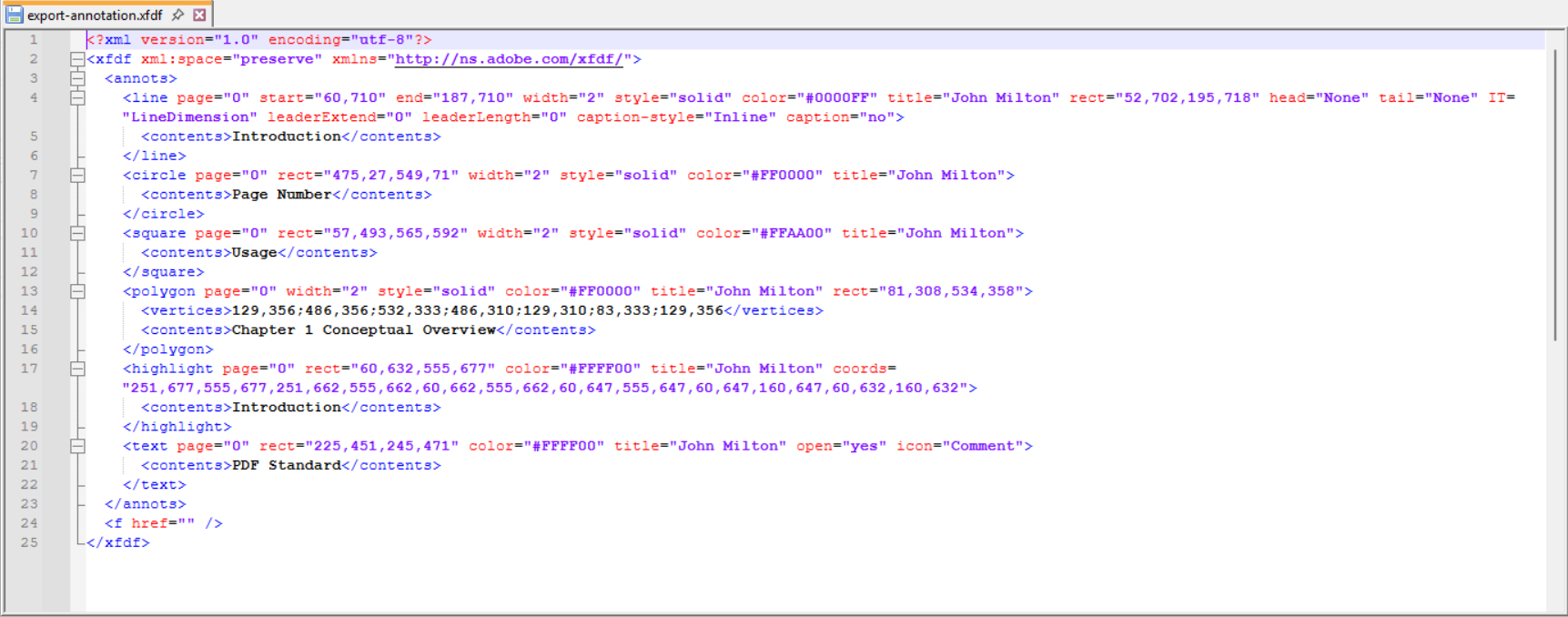
Once executed, this code generates an XFDF file containing the annotation data extracted from the PDF.
Importing annotations from XFDF
Perfect for scenarios where you need to:
- Restore previously exported annotations
- Apply external reviews back to the original documents
- Synchronize annotations across document versions
With the Syncfusion .NET PDF Library, you can easily load XFDF data and apply it to a PDF file, enabling seamless integration of external annotation workflows as shown below.
//Load the PDF document
using (PdfLoadedDocument document = new PdfLoadedDocument("../../../../data/input-empty.pdf"))
{
    //Import the annotations from XFDF format
    document.ImportAnnotations("../../../../data/export-annotation.xfdf", AnnotationDataFormat.XFdf);

    //Save the modified document
    document.Save("imported-annotations.pdf");
}
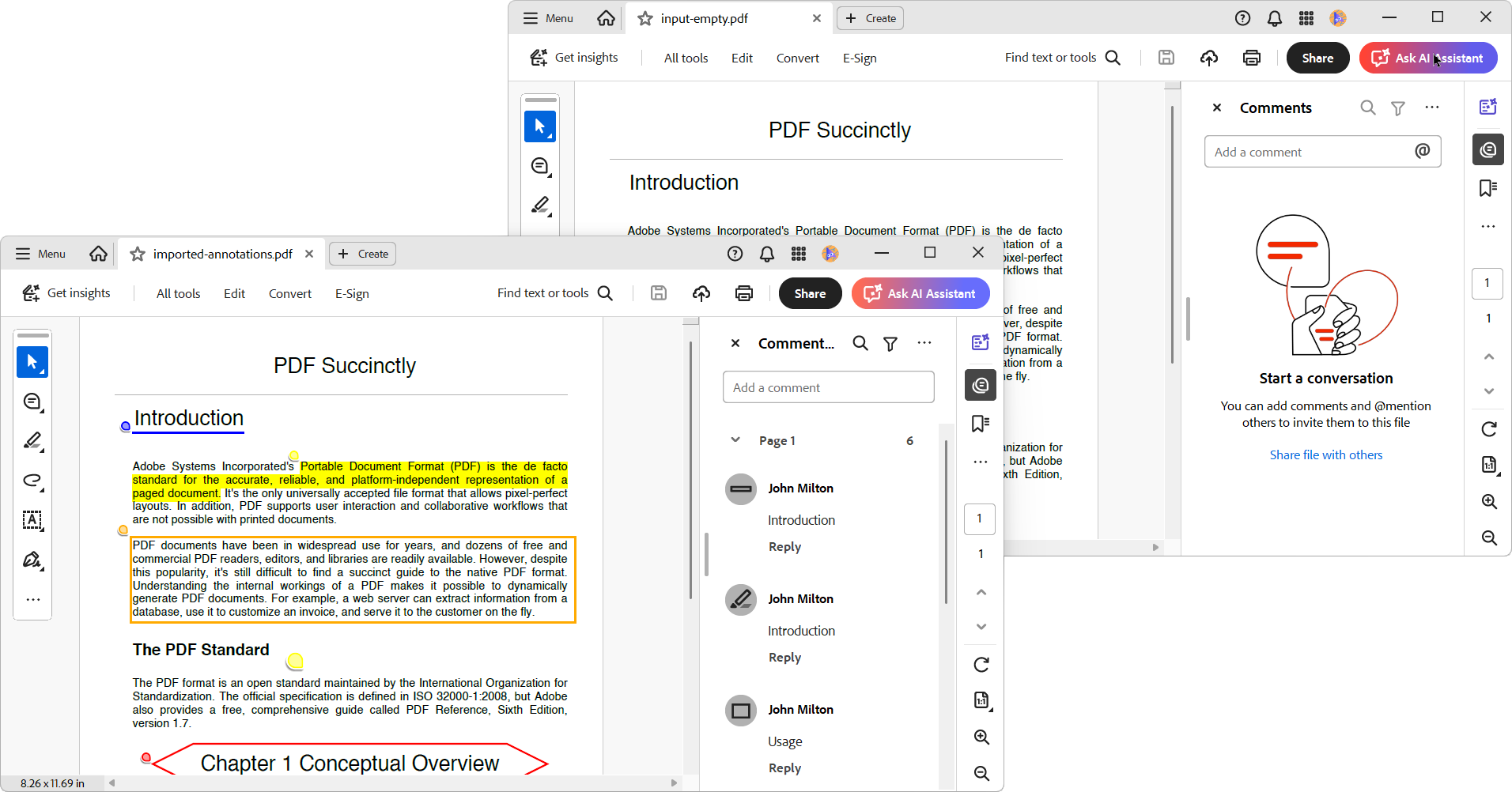
By executing the above code, you will get the following PDF file.
2. Export and import annotations using FDF format
What is FDF (Forms Data Format)? It is Adobe’s proprietary format optimized for form data and annotations.
Exporting annotations to FDF
Ideal for:
- Adobe-centric workflows
- Large-scale annotation processing
- Applications requiring compact data storage
- Form-friendly
With Syncfusion’s API, you can easily export annotations to an FDF file using just a few lines of C# code, as shown below.
//Load the PDF document
using (PdfLoadedDocument document = new PdfLoadedDocument("../../../../data/input-with-annotations.pdf"))
{
    //Export the annotations to FDF format
    document.ExportAnnotations("export-annotation.fdf", AnnotationDataFormat.Fdf);
}
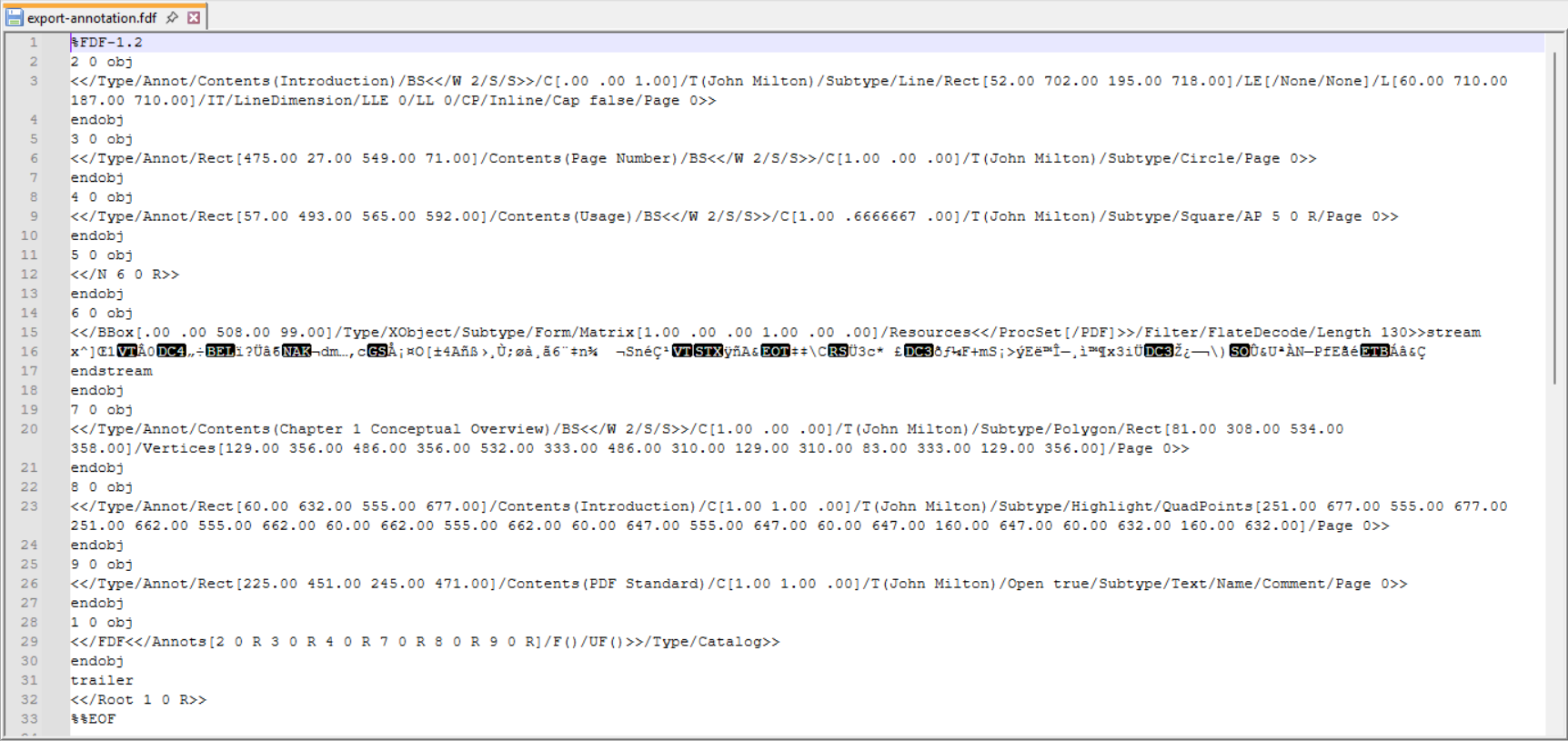
By executing the above code, you will get the FDF file as follows.
Importing annotations from FDF
Once annotations are stored in an FDF file, they can be reapplied to the original or another PDF document. This approach is useful for restoring markup after external review or synchronizing annotation data across multiple versions of a document.
Syncfusion’s .NET PDF Library allows you to import annotations from an FDF file and apply them directly to a PDF with minimal effort.
//Load the PDF document
using (PdfLoadedDocument document = new PdfLoadedDocument("../../../../data/input-empty.pdf"))
{
    //Import the annotations from FDF format
    document.ImportAnnotations("../../../../data/export-annotation.fdf", AnnotationDataFormat.Fdf);

    //Save the modified document
    document.Save("imported-annotations.pdf");
}
By executing the above code, you will get the PDF document as follows:
3. Export and import annotations using JSON format
Why use JSON (JavaScript Object Notation)? It offers modern flexibility for handling PDF annotations:
- Web-friendly: Idea for REST APIs and web services
- Human-readable: Easy to debug and inspect
- Developer-friendly: Natively supported across most programming languages.
- Extensible: Allows custom properties for advanced workflows.
Exporting annotations to JSON
Best suited for:
- Web application integration
- REST API development
- Modern microservices architectures
- Custom annotation processing pipelines
Using Syncfusion’s .NET PDF Library, you can export annotations to a JSON string or file with minimal effort, as shown below.
//Load the PDF document
using (PdfLoadedDocument document = new PdfLoadedDocument("../../../../data/input-with-annotations.pdf"))
{
    //Export the annotations to JSON format
    document.ExportAnnotations("export-annotation.json", AnnotationDataFormat.Json);
}
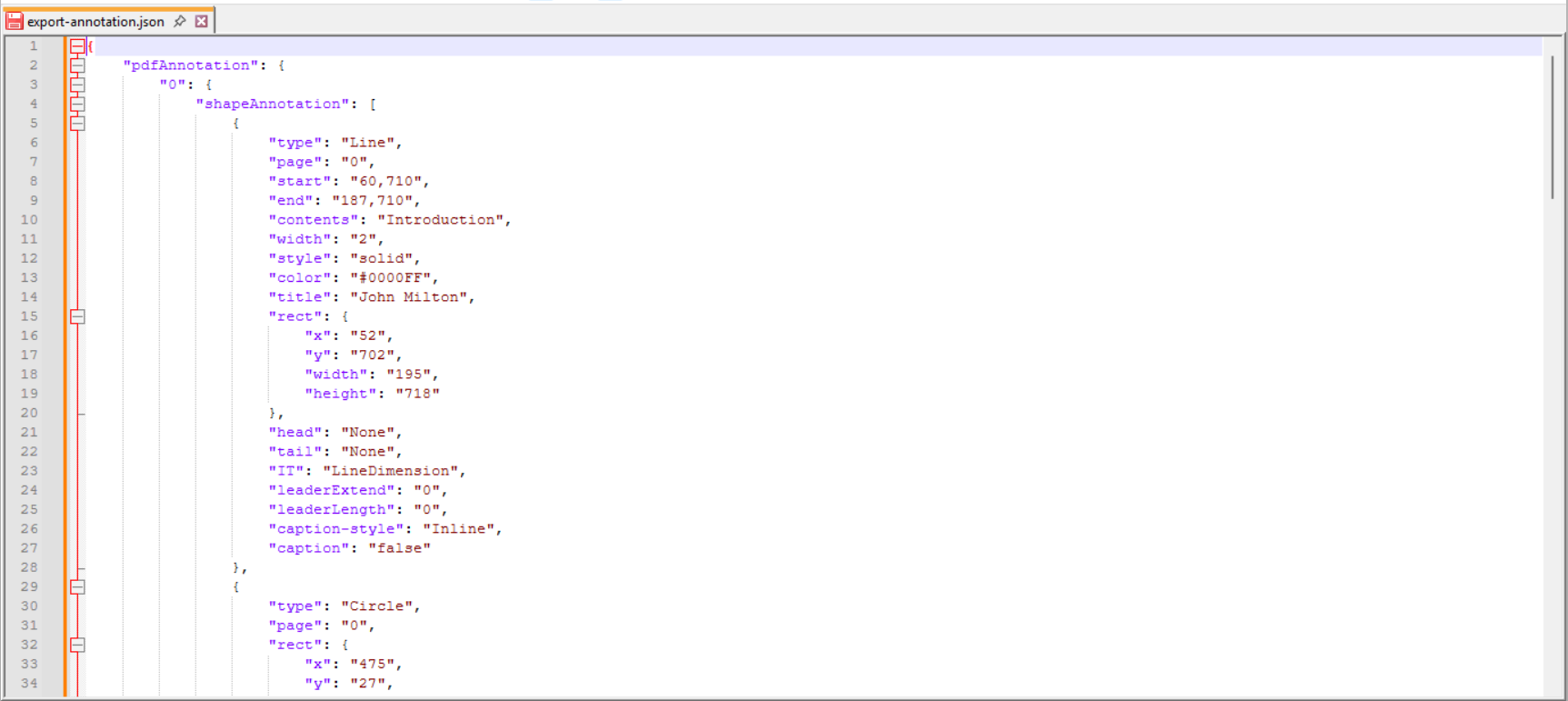
By executing the above code, you will obtain the following JSON.
Importing annotations from JSON
Once annotation data is available in JSON format, it can be re-imported into a PDF document to restore or apply markup. This is especially useful in scenarios where annotations are edited externally or need to be synchronized across platforms.
Syncfusion’s API makes it easy to parse JSON annotation data and apply it to a PDF file programmatically.
//Load the PDF document
using (PdfLoadedDocument document = new PdfLoadedDocument("../../../../data/input-empty.pdf"))
{
    //Import the annotations from JSON format
    document.ImportAnnotations("../../../../data/export-annotation.json", AnnotationDataFormat.Json);

    //Save the modified document
    document.Save("imported-annotations.pdf");
}
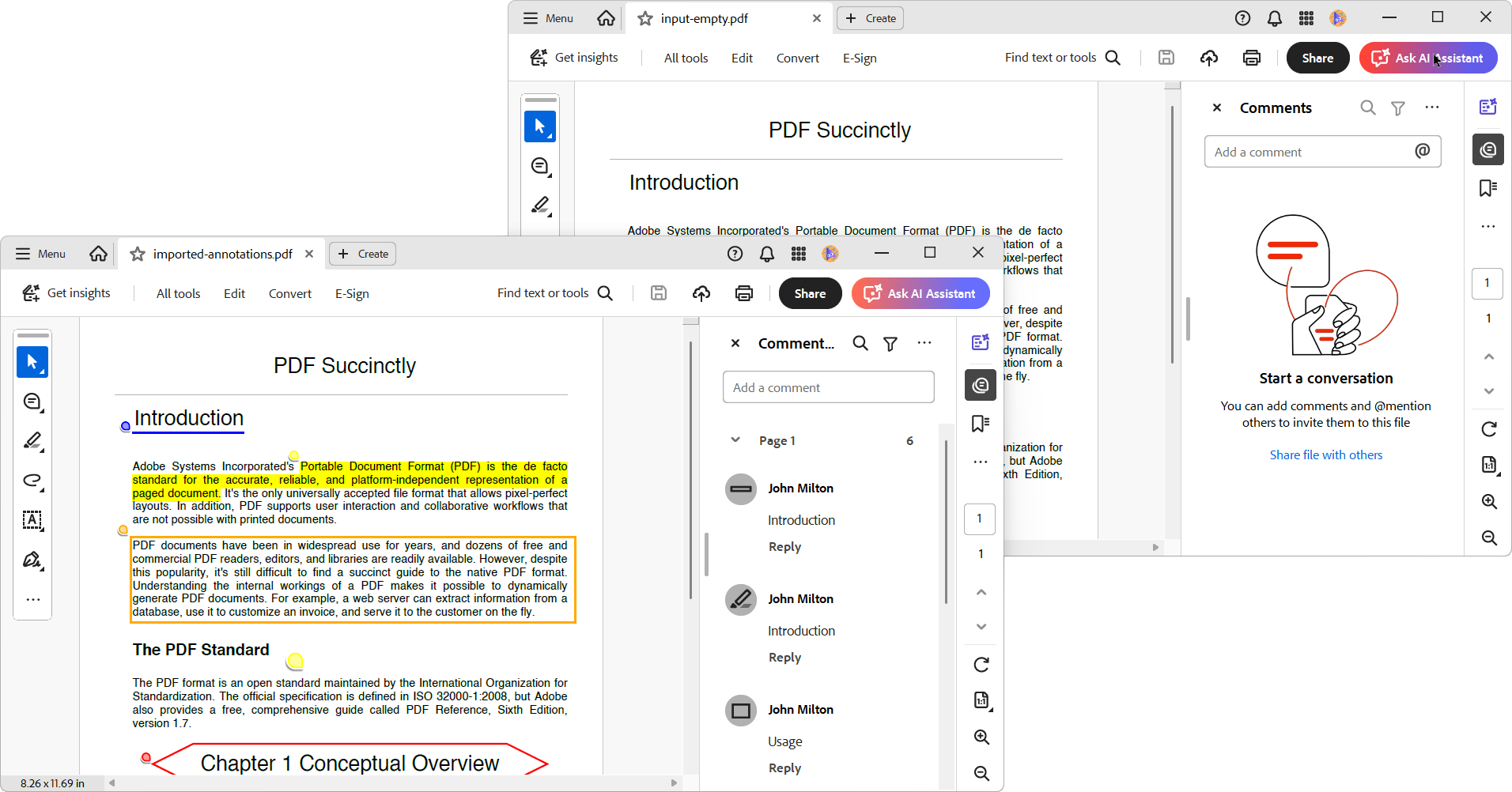
By executing the above code, you will get the output PDF document as follows:
4. Export specific types of annotations
Why export specific annotation types? In many real-world scenarios, exporting every annotation from a PDF isn’t always necessary. Instead, you may want to extract only certain types or a curated subset based on your application’s specific needs.
Syncfusion’s .NET PDF Library supports flexible export options, allowing developers to tailor annotation extraction with precision:
- Annotation type filtering: Export only the annotations you need, such as highlights, text notes, stamps, or shapes.
- User-specific annotations: Target annotations created by specific users for personalized workflows.
- Page range selection: Export annotations from selected pages, ideal for partial document processing.
- Date-based filtering: Extract annotations added or modified within a specific timeframe for audit trails or version tracking.
- Status-based export: Filter annotations by status (e.g., resolved, pending, or flagged) to streamline review and feedback cycles.
- Keyword matching: Export annotations containing specific text, tags, or comments for search-based extraction.
- Layer-based export: Target annotations tied to specific PDF layers are useful for managing multilingual content or CAD drawings.
Export by annotation type
This approach is ideal for workflows that need to:
- Process only markup annotations such as highlights, underlines
- Extract geometric shapes separately from text annotations
- Create type-specific review or audit pipelines
You can export specific types of annotations from a PDF document using C#, as shown below:
//Load the PDF document
using (PdfLoadedDocument document = new PdfLoadedDocument("../../../../data/annotations.pdf"))
{
    //Create annotation export settings
    PdfAnnotationExportSettings annotationExportSettings = new PdfAnnotationExportSettings()
    {
        //Set the annotation types to export
        AnnotationTypes = new[]
        {
            PdfLoadedAnnotationType.RectangleAnnotation,
            PdfLoadedAnnotationType.LineAnnotation
        },
        //Set the export format to XFDF
        DataFormat = AnnotationDataFormat.XFdf
    };

    //Export the specified annotations to XFDF format
    document.ExportAnnotations("export-specific-annotation.xfdf", annotationExportSettings);
}
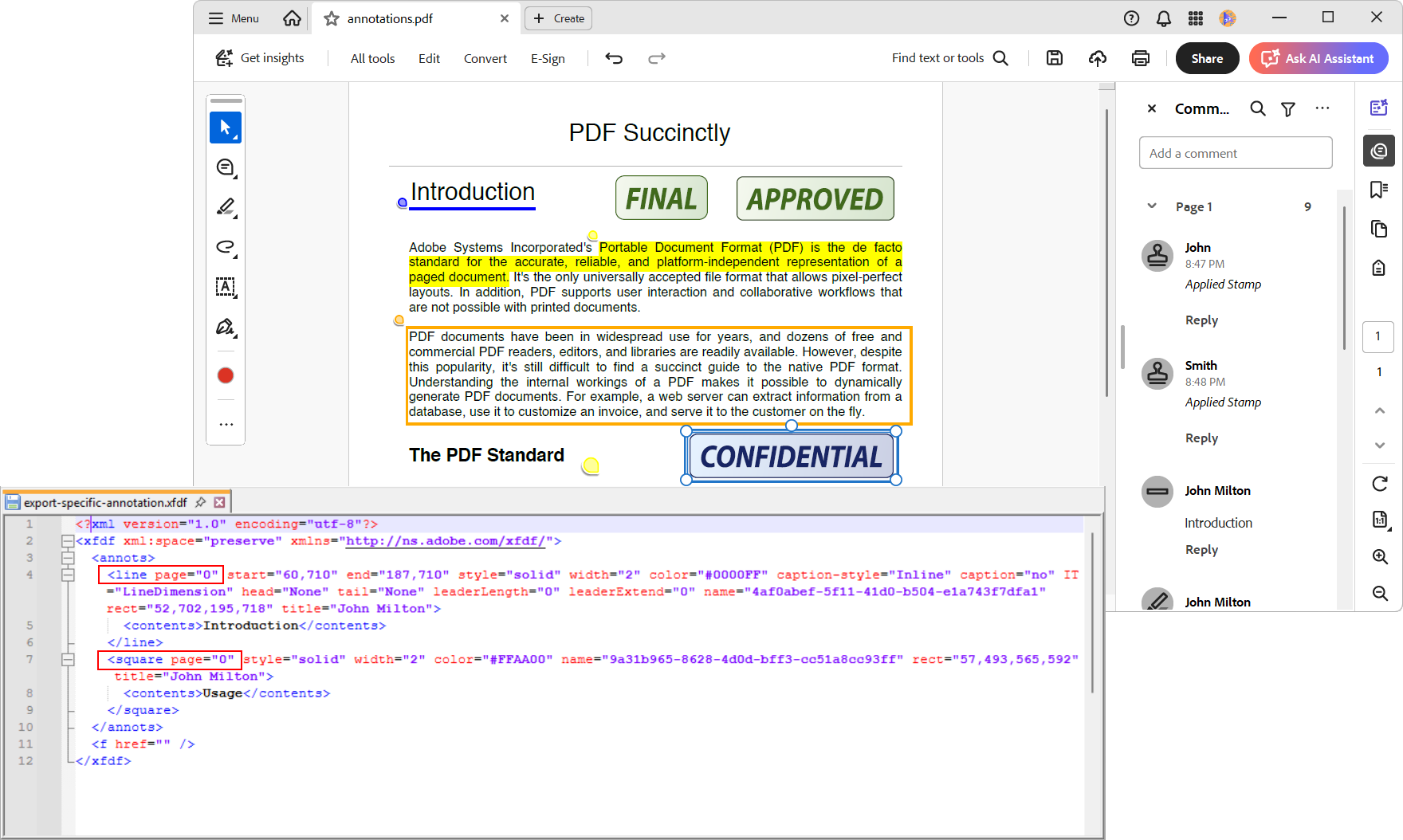
Executing the above code will generate an XFDF file containing only the specified annotation types, such as line and rectangle annotations, as shown below:
Export user-specific annotations
In collaborative PDF workflows, it’s often necessary to isolate annotations created by a specific user, whether for review, auditing, or personalized processing.
Syncfusion’s PDF Library filters annotations by author and exports only those relevant to a particular user.
//Load the PDF document
using (PdfLoadedDocument document = new PdfLoadedDocument("../../../../data/annotations.pdf"))
{
    //Create annotation export collection
    PdfExportAnnotationCollection exportAnnotationCollection = new PdfExportAnnotationCollection();

    //Iterate through the pages in the document
    foreach (PdfLoadedPage page in document.Pages)
    {
        //Iterate through the annotations in the page
        foreach (PdfLoadedAnnotation annotation in page.Annotations)
        {
            //Check the author of the annotation
            if (annotation.Author == "John Milton")
            {
                //Add the annotation to the export collection
                exportAnnotationCollection.Add(annotation);
            }
        }
    }

    //Export the specified annotations to XFDF format
    document.ExportAnnotations("export-specific-collection.xfdf", AnnotationDataFormat.XFdf, exportAnnotationCollection);
}
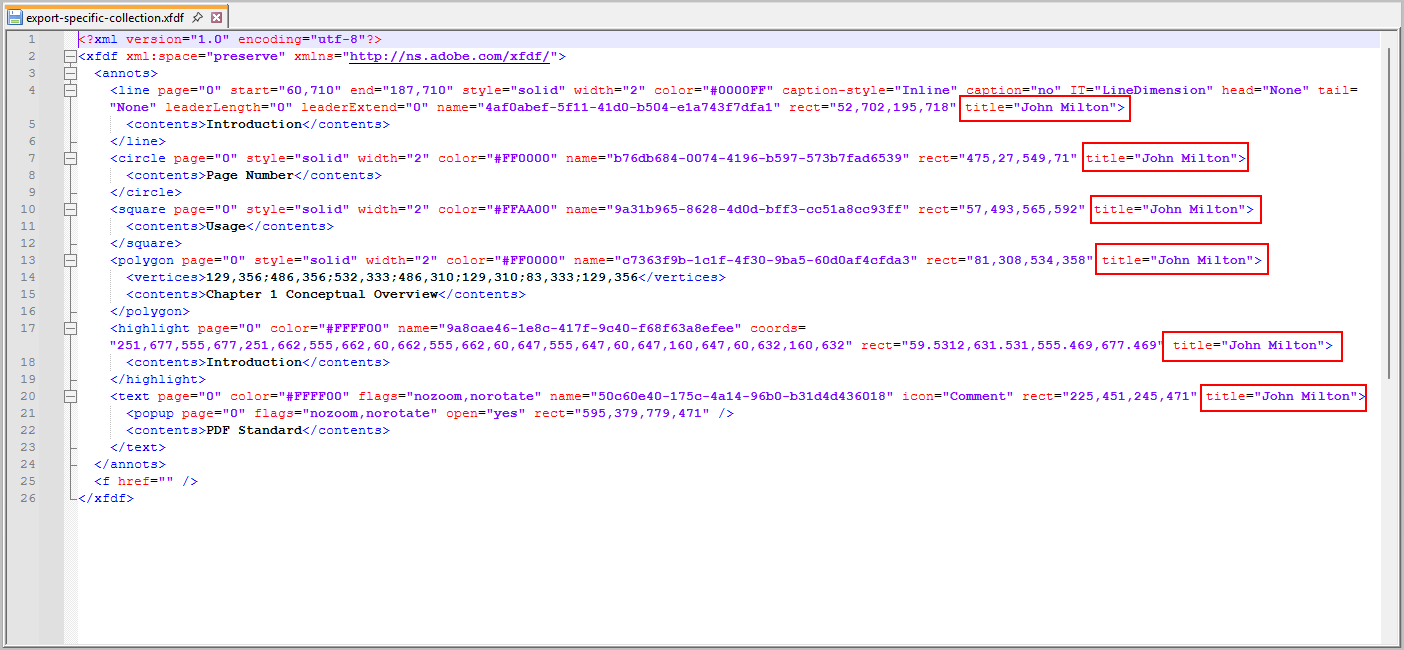
By executing the above code, you will generate an XFDF file containing annotations specifically added to the author John Milton, as shown below:
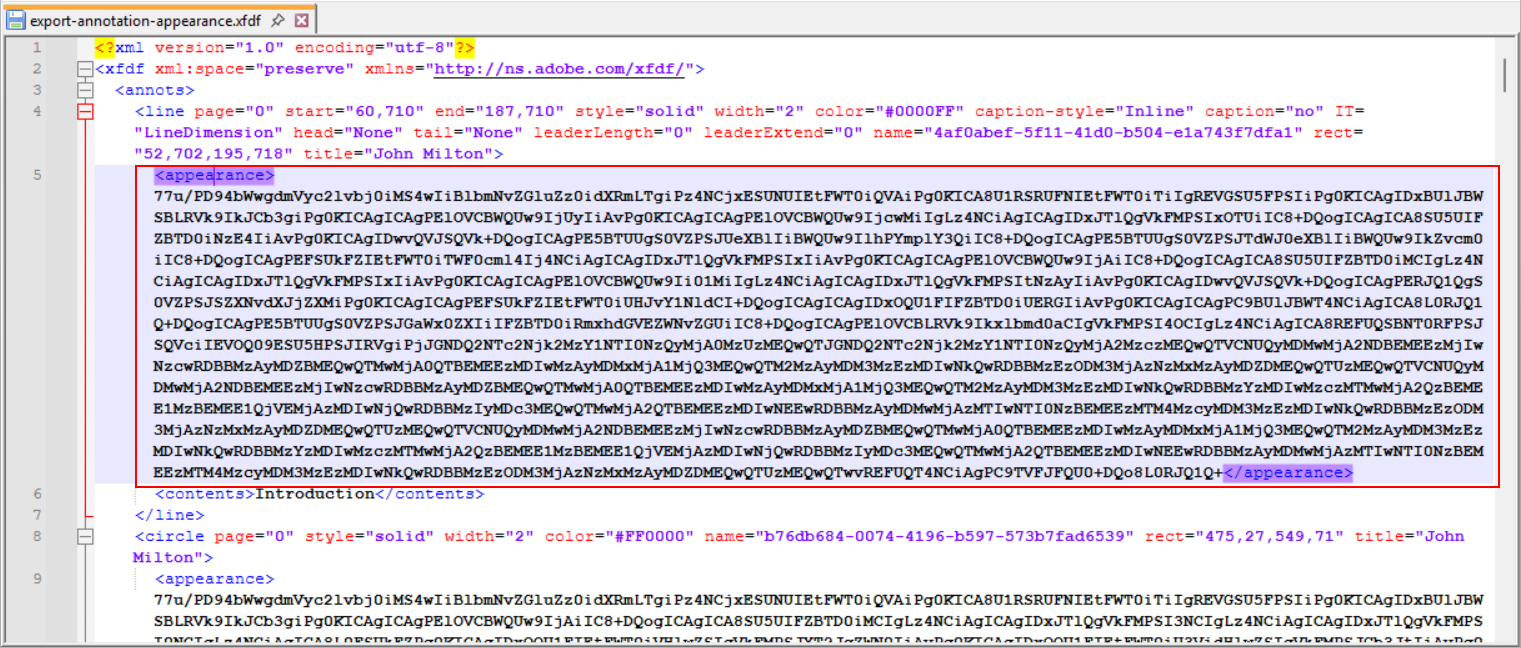
5. Export annotations with appearance
Why preserve annotation appearance? When exporting annotations, it’s not just the content that matters; their visual appearance plays a crucial role in conveying meaning and maintaining context. Attributes like color, opacity, border style, and icon indicate priority, feedback type, or status in collaborative workflows.
With Syncfusion’s .NET PDF Library, you can export annotations along with their appearance settings to ensure the exported data reflects the original PDF’s visual context.
Why preserving appearance matters:
- Contextual clarity: Visual styles often indicate importance, urgency, or feedback type.
- Cross-platform consistency: Ensures annotations render accurately across different viewers.
- Improved readability: Maintains visual hierarchy and clarity in exported formats.
- Format compatibility: Appearance data can be exported to XFDF, FDF, or JSON for seamless integration.
Whether you’re building a review system, audit tool, or collaborative platform, preserving annotation appearance ensures that exported data remains meaningful, consistent, and user-friendly.
You can export annotations with their appearance attributes using C#, as shown below:
//Load the PDF document
using (PdfLoadedDocument document = new PdfLoadedDocument("../../../../data/annotations.pdf"))
{
    //Create annotation export settings
    PdfAnnotationExportSettings annotationExportSettings = new PdfAnnotationExportSettings()
    {
        //Enable the appearance export
        ExportAppearance = true,
        //Set the export format to XFDF
        DataFormat = AnnotationDataFormat.XFdf
    };

    //Export the specified annotations to XFDF format
    document.ExportAnnotations("export-annotation-appearance.xfdf", annotationExportSettings);
}
By executing the above code, you will generate an XFDF file with annotations and its appearance data, as shown below.
GitHub reference
You can find the complete sample project in our GitHub demo.
Conclusion
Efficiently managing PDF annotations is key to building collaborative, review-driven, and data-integrated document workflows. The Syncfusion .NET PDF library offers support for formats like XFDF, FDF, and JSON. Developers can easily import, export, and filter annotations based on type, author, appearance, and more.
Whether you are working with complete annotation sets or custom subsets, these techniques help you build scalable solutions that support seamless annotation exchange and consistent rendering across platforms. Explore our PDF library’s documentation to unlock advanced annotation features and best practices.
If you’re a Syncfusion user, you can download the setup from the license and downloads page. Otherwise, you can download a free 30-day trial.
You can also contact us through our support forum, feedback portal, or support portal for queries. We are always happy to assist you!


 No spam, just valuable updates.