





Transform your applications today by downloading our free evaluation version
Overview
The WinForms Syntax Editor control is a powerful text editor control similar to the Microsoft Visual Studio editor. It provides a built-in syntax highlighting and code editing experience for popular languages. It offers all the essential features end users expect like syntax highlighting, editing, undo, redo, cut, copy, paste, IntelliSense, error validation, line numbering, highlighting modified lines, custom language configuration. It supports context choice, context tooltip, single line mode, multi-tasking with split view, word wrap, printing, and export options.
Syntax highlighting
This control provides syntax highlighting for programming, scripting, and markup languages. It also allows users to customize built-in languages.
Built-in language highlighting
The WinForms Syntax Editor control offers built-in syntax highlighting and code editing experiences for the following languages:
- C#
- VB.NET
- XML
- HTML
- Java
- SQL
- PowerShell
- C
- JavaScript
- VBScript
- Delphi

Configure custom language
Create custom syntax highlighting of keywords and operators of your own language.
IntelliSense
IntelliSense displays a pop-up with a list of code completion options to speed up coding by reducing typos and other common mistakes.


Context prompt
Display helpful pop-up hints about alternate syntax for invoking what is being typed and its parameters. Choose your invocation overload with the Up and Down arrow keys or by clicking the arrow buttons in the pop-up.
Context tooltip
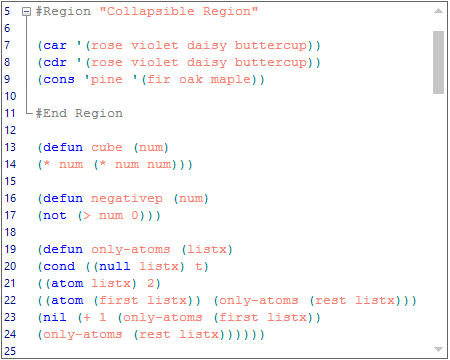
Built-in interactive tooltips appear automatically when the pointer is placed over a collapsed block of text.


Code outlining
Display code blocks in a tree structure and expand and collapse the code blocks interactively for readability. WinForms Syntax Editor automatically chooses where to create outlines for built-in languages.
Comment and uncomment code
Comment or uncomment code with the help of the comment option. Users can select the required block of code to comment. WinForms Syntax Editor comments the current line when there is no selection.

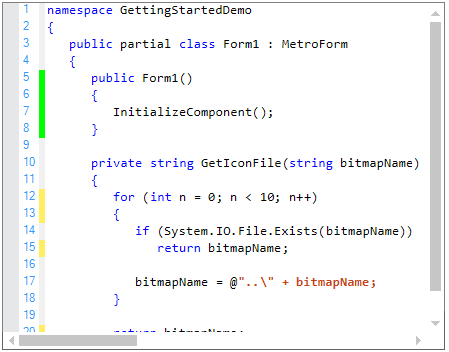
Tracking changes
Track the changed lines by displaying markers at the beginning of modified lines, after the file is loaded, or after the last file save operation.
Advanced editor capabilities

Undo and redo
Included is keyboard and context menu support for undo and redo operations.

Clipboard operations
Use the keyboard or context menu for clipboard operations such as cut, copy, and paste.
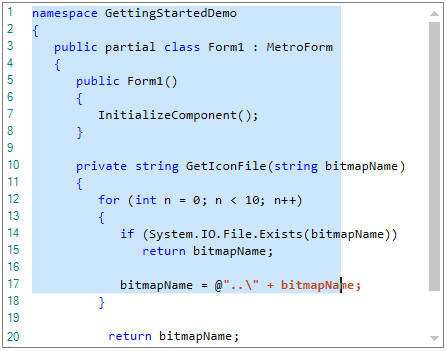
Selection
WinForms Syntax Editor supports rectangular block selection to select lines from specific columns, like in Visual Studio and also normal selection.

Indent
Indentation support helps format source code to improve readability.

Autocomplete
A list of choices helps complete the word a user is typing.

Autocorrect
Predefined typing errors are auto corrected when users press certain keys. Users can also change their autoreplace trigger key.
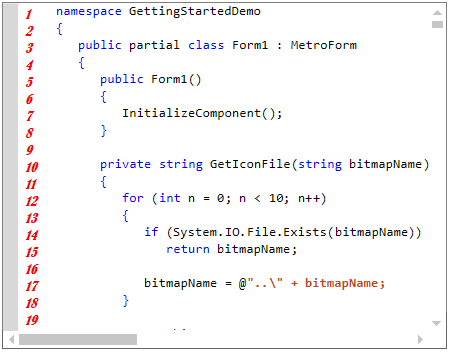
Line numbers
Display the line number at the start of a line to identify the current number and to show or hide the line number.

Word wrap
Use different word wrapping styles, such as wrap by word or wrap by character, based on the available text area.
Search and replace
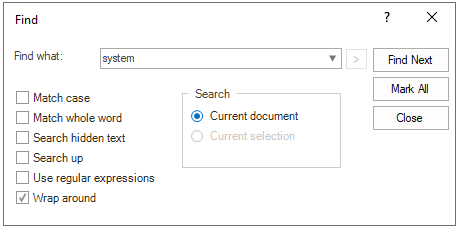
Search
Find occurrences of a specified text with constraints such as match case, match whole words, and search directions. Also search text in a specific scope like current document or within the selected content.
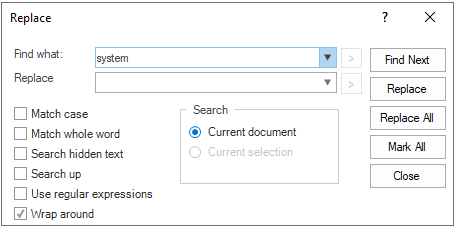
Replace
Replace the specified text with the replacement text as per the conditions specified. Replace the first occurrence or all occurrences of the searched text.
Context menu
Built-in context menu support for file editing and selection operations, and much more.


Content dividers
Clearly distinguish content sections with line dividers similar to Visual Basic to improve code readability.
Line formatting

Highlight line
Highlight a particular line with a different background color. This helps users differentiate a specific line from the non-highlighted lines.
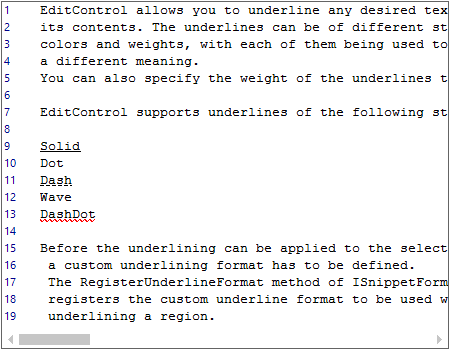
Underline
Format text by underlining it with different styles such as solid, dash, wave, and dot lines.
Bookmarks and navigation

Bookmarks
Users can locate a section or a line of a document for quick access in WinForms Syntax Editor, which can also be later retrieved and reviewed.

Navigation
Navigate to the next character, word, or start or end of a line using the keyboard. Users can jump to specific lines using go-to-line dialog.
End-user capabilities

Status bar
Display information about the current state of the control such as the current file name, line number, and column number.

Shortcut keys
Shortcut keys can be used for all editing and navigation operations. A built-in window is available for modifying the key mapping of shortcut operations.
Split view
Display a single document in several views with horizontal and vertical orientations, allowing users to work on different areas of a document at the same time.


Single line mode
Make the Syntax Editor a simple text box with syntax highlighting, editing, and clipboard operations.
Appearance

Text appearance
Customize the appearance of the text color in a specific range of lines.
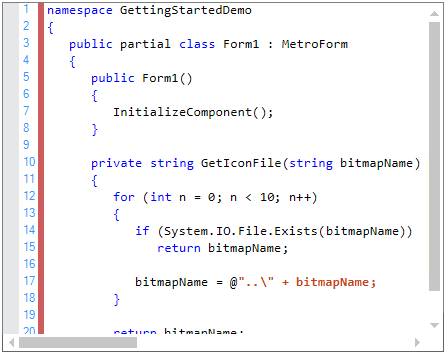
Selection margin
Display a thin vertical strip that enables users to select the content of an entire line.

Selection color
Change the background color of selected text in the control.
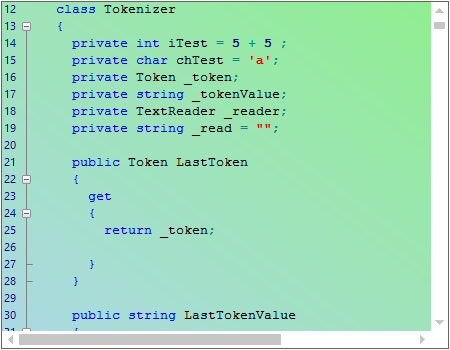
Background customization
Users can customize the background color of the control and also use gradient effects.

Customize the end-of-line character
Users can customize the end-of-line characters and choose to show or hide them.
Style
Use a rich set of built-in themes inspired by popular interfaces such as Visual Studio, Microsoft Office, and Expression Blend.

Globalization and localization

Localization
The WinForms Syntax Editor supports localization to display control text and messages in a specific language.

Right to left
Right-to-left (RTL) direction is available for users working with languages like Hebrew, Arabic, or Persian.
Print and export

Export
Export syntax editor content with associated syntax highlighting information to XML, HTML, and RTF file formats.

Print the syntax editor content programmatically or by using the print option from the print preview. The print preview window allows users to choose an entire document or just the current page and specify the number of copies to be printed.
Read-only
Use the WinForms Syntax Editor as a viewer control to view files and restrict code editing.

WinForms Syntax Editor control Code Example
Easily get started with the WinForms Syntax Editor control using a few simple lines of C# code example as demonstrated below. Also explore our WinForms Syntax Editor Example that shows you how to render and configure the WinForms Syntax Editor.
pusing Syncfusion.Windows.Forms.Edit;
public partial class Form1 : Form
    {
        public Form1()
        {
            InitializeComponent();
            EditControl editControl = new EditControl();
            editControl.Dock = DockStyle.Fill;
            this.Controls.Add(editControl);
        }
    }
Not sure how to create your first WinForms Syntax Editor? Our documentation can help.
I’d love to read it now120+ WINDOWS FORMS CONTROLS
ALL CONTROLS
CONVERSATIONAL UI
DATA VISUALIZATION
INPUT CONTROLS
NAVIGATION
DIALOGS & NOTIFICATION
LAYOUT
LISTS & DROPDOWN
CALENDAR
MISCELLANEOUS
FILE VIEWERS & EDITORS
BUTTONS
Standalone UI SDKs
Integrate the DataGrid, Chart, Scheduler and Diagram UI components into applications to enable rich interaction and visualization, delivering a seamless user experience.
Document Solutions
Integrate the PDF Viewer, DOCX Editor, Spreadsheet Editor, and document-processing libraries into the WinForms applications to enable a smooth user experience.
Frequently Asked Questions
Why should you choose Syncfusion WinForms Syntax Editor?
The Syncfusion WinForms Syntax Editor has the following features:
Offers built-in syntax highlighting and code editing for programming, scripting, and markup languages.
Makes code editing easier with IntelliSense, undo and redo, clipboard, code outlining, and more.
Allows users to create custom syntax highlighting of keywords and operators for their own languages
- One of the best WinForms Syntax Editor in the market that offers feature-rich UI to interact with the software
- Simple configuration and API.
Extensive demos and documentation to learn quickly and get started with WinForms Syntax Editor.
Where can I find the Syncfusion WinForms Syntax Editor demo?
You can find our WinForms Syntax Editor demo on GitHub location.
Can I download and utilize the Syncfusion WinForms Syntax Editor for free?
No, this is a commercial product and requires a paid license. However, a free community license is also available for companies and individuals whose organizations have less than $1 million USD in annual gross revenue, 5 or fewer developers, and 10 or fewer total employees.
How do I get started with Syncfusion WinForms Syntax Editor?
A good place to start would be our comprehensive getting started documentation.
Our Customers Love Us
Having an excellent set of tools and a great support team, Syncfusion® reduces customers’ development time.Here are some of their experiences.

Excellent experience with Syncfusion!
Syncfusion is a product that makes life easier! I use it to create Blazor applications (server side and webassembly) and the controls speed up development a lot. Furthermore, if needed, it is possible to ask for direct support that is never long in coming!

Andrea Scarpante,

Sydea srl
The complete component set
It is the most complete component set available. Also very handy is the fact that there is a community edition, this gives me the opportunity to test thing at home without buying a separate license.

Johan Visser,

H and T Pawnbrokers
See Real Success Stories
Developers around the world trust Syncfusion’s Essential Studio to simplify complex projects and speed up delivery. With a vast library of UI controls, powerful SDKs, and reliable support, Essential Studio helps teams build enterprise-ready applications with confidence.
Read Our Customer StoriesIndustry
Software development
75% Cost reduction
50% Faster development
Industry
Utilities (oil and gas)

450+ hours saved
Streamlined processes and hours of development effort saved.

Advanced, flexible features
Empowered users through robust and versatile functionality.
Industry
Software and technology
1000+ of hours saved
Accelerated development with enterprise-ready UI components.

Efficient file management
Streamlined workflows with document libraries without building them from scratch.
Industry
Software and technology

2 Years of delay avoided
Two years of delays prevented with proactive planning.

On-time delivery
Projects delivered on schedule using trusted controls.
Industry
IT services and IT consulting

Improved performance
Large datasets handled with easy customization and quick debugging.

Highly customizable
Plug-and-play controls with quick template integration.
Industry
Professional services
Instant access
Quick availability of features and resources.
Reduced dependencies
Fewer dependencies for faster development.
Rated by users across the globe
Syncfusion Windows Forms Resources
Learning
 Documentation
 Documentation


Awards
Greatness—it’s one thing to say you have it, but it means more when others recognize it. Syncfusion® is proud to hold the following industry awards.









